
In Progress
This document is still in progress, not yet finished
Integration with ZATCA (Saudi Arabia)
Preparing the Client Server for ZATCA Integration
- Download the ZATCA SDK from Zatca SDK
- Extract the downloaded archive
- Inside the extracted folder you will find a file named
install.ba_— rename it toinstall.batand run it- You can easily rename it by selecting the file and pressing F2
- Go to Environment Variables via Computer Properties > Advanced, or run the following command in the Run Dialog (Win + R)
sh
rundll32 sysdm.cpl,EditEnvironmentVariables- Copy the
SDK_CONFIGentry from theUser Variablessection to theSystem Variablessection
TIP
You can run the following code in Windows PowerShell (must be run as Administrator) to copy the variable above instead of copying it manually
powershell
$varName = "SDK_CONFIG"
$userValue = [Environment]::GetEnvironmentVariable($varName, "User")
if ($userValue) {
    Write-Host "Copying $varName with value '$userValue' to system environment..."
    [Environment]::SetEnvironmentVariable($varName, $userValue, "Machine")
    Write-Host "Copied successfully."
} else {
    Write-Host "User environment variable '$varName' not found."
}- Remember to run PowerShell as Administrator
- Verify the copy was done correctly by reviewing the following screenshot
After copying, whether manually or using the PowerShell script, the result should look similar to the following: 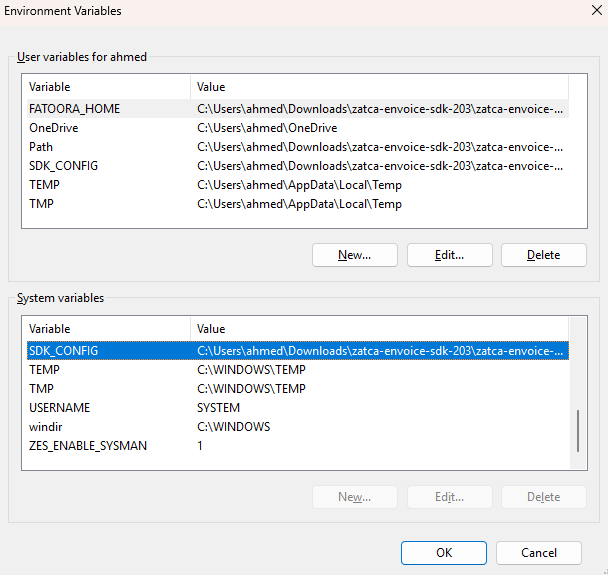
- Open the file
Configuration/config.jsonand verify that the paths inside it are correct - Download the zatca.war file from: https://namasoft.com/bin/zatca.war
- Place the file in the Tomcat Path/webapps folder
Preparing the System for ZATCA Integration
- From "Global Configuration" → Page 2 — select
ZATCA (Saudi Arabia)in the fielde-Invoice Page To Show
- After changing the field value, perform a Regen UI
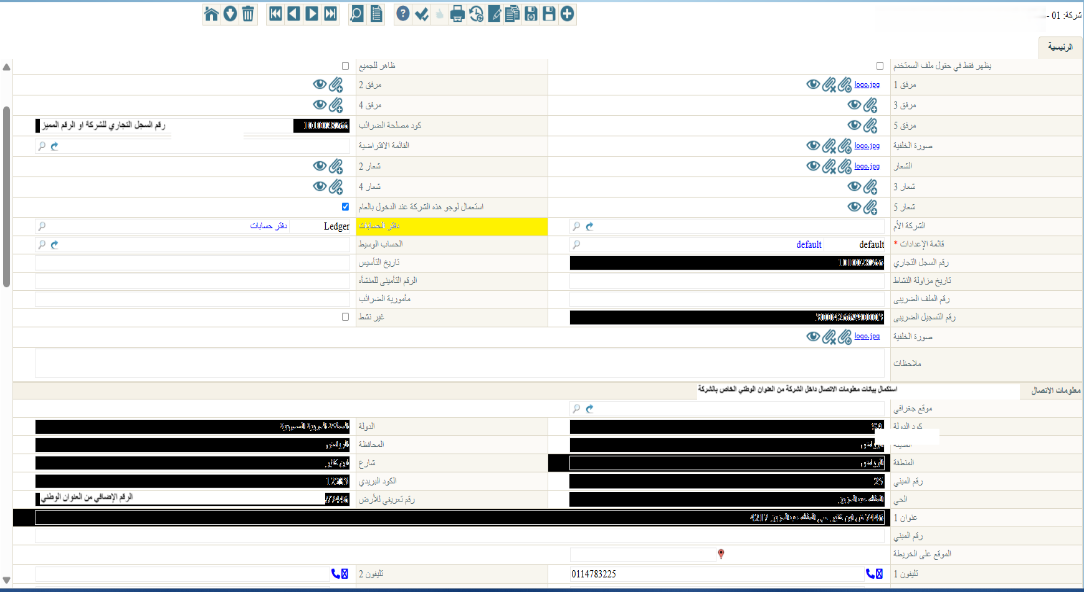
- Complete the company information: fill in the following fields in the company file
- Commercial Registration Number
- Tax Registration Number
- Complete the following fields from the National Address of the establishment
- Country Code
- Country
- City
- Governorate
- District
- Street
- Building Number
- Postal Code
- Neighborhood
- Address 1
- Land Identifier
Creating a Tax Payer Configuration
You must now create a Tax Payer Configuration record. When configuring, select the appropriate value in the Tax Payer Type field:
Saudi Arabia - E-Invoice Developer Portal: for testing purposesSaudi Arabia - E-Invoice Simulation Portal: integration during the simulation periodSaudi Arabia - E-Invoice Portal: live integration