
Field, Page, and List View Security
Basic permissions answer the question "what can the user do with a type?" But you often need finer control: hide the Cost column from sales reps, lock the System Entries page for data-entry operators, or prevent a role from opening a sensitive list view. That is exactly what these three pages do — and each one lives in two places: on the security profile and on the user record, with user-level rows taking precedence over profile rows when their scope overlaps.
Field Settings
Open the Field Settings page inside the security profile (or user) screen.
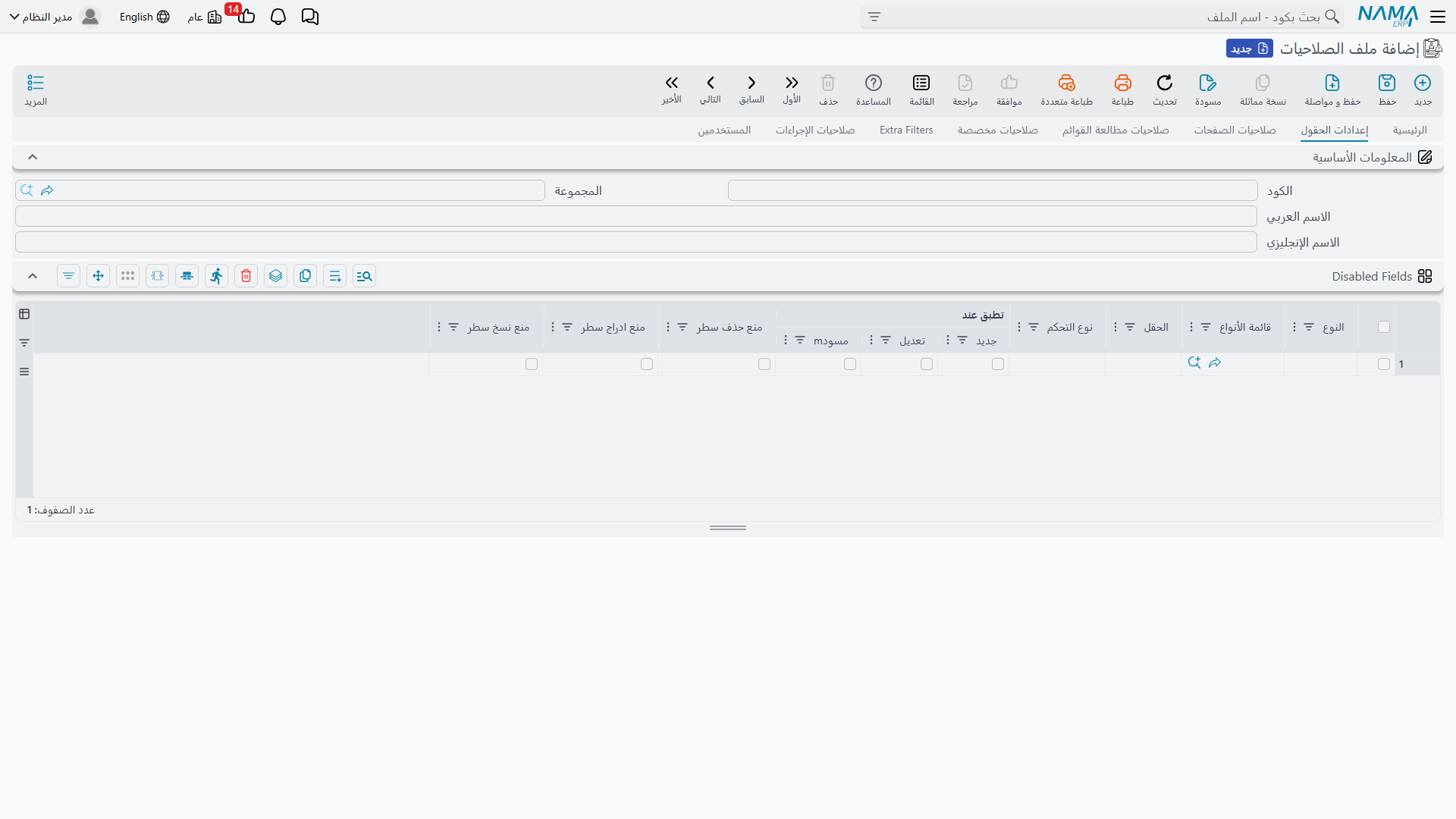
Each row targets a type (or a type list, or nothing — meaning all types) and a single field:
| Column | Meaning |
|---|---|
| Type / Type List | The types this row applies to. Leave both empty to apply to all types. |
| Field | The field ID to control. Use * as a wildcard to cover all fields of the targeted type. |
| Control Type | Normal — no restriction; Disabled — field is visible but read-only; InVisible — field is hidden from the screen entirely. |
| Apply on: New / Edit / Draft | Three flags that define when the restriction takes effect. Enable all three (or leave the default) for it to always apply; or enable Edit only so the user can fill the field on creation but cannot change it afterward. |
| Prevent Insert Row / Prevent Delete Row / Prevent Copy Row | When the "Field" is a detail grid (such as invoice lines), these columns prevent adding, deleting, or copying rows in that grid — independently of whether existing rows can be edited. |
How are field rows resolved?
When a screen shows a field, the system looks for the first matching row in this order:
- User rows first, then security profile rows — the user record wins.
- Within each group: a row for the exact type, then a row for a type list containing that type, then a row with no type at all.
- A row naming the specific field takes precedence over a wildcard
*row at the same level.
If no row matches, the field behaves normally. Users with a full-access security profile bypass field settings entirely.
Locking data at creation time
The very common requirement — "the Customer field on an invoice must not change after the document is created" — is a single row: target the invoice, field customer, Control Type Disabled, apply on Edit only.
Field security is a UI barrier, not a vault
Hiding a field removes it from the edit screen. The data itself may still appear in reports, list view columns, or exports — combine field settings with report restrictions and list view security (see List View Security below) when the data itself is sensitive.
Page Security
Type edit screens are organized into pages (tabs). The Page Security page lets you remove or freeze entire pages for a role instead of disabling fields one by one.
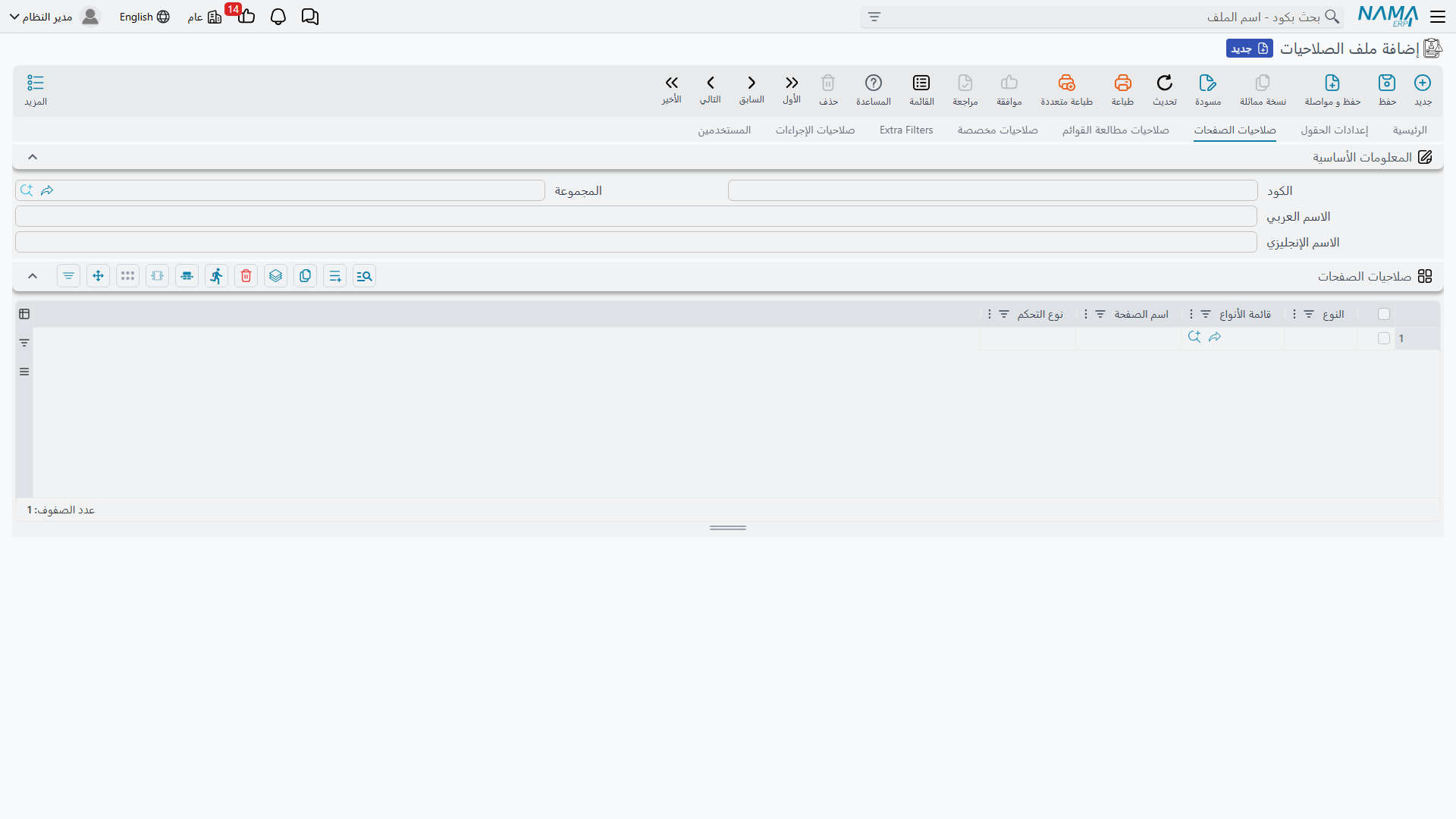
| Column | Meaning |
|---|---|
| Type / Type List | The types this row applies to (at least one is required here — there is no all-types wildcard). |
| Page Name | The page identifier — or simply the page number as the user sees it (1, 2, 3...). |
| Control Type | Disabled — page opens read-only; InVisible — page is hidden; Normal — no restriction explicitly set. |
User-level page rows are checked before profile rows, and a full-access profile bypasses the feature entirely.
List View Security
A single type may have several list views — and you can add custom ones. Sometimes a list view exposes columns a role should not browse (cost columns, profit margins...). This page allows or blocks specific list views.
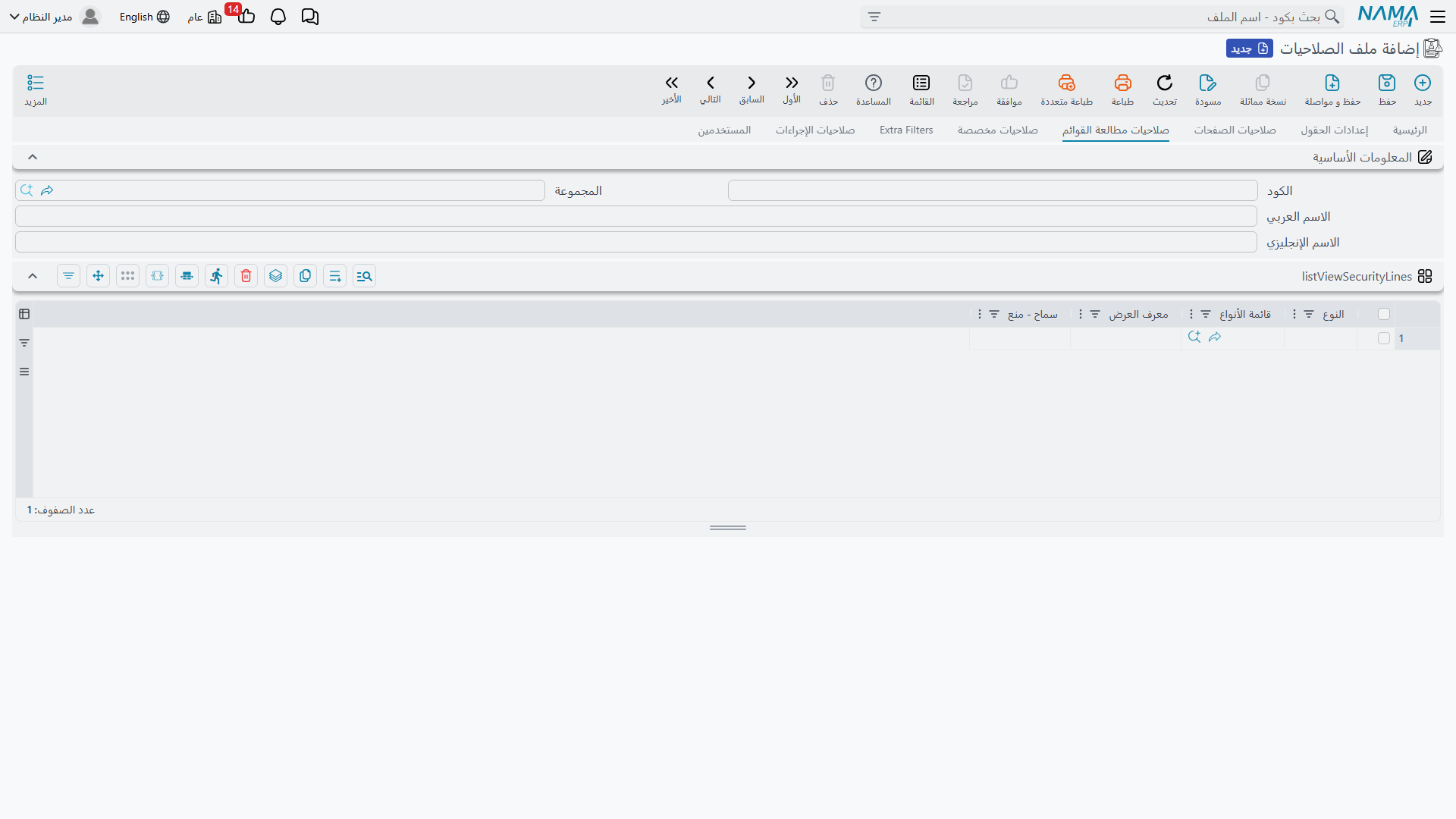
| Column | Meaning |
|---|---|
| Type / Type List | The types this row applies to. |
| List View ID | The list view identifier. |
| Allow / Prevent | Whether the targeted list view is allowed or blocked. |
Resolution follows the usual pattern — user rows first, then profile rows, and the first row that matches the view and type decides. If nothing matches, the view is allowed: list view security is an opt-in restriction, so only add rows for the views you care about.
INFO
A full-access security profile cannot contain list view security rows at all — the system rejects that combination on save, because the full-access profile would ignore them anyway.
Related Settings Worth Knowing
- Minimum characters to start search (on basic permission rows) prevents reference lookups from listing large master files — see Security Profiles.
- Maximum records per list page exists in the security profile header, user settings, and global settings; the most specific value wins.
- To restrict the rows visible within an allowed list view, you want Extra Filters — see Record-Level Security.
- To limit a user to a specific fiscal year or period in documents and reports, see Limit User to a Fiscal Year.