
Users and Login
The User record is where identity, authentication, and personal permission overrides converge. This page covers creating users, user-level permission overrides, and everything related to login: passwords, LDAP, two-factor authentication, and session control.
Path: Administration > Security > User
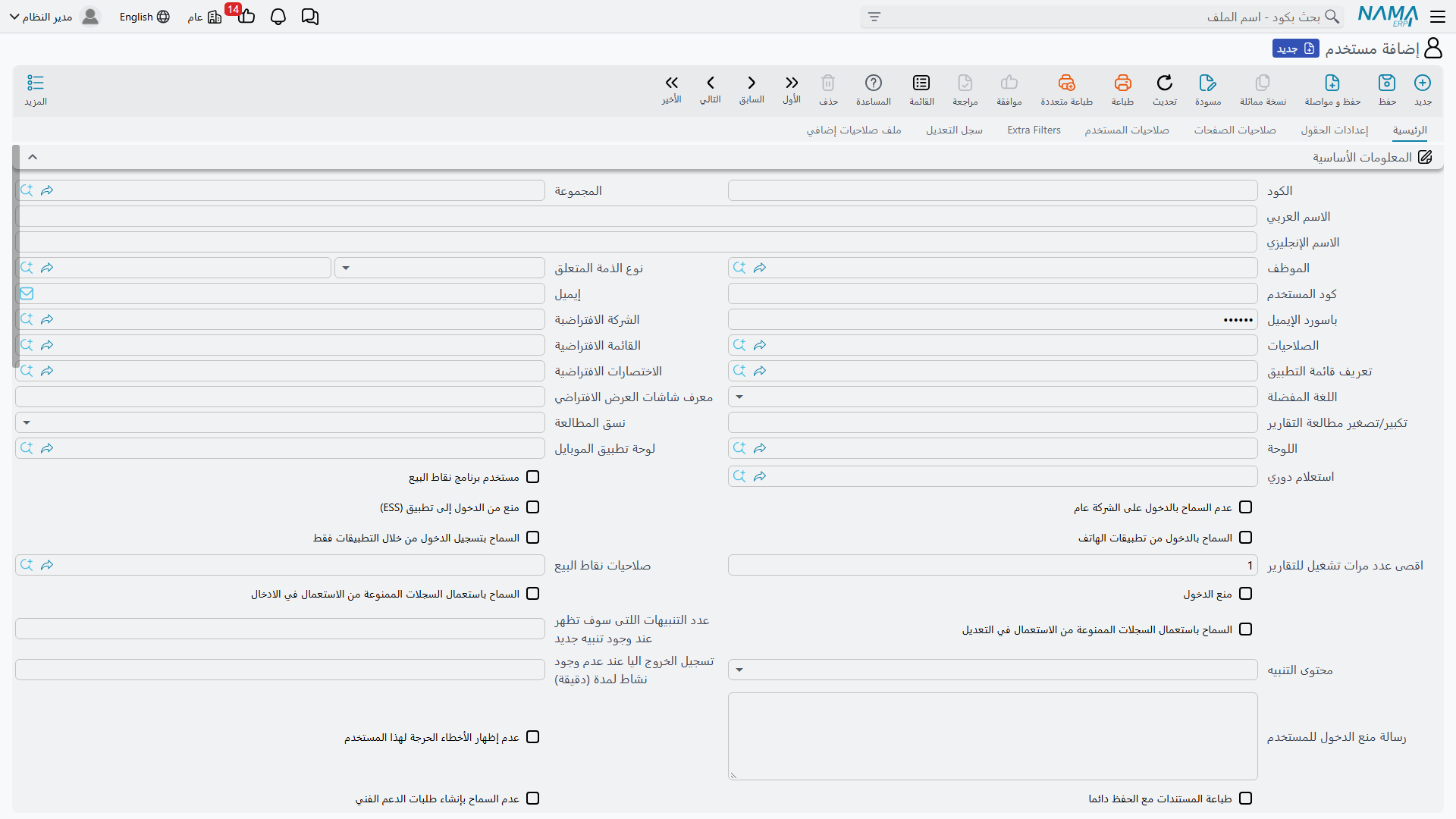
User Record Components
The most important parts of the main page:
- Login ID — The name typed at login. If left blank it takes the value of the record code. Must be unique system-wide.
- Password — Stored encrypted with a hash function (see Passwords below).
- Employee — Links the user to an employee record in HR; mandatory for POS users, and is the source of contact data and many behaviors. When set, it is automatically used as the related entity if none is specified.
- Related Entity Type / Related Entity — Who this user is in business terms: employee, customer, supplier, salesman… This reference powers additional filters ("show me only my records") — see Record-Level Security.
- Security Profile — The role template this user inherits. See Security Profiles.
- Default Settings — Default company, default menu, shortcuts, preferred language, dashboard, reading theme, plus personal preferences such as fonts and notification sounds.
User Dimensions and Login Dimensions
Like any master file, the user record itself carries the five dimensions (company, branch, department, sector, analysis group) — these define the broadest scope the user can work within. The Login Dimensions set and the alternative login dimensions table define what the user acts as in each session. The full story is in Record-Level Security.
User-Level Permission Overrides
The user screen repeats the permission tables you know from the Security Profile — and user rows always take precedence over profile rows when the scope matches:
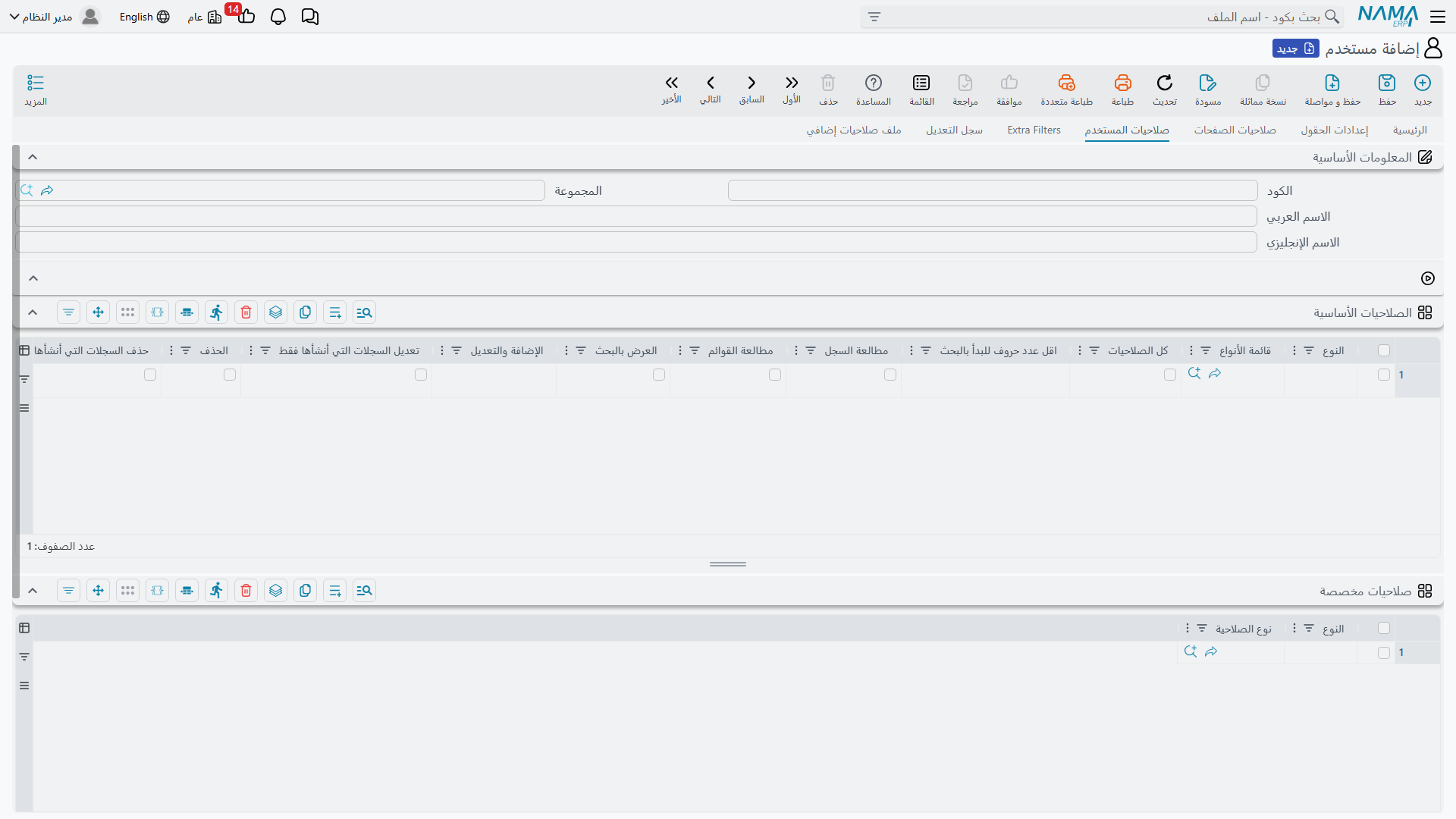
- User Security tab — Basic and custom permissions, and the Treat Users as Creator table.
- Field Settings tab — Field-level permissions specific to this user.
- Page Security tab — Page-level permissions specific to this user.
- Extra Filters tab — Row-level filters specific to this user.
- Audit Log tab — Who modified this user record and when.
- Additional Security Profile tab — Delegation documents that currently grant this user extra permissions; see Temporary Additional Permissions.
The intended workflow: keep roles in Security Profiles, and use user-level tables only for personal exceptions. A few rows on a user is healthy; fifty rows usually means you need a new Security Profile.
Login Control
| Setting | Purpose |
|---|---|
| Prevent Login | Disable the account. The adjacent Prevent Login Message for User field lets you tell the user why. |
| Max Login Sessions | Maximum concurrent sessions (defaults to 1 for new users). With Auto Logout on Exceeding Max Sessions enabled, a new login logs out the oldest session instead of being rejected. |
| Auto Logout Time (minutes) | Minutes of inactivity before the session ends. |
| Allow Login From Apps | Permits login from mobile applications. Mobile users count against the mobile users limit in the license. |
| Login From Apps Only | The inverse restriction — no browser login. |
| Prevent ESS Login | Block access to the Employee Self-Service portal. |
| Prevent Public Login | Force the user to choose a specific company at login instead of the general context. |
| POS User + POS Security Profile | Marks the user for the POS application and assigns a dedicated POS security profile; POS users must be linked to an employee. |
From the user list screen, the Change Multi Users Password action helps administrators reset passwords for several accounts at once, while the allowLoginAfterFailedLogins action on the user screen unlocks an account that was locked due to repeated failed login attempts.
Passwords
- Passwords are stored hash-encrypted (irreversible) unless the organization explicitly operates in legacy plaintext mode.
- The Password Must Be Changed flag forces a new password on next login; the system tracks Last Password Change Date for auditing and policy enforcement.
- The changePassword action on the user screen is the administrative reset path; users change their own passwords from the session menu.
LDAP / Active Directory
When Use LDAP for users login is enabled in General Settings, the system authenticates users through the directory instead of a local password. Two exceptions exist for accounts that must remain local:
- The Do Not Use LDAP For Login flag on the user,
- The same flag on the Security Profile (useful for entire roles, such as service accounts).
The admin user never authenticates via LDAP.
Two-Factor Authentication (2FA)
The Login 2FA Method setting in General Settings accepts:
- Authenticator App — TOTP codes from apps such as Google Authenticator,
- Message OTP — A one-time code sent to the user,
- Estidamah API — Saudi identity-verification integration (Estidamah), or
- None.
Individual users can be exempted via the Exclude From 2FA flag. Full setup steps are in the Two-Factor Authentication Guide.
Administrative Privileges
The admin User
The account whose code/login ID is admin is the built-in super user. It bypasses the permission model, and the system protects it from being weakened — on save it rejects any attempt to:
- Prevent its login, force a password change, or restrict it to mobile-only login,
- Assign it any Security Profile other than the default full-access profile,
- Give it non-global dimensions or a user level, or hide critical errors and system messages from it,
- Change its code or login ID.
Treat As Admin
The Treat As Admin flag in user settings does not grant data permissions — it grants access to restricted administrative functions: the maintenance page utils.html, stopping running tasks, logging out other users, and similar. Grant it carefully to senior system administrators who operate the system but are subject to a normal Security Profile for business data.
User Level
Licenses can define named user levels with different counts. The User Level field places the user in one of the levels available in your license; the system verifies the level exists and enforces the licensed counts (integrated with Users Counter records that can also be linked at the Security Profile level).