
Nama ERP REST API
Nama ERP has a REST API for creating, reading, updating and deleting records of any entity, and publishes an OpenAPI 3.0 description of each entity for third-party systems to build against.
For a fast introduction, watch this video: Nama ERP Rest API Introduction
Looking for the high-level integration picture?
Before diving into the API details, you may want to read Integration Scenarios Between Nama and Other Systems. It frames the four possible integration directions (read/write × Nama/other system), explains which scenarios are free out-of-the-box vs. which require custom development, and lists the questions you should ask the customer before quoting an integration.
API Browser Overview
The Nama ERP API Browser provides an interactive interface for exploring and testing all available REST APIs in your system.
Accessing the API Browser
The API Browser is available through multiple endpoints:
Main API Browser (Router Page)
http[s]://<server-ip-or-domain>/erp/browseapi/This displays the main router page with links to different API sections.
Entity APIs Browser
http[s]://<server-ip-or-domain>/erp/browseapi/browseentitiesapi.htmlLists all available entity APIs with their Arabic and English names.
Special Purpose APIs Browser
http[s]://<server-ip-or-domain>/erp/browseapi/browsespecialpurposesapi.htmlLists specialized APIs for specific integrations (e.g., attendance machine synchronization).
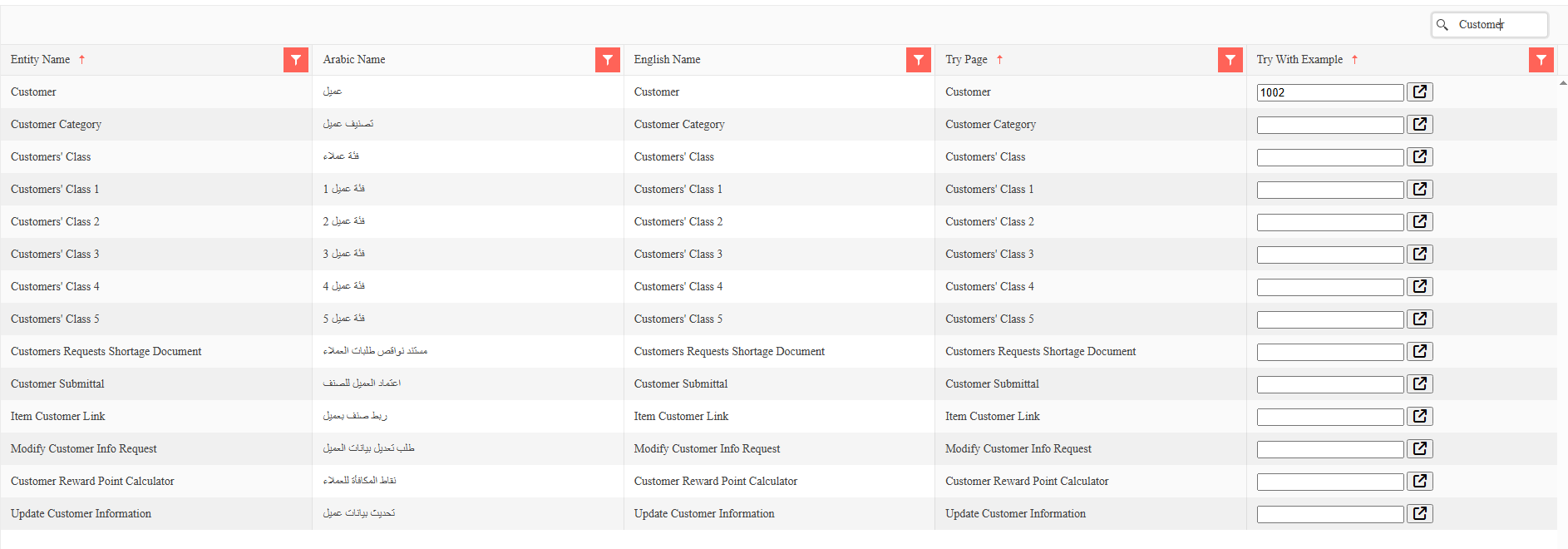
Features of the API Browser
The API Browser dynamically generates documentation based on your system configuration:
Entity List: Displays all entities available to the current user based on:
- Module permissions
- User access rights
- Enabled features
- Customer-specific configurations
Multilingual Support: Shows entity names in both Arabic and English
For each entity, two primary resources are provided:
- OpenAPI JSON Specification: Machine-readable API definition
- Swagger UI: Interactive documentation and testing interface
OpenAPI JSON Specifications
Basic OpenAPI Endpoint
http[s]://<server-ip-or-domain>/erp/browseapi/openapi/{EntityName}.jsonOpenAPI with Example Data
http[s]://<server-ip-or-domain>/erp/browseapi/openapi/{EntityName}.json?exampleCode={code}Parameters:
{EntityName}: The entity type (e.g., SalesInvoice, Customer, Item){code}: Optional - specific record code or UUID to use as example
Special Example Codes:
Find@First: Uses the first available record as example- Any valid business code or UUID from your system
Example URLs
# Get SalesInvoice OpenAPI spec with first available record
http://localhost:8080/erp/browseapi/openapi/SalesInvoice.json?exampleCode=Find@First

# Get Customer OpenAPI spec with specific customer
http://localhost:8080/erp/browseapi/openapi/Customer.json?exampleCode=CUST001

# Get Item OpenAPI spec without examples
http://localhost:8080/erp/browseapi/openapi/Item.json
API Response Structure
The OpenAPI specification includes detailed schema definitions for each entity:
Field Types Mapping
- String Fields: Text, BigText, Date, DateTime, Time, Email, Color, LatLng, Enum
- Number Fields: Decimal, Integer
- Boolean Fields: Boolean type fields
- Reference Fields: Returns the referenced entity's code
- Generic References: Object with
entityTypeandcodeproperties - Attachment Fields: Objects — read as
{"id", "fileName", "size"}, written on save as{"uploadId": ...}or{"url": ...}— see Uploading and Attaching Files - Collections/Details: Arrays of objects (e.g., invoice lines, payment details)
Excluded Fields
The API automatically excludes:
- System-generated fields (unless specifically requested)
- Calculated fields
- The contents of binary fields (images, documents) from read responses — an attachment field comes back as its id, file name and size instead, and can be written on save; see Uploading and Attaching Files
- Internal user tracking fields
Working with Entity Collections
Many entities include detail collections (one-to-many relationships):
{
  "invoiceLines": {
    "type": "array",
    "items": {
      "properties": {
        "itemCode": { "type": "string" },
        "quantity": { "type": "number" },
        "unitPrice": { "type": "number" }
      }
    }
  }
}
Collections represent detail records like:
- Invoice lines
- Payment lines
- Order items
- Journal entry lines
API Authentication & Access
Authentication Methods
Nama ERP REST API supports two authentication methods:
1. API Key Authentication (Recommended)
API Keys are the primary authentication method for production integrations.
Header-based Authentication:
X-API-Key: {your-api-key}The standard bearer form works just as well, and is what most API tooling and AI clients send by default — put the same key (the credential's Client Secret) in the token:
Authorization: Bearer {your-api-key}Bearer tokens need release 20260922 or later
Authorization: Bearer is read only by servers from release 20260922 onwards. An older server ignores the header and rejects the call as unauthenticated — send X-API-Key instead.
Credentials configured with a separate client ID and secret send both headers — the client ID in X-API-Key and the secret in X-API-Secret:
X-API-Key: {your-client-id}
X-API-Secret: {your-client-secret}
Header name compatibility
X-API-Key / X-API-Secret are the recommended header names, but the legacy names remain supported: apiKey (or clientId) for the key and clientSecret for the secret. Every name is accepted as either an HTTP header or a query parameter. The key is read from X-API-Key (and its legacy names) first; Authorization: Bearer is consulted only when none of them came with the request.
Query Parameter Authentication (Testing Only):
http://localhost:8080/erp/browseapi/openapi/SalesInvoice.json?X-API-Key={your-api-key}WARNING
Query parameter authentication should only be used for testing in the API Browser. Production integrations must use header-based authentication for security.
2. Session-based Authentication
For browser-based testing, you can use session cookies from a logged-in user session.
How to Generate an API Key
The system administrator can generate API keys using the API Credentials master screen:
- Open the API Credentials screen
- Create a new record with:
- Code: Unique identifier for this API credential
- Name: Descriptive name for the integration
- Select the User whose permissions will apply to this key
- Save the record
- Important: The API Key displays once after saving—copy it immediately
- Provide the key securely to the development/integration team
Permission Inheritance
The API Key inherits all access permissions from the selected user:
- Entity access rights
- Module permissions
- Data visibility rules
- Company/branch restrictions
Viewing API Keys After Creation
To view an API Key again after initial creation:
- Open the API Credentials record
- Check "View API Key" option
- Click Save
- The API Key will display on screen
Audit Trail
Re-exposing an API key is logged in the audit trail for security tracking.
API Key Best Practices
- Create separate keys for different integrations
- Use descriptive names to identify each integration
- Assign minimal permissions needed for each integration
- Rotate keys periodically for security
- Monitor API usage through audit logs
- Revoke unused keys to minimize security risks
CORS Configuration
The API Browser automatically handles Cross-Origin Resource Sharing (CORS) for API requests:
- Allows cross-origin requests from any domain (development mode)
- Supports preflight OPTIONS requests
- Includes necessary CORS headers in responses
Production CORS
In production environments, configure CORS policies to restrict access to specific domains for security.
REST API Endpoints
Base URL Structure
http[s]://<server>/erp/rest/v1/{entity}/{operation}/{idOrCode}Path Parameters:
{entity}: Entity type name (e.g., Customer, SalesInvoice, Item){operation}: Operation to perform (findByIdOrCode, list, save, delete){idOrCode}: Optional - Entity UUID or business code
HTTP Methods Support
The API supports multiple HTTP methods for flexibility:
| HTTP Method | Supported Operations | Usage |
|---|---|---|
| GET | findByIdOrCode | Retrieve single entity by ID/code |
| POST | All operations | Universal method for all operations |
| PUT | save | Update existing entities |
| DELETE | delete | Remove entities |
RESTful Flexibility
While the API supports RESTful conventions, all operations can be performed using POST method for compatibility with various client implementations.
Supported Operations
1. Retrieve Entity (GET)
GET /erp/rest/v1/{entity}/findByIdOrCode/{idOrCode}
X-API-Key: {api-key}
responseFields: code,name1,contactInfo.email  # Optional header/parameter
Batch Retrieval:
POST /erp/rest/v1/{entity}/findByIdOrCode
X-API-Key: {api-key}
Content-Type: application/json

["CUST001", "CUST002", "550e8400-e29b-41d4-a716-446655440000"]
2. List Entities with Pagination (POST)
POST /erp/rest/v1/{entity}/list
X-API-Key: {api-key}
Content-Type: application/json

{
  "startPage": 1,      # 1-based page number
  "pageSize": 25,      # Max 1000 records per page
  "textCriteria": "status,Equal,Active,AND;city,Equal,Riyadh,AND;",
  "orderBy": "creationDate:desc,code"
}
Response includes:
totalRecordsCount: Total matching recordsrecords: Array of requested recordsrecords_count: Number of records in response
3. Create/Update Entity (POST/PUT)
POST /erp/rest/v1/{entity}/save
X-API-Key: {api-key}
Content-Type: application/json

# Request Headers/Parameters:
saveAsDraft: false           # Save as draft without validation
addRecord: true              # Allow creating new records
updateRecord: true           # Allow updating existing records
addToCurrentLines: false     # Append to existing detail lines
trimExtraSpaces: false       # Trim whitespace from strings
continueOnErrors: true       # Continue processing on errors
useUserDimension: true       # Apply user dimension filters
ignoredUnFoundRefs: false    # Ignore missing references
responseFields: code,id      # Fields to return after save

# Body: Entity data in JSON format
{
  "code": "CUST001",
  "name1": "Customer Name",
  "contactInfo": {
    "email": "customer@example.com",
    "phone": "+966501234567"
  },
  "invoiceLines": [
    {
      "itemCode": "ITEM001",
      "quantity": 5,
      "unitPrice": 100
    }
  ]
}
Response:
{
  "saved_records_count": 1,
  "saved_records": {
    "Customer": [
      {
        "code": "CUST001",
        "id": "550e8400-e29b-41d4-a716-446655440000"
      }
    ]
  }
}
4. Delete Entity (DELETE)
DELETE /erp/rest/v1/{entity}/delete/{idOrCode}
X-API-Key: {api-key}
Batch Deletion:
POST /erp/rest/v1/{entity}/delete
X-API-Key: {api-key}
Content-Type: application/json

["CUST001", "CUST002", "550e8400-e29b-41d4-a716-446655440000"]
Response:
{
  "deleted_records_count": 2,
  "deleted_records": ["CUST001", "CUST002"],
  "failed_records_count": 1,
  "failed_records": [
    {
      "entityType": "Customer",
      "code": "550e8400-e29b-41d4-a716-446655440000",
      "indexInRequest": 2,
      "errors": [
        {
          "message": "Record is referenced by other entities"
        }
      ]
    }
  ]
}
Uploading and Attaching Files
A save request is JSON, and JSON carries text — so a PDF of a signed contract or a scanned commercial registration cannot simply be put in it. Instead, an attachment field takes a small JSON object that tells the server where to get the file. There are two forms:
| Value | Meaning |
|---|---|
{"uploadId":"<fileId>"} | A file you sent beforehand to the upload endpoint, which answered with that fileId |
{"url":"<http or https address>"} | The server downloads the file itself from that address |
Either form may also carry "fileName", the name to store the file under. It wins over the name the file was uploaded with or the name taken from the address.
A few values deserve a word:
- Both
uploadIdandurlin one object fails that record — give one or the other. - An object with neither is ignored, and the record keeps the attachment it already has. That is deliberate: a read returns an attachment as
{"id":...,"fileName":...,"size":...}(see Reading attachment fields), so a record you read, change elsewhere and send back as it came leaves its attachments alone. - A plain string — a file path on your machine or on the server, such as
C:\docs\contract.pdf, or anything else — is not accepted. It fails that record with a message, in English whatever the caller's language, that beginsAn attachment is given as an objectand spells out the two object forms.
Release 20261007 or later
Writing attachment fields through the save endpoint, and the upload endpoint below, exist only on servers from release 20261007 onwards.
Finding the attachment field's id
Attachment fields are listed in the entity's OpenAPI/Swagger schema like any other field. Their type is object, with the properties uploadId, url and fileName — that is how you tell them apart from ordinary fields. The customer master file, for example, has an attachment field with the id attachment.
Option 1: upload the file, then save
Uploading is a two-step job: send the file, then save the record that points at it.
Step 1 — upload. Send the file to the upload endpoint, authenticated with the same API key as every other call, as multipart/form-data with one file part:
POST http[s]://<server>/erp/rest/v1/upload
X-API-Key: {api-key}
Content-Type: multipart/form-data
With curl:
curl -X POST "https://<server>/erp/rest/v1/upload" -H "X-API-Key: <api-key>" -F "file=@invoice-1001.pdf"The server answers with the id it gave the file:
{"fileId":"..."}Step 2 — save. Put that id in the attachment field as uploadId:
POST /erp/rest/v1/Customer/save
X-API-Key: {api-key}
Content-Type: application/json

{"Customer":[{"code":"CUST001","attachment":{"uploadId":"<fileId>"}}]}
Upload shortly before you save
An uploaded file is held in the server's temporary storage until a save picks it up. It does not survive a server restart, so upload right before the save that uses it rather than uploading a batch of files in advance.
Option 2: let the server fetch the file
When the file already sits at a web address the server can reach, skip the upload and give the address — here with a fileName as well, so the attachment is stored under a clearer name than the one in the address:
{"Customer":[{"code":"CUST001","attachment":{"url":"https://files.example.com/contracts/cust001.pdf","fileName":"cust001-contract.pdf"}}]}The server downloads the file during the save, under these rules:
- Only
httpandhttpsaddresses. - No addresses inside the server's own network. The server refuses an address that points at the server itself or at a link-local address, and — unless
import-url-allow-private-network=trueis set innama.properties— an address on a private network. This stops a save request from being used to pull files off internal machines the caller could not otherwise reach. - Size limit of 50 MB by default; change it with the
import-url-max-file-size-mbproperty innama.properties. - Up to 5 redirects are followed.
- The file name, when
fileNameis not given, is taken from the response'sContent-Dispositionheader, or failing that from the last part of the address path.
A refused or failed download fails that record, with a message (in English only) naming the address and the reason.
Reading attachment fields
Read responses — a single record, or a list — show an attachment field as a short description of the file, never its contents:
"attachment": {"id": "...", "fileName": "cust001-contract.pdf", "size": 48213}size is in bytes. An empty attachment field has no description. Because an object without uploadId or url is ignored on save, this description can travel back in a save request unchanged without touching the stored file.
Trying it from the Swagger UI
Each entity's Swagger page carries an Attachments section with the upload operation, which you can try directly from the page: pick a file, run it, and copy the fileId from the answer into {"uploadId":"..."} in the body of the save operation. The save operation's own description repeats the two object forms.
Testing APIs
Using the API Browser for Testing
The API Browser provides multiple ways to test APIs:
1. Direct OpenAPI JSON Access
# Get the OpenAPI spec with examples
curl -H "X-API-Key: {api-key}" \
  "http://localhost:8080/erp/browseapi/openapi/Customer.json?exampleCode=Find@First"
2. Import to Postman
- Copy the OpenAPI JSON URL
- In Postman: Import → Link → Paste URL
- Add API Key to collection authentication
- Test all CRUD operations
3. Interactive Swagger UI
Access the Swagger interface for interactive testing (if configured).
Example Request Formats
Finding Single Record
GET /erp/rest/v1/Customer/findByIdOrCode/CUST001
X-API-Key: {api-key}
Finding Multiple Records
POST /erp/rest/v1/Customer/findByIdOrCode
X-API-Key: {api-key}
Content-Type: application/json

["CUST001", "CUST002", "CUST003"]
Creating New Record
POST /erp/rest/v1/Customer/save
X-API-Key: {api-key}
Content-Type: application/json
addRecord: true
updateRecord: false

{
  "code": "CUST001",
  "name1": "Customer Name",
  "contactInfo": {
    "email": "customer@example.com",
    "phone": "+966501234567"
  }
}
Updating Existing Record
POST /erp/rest/v1/Customer/save
X-API-Key: {api-key}
Content-Type: application/json
addRecord: false
updateRecord: true

{
  "code": "CUST001",
  "name1": "Updated Customer Name",
  "contactInfo": {
    "email": "newemail@example.com"
  }
}
Listing with Filters
POST /erp/rest/v1/Customer/list
X-API-Key: {api-key}
Content-Type: application/json

{
  "startPage": 1,
  "pageSize": 50,
  "textCriteria": "city,Equal,Riyadh,AND;status,Equal,Active,AND;",
  "orderBy": "status,creationDate:desc,name1"
}
Error Handling
The API returns standard HTTP status codes and detailed error messages:
Common Response Codes
- 200 OK: Successful request
- 201 Created: Resource created successfully
- 400 Bad Request: Invalid request parameters
- 401 Unauthorized: Missing or invalid API key
- 403 Forbidden: Insufficient permissions
- 404 Not Found: Resource not found
- 500 Internal Server Error: Server-side error
Error Response Format
{
  "error": {
    "code": "ENTITY_NOT_FOUND",
    "message": "Customer with code CUST999 not found",
    "details": "Additional error information"
  }
}
Special Purpose APIs
Beyond standard entity CRUD operations, Nama ERP provides specialized APIs:
Attendance Machine Integration
- Endpoint:
attcron-open-api-template - Purpose: Synchronize attendance data from biometric devices
- Supports batch processing of attendance records
Data Export API
- Export records as JSON with full relationship data
- Supports filtering and pagination
- Preserves data integrity for backup/migration
Batch Operations
- Process multiple records in single request
- Transactional processing with rollback on errors
- Optimized for high-volume integrations
Performance Considerations
Pagination
All list endpoints support pagination with configurable page size:
POST /erp/rest/v1/{entity}/list
Content-Type: application/json

{
  "startPage": 1,     # 1-based indexing
  "pageSize": 50      # Maximum 1000 per request
}
Pagination Response:
{
  "totalRecordsCount": 2547,
  "records_count": 50,
  "records": { ... }
}
Field Selection
Control which fields are returned to optimize payload size:
GET /erp/rest/v1/{entity}/findByIdOrCode/{code}
responseFields: code,name1,status,balance
Using responseFields parameter:
- Pass as HTTP header:
responseFields: field1,field2,field3 - Or as query parameter:
?responseFields=field1,field2,field3 - Supports nested fields:
contactInfo.email,address.city - Default fields if not specified:
code,id
Batch Operations
Process multiple records in a single request for better performance:
Batch Retrieval
POST /erp/rest/v1/Customer/findByIdOrCode
Content-Type: application/json

["CUST001", "CUST002", "550e8400-e29b-41d4-a716-446655440000"]
Batch Import/Save
POST /erp/rest/v1/Customer/save
Content-Type: application/json
continueOnErrors: true

[
  {
    "code": "CUST001",
    "name1": "Customer 1"
  },
  {
    "code": "CUST002",
    "name1": "Customer 2"
  }
]
Query Criteria & Sorting
Use Nama ERP's structured text criteria format for filtering and sorting:
{
  "textCriteria": "code,StartsWith,INV,AND;status,Equal,Active,AND;balance,GreaterThan,1000,AND;",
  "orderBy": "status,creationDate:desc,code:asc"
}
Text Criteria Format: Each condition follows the pattern: fieldID,operator,value,logic;
Example Criteria:
code,StartsWith,01,AND;
name1,Contains,abc,AND;
date1,Equal,06-07-2025,AND;
creationDate,GreaterThanOrEqual,2025-07-06T13:05:00.000,AND;
amount,GreaterThan,1000,AND;
status,Equal,Active,OR;
type,In,Type1|Type2|Type3,AND;
Supported Operators:
- Equality:
Equal,NotEqual - Comparison:
GreaterThan,GreaterThanOrEqual,LessThan,LessThanOrEqual - Text Matching:
StartsWith,NotStartsWith,EndsWith,NotEndWith,Contains,NotContain - List Operations:
In,NotIn - Grouping:
OpenBracket,CloseBracket
Logical Relationships:
AND- All conditions must matchOR- At least one condition must match
Field Value Formats:
- Date Fields:
dd-MM-yyyy(e.g.,06-07-2025) - DateTime Fields:
yyyy-MM-ddTHH:mm:ss.SSS(e.g.,2025-07-06T13:05:00.000) - Reference Fields:
id:entityType:codeor use.id/.codesuffix- Example:
customer.id,Equal,ffff0001-79e2-11f2-8800-0000ff79c2dd,AND; - Example:
customer.code,Equal,CUST001,AND;
- Example:
Building Criteria
Use the Criteria Definition screen in Nama ERP to visually build filter conditions, then click Convert to Text to get the text representation for API use.
Order By Format
Specify sort order for one or multiple fields using comma-separated values:
Format: fieldName:direction,fieldName2:direction,fieldName3
Examples:
- Multiple fields:
"orderBy": "code:desc,name1,creationDate:asc" - Single field:
"orderBy": "code:asc" - Default direction (ascending):
"orderBy": "name1,code" - Mixed directions:
"orderBy": "status,creationDate:desc,code:asc"
Direction Values:
:asc- Ascending order (A-Z, 0-9, oldest to newest) - default if omitted:desc- Descending order (Z-A, 9-0, newest to oldest)
Notes:
- Direction is optional; when omitted, defaults to ascending (
:asc) - Multiple fields are separated by commas
- Each field can have its own sort direction
- Duplicate fields are automatically filtered out
Import Options
Fine-tune import behavior with request headers:
| Parameter | Default | Description |
|---|---|---|
saveAsDraft | false | Save without validation rules |
addRecord | true | Allow creating new records |
updateRecord | true | Allow updating existing records |
addToCurrentLines | false | Append to existing detail lines instead of replacing |
trimExtraSpaces | false | Remove leading/trailing whitespace |
continueOnErrors | true | Continue processing remaining records on error |
useUserDimension | true | Apply user's dimension filters |
ignoredUnFoundRefs | false | Skip validation of reference fields |
Troubleshooting
Common Issues and Solutions
API Key Not Working
- Verify key is active in API Credentials screen
- Check user permissions for the entity
- Ensure the
X-API-Keyheader (andX-API-Secretwhen using a client ID/secret pair) is set correctly — or, if the client sendsAuthorization: Bearer, that the server is on release 20260922 or later
Empty Example Data
- Verify records exist for the entity
- Check user data visibility permissions
- Use
Find@Firstto get any available record
Missing Fields in Response
- System fields excluded by default
- File contents are not included in API responses — an attachment field returns only its id, file name and size (and can be written — see Uploading and Attaching Files)
- Calculated fields not available via API