
Shortcuts Definition and User Favourites
Two screens under Administration → Display Customization shape what a user's fingers and eyes reach first, and neither of them changes a single record. Shortcuts Definition decides which key does what. User Favourites decides what sits in the user's own corner of the menu. Both are read once, when the user signs in, so every change on either screen takes effect at the user's next sign-in. Until then they keep working with what they had.
The keys themselves, the out-of-the-box list of what each one does, are on Keyboard Shortcuts. This page is about the records behind them.
Shortcuts Definition
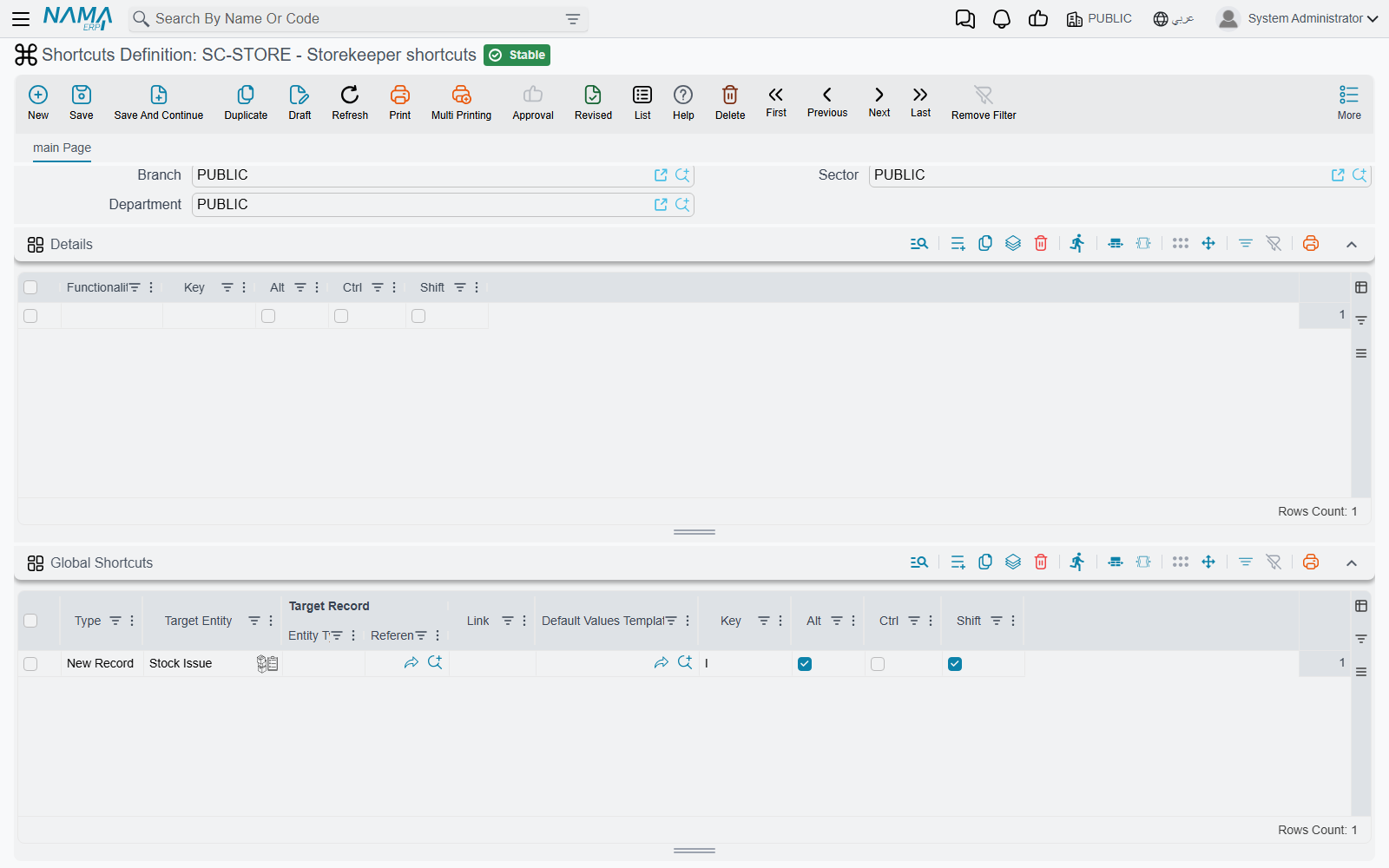
A Shortcuts Definition record is a complete keyboard map, held in two grids.
Details binds a key to a business function: one of the standard actions on edit and list screens, such as Save, New Record, Print, Duplicate, Next or Append Row. Each line has a Functionality column, three ticks (Ctrl, Alt, Shift) and a Key.
Global Shortcuts binds a key to a destination that can be reached from anywhere in the application. The Type column says what kind of destination it is, and decides which of the other columns you fill:
| Type | What you fill in | What the key does |
|---|---|---|
| Entity List | Target Entity | Opens that screen's list |
| New Record | Target Entity, and optionally a Default Values Template | Opens a blank record. With a template, the record opens already filled from it |
| Record | Target Record | Opens that one record |
| Link | Link | Opens the web address in a new browser tab |
| Internal Link | Link | Opens a screen inside Nama that is not a record list |
| Global Search | nothing | Puts the cursor in the search box in the top bar |
| Menu Search | nothing | Opens the side menu and puts the cursor in its search box |
This is how an implementation gives a storekeeper one key for "new stock issue, already filled for my warehouse": a New Record line for the stock issue, with the warehouse's default values template, on Alt + Shift + I.
Two rules on save
- No key combination may appear twice. The check covers both grids together, so a global shortcut cannot reuse a key that the Details grid already gives to a business function. The second line is refused with The shortcut conflicts with line {0}.
- A letter needs Ctrl or Alt. A bare letter, or Shift plus a letter, would fire while the user is typing in a field, so it is refused. Function keys, arrows, Insert, Delete, Home, End and the page keys are allowed without a modifier.
Which definition a user gets
At sign-in, Nama picks one Shortcuts Definition for the user, in this order:
- The record in the Default Short Cuts field of the user's own record.
- Otherwise, a record with System Default Menu ticked. The tick has a menu-sounding label, but on this screen it means "the shortcuts everyone gets".
- Otherwise, the first Shortcuts Definition the system finds.
The security profile plays no part here. Steps 2 and 3 only consider records that the user's dimensions allow them to see, so a definition saved under one company is not offered to a user who works in another.
Do not edit the shipped default record
Nama ships a record with the code default, and it holds the keys listed on Keyboard Shortcuts. Regenerate UI and Regenerate Screens empty that record and build it again, the same way they rebuild the shipped menu (see Licensing). Any key you changed on it is lost. Instead, duplicate it, change the copy, and either tick System Default Menu on the copy or put it in the users' Default Short Cuts field.
The default record does not have System Default Menu ticked. As long as it is the only definition, step 3 finds it. Once a second definition exists, tick System Default Menu on the one you want, so that the choice is never left to step 3.
A default values template can carry a key of its own, set on the template itself. See Default Values Templates.
User Favourites
Every menu Nama ships has a Favourites ⭐ entry. It holds nothing until it is drawn for a particular user. At that point it fills with the groups and items of that user's User Favourites record, so each user sees their own.
How a record gets built
Most users never open this screen. Their record is created for them the first time they use one of these actions:
- Add To Current User Favourites, in the More menu of a record. It pins that record. On a list view the same action pins the screen itself.
- Remove From Current User Favourites, in the More menu of a record. It takes the record out again.
- Add Selected Records To Lines of Current User Favourite, on a list view. It pins every row you ticked in one step. See Acting on Several Records at Once.
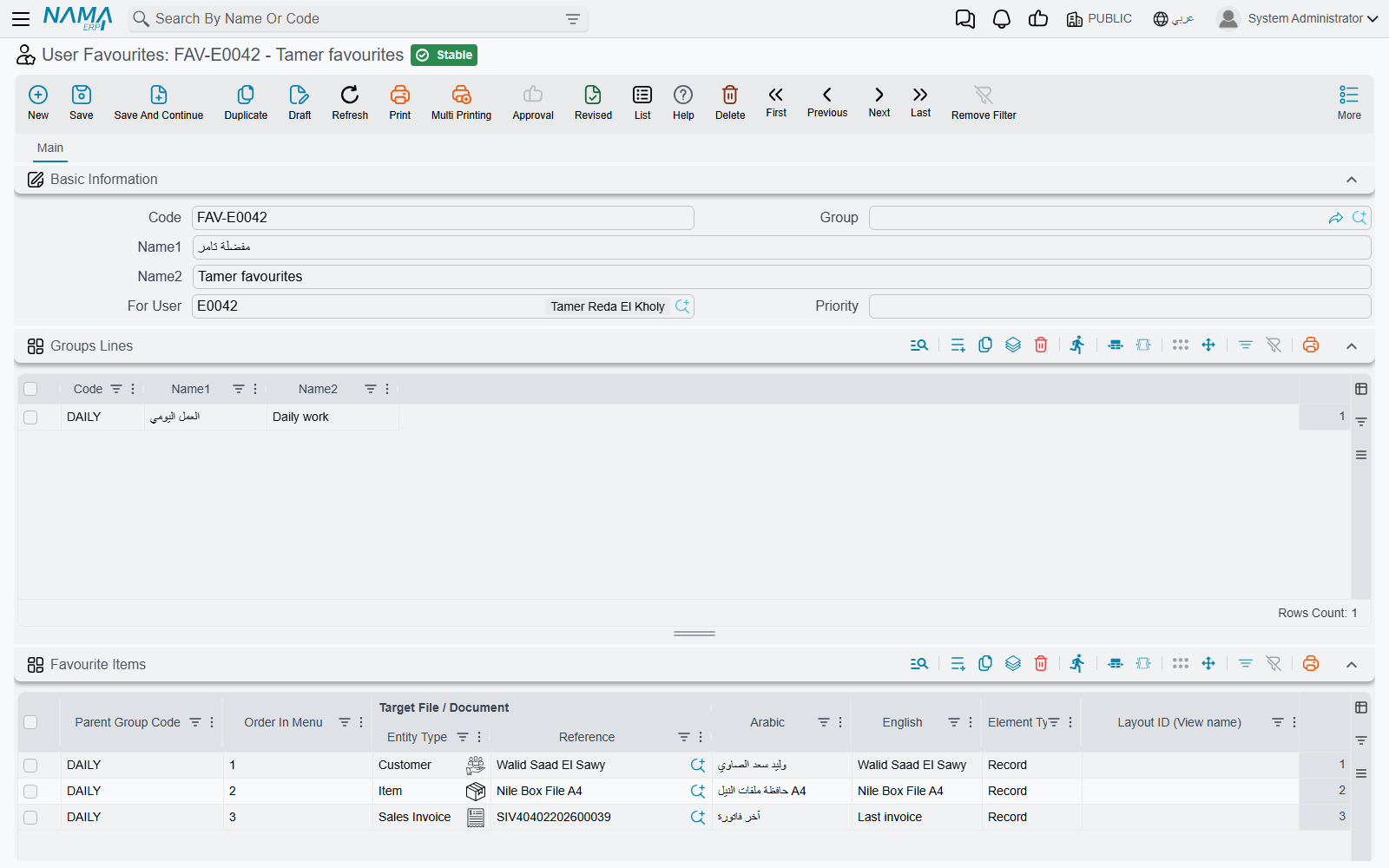
The first time one of these actions runs for a user who has no record yet, Nama creates one with the code <user code>_favourites, for example ahmed_favourites, and fills the user into For User. Later additions are appended to the same record.
What the screen holds
An administrator can open that record, or create one, to arrange a user's favourites by hand:
For User — whose favourites these are. A user can own only one record. A second record for the same user is refused with The user {0} is already associated with the favourite {1}.
Groups Lines — the folders inside Favourites. Each line has a Code and the Arabic and English names shown in the menu.
Favourite Items — the entries themselves:
- Parent Group Code puts the item in a folder. When it is left empty, the item goes into a folder with the code
Favourites. If an item names a group code that is not in Groups Lines, the group line is added on save. - Order In Menu sets its position in the folder. When it is left empty, the item goes after the last one in that folder.
- Target File / Document is the record, or the screen, the item opens.
- Element Type decides how the item opens. Record opens that record. List View opens the list of that type, using the list layout named in Layout ID (View name) when there is one. Create New opens a blank record of that type. An empty Element Type is saved as Record.
The same target cannot appear twice in the same folder with the same element type and layout. The repeat is refused with Target file {0} is repeated in group {1}.
- Parent Group Code puts the item in a folder. When it is left empty, the item goes into a folder with the code
An example. A sales supervisor wants three things one click away: the list of open sales orders, a blank customer receipt, and the big customer she follows every morning. Her record has one group line, SALES / «المبيعات» / Sales, and three items in it:
- Sales Order, with Element Type set to List View and the layout name of the open-orders list in Layout ID (View name).
- Receipt Voucher, with Create New.
- The customer record, with Record.
The next time she signs in, Favourites ⭐ shows a Sales folder with those three entries, in that order.
Messages you may see
| Message | Why | What to do |
|---|---|---|
| The shortcut conflicts with line {0} | Two lines use the same key combination. The other line may be in either grid. This message has no Arabic translation, so it shows in English on Arabic screens too. | Change the keys on one of the two lines. |
| You must use Ctrl/Alt with alphabetic letters — «يجب استخدام Ctrl/Alt مع الحروف الأبجدية» | A letter key has neither Ctrl nor Alt ticked. | Tick Ctrl or Alt, or use a non-letter key. |
| The user {0} is already associated with the favourite {1} — «المستخدم {0} موجود بالفعل في المفضلة {1}» | Another saved User Favourites record already belongs to this user. | Open the existing record (named in the message) and edit it. |
| Code {0} is repeated — «الكود {0} مكرر» | Two lines in Groups Lines have the same code. | Give each group its own code. |
| Target file {0} is repeated in group {1} — «الملف/المستند {0} مكرر في المجموعة {1}» | The same target is in the same folder twice, with the same element type and layout. | Delete the duplicate, or change its element type or layout. |