
System Settings, Configuration Group and Edit File
Every settings screen in Nama — the Global Configuration, the supply chain settings, the HR settings, the POS settings — is stored as a record. The Settings group of the Administration menu is where those records live side by side, together with the one record that ties them to your companies and a raw editor for the files behind the screens. You rarely need any of this day to day; you reach for it when a customer asks "where are all the settings?", when a screen or feature has gone missing for a whole company, or when a screen layout has to be inspected by hand.
Three entries in Administration → Settings are covered here:
| Menu entry | What it is |
|---|---|
| System Settings | The list of every settings record in the database, one per installed module plus the Global Configuration. |
| Configuration Group | The single record that every settings record and every company belongs to. It also carries the company-wide lists of unused screens and features. |
| Edit File | A plain editor for the stored screen layout files and per-user preference files. |
System Settings — one record per module
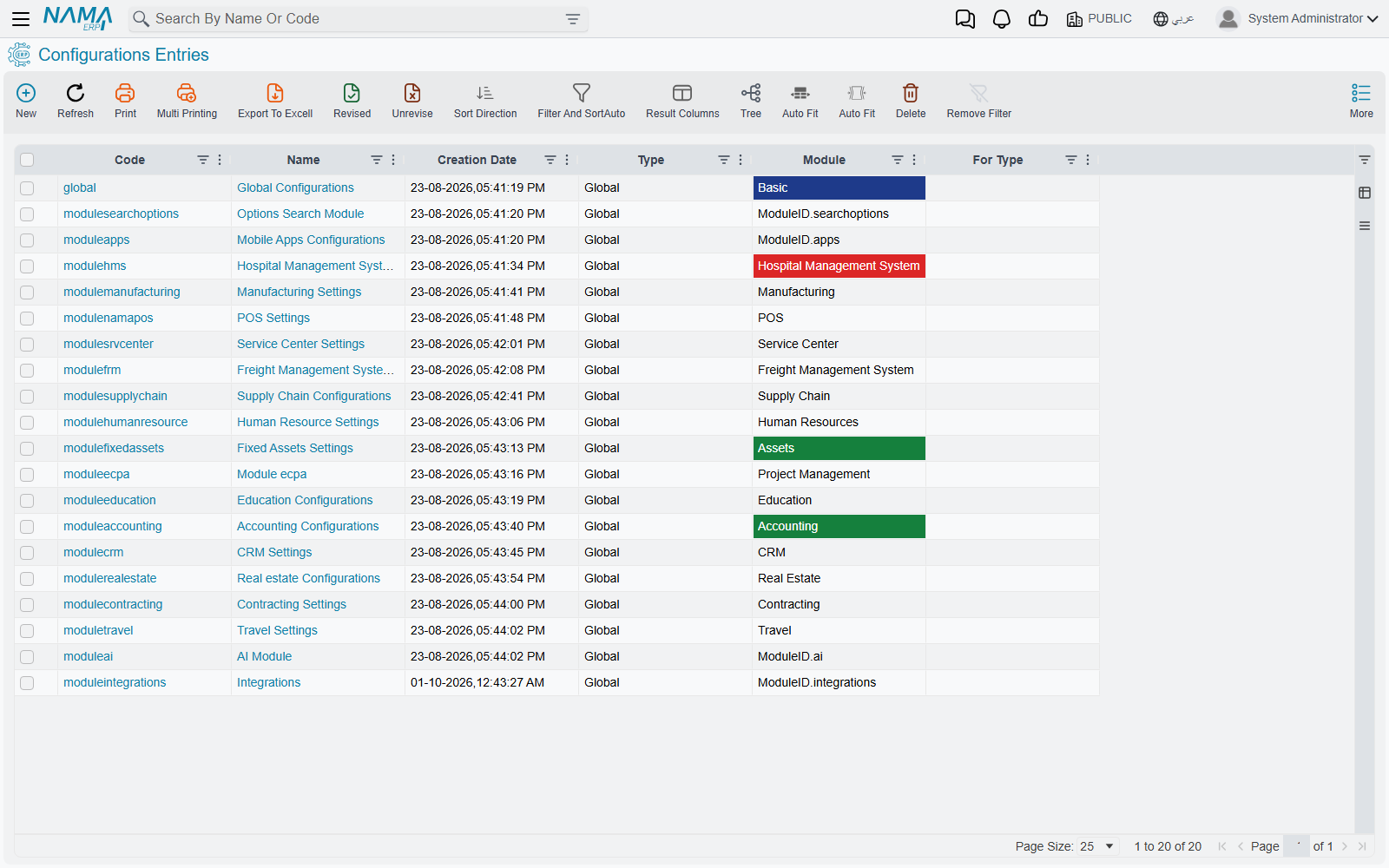
Open Administration → Settings → System Settings and you get a list, not a form. Each row is one settings record:
- Global Configurations (code
global) — the installation-wide settings described in Global Configuration. - One record per installed module — Accounting Configurations, Supply Chain Configurations, and so on. The code is
modulefollowed by the module's name, for examplemoduleaccounting.
The list shows each record's Type, Module and For Type, and you can filter on all three. On a normal installation every row has the type Global, because each module's settings apply to the whole database. A database with twenty modules installed has twenty-odd rows; that is the whole list. Opening a row opens that module's settings screen — the same screen you reach from the module's own Settings menu — so this list is the quickest way to find a module's settings when you do not know which menu hides them.
The records are created by the system, not by you. When a module is installed, its settings record is created at the next server start, and it stays for as long as the database does. That is why the list refuses both of the usual actions:
- New is refused with Can not create system objects.
- Delete is refused with Can not delete system objects.
Neither message has an Arabic translation, so both appear in English on Arabic screens too.
One record per module, for every company
Each module has exactly one settings record, and it applies to every company in the database. You cannot add a second copy of the supply chain settings for one legal entity or one branch. When two companies need to behave differently, the difference has to come from something that is per company — the document book, the document term, or the legal entity record itself.
The More menu of a settings record has Regenerate Screens. It rebuilds every screen in the system, exactly like the button of the same name on a Screen Modifier, and it also rebuilds the shipped menu. Use it after a change that should add or remove fields across the system, then ask users to reload the browser page.
Configuration Group — the record that ties settings to companies
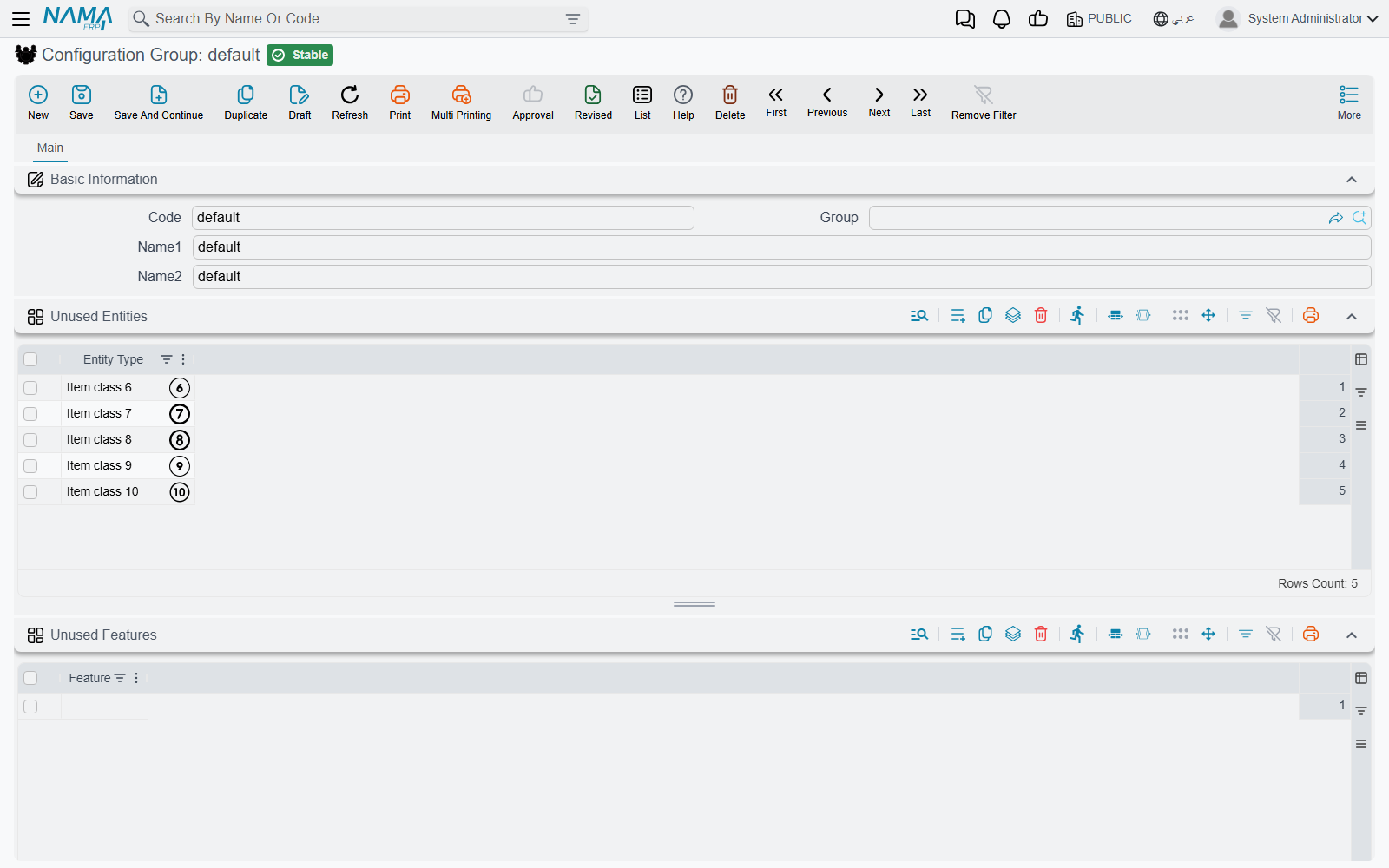
Administration → Settings → Configuration Group opens a single record whose code is default. The system creates it the first time the server starts on a new database, and every settings record in the System Settings list belongs to it.
Every Legal Entity names a configuration group in its Configuration Group field. The field is required, and when you pick a Parent Legal Entity the parent's group is copied in for you. Since default is the only group there is, every company points at it. In practice there is nothing to choose, but the link is the reason the field exists.
There is only ever one group:
- Saving a group whose code is anything other than
defaultis refused with Code must be Default — «الكود يجب أن يكون default». - Deleting the group is refused with Can not delete system objects.
The two lists on the group: Unused Entities and Unused Features
The useful part of the Configuration Group screen is its two grids:
- Unused Entities — one Entity Type per line. Each screen listed here is hidden.
- Unused Features — one Feature per line. Every field, grid column, button and screen that belongs to the feature is hidden.
The Legal Entity screen has the same two grids. When a user signs in, the system takes the user's company, adds that company's own lists to the lists on its configuration group, and hides everything on the combined list. Because every company points at the same default group, a line on the Configuration Group hides that screen or feature for every company at once. Use the legal entity's own grids when only one company should lose it.
What exactly disappears, which company counts for a user, and the full list of features you can switch off are on Switching screens and features off for a company. Two points matter most when you are working on the Configuration Group itself:
- The lists are read at sign-in. A line you add or remove reaches each user the next time they sign in, not before.
- Some upgrades put lines here for you. A database upgrade may add a feature to the group's Unused Features so that existing customers do not suddenly see new fields. The Sub Items feature that the service-centre car screens depend on is the best-known case: on an upgraded database it starts on this list, so the car fields are hidden until you remove the line (see the service-centre cars setup). When a whole feature seems to be missing after an upgrade, look here first.
Three screens can never be hidden: Configuration Group, Legal Entity and System Settings. If you add one of them to Unused Entities, the line is silently dropped when you save. Hiding them would lock everyone out of the very screens needed to undo the change.
Each entity type and each feature may appear only once per grid. A repeated line is refused on save with The entity type {0} at line {1} is repeated or The feature {0} at line {1} is repeated, both in English only.
Edit File — the files behind the screens
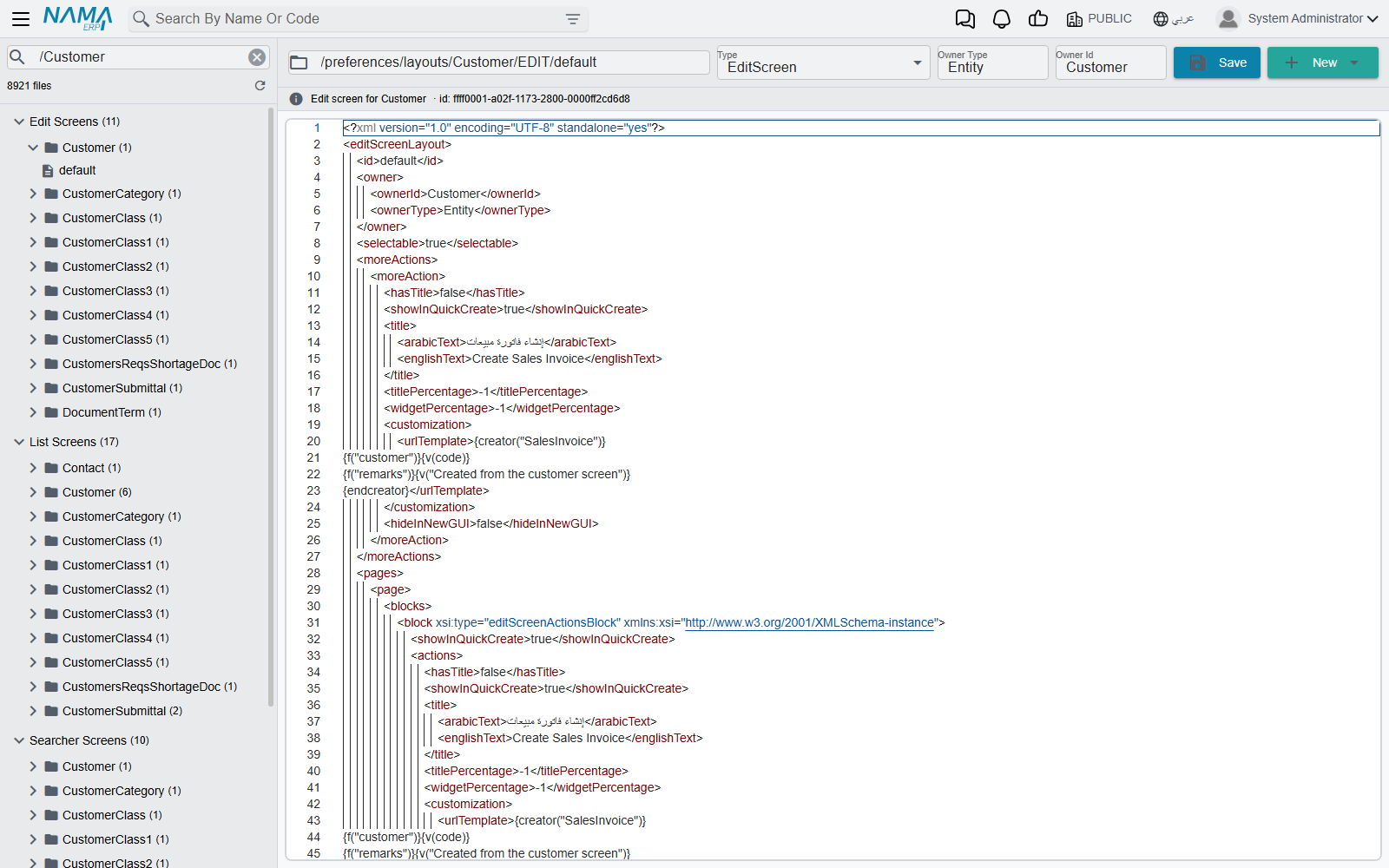
Administration → Settings → Edit File opens a two-pane editor. It is not a record screen. It works directly on the files in which Nama stores screen layouts and user preferences, and it is meant for support staff who need to see, or fix by hand, what the layout tools have saved. The editor's own labels are in English only.
The left pane lists every stored file, grouped into folders:
| Folder | What is in it |
|---|---|
| Edit Screens | The saved edit-screen layouts, one sub-folder per screen. |
| List Screens | The saved list-view layouts. |
| Searcher Screens | The saved search-dialog layouts. |
| Processed Layouts | Layouts the system has prepared from the saved list and searcher layouts. |
| User Preferences | Each user's personal preference files, one sub-folder per user. |
| Other | Any file whose path does not fit the folders above. |
Type in Filter files… to narrow the tree by path, and use the refresh button to reload it. Clicking a file opens it on the right. Above the content you see the file's path, its Type (XML, EditScreen, ListScreen, SearcherScreen, SQL, CSS, HTML, PlainText and a few others), its Owner Type and Owner Id, and a line that tells you what the file is — "Edit screen for Customer", for example.
To change a file, edit the content and press Save. If you change the path to one that another file already uses, the editor asks A file with this path already exists. Do you want to replace it? — answer Replace only if overwriting that other file is what you want. New offers an empty edit, list or searcher screen (it asks for the owner screen's type, such as Customer) or a plain XML file. If you open another file or start a new one while the current file has unsaved changes, the editor asks before discarding them.
This edits the live layout, with no undo
A file saved here is what every user's screen is built from. A mistake in an edit-screen file can break that screen for everyone, and the editor keeps no history to roll back to. Copy the content somewhere safe before you change it. For ordinary changes — adding a field, hiding a tab, moving a column — use a Screen Modifier instead: it survives screen regeneration and can be switched off.
Messages you may see
| Message | Why | What to do |
|---|---|---|
| Can not create system objects | You pressed New on System Settings. Settings records are created by the system when a module is installed. | Nothing to create. If a module's settings record is missing from the list, that module is not installed on this server. |
| Can not delete system objects | You tried to delete a settings record or the Configuration Group. | They cannot be deleted. Change the values instead. |
| Code must be Default — «الكود يجب أن يكون default» | A Configuration Group was saved with a code other than default, usually when someone tries to create a second group. | There is only one group. Edit the existing default record. |
| The entity type {0} at line {1} is repeated | The same screen appears twice in Unused Entities. | Delete the duplicate line. |
| The feature {0} at line {1} is repeated | The same feature appears twice in Unused Features. | Delete the duplicate line. |