
Task Queues
Nama has always done its slow work behind you rather than while you wait. A scheduled report goes out at seven in the morning without anyone being there; an entity flow that stamps a commission onto an invoice runs a moment after the invoice is saved, not during the save.
The catch, until now, was that all of it ran in single file. One thread ran every scheduled task, one after another. One worker picked up every deferred entity flow, one after another. That is safe — two jobs can never trip over each other if only one of them is ever moving — but it means a nightly report that takes forty minutes holds up the order sync that was supposed to run every five, and a heavy costing flow on a stock issue makes every other flow in the system wait its turn.
A Task Queue breaks that single file into as many lanes as you need. It is a named lane, and almost nothing else: a code, a name, a description. What gives it meaning is what you point at it. Two task schedules on two different queues genuinely run at the same time. Two entity flows on two different queues are processed by two different workers. Work inside one queue still runs strictly one at a time, in order, exactly as before.
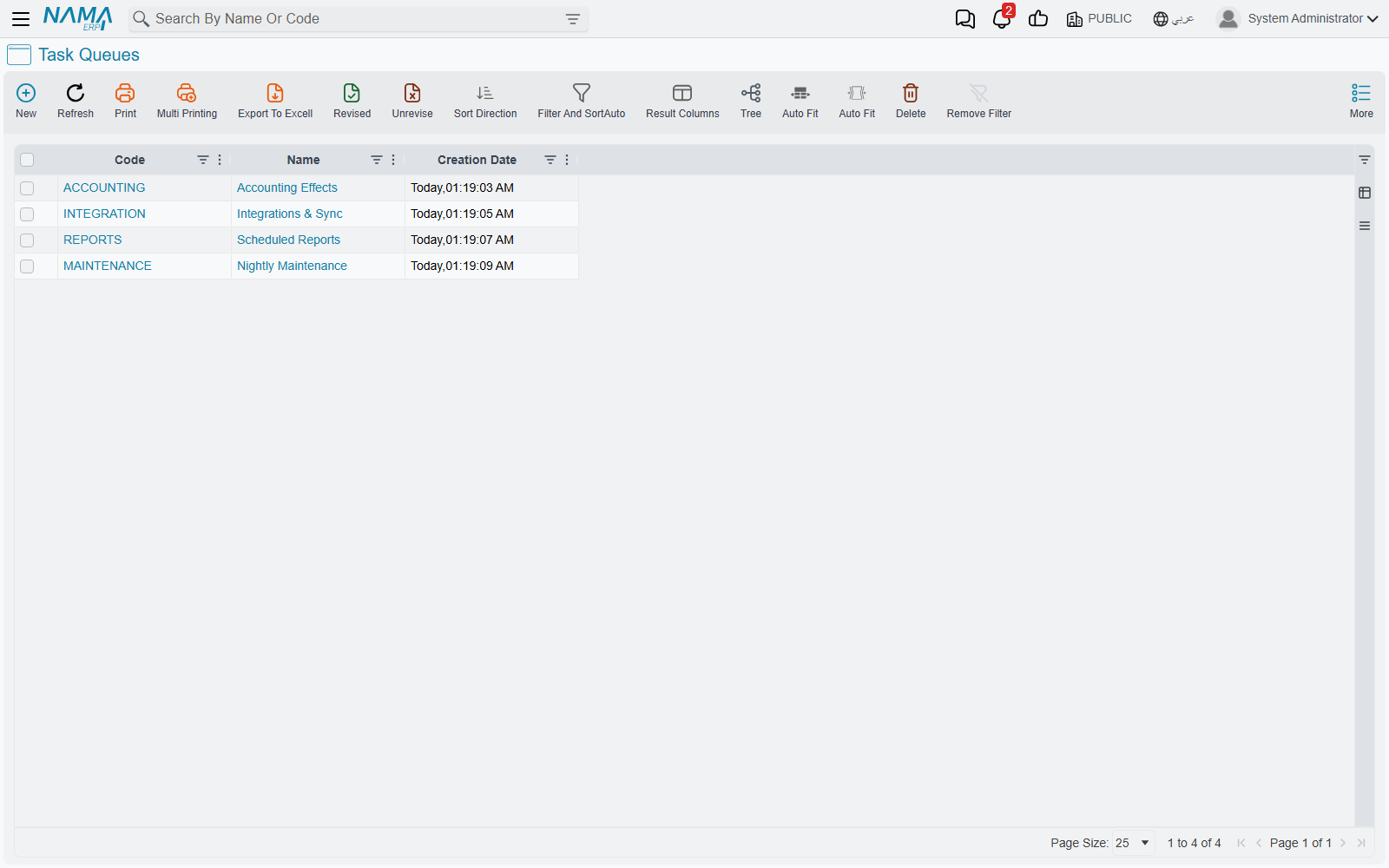
Where to find it
Basic → Settings → Task Queue.
Nothing changes until you ask for it
This is the reassuring part. Every task schedule and every entity flow that you leave alone keeps its Task Queue field empty, and everything with an empty Task Queue keeps sharing one built-in lane — the same single file it has always run in. An installation that never creates a Task Queue behaves precisely as it did before.
So the question is never "should I turn this on?" It is "which two jobs are getting in each other's way?" You create a queue for the answer, and leave everything else where it is.
Creating a queue
There is very little to fill in, because a queue has no behaviour of its own.
| Field | What to put in it |
|---|---|
| Code | A short, stable identifier — INTEGRATION, REPORTS, MAINTENANCE. You will pick queues by code all over the system. |
| Name | What the lane is for, in plain words: Integrations & Sync, Nightly Maintenance. |
| Description | Worth writing. Six months from now, "why does this queue exist?" is the question, and this field is the only place with an answer. |
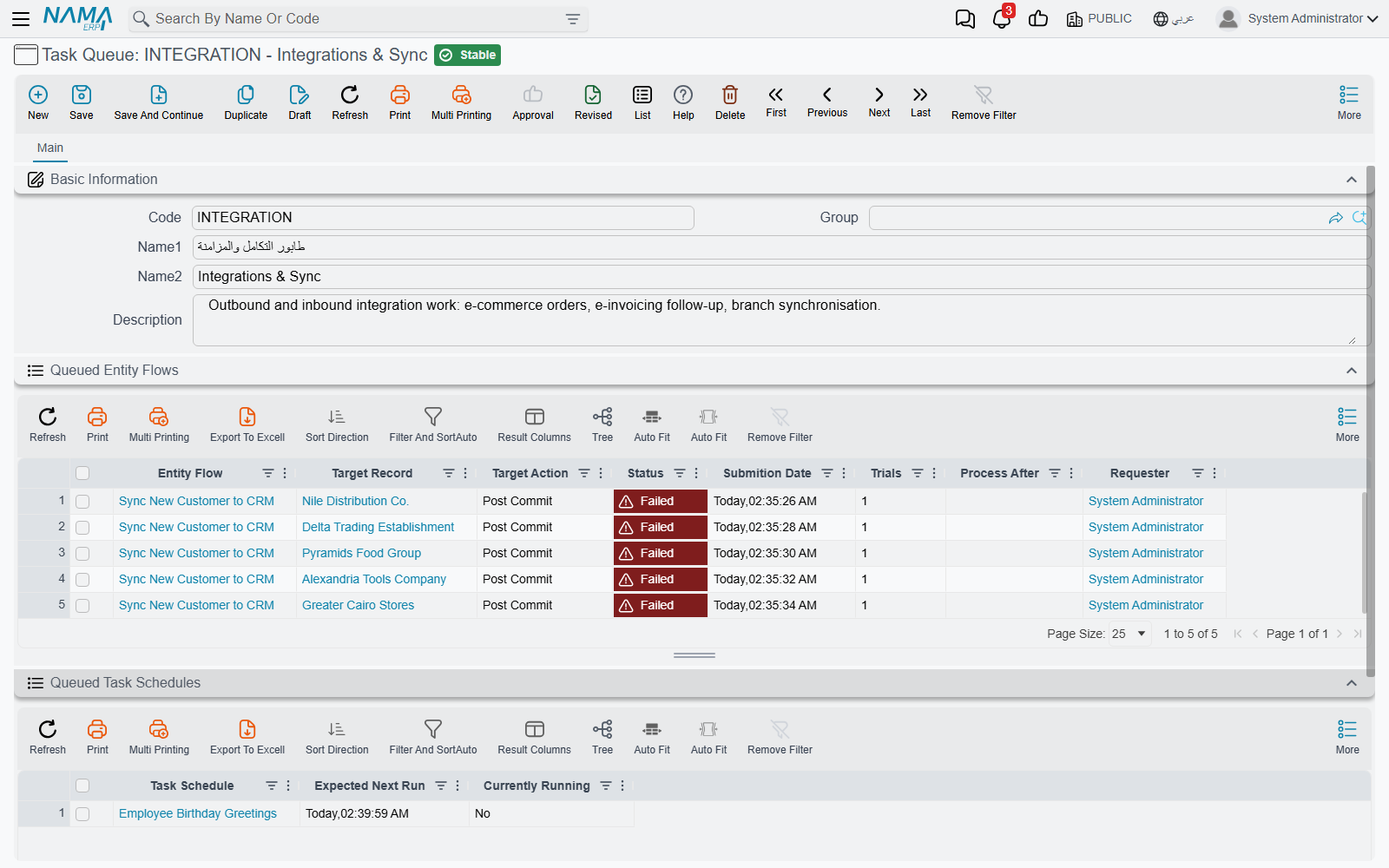
Below the basic information sit two collapsed grids — Queued Entity Flows and Queued Task Schedules. They are the whole monitoring story for this queue, and they are covered further down.
Putting scheduled tasks on a queue
Open a task schedule and set its Task Queue field. That is the entire configuration.
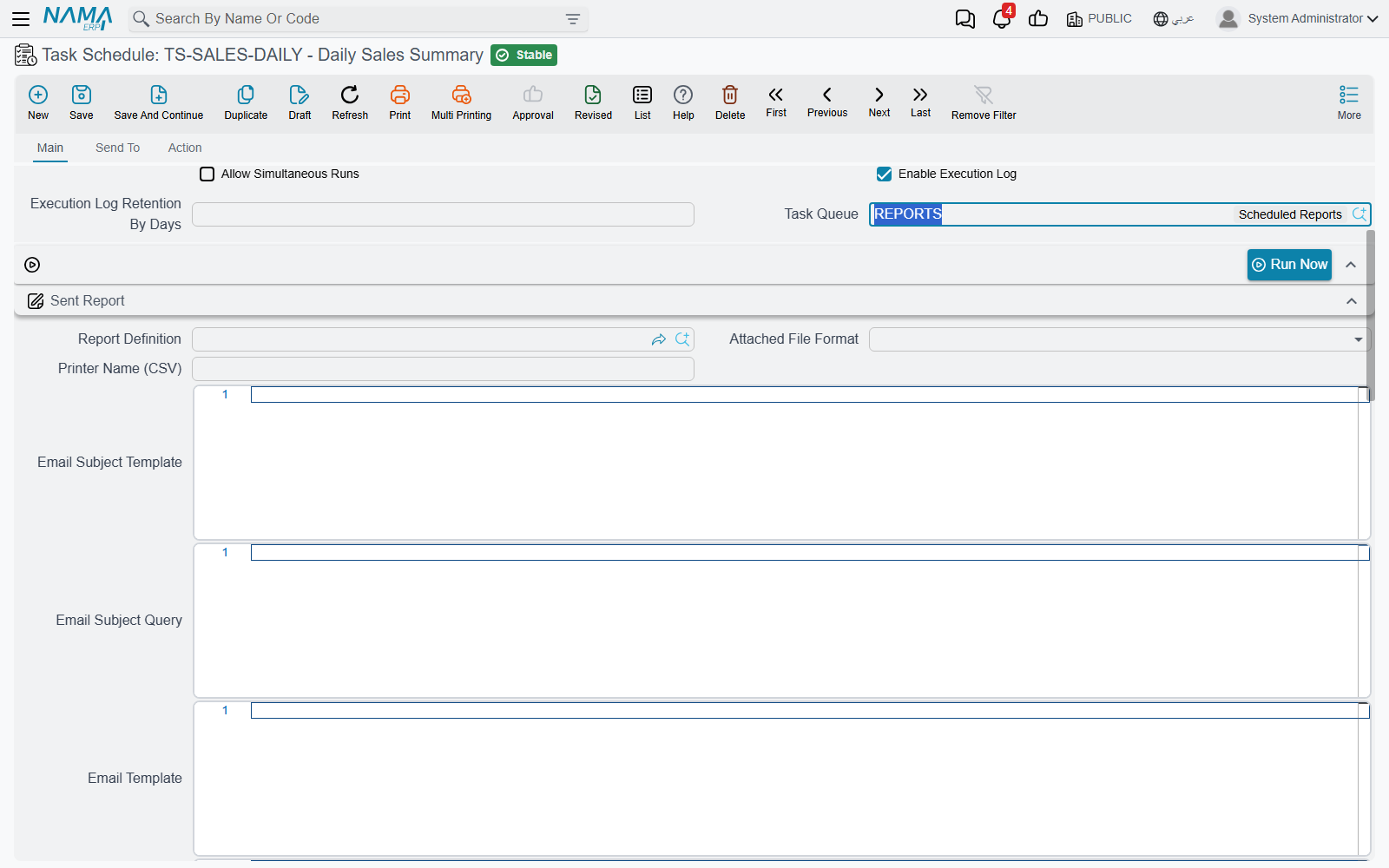
The rule that follows from it is simple, and worth saying out loud because everything else depends on it:
Schedules on different queues can run at the same time. Schedules on the same queue never do — each waits for the one before it to finish.
Take a realistic set of eight scheduled jobs. Three of them mail reports out in the early morning, two are heavy housekeeping queries that run at two in the morning, two poll an outside system every ten or fifteen minutes, and one greets employees on their birthday. Left in one lane, the housekeeping job that overruns at 02:00 delays the report that was due at 06:30, and the ten-minute sync waits behind both. Split across three queues — Scheduled Reports, Nightly Maintenance and Integrations & Sync — the reports, the housekeeping and the sync all get out of each other's way, while the three reports still run in an orderly line between themselves, which is what you wanted anyway.
The birthday greeting is left with no queue at all, and runs in the default lane. Not everything needs a queue.
A queue is a promise of parallelism, not a promise of safety
Before queues, two scheduled tasks could not overlap, so two jobs touching the same records were safe by accident. Put them on different queues and they really will run at the same time. If two jobs write to the same data, keep them on the same queue — that is the queue's other job, and it is just as useful as the splitting.
Putting entity flows on a queue
Entity flows need one step of background first, because a flow only reaches a queue if it was deferred in the first place.
Most entity flows run inline: you save the customer, the flow runs, the save finishes. But a flow can be marked Run After Committing Document And Affect On DataBase, and that changes it completely. The document is saved and committed, its accounting and inventory effects are raised, you get the screen back — and only then, separately, is the flow picked up and run. Nothing about the flow is allowed to slow down or fail the save.
Those deferred flows are the ones that queue up, and they are the ones with a Task Queue field worth setting.
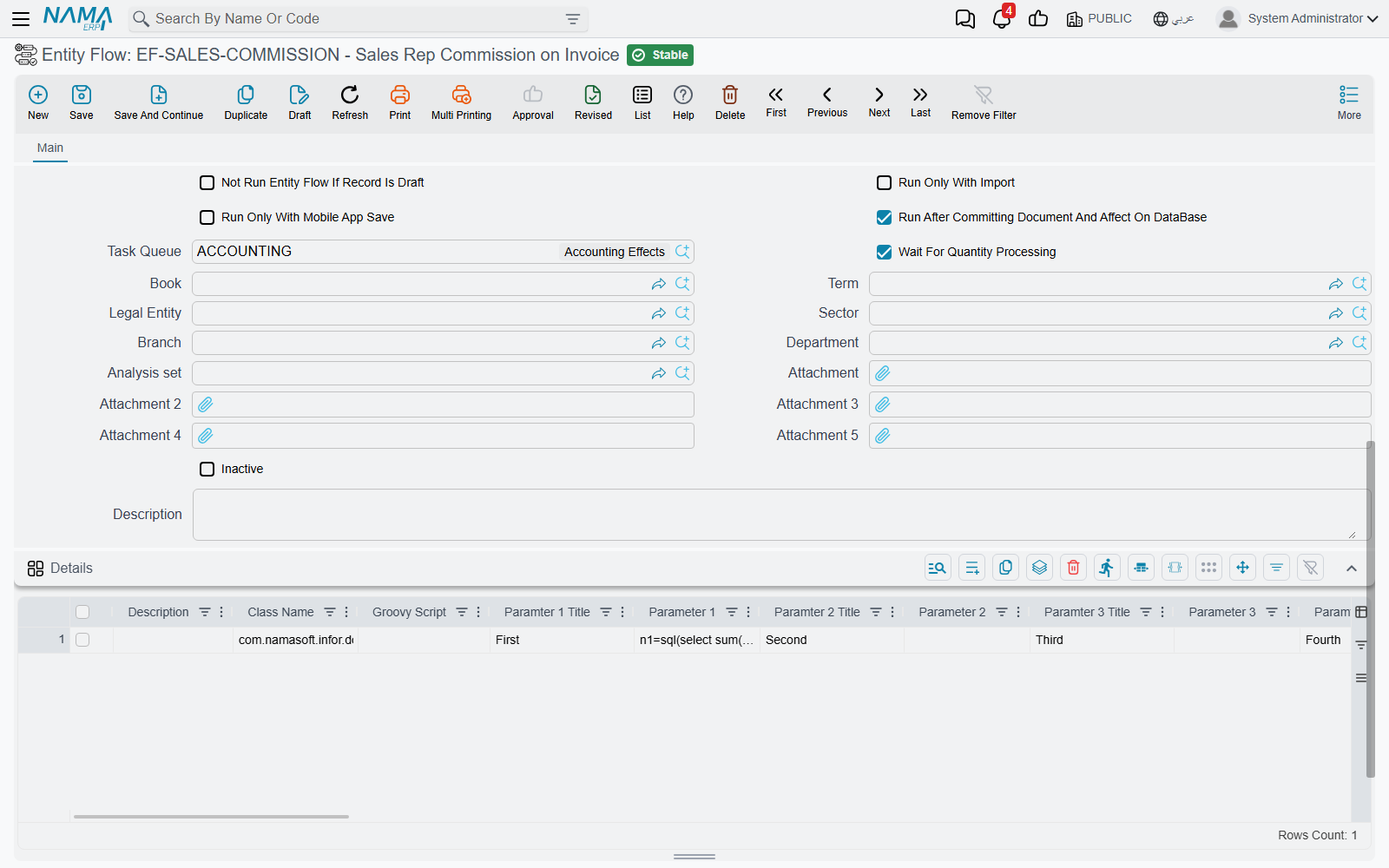
The same rule applies as for schedules: flows on different queues are processed by different workers and run at the same time; flows on one queue are processed one at a time, in the order they were raised. A flow left with no queue is handled by the default worker along with every other unassigned flow.
Three other fields on the flow are worth setting at the same time, because they only matter once the flow is running in the background with nobody watching it:
| Field | What it does |
|---|---|
| Max Retry Count | How many times a failed run is attempted again before the system gives up and leaves it failed. Left empty, a failure is final at the first attempt. |
| Retry Every Seconds | How long to wait before each retry. Useful when the flow depends on something outside Nama that is briefly unavailable. |
| Wait For Quantity Processing | Holds the flow back while the system still has inventory work outstanding. Set it when the flow reads stock quantities or costs — otherwise it can read figures that are about to change. |
Two rules that keep queues out of trouble
Running work in parallel raises an obvious worry: two lanes reaching for the same record at the same moment. Two rules handle it, and neither needs configuring.
One record at a time, across every queue. If a flow on one queue is running against a record, and a flow on another queue reaches the same record, the second one does not wait and does not fail. It steps aside — it is postponed by a couple of seconds and put back in its queue, and the lane it was in carries on with the next entry. A moment later it comes round again, finds the record free, and runs. In the Queued Entity Flows grid this shows up as an entry with a Process After time a few seconds in the future; if you catch one, it is doing exactly what it should.
Order is preserved inside a queue. Because a queue is worked by a single worker, entries in it are processed in the order they were raised. If flow A must happen before flow B, putting both on the same queue is the guarantee you are looking for.
Watching a queue work
Two grids on the queue's own screen, and one list for the whole system.
Queued Entity Flows — on the queue screen — shows the flow entries waiting in this queue, each with its Status, Submition Date, Trials and Process After, plus the record it is going to run against. An empty grid is the healthy state: it means the worker is keeping up. Rows that sit there with a rising Trials count are the ones to look at. The grid's More menu can delete selected entries outright, which is the way to abandon work that will never succeed.
Queued Task Schedules — also on the queue screen — shows the schedules assigned to this queue with their Expected Next Run and whether each is Currently Running. This is the quickest way to see that a queue is doing what you set it up to do.
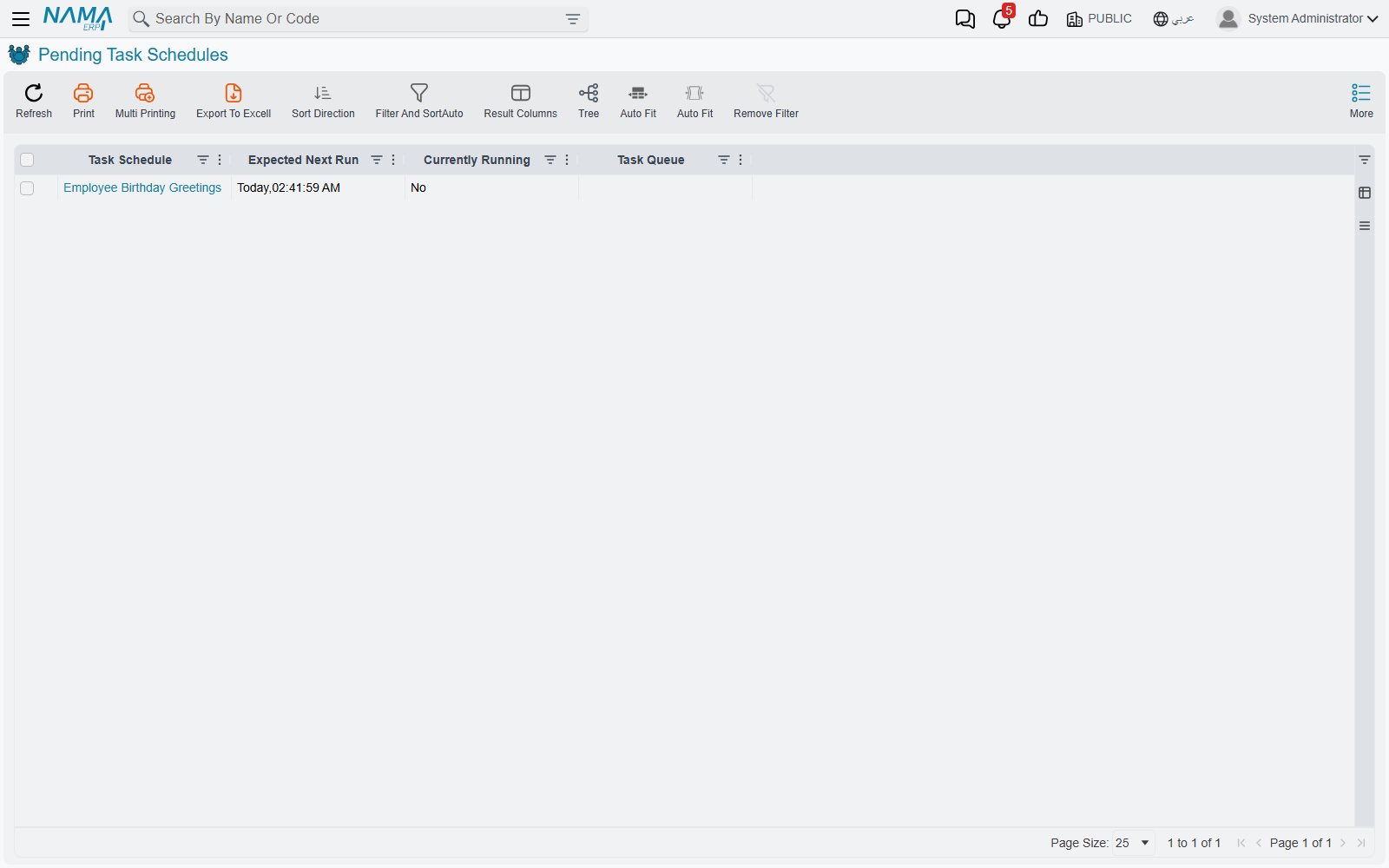
Pending Task Schedules — at Administration → Settings → Pending Task Schedules — is the same information for every queue at once, with a Task Queue column so you can see how the work is spread. It is the screen to open when someone asks why a task has not fired: if it is not in this list, it is not scheduled at all, and the reason is on the task itself — inactive, or never committed, or restricted to another site.
Expected Next Run and Currently Running are live
These two are not stored on the task schedule; they are read from the running scheduler at the moment you open the screen. That is why they are blank on a server that is not running scheduled tasks at all, and why they are not available as columns on the task's own list view.
When workers appear and disappear
You do not start or stop a queue, and there is no "active" switch on it. The system works out which lanes it needs and keeps that set up to date:
- The default lane always exists, for everything with no queue.
- A queue gets a worker of its own when a deferred entity flow names it, or when it still has unprocessed entries left over from before. A queue nothing points at gets no worker, and costs nothing.
- Saving a Task Queue, an Entity Flow or a Task Schedule makes the system re-read the picture and re-register the lanes. A brand new queue gets its own lane as soon as a task schedule points at it, so you do not need to restart the server to add a queue.
One consequence worth knowing: emptying a queue of its flows does not orphan the work already in it. The queue keeps its worker until the last unprocessed entry is gone.
How many queues should I create?
Fewer than you might think. The right question is not "how much work is there?" but "what must not be allowed to block what?" Each answer is one queue. In practice most installations end up with a handful:
- one for integrations, because they run often and must not be held up;
- one for reports, because they are slow and it does not matter that they are slow;
- one for maintenance, because it runs out of hours and can take as long as it likes;
- and everything else left in the default lane.
Creating a queue per task is not an optimisation. Each queue is a worker of its own, and thirty lanes doing nothing is thirty threads doing nothing — while the real problem, two jobs fighting over the same rows, gets worse rather than better.
Messages you may see
Refusals raised when you save an entity flow with the background fields on this page set.
| Message | Why | What to do |
|---|---|---|
| You must activate option ( Run After Committing Document And Affect On DataBase ) to use option( Wait For Quantity Processing) — «يجب تفعيل الأوبشن ( يعمل بعد حفظ المستند نهائيا و التأثير على قاعدة البيانات ) لإستخدام الأوبشن ( انتظار انتهاء معالجة الكميات )» | Wait For Quantity Processing was ticked on a flow that still runs inline. There is nothing to wait for — the inventory work has not been raised yet at that point. | Tick Run After Committing Document And Affect On DataBase first, or clear the wait option. |
| You must activate option ( Run After Committing Document And Affect On DataBase ) to use ( {0}) — «يجب تفعيل الأوبشن ( يعمل بعد حفظ المستند نهائيا و التأثير على قاعدة البيانات ) لإستخدام ( {0} )» | Retry Every Seconds or Max Retry Count was filled in on a flow that still runs inline. Retrying only makes sense once the flow is deferred; an inline failure is part of the save. | Defer the flow, or clear the retry field the message names. |
| The current Entity Flow has has un processed entries — «يوجد إدخالات نظامية لم يتم معالجتها لمسار الكيان الحالى» | The flow still has entries waiting in a queue, and saving it now would change the rules under work that is already in flight. | Let the queue drain — watch the Queued Entity Flows grid — then save. |
Related
- Scheduled Tasks — everything else about task schedules: types, cron, recipients, execution logs.
- Introduction to Entity Flows — what a flow is, and the execution points it can attach to.
- Business Requests — the separate queue that carries a document's accounting and inventory effects.