
Modifying Translations
Every label in the system — a field, a screen name, a page title, a group heading, an action button — comes with an Arabic and an English text. When a customer calls a field by a different name, or wants "Customer" to read "Client" everywhere, you do not need a new release: you record the change in a Translation OverRider record (Basic → Settings → Translation OverRider), and it replaces the shipped text.
Each line of a Translation OverRider names the label it changes and gives the new Arabic text, the new English text, or both; a language left empty keeps its shipped text. A record marked Inactive is ignored. Saving the record applies the change straight away, with no restart.
Supported languages
The lines carry Arabic and English only. French is not a third column: when Use French Instead of English is switched on in Global Configuration → General, the English side of the interface is replaced by French.
Translating screen names (singular and plural)
Every screen has two names: the singular one on the edit screen (Sales Invoice) and the plural one on the list screen (Sales Invoices). Both are changed from the same kind of line:
- Singular: choose the screen in For Type, leave ID empty, then fill in Arabic and English.
- Plural: choose the same screen in For Type, type
sin ID, then fill in Arabic and English.
Translating fields
A field is identified by its field ID, and how widely a new label applies depends on what else the line names:
- Everywhere the field appears: enter the field ID in ID and fill in Arabic and English.
- On one screen only: also choose that screen in For Type.
- On several screens: create an Entity Type List record holding those screens and choose it in the line's Entity Type List field.
Editing translations from the screen itself (Alt + Ctrl + T)
Finding field IDs by hand is slow, so the system can collect them for you while you look at the screen you want to change.
- Press Alt + Ctrl + T to show an edit button next to each field and heading.
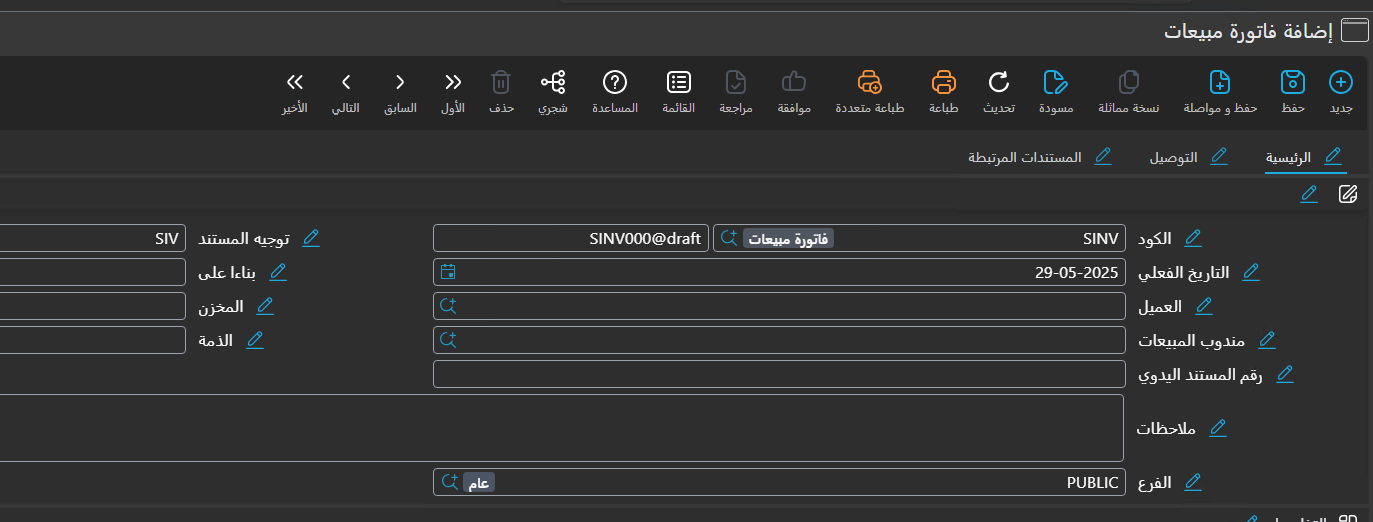
- Clicking a button opens a box with two fields, Arabic and English.
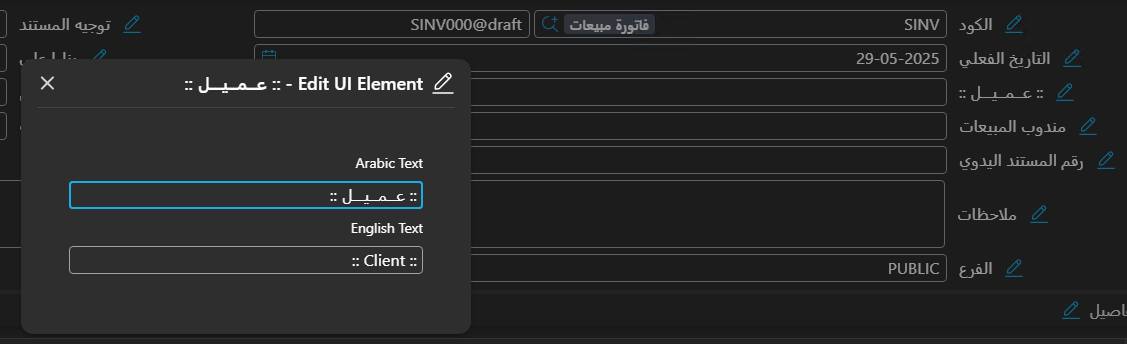
- The new text shows on the screen at once, but only temporarily — it is not saved anywhere yet.
- When you are done, choose Export Translations from the More menu to turn your changes into a Translation OverRider record.
The Export Translations window
This window decides which of the changes you made on screen go into the record, and how each line identifies its label: 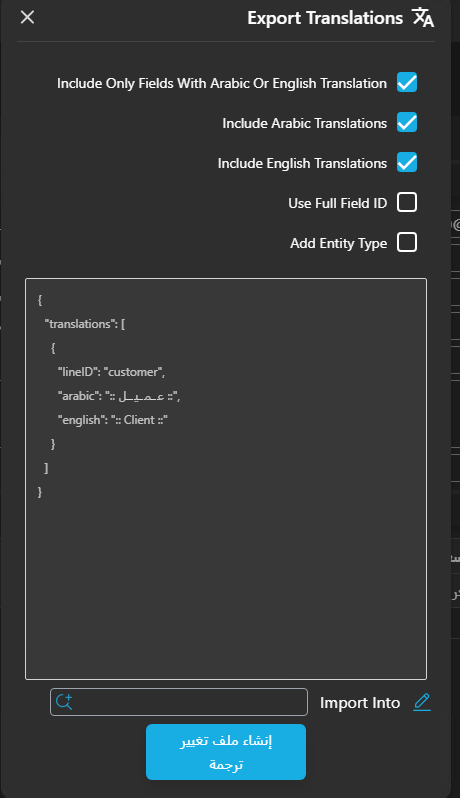
Include Only Fields With Arabic Or English Translation Include only the fields whose translation you changed.
Include Arabic Translations Add the Arabic text to each line.
Include English Translations Add the English text to each line.
Use Full Field ID Write the full field ID on each line.
Add Entity Type Fill For Type with the current screen, so the new labels apply on this screen only.
After choosing the options, click Create Translation Overrider Record. A Translation OverRider record opens holding the selected lines; fill in the remaining data and click Save, and the translations take effect immediately.