
Field Filter with Criteria
You can use the Field Filter with Criteria screen to apply custom filters when searching within specific fields on any Nama ERP screen.
For example:
- In a purchase invoice, you may want to display only items whose default supplier matches the invoice's supplier.
- In a sales invoice, you may want to show only non-service items when selecting an item.
Not the same screen as Field Filtering
The menu next to this one holds Field Filtering, a different screen with a similar name. Field Filtering does not take a condition at all — it only decides whether a lookup is narrowed by the document's branch, legal entity and other dimensions. If the question is "why can't this user pick a warehouse from another branch", read Field Filtering by Dimension instead.
How to Define a Field Filter with Criteria
Create a Criteria Record
- In the Criteria Definition file, define the condition you want to apply (e.g., non-service items).
Create a Field Filter Record
- Open the Field Filter with Criteria screen and create a new record.
- Specify the Document Type (e.g., Sales Invoice).
- Define the Field to apply the filter on (e.g.,
details.item.item). It has to be the lookup field itself — the one the user picks in — not the code or name that mirrors it (details.item.itemCodeand its siblings are filled from the lookup, so a filter there never reaches the picker). - Assign the previously defined Criteria to this field.
Assign the Field Filter
- Go to one of the following configuration locations and assign the filter in the Field Filter field:
- Document Type
- Document Book
- Master Group
- a menu entry, on a Menu Definition or a Menu Update
- Alternatively, select the Automatic option to apply it automatically.
- Go to one of the following configuration locations and assign the filter in the Field Filter field:
Save your changes.
If your filter requires dynamic logic such as loops or conditions, use Tempo Language instead of a criteria definition.
A shortcut when the filter should always apply
Steps 2 and 3 above exist so that the same filter can be switched on for one document term or one book and left off elsewhere. When a filter should simply always apply to a field, there is a quicker route: register the criteria straight against the field in the Extra Filter grid of Fields and Entities Settings. No filter record to name, nothing to assign — the lookup starts obeying the criteria as soon as you save.
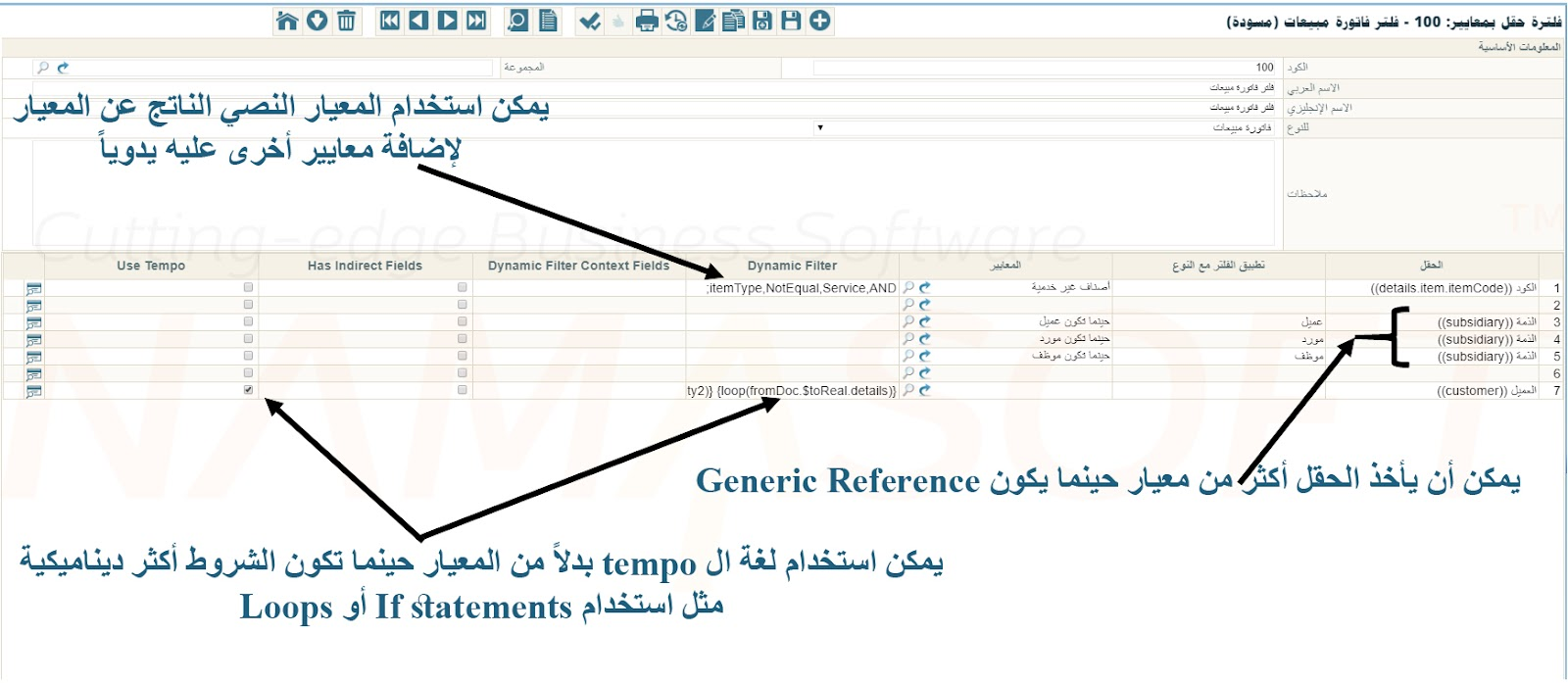
Example: Filter Non-Service Items in Sales Invoice
To show only non-service items when selecting an item in the Sales Invoice screen:
- In the Criteria Definition file, define a condition for non-service items.
- Create a new record in Field Filter with Criteria:
- Document Type: Sales Invoice
- Field:
details.item.item - Criteria: Your non-service items criteria
- Save the filter with a name like
NonService. - In your Sales Invoice document term, set Field Filter = NonService.
- Create a new Sales Invoice using that term.
- When selecting items, only non-service items will be shown.
TIP
- You must assign the filter in Field Filter field of a document type, book, master group, or menu update.
- To test your criteria:
- Enable Use In List View in the criteria record.
- Open the item list and enter your filter in the Extra Filter field.
- The list should show only matching items.
- You can retrieve the Textual Criteria from the criteria record to see or manually adjust the filter conditions.
- For advanced logic, use Tempo Language.
Example: Dynamic Filter Using Tempo
Suppose a Sales Invoice is based on a Sales Order containing multiple customers in the lines. You want to list only the customers with remaining quantities (unsatisfiedQty2) when selecting a customer in the sales invoice.
Use this Tempo code in the Dynamic Filter field of the field filter:
{loop(fromDoc.$toReal.details)}
  {if(fromDoc.$toReal.details.unsatisfiedQty2)}
    code,Equal,{fromDoc.$toReal.details.customer.code},OR;
  {endif}
{endloop}
The condition speaks the language of the screen being searched
This is the mistake behind most dynamic filters that return nothing. A filter line has two halves, and they name fields on two different screens:
- the Field column names the lookup on your document — where the filter applies;
- the condition names fields on the screen the lookup searches — the item, the customer, the warehouse.
Suppose a stock count document carries Reference 1 on its term lines, and you want that lookup to offer only the items already entered in the details. This filter looks right and returns nothing:
{loop(details)}
termsLines.ref1,Equal,{details.item.item.code},OR;
{endloop}
termsLines.ref1 belongs in the Field column, not in the condition — the item screen being searched has no such field. Write the condition with the item's own fields, and let the Tempo placeholders read your document:
{loop(details)}
code,Equal,{details.item.item.code},OR;
{endloop}
or, more precisely, by the record's identifier:
{loop(details)}
id,Equal,{details.item.item.id},OR;
{endloop}
Example: offer items by available stock
A common request: a stock issue should offer only items that have a balance, and a stock receipt only items that have none.
Items with a balance, on a stock issue. The item carries its balances in a quantities collection, so the condition can read them directly. Importing this record creates the filter:
JSON for direct import
{
  "forType": "StockIssue",
  "automaticUsage": true,
  "lines": [
    {
      "fieldId": "details.item.item",
      "dynamicFilter": "quantities.data.net,GreaterThan,0,AND;"
    }
  ]
}
Items with no balance, on a stock receipt. The obvious reverse — quantities.data.net less than or equal to zero — does not work. An item that has never moved has no quantity row at all, so the condition finds nothing to compare, and those are exactly the items this filter is meant to show. The way around it is to keep the total in a spare numeric field of the item (n5 here) and filter on that.
First, a scheduled task that writes every item's total into n5 — zero for an item with no rows:
JSON for direct import
{
  "scheduleType": "Action",
  "className": "com.namasoft.infor.domainbase.util.actions.EAExecuteUpdateQuery",
  "title1": "Update Query",
  "parameter1": "update i set n5 = coalesce(qty.net,0) from InvItem i\nouter apply (\nselect sum(q.net) net from ItemDimensionsQty q where q.item_id = i.id\n) qty",
  "title2": "Evict Cache After Execution(true,false)",
  "parameter2": "true",
  "actionDescription": "Execute update query specified in first parameter"
}
Then the filter on the receipt:
JSON for direct import
{
  "forType": "StockReceipt",
  "automaticUsage": true,
  "lines": [
    {
      "fieldId": "details.item.item",
      "dynamicFilter": "n5,LessThanOrEqual,0,AND;"
    }
  ]
}
n5 is only as fresh as its last update. To update it the moment stock moves instead of waiting for the task, run the same query from an entity flow that fires after a stock issue, receipt or transfer is saved and its quantities are processed. The flow below does that for save and delete; its entityTypeList is the code of an Entity Type List holding the three document types, which must exist before you import it.
JSON for direct import
{
  "entityTypeList": "StockIssueReceiptTransfer",
  "runAfterCommitDocAndEffectOnDB": true,
  "waitForQuantityProcessing": true,
  "details": [
    {
      "className": "com.namasoft.infor.domainbase.util.actions.EAExecuteUpdateQuery",
      "parameter1": "update i set n5 =  coalesce(qty.net,0) from InvItem i\nouter apply (\nselect sum(q.net)  net from ItemDimensionsQty q where q.item_id = i.id\n) qty",
      "parameter2": "true",
      "targetAction": "PostCommit"
    },
    {
      "className": "com.namasoft.infor.domainbase.util.actions.EAExecuteUpdateQuery",
      "parameter1": "update i set n5 =  coalesce(qty.net,0) from InvItem i\nouter apply (\nselect sum(q.net)  net from ItemDimensionsQty q where q.item_id = i.id\n) qty",
      "parameter2": "true",
      "targetAction": "PostDelete"
    }
  ]
}
Keep the scheduled task as well, running once a day: it catches what the flow never sees, such as large imports and direct edits.