
Reference Fields and Lookups
A reference field is any field that points at another record: the customer on a Sales Invoice, the item on an invoice line, the warehouse on a Stock Issue. Users spend more of their day inside those little lookup boxes than anywhere else in the system, and a lookup that behaves badly is felt on every single document.
Nine grids on this screen shape how reference fields find records, what they offer, how the chosen record is labelled, and what happens when nothing matches. Together they are the difference between a lookup that finds the right record on the first try and one that makes users scroll.
Every grid below starts with the same scope columns — For Type, Entity List, On Field / Field, Applicable For — which decide which screens and which field the line applies to, and which are explained in full on the overview page. The tables here repeat them briefly and then concentrate on the columns that are unique to each grid.
Allowed Values For Generic References
Most reference fields point at exactly one type of record: the customer field holds a Customer and nothing else. But some fields are generic — they can point at any one of several different record types. A "related document" field can hold a Sales Invoice, a Sales Order, a Stock Issue or a Payment. A discussion subject can be attached to almost anything. That flexibility is useful in principle and painful in practice: a user opening the type list is faced with a long menu of record types, most of which make no sense on the screen they are on.
This grid narrows that list to the types that actually make sense, and picks one of them as the default so that in the common case the user never has to choose at all.
| Column | What it does |
|---|---|
| For Type | The entity type the line applies to (for example Sales Invoice). |
| Entity List | A named list of entity types, so one line covers several at once. |
| On Field | The generic reference field the line targets. Required — a line with no field does nothing. |
| Allowed Entity 1 … Allowed Entity 5 | Up to five record types the field is allowed to hold. |
| Default Entity Type | The type pre-selected when the user reaches the field. |
| Add To Existing | Adds your types on top of the built-in list instead of replacing it. |
| Allowed Entity List | A reusable named list of entity types, for sets longer than five. |
There are five type slots per line because five covers most cases. When you need more — or when the same set of types is used on many screens — build an Allowed Entity List once and point the line at it instead of repeating the same five names on every line.
Add To Existing is the column that decides whether you are editing the list or replacing it. Left unticked, your types replace the built-in list entirely: only what you name is offered. Ticked, your types are added on top of whatever the screen already offered. Replacing is the usual choice when the built-in list is too broad; adding is right when the built-in list is fine and you just need one extra type.
Default Entity Type is the column that saves the most clicks. On a Sales Invoice's related-document field, if 90% of the links are to Sales Orders, set Sales Order as the default: the user reaches the field with the type already chosen and simply types the order number.
Discussion subjects use this grid too
The subject fields on discussions pick up their allowed types from this same grid. If your users are being offered record types they never discuss, narrow them here rather than looking for a separate discussion setting.
Sign out for this to take effect
This grid is applied by the browser. After you save, a user who is already signed in keeps seeing the old list of types until they sign out and sign back in.
Extra Filter
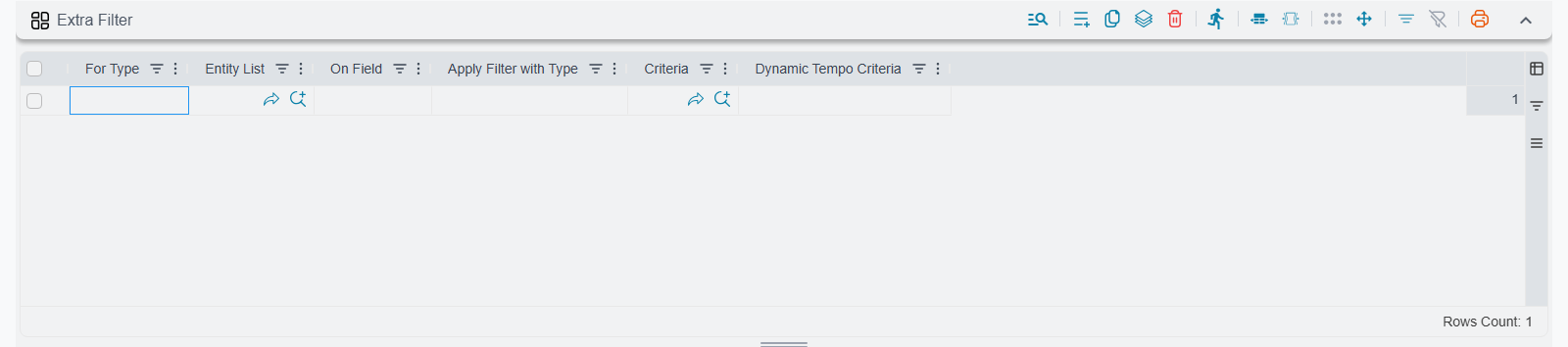
The previous grid narrows which types a generic field can hold. This one narrows which records any lookup offers — a different problem, and a far more common one. The item file has 40,000 items and only 6,000 are sellable; the warehouse file covers the whole company but this branch may only issue from two of them. Showing everything and trusting the user to pick correctly is how wrong records end up on documents.
| Column | What it does |
|---|---|
| For Type | The entity type the line applies to. |
| Entity List | A named list of entity types, so one line covers several at once. |
| On Field | The reference field whose lookup is being filtered. |
| Criteria Definition | A saved, fixed rule — a Criteria Definition that the offered records must satisfy. |
| Dynamic Tempo Criteria | A rule written in Tempo that can read the record being edited. |
| Filtered Type | On a generic reference field, restricts the filter to one of the types it can hold. |
Use a Criteria Definition when the rule is fixed and does not depend on the document in front of the user: "only items marked sellable", "only customers who are not blocked". Use Dynamic Tempo Criteria when the rule depends on the record being edited: "only warehouses in the same branch as this document", "only items supplied by the supplier already chosen on this purchase invoice". The Tempo expression can read the current record, which a saved criteria definition cannot.
Filtered Type only matters on generic reference fields. Because such a field can hold several types, a filter written without this column would have to make sense for all of them. Filling in Filtered Type lets you say "when the user is picking a Sales Invoice in this field, apply this rule" and leave every other type the field accepts completely unfiltered.
Test the criteria on its own first
Before wiring a criteria definition into this grid, open the record file it applies to and confirm that filtering by that criteria returns exactly the records you expect. A lookup that silently returns nothing is almost always a criteria problem, not a configuration problem — and it is much easier to see that on the list screen than inside a drop-down.
Field filtering has a dedicated screen of its own with a fuller feature set; this grid is the quick, per-field version of the same idea. See Field Filter with Criteria for the full picture (its worked examples cover the mistakes that make a filter return nothing), Criteria Based Validation for how criteria definitions are written, and the Tempo Language Manual for the dynamic version.
Descriptors
When a record is shown in a reference field or a drop-down, the system has to reduce it to one line of text. The default line is rarely wrong, but it is often not enough. Two customers both called "Ahmed Mohamed" look identical in a drop-down; an item shown by name alone gives no clue which size or colour it is. A descriptor replaces that one line of text with a line you write.
| Column | What it does |
|---|---|
| For Type | The entity type whose label is being changed. |
| Entity List | A named list of entity types, so one line covers several at once. |
| Arabic | The label text used in the Arabic interface. |
| English | The label text used in the English interface. |
| Descriptor Type | Where the label is used: Search Only, Title Only, or Search And Title. |
Write the label as ordinary text with field names in braces, and the system substitutes the record's values:
{code} - {name1} ({city})The three Descriptor Type values decide where your text is used:
- Search Only — changes what appears in reference fields, lookup drop-downs and selector rows. This is what you want almost every time.
- Title Only — changes the window title of the edit screen, so a user with several tabs open can tell them apart.
- Search And Title — does both.
An empty Descriptor Type behaves as Search Only
If you leave the Descriptor Type column blank, the descriptor is treated as Search Only. That is the sensible default, so blank is safe — but set it explicitly if you also want the edit-screen title changed, because blank will never do that.
A worked example: a call-centre agent takes an order by phone and has to attach it to the right customer account. With the default label, two customers named "Ahmed Mohamed" are indistinguishable and the agent has to open both records to tell them apart. Give the Customer type a descriptor of {code} - {name1} - {mobile} and the drop-down now reads CUST001 - أحمد محمد - 0501234567 and CUST438 - أحمد محمد - 0559876543. The agent asks for the last four digits of the phone number and picks correctly in one go.
Only one descriptor survives per entity type
Each entity type can carry exactly one descriptor. If you add a second line for the same type — in this record or in another Fields and Entities Settings record — it replaces the first rather than adding to it, and which one wins is not something you can rely on. Keep one line per type, and keep all of a type's settings in a single record.
Descriptors are applied by the server, so a saved change is visible to everyone as soon as the next lookup runs — no sign-out needed.
Extra Reference Search Fields
When a user types into a reference field, the system searches the record's code and its two name fields. That covers the normal case and misses the interesting ones. A call comes in and the caller gives a phone number, not a customer code. A workshop technician has the manufacturer's part number stamped on the part, not your internal item code. In both cases the record exists and the user simply cannot reach it by typing what they have in front of them.
This grid adds more columns to what the lookup searches.
| Column | What it does |
|---|---|
| For Type List | A named list of entity types, so one line covers several at once. |
| For Type | The entity type the line applies to. |
| Applicable For | A broad category instead of naming types: All Screens, Documents, or Master Files. |
| Search Operator | How the typed text is matched: Contains, Starts With, or Ends With. |
| Field | The extra field to search. Required — a line with no field does nothing. |
Add one line with For Type = Customer and Field = the mobile field, and typing 0501234 into any customer lookup now finds the customer by phone number. Add another with For Type = Item and Field = the manufacturer part number, and the technician's part number resolves the item directly.
Lines in this grid are additive. An entity-specific line for Customer, a Master Files line and an All Screens line all apply together — the searched columns accumulate rather than the most specific one winning. That is convenient, but it is also the trap: it is easy to end up with far more searched columns than you intended.
Every extra column makes every lookup slower
Each field you add here is another column the database has to examine on every keystroke-driven lookup for that entity. On a customer file of a few thousand records nobody will notice. On an item file of tens of thousands, adding four or five extra searched columns turns a snappy type-ahead into a visible pause. Add the columns your users genuinely search by, and no more.
Reference Searching Operators/Strategies
The previous grid decides which columns are searched. This one decides how the code and the two name fields are matched — and it is the single biggest performance lever on this whole screen.
| Column | What it does |
|---|---|
| For Type List | A named list of entity types, so one line covers several at once. |
| For Type | The entity type the line applies to. |
| Applicable For | A broad category instead of naming types: All Screens, Documents, or Master Files. |
| Field | The reference field the line applies to. Required — a line with no field does nothing. |
| Code Search Operator | How the code is matched: Contains, Starts With, or Ends With. Defaults to Contains. |
| Name 1 Search Operator | How the Arabic name is matched: Contains, Starts With, or Ends With. Defaults to Contains. |
| Name 2 Search Operator | How the English name is matched: Contains, Starts With, or Ends With. Defaults to Contains. |
Contains looks for the typed text anywhere inside the value. It is the friendliest option for users — type any fragment you remember and the record turns up — and it is the reason lookups get slow, because a search that can start anywhere in the value cannot use the database index. Every candidate row has to be examined. On a small master file that costs nothing; on an item file with 40,000 rows, or a customer file with 100,000, it is the difference between an instant drop-down and one that lags behind the typing.
Starts With can use the index. Switching the code operator from Contains to Starts With on a large file usually makes the lookup dramatically faster, at the cost of users having to type from the beginning of the code rather than from the middle. Where codes follow a structured convention — a branch prefix, a category prefix — that is no cost at all, because users already type them from the front.
Change the code first, the names second
Codes are the field users type into most often and the field most likely to follow a leading-character convention, so switching the code to Starts With buys most of the speed for the least disruption. Leave the two name operators on Contains at first — people genuinely do search for a word in the middle of a name — and only tighten them if the lookup is still slow.
The system picks the operator by looking for the most specific matching line, in this order:
- A line naming both the entity type and the field.
- A line for the broad category — Documents or Master Files.
- A line for All Screens.
- The system-wide default set in global configuration.
- Contains, if nothing above applies.
Only the first matching line is used
Unlike the previous grid, this one does not merge. As soon as a matching line is found the search stops there — any further lines aimed at the same target are ignored, whatever they say. If a change here appears to do nothing, look for an earlier, more specific line that is quietly winning.
The system-wide defaults that sit at the bottom of that order live in global configuration; see Performance and Search for setting them once for the whole database instead of per field.
Search In Name In Find By Code
Code fields are strict by design: type a code that does not exist and you get an error. That strictness is right when a user is entering a known code, and unhelpful when the user knows the record by name and not by code — which describes most people outside the accounting department. Enabling this grid tells the system that when a code lookup finds nothing, it should try the names before giving up.
| Column | What it does |
|---|---|
| For Type List | A named list of entity types, so one line covers several at once. |
| For Type | The entity type the line applies to. |
| Applicable For | A broad category instead of naming types: All Screens, Documents, or Master Files. |
The effect is concrete: a user types ABC Trading into the customer code field on a Sales Invoice. The code file has no such code — the customer's code is CUST001 — but the name matches, so the customer is resolved and the document carries on. Without this setting the user gets an error and has to open the lookup.
This runs on the server, so imports are affected too
This is not a browser convenience — the fallback happens on the server, which means it also applies when records arrive through an import file or an external integration. A spreadsheet column that was meant to contain codes but actually contains names will now import "successfully", matching on names, and nobody will notice until the wrong record turns up on a report. That is exactly why the setting is off by default. Turn it on for the entity types where your users work by name, and think twice before turning it on for types that are heavily imported. See Importing Records.
Extra Codes
Every record has one code, and that code is what a reference field expects. Real businesses have more identifiers than that: an item has a barcode and possibly a supplier's SKU, a customer has a tax registration number, a piece of equipment has a serial number. Users hold those identifiers in their hands and the system refuses to accept them, because they are not "the code".
This grid nominates additional fields that behave exactly like the record's main code.
| Column | What it does |
|---|---|
| For Type List | A named list of entity types, so one line covers several at once. |
| For Type | The entity type the line applies to. |
| Applicable For | A broad category instead of naming types: All Screens, Documents, or Master Files. |
| Field | The field to treat as an additional code. Required — a line with no field does nothing. |
Once a field is listed here, typing its value into a reference field resolves the record just as the real code would, and the search box tries it too. Nominate the barcode field on Item and a scanned barcode on an invoice line resolves straight to the item; nominate the tax number on Customer and an accountant working from a tax certificate can reach the customer account without looking anything up.
Lines add up rather than replace: nominating the barcode on one line and the supplier SKU on another gives you both, and both work everywhere the entity is referenced.
Extra codes reach the terminals and the phone too
These are not only a desktop convenience. The point-of-sale terminals use them when resolving items, and the mobile application uses them when resolving customer records. A barcode nominated here works at the till as well as on the invoice screen.
For the dedicated barcode machinery on items — pattern-based barcodes that carry weight or price inside the scanned string — see Item Barcode Specifications. For the terminals themselves, see Nama POS — Overview.
Fields that open Edit Screen when code not found
A sales agent is halfway through an invoice for a customer who has never bought from the company before. The customer does not exist yet, so typing the name into the customer field produces an error. The agent now has to leave the half-finished invoice, open the customer file, create the record, come back and find the invoice again — and in a busy branch, that is when invoices get abandoned.
This grid replaces the error with a shortcut. When the typed value matches no record, the system opens a new record screen for the target type, already pre-filled with whatever the user typed.
| Column | What it does |
|---|---|
| For Type | The entity type the line applies to. |
| Entity List | A named list of entity types, so one line covers several at once. |
| On Field | The reference field that gets this behaviour. |
| Field To Set Value In | Which field on the new record receives the typed text — usually the code or the name. |
Field To Set Value In is what makes the shortcut feel finished rather than half-done. Set it to the Arabic name field on Customer and the agent who typed مؤسسة النور التجارية lands on a new-customer screen with the name already filled in and the cursor free to complete the rest. Set it to the code field instead and a user who types a code that does not exist yet gets a new record already carrying that code.
This grid supports the full wildcard chain in the field column, so a single line with * in On Field enables the behaviour on every reference field of that entity type at once, and EntityType.* covers a whole nested block.
A wildcard here is a lot of new-record screens
Because * reaches every reference field, a user who mistypes anything is now offered a creation screen instead of an error. That is helpful on a customer field and alarming on an account or a warehouse field, where the right response to "not found" is almost always "you typed it wrong". Name the fields you mean.
Sign out for this to take effect
This grid is applied by the browser, so a signed-in user keeps the old behaviour until they sign out and sign back in.
Open Reference In Popup
Every reference field carries an action to open the record it points at. By default that navigates away from the current screen — which is fine when the user is browsing and disruptive when they are three-quarters of the way through a document and only wanted to check one thing about the customer.
This grid makes the action open the referenced record in a pop-up window instead, leaving the half-finished document sitting untouched behind it. The user checks the customer's credit terms, closes the pop-up and carries on typing.
| Column | What it does |
|---|---|
| For Type | The entity type the line applies to. |
| Entity List | A named list of entity types, so one line covers several at once. |
| On Field | The reference field whose open action becomes a pop-up. |
Like the previous grid, this one supports the wildcard chain: * in On Field turns every reference field on that entity type into a pop-up opener, and EntityType.* covers a nested block. A * line on your document types is a reasonable blanket setting here, because pop-up viewing is rarely the wrong choice on a document being edited.
Sign out for this to take effect
This grid is applied by the browser, so a signed-in user keeps the old behaviour until they sign out and sign back in.
When your changes become visible
The nine grids on this page split into two halves, and the half a grid belongs to decides how long it takes before anyone sees your change. This catches people out constantly — a setting is saved, tested immediately, appears to do nothing, and is written off as broken when it was simply cached.
Applied by the server — effective on save. Descriptors, Extra Filter, Extra Reference Search Fields, Reference Searching Operators/Strategies, Search In Name In Find By Code and Extra Codes are all evaluated on the server. Save the record and the very next lookup uses the new setting, for every user, with no restart and nothing to press.
Applied by the browser — needs a sign-out. Allowed Values For Generic References, Fields that open Edit Screen when code not found and Open Reference In Popup are sent to the browser as part of the user's session. A user who is already signed in keeps the old behaviour until they sign out and sign back in (or force a hard reload). Test these in a fresh session before concluding that the line does not work.
Keep one field's settings in one record
There can be several Fields and Entities Settings records, and all their active lines are combined. That is convenient until the same field is configured in two different records — at which point which line wins becomes unpredictable, and grids that keep only the first matching line become genuinely hard to reason about. Keep everything about a given field in a single record.
Settings on this tab
Every grid and column this page covers, with its exact on-screen label in both languages, so you can find a setting by the name you see. The last column points to the section that explains it. The scope columns (For Type, Entity List, On Field and the like) are the same on every grid and are listed on the overview page.
| Field id | English label | Arabic label | Meaning |
|---|---|---|---|
details | Allowed Values For Generic References | القيم المسموح بها للمراجع | Allowed Values For Generic References |
details.allowedEntity1 | Allowed Entity 1 | النوع المسموح 1 | Allowed Values For Generic References |
details.allowedEntity2 | Allowed Entity 2 | النوع المسموح 2 | Allowed Values For Generic References |
details.allowedEntity3 | Allowed Entity 3 | النوع المسموح 3 | Allowed Values For Generic References |
details.allowedEntity4 | Allowed Entity 4 | النوع المسموح 4 | Allowed Values For Generic References |
details.allowedEntity5 | Allowed Entity 5 | النوع المسموح 5 | Allowed Values For Generic References |
details.defaultEntityType | Default Entity Type | النوع الافتراضي | Allowed Values For Generic References |
details.addToExisting | Add To Existing | إضافة الى الموجود | Allowed Values For Generic References |
details.allowedEntityList | Allowed Entity List | قائمة الأنواع المسموح بها | Allowed Values For Generic References |
extraFilter | Extra Filter | Extra Filter | Extra Filter |
extraFilter.filteredType | Apply Filter with Type | تطبيق الفلتر مع النوع | Extra Filter |
extraFilter.criteriaDefinition | Criteria | المعايير | Extra Filter |
extraFilter.dynamicTempoCriteria | Dynamic Tempo Criteria | Dynamic Tempo Criteria | Extra Filter |
descriptors | Descriptors | Descriptors | Descriptors |
descriptors.descriptorType | Descriptor Type | استخدام الوصف | Descriptors |
descriptors.arabic | Arabic | عنوان عربي | Descriptors |
descriptors.english | English | عنوان إنجليزي | Descriptors |
extraReferenceSearchFields | Extra Reference Search Fields | حقول البحث الإضافية عند البحث عن مرجع | Extra Reference Search Fields |
extraReferenceSearchFields.searchOperator | Search Operator | معامل البحث | Extra Reference Search Fields |
referenceSearchingOperators | Reference Searching Operators | معامل البحث عن المراجع | Reference Searching Operators/Strategies |
referenceSearchingOperators.codeSearchOperator | Code Search Operator | معامل البحث في الكود | Reference Searching Operators/Strategies |
referenceSearchingOperators.name1SearchOperator | Name 1 Search Operator | معامل البحث في الاسم العربي | Reference Searching Operators/Strategies |
referenceSearchingOperators.name2SearchOperator | Name 2 Search Operator | معامل البحث في الاسم الإنجليزي | Reference Searching Operators/Strategies |
searchInNameInFindByCode | Search In Name In Find By Code | البحث في الأسم العربى والانجليزى عند كتابة كود ملف | Search In Name In Find By Code |
extraCodes | Extra Codes | Extra Codes | Extra Codes |
openCreateFields | Fields that open Edit Screen when code not found | الحقول التي يتم فتح الإنشاء عند ادخال كود غير موجود | Fields that open Edit Screen when code not found |
openCreateFields.fieldToSetValueIn | Field To Set Value In | الحقل الذي سيتم وضع القيمة به | Fields that open Edit Screen when code not found |
openInPopups | Open Reference In Popup | Open Reference In Popup | Open Reference In Popup |
Related pages
- Fields and Entities Settings — Overview — the scope columns, wildcards and lookup order used by every grid on this page.
- Relaxing Restrictions and Checks — lifting the prevented-record and dimension checks that also decide what a lookup is allowed to return.
- Field Filter with Criteria — the dedicated screen for filtering what a reference field offers.
- Field Filtering by Dimension — when the lookup hides records of another branch or legal entity rather than failing a condition.
- Criteria Based Validation — how criteria definitions are built, before you use one in Extra Filter.
- Performance and Search — the system-wide search-operator defaults that this page's lines override.
- Importing Records — why the name-fallback and extra-code settings change how imported files are matched.
- Screen Modifier — List View & Selector Pop-up — changing the columns shown in the selector pop-up that a reference field opens.
- Tempo Language Manual — writing the dynamic criteria used by Extra Filter.