
Lifting Built-in Restrictions
Almost everything on the Fields and Entities Settings screen adds a rule: a mask that formats a number, a validation that refuses bad input, a formula that fills a field in for you. The three grids on this page do the opposite. Each one reaches into a guard rail that Nama normally enforces on every screen, and switches it off for the field, the entity or the record type you name.
That makes them the most consequential settings on the whole screen, and it is worth being honest about why. Each of the three exists because a real, legitimate business situation needs it — a returns document that must reference a withdrawn item, a transfer between two branches, a shared item catalogue used by every company in the group. But each one also removes a check that was quietly protecting your data, and the check does not come back on its own.
Read this before you add a line
These three grids do not configure behaviour — they disable a protection. Once a line is saved, the system stops asking a question it used to ask, on every screen the line reaches. Before adding a line, be able to answer two things: exactly which field or record type is affected, and what would go wrong if a user made a mistake there. If the answer to the first is "everything", the line is too wide.
All three grids are checked by the server, not the browser, so a change takes effect as soon as the record is saved — no restart, no sign-out.
Each grid below starts with the usual scope columns, explained in full on the overview page: they decide which screens and which field the line applies to, and an Inactive tick switches a single line off without deleting it.
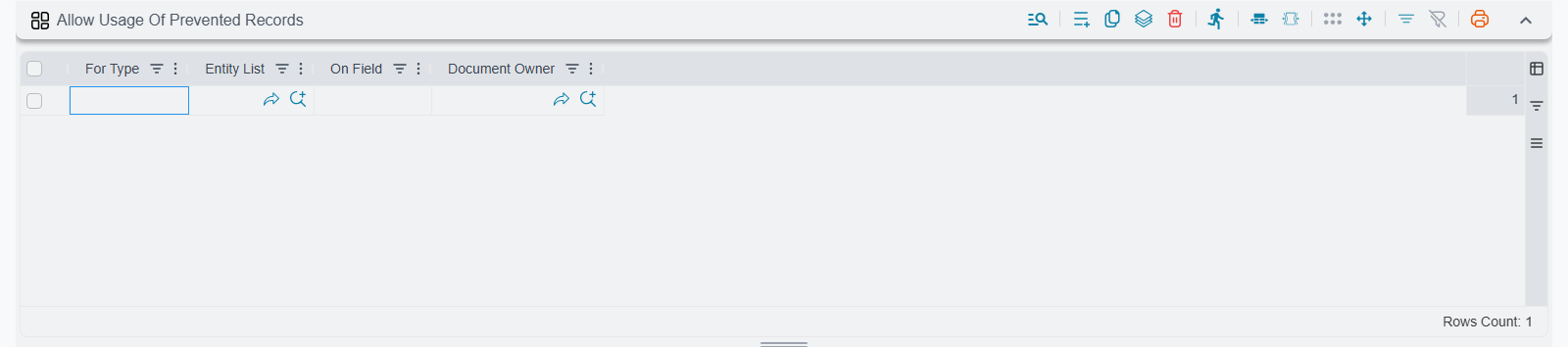
Allow Usage Of Prevented Records
Master files get retired. An item is withdrawn from the catalogue, a customer is blocked after a payment dispute, a supplier is struck off the approved list. Rather than delete the record — which would break every historical document that points at it — the record is flagged so that it may no longer be used on new documents. When somebody selects it anyway, the save fails with a message telling them the record's usage is prevented.
That block is deliberate, and it applies system-wide. The problem is that "no longer usable" is rarely true of every document. If a customer returns a withdrawn item, the Sales Return has to name that item — it is the whole point of the document. Blocking the sale while allowing the return is exactly the behaviour you want, and this grid is how you get it: it whitelists one specific field on which the block should not apply.
A typical line names the returns document in For Type, and details.item in On Field. From then on, the item field of that one document accepts withdrawn items; every other screen in the system still refuses them, including the sales invoice the item was withdrawn from in the first place.
| Column | What it does |
|---|---|
| For Type | The single entity type this exception applies to, for example the returns document. |
| Entity List | A named list of entity types, so one line covers several documents at once. |
| On Field | The field ID on which prevented records become selectable, for example details.item or customer. |
Leaving the scope empty lifts the block everywhere
The system looks the exception up by entity type and field. If you name an entity type (or an entity list), the exception is confined to those screens. If you leave both empty, the line is stored against the field name alone — and from then on any screen in the system that has a field with that ID accepts prevented records. A generic line on item does not open one returns document; it opens every screen that has an item field.
That is almost never what you want. Name the entity type.
Ignore Dimensions Consistency for Fields
Nama normally insists that a record you reference belongs to the same organisational dimensions as the document you are writing — the same legal entity, branch, sector, department and analysis set. It is a quiet, constant check, and it stops a clerk in the Riyadh branch from accidentally issuing stock out of the Jeddah warehouse, or booking a cost against another company's department. Most of the time nobody notices it, because most of the time the combination is correct anyway.
Some documents exist precisely to cross those lines. An inter-branch transfer has to name a warehouse that belongs to the other branch — that is the document's entire purpose, and the consistency check refuses it every time. A shared services department that raises purchase requests on behalf of the whole company has to charge each request to somebody else's cost centre. This grid relaxes the check field by field so those documents can be written, without weakening the check anywhere else.
For the transfer example, one line naming the transfer document in For Type, the destination warehouse field in On Field, and a tick in Ignore Branch is enough. The legal entity, sector and department are still matched as before; only the branch comparison is skipped, and only on that one field of that one document.
| Column | What it does |
|---|---|
| For Type | The single entity type this line applies to. |
| For Type List | A named list of entity types, so one line covers several documents at once. |
| On Field | The field ID whose consistency check is relaxed, for example warehouse or details.warehouse. |
| Ignore Legal Entity | Stops comparing the referenced record's legal entity with the document's. |
| Ignore Analysis Set | Stops comparing the analysis set. |
| Ignore Branch | Stops comparing the branch. |
| Ignore Sector | Stops comparing the sector. |
| Ignore Department | Stops comparing the department. |
| Ignore Drafts | Allows a draft record to be referenced, and makes drafts appear in this field's lookup. See below. |
Each tick box switches off the comparison for that one dimension only. That granularity is the point: you can allow a cross-branch transfer while still guaranteeing that the two branches belong to the same legal entity, so nothing accidentally moves stock between two separate companies. Tick only the dimension the business case actually needs, and leave the rest matching.
Ignore Drafts is a different kind of exception
Ignore Drafts sits in the same grid but does something else entirely. It does not relax a dimension comparison — it relaxes the rule that a referenced record must be finished. With it ticked, a draft record can be referenced by another document, and draft records start appearing in the lookup results for that field at all, where normally they would be filtered out.
This is genuinely useful when two documents are being prepared side by side and neither is ready to be completed first. It is also the riskiest tick on the page, because the record you referenced can still be edited — or discarded outright — after your document has pointed at it. The reference is real; the thing at the end of it is provisional.
Tick boxes from several lines add up
If two lines target the same field, the system does not pick a winner — it merges them. A field ends up exempt from every dimension that any matching line exempts it from. There is no way to un-tick something another line ticked, and no way to write a narrower line that overrides a wider one.
The practical rule is simple: keep one line per field, and put every tick that field needs on that single line. Two lines for the same field are how people end up with a check they thought they had switched back on.
This does not give anyone extra access
Relaxing the consistency check is not a permission. It only stops the system from rejecting the combination of a document and the record it references. Which records a user may see and select in the first place is still decided entirely by record-level security and the user's own dimensions. If a user cannot see the Jeddah warehouse, a line here will not make it appear in their lookup — it will only stop the save from failing for someone who can already see both.
The dimensions themselves — what legal entity, branch, sector, department and analysis set mean and how they are assigned — are covered under Dimensions.
Public Entities
The previous grid relaxes one comparison on one field. This one goes much further: it makes an entire record type public across all dimensions. Its records stop being confined to a single legal entity, branch, sector or department, and become visible and usable everywhere in the database.
The reason to want this is a genuinely shared master file. A group of companies that trades the same catalogue does not want ten copies of the same item, each pinned to a different legal entity — it wants one item that everybody uses. The same argument applies to a shared list of units of measure, or a list of countries that every company in the group refers to. Keeping those private to one legal entity creates duplication for no benefit, and the duplication is what eventually causes reporting to disagree with itself.
| Column | What it does |
|---|---|
| Target Entity | A single record type to make public. |
| Target Entities | A named list of record types, so one line makes several public at once. |
Two things about this grid catch people out.
You will not find this grid with the others
Unlike the rest of the screen, this grid is not part of the long stack on the Main tab, so scrolling down looking for it is a waste of time. It has a tab of its own — Entities Allowed To Be Public — and that is where you add and edit its lines. It also has its own list screen, which is the quicker route when you only want to search existing lines.
The second point matters more. Nama already ships with a built-in list of record types that are public — the types that only ever make sense as shared reference data. Everything you add in this grid is added on top of that built-in list. You can extend the list with more of your own types, but you cannot use this grid in the other direction: a type that is public out of the box cannot be made private here.
Treat this as an architectural decision
Making a record type public changes what every user of every company in the database can see and use, permanently and retroactively — the existing records of that type stop being confined the moment the record is saved. Reversing it later is far harder than making it, because by then documents in several legal entities may be referencing the same shared records.
Decide this when you are designing the group's structure, with the people who own the data, rather than in response to a single user who cannot find a record. If the real problem is one user's access, record-level security is the tool for that.
Settings on this tab
Every grid and column this page covers, with its exact on-screen label in both languages, so you can find a setting by the name you see. The last column points to the section that explains it. The scope columns (For Type, Entity List, On Field and the like) are the same on every grid and are listed on the overview page.
| Field id | English label | Arabic label | Meaning |
|---|---|---|---|
allowUsageOfPreventedRecords | Allow Usage Of Prevented Records | السماح باستعمال السجلات الممنوعة من الاستعمال | Allow Usage Of Prevented Records |
allowUsageOfPreventedRecords.owner | Document Owner | مالك المستند | Allow Usage Of Prevented Records |
dimensionsConsistency | Ignore Dimensions Consistency for Fields | تجاهل تناسق المحددات لحقول | Ignore Dimensions Consistency for Fields |
dimensionsConsistency.ignoreLegalEntity | Ignore Legal Entity | تجاهل الشركة | Ignore Dimensions Consistency for Fields |
dimensionsConsistency.ignoreAnalysisSet | Ignore Analysis Set | تجاهل المجموعة التحليلة | Ignore Dimensions Consistency for Fields |
dimensionsConsistency.ignoreBranch | Ignore Branch | تجاهل الفرع | Ignore Dimensions Consistency for Fields |
dimensionsConsistency.ignoreSector | Ignore Sector | تجاهل القطاع | Ignore Dimensions Consistency for Fields |
dimensionsConsistency.ignoreDepartment | Ignore Department | تجاهل الإدارة | Ignore Dimensions Consistency for Fields |
dimensionsConsistency.ignoreDraft | Ignore Drafts | تجاهل المسودات | Ignore Dimensions Consistency for Fields |
publicEntitiesLines.targetEntity | Tooltip Target Type | النوع المستهدف | Public Entities |
publicEntitiesLines.targetEntities | Entity Type List | قائمة الأنواع | Public Entities |
Related pages
- Fields and Entities Settings — Overview — how the scope columns work, and how lines from several records are combined.
- Input Validation and Required Fields — the counterpart to this page: the grids there add rules, the grids here remove them.
- Reference Fields and Lookups — how reference fields find and filter the records they offer.
- Record-Level Security (Dimensions and Filters) — what a user is allowed to see, which none of these grids changes.
- Field, Page, and List View Security — hiding and disabling fields for particular users.
- Security System Overview — how profiles, roles and dimensions fit together.
- Dimensions — what legal entity, branch, sector, department and analysis set mean, and how records are assigned to them.