
Dimensions
Dimensions are how Nama answers "which part of the business does this record belong to?". There are five of them — legal entity, sector, branch, department and analysis set — and almost every record in the system carries all five. They drive security (who may see a record), reporting (how figures are grouped), and account structure.
The five master files themselves are covered in Dimensions and Composite Dimensions. This tab decides which of them your installation actually uses, how strictly the system enforces that a document's dimensions agree with each other, and how the dimensions map onto account codes.
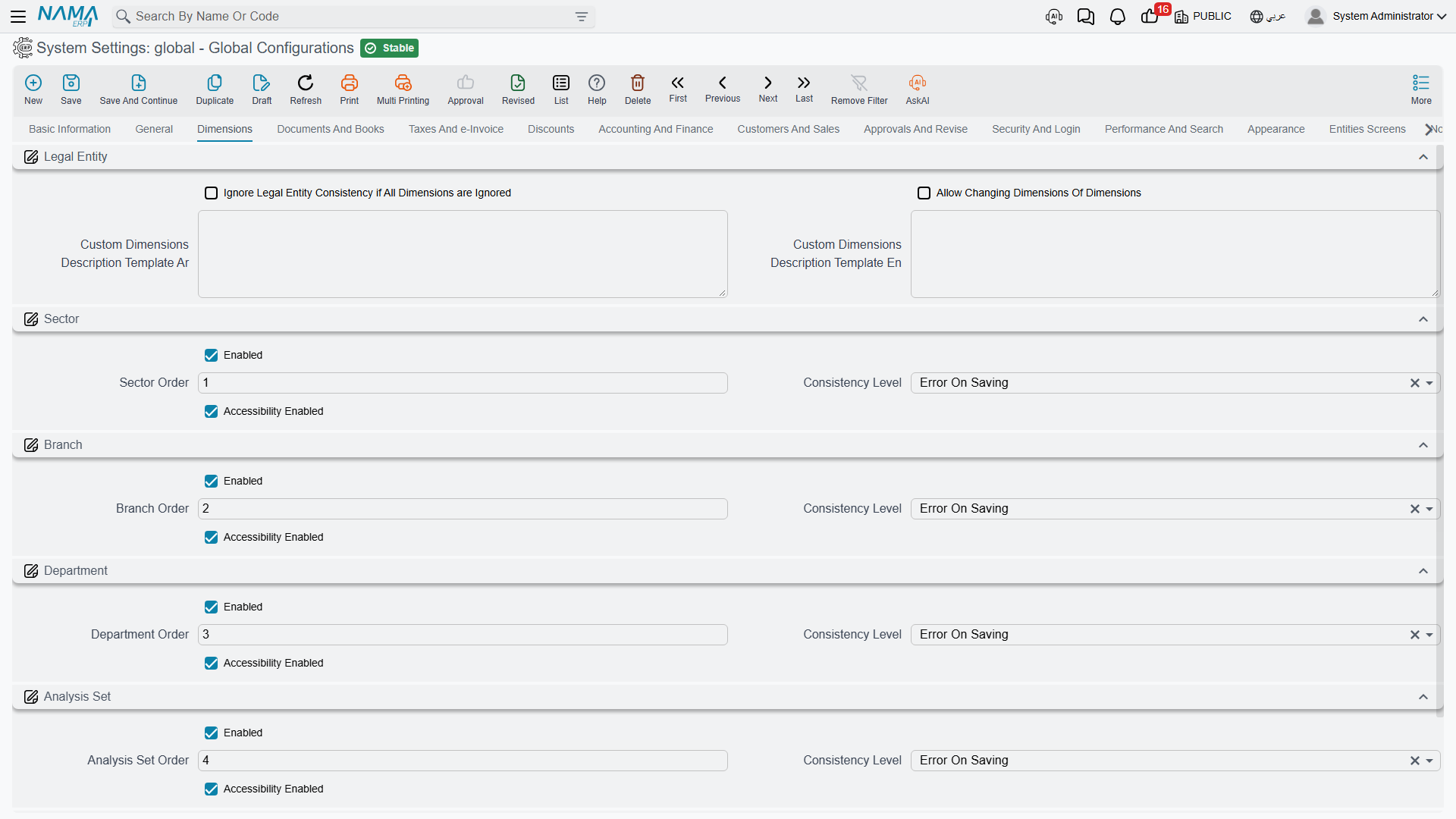
Legal entity
The legal entity is the only dimension that cannot be switched off — it is the company, and every record belongs to one (or to none, which means public).
Show Public Document To All value.info.showPublicDocumentsToAll — Matters only on a server whose nama.properties contains preventViewingPublicDocuments=true. There, documents saved with PUBLIC in a dimension are hidden from users working inside a specific value of that dimension; turning this on shows them to everyone again. It applies to every dimension type, and master files are never hidden this way. Without that line in nama.properties public records are visible to all and this option changes nothing.
Ignore Legal Entity Consistency if All Dimensions are Ignored value.info.ignoreDimensionsConsistency — Skips the storage-dimension consistency check entirely. It only has an effect when all four consistency levels below are set to None; it is an escape hatch for installations that deliberately don't use dimension consistency at all, not a way to silence individual errors.
Relaxing the rule for one field instead of the whole system
Both settings above are all-or-nothing. When only a handful of fields are the problem — a document that must legitimately point at a record from another branch — the dimension consistency check can be switched off on that single reference field, and an individual record type can be declared public across dimensions, in Fields and Entities Settings. That keeps the strict checking everywhere else.
Allow Changing Dimensions Of Dimensions value.info.allowChangingDimsOfDims — A dimension record has dimensions of its own — a branch belongs to a sector, for example. Normally, once master files reference a dimension, its own dimensions are frozen, because changing them would silently re-file every record beneath it. Turn this on only for a deliberate restructuring, and expect to review the affected records afterwards.
Custom Dimensions Description Template Ar / Custom Dimensions Description Template En value.info.customDimensionsDescriptionTemplateAr, ...En — The system shows a one-line human description of a record's dimensions in various places. These templates let you control what that line says and in which order, in each language.
The four optional dimensions
Sector, branch, department and analysis set each get an identical group of four options. Their meaning is the same in every case, so they are described once here.
Enabled value.sectorEnabled, value.branchEnabled, value.departmentEnabled, value.analysisSetEnabled (all default on) — Turns the dimension on. Switch off any dimension the business genuinely doesn't use: its fields disappear from every screen, which removes a column of noise from data entry across the whole system. This is an implementation-time decision — turning a dimension off after records already carry values leaves that data stranded.
Sector Order / Branch Order / Department Order / Analysis Set Order value.sectorOrder (1), value.branchOrder (2), value.departmentOrder (3), value.analysisSetOrder (4) — The relative weight of the dimension when the system resolves a dimension hierarchy. The defaults describe the usual containment: a sector holds branches, a branch holds departments. Change these only if your organisation nests them differently.
Consistency Level value.sectorConsistencyLevel, value.branchConsistencyLevel, value.departmentConsistencyLevel, value.analysisSetConsistencyLevel (all default Error on Saving) — What happens when a document line's dimension contradicts its header or its warehouse. Error on Saving refuses the save, Warn on Saving lets it through with a warning, None says nothing at all. Leaving these at Error is the safe choice: an inconsistent dimension quietly corrupts every report that groups by it.
Accessibility Enabled value.sectorAcessibilityEnabled, value.branchAcessibilityEnabled, value.departmentAcessibilityEnabled, value.analysisSetAcessibilityEnabled (all default on) — Whether the dimension participates in record-level accessibility. With it on, a user restricted to one branch sees only that branch's records. Switching it off makes the dimension purely descriptive — still recorded and still reportable, but no longer a security boundary.
Enabled, ordered, checked, enforced
It helps to read the four options as a sequence: Enabled asks whether the dimension exists at all, Order where it sits in the hierarchy, On Inconsistency how loudly the system complains when it doesn't add up, and Prevent Access whether it also restricts who can see the record.
Account code segments
Many charts of accounts encode dimensions directly into the account code — 1010-05-03-11 might mean account 1010, sector 05, branch 03, analysis set 11. These settings tell the system how to read such a code back into dimensions.
Sector Segment Order (1), Branch Segment Order (2), Department Segment Order (3), Analysis Set Segment Order (4) value.accountDimensionConfigurations.sectorSegmentOrder and friends — The position each dimension occupies in the code, counting from the left after the account number itself. A zero means that dimension is not part of the code.
Segment Separator value.accountDimensionConfigurations.segmentSeperator (default -) — The character the code is split on.
These describe your codes; they don't create them
Changing a segment order doesn't renumber anything — it changes how existing codes are interpreted. Get them wrong and the system will read the branch segment as the sector. Set them to match the coding scheme you actually use, once, before accounts are created.
Settings on this tab
Every field on this tab with its exact on-screen label in both languages, so you can find a setting by the name you see. The last column points to the section that explains it.
| Field id | English label | Arabic label | Meaning |
|---|---|---|---|
value.info.showPublicDocumentsToAll | Show Public Document To All | عرض المستندات العامة لكل المستخدمين | Legal entity |
value.info.ignoreDimensionsConsistency | Ignore Legal Entity Consistency if All Dimensions are Ignored | تجاهل تطابق الشركة اذا لم يتم تحديد تطابق لاي محدد اخر | Legal entity |
value.info.allowChangingDimsOfDims | Allow Changing Dimensions Of Dimensions | السماح بتعديل محددات المحددات | Legal entity |
value.info.customDimensionsDescriptionTemplateAr | Custom Dimensions Description Template Ar | قالب مخصص لوصف المحددات عربى | Legal entity |
value.info.customDimensionsDescriptionTemplateEn | Custom Dimensions Description Template En | قالب مخصص لوصف المحددات إنجليزى | Legal entity |
value.sectorEnabled | Enabled | مفعل | The four optional dimensions |
value.sectorOrder | Sector Order | ترتيب القطاع | The four optional dimensions |
value.sectorConsistencyLevel | Consistency Level | عند وجود عدم اتساق | The four optional dimensions |
value.sectorAcessibilityEnabled | Accessibility Enabled | منع الوصول عند عدم الاتساق | The four optional dimensions |
value.branchEnabled | Enabled | مفعل | The four optional dimensions |
value.branchOrder | Branch Order | ترتيب الفرع | The four optional dimensions |
value.branchConsistencyLevel | Consistency Level | عند وجود عدم اتساق | The four optional dimensions |
value.branchAcessibilityEnabled | Accessibility Enabled | منع الوصول عند عدم الاتساق | The four optional dimensions |
value.departmentEnabled | Enabled | مفعل | The four optional dimensions |
value.departmentOrder | Department Order | ترتيب القسم | The four optional dimensions |
value.departmentConsistencyLevel | Consistency Level | عند وجود عدم اتساق | The four optional dimensions |
value.departmentAcessibilityEnabled | Accessibility Enabled | منع الوصول عند عدم الاتساق | The four optional dimensions |
value.analysisSetEnabled | Enabled | مفعل | The four optional dimensions |
value.analysisSetOrder | Analysis Set Order | ترتيب المجموعة التحليلية | The four optional dimensions |
value.analysisSetConsistencyLevel | Consistency Level | عند وجود عدم اتساق | The four optional dimensions |
value.analysisSetAcessibilityEnabled | Accessibility Enabled | منع الوصول عند عدم الاتساق | The four optional dimensions |
value.accountDimensionConfigurations.sectorSegmentOrder | Sector Segment Order | ترتيب مقطع القطاع | Account code segments |
value.accountDimensionConfigurations.branchSegmentOrder | Branch Segment Order | ترتيب مقطع الفرع | Account code segments |
value.accountDimensionConfigurations.departmentSegmentOrder | Department Segment Order | ترتيب مقطع الإدارة | Account code segments |
value.accountDimensionConfigurations.analysisSetSegmentOrder | Analysis Set Segment Order | ترتيب جزء المجموعة التحليلية | Account code segments |
value.accountDimensionConfigurations.segmentSeperator | Segment Separator | فاصل المقطع | Account code segments |