
Taxes and e-Invoice
Nama carries four independent taxes on every document line. They are deliberately generic: tax 1 is usually VAT, but tax 2 might be a withholding deduction, tax 3 a municipality fee and tax 4 a stamp duty. What each one is comes entirely from how you configure it here.
Because the same settings are used by the server, by the web client while the user types, and by the point-of-sale terminal, all three arrive at the same figure — which is why it matters that they are set once, centrally, and understood.
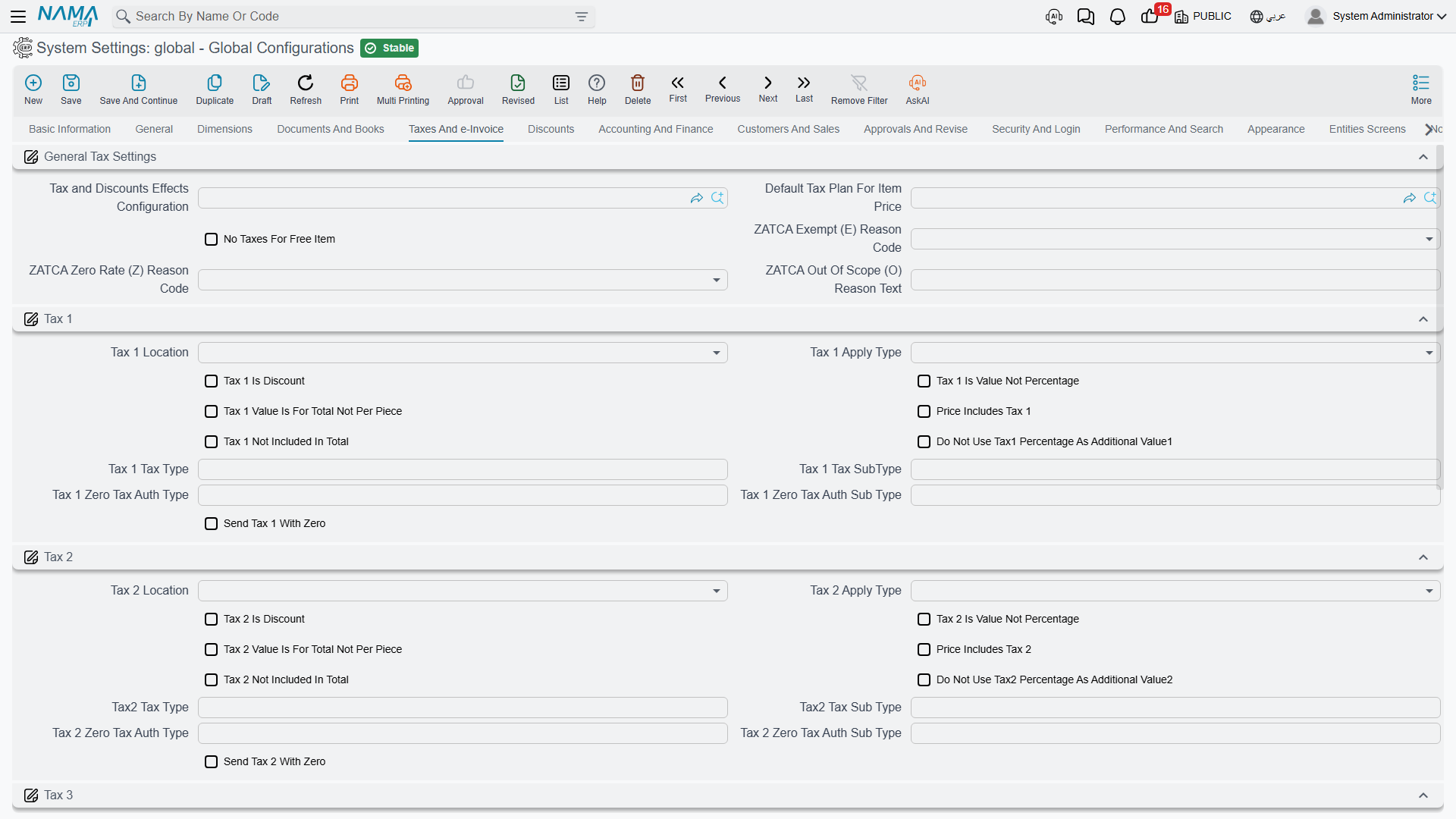
How a tax is described
Each of the four taxes gets an identical group of options. Rather than repeat them four times, here is what each one means, using tax N to stand for any of them.
Tax N Location value.info.taxNLocation — Where the tax sits in the line's calculation chain: right after the main price (Main Price), right after one of the eight discounts, or after the header discount. Every effect that comes later in the chain sees a running total that already includes this tax. The location sets the position only — whether the tax adds to the line or comes off it is decided by Tax N Is Discount below. When a Tax and Discounts Effects Configuration is selected, its own order replaces these positions.
Tax N Apply Type value.info.taxNApplyType — The base the percentage is applied to, and the single most consequential choice in this group. The options walk down the line calculation: Total Price, After Discount 1 Price through After Discount 8 Price, After Header Discount, the value of any single discount, the invoice discount value, the value of another tax, or Custom. A VAT that should be charged on the net after all trade discounts is After Discount N Price for whichever discount is last in your chain; a tax charged on the gross is Total Price.
Tax N Is Discount value.info.taxNIsDiscount — Marks the tax as a deduction rather than an addition. Withholding tax is the usual case: it is computed like a tax but subtracted from what the customer pays.
Tax N Is Value Not Percentage value.info.taxNIsValue — The tax is entered as an absolute amount instead of a percentage. Use it for fixed per-unit levies.
Tax N Value Is For Total Not Per Piece value.info.taxNValueIsForTotal — Read together with the option above: when the tax is a value, is that value per unit or for the whole line? On means the whole line.
Price Includes Tax N value.info.priceIncludesTax (tax 1), value.info.priceIncludesTax2, ...3, ...4 — The unit price already contains this tax, so the system extracts it rather than adding it on top. This is the retail case: the shelf price is what the customer pays and the VAT has to be worked backwards out of it.
Tax N Not Included In Total value.info.taxNNotIncludedInTotal — The tax is calculated and displayed, but left out of the document total. Used for informational taxes that are reported but not collected on this document.
Do Not Use TaxN Percentage As Additional ValueN value.info.doNotUseTaxNPercentageAsAdditionalValueN — The tax percentage is normally mirrored into the line's additional-value field, where reports and integrations can pick it up. Turn this on when you want that field for something else.
Tax N Tax Type / Tax N Tax SubType value.info.taxesCodes.taxNTaxAuthType, ...taxNTaxAuthSubType — The codes the tax authority expects for this tax on an electronic invoice.
Tax N Zero Tax Auth Type / Tax N Zero Tax Auth Sub Type value.info.taxesCodes.taxNZeroTaxAuthType, ...taxNZeroTaxAuthSubType — The codes used instead when the tax evaluates to zero, since most authorities want a zero-rated supply reported under a different code than a taxed one.
Send Tax N With Zero value.info.taxesCodes.sendTaxNWithZero — Include the tax element in the submission even when its value is zero. Some authorities require the line to be present; others reject it.
Work out the chain before setting anything
Location, apply type and the discount settings on the Discounts tab together describe one calculation chain. Write out a real invoice line on paper — list price, each discount, each tax, the total the customer actually pays — and only then set the options so the system reproduces it. Changing an apply type later changes the arithmetic on every document that gets recalculated.
General tax settings
Tax and Discounts Effects Configuration value.info.effectsConfig — Points at a Tax and Discount Effects Configuration file. This is the general-purpose alternative to the fixed chain above: instead of the built-in order of discounts and taxes, that file defines up to thirteen money effects, their order, and exactly what each one is calculated on. Reach for it when your calculation genuinely cannot be expressed with the standard settings.
Default Tax Plan For Item Price value.info.defaultTaxPlanForItemPrice — The tax plan assumed when pricing an item that has none of its own.
No Taxes For Free Item value.info.noTaxesForFreeItem — Zeroes all four taxes on lines flagged as free items, so a promotional giveaway doesn't generate tax on a zero price.
ZATCA Exempt (E) Reason Code value.info.taxesCodes.vatExemptReasonCode — The default exemption reason sent with exempt supplies.
ZATCA Zero Rate (Z) Reason Code value.info.taxesCodes.vatZeroRateReasonCode — The default reason sent with zero-rated supplies.
ZATCA Out Of Scope (O) Reason Text value.info.taxesCodes.vatOutOfScopeReasonText — Free text used as the reason for supplies outside the scope of VAT.
Approximation discount
Cash businesses often round the invoice total to something payable — a total of 99.87 becomes 100.00, or the other way round — and book the difference somewhere sensible.
Activate Approximation Discount value.info.activateApproximationDiscount — Enables the rounding.
Approximation Discount Value value.info.approximationDiscountValue — The rounding step. Set it to the smallest coin you actually handle: 0.05 if you have no smaller coin than five piastres.
Consider Vouchers Payment With Activate Approximation Discount value.info.considerVouchersPaymentWithApproxDisc — Includes voucher payments in the amount being rounded, rather than rounding only the cash part.
These three decide whether and how far to round. Where the rounded-off amount is booked is a per-document decision: each document term carries its own approximation discount account side, and sales terms add a switch for payments flagged Do Not Affect Remaining — see Accounting Effects Configuration.
Electronic invoice
e-Invoice Page To Show value.info.einvoicePageShowType — Nama supports several national e-invoicing regimes, and each adds its own page of fields to tax-related screens. Choose Egypt, ZATCA (Saudi Arabia), JoFotara (Jordan), UAE, or All Pages. Pick the one country you operate in and the other regimes' fields disappear — a large reduction in screen clutter. Leaving it empty behaves like Egypt.
Max Number Of Lines When Collect Tax Auth Docs value.info.maxNumberOfLinesWhenCollectTaxAuthDocs — When documents are gathered for submission to the authority, this caps how many go into one batch. Lower it if submissions time out; raise it to submit fewer, larger batches.
Settings on this tab
Every field on this tab with its exact on-screen label in both languages, so you can find a setting by the name you see. The last column points to the section that explains it.
| Field id | English label | Arabic label | Meaning |
|---|---|---|---|
value.info.effectsConfig | Tax and Discounts Effects Configuration | إعدادات تأثير الخصومات و الضرائب | General tax settings |
value.info.defaultTaxPlanForItemPrice | Default Tax Plan For Item Price | سياسة الضريبة الافتراضية لسعر الصنف | General tax settings |
value.info.noTaxesForFreeItem | No Taxes For Free Item | عدم احتساب ضريبة للصنف المجاني | General tax settings |
value.info.taxesCodes.vatExemptReasonCode | ZATCA Exempt (E) Reason Code | كود سبب الإعفاء (E) - هيئة الزكاة | General tax settings |
value.info.taxesCodes.vatZeroRateReasonCode | ZATCA Zero Rate (Z) Reason Code | كود سبب نسبة الصفر (Z) - هيئة الزكاة | General tax settings |
value.info.taxesCodes.vatOutOfScopeReasonText | ZATCA Out Of Scope (O) Reason Text | نص سبب عدم الخضوع للضريبة (O) - هيئة الزكاة | General tax settings |
value.info.tax1Location | Tax 1 Location | وقت حساب ضريبة 1 | How a tax is described |
value.info.tax1ApplyType | Tax 1 Apply Type | وعاء ضريبة 1 | How a tax is described |
value.info.tax1IsDiscount | Tax 1 Is Discount | ضريبة 1 خصم | How a tax is described |
value.info.tax1IsValue | Tax 1 Is Value Not Percentage | ضريبة 1 قيمة و ليست نسبة | How a tax is described |
value.info.tax1ValueIsForTotal | Tax 1 Value Is For Total Not Per Piece | قيمة ضريبة 1 للإجمالي و ليس لكل وحدة | How a tax is described |
value.info.priceIncludesTax | Price Includes Tax 1 | السعر يشمل الضريبة 1 | How a tax is described |
value.info.tax1NotIncludedInTotal | Tax 1 Not Included In Total | ضريبة 1 غير مضافة الي الإجمالي | How a tax is described |
value.info.doNotUseTax1PercentageAsAdditionalValue1 | Do Not Use Tax1 Percentage As Additional Value1 | عدم إضافة قيمة إضافية 1 إلي إجمالي السعر | How a tax is described |
value.info.taxesCodes.tax1TaxAuthType | Tax 1 Tax Type | الضريبة 1 كود الضريبة 1 | How a tax is described |
value.info.taxesCodes.tax1TaxAuthSubType | Tax 1 Tax SubType | الضريبة 1 كود الضريبة الفرعي 1 | How a tax is described |
value.info.taxesCodes.tax1ZeroTaxAuthType | Tax 1 Zero Tax Auth Type | الضريبة 1 كود الضريبة الصفرية 1 | How a tax is described |
value.info.taxesCodes.tax1ZeroTaxAuthSubType | Tax 1 Zero Tax Auth Sub Type | الضريبة 1 كود الضريبة الصفرية الفرعي 1 | How a tax is described |
value.info.taxesCodes.sendTax1WithZero | Send Tax 1 With Zero | إرسال الضريبة 1 بصفر | How a tax is described |
value.info.tax2Location | Tax 2 Location | وقت حساب ضريبة 2 | How a tax is described |
value.info.tax2ApplyType | Tax 2 Apply Type | وعاء ضريبة 2 | How a tax is described |
value.info.tax2IsDiscount | Tax 2 Is Discount | ضريبة 2 خصم | How a tax is described |
value.info.tax2IsValue | Tax 2 Is Value Not Percentage | ضريبة 2 قيمة و ليست نسبة | How a tax is described |
value.info.tax2ValueIsForTotal | Tax 2 Value Is For Total Not Per Piece | قيمة ضريبة 2 للإجمالي و ليس لكل وحدة | How a tax is described |
value.info.priceIncludesTax2 | Price Includes Tax 2 | السعر يشمل الضريبة 2 | How a tax is described |
value.info.tax2NotIncludedInTotal | Tax 2 Not Included In Total | ضريبة 2 غير مضافة الي الإجمالي | How a tax is described |
value.info.doNotUseTax2PercentageAsAdditionalValue2 | Do Not Use Tax2 Percentage As Additional Value2 | عدم إضافة قيمة إضافية 2 إلي إجمالي السعر | How a tax is described |
value.info.taxesCodes.tax2TaxAuthType | Tax2 Tax Type | الضريبة 2 كود الضريبة 2 | How a tax is described |
value.info.taxesCodes.tax2TaxAuthSubType | Tax2 Tax Sub Type | الضريبة 2 كود الضريبة الفرعي 2 | How a tax is described |
value.info.taxesCodes.tax2ZeroTaxAuthType | Tax 2 Zero Tax Auth Type | الضريبة 2 كود الضريبة الصفرية 2 | How a tax is described |
value.info.taxesCodes.tax2ZeroTaxAuthSubType | Tax 2 Zero Tax Auth Sub Type | الضريبة 2 كود الضريبة الصفرية الفرعي 2 | How a tax is described |
value.info.taxesCodes.sendTax2WithZero | Send Tax 2 With Zero | إرسال الضريبة 2 بصفر | How a tax is described |
value.info.tax3Location | Tax 3 Location | وقت حساب ضريبة 3 | How a tax is described |
value.info.tax3ApplyType | Tax 3 Apply Type | وعاء ضريبة 3 | How a tax is described |
value.info.tax3IsDiscount | Tax 3 Is Discount | ضريبة 3 خصم | How a tax is described |
value.info.tax3IsValue | Tax 3 Is Value Not Percentage | ضريبة 3 قيمة و ليست نسبة | How a tax is described |
value.info.tax3ValueIsForTotal | Tax 3 Value Is For Total Not Per Piece | قيمة ضريبة 3 للإجمالي و ليس لكل وحدة | How a tax is described |
value.info.priceIncludesTax3 | Price Includes Tax 3 | السعر يشمل الضريبة 3 | How a tax is described |
value.info.tax3NotIncludedInTotal | Tax 3 Not Included In Total | ضريبة 3 غير مضافة الي الإجمالي | How a tax is described |
value.info.doNotUseTax3PercentageAsAdditionalValue3 | Do Not Use Tax3 Percentage As Additional Value3 | عدم إضافة قيمة إضافية 3 إلي إجمالي السعر | How a tax is described |
value.info.taxesCodes.tax3TaxAuthType | Tax3 Tax Type | الضريبة 3 كود الضريبة 3 | How a tax is described |
value.info.taxesCodes.tax3TaxAuthSubType | Tax3 Tax Sub Type | الضريبة 3 كود الضريبة الفرعي 3 | How a tax is described |
value.info.taxesCodes.tax3ZeroTaxAuthType | Tax 3 Zero Tax Auth Type | الضريبة 3 كود الضريبة الصفرية 3 | How a tax is described |
value.info.taxesCodes.tax3ZeroTaxAuthSubType | Tax 3 Zero Tax Auth Sub Type | الضريبة 3 كود الضريبة الصفرية الفرعي 3 | How a tax is described |
value.info.taxesCodes.sendTax3WithZero | Send Tax 3 With Zero | إرسال الضريبة 3 بصفر | How a tax is described |
value.info.tax4Location | Tax 4 Location | وقت حساب ضريبة 4 | How a tax is described |
value.info.tax4ApplyType | Tax 4 Apply Type | وعاء ضريبة 4 | How a tax is described |
value.info.tax4IsDiscount | Tax 4 Is Discount | ضريبة 4 خصم | How a tax is described |
value.info.tax4IsValue | Tax 4 Is Value Not Percentage | ضريبة 4 قيمة و ليست نسبة | How a tax is described |
value.info.tax4ValueIsForTotal | Tax 4 Value Is For Total Not Per Piece | قيمة ضريبة 4 للإجمالي و ليس لكل وحدة | How a tax is described |
value.info.priceIncludesTax4 | Price Includes Tax 4 | السعر يشمل الضريبة 4 | How a tax is described |
value.info.tax4NotIncludedInTotal | Tax 4 Not Included In Total | ضريبة 4 غير مضافة الي الإجمالي | How a tax is described |
value.info.doNotUseTax4PercentageAsAdditionalValue4 | Do Not Use Tax4 Percentage As Additional Value4 | عدم إضافة قيمة إضافية 4 إلي إجمالي السعر | How a tax is described |
value.info.taxesCodes.tax4TaxAuthType | Tax4 Tax Type | الضريبة 4 كود الضريبة 4 | How a tax is described |
value.info.taxesCodes.tax4TaxAuthSubType | Tax4 Tax Sub Type | الضريبة 4 كود الضريبة الفرعي 4 | How a tax is described |
value.info.taxesCodes.tax4ZeroTaxAuthType | Tax 4 Zero Tax Auth Type | الضريبة 4 كود الضريبة الصفرية 4 | How a tax is described |
value.info.taxesCodes.tax4ZeroTaxAuthSubType | Tax 4 Zero Tax Auth Sub Type | الضريبة 4 كود الضريبة الصفرية الفرعي 4 | How a tax is described |
value.info.taxesCodes.sendTax4WithZero | Send Tax 4 With Zero | إرسال الضريبة 4 بصفر | How a tax is described |
value.info.activateApproximationDiscount | Activate Approximation Discount | تفعيل خصم التقريب | Approximation discount |
value.info.approximationDiscountValue | Approximation Discount Value | خصم قيمة التقريب عندما تكون القيمة اقل من او تساوى | Approximation discount |
value.info.considerVouchersPaymentWithApproxDisc | Consider Vouchers Payment With Activate Approximation Discount | إعتبار إجمالى المدفوع من السندات مع تفعيل خصم التقريب | Approximation discount |
value.info.einvoicePageShowType | e-Invoice Page To Show | عرض صفحة الفاتورة الإلكترونية الخاصة بـ | Electronic invoice |
value.info.maxNumberOfLinesWhenCollectTaxAuthDocs | Max Number Of Lines When Collect Tax Auth Docs | اقصي عدد للسطور عند تجميع مستندات الضرائب | Electronic invoice |