
Fields and Entities Settings — How It Works
A company goes live and asks for three things in the first week. Customer codes must always start with CU-. The phone number on the Customer screen should be clickable, so a salesman can dial from the record instead of copying digits into his phone. And the item lookup on a Sales Invoice should stop offering raw materials — only sellable items.
None of that needs a developer. All three are single lines in one screen: Basic → Settings → Fields and Entities Settings.
That is what this screen is: one place where an administrator changes how individual fields, reference lookups and whole screens behave, either for one entity type or across the entire system, without touching code and without a new release.
The four tabs, and why you rarely scroll them
The edit screen has four tabs.
- Main — 36 grids stacked one after another, from Allowed Values For Generic References at the top down to Invoice Retriever Lines at the bottom.
- Implementation Repository Info — not a settings tab at all, but the documentation and archival header of the record: remarks, the screenshot and PDF sample, five attachments, the related entity and module, and the link to the implementation catalogue. This tab only appears when the server is configured to talk to the implementation catalogue, so on most installations you will never see it.
- Entities Allowed To Be Public — the Public Entities grid, on a tab of its own.
- Icons — 3 grids, for entity, enum and field icons.
Forty grids on one record is a lot of scrolling, so every one of those grids also has its own list/search screen. That is the practical way to work: open the list screen for Display Masks, search for the field you care about, edit the line, save. You only open the master record itself when you are adding a brand-new line and want the surrounding context.
Find the grid you want by name
The list screens are named after the grid, not after the master record. If you know the grid title — Field Formats, Extra Codes, Audit Fields — search for that title in the menu or in the global search box.
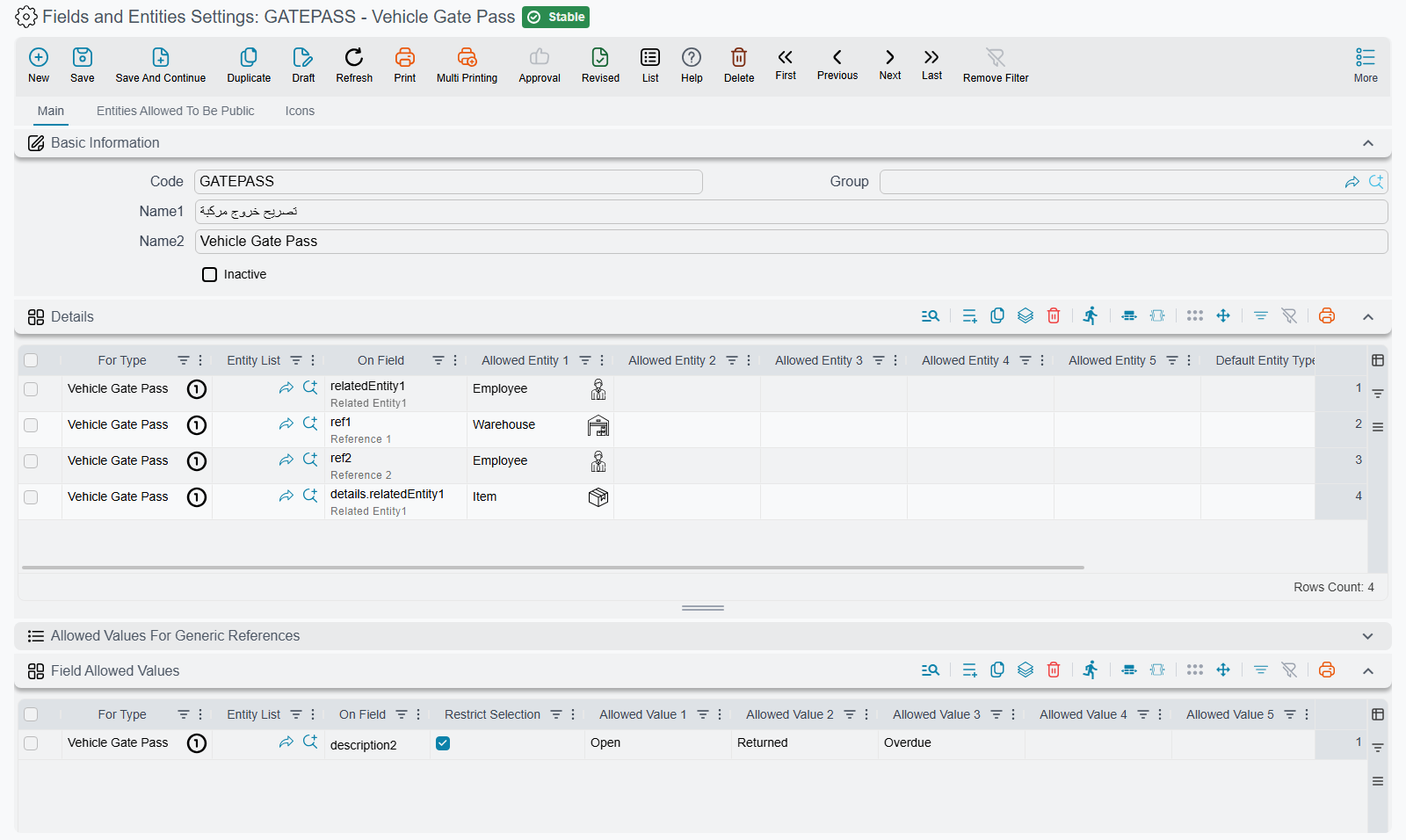
Scope: telling a line where it applies
This is the single most important idea on the screen, and it is the same in almost every grid. The first few columns of a line do not say what to change — they say where the change applies.
| Column | What it does |
|---|---|
| For Type | One entity type this line applies to — Sales Invoice, Customer, Stock Issue. |
| Entity List | A reusable named list of entity types. Define the list once, then one line covers every type in it. |
| For Type List | The same thing as Entity List, in the grids that label the column with this name. |
| On Field / Field | The field ID the line targets — customer, details.item, remarks. |
| Applicable For | A broad category instead of naming types: All Screens, Documents or Master Files. |
| Inactive | Switches this single line off without deleting it. |
Four worked examples
One field on one screen. For Type = Sales Invoice, Field = customer. Nothing else. The line touches the customer field on the Sales Invoice screen and nowhere else — the customer field on a Sales Order is untouched.
One field everywhere. Leave For Type, Entity List and Applicable For all empty and put remarks in the field column. The line is now generic: it applies to the remarks field on every screen in the system that has one. This is how you make a system-wide rule with a single line.
Several document types at once. Build an entity list called My Sales Documents containing Sales Invoice, Sales Order and Sales Return, then put it in Entity List. One line, three screens, and when the company later adds a fourth sales document you extend the list instead of hunting through the grids.
A whole category. Applicable For = Documents covers every document type in the system without naming any of them. Useful for rules like "every document gets an audit trail on its remarks field", where listing types would be endless and would go stale.
Entity-specific always beats generic
When the system looks for a setting it checks the entity-specific lines first, and only falls back to the generic ones if it finds nothing. So you can set a company-wide default and then override it for the one screen that needs to be different:
- Generic line, field
remarks→ applies everywhere. - For Type = Sales Invoice, field
remarks→ wins on Sales Invoice, and the generic line is ignored there.
That is the intended way to handle exceptions. Do not delete the generic line and re-create it thirty times.
Wildcards in the field column
Several grids accept wildcards where the field ID goes:
*— every field.EntityType.*— every field of one entity type.
This is confirmed for Fields that open Edit Screen when code not found, Open Reference In Popup, Use Scanner In Fields and Display Masks.
Display Masks go one step further: they walk the field ID outwards until something matches — details.item.code → details.item.* → details.* → *. That last-but-one form is genuinely useful: details.* masks every column of the details grid with a single line.
How to write a field ID
Field IDs follow the shape of the screen.
- A field in the header is just its name:
customer,remarks,valueDate. - A column inside a grid is the grid name, a dot, then the column:
details.item,details.quantity. - You can keep going into a reference:
customer.codetargets the code of the referenced customer.
You do not have to memorise them. The field column suggests valid field IDs as you type, filtered by the entity type you put in For Type. Pick from the suggestion list rather than typing from memory — a field ID with a typo does not raise an error, it simply never matches anything, and the line sits there looking correct while doing nothing.
A silent no-op is the most common mistake
Nothing validates that a hand-typed field ID exists. If a setting "isn't working", the first thing to check is whether the field ID in the line matches what the suggestion list offers.
When does a change take effect?
This is the question support gets most often, and the answer depends on which side of the wire the setting lives on.
Server-side settings refresh immediately on save. Validation, searching, coding, dimensions, integrators, descriptors, extra codes, calculated fields, audit fields, clear-on-duplicate and public entities all take effect the moment you save the record. No restart, no button to press.
Browser-side settings need a sign-out and sign-in. Display masks, field styles, icons, disabled fields, rich text, signatures, the scanner, text-to-link, open-create, open-in-popup, not-color fields, e-mail send-to types and allowed values are cached in each user's browser. The user has to sign out and back in (or do a hard reload) before the change appears. If you save a display mask and it "doesn't work", this is almost always why — and it explains the classic report that "it works on my machine but not on hers": she simply hasn't signed out since you saved.
Two settings need a server restart. Add Discussion To and Add Related Documents To are cached together with the screen layouts and are not refreshed automatically. They only appear after the server is restarted, so plan those two with the person who owns the maintenance window.
Several records, one system
You are not limited to one record. You can have a record per project, per module, per consultant — whatever keeps the configuration readable. At runtime the system combines all active lines from all records into one effective set of settings.
That flexibility has one sharp edge.
Keep one field's settings in one record
If the same field is configured in two different records, which line wins is unpredictable. Splitting the settings for one field across records is the single most reliable way to create a problem nobody can reproduce. Group by field, not by whoever happened to be typing.
Each record also has an Inactive flag in its header, which switches off every line in that record at once — handy for parking an experiment. But it does not act on its own: the flag is pushed down onto the lines when the record is saved. Ticking Inactive and closing the screen changes nothing. Tick it, then save the record.
Where each grid is documented
Every grid on the four tabs is covered on one of the sibling pages below.
| Grid title on screen | What it does | Documented in |
|---|---|---|
| Allowed Values For Generic References | Restricts which entity types a generic reference field will accept, and sets the default one | Reference lookups |
| Extra Filter | Adds a permanent filter to a reference field so it only offers matching records | Reference lookups |
| Descriptors | Chooses which fields are shown to describe a referenced record | Reference lookups |
| Extra Reference Search Fields | Adds more fields to search on when looking a record up | Reference lookups |
| Reference Searching Operators | Chooses how typed text is matched — starts with, contains, exact | Reference lookups |
| Search In Name In Find By Code | Lets a code box also match the Arabic and English names | Reference lookups |
| Extra Codes | Lets a record be found by alternative codes as well as its own | Reference lookups |
| Fields that open Edit Screen when code not found | Opens a create screen when the user types a code that does not exist yet | Reference lookups |
| Open Reference In Popup | Opens the referenced record in a pop-up instead of navigating away | Reference lookups |
| Display Masks | Formats what a field shows — dates, numbers, codes | Field appearance |
| Field Styles | Colours, fonts and emphasis on a field | Field appearance |
| Rich Text Fields | Turns a plain text box into a formatted editor | Field appearance |
| Text To Link Fields | Renders text as a clickable link — phone numbers, URLs | Field appearance |
| Not Color Fields | Stops a field being treated as a colour picker | Field appearance |
| Signatures | Turns a field into a hand-signature capture area | Field appearance |
| Use Scanner In Fields | Attaches a barcode scanner to a field | Field appearance |
| Entity Icons | Gives an entity type its own icon and colour | Field icons |
| Enum Icons | Gives each value of a list field its own icon and colour | Field icons |
| Field Icons | Puts an icon on a specific field | Field icons |
| Field Formats | Forces typed input into a pattern — for example a code that must start with CU- | Input validation |
| Field Allowed Values | Restricts a field to a fixed set of values | Input validation |
| Disabled Fields | Greys a field out so it cannot be edited | Input validation |
| Max Lines Counts For Documents And Files | Caps how many lines a grid may hold | Input validation |
| Max Fields Length In DB | Sets how many characters a text field may store | Input validation |
| Max POS Fields Length In DB | The same limit for the point-of-sale side | Input validation |
| calculated Fields Queries | Fills a screen field from a query instead of from typing | Calculated fields |
| Style Overrider Details | Colours whole grid rows according to a condition | Calculated fields |
| Files Auto Coding | Builds codes automatically from a pattern and a counter | Automatic coding |
| Allow Usage Of Prevented Records | Lets a record blocked from use be used in specific places anyway | Relaxing restrictions |
| Ignore Dimensions Consistency for Fields | Suspends the dimensions consistency check on named fields | Relaxing restrictions |
| Public Entities | Exempts an entity type from record-level filtering | Relaxing restrictions |
| Clear On Duplicate | Empties chosen fields when a record is copied with Duplicate | Record behaviour |
| Audit Fields | Records who changed a field, when, and from what to what | Record behaviour |
| Add Discussion To | Adds a discussion thread to a screen | Record behaviour |
| Add Related Documents To | Adds a related-documents panel to a screen | Record behaviour |
| Email Send To Types | Chooses which reference types appear in the send-e-mail window | Record behaviour |
| Integrator Config | Connects a screen to an external system | Integrations |
| Import Integrators | Configures how records are pulled in from outside | Integrations |
| Invoice Retriever Lines | Publishes an invoice print-out for retrieval by a link | Integrations |
Two grids are not on Main
Public Entities has a tab to itself, Entities Allowed To Be Public, so do not look for it in the Main stack. The three icon grids are on Icons. Everything else in the table above is on Main.
The record's own header
The header of the record is deliberately thin, because the value is in the lines. Besides the code, the group and the two names — name1 is the Arabic name, name2 the English one — there is the Inactive flag described above, and a colour swatch when colour coding is switched on for this screen in Global Configuration.
The record also carries a set of documentation fields: remarks, a screenshot, a PDF sample, five attachments, the names of the related entity and module, and a link to an Implementation Repository record. The Implementation Repository is Nama's shared catalogue of ready-made configurations — reports, notifications, dashboards, tooltips, scheduled tasks and settings records — where a configuration is stored together with its screenshot, sample and attachments so the same setup can be found and reused on another installation. These fields are for documenting and archiving a configuration, not for changing behaviour, and they all sit together on the Implementation Repository Info tab — which appears only when the server is configured to talk to the implementation catalogue. If you do not see the tab, that is why.
Settings on this tab
The scope columns that most grids on this screen share, with their exact on-screen labels in both languages. Each grid prefixes the field id with its own name (for example displayMasks.forType).
| Field id | English label | Arabic label | Meaning |
|---|---|---|---|
*.forType | For Type | للنوع | Scope: telling a line where it applies |
*.entityList | Entity List | قائمة الأنواع | Scope: telling a line where it applies |
*.fieldID | On Field | الحقل | Scope: telling a line where it applies |
*.applicableFor | Applicable For | مطبق على | Scope: telling a line where it applies |
*.forTypeList | For Type List | لقوائم أنواع | Scope: telling a line where it applies |
*.fieldId | On Field | الحقل | Scope: telling a line where it applies |
*.entityType | Entity Type | النوع | Scope: telling a line where it applies |
*.entityTypeList | Entity Type List | قائمة الأنواع | Scope: telling a line where it applies |
Related pages
- Reference lookups — what a reference field offers, how it searches, and what it shows.
- Field appearance — masks, styles, links, signatures and the scanner.
- Field icons — icons and colours for entities, list values and fields.
- Input validation — formats, allowed values, disabled fields and length limits.
- Calculated fields — query-driven fields and conditional row colouring.
- Automatic coding — building codes from a pattern and a counter.
- Relaxing restrictions — prevented records, dimensions consistency and public entities.
- Record behaviour — duplication, auditing, discussions and e-mail.
- Integrations — outbound and inbound integrators, invoice retrieval.
- Screen Modifier — Overview & Concepts — the neighbouring tool. Screen Modifier changes where things appear — moving a field to another page, hiding it, renaming it, reordering a grid. This screen changes how fields behave. When a request is "move it", go there; when it is "make it do X", stay here.
- Entities Screens — the system-wide switches for extra pages and screen appearance, which act on all entity types at once rather than per field.
- Field, Page, and List View Security — Disabled Fields here is a convenience for keeping people out of a field by accident. Real enforcement belongs in security, which is checked on the server and cannot be bypassed.