
Record Behaviour and Screen Blocks
Most of the Fields and Entities Settings screen is about a single field — how it is drawn, what may be typed into it, where its list of choices comes from. The five grids on this page step back and treat the record as a whole. They decide what survives when a record is duplicated, what is tracked in detail when it is edited, which extra panels appear on its screen, and who may be picked as a recipient when it is sent by e-mail.
Every grid below opens with the same scope columns — For Type, For Type List / Entity List and Applicable For — which decide which screens a line reaches. They are explained in full on the overview page; the tables here summarise them briefly and then concentrate on what is unique to each grid.
Clear On Duplicate
When a user duplicates a record, everything is copied. For the customer, the lines, the terms and the dimensions that is exactly what they want — it is the whole point of duplicating. For the document's own number, its external reference, its approval state or its delivery date it is exactly what they do not want, and every one of those values then has to be found and cleared by hand before the copy can be saved. Miss one and you have two documents claiming the same supplier reference.
Clear On Duplicate lists the fields that are wiped clean on the copy, so the user starts from a genuinely new record instead of an almost-correct old one.
Take a recurring service invoice that is raised for the same customer every month. The user opens last month's invoice and presses Duplicate. They want the customer, the service lines and the prices to come across untouched — but the supplier's external reference and the delivery date belong to last month and must not. Two lines with For Type = Sales Invoice, one on the external reference field and one on the delivery date, are enough: the copy arrives with those two boxes empty and everything else already filled in.
| Column | What it does |
|---|---|
| For Type | The single entity type this line applies to, for example Sales Invoice. |
| Entity List | A named list of entity types, so one line covers several at once. |
| Applicable For | A broad category instead of a named type — AllScreens, Documents or MasterFiles. |
| On Field | The field ID to clear on the copy, for example remarks, details.deliveryDate. |
A line needs a scope
Unlike most grids on this screen, a Clear On Duplicate line may not be left completely open. At least one of For Type, Entity List or Applicable For must be filled in — the screen refuses to save a line where all three are empty. If you really do want the field cleared everywhere, use Applicable For = AllScreens rather than leaving the three boxes blank.
The clearing is done by the server at the moment the copy is made, so a change here is live as soon as you save the record. There is nothing to reload and no session to restart.
Recurring documents
If users are duplicating the same document month after month, it is worth reading Recurring Documents as well — a document that is generated on a schedule may suit them better than a copy made by hand, and the two features work happily side by side.
Audit Fields
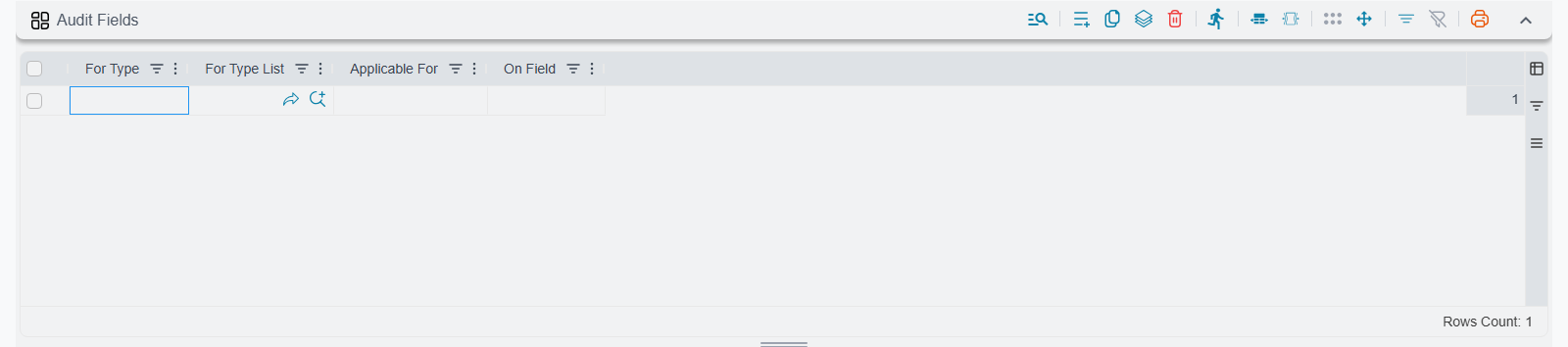
Nama already keeps a version history of every record, so you can always see that something changed and who saved it. That is enough for most fields and not nearly enough for the ones that carry money. When a customer's credit limit moves from 50,000 to 250,000, "the record was edited on Tuesday" is not an answer — you need the old value, the new value, the user and the timestamp, side by side.
Audit Fields turns on that detailed auditing for named fields. Once a field is listed here, every change to it is written to the record's detailed audit trail, reachable from the record itself, showing what the value was before, what it became, who made the change and when. Use it for the handful of fields that matter commercially: a credit limit, a selling price, a discount percentage, a payment term, a customer's blocked flag.
Keep the list short. Detailed auditing is not free, and a hundred audited fields on a busy document produces a trail nobody will ever read.
| Column | What it does |
|---|---|
| For Type List | A named list of entity types, so one line covers several at once. |
| For Type | The single entity type this line applies to, for example Customer. |
| Applicable For | A broad category — AllScreens, Documents or MasterFiles. |
| On Field | The field ID to audit in detail, for example creditLimit, details.price. |
Name the type in For Type
On this grid, name the entity type in For Type (or list the types in For Type List) rather than relying on the Applicable For category.
This grid is applied by the server, so it takes effect the moment you save. The next edit of an audited field is already recorded in detail; edits made before you added the line are not, because the detail simply was not captured at the time.
Where audit trails earn their keep
Detailed auditing pairs naturally with the two other places where "who changed what" decides an argument: Revise and Unrevise, where a saved document is pulled back and edited, and the Approvals System, where a value may be changed after somebody has already approved it.
Add Discussion To
Questions about a document are usually asked in e-mail, in a chat group, or by walking over to somebody's desk — and none of those leave anything behind on the document. Six months later nobody can say why that discount was given. The discussion panel fixes this by hanging a threaded conversation on the record itself, so the question and the answer live where the document lives.
Several screens carry that panel already. Add Discussion To adds it to the screens that do not — a Purchase Order, a Job Order, a Customer file, whatever your users argue about most.
A line names the entity type, the tab the panel should be added to, and where on that tab it should sit. For example, For Type = Purchase Order, Add To Page = the notes tab of the screen, Insert At = 10, puts the conversation at the bottom of the tab your users already open when they want the background to a document.
| Column | What it does |
|---|---|
| For Type List | A named list of entity types, so one line covers several at once. |
| For Type | The single entity type this line applies to, for example Purchase Order. |
| Applicable For | A broad category — AllScreens, Documents or MasterFiles. |
| Add To Page | The name of the tab the panel is added to. |
| Insert At | The panel's position on that tab — a smaller number puts it higher up. |
Always name a page
Leaving Add To Page empty does not mean "the default tab" — it means every tab of the screen, including the mobile screen and the quick-creation screen. A discussion panel repeated on eight tabs is not what anyone had in mind. Set a page name unless you genuinely want the panel everywhere.
Add Related Documents To
The related-documents panel answers the other recurring question: where did this document come from and what came out of it? It shows the chain around the record — the sales order behind the invoice, the delivery that followed it, the return that reversed it — so a user can walk the chain without going back to the menu and searching.
Add Related Documents To works exactly like the discussion grid: the same scope columns, the same Add To Page and Insert At, and the same trap if you leave the page name empty. Put the panel on the tab where users look for context — typically the first tab of a document, so the chain is visible the moment the record opens.
| Column | What it does |
|---|---|
| For Type List | A named list of entity types, so one line covers several at once. |
| For Type | The single entity type this line applies to, for example Sales Invoice. |
| Applicable For | A broad category — AllScreens, Documents or MasterFiles. |
| Add To Page | The name of the tab the panel is added to. Leaving it empty adds the panel to every tab. |
| Insert At | The panel's position on that tab — a smaller number puts it higher up. |
These two grids need a server restart
The discussion and related-documents panels are the exception to everything else on this screen. They are not read fresh each time; they are cached together with the screen layouts, and that cache is not refreshed automatically. After you add or change a line in either grid, the panel will not appear — no matter how many times the user signs out and back in — until the server is restarted. Plan the change for a restart window, and do not spend an afternoon debugging a line that is perfectly correct.
Email Send To Types
When a user sends a document or a report by e-mail from inside Nama, the send dialog does not ask them to type an address. It gives them a recipient box they can pick records from, and the address is taken from the record they choose. That only works if the box knows which kinds of record it is allowed to offer — a Sales Invoice should offer customers and perhaps the salesman, an internal cost report should offer employees, a purchase document should offer suppliers.
Email Send To Types is where that list is decided. Each line names the recipient box being configured — the "to" and "cc" boxes of the send dialog — and up to five entity types that box may choose from.
| Column | What it does |
|---|---|
| Send Type | Whether the line applies to the report dialog (SendReport) or the printed-form dialog (SendForm). Leaving it empty applies the line to both. |
| On Field | The recipient box being configured — the "to" or "cc" box of the send dialog. |
| Type 1 | An entity type this box may pick from, for example Customer. |
| Type 2 | A second allowed entity type. |
| Type 3 | A third allowed entity type. |
| Type 4 | A fourth allowed entity type. |
| Type 5 | A fifth allowed entity type. |
Five types per line is not the limit, because lines for the same box merge rather than overwrite each other. If you need customers, suppliers, employees, salesmen and two more types in the same box, write a second line for the same box with the extra types and the dialog offers all of them.
Send Type exists because the two dialogs are used by different people for different things. Reports tend to go to managers, printed forms tend to go to the customer or the supplier named on the document. Setting SendReport on one line and SendForm on another lets each dialog offer a sensible, short list instead of one long combined list that everybody has to scroll past.
Users must sign out and back in
This grid is applied by the browser, not the server. After you save your changes, a user who is already signed in keeps seeing the old recipient list until they sign out and sign back in (or force a hard reload). Test your line in a fresh session before concluding it did not work.
Settings on this tab
Every grid and column this page covers, with its exact on-screen label in both languages, so you can find a setting by the name you see. The last column points to the section that explains it. The scope columns (For Type, Entity List, On Field and the like) are the same on every grid and are listed on the overview page.
| Field id | English label | Arabic label | Meaning |
|---|---|---|---|
auditFields | Audit Fields | Audit Fields | Audit Fields |
addDiscussionTo | Add Discussion To | إضافة النقاش إلي | Add Discussion To |
addDiscussionTo.addToPage | Add To Page | إضافة إلي صفحة | Add Discussion To |
addDiscussionTo.insertAt | Insert At | إضافة في | Add Discussion To |
addRelatedDocumentsTo | Add Related Documents To | إضافة المستندات المرتبطة إلى | Add Related Documents To |
addRelatedDocumentsTo.addToPage | Add To Page | إضافة إلي صفحة | Add Related Documents To |
addRelatedDocumentsTo.insertAt | Insert At | إضافة في | Add Related Documents To |
lines | Details | التفاصيل | Email Send To Types |
emailSendToTypes | Email Send To Types | أنواع المراجع في نافذة ارسال بريد الكترونى | Email Send To Types |
emailSendToTypes.sendType | Send Type | نوع الارسال | Email Send To Types |
emailSendToTypes.entityType1 | Type 1 | النوع 1 | Email Send To Types |
emailSendToTypes.entityType2 | TypE 2 | النوع 2 | Email Send To Types |
emailSendToTypes.entityType3 | Type 3 | النوع 3 | Email Send To Types |
emailSendToTypes.entityType4 | Type 4 | النوع 4 | Email Send To Types |
emailSendToTypes.entityType5 | Type 5 | النوع 5 | Email Send To Types |
Related pages
- Fields and Entities Settings — Overview — the scope columns, the lookup order and how the whole screen is organised.
- Reference Lookups and Search — the sibling page on how reference fields find and offer records.
- Screen Modifier — Edit-Screen Modifications — the tool for arranging everything else on an edit screen, including the tabs the discussion and related-documents panels are placed on.
- Nama ERP Notification System — the other way a record reaches a person, and the natural companion to both the discussion panel and e-mail sending.
- Revise and Unrevise — pulling a processed document back for editing, where a detailed audit trail earns its keep.
- Approvals System — approval states are a classic Clear On Duplicate candidate, and a classic thing to audit in detail.
- Recurring Documents — generating a document on a schedule instead of duplicating last month's by hand.
- Jasper Reports Complete Guide — the reports whose send dialog the Email Send To Types grid configures.