
Jasper Reports Complete Guide for Nama ERP
Every report and every printed form that Nama ERP produces is a JasperReports design: a layout file with a SQL query behind it and a set of prompts in front of it. This page is for the people who build and maintain those designs — the implementer who has to make a printed invoice match a customer's letterhead, and the support person who has to work out why the one on screen does not.
There are two ways to arrive at a report. The Report Wizard assembles the design for you out of a main table, a list of fields and a few grids; you never open the layout file. Or you draw the design yourself in Jaspersoft Studio, upload it, and take complete control of every band, every expression and every page. The wizard covers most everyday reporting; a hand-drawn design is what you reach for when the output has to look exactly one particular way. Both end up as the same kind of report definition, so almost everything below applies whichever route you took.
Wherever you see a Groovy expression on this page, the call comes from the report helper that Nama makes available inside every report. The full catalogue of those calls — names, dates, prices, links, security, QR codes, and the built-in $P{} parameters every report receives — lives on the NamaRep expression reference. This page explains the jobs; that page lists the calls.
Where reports live
Everything to do with report definitions sits under Administration → Reports:
| Screen | What it holds |
|---|---|
| Report Group | The groupings that decide which menu a report appears under, and therefore who stumbles across it. |
| Report Definition | The report itself — the uploaded layout file, its code, its group, its subreports and its resources. This is where a hand-drawn design is registered so that users can run it. |
| Report Wizard | The build-it-for-me route: pick a table, pick fields, save, and a report definition is generated for you. |
| Printing Form Wizard | The same idea for printed forms rather than list-style reports. |
| Data Source | A reusable query block that a wizard report can pull extra columns from — see Data Sources. |
| Virtual Entity | A saved SQL statement that behaves like a table — see Virtual Entities. |
| Report Style | Named styles reports can share, instead of every design carrying its own fonts and borders. |
| Custom Report Menu | A hand-built menu of reports, for when the group-based menu is not the arrangement you want. |
If a user tells you a report is "missing", this is where to look first: the report usually exists, but its group puts it in a menu that user cannot see, or its security keeps it from them — see Who may run a report.
Building with the wizard instead
If you are not going to hand-draw the layout, start at the Report Wizard Guide — it walks through building a report from the screen, field by field. Come back here for the parts the wizard does not cover: parameters written by hand, subreports, page sizes, fonts and security constraints.
Where a report appears in the menu
The Reports menu is built from the report's Group field: each top-level group becomes an entry, and the reports filed under it are listed inside. A Report Group is an extra, hand-picked collection on top of that. List its reports in its Details grid — or add the group to a report's own Report Groups grid; the two stay in step — and tick Automatically Add To Menu to have it appear as its own entry in the Reports menu, at the position given by Order In Menu. Neither one is security. A report someone can find in the menu still has to pass the checks below before it runs.
Who may run a report
"Why can only one person see this report?" and "restrict this report to the finance team" are the same question asked from two ends. A report definition answers it with four checks, applied in this order every time someone runs it:
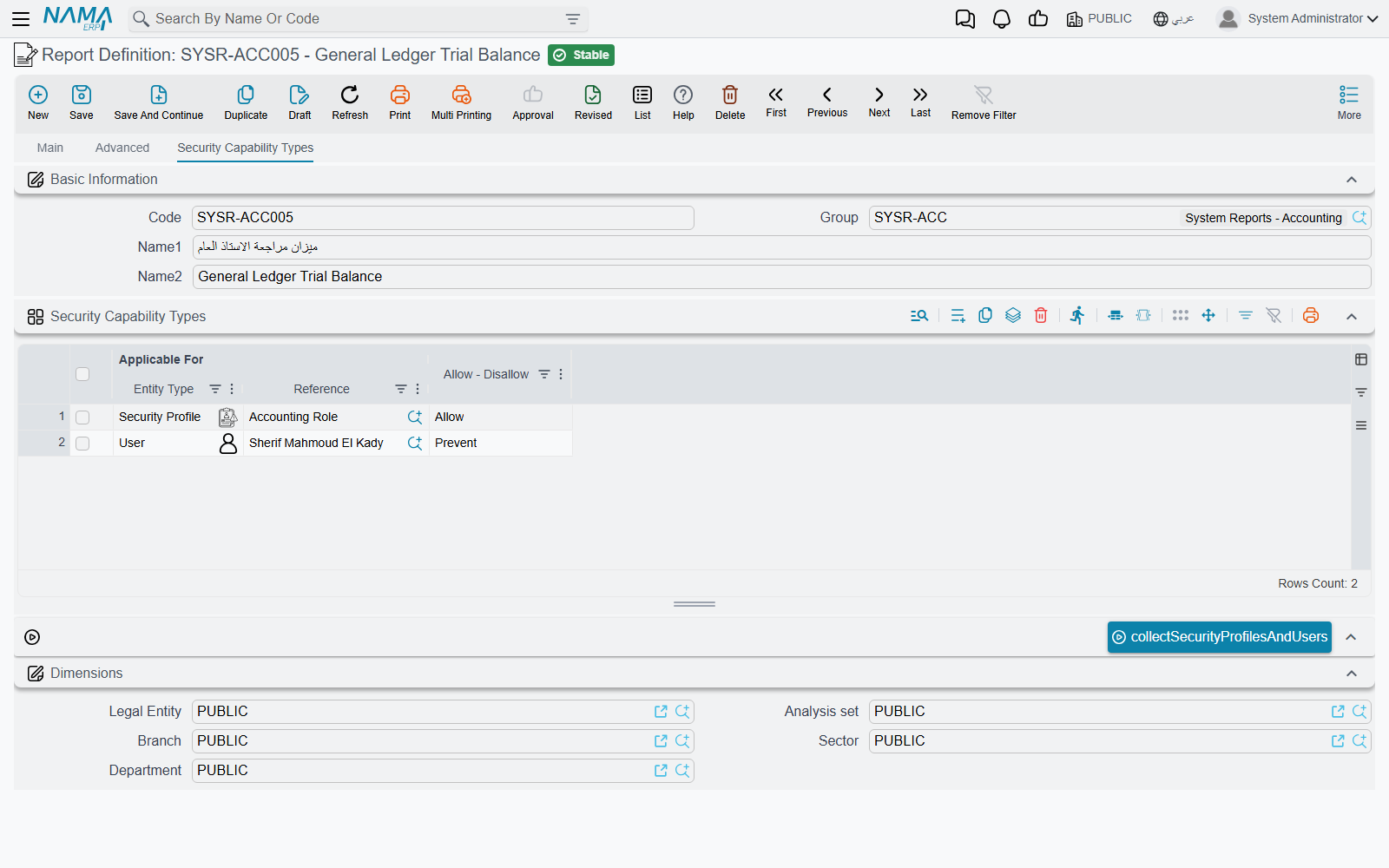
- The report's own security grid. The Security Capability Types tab carries a grid of Applicable For (a user, a security profile or a user group) and Allow - Disallow lines. A line naming the user wins over one naming their profile or group. An Allow line that matches lets the user run the report at once, and the remaining checks are skipped. A Prevent line that matches refuses them. And if every line is an Allow line, the grid is a guest list: anybody it does not name is refused. This is why allowing one user can lock everyone else out — add the others, or add a Prevent line for someone so the grid stops being allow-only. The same grid also hides the report from the menu and the report list of the users it shuts out. Users whose security profile has full authority are never stopped by it.
- Dimensions. A report filed under a legal entity, branch, sector, department or analysis set runs only for users whose login gives them that dimension.
- View Capability. If the report carries one, the user's security profile must grant that capability. Shipped system reports carry one automatically — see System reports.
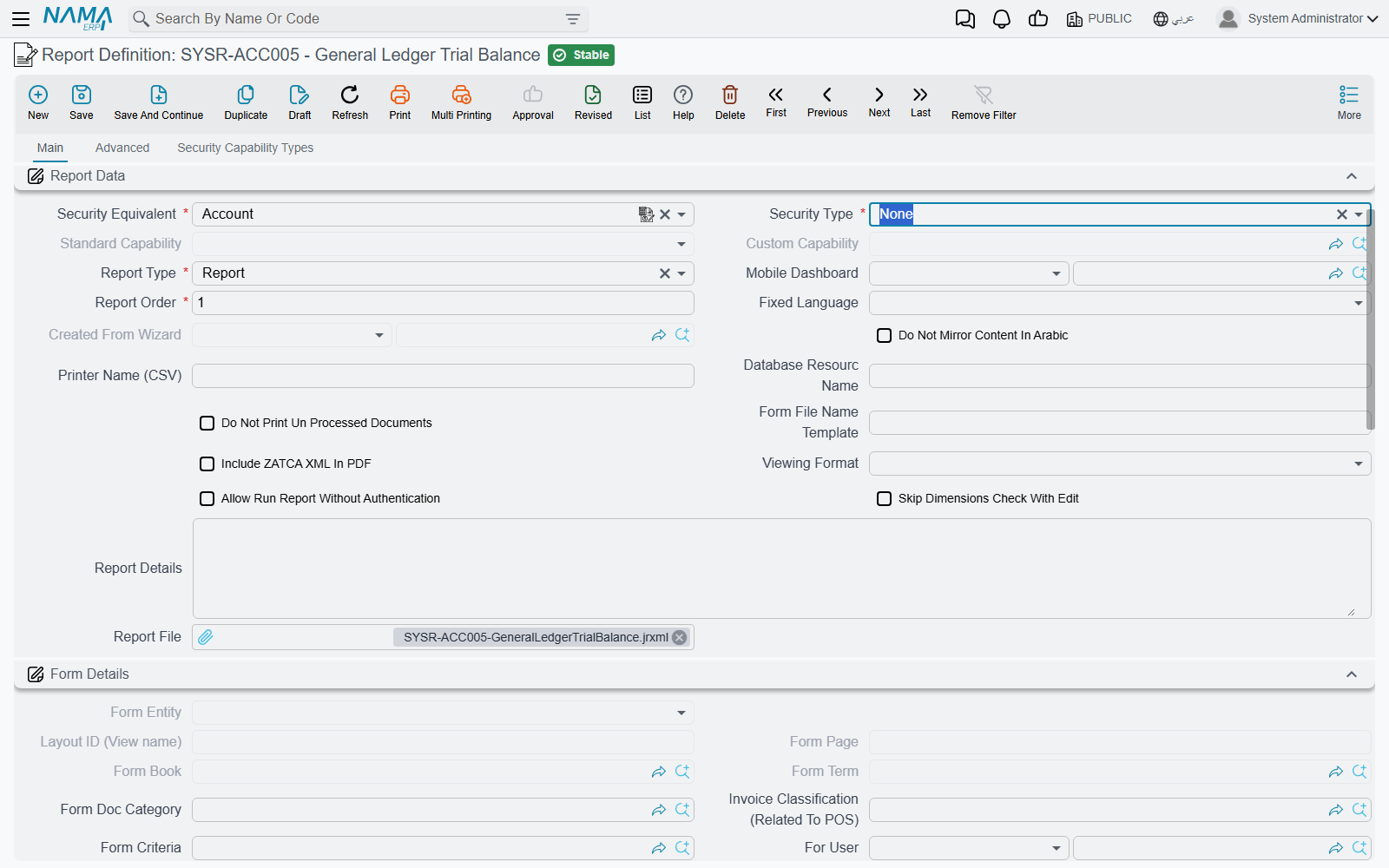
- Security Type and Security Equivalent. These tie the report to the security of an ordinary screen. With Standard, the user needs the Standard Capability (List View if left empty) on the Security Equivalent type: a customer-balance report whose equivalent is Customer runs for anyone who may open the customer list. With Custom, they need the Custom Capability on that type instead. None skips this check.
A refusal reads You are not allowed to run the report {0} when it comes from the grid. The global configuration option Allow Report If User/Group/Security Profile Allowed Through Security Table Regardless Of Security on the Reports and Printing tab makes an Allow line enough to list the report even where the other filters would hide it.
Two fields look like security but are not. For User is used only when choosing which printed form to print. It does not decide who may run a report from the menu. Allow Run Report Without Authentication decides whether the report may be opened through a no-login link. Such a link skips every check above, and without the tick it is refused with You can not run this report without authentication.
To control who sees the rows inside a report, see Limiting what each user sees.
System reports
A system report is one of the reports and printed forms that Namasoft ships ready-made. It has System ticked on the Advanced tab. They are filed under groups such as System Reports - Accounting. Each one gets that group's capability as its View Capability, so a user needs that capability in their security profile, or full authority, to run it. The View System Reports flag on a security profile grants only the general System Reports capability, which covers just the system reports filed without a group. That flag is hidden from the Security Profile screen on purpose — Fields hidden on purpose shows how to reveal it with a Screen Modifier.
Where they come from. Update System Reports downloads the current catalogue from Namasoft's server, so the server needs internet access. You find it on the utilities page under System Update, or in the More menu of the Report Definition screen after pressing Ctrl + Alt + X (see Keyboard shortcuts). It asks for confirmation. For every module you have installed it creates the reports you are missing. It also overwrites the existing ones: their layout, type, security type, names and group. Your own Security Capability Types lines, For User and Report Groups survive. Afterwards it deletes the system reports whose module is no longer installed or that Namasoft has withdrawn, and removes system groups left empty. The same run also refreshes the shipped notifications, dashboards, tooltips and scheduled tasks.
Changing one. The design of a system report is frozen. Saving a change to it is refused — see Messages you may see. Use Duplicate instead: the copy is your own report, with System cleared, and for printed forms a non-system form always beats a system one. A report of your own that carries a system report's code is overwritten by the next update and turned back into a system report. That happens to a report converted with Allow Change System Report To Non System, for instance. The only exception is when Do Not Update Report Not A System Report But Have Same Code Of System Report is on in the global configuration.
Deleting one. Deleting a system report is allowed, but it does not last: the next update creates it again. To keep a shipped report away from people, add Prevent lines to its security grid instead.
How a form knows which record to print
A report launched from a menu asks the user for everything it needs — a date range, a branch, a customer. A printed form asks for nothing at all: the user already has the record open and has pressed Print. Yet the query behind that form has no idea which sales invoice it is drawing, and nothing in the layout tells it. The record's identity arrives from outside, in a single parameter, and wiring that parameter is the one thing a hand-drawn form cannot get away without.
A form printed from one record
Declare a parameter named id, and filter the main table on it:
<parameter name="id" class="java.lang.Object">
    <property name="entityType" value="SalesInvoice"/>
</parameter>select inv.code, inv.valueDate, cust.name1
from SalesInvoice inv
left join Customer cust on cust.id = inv.customer_id
where inv.id = $P{id}That is the whole contract, and it is what every form shipped with the product does. The entityType property names the kind of record the value refers to, exactly as it does on a reference prompt.
A form receives exactly one value, and it is matched by position
A printed form never puts a prompt on screen — the user pressed Print on a record and that is the end of the conversation. The single value it receives is the record's id, and Nama writes it into the first parameter the design offers as a question. The name is not what decides: several forms shipped with the product call this parameter Id or ID rather than id and print perfectly well.
So the id parameter should be the only open question in the design. Anything else the layout needs — a value it computes, a flag it switches on — has to be closed off, or it will take the record id instead and the form will draw the wrong record with nothing on screen to say why. Three things close a parameter off, and any one of them is enough: isForPrompting="false" on the parameter, a <property name="ignore" value="true"/> inside it, or a src property naming the parameter it takes its value from. The built-in system parameters — loginUserName1, loginLegalEntityLogo and the rest — are recognised by their names and skipped as well, so they can sit anywhere.
A form printed from a list screen
Set the definition's Report Type to List and the form is offered from the list screen instead, where the user ticks several rows before pressing Print — see Printing a list instead of a record.
The form is now handed every selected record rather than one, so the same parameter arrives as a list of ids. Both its declaration and the query that reads it have to change:
<parameter name="id" class="java.util.List">
    <property name="entityType" value="SalesInvoice"/>
</parameter>where $X{IN, inv.id, id}$X{IN, column, parameter} is Jasper's clause function for exactly this: it writes the in (?, ?, ?) for you, with as many placeholders as the user happened to tick. You cannot write that list by hand, because how many rows a user will select is not knowable when the design is drawn.
The two routes also bind differently, which is worth knowing before you copy a working form: a list print matches the parameter by name, wherever it sits in the design, and the name has to be exactly id. The Id and ID spellings a single-record form happily tolerates receive nothing here.
= $P{id} against a list fails
This is the commonest reason a form that prints perfectly from a record fails from the list screen. $P{} binds a single value; a list of five ids has no single value to bind, so the query dies at the database with a type error that says nothing about lists. Change the class to java.util.List and the comparison to $X{IN, …} together — either change alone still breaks.
The wizard flips both for you
Print As List on the Printing Form Wizard is this same switch. Left off, the generated form filters a single id; ticked, it generates a list parameter and an IN. What it writes for the single-record case is $X{EQUAL, column, parameter} — the clause function spelling of column = $P{parameter}. Either spelling is fine in a design you draw yourself.
Putting the company logo on a report
The logo is the first thing anyone asks for, and it needs no query and no configuration — the system hands it to every report that asks for it.
- Declare a parameter named
loginLegalEntityLogo, of typejava.lang.Objectorjava.io.InputStream. - Add an image element to the layout.
- Set the image expression to
$P{loginLegalEntityLogo}.
That is all. When the report runs, the logo of the legal entity the user is logged into arrives in that parameter. Four more logos are available the same way — loginLegalEntityLogo2 through loginLegalEntityLogo5 — which is how installations that need a second mark, a quality certification or a franchise badge, get one onto the page.
Which legal entity supplies the logo when the document belongs to a different company from the user is decided in Global Configuration, on the Reports and Printing tab.
Any other image or attachment
For an image that is not the logo — a stamped signature stored against the record, a scanned certificate — fetch the attachment by its id and feed the result to the image element:
NamaRep.getFile($F{attachmentId})
// or
NamaRep.getAttachment($F{attachmentId})
Subreports and extra resources
A report can embed another report inside itself. That is how a delivery note prints its lines from one design and its terms and conditions from another, and how a statement prints a different summary block per branch.
Register the subreport on the report definition, then link it into the layout:
- Give the subreport a subreport id on the report definition. It is free text — you choose it.
- In the layout, declare a parameter with exactly that name.
- Set the class of that parameter to
java.lang.Object. - Use the parameter as the subreport expression.
Declare it as java.lang.Object, not java.io.InputStream
What the system places in that parameter is an already-compiled report, not the raw file. A parameter declared as java.io.InputStream fails at fill time with a type error that says nothing useful about the cause. Every report that ships with the product declares its subreport parameters as java.lang.Object.
Extra resources — an image the layout uses, a file the design needs — work the same way: register the resource on the report definition, declare a parameter with the same name and the class java.lang.Object, and reference it where the design needs it.
Editing a design in place
Most changes to a hand-drawn design arrive the way the design was built: fix the layout in Jaspersoft Studio, export it, and upload the new file into Report File. But the definition also keeps a text copy of that file, and for a small correction — a mistyped column name, a label, a width — editing the text is quicker than a round trip through the studio.
Open the Advanced page. At its bottom sit two fields:
| Field | What it holds |
|---|---|
| Report File Content | The text of the uploaded layout file. It is refilled from the file every time the definition is saved, so what you read here is always what the report runs from. |
| Copy Content To Report | An instruction to the next save: write the text back into the file. |
Edit the text and save, and the system takes it from there. The file is rewritten from the text, the report is recompiled from the file, and the text is read back from the file, so the two are identical again. Copy Content To Report ticks itself when the save finds that the text differs from what was stored, so you do not normally touch it, and you will find it cleared again afterwards: it describes a one-off action, not a setting.
The same holds when the change arrives through an import or an integration rather than the screen. A saved definition whose content differs from the stored copy is treated exactly as if you had typed the change. A brand-new definition created from pasted text, with no file uploaded at all, is handled the same way: the first save creates the file from the text and names it after the report's code (or its name when the code has no usable characters) with a .jrxml extension, so a definition can be created entirely from text.
The subreport and resource rows carry the same pair of fields, even though the grids on screen show only the id and the file. For an import tool, the MCP tools or the API, each Subreports row and each Resources row exposes reportContent and reportFileName alongside its file: a subreport row holds the plain text of its layout, a resource row holds the file's bytes encoded as Base64. When Copy Content To Report is ticked, one save writes the header content and every row's content into their files together. The automatic tick watches the header's content and any row that has content but no file yet, so a row created from text gets its file on the first save. An import that changes the text of an existing subreport or resource row, though, must set copyContentToReport explicitly or that row's file stays as it was.
What actually runs
A report never runs from the text field. Every save rebuilds a compiled version from Report File, and that compiled version is what users run. The text field is a way into the file, not a second source, which is why the two always match after a save.
Asking the user for input: report parameters
Parameters are the prompts a user fills in before a report runs, and they are also the values the SQL query reads. A parameter is declared once in the layout and does both jobs.
Once the report is on screen, the Re-Run With Parameters button (the play icon) on the viewer's toolbar — or F5 — runs it again with the same parameter values, so figures that changed in the meantime show up without filling the prompts again.
Multi-selection (list) parameters
Sometimes one value is not enough — the user wants five employees, or every branch except two. A parameter can accept a list:
- Set the property
list = true. - For anything that is not a reference to a record, also set
listType(for examplejava.util.Date). - To print what the user chose, declare companion string parameters. The system fills them automatically:
<parameterName>_csv— the translated values, comma-separated<parameterName>_codecsv— the codes<parameterName>_name1csv— the Arabic names<parameterName>_name2csv— the English names
doNotAutoShowList = truestops the chosen values being listed automatically on the report.listDisplayTypechooses the widget the user gets:Default— the standard multi-selection input, used when the property is omittedDropdown— chosen values appear as removable chips inside the input, and the full option list opens in a searchable menu. The right choice when the value set is largeChips— every allowed value is shown as a clickable chip, selection toggling on click. The right choice for a handful of options you want visible without opening anything
<parameter name="MultiEmployee" class="java.util.List">
    <property name="entityType" value="Employee"/>
    <property name="list" value="true"/>
    <property name="listDisplayType" value="Chips"/>
</parameter>
A fuller example — two list parameters
<!-- A list of records -->
<parameter name="MultiEmployee" class="java.util.List">
    <property name="entityType" value="Employee"/>
    <property name="arabic" value="الموظفين"/>
    <property name="english" value="Employees"/>
    <property name="property" value="code"/>
    <property name="list" value="true"/>
    <property name="doNotAutoShowList" value="false"/>
</parameter>
<parameter name="MultiEmployee_csv" class="java.lang.String" isForPrompting="false"/>

<!-- A list of plain values -->
<parameter name="MultiDate" class="java.util.Date">
    <property name="english" value="Dates"/>
    <property name="arabic" value="التواريخ"/>
    <property name="defaultValue" value="$monthStart()"/>
    <property name="list" value="true"/>
    <property name="listType" value="java.util.Date"/>
</parameter>
<parameter name="MultiDate_csv" class="java.lang.String" isForPrompting="false"/>
A scheduled task has no user to tick the values, so it passes a list parameter a saved Multi Value Report Parameter record instead.
Date Range Parameters
Two separate "From Date" and "To Date" prompts work perfectly well, but they take up two rows and nothing on screen tells the user the two belong together. showAsDateRange gives the user a single range picker while the query keeps the two real date parameters it needs.
Three parameters cooperate:
- A controller parameter — a string, with
showAsDateRange = true. This is what the user sees. It carries no value of its own. - A "from date" parameter with
isForPrompting="false", named by the controller'sfromDateId. - A "to date" parameter with
isForPrompting="false", named by the controller'stoDateId.
When the user picks a range, the chosen dates are written into the two underlying parameters. From the query's point of view nothing has changed — you still reference $P{FromValueDate} and $P{ToValueDate} exactly as you would any other date parameter.
<parameter name="FromValueDate" class="java.util.Date" isForPrompting="false">
    <property name="arabic" value="من التاريخ الفعلي"/>
    <property name="english" value="From Value Date"/>
</parameter>

<parameter name="ToValueDate" class="java.util.Date" isForPrompting="false">
    <property name="arabic" value="إلى التاريخ الفعلي"/>
    <property name="english" value="To Value Date"/>
</parameter>

<parameter name="ValueDate" class="java.lang.String">
    <property name="showAsDateRange" value="true"/>
    <property name="fromDateId" value="FromValueDate"/>
    <property name="toDateId" value="ToValueDate"/>
    <property name="arabic" value="التاريخ الفعلي"/>
    <property name="english" value="Value Date"/>
</parameter>
Then in the query:
WHERE valueDate >= $P{FromValueDate}
  AND valueDate <= $P{ToValueDate}
or with the between syntax:
where $X{[BETWEEN],valueDate,FromValueDate,ToValueDate}Three things have to hold or the picker will not appear: the controller must be a java.lang.String, both date parameters must set isForPrompting="false" so they do not show up as separate prompts beside the picker, and fromDateId and toDateId must match the two parameter names exactly.
Grouping prompts into sections
A report with fifteen prompts is a wall of boxes, and the user has to read all of them to find the two they care about. Groups let you sort the prompts into titled sections — Dates, Customer, Items — the way an edit screen sorts its fields, and each section can be folded away until the user needs it.
A group is a parameter of its own that asks nothing. It carries paramGroup = true, a title in arabic and english, and it must set isForPrompting="false". The prompts that belong to it name it in their paramGroupId property:
<parameter name="grpDates" class="java.lang.String" isForPrompting="false">
    <property name="paramGroup" value="true"/>
    <property name="arabic" value="تواريخ"/>
    <property name="english" value="Dates"/>
</parameter>

<parameter name="ValueDate" class="java.lang.String">
    <property name="paramGroupId" value="grpDates"/>
    <property name="showAsDateRange" value="true"/>
    <property name="fromDateId" value="FromValueDate"/>
    <property name="toDateId" value="ToValueDate"/>
    <property name="arabic" value="التاريخ الفعلي"/>
    <property name="english" value="Value Date"/>
</parameter>

<parameter name="grpCustomer" class="java.lang.String" isForPrompting="false">
    <property name="paramGroup" value="true"/>
    <property name="arabic" value="العميل"/>
    <property name="english" value="Customer"/>
    <property name="collapsed" value="true"/>
</parameter>

<parameter name="Customer" class="java.lang.String">
    <property name="paramGroupId" value="grpCustomer"/>
    <property name="entityType" value="Customer"/>
    <property name="arabic" value="العميل"/>
    <property name="english" value="Customer"/>
</parameter>
How the run screen lays it out:
- Sections follow the order of the group parameters in the layout, and inside a section the prompts keep their own order.
- Membership is explicit. A prompt joins a group only through
paramGroupId; where it sits in the file does not matter. Prompts that name no group are shown after all the sections, as before. collapsed = trueopens the section folded, so only its title shows until the user clicks it. Leave it out and the section opens unfolded.- A section whose prompts are all hidden is not shown at all, so an empty title never appears.
Groups are drawn by the new UI only. The old interface ignores them and lists the prompts as it always has, so adding groups to a report never breaks it there.
Saving the report definition refuses a layout where a group parameter is left as a prompt, or where a prompt's paramGroupId names something that is not a group parameter — see the messages at the end of this page.
Remembering the user's last answer
Some reports are run the same way every morning: the same branch, the same warehouse, the same customer group. rememberLastValue = true on a prompt makes the run screen open on whatever the user chose last time instead of the layout's default.
<parameter name="Warehouse" class="java.lang.String">
    <property name="entityType" value="Warehouse"/>
    <property name="rememberLastValue" value="true"/>
    <property name="arabic" value="المخزن"/>
    <property name="english" value="Warehouse"/>
</parameter>
The answer is recorded when the user runs the report, and again when they change the prompts from the report result and apply them. It is kept separately for each user, each report and each prompt. Like groups, this is a feature of the new UI; the old interface ignores the property.
Which value wins when the run screen opens:
- A value passed in the report's link always wins.
- Otherwise the remembered answer.
- Otherwise the layout's
defaultValue.
A few things follow from this:
- A remembered date is a fixed date. If the prompt's default is
$monthStart()and the user picked 1 March, the screen opens on 1 March next month too — the moving default no longer applies once there is a remembered answer. A preset chosen in a date range picker, such as This Month, is remembered as the preset itself, so it keeps moving. - Clearing a prompt and running the report forgets it. Only filled answers are remembered, so an emptied prompt goes back to the default next time.
- The answer lives in the browser. It is stored on the user's own computer, in the browser they ran the report from. Another browser or another computer starts from the defaults, and clearing the browser's site data forgets every remembered answer.
Parameter properties reference
Basic properties
list—true/false, enables multi-selectionlistType— required for anything that is not a reference (for examplejava.util.Date)listDisplayType— the widget a list parameter renders as:Default,DropdownorChipsshowAsDateRange—true/false, renders a string parameter as a unified range picker; used withfromDateIdandtoDateId. See Date Range ParametersfromDateId/toDateId— the names of the two underlying date parameters whenshowAsDateRangeis onlayout— how the prompt is laid out:alone,spanned,normal,spanned2required—true/false, makes the prompt mandatoryrequiredGroup— groups parameters so at least one of them must be filledhijri—true/false, prompts for a Hijri dateparamGroup—truemakes this parameter a section title instead of a prompt; it must also setisForPrompting="false". See Grouping prompts into sectionscollapsed— on a group parameter,trueopens the section foldedparamGroupId— on a prompt, the name of the group parameter it belongs torememberLastValue—true/false, opens the prompt on the user's last answer. See Remembering the user's last answernama-id— an internal identifier used by the Report Wizard; you do not set it by hand
Suggestions for text fields
suggestionquery— a SQL query feeding an autocomplete. Two columns means code plus an Arabic display; three columns means code, Arabic, English.
SELECT DISTINCT TOP 25 revisionId, revisionName
FROM ItemRevision
WHERE invItem_id = {fItem}
  AND (revisionId LIKE '%' + {revision} + '%'
       OR revisionName LIKE '%' + {revision} + '%')
Choosing a record
entityType— what the user picks fromproperty— which field of the chosen record reaches the query:code(the usual choice),id,name1,name2, or — for a fiscal period —startDateandendDate
Ordinarily entityType names one fixed type — Employee, Customer — and the prompt is a picker over that type. But plenty of columns hold a generic reference: a subsidiary that may be a customer, a supplier or an employee; an owner that may be a branch or a department. A report filtering on such a column has to ask the user two questions, and the answer to the first decides what the second is allowed to offer.
Point entityType at another parameter, with a $ in front of its name, and the picker takes its type from whatever that parameter currently holds:
<parameter name="subsidiaryType" class="java.lang.String">
    <property name="enumType" value="EntityTypeDF"/>
    <property name="allowedValues" value="Customer,Supplier,Employee"/>
    <property name="arabic" value="نوع الذمة"/>
    <property name="english" value="Subsidiary Type"/>
</parameter>

<parameter name="subsidiary" class="java.lang.Object">
    <property name="entityType" value="$subsidiaryType"/>
    <property name="property" value="id"/>
    <property name="arabic" value="الذمة"/>
    <property name="english" value="Subsidiary"/>
</parameter>
The user picks Supplier in the first prompt and the second becomes a supplier picker; switch the first to Customer and the same prompt starts offering customers instead. Until the type prompt is answered the picker has nothing to search in, so declare the type parameter before the one that depends on it — prompts appear in declaration order — and consider marking it required.
The Report Wizard writes this pair for you whenever you filter on a generic reference field. It adds a type prompt named after the field with EntityTypeSelector on the end — subsidiaryEntityTypeSelector for a subsidiary field — and limits its drop-down to the types that column actually accepts. Where the column accepts only one type there is nothing to ask, so the wizard skips the extra prompt and writes that single type straight into entityType.
Drop-down lists
enumType— the option set to offerallowedValues— a comma-separated list of allowed values, rendered as a drop-downallowedValuesAr/allowedValuesEn— the Arabic and English labels for those values, comma-separated, in the same order
<parameter name="entityType" class="java.lang.String">
    <property name="enumType" value="EntityTypeDF"/>
    <property name="allowedValues" value="Employee,Supplier"/>
    <property name="allowedValuesAr" value="موظف,مورد"/>
    <property name="allowedValuesEn" value="Employee,Supplier"/>
</parameter>
Labels you write here never go through translation
The two label properties are not a translation key — they are the finished text. Write them and the prompt shows exactly those words for good, whatever the Translation OverRider says about the same value elsewhere in the system. So a value renamed system-wide keeps its old label in this one report, and nothing flags the difference; the report's author has to come back and edit the .jrxml.
Left out, the labels are looked up live instead: enumType on its own, or allowedValues on its own, offers each value under the name the system currently gives it, which follows a later rename on its own. Prefer that, and keep allowedValuesAr/allowedValuesEn for the cases it cannot serve — a value with no name of its own in the system, or a wording that has to read differently in this report than everywhere else.
Narrowing what the user may choose
A record picker offers every record of its type, which is rarely what a report wants: a warehouse prompt on a transfer report should offer the warehouses of the branch already chosen, an account prompt should offer detail accounts and not headings. The filter property narrows the picker.
filter— one or more expressions of the formfield,operator,value[,relation].
field is a field of the record being picked — not a parameter, and not a column of the report. operator is one of the names below, spelled exactly as written. value is what to compare against. relation joins the expression to the rest and is AND unless you write OR; left off, AND is assumed. Several expressions are separated by semicolons or by newlines, and a trailing semicolon is harmless. Do not put spaces around the commas — a space becomes part of the operator name or of the value.
forType,Equal,Department,AND;isLeaf,Equal,true
documentType,Equal,SalesInvoice,OR;documentType,Equal,SalesReturn
type,Equal,Detail
Operators:
Equal, NotEqual,
GreaterThan, GreaterThanOrEqual, LessThan, LessThanOrEqual,
StartsWith, NotStartsWith, EndsWith, NotEndWith,
Contains, NotContain, ContainsWithAnyOrder,
In, NotIn, WithinPeriod, OutsidePeriod,
OpenBracket, CloseBracket
Any of them may be written with OrEmpty on the end — EqualOrEmpty, ContainsOrEmpty, InOrEmpty — which becomes important the moment the value comes from another prompt rather than being typed into the report.
Filtering by what the user answered in another prompt
Write ${parameterId} anywhere in the value and it is replaced by the answer the user has given in that parameter, so one prompt narrows another:
<parameter name="FromWarehouse" class="java.lang.Object">
    <property name="entityType" value="Warehouse"/>
    <property name="arabic" value="من مخزن"/>
    <property name="english" value="From Warehouse"/>
</parameter>

<parameter name="OverdraftPolicy" class="java.lang.Object">
    <property name="entityType" value="OverDraftPolicy"/>
    <property name="filter" value="warehouse,Equal,${FromWarehouse}"/>
    <property name="arabic" value="سياسة السالب"/>
    <property name="english" value="Overdraft Policy"/>
</parameter>
The user picks a warehouse in the first prompt, and the second then offers only the overdraft policies that belong to it. Nothing needs to be declared about the link beyond the ${…} itself, and the same parameter may be read by any number of filters.
This is the value-level twin of the generic-reference pair described above, where entityType = $subsidiaryType takes a picker's type from another prompt. Mind the two spellings, because they are not interchangeable: a type is read with $name and no braces, a value with ${name} and braces.
Points worth knowing before you lean on it:
- The text inside the braces is the parameter's name as declared in the report, matched exactly and case-sensitively —
${FromWarehouse}and${fromwarehouse}are two different things, and only one of them exists. Only${…}is substituted;$(FromWarehouse)with round brackets is left in place as literal text, and the filter then compares against that text and finds nothing. - A name matching no parameter is replaced by nothing at all — and so is a parameter the user simply has not answered yet. No error is shown and nothing is written to the log. The picker behaves as though the filter read
warehouse,Equal,, which asks for records whose warehouse is empty and normally finds none. A picker that comes back stubbornly empty is nearly always this. - Which is exactly what the
OrEmptyoperators are for.warehouse,EqualOrEmpty,${FromWarehouse}drops that expression entirely while the warehouse prompt is blank and applies it as soon as the prompt is answered — the difference between an optional narrowing and a prompt nobody can use. The rest of the filter keeps working meanwhile; a system report pairs an optional dependency with a fixed condition in one line:subsidiaryType,EqualOrEmpty,${SubsidiaryType},AND;trackDebtAges,Equal,true. - Answers are substituted as text, in the shape the answer carries internally: a date as
dd-MM-yyyy, a date and time asyyyy-MM-ddTHH:mm:ss.SSS, a yes/no astrueorfalse, a drop-down value or an entity type as the value itself, and a chosen record asid:entityType:code:actualCode:name1:name2, with any empty parts left out. - That compound record form is understood when it is compared against a field that itself holds a record — the ordinary case,
warehouse,Equal,${FromWarehouse}. Compare it against a text or code field and the comparison fails, because the whole string is then taken literally. Thepropertyproperty does not rescue this:propertydecides what the report's query receives, not what${…}substitutes. - A multi-value prompt (
list=true) substitutes all of its values at once, separated by@A=@X, which is precisely whatInreads:warehouse,In,${Warehouses}narrows by every warehouse the user ticked. - Declare the prompt being read before the prompt that reads it. Prompts appear in declaration order, and a user who meets the dependent picker first meets it filtered by a blank. Marking the driving prompt
requiredmakes the order explicit rather than merely conventional.
Keep a live dependency on a single-value prompt
The substitution is worked out again every time the dependent picker searches, so typing into a single-value prompt always reflects the answer currently showing on the form — change the warehouse and the next keystroke in the policy prompt searches against the new one. A multi-value prompt (list = true) is not re-evaluated that way: its filter is settled once, when the parameters form is built, and it will not pick up an answer the user gives afterwards. Where the narrowing has to follow the user, put it on an ordinary single-value prompt.
A different filter for each type
A prompt whose entityType points at another parameter offers a different kind of record depending on how that parameter was answered, and the field worth filtering on rarely carries the same name in all of them. Prefix each expression with the type it belongs to, in the form #Type{expression}:
#Customer{allowCredit,Equal,true}#Employee{salesMan,Equal,true}The branch matching the type currently in force is used and the others are ignored. A filter written the ordinary way, with no #, applies to every type — so use the plain form for a condition that holds everywhere and the # form only where the types genuinely differ. The two cannot be mixed: once the value begins with #, only the # branches are read, and a type with no branch of its own ends up with no filter at all.
Nama narrows a record picker on its own as well, and it is worth knowing before you go hunting for a filter that does not exist. Whatever the user selected as their legal entity, branch, sector, department or analysis set when logging in also limits what any picker will find: a user logged into the Cairo branch who searches for a warehouse is offered Cairo's warehouses. That is normally exactly right, and occasionally exactly wrong — a consolidated report built to compare branches needs a branch prompt that can reach every branch, not just the one the user happens to be sitting in.
Five properties relax that, one dimension each:
ignoreLoginLegalEntityignoreLoginBranchignoreLoginSectorignoreLoginDepartmentignoreLoginAnalysisSet
Set one to true and the prompt stops filtering by the user's own value for that dimension and uses the public one instead, which makes records belonging to any value of it findable.
<parameter name="branch" class="java.lang.Object">
    <property name="entityType" value="Branch"/>
    <property name="ignoreLoginBranch" value="true"/>
    <property name="arabic" value="الفرع"/>
    <property name="english" value="Branch"/>
</parameter>
This widens the prompt, not the report
These properties only change what the prompt lets the user find. They grant no permission and touch no query. A user who is now able to pick a branch they may not read still gets back whatever the report's own WHERE clause and its security constraints allow — which may be nothing at all, leaving them with an empty report and no explanation. If a picker is meant to reach everything, the query behind it usually has to be reviewed at the same time.
Default values
defaultValue— a string, read according to the type of the parameter: a date asdd-MM-yyyy, a time asyyyy-MM-dd'T'HH:mm:ss.SSS, a reference asid:entityType:code.
The moving default tokens below are resolved when the run screen opens, not when the report is written, so a report written in January still opens on the right period in December. The report wizard's Default Value column takes the same tokens.
| Token | Resolves to |
|---|---|
$today(), $now() | Today / the current moment |
$monthStart(), $monthEnd() | First and last day of the current month |
$previousMonthStart(), $previousMonthEnd() | The month before |
$nextMonthStart(), $nextMonthEnd() | The month after |
$yearStart(), $yearEnd() | First and last day of the current year |
$previousYearStart(), $previousYearEnd(), $nextYearStart(), $nextYearEnd() | The year before / after |
$quarterStart(), $quarterEnd() | The current quarter |
$halveStart(), $halveEnd(), $thirdStart(), $thirdEnd() | The current half-year / third of the year |
$todayPlusDays(7), $todayMinusDays(7) | A number of days either side of today |
$todayPlusWeeks(2), $todayMinusWeeks(2) | The same in weeks |
$todayPlusMonths(3), $todayMinusMonths(3) | The same in months |
$todayPlusYears(1), $todayMinusYears(1) | The same in years |
$currentUser(), $currentUserEmployee(), $currentUserRelatedSubsidiary(), $currentFiscalPeriod() | The lookup parameters: the user running the report, their employee file, their subsidiary, the current fiscal period |
These functions belong to defaultValue and nowhere else. $currentUser() in particular fills in a default — it is not a value you can read with $P{} from inside the report.
For a multi-value default, separate the values with @A=@X:
id:entityType:code@A=@Xid:entityType:code@A=@X...What an empty answer becomes
A prompt the user leaves blank reaches the query as null, and null in an ordinary SQL comparison matches nothing — so the report a user expected to cover all branches comes back completely empty instead. The type property fixes that at the source, by substituting an extreme value for the blank before the query ever sees it:
type=>— an empty answer becomes the smallest value of its type: the empty string, the smallest number, 1 January 1900.type=<— an empty answer becomes the largest: the largest number, 1 January 2999, and for text a run of Arabic ي characters that sorts after ordinary text.
Read the property as the comparison this parameter sits on. A from-date used as sales.date >= $P{fromDate} takes >, so an empty from-date becomes 1900 and the condition stops excluding anything. Its to-date partner takes < for the same reason at the other end. In XML, < has to be written <:
<parameter name="fromDate" class="java.util.Date">
<property name="type" value=">"/>
<property name="arabic" value="من تاريخ"/>
<property name="english" value="From Date"/>
</parameter>
<parameter name="toDate" class="java.util.Date">
<property name="type" value="<"/>
<property name="arabic" value="إلى تاريخ"/>
<property name="english" value="To Date"/>
</parameter>Leave type out altogether and a blank answer stays null, which is the right choice whenever the query already copes with null itself — $X{} clause functions do, and so does the ($P{p} is null or …) shape the Report Wizard generates.
Two things about this catch people out. A numeric parameter answered with zero is treated as blank and substituted the same way an unanswered one is. And the substitution happens whether or not the value makes sense in context: a wizard-built text filter using contains carries type = >, so an empty answer becomes the empty string and like '%%' quietly matches every row — which is the intended behaviour there, but explains a lot of "why did this filter do nothing?" questions.
Showing, hiding and validating
NamaRep.canDisplay($P{param})— use it in aprintWhenExpressionso an element disappears for users who are not allowed to see that parameter's subjectno-mirror = true— keeps an element from being mirrored in right-to-left layoutsfromParam— links a "to" date parameter back to its "from" date parameter, so the report can limit the span between themfromParamMaxGapInDays— the widest span, in days, the user may request between the two
<parameter name="toDate" class="java.util.Date">
    <property name="arabic" value="إلى تاريخ"/>
    <property name="english" value="To Date"/>
    <property name="fromParam" value="fromDate"/>
    <property name="fromParamMaxGapInDays" value="30"/>
</parameter>
The two properties belong together. fromParam is a rule, not just a link: once it is set, Nama checks the pair every time the report runs, and it does three things.
- Both dates become mandatory. Leaving either one blank stops the report with the message below, so a pair linked this way cannot also use
typeto leave one end of the range open. - The span is capped. The number of days between the two dates may not exceed
fromParamMaxGapInDays. The order doesn't matter: dates entered backwards are measured the same way. - A missing cap means zero. Set
fromParamwithoutfromParamMaxGapInDaysand the allowed span is 0 days, so only a single day passes. Choosing 1 September to 19 September is refused with:
The gap 18 between the dates 2026-09-01 and 2026-09-19 is greater than maximum allowed gap 0 for parameters fromDate and toDateIf you want the two prompts without a limit, leave both properties out. Don't add fromParam on its own.
Neither message has an Arabic translation, so they appear in English on Arabic screens as well:
The parameter {0} can not be empty
The gap {0} between the dates {1} and {2} is greater than maximum allowed gap {3} for parameters {4} and {5}
Labels and the rest
arabic/english— the prompt labelsresource— a translation key, when the label should come from the translation files insteadsrc— reuse a property already defined on another parameterignore— keep the parameter out of the prompt entirelytype— what a blank answer turns into; see What an empty answer becomesignoreMinDates— exempts a date prompt from the minimum-date rewriting described in When Nama changes the answer the user gave
When Nama changes the answer the user gave
Not every value that reaches the query is the one the user typed. Just before a report runs, Nama looks over the answered prompts and quietly rewrites some of them. Nothing on screen says so — which is why the same report, with the same answers, can hand two users different numbers and look from the outside like a broken query.
Three rewrites exist, and all three are worth knowing by heart.
Dates are raised to the user's minimum date. Limit User To Year lets an administrator give a user, a group or a security profile a floor: a fixed minimum date, or a rolling one so many days back from today. Every date prompt in every report is then raised to that floor — an answer earlier than the floor becomes the floor, and a blank answer becomes the floor as well. A user restricted to the last 90 days who asks for the year to date gets the last 90 days, and is not told.
To-date prompts have to be left alone or the range would collapse to nothing. Nama works out which prompts those are from their names, not from their meaning: a prompt counts as a to-date when its parameter name contains to and does not contain from (case ignored), or when the name is exactly tdate. So toDate, dateTo and ToDocDate are safe, and fromDate is correctly raised. But a to-date named endDate, until or dueDate matches none of that, is raised like a from-date, and turns the user's range inside out into an empty report. When a restricted user gets nothing back from a report that works fine for everyone else, the names of its date parameters are the first place to look.
Two things escape the rewrite. A date prompt declared as a list is never touched. And ignoreMinDates = true opts a single prompt out — the escape hatch for a date that is not a period boundary at all, or for one whose name the rule reads the wrong way round.
<parameter name="dueDate" class="java.util.Date">
    <property name="ignoreMinDates" value="true"/>
    <property name="arabic" value="تاريخ الاستحقاق"/>
    <property name="english" value="Due Date"/>
</parameter>
Fiscal years and periods are moved forward. A prompt that picks a Fiscal Year or a Fiscal Period is checked against the years and periods that user is limited to. If the one chosen starts earlier than the earliest they are allowed, it is replaced by that earliest allowed year or period. The same to/from naming rule exempts to-prompts here too.
Dimension prompts are forced to the login dimension. A prompt that picks a Legal Entity, Sector, Branch, Department or Analysis Set can be overwritten with whatever the user selected when logging in. Whether it is depends on Override Selected Legal Entity and its four siblings, set on the report definition's Main page or — when the report leaves them empty — in global configuration:
- Never — leave the user's answer alone.
- Always — replace it with the login dimension every time, so the prompt becomes decoration.
- When Not Public — replace it unless the user is logged into a composite dimension and answered with that dimension itself or one of the dimensions beneath it. A user logged into the public dimension is never overridden. This is the setting for letting the manager of a composite branch report across the branches underneath it, and no further.
Publishing several variants of one report
Sooner or later the same design is wanted several times over with one answer already decided: the sales report locked to Cairo, the same report locked to Alexandria, the aged-debt report that always runs in the current fiscal year. Uploading three near-identical layout files is the wrong answer — the day a column changes, three files have to change with it, and one of them will be missed.
A report definition can instead be based on another report. On the Main page set Report Type to Based On Another Report and leave Definition empty — the layout file belongs to the base report, and Nama refuses to save a variant carrying one of its own. Then, on the Advanced page, point Based On Report at the report that holds the real design.
The variant inherits everything that makes the report: the layout, its subreports, its resources and its whole set of prompts. What it brings of its own is its code, its name, its report group and its security — so it appears on the menu as a separate report and can be handed to a different set of users.
Deciding an answer in advance
The Parameters Override grid, also on the Advanced page, is where the inherited prompts get their fixed answers — one line per parameter:
| Column | What it does |
|---|---|
| Parameter Id | The parameter name, spelled exactly as the design declares it |
| Param Value | The value to use, written the same way as a defaultValue — including the dynamic functions such as $yearStart() and $currentUserEmployee() |
| Usage | Default Value or Replace Value — see below |
| Allowed Values | A comma-separated list that narrows this prompt's drop-down to a subset of what the design offers |
| Entity Type | For a record prompt, the type the user picks from — a way to re-aim a picker without touching the design |
| Param Type | Only needed when the parameter is not one of the design's prompts; see below |
Usage is the column that decides how firm the variant is:
- Default Value — the prompt is filled in for the user and still shown. They can change it. The right choice for "this report is nearly always run for the current year".
- Replace Value — the prompt is filled in and hidden. The user never sees it and cannot change it. This is how a report is genuinely pinned to one branch.
Replace Value is convenience, not permission
A hidden prompt is only hidden on this variant. It does not stop the same user opening the base report, or another variant, and answering the question themselves. If a user must never see another branch's figures, it is the report group, the report's own security lines and its security constraints that enforce that. Parameter overrides save everyone the typing; they do not build a wall.
An override line may also name a parameter that is not one of the design's prompts — one the layout declared with isForPrompting="false" or ignore, and that the user is therefore never asked about. Fill in Param Type so Nama knows what kind of value it is holding, and the variant feeds the value in silently.
Choosing the base at run time
Based On Lines Filtered By Current User goes one step further. Instead of a single fixed base, the variant lists several and picks the first line that matches whoever is running the report. A line can match on the login dimensions — legal entity, branch, sector, department, analysis set — and on the employee behind the login, matched directly, through their master group, or through a criteria definition. Anything left empty on a line matches everybody, and if no line matches at all, the plain Based On Report is used as the fallback.
One report code on the menu can therefore print a different layout per branch, which is the usual reason for reaching for it: the same invoice, on each subsidiary's own letterhead.
Replacing the design later
Saving a base report re-saves every report based on it, so the overrides re-apply to the new layout by themselves. There is no list of variants to go round and refresh by hand — uploading a corrected jrxml onto the base report is the whole job.
Fetch Resources From is the smaller cousin of the same idea. It leaves a report's own design alone and borrows only another report's images, fonts and subreports, so a house style can live in one place instead of being uploaded onto every report that uses it.
Limiting what each user sees
A report that queries the database directly bypasses every permission the user has, unless you put those permissions back into the query yourself. That is what security constraints are for: a hidden parameter whose value is a SQL fragment describing what this particular user is allowed to see, spliced into your WHERE clause.
Say you want an account report filtered by who created each record, by view and edit permissions, and by the legal entity, sector, branch or any other dimension on the account.
1. Declare a hidden SECURITY_CONSTRAINTS parameter
Create a String parameter marked Not For Prompting, with this default value expression:
NamaRep.security()
  .fieldEntityType("Account")
  .tableAlias("acc")
  .capabilities("firstAuthor", "viewCapability", "usageCapability",
                "updateCapability", "legalEntity", "branch",
"sector", "department", "analysisSet").fieldEntityType("Account")— which kind of record is being filtered.tableAlias("acc")— the alias that record's table carries in your query.capabilities(...)— what to filter on.firstAuthorrestricts to records the user created;viewCapability,updateCapabilityandusageCapabilityapply the matching permissions;legalEntity,branch,sector,departmentandanalysisSetapply the organisational dimensions
2. Splice it into the query
The parameter holds raw SQL, so it goes in with $P!{} — the exclamation mark is what tells Jasper to paste the text rather than bind it as a value:
SELECT a, b, c
FROM Account acc
LEFT JOIN Table2 t2 ON t2.id = acc.someId
WHERE acc.code <> 'abc'
  AND $P!{SECURITY_CONSTRAINTS}
3. More than one table
Build one fragment per table and join them with AND:
NamaRep.security()
  .fieldEntityType("Account")
  .tableAlias("Account")
  .capabilities("firstAuthor", "viewCapability")
+ " AND " +
NamaRep.security()
  .fieldEntityType("FiscalYear")
  .tableAlias("FiscalYear")
  .capabilities("legalEntity", "branch", "sector")
You declare it — it is not automatic
Nothing injects the security parameter into a hand-drawn report for you. A report without it shows every row the query returns, to everybody who can run the report. Reports built by the Report Wizard get the same filtering applied for them behind the scenes.
Sharing a report with someone who has no login
A report link normally requires the recipient to log in. For a customer receiving an invoice by e-mail that is no good, so a report link can be turned into one that needs no authentication:
NamaRep.repLinkByCode($P{REPORT_PARAMETERS_MAP}, "ARG000046-report")
  .p("Code_Equals").ref($F{entityType}, $F{id})
  .toNoAuthResultLink()
The builder behind this — passing parameters, passing references, copying the current report's parameters across — is documented on the NamaRep expression reference.
The link works only for a report that has Allow Run Report Without Authentication ticked. It then skips every check in Who may run a report. The answers to the report's prompts travel inside the link itself, so tick it only on a report that is safe for anyone holding the link to rerun with different answers.
Publishing a printed form for customers to fetch themselves
A public link only helps if you have somewhere to send it. Nominate the printed form the public link should render in Fields and Entities Settings — that is where you say which layout a public invoice link opens, so a customer following a link from an e-mail or a QR code downloads exactly the form you intended, without an account.
Mixing page sizes in one printed document
A single report design has a single page size. When one document genuinely needs two — an A4 cover sheet followed by a wide A3 schedule — the answer is a Book Report: a shell whose content is a sequence of parts, each part a report of its own with its own page size.
- Start with a main report of type Book Report.
- Give it a simple SQL query returning whatever fields the parts need in order to decide between themselves.
- Use Add Part to Content to add each subreport as a part.
- Give each part a Print When Expression so only the parts that apply to this document print.
- Declare the parameters the parts need and pass them down to each part.
A typical result is a two-part template — one part A4, one A3 — chosen by a condition on the notes field of the document, with each part free to contain subreports of its own.
Fonts and Arabic PDF output
Nama ERP ships with Times New Roman registered for Arabic text, and that is what a report gets unless you say otherwise. To use anything else — Cairo, Amiri, Droid Arabic Naskh — the font has to be packaged and installed on the server, because the PDF has to carry the font with it.
There is also a video walking through these steps.
1. Add the font in Jaspersoft Studio
Open Jaspersoft Studio, go to Window > Preferences, then Jaspersoft Studio > Fonts, and click Add.
2. Configure the font
In the Font Family dialog:
- Choose the
.ttfor.otffile, or files - Tick Embed this font in PDF documents
- Set PDF Encoding to
Identity-H
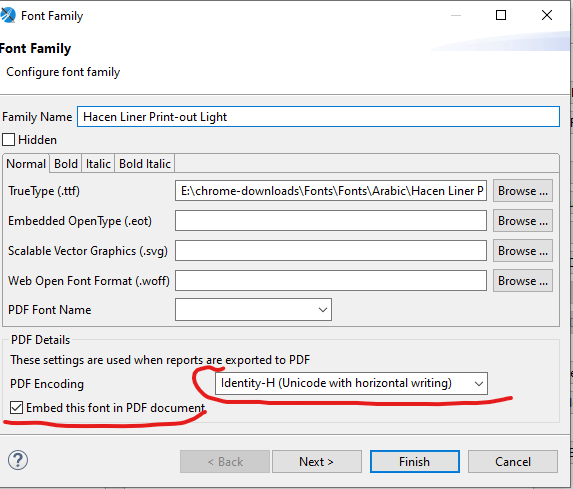
Then click Finish.
3. Export the font as a JAR
With the font added, click Export and save the generated .jar file.
4. Deploy the JAR
Copy the exported .jar into the tomcat/lib folder and restart the Tomcat service. Until the restart, reports asking for the new font fall back to whatever is already installed.
Fonts on POS machines
POS terminals render their own receipts, so the font has to reach them too. Upload the same JAR to the Jasper Fonts field on the Pos UI Settings screen (إعدادات واجهة نقاط البيع الجديده).
The upload does not push the font anywhere by itself: each POS machine collects it on its next master-data sync, writes it into its own jasper-fonts-extension folder, and starts using it straight away — or at the next launcher restart, if the existing file is in use. So after upgrading POS machines to a version that supports the font extension, re-save the Pos UI Settings record to give them something to pick up, then allow a sync cycle before checking a terminal.
5. Use the font
Assign the new font family to the text elements in the layout. The font is embedded in the PDF, so Arabic renders correctly wherever the file is opened.
How long a report is allowed to run
A report that never finishes holds a database connection open, and in quantity that makes the system unresponsive for everyone else. The guard against it is a time limit on the query: Max Seconds To Execute Report Queries in Global Configuration, under Performance and Search. A report query that exceeds the limit is stopped by the database, and the user gets an error instead of an endless wait.
It is normally set more generously than the other query limits, because a month-end report legitimately takes minutes. If reports start timing out after a change, that setting is the first thing to check; if the server is struggling under report load, tightening it is the safe lever.
You can also record how long each report took, and with which parameters, by turning on report performance logging — the options are on the Reports and Printing tab. That log is what turns "the report is slow" into "the report is slow for one particular set of parameters".
Writing expressions
Everything you can call from inside a report expression — names and translations, Hijri dates, number-to-words, price lookups, links back into the system, record creators, approval links, QR codes, and the complete list of built-in $P{} parameters — is catalogued on the NamaRep expression reference.
Messages you may see
Refusals raised when you save or run a report definition.
| Message | Why | What to do |
|---|---|---|
| Dashboard reports do not require a report definition file. Please clear the Definition field or change the Report Type — «تقارير اللوحة لا تحتاج إلى ملف تعريف تقرير. يرجى مسح حقل التعريف أو تغيير نوع التقرير.» | Report Type is Dashboard while Definition still carries a layout file. A dashboard draws itself and has no Jasper design. | Clear Definition, or set the report type back to the kind that uses a layout file. |
| Report Group {0} can not be repeated — «مجموعة التقارير {0} لا يمكن تكرارها» | The same report group appears twice in the report's groups grid. | Delete the duplicate row — one group per report, once. |
| You can not make changes to the report {0} because it is a system report. — «لا يمكن تعديل التقرير {0} لأنه تقرير نظامي.» | A frozen part of a report shipped with Nama was changed: its entity, book, term, report type, page, order, view, security equivalent, base report, scriptlet, or the content of the layout, its subreports or its resources. Code, names, groups and the report's own security lines are not frozen. | Copy the report into one of your own and change the copy. If the original really must change, an administrator can enable Allow Change System Report To Non System in the global configuration — after which upgrades no longer refresh it. |
| Can not change system reports — «لا يمكن تعديل أو إنشاء التقارير النظامية» | A brand-new report was saved with System already ticked. Only the shipped set may be system reports. | Untick System and save it as your own report. |
| You are not allowed to run the report {0} — «لا تملك الصلاحيه لتشغيل هذ التقرير {0}» | The report's security grid shuts this user out: a Prevent line names them, their profile or their group, or the grid holds only Allow lines and none of them matches. | Add an Allow line for the user, their profile or their group — see Who may run a report. |
| The group parameter {0} must have isForPrompting set to false — «يجب أن تكون قيمة isForPrompting في مدخل المجموعة {0} هي false» | A parameter marked paramGroup = true is still a prompt. A group only titles a section and has no answer of its own. | Add isForPrompting="false" to that group parameter. |
| The parameter {0} refers to the group {1}, which is not a group parameter — «المدخل {0} يشير إلى المجموعة {1} وهو ليس مدخل مجموعة» | A prompt's paramGroupId names a parameter that does not exist, or one that is not marked paramGroup = true — usually a typo in the name. | Correct paramGroupId to the exact name of a group parameter, or add paramGroup = true to the parameter it names. |
| You can not run this report without authentication | A no-login link was opened for a report that does not have Allow Run Report Without Authentication ticked. This message has no Arabic translation and shows in English on Arabic screens. | Tick the option on the report, if the report is really meant to be public. |