
Data Sources
Sooner or later a report needs a number that does not hang off its main table. A customer statement starts from invoices but also wants each customer's collections. A stock report starts from items but also wants the quantity still on open purchase orders. You cannot reach those figures by following a field path from the main table, because they come from a different table with its own filters and its own totals.
A Data Source is the answer: a saved query, built with the same screen and the same grids as the Report Wizard, that a report can attach and read from. Think of it as a small report with no layout — it decides which rows and which columns, and leaves the presentation to whichever report uses it. Build it once, and any number of reports can attach it.
The screen is under Administration → Reports → Data Source. A data source is never run on its own and has no menu entry for readers. It does its work inside a Report Wizard or a Printing Form Wizard, each of which has five Data Source tabs (Data Source 1 … Data Source 5). How a report attaches one, lines it up and filters it is covered in Reaching data that is not on the main table. This page covers the record itself.
Dashboards do not use this screen
A BI dashboard widget's "wizard data source" is a different record, the Dashboard Widget Wizard, covered in the BI module guide. A Data Source record can be attached only to a Report Wizard or a Printing Form Wizard.
Building a data source
A worked example: you want a customer statement report built on sales invoices, with each customer's total collections beside their invoices.
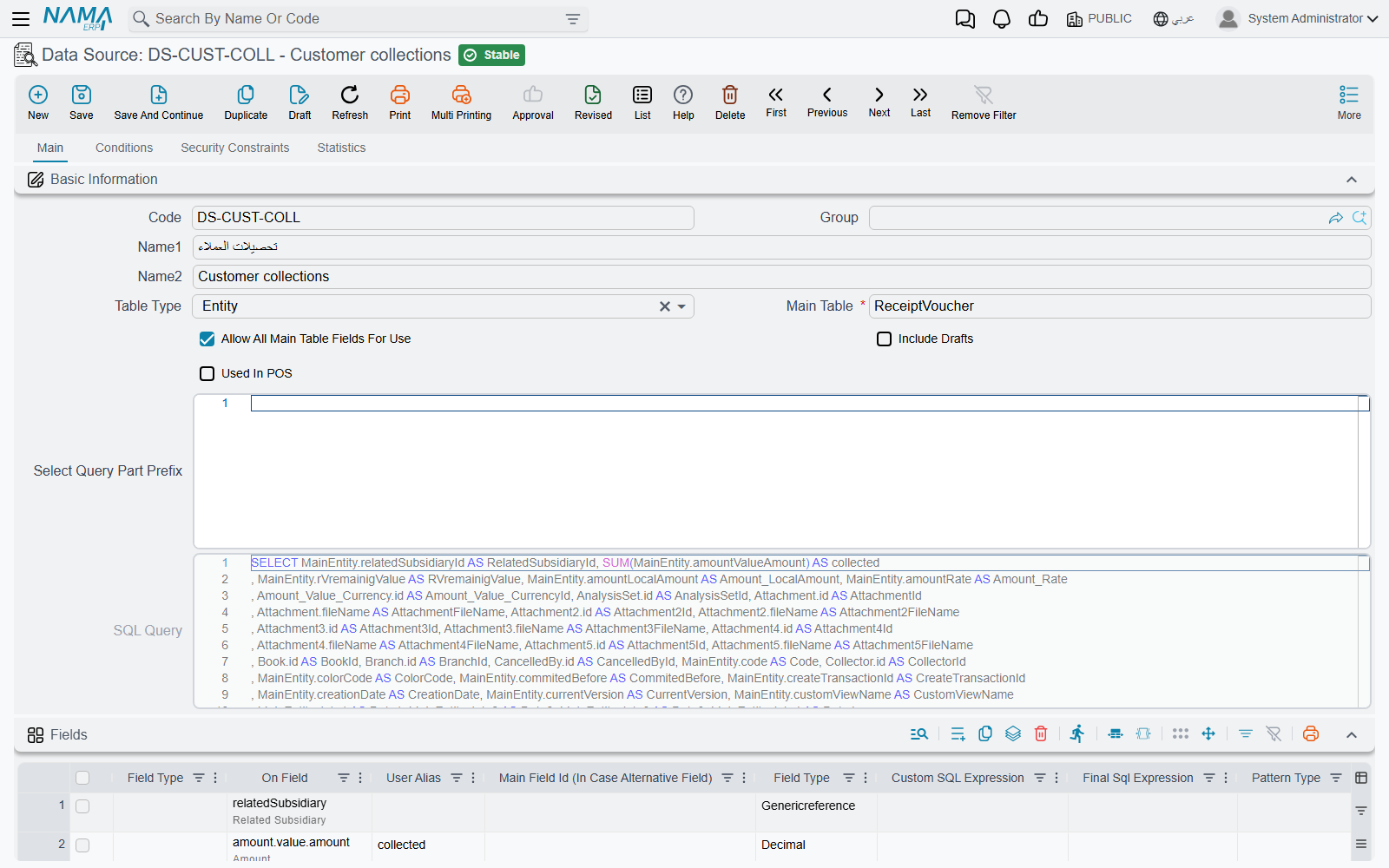
- Open Data Source, click New, and give it a code and names. The name is what report authors will see as the branch label in their field picker, so make it say what it holds — "Customer collections", not "DS1".
- Set Table Type and Main Table exactly as you would in the Report Wizard — here, the collection document's table.
- In Fields, list the columns the data source returns: the customer and the amount. Set SQL Aggregation Type to Sum on the amount, and the data source returns one row per customer with the total.
- Add any fixed filters (only one branch, only one book) in Where Lines on the Conditions tab.
- Save. The data source builds its query and shows it, read-only, in SQL Query.
Then, in the report, choose this record on the Data Source 1 tab and add a linking line that pairs the data source's customer field with the report's customer field. From then on the collection total is available in the report's field picker as $dataSource1. followed by the field path.
The Main tab
| Field | What it does |
|---|---|
| Table Type / Main Table | Which table the query reads, exactly as in the Report Wizard. Main Table is required. |
| Allow All Main Table Fields For Use | Ticked by default. Every field of the main table can be used by the reports that attach this data source, not just the fields you listed in Fields. Clear it to limit reports to the listed fields. |
| Include Drafts | Leave it clear and draft records are left out of the result. Tick it to read drafts as well. |
| Used In POS | Tick it only for a data source meant for a report or form that runs in point of sale. It must match the Used In POS setting of every wizard that attaches it, or that wizard's report cannot be built. |
| Select Query Part Prefix | Text placed straight after SELECT in the generated query, such as DISTINCT or TOP 1. |
| SQL Query | The query the data source produces, filled in when you save. Read-only. Copy it into SQL Server Management Studio when you need to see what the data source actually returns. |
The grids below the header work the same way as their Report Wizard counterparts, with the same Select Fields buttons and SQL expression editors:
- Fields — the columns returned. At least one line is required, even when Allow All Main Table Fields For Use is ticked. Give a calculated column a User Alias: report authors pick it by that alias.
- Parameters — values the data source needs from outside. A data source has no run screen of its own, so it never asks these questions itself: every report that attaches it has to answer each one. See Parameters must be answered by the report below.
- Sort Fields — the order of the returned rows. A data source with sort fields can only be attached as a sub query (see the messages below).
- User Aliases — your own short names for the joins the query makes, as in the Report Wizard.
- Union Tables — further tables read alongside the main table with the same field list, with the Union Handling column deciding what each table contributes, as described in Reporting on several tables at once.
The Conditions tab
Static Where Condition and Static Having Condition are free SQL added to the query's WHERE and HAVING parts, written with the @{…}@ field syntax used in every wizard expression. The Final field under each one shows the condition after the field paths are turned into real columns. Where Lines is the grid form of the same idea: a field, an operator and a fixed value or another field, with no SQL to write. All three apply every time the data source is read, whichever report reads it.
The Security Constraints tab
The same grid as the Report Wizard's security constraints. It limits the rows to what the person running the report may see — their own records, records of their legal entity or branch, records they hold a view capability for. The limit is carried into every report that attaches the data source.
Which reports use this data source
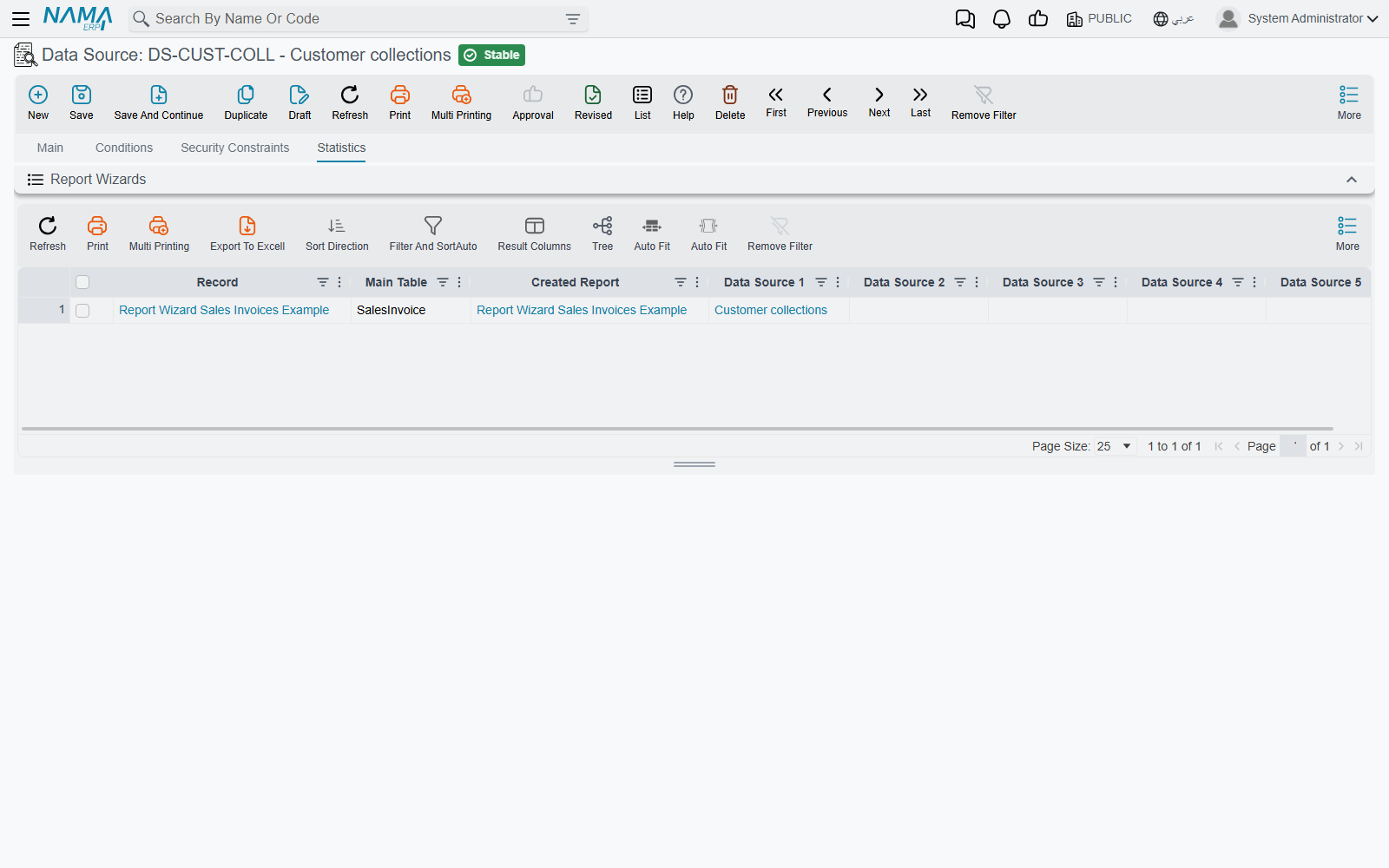
The Statistics tab lists the Report Wizards that attach this data source on any of their five Data Source tabs. Printing Form Wizards that attach it are not listed there.
Check this list before you change a data source. A report built by the Report Wizard keeps the query it generated when it was last saved, so an edit to a data source has no effect on a report until you open that Report Wizard and save it again. A change that adds a parameter the report does not answer shows up as a refusal when you save that wizard — not when you save the data source.
Parameters must be answered by the report
A parameter on the data source is a value it needs from outside — "collections up to which date?" Only the report can supply it. On the report's Data Source tab, add a Filter Lines row that pairs the Data Source Parameter (the parameter's Generated Parameter Name) with a Reporting Wizard Parameter (one of the report's own questions) or a Reporting Wizard Field. The reader answers the report's question once, and the answer reaches the data source too.
A report that attaches the data source but leaves one of its parameters unanswered cannot be saved; the refusal names the parameters that are left over.
Messages you may see
These appear when you save the Report Wizard or Printing Form Wizard that attaches the data source, not the data source itself. Only the first has an Arabic translation; the rest appear in English on Arabic screens as well.
| Message | Why | What to do |
|---|---|---|
| You must select the option {0} because the datasource {1} uses sort fields — «يجب اختيار الاوبش {0} لأن مصدر البيانات {1} يستخدم حقول ترتيب» | The data source has Sort Fields, and they only work when it is read once per report row. | Tick Use Data Source N As Sub Query on that tab, or clear the data source's sort fields. |
| There are one or more parameter with ids ({0}) are not handled | The data source has parameters that no filter line on the report's tab answers. | Add a Filter Lines row for each parameter listed. |
| You should define data source field or data source parameter | A filter line names neither a Data Source Field nor a Data Source Parameter, or names both. | Fill exactly one of the two. |
| You should define reporting wizard field or reporting wizard parameter | A linking or filter line names neither a report field nor a report parameter, or names both. | Fill exactly one of the two. |
| Could not find parameter with name {0} | A linking or filter line points at a report parameter that the report's Parameters grid does not define. | Correct the name, or add the parameter to the report. |
| The field {0} must be selected | A filter line compares a data source field with a report field. That comparison is only possible when the data source is read once per report row. | Tick Use Data Source N As Sub Query, or compare with a report parameter instead. |
| {0} should be false when {1} is true | Use Data Source N As Sub Query and Show All Values (N) are both ticked on the same tab. They are opposite ways of attaching a data source. | Clear one of them. |
| {0} should be have same size of {1} | Two Data Source tabs both have Show All Values ticked but different numbers of linking lines. | Give both tabs the same number of linking lines, or tick Show All Values on only one. |
| When wizard usedInPOS is true, {0} ({1}) must also have usedInPOS=true | The wizard is ticked Used In POS and the data source is not. | Tick Used In POS on the data source, or attach a different one. |
| When wizard usedInPOS is false, {0} ({1}) must also have usedInPOS=false | The data source is ticked Used In POS but the wizard is not. | Clear it on the data source, or attach a non-POS data source. |
The Fields, Parameters and Where Lines grids of a data source are checked with the same rules as the Report Wizard's, so a refusal on those grids reads exactly as it does there.