
Multi Value Report Parameter
A Multi Value Report Parameter is a saved list of values — four warehouses, three branches, a handful of dates — that a scheduled task hands to a report parameter that accepts more than one value.
Why it exists
When a person runs a report, a parameter declared as a list lets them tick as many values as they like on the parameters form: five employees, every branch except two. How a report author sets that up, and the widgets the user gets, is in Multi-selection (list) parameters.
A scheduled task has nobody to tick anything. Each line of its Params grid holds the answers for one run of the report, one slot per parameter, and a slot's Ref column holds one record. So when the report should run for the Cairo, Alexandria, Tanta and Mansoura warehouses together, you save those four warehouses once as a Multi Value Report Parameter and put that one record in the slot.
The screen
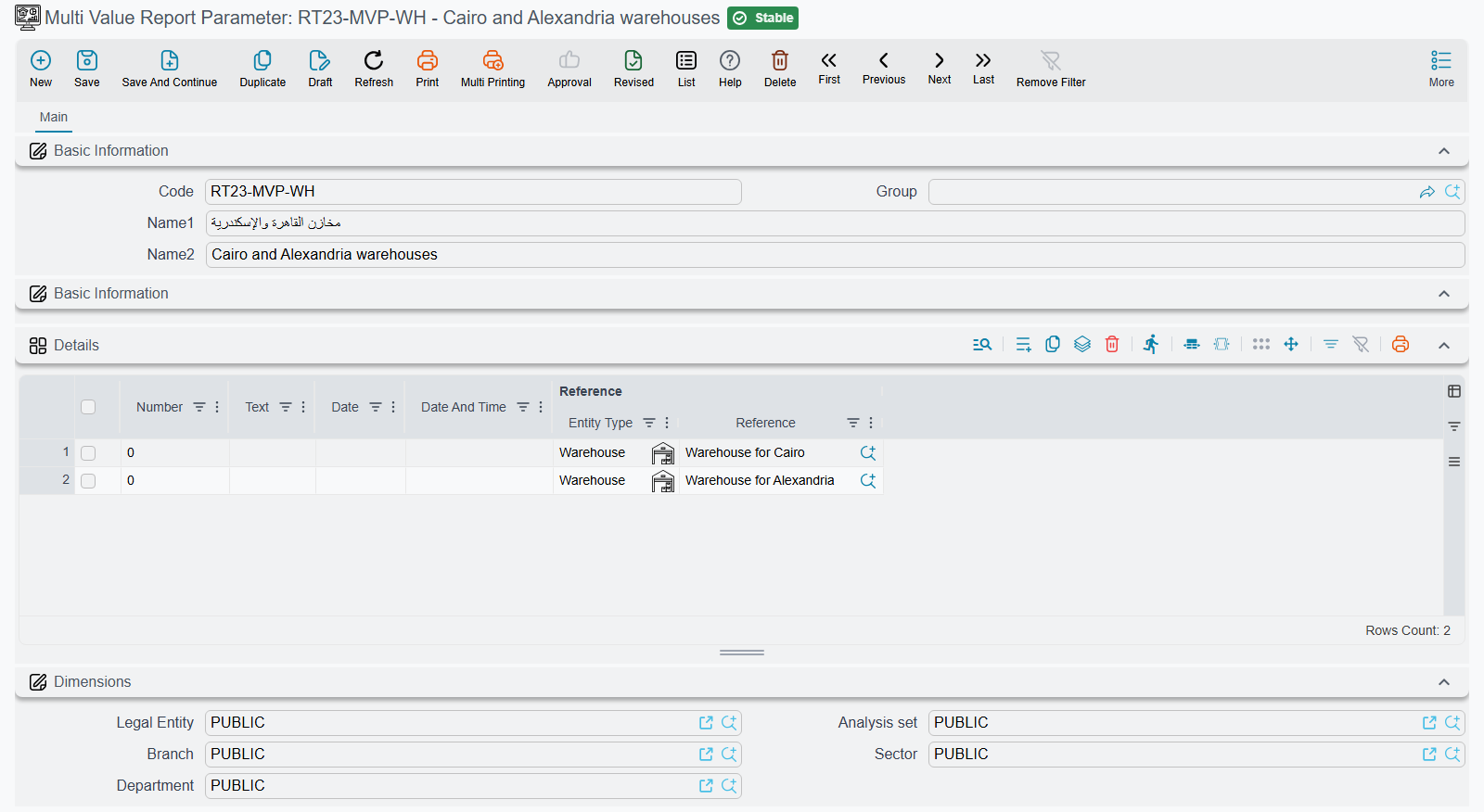
Open Basic → Settings → Multi Value Report Parameter. Besides the usual code and Arabic and English names, the screen is one Details grid with one line per value. Each line offers five columns — Number, Text, Date, Date And Time and Reference — and the report reads only the one that fits the type of the parameter it is passed to:
| The report parameter is… | Column read on each line |
|---|---|
| A record (a warehouse, a branch, an employee…) | Reference |
| A date | Date |
| A date and time | Date And Time |
| A time | Date And Time (its time part) |
| A whole or decimal number | Number |
| A yes/no flag | Text, typed as true or false |
| Text, or anything else | Text |
The other columns are ignored, so fill the right one on every line. One record serves one kind of value: keep "Delta warehouses" and "Weekly dates" as two separate records, not one record with mixed lines.
Using it in a scheduled task
- Create the record — say Delta warehouses, with four lines whose Reference column names the four warehouses.
- Open the scheduled task, of type Parameterized Report (sent by email) or Parameterized Report (Print), and pick its report.
- On a line of the Params grid, choose the warehouse parameter in a slot's Param ID. When the report declares that parameter as a list, the slot's Ref column switches to Multi Value Report Parameter on its own.
- Pick Delta warehouses in Ref.
Every run of that line now passes all four warehouses at once, exactly as if a user had ticked them on the form.
The values are read from the record each time the task runs, not copied into the task. Add a fifth warehouse to Delta warehouses and every task line that points at it includes the new warehouse from its next run — handy when the same list feeds a dozen tasks, and worth remembering before you edit a record that other tasks share.
One value is fine too
A list parameter does not insist on a Multi Value Report Parameter. Put a single warehouse in Ref and the report receives a list of one.
Report-based AI tools
A report-based AI tool fills its Fill Manually parameters the same way a scheduled task fills its slots, so a Multi Value Report Parameter placed in such a line's Reference column reaches a list parameter as its full list of values.