
Input Rules and Limits
Every organisation ends up with rules about what may go into a field. Customer codes have a house style, tax numbers have a shape the tax authority insists on, a delivery note is never supposed to carry two hundred lines, and a remark field that was fine at 255 characters is suddenly too small for the way one department works.
The grids on this page are where those rules live. They decide what a user is allowed to type and how much of it. The important difference from the cosmetic settings on the sibling Field Appearance and Display page is that most of these are checked by the server at the moment the record is saved. That means they hold no matter where the data came from — someone typing on screen, a spreadsheet import, or an outside system pushing records in through an integration. A rule that is only applied by the browser can be bypassed; a rule applied on save cannot.
Every grid here starts with the same scope columns — For Type, Entity List, On Field, Inactive — and they behave the same way everywhere. If you are not sure what "generic" means or how a line is matched to a screen, read Fields and Entities Settings — Overview first; this page does not repeat it.
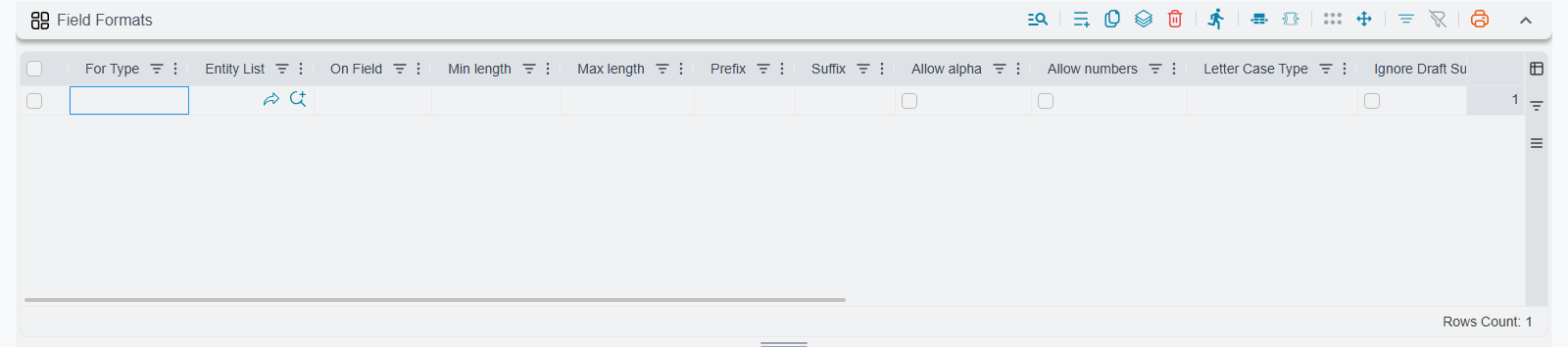
Field Formats
This is the main input-rule grid, and the one you will reach for most often. You describe the shape a value must have, and when someone saves a record whose value breaks that shape the save is refused with a message explaining exactly which rule was broken. The user corrects the value and saves again.
Say your customer codes are supposed to look like CU-000431: always starting with CU-, always upper case, always between six and ten characters, letters and digits only. One line on Customer, field code, with Prefix CU-, Min Length 6, Max Length 10, Letter Case TypeUpper Case, and both Allow Numbers and Allow Alpha ticked, and nobody can invent a code that does not fit — not through the screen, and not through an import.
A tax number is the other classic case. Rather than describing it with lengths and prefixes you give a single Regular Expression, for example ^3[0-9]{14}3$ for a 15-digit Saudi VAT number, and the value either matches the pattern or it is rejected.
| Column | What it does |
|---|---|
| For Type | The entity this rule applies to, e.g. Customer, Sales Invoice. |
| Entity List | A named list of entity types, so one line covers several screens at once. |
| On Field | The field the rule guards, e.g. code, remarks, details.item. |
| Min Length | Values shorter than this number of characters are rejected. |
| Max Length | Values longer than this number of characters are rejected. |
| Allow Numbers | Untick to forbid digits anywhere in the value. |
| Allow Alpha | Untick to forbid anything that is not a digit — useful for numeric-only identifiers. |
| Prefix | The value must start with this text. |
| Suffix | The value must end with this text. |
| Criteria Definition | The rule only fires for records that match this saved Criteria Definition — see below. |
| Apply When Query | The rule only fires when this query matches — see below. |
| Letter Case Type | All, Lower Case, or Upper Case. Rejects values containing the wrong case. |
| Text Language | All, Only Arabic, or Only English. Rejects values written in the other script. |
| Lines Should Match | Restricts the rule to the grid lines the criteria or query actually matched. |
| Ignore Draft Suffix | Strips the draft marker from the value before checking it. |
| Prevent Leading White Space | Rejects values that start with a space. |
| Prevent Trailing White Space | Rejects values that end with a space. |
| Regular Expression | The value must match this pattern. |
An empty value is always accepted. Field Formats decides what a value must look like if there is one — it never makes a field mandatory. If you want the field filled in, that is a different setting.
Making a rule conditional
The three columns Criteria Definition, Apply When Query and Lines Should Match exist so that a rule can be narrow rather than universal, and they are worth understanding properly because they work together.
Criteria Definition points at a saved criteria. Before the rule is applied, the system asks the criteria whether this record is one it cares about; if the answer is no, the rule is skipped entirely and the value passes. This is how you say "the tax-number pattern only applies to customers registered in Saudi Arabia" — the criteria filters on the country, and customers elsewhere are left alone.
Apply When Query does the same job with a query rather than a saved criteria, and it is evaluated against the value being checked. You can use it on its own, or after a Criteria Definition to narrow things further; when both are filled the record must satisfy the criteria first and the query second.
Lines Should Match only matters when the field is inside a grid. Normally a criteria that matches the record makes the rule apply to every line of that grid. Tick Lines Should Match and the rule is applied only to the specific lines the criteria or query picked out, leaving the other lines untouched. So on a Sales Invoice you can enforce a code pattern on the lines carrying a particular item group without disturbing the rest of the invoice.
Ignore Draft Suffix is a small but frequently needed convenience. While a document is still a draft the system appends a marker to its code, and a strict Max Length or Regular Expression will trip over that marker and block the draft from being saved at all. Ticking this box removes the marker before the check runs, so the rule judges the real code.
This screen does not obey its own rules
Field Formats never applies to the Fields and Entities Settings screen itself. A generic line on a field name such as code will not lock you out of the very screen you would need in order to fix it — but do not rely on that as a safety net anywhere else. A generic line with no For Type and no Entity List really does apply to every other screen that has a field of that name.
One rule per field
If two lines target the same entity and the same field, only one of them survives — they are not combined, and the surviving one is not necessarily the one you expect. Put everything you want to enforce for a given field on a single line, and keep that line in a single record. Splitting the same field's rules across two records makes the winner unpredictable.
It reaches the point-of-sale terminals too
A Field Formats line that targets Customer is carried down to the point-of-sale terminals along with the rest of the customer configuration, so a code rule you set centrally is also honoured by cashiers creating customers at the till. See Nama POS — Overview.
Changes take effect as soon as you save the record — no restart and no action to press. Because the check happens on the server, it applies equally to records arriving through Importing Records. That is usually exactly what you want, but it does mean a rule introduced today can block a routine import that has been running for years, so it is worth testing an import once after adding a strict rule.
For help building the criteria and the query, see Criteria Based Validation and Criteria from Text Parser.
Field Allowed Values
Some fields are free text only because nobody ever got round to constraining them. A "Payment Reference Type" that people fill with cheque, Cheque, chq and check is impossible to report on. This grid turns an ordinary text, number, drop-down or entity-type field into a picklist: the user gets a list to choose from instead of an empty box.
Each line carries up to ten values. If ten is not enough, add a second line for the same entity and the same field and list the next ten — the values from all matching lines are merged into one list, so twenty-five values simply means three lines.
| Column | What it does |
|---|---|
| For Type | The entity the picklist applies to. |
| Entity List | A named list of entity types, so one line covers several screens. |
| On Field | The field that becomes a picklist. |
| Allowed Value 1 … Allowed Value 10 | The values offered, one per column. Leave the unused ones empty. |
| Restrict Selection | Controls whether the list is a suggestion or a rule — see below. |
Restrict Selection is the column that changes the character of the feature. Left unticked, the listed values are helpful suggestions: the user picks one with a click, but is still free to type something else entirely. Ticked, the list becomes closed — only the listed values are accepted. Start unticked while you are still discovering which values people actually use, then tick it once the list is settled.
Restrict Selection is decided for the whole field, not per line
When several lines describe the same field, the restriction flag is combined across all of them. A single ticked line makes the entire field restricted, even if the other lines for that field are left unticked. If you split fifteen values across two lines, tick Restrict Selection on both, or on neither — otherwise you will find values that look like suggestions being rejected.
This one is applied by the browser, so a user who is already signed in will not see a new or changed list until they sign out and back in. It is also worth knowing that the restriction is a browser-side check: it stops people typing the wrong thing on screen, but it does not filter data arriving through an import or an integration.
Disabled Fields
The simplest grid on the screen. Name an entity and a field and that field is shown read-only: the value is visible, but the user cannot change it.
| Column | What it does |
|---|---|
| For Type | The entity whose screen is affected. |
| Entity List | A named list of entity types, so one line covers several screens. |
| On Field | The field to show read-only. |
This is the right tool for fields that are filled automatically and should not be second-guessed — a calculated total, a code the system assigns, a value copied down from a source document.
This is a convenience, not a security control
Disabled Fields is applied by the browser only. It stops a user editing the field on screen, and nothing more. Data arriving through an import or an integration can still write that field, and so can anything else that bypasses the edit screen. If a field must genuinely not be changed — because of who the user is, or because the value is sensitive — use field security instead, which is enforced on the server. See Field, Page, and List View Security.
There is also a global configuration option, Allow Filling Disabled Fields With Creators, that lets the system's own automatic value fillers write into a field the user is not allowed to edit by hand. It is normally left on: a user who may not type the branch manually should still get it filled in for them. You will find it on the Security and Login tab of the global configuration.
Like the other browser-side settings, a change here only reaches a signed-in user after they sign out and back in.
Max Lines Counts For Documents And Files
A grid with no ceiling is an invitation to trouble. Someone pastes a spreadsheet into a Sales Invoice and creates a document with four thousand lines that takes a minute to open, prints across sixty pages and slows down every report that touches it. This grid puts a hard cap on how many rows a named grid may hold, and the cap is checked on the server when the record is saved. The message names the grid and the limit, so the user knows immediately what happened and by how much they are over.
| Column | What it does |
|---|---|
| Field | The grid being limited, e.g. details. |
| For Type | The entity that owns the grid, e.g. Sales Invoice. Add one line per entity. |
| Max Lines Count | The largest number of lines allowed. Leave empty or zero for no limit. |
Two behaviours are worth knowing before you set a limit, because both of them are deliberate and both save you from unpleasant surprises.
First, the cap does not lock existing data. If you set a limit of 200 and there are already documents with 350 lines, those documents remain editable — the check only complains when a save would leave the grid with more lines than it had before. Users can still correct a price on line 12 of an oversized old invoice; they simply cannot make it any longer.
Second, documents the system generated as final are exempt. When one document produces another automatically, the generated document is not blocked by a limit meant for hand entry. The same applies while records are being replicated between databases. Otherwise a limit set for the convenience of data-entry staff would start breaking automated flows in the background.
Max Fields Length In DB
This grid does two related but genuinely different things, and you need to understand both before you use it, because one of them is harmless and the other changes the database.
The first thing it does is change the length the system will accept when a record is saved. Text fields have a standard size; if that size does not suit the way your organisation works — a remarks field that needs to hold a long instruction, or conversely a reference field you want to keep short and tidy — a line here raises or lowers it. A user who types more than the limit gets a clear message that the input size exceeds the maximum size, naming both the length they typed and the length allowed.
| Column | What it does |
|---|---|
| For Type | The entity that owns the field. Add one line per entity. |
| Field | The field whose length is being changed. |
| Max Length | The new length, in characters. |
The second thing it does is only available through the Update Fields Max Length In DB action at the bottom of the grid. Raising the accepted length is not much use if the underlying storage is still the old size, so this action goes through the lines and resizes the storage to match.
Update Fields Max Length In DB changes the database structure
This action alters the structure of the database directly. It is not a setting that can be quietly undone, and on a large table it can take a long time and hold locks while it runs. Treat it the way you would treat any structural change:
- run it outside working hours, when nobody is entering data;
- make sure a current backup exists and that you have checked it is restorable;
- have it run by someone who understands what resizing a column means for the system;
- shrinking a length is riskier than growing one — check first that no existing value is longer than the new limit.
If you are unsure, set the length in the grid, confirm the behaviour you want, and arrange the action as a planned maintenance task rather than pressing it in the middle of the day.
Only text-like fields can be resized: plain text, numbers, drop-downs, links, e-mail addresses, passwords, colours and phone numbers. Anything else — a date, a checkbox, a reference to another record — is refused, and the action tells you which field it refused and why, rather than failing silently. It also tells you if it cannot find the entity or the field you named, which is the usual sign of a typo in the Field column.
Max POS Fields Length In DB
The point-of-sale terminals have their own storage and their own constraints. A receipt printer is a fixed number of characters wide, a touch screen at a busy till has less room than a desktop monitor, and a terminal that has to work while the network is down keeps its own copy of the data. So the lengths that suit the back office are not always the lengths that suit the till. This grid sets them separately.
| Column | What it does |
|---|---|
| POS Entity Type | The point-of-sale record whose field is being resized. |
| Field | The field whose length is being changed. |
| Max Length | The new length, in characters. |
There is also a Field Type column, but you do not fill it in — the system works out on save whether the field is text or numeric and sets it for you.
The pleasant part is that you do not have to visit the tills. Once the record is saved, the change travels to each terminal through Replication and is applied there, so a chain with forty branches is configured once centrally rather than forty times over.
Any line here makes the record travel to the tills
As soon as this grid has a single line, the whole Fields and Entities Settings record is marked for Replication to the terminals. That is normally what you want, but it is worth knowing why a record that previously stayed on the server has started appearing in the terminals' Replication traffic. The same is true of Field Formats lines that target Customer.
For how the terminals fit into the wider picture, see Nama POS — Overview.
Settings on this tab
Every grid and column this page covers, with its exact on-screen label in both languages, so you can find a setting by the name you see. The last column points to the section that explains it. The scope columns (For Type, Entity List, On Field and the like) are the same on every grid and are listed on the overview page.
| Field id | English label | Arabic label | Meaning |
|---|---|---|---|
fieldFormats | Field Formats | Field Formats | Field Formats |
fieldFormats.minLength | Min length | اقل طول | Field Formats |
fieldFormats.maxLength | Max length | اقصي طول | Field Formats |
fieldFormats.prefix | Prefix | بادئة التكويد | Field Formats |
fieldFormats.suffix | Suffix | نهاية التكويد | Field Formats |
fieldFormats.allowAlpha | Allow alpha | السماح بالحروف | Field Formats |
fieldFormats.allowNumbers | Allow numbers | السماح بالارقام | Field Formats |
fieldFormats.letterCaseType | Letter Case Type | الحروف المسموح بها | Field Formats |
fieldFormats.ignoreDraftSuffix | Ignore Draft Suffix | تجاهل لاحقة المسودة | Field Formats |
fieldFormats.preventLeadingWhiteSpace | Prevent Leading White Space | منع وجود مسافة في البداية | Field Formats |
fieldFormats.preventTrailingWhiteSpace | Prevent Trailing White Space | منع وجود مسافة في النهاية | Field Formats |
fieldFormats.criteriaDefinition | Criteria | المعايير | Field Formats |
fieldFormats.applyWhenQuery | Apply When Query | تطبيق عند التوافق مع الاستعلام | Field Formats |
fieldFormats.linesShouldMatch | Lines Should Match | يجب مطابقة السطور | Field Formats |
fieldFormats.regularExpression | Regular Expression | Regular Expression | Field Formats |
fieldAllowedValues | Field Allowed Values | القيم المسموح بها للحقول | Field Allowed Values |
fieldAllowedValues.restrictValues | Restrict Selection | عدم السماح بكتابة القيم يدويا | Field Allowed Values |
fieldAllowedValues.allowedValue1 | Allowed Value 1 | القيمة المسموح بها 1 | Field Allowed Values |
fieldAllowedValues.allowedValue2 | Allowed Value 2 | القيمة المسموح بها 2 | Field Allowed Values |
fieldAllowedValues.allowedValue3 | Allowed Value 3 | القيمة المسموح بها 3 | Field Allowed Values |
fieldAllowedValues.allowedValue4 | Allowed Value 4 | القيمة المسموح بها 4 | Field Allowed Values |
fieldAllowedValues.allowedValue5 | Allowed Value 5 | القيمة المسموح بها 5 | Field Allowed Values |
fieldAllowedValues.allowedValue6 | Allowed Value 6 | القيمة المسموح بها 6 | Field Allowed Values |
fieldAllowedValues.allowedValue7 | Allowed Value 7 | القيمة المسموح بها 7 | Field Allowed Values |
fieldAllowedValues.allowedValue8 | Allowed Value 8 | القيمة المسموح بها 8 | Field Allowed Values |
fieldAllowedValues.allowedValue9 | Allowed Value 9 | القيمة المسموح بها 9 | Field Allowed Values |
fieldAllowedValues.allowedValue10 | Allowed Value 10 | القيمة المسموح بها 10 | Field Allowed Values |
disabledFields | Disabled Fields | Disabled Fields | Disabled Fields |
maxLinesCounts | Max Lines Counts For Documents And Files | أقصى عدد لسطور السندات والملفات | Max Lines Counts For Documents And Files |
maxLinesCounts.maxLinesCount | Max Lines Count For Documents And Files | أقصى عدد لسطور السندات والملفات | Max Lines Counts For Documents And Files |
maxFieldsLengthInDB | Max Fields Length In DB | Max Fields Length In DB | Max Fields Length In DB |
maxFieldsLengthInDB.maxLength | Max length | اقصي طول | Max Fields Length In DB |
maxPOSFieldsLengthInDB | Max POS Fields Length In DB | Max POS Fields Length In DB | Max POS Fields Length In DB |
maxPOSFieldsLengthInDB.posEntityType | Entity Type | النوع | Max POS Fields Length In DB |
maxPOSFieldsLengthInDB.fieldType | Field Type | نوع الحقل | Max POS Fields Length In DB |
maxPOSFieldsLengthInDB.maxLength | Max length | اقصي طول | Max POS Fields Length In DB |
Related pages
- Fields and Entities Settings — Overview — the scope columns, how lines are matched, and when changes take effect.
- Field Appearance and Display — the cosmetic siblings of these grids, which are not enforced on save.
- Relaxing Built-in Restrictions — the opposite direction: loosening rules the system applies by default.
- Field, Page, and List View Security — server-enforced read-only and hidden fields, for when Disabled Fields is not strong enough.
- Criteria Based Validation — building the criteria that make a Field Formats rule conditional.
- Criteria from Text Parser — writing the query behind Apply When Query.
- Importing Records — imported data is checked against these rules too.
- Nama POS — Overview — how field settings reach the terminals.