
Nama POS — Overview
Most of Nama ERP runs in a web browser. Nama POS is the exception: it is a dedicated desktop application that runs right on the cash register, plus a companion Captain Order mobile app for waiters. It is built this way for one simple reason — a point of sale cannot stop selling just because the internet went down.
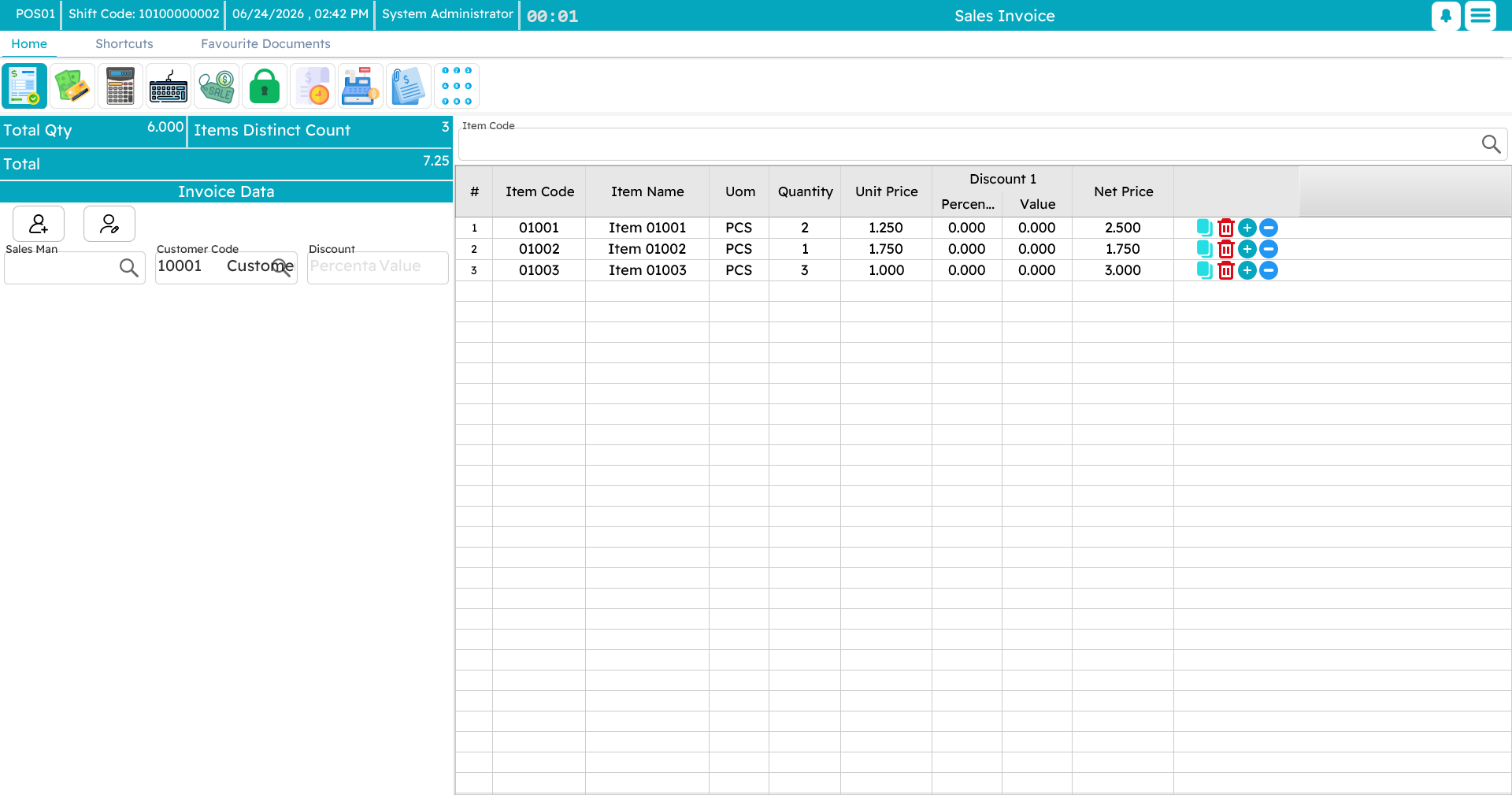
Why a desktop app?
A shop floor is a demanding place. The connection drops, a busy Friday night brings a queue to the counter, and the customer in front of you still expects a receipt in seconds. So Nama POS is designed to be offline-first:
- Every register keeps its own local database with the items, prices, customers and settings it needs to sell.
- Sales, returns, payments and shifts are all recorded locally first, so the register keeps working whether or not the server is reachable.
- In the background, the register syncs everything it creates up to the central Nama ERP, and pulls down fresh configuration and prices. When the connection comes back after an outage, the queued documents flow up automatically.
This is the single most important idea to understand about Nama POS, and it is covered in detail in How POS data syncs with the server.
The pieces of the system
The register (the desktop app). This is what the cashier uses all day: ringing up sales, taking payments, opening and closing shifts, handling returns, and — in restaurants — managing tables. Everything a cashier needs is in this one application.
Captain Order (the mobile app). Waiters take orders at the table on a phone or tablet and send them straight to the kitchen and the register, instead of walking back and forth. It shares the same items, favourites and tables as the desktop register. See Tables, reservations & Captain Order.
The central Nama ERP (the server). This is the web system where head office lives. It is where each register is defined, where staff logins and their permissions are configured, and where every document a register creates eventually lands — to be posted to accounting, reconciled, and reported on. Operators rarely touch it; managers and IT do.
Payment terminals and peripherals. Nama POS talks to card terminals (through a built-in payment gateway layer), receipt printers, cash drawers, customer-facing pole displays, fingerprint readers, and barcode scanners.
What you can do at the register
Think of the rest of this guide as a tour of the register, roughly in the order you would meet each part:
| Area | What it covers |
|---|---|
| Getting started | Launching, signing in, the menu, shortcuts, locking the screen, language & theme |
| The sales invoice | The main selling screen: adding items, discounts, the customer, holding a sale |
| Payment & tender | Taking the money: cash, card, split payments, coupons, credit notes, reward points |
| Returns & replacements | Refunds, exchanges, credit notes, depreciation on returned goods |
| Shifts & cash | Opening and closing a shift, counting the drawer, pay-ins and pay-outs |
| Tables & restaurant | Halls and tables, reservations, suspended orders, the call-center flow, Captain Order |
| Item add-ons | Sizes, colours, and extras (like sugar and milk for a coffee) |
| Inventory operations | Receiving, transferring, counting, scrapping stock from the register |
| Reports & tools | Running reports, internal messages, the price checker, maintenance utilities |
| Data sync | How "sent" and "unsent" work, and what to do when a document won't go up |
Configuration is a separate topic
This guide is about using Nama POS day to day. Setting it up — defining registers, payment methods, security profiles, screen layouts, and the many POS settings — is documented separately.
A word on roles
Throughout this guide you will see three kinds of user:
- Cashiers ring up sales and take payments. Most of what they need is on the sales and payment screens.
- Waiters take orders on Captain Order and bring them to a register to settle.
- Supervisors and managers do the things that need a higher permission: large discounts, returns outside the allowed window, closing shifts, running utilities. When a cashier hits one of these, Nama POS quietly asks a supervisor to authorize it on the spot — no need to log out and back in.