
Free Items in POS: Claim at Scan and Reconciliation at Payment
When you have a promotion of the "buy one item and get another for free" type, the default behavior in the POS is to add the free item to the invoice immediately upon adding the qualifying item. This behavior suits many businesses, but not all.
Imagine a supermarket running a promotion "buy a large bottle of oil and get a small bottle free." If the system automatically added the small bottle the moment the cashier scanned the large bottle, a line item would appear in the invoice for something the customer never picked up from the shelf! The correct approach here is for the customer to pick up the small bottle themselves, and the cashier scans its barcode just like any other item — the system then recognizes it and makes it free.
This is exactly what the option "Do not add free items automatically (claim at scan or reconcile at payment)" in the POS settings provides.
Activating the Feature
From the POS Settings (POS Configuration) screen, enable the option:
- Do not add free items automatically (claim at scan or reconcile at payment)
Next to it you will find the complementary option:
- Free items must be added before payment — determines whether the cashier can complete payment without fulfilling the free items or not (explained below).
How Does the System Work After Activation?
After enabling the option, the system behavior changes as follows: when a qualifying item for a free-items promotion is added, the system does not add the free item automatically. Instead, it keeps an internal "entitlement" record that says: this invoice is entitled to such-and-such a quantity of a specific item (or a group of items) for free.
After that, the free item can be claimed in two ways:
First Method: Claim at Scan During the Sale
When the cashier scans a barcode of an item that matches one of the pending entitlements in the invoice, the system recognizes it immediately and converts the line into a free line (price zero) linked to the original qualifying item line.
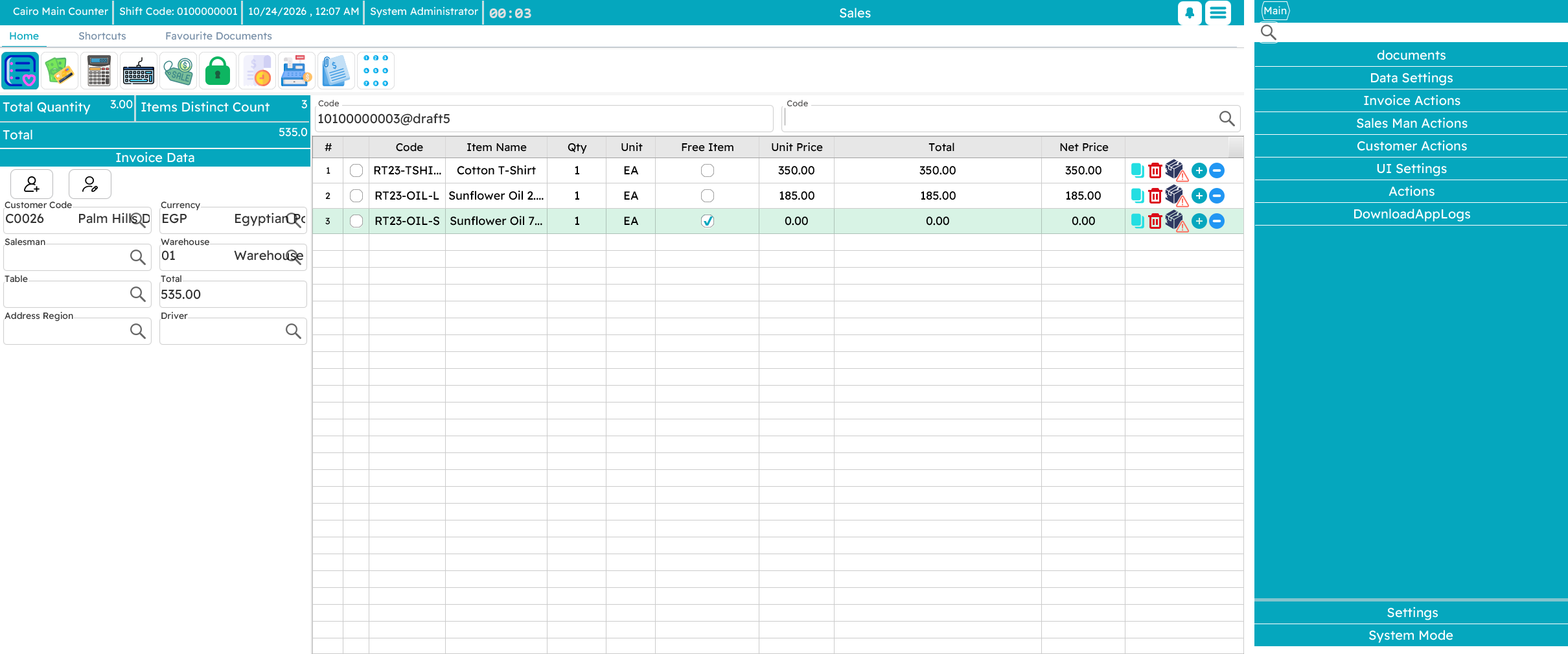
The system also handles quantities intelligently:
- If the entitlement is "one free unit" and the cashier scans one unit → the entire line becomes free.
- If the cashier scans a larger quantity than the entitlement (for example, 3 units while the entitlement is only 1) → the system automatically splits the line: one unit in a free line, and the remaining two units in a paid line at the regular price.
When the cashier changes the quantity
A quantity the cashier types on the qualifying line is the quantity being bought, so that line stays as typed and is never turned into free units the way a scan is. What the invoice is owed is then worked out again:
- Lower quantity — free lines already claimed beyond the new entitlement are cut down, or removed when nothing is left of them, with the notice Free quantity of item {0} - {1} has been reduced to {2} as offer changed — «تم تخفيض الكمية المجانية للصنف {0} {1} إلى {2} حيث ان العرض تغير».
- Higher quantity — a free item already claimed grows to the new entitlement, and an item that is free with itself gets its free line straight away. A different free item not claimed yet, and a free group, stay pending until they are scanned.
Second Method: Reconciliation at Payment
What if the cashier completely forgets about the free items and presses the payment button directly? Here the system intervenes in two steps:
First — Automatic reconciliation: The system reviews all lines in the paid invoice. If it finds a line matching a pending entitlement (the customer already bought the item they were entitled to for free!), it automatically converts it to a free line — splitting the quantity if needed — and displays a notification to the cashier with a list of items that have become free:
The following free items were automatically added to the invoice:
Second — Pending free items screen: If after reconciliation there are still unfulfilled entitlements, the Pending Free Items window («أصناف مجانية لم تُضف») appears. Under Customer is entitled to the following free items: it lists the remaining free items and their quantities, with a barcode scan field below. The customer picks up the items from the shelf, the cashier scans them one by one, and each scanned item is added as a free line while the remaining quantity shown decreases. To add several units at once, type the quantity and the code with a star between them, in either order — 3*6221234567890 or 6221234567890*3; a quantity above what is owed is added only up to what is owed.
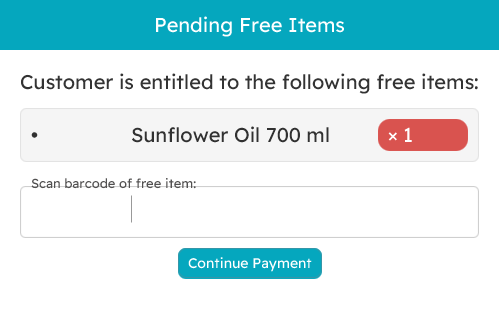
When the last owed item is scanned, the window closes on its own and payment carries on as usual.
| Button | Arabic caption | What pressing it does |
|---|---|---|
| Continue Payment | «استكمال الدفع» | Closes the window and goes on to payment with the free items still owed left off the invoice. Disabled while items are still owed if Free items must be added before payment is on (see below). |
TIP
If the cashier scans an item that does not match any pending entitlement, the system rejects it with the message "The scanned item is not part of any pending free offer" — so there is no way to accidentally add unentitled free items.
What If the Customer Does Not Want the Free Item?
This is where the "Free items must be added before payment" option comes in:
- Disabled: The Continue Payment button on the pending items screen remains always available, and the cashier can proceed and complete the invoice without the remaining free items (the customer waived them).
- Enabled: The Continue Payment button is disabled until all free items are fulfilled — suitable for businesses that consider the free item an inseparable part of the promotion.
Free Item Groups
Promotions are not limited to a specific free item; a promotion might be "buy X and choose a free item from a group of items." In this case:
- Any item from the group that the cashier scans is accepted as a valid claim.
- On the pending items screen, the group name is shown with the phrase "Choose one of:" followed by a list of the group's items.
Offer prompts at payment
Some offers are not added while you scan but offered when the cashier presses payment: an offer on a count of items, and free items earned by the invoice's value. In both cases a small window says There is a free item offer, and the payment screen does not open yet:
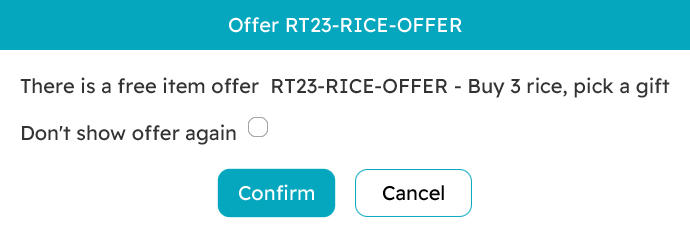
| Button | Arabic caption | What pressing it does |
|---|---|---|
| Confirm | «تأكيد» | Adds the offer's free lines to the invoice. Press payment again to go on. |
| Cancel | «إلغاء» | Leaves the invoice without the offer's lines. Press payment again to go on. |
The window also carries a Don't show offer again tick box («عدم إظهار عروض مره اخري»); on the item-count offer it appears only for users whose security profile has Allow Hide Offers Dialog. Ticking it stops that kind of offer from being offered on this screen.
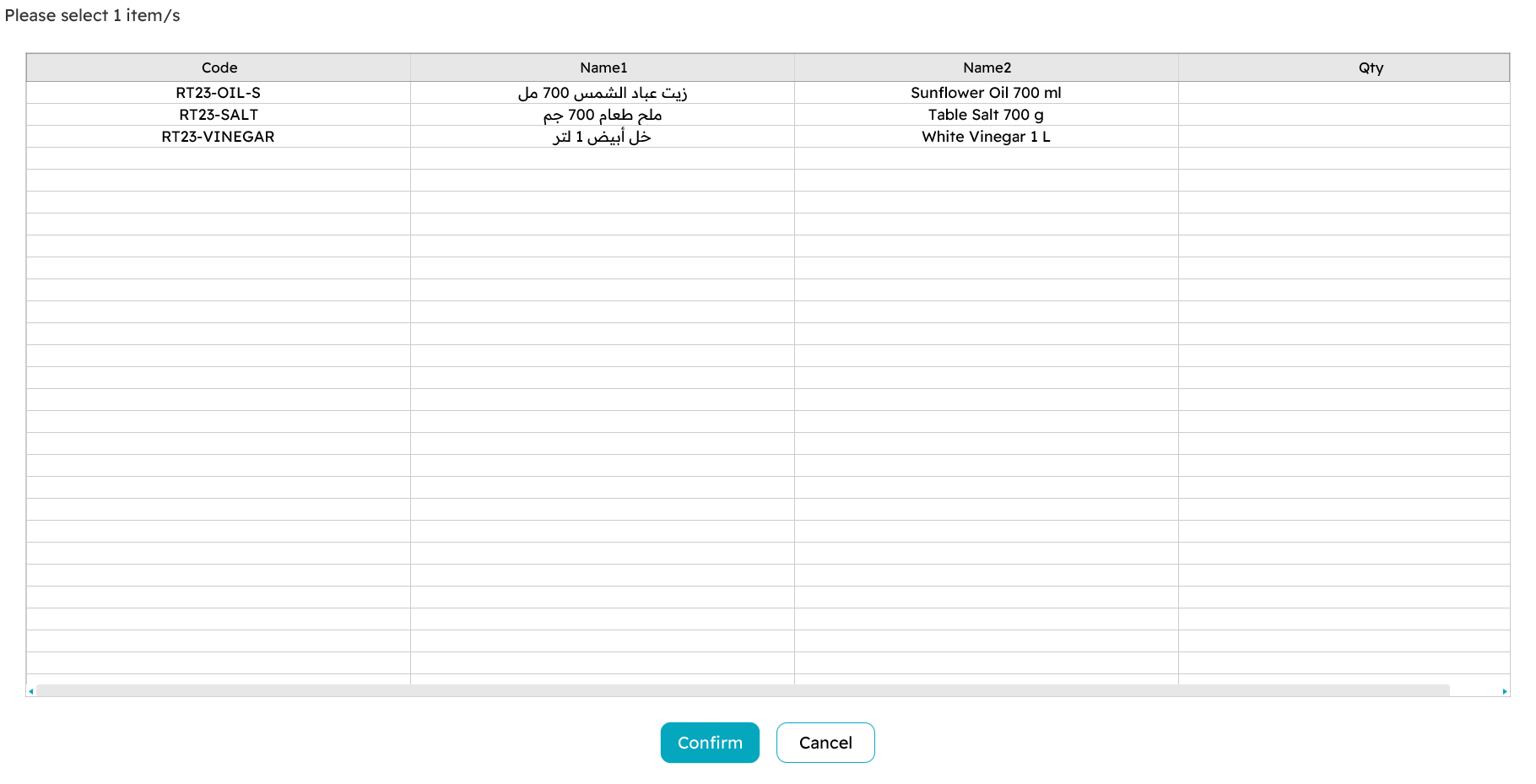
When the free item is "any item from a group", the Free Items Group window («مجموعة أصناف مجانية») lists the group's items and says how many you may take. Double-click an item, or select it and press Enter, to add one to its quantity, or type the quantity in the Quantity column. Confirm («تأكيد») adds the chosen items as free lines; it is disabled while the quantities add up to more than the offer allows. Cancel («إلغاء») adds none.
Notes Worth Paying Attention To
- Deleting a free line: If the cashier deletes a free line from the invoice, the entitlement becomes pending again and will reappear on the pending items screen at payment.
- Deleting the qualifying item: If the line of the item that generated the entitlement is deleted, entitlements are automatically recalculated and the associated entitlement is dropped.
- Captain Order invoices: The same behavior is supported in the mobile application (Captain Order); reconciliation and claim at scan are handled through the app, and pending free items are shown before completing payment.
WARNING
For invoices with a very large number of lines, entitlements are recalculated for all lines at payment, which may take a noticeably longer time.