
Calculated Fields and Row Colouring
Sometimes the information a user needs is not stored on the record in front of them. A salesman writing an invoice wants to know what that customer still owes; a storekeeper picking an item wants to know how many are left in the warehouse; a collections clerk wants to know when this customer last bought anything. None of that lives on the document being edited — it lives somewhere else in the database, and today the user has to leave the screen, open a report, and come back.
The two grids on this page close that gap. The first attaches a query to a screen so that the answer appears as an ordinary-looking extra field or column. The second lets a query decide the background colour of a grid row, so that problem records stand out at a glance without anyone reading a single number.
Both grids are applied by the server, so a change takes effect as soon as you save the record — no sign-out, no restart.
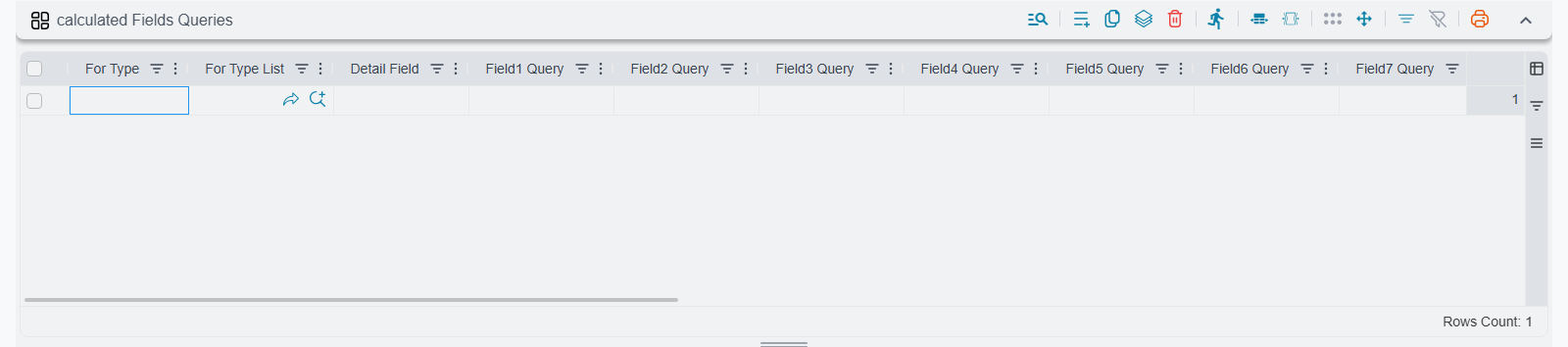
calculated Fields Queries
Every entity in the system carries twenty spare, calculated slots named sqlField1 through sqlField20. They store nothing. Each one is filled by a query that runs when the record is read, and the value is thrown away again when the screen closes. That is precisely what makes them useful: the number is always current, and nobody has to remember to refresh it.
Once a slot has a query behind it, it behaves like any other field. You can place it on the edit screen, show it as a list-view column, and print it on a document layout.
| Column | What it does |
|---|---|
| For Type List | A reusable named list of entity types, so one line covers many screens at once. |
| For Type | A single entity type this line applies to (for example Sales Invoice). |
| Detail Field | Leave empty for the record's own header. Fill it with a grid's field ID (for example details) to define the slots for the rows of that grid instead, so every line gets its own calculated columns. |
| Field 1 Query … Field 20 Query | The query behind each of the twenty slots. |
Always name the entity type
Unlike most grids on this screen, these lines are not generic: a line applies only to the entity types it names. Fill For Type, or point For Type List at a list of types.
Where the values show up
Saving a query does not, on its own, make anything visible. The query fills the slot; you still have to put the slot on a screen. That is a separate job, done in the Screen Modifier:
- To show it on the edit screen, add the field
sqlField3(or whichever slot you used) to a page or group — see Screen Modifier — Edit-Screen Modifications. - To show it as a column in the record file or in the selector pop-up, add it there — see Screen Modifier — List View & Selector Pop-up.
- When you used Detail Field, add the column to the grid itself, not to the header.
Give the field a sensible title while you are there. sqlField3 is a meaningful name to you and to nobody else; the user should see "Customer balance".
Sixteen of the slots hold ordinary short text. Slots 17 and 18 hold long text, so use one of those when the answer is a paragraph rather than a number. Slots 19 and 20 hold a colour code rather than text — handy when you want a query to drive the colour of one particular cell.
Every slot is text, so format numbers in the query
There is no numeric slot. A number the query returns is turned into text exactly as the database renders it, and the user sees 1009280.000000000 — nine decimal places and no thousands separator — where they expected 1,009,280.00. The field is not going to round it for you, and it does not sort as a number either.
Format inside the query instead:
select format(isnull(sum(s.netValue), 0), 'N2', 'en-US')
from SalesInvoice s
where s.customer_id = {customer.id}
N2 gives two decimals with thousands separators; N0 gives none. The culture argument decides which characters those separators are, so pass it explicitly rather than leaving the answer to the database server's own locale. For a currency figure, format(..., 'N2', 'en-US') + ' EGP' reads better than 'C', whose symbol comes from the culture rather than from the document.
Empty on a brand-new record
The query only runs against a record that has already been saved. On a document the user has just started, the calculated fields stay blank until the first save. This is normal and not a configuration mistake.
How to write the query
The query is written in SQL, the same language used for Virtual Entities and report definitions. Only the first column of the first row is used — everything else the query returns is discarded. Write the query so that it returns exactly one value.
Anything you put in curly braces is a placeholder that the server fills in before the query runs, safely, as a bound parameter:
| Placeholder | What it is replaced with |
|---|---|
{code}, {valueDate}, {remarks} | A field of the record being read. |
{customer.id}, {warehouse.code} | A field reached through a reference on the record. |
{id} | The record's own identifier — useful for excluding the current document from a total. |
{$line.item}, {$line.satisfiedQty} | A field of the current grid row, when the line has a Detail Field. |
{loginUserId}, {loginUserCode}, {loginBranchId}, {loginLegalEntityId}, {loginLanguage} | Details of the user who is looking at the record. |
Here is a complete, working example. On a Sales Invoice, show how much this customer has been invoiced altogether, ignoring the invoice currently open:
select isnull(sum(s.netValue), 0)
from SalesInvoice s
where s.customer_id = {customer.id}
  and s.id <> {id}
Put that in Field 3 Query on a line whose For Type is Sales Invoice and whose Detail Field is empty, then add sqlField3 to the invoice's edit screen with the title "Total invoiced to this customer". Saving the record is enough; the next invoice a user opens shows the number.
Never write the grid's own name in a row query
When the line has a Detail Field, the query must not refer to that grid directly. Writing {details.item} in a query whose Detail Field is details is rejected when you save the record, with a message telling you to use $line instead. The current row is always referred to as {$line.item}, {$line.satisfiedQty}, and so on. Placeholders that do not start with $line still read the document header, so a row query can mix both: {$line.item} for the row and {valueDate} for the document's date.
The cost
These queries run once per row
A calculated field is evaluated separately for every record and every grid row that is read. On an edit screen that is a handful of executions and nobody notices. On a list view showing two hundred records it is two hundred executions of your query before the screen appears, and on a grid with fifty lines it is fifty more. A query that takes a tenth of a second in a query tool becomes a twenty-second list view.
Keep these queries narrow: one aggregate, filtered on an indexed column, with no joins you can avoid. Test the query on its own and look at how long it takes before you attach it to anything. The system does cap how long one of these may run — see Performance and Search — but a query that hits the cap fails the screen rather than quietly returning nothing, so the cap is a safety net, not a solution.
One line per entity type
The twenty slots belong to the entity type, not to the line. If two lines both name Sales Invoice and both fill Field 3 Query, the two queries collide: a critical error is written to the server log and one of them wins, with no way to predict which. Keep a single line per entity type and fill all twenty slots on it. The same applies across records — do not configure Sales Invoice slots in one record and more Sales Invoice slots in another.
Retiring a calculated field
To retire one calculated field, clear its query or delete the line. To switch off everything at once, tick Inactive on the whole record — every calculated field and row colour in that record stops immediately.
Style Overrider Details
Numbers in a grid have to be read. Colour does not. A purchase order whose lines are half received, a claim grid where two rows are past their due date, a lines grid where one item is below its minimum stock — all of these are obvious in a fraction of a second if the row is painted, and invisible if it is not.
This grid attaches a query to a grid, and the query decides the background colour of each of its rows.
| Column | What it does |
|---|---|
| For Type | The entity type whose screen carries the grid (for example Sales Order). |
| Entity List | A reusable named list of entity types, so one line covers several screens. |
| Field | The field ID of the grid whose rows are being coloured, for example details. Required — a line with no field does nothing. |
| Row Background Colour Query | The query that returns the colour for the row. |
The query is written exactly like a calculated field query above: same placeholders, same {$line.…} form for the current row, and only the first column of the first row is used. The difference is what it returns — a colour, applied directly as the row's background. A hexadecimal code is the usual form:
select case
         when {$line.satisfiedQty} < {$line.quantity.baseQty.value} then '#FFDDDD'
         else ''
       end
Return an empty value for rows that should keep their normal appearance; only rows that come back with a colour are painted. Any colour value the browser understands works, so red or #FFDDDD are both accepted, but stick to pale shades: the row's text still has to be readable on top of it, and a grid where every second row is a strong colour is harder to read than one with no colour at all.
Pick colours that survive a photocopy
Colour is a hint, not a record. If "past due" only exists as a pink row, it disappears the moment someone prints the screen in black and white or looks at it with colour-blind eyes. Pair the colour with a calculated field that says the same thing in words, and the information survives.
Same per-row cost, same conflicts
The colour query runs once per row, exactly like a calculated field, so everything said above about keeping it narrow applies here too. And because the colour query shares the same set of slots, two lines colouring the same grid of the same entity type conflict in the same way — one wins, and a critical error is logged. Keep one line per entity type and grid.
A calculated field line and a row-colour line for the same entity and the same grid do not conflict with each other — they occupy different slots and work together happily. It is perfectly normal to have a grid whose rows carry three calculated columns and a colour, all driven from the same screen.
Row colouring is for grids, not for the record file
This grid paints the rows of a grid inside an edit screen. It is not the way to colour rows in a record file's list view. If what you want is "show me the overdue invoices", a saved filter on the record file or a dashboard widget is the right tool — see Quick Filters and the BI Module.
Settings on this tab
Every grid and column this page covers, with its exact on-screen label in both languages, so you can find a setting by the name you see. The last column points to the section that explains it. The scope columns (For Type, Entity List, On Field and the like) are the same on every grid and are listed on the overview page.
| Field id | English label | Arabic label | Meaning |
|---|---|---|---|
queryBasedScreenField | calculated Fields Queries | استعلامات الحقول المحسوبة | calculated Fields Queries |
queryBasedScreenField.detailField | Detail Field | معرف السطور | calculated Fields Queries |
queryBasedScreenField.field1Query | Field1 Query | استعلام الحقل المحسوب 1 | calculated Fields Queries |
queryBasedScreenField.field2Query | Field2 Query | استعلام الحقل المحسوب 2 | calculated Fields Queries |
queryBasedScreenField.field3Query | Field3 Query | استعلام الحقل المحسوب 3 | calculated Fields Queries |
queryBasedScreenField.field4Query | Field4 Query | استعلام الحقل المحسوب 4 | calculated Fields Queries |
queryBasedScreenField.field5Query | Field5 Query | استعلام الحقل المحسوب 5 | calculated Fields Queries |
queryBasedScreenField.field6Query | Field6 Query | استعلام الحقل المحسوب 6 | calculated Fields Queries |
queryBasedScreenField.field7Query | Field7 Query | استعلام الحقل المحسوب 7 | calculated Fields Queries |
queryBasedScreenField.field8Query | Field8 Query | استعلام الحقل المحسوب 8 | calculated Fields Queries |
queryBasedScreenField.field9Query | Field9 Query | استعلام الحقل المحسوب 9 | calculated Fields Queries |
queryBasedScreenField.field10Query | Field10 Query | استعلام الحقل المحسوب 10 | calculated Fields Queries |
queryBasedScreenField.field11Query | Field1 Query | استعلام الحقل المحسوب 11 | calculated Fields Queries |
queryBasedScreenField.field12Query | Field2 Query | استعلام الحقل المحسوب 12 | calculated Fields Queries |
queryBasedScreenField.field13Query | Field3 Query | استعلام الحقل المحسوب 13 | calculated Fields Queries |
queryBasedScreenField.field14Query | Field4 Query | استعلام الحقل المحسوب 14 | calculated Fields Queries |
queryBasedScreenField.field15Query | Field5 Query | استعلام الحقل المحسوب 15 | calculated Fields Queries |
queryBasedScreenField.field16Query | Field6 Query | استعلام الحقل المحسوب 16 | calculated Fields Queries |
queryBasedScreenField.field17Query | Field7 Query | استعلام الحقل المحسوب 17 | calculated Fields Queries |
queryBasedScreenField.field18Query | Field8 Query | استعلام الحقل المحسوب 18 | calculated Fields Queries |
queryBasedScreenField.field19Query | Field9 Query | استعلام الحقل المحسوب 19 | calculated Fields Queries |
queryBasedScreenField.field20Query | Field20 Query | استعلام الحقل المحسوب 20 | calculated Fields Queries |
styleOverriderLines | Style Overrider Details | Style Overrider Details | Style Overrider Details |
styleOverriderLines.rowBackgroundColorQuery | Row Background Color Query | استعلام لون خلفية السطر | Style Overrider Details |
Related pages
- Fields and Entities Settings — Overview — how the scope columns work and how lines from several records are combined.
- Virtual Entities — turn a query into a reusable, searchable, reportable object instead of repeating it in twenty calculated fields.
- BI Module — Dashboards & Analytics — when the answer belongs on a dashboard rather than on a document screen.
- Screen Modifier — Edit-Screen Modifications — where you actually place a calculated field on the screen and give it a title.
- Screen Modifier — List View & Selector Pop-up — where you add it as a column in the record file.
- Quick Filters — a lighter way to make problem records easy to find in a record file.
- Jasper Reports Complete Guide — for numbers that belong on a printed document rather than on the screen.
- Performance and Search — the time limits that stop a heavy calculated field from occupying the database.