
Quick Filters in List Views
Overview
Quick Filters are interactive tools that appear at the top of list views, allowing users to filter data quickly based on the most common or important values in fields. This feature is designed to provide a fast and visual way to access the required data.
There are two kinds, and they are configured in different places.
A value filter is built from a column: the system reads the column's most frequent values and turns each one into a button, with the number of records behind it. Nobody writes the values — they come from the data, so a status that stops being used stops appearing. This kind is set up in the Quick Filter grid of a Screen Modifier.
A criteria filter is a button somebody wrote: a saved condition with an Arabic and an English title — "overdue", "this month's", "mine". This kind is a Quick Filter Criteria record, linked into the same grid.
How to Use
For End Users
1. Accessing Quick Filters
- Navigate to any list view screen in the system
- Quick filters will appear at the top of the table (if configured for the entity)
- Filters are grouped in boxes with descriptive titles
2. Using Value Filters
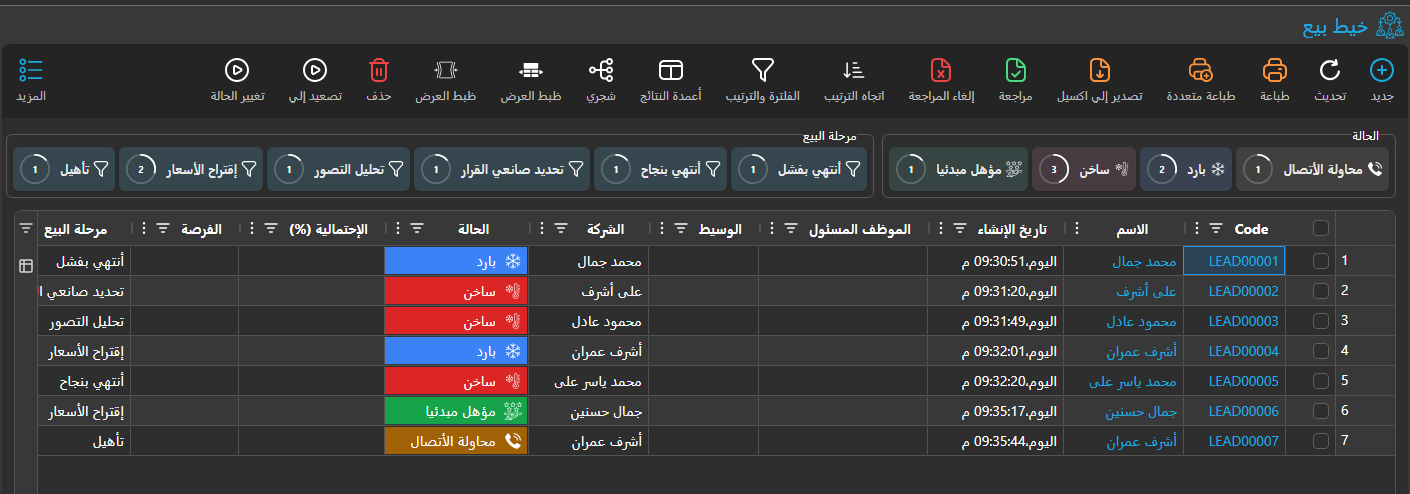
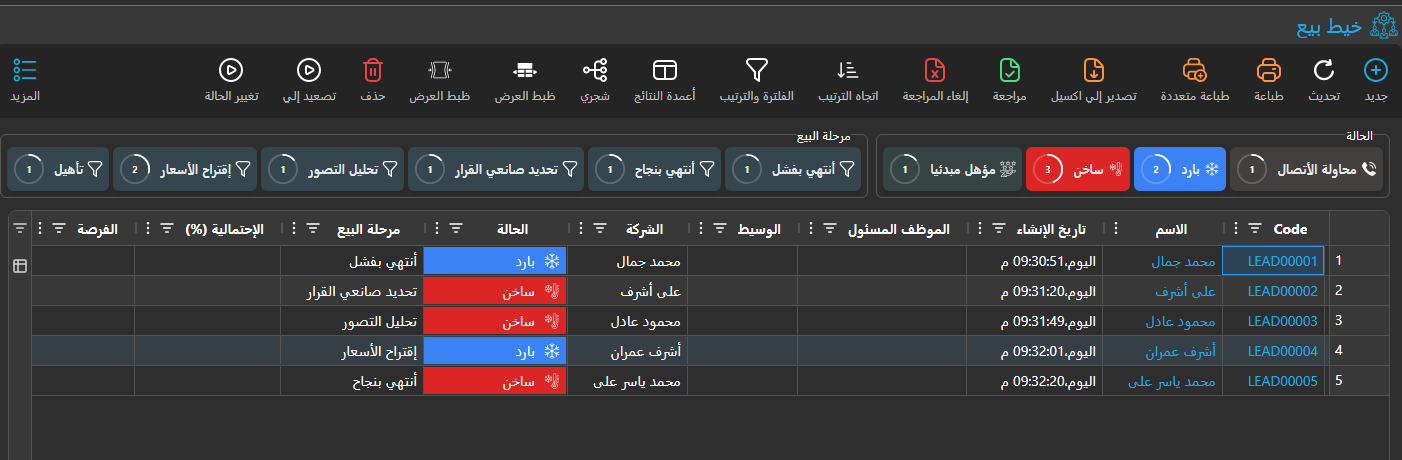
The quick filters appear as interactive buttons at the top of list views, showing the most common values for specific fields:
- Click Button: Applies the filter instantly to the table
- Colors: A button for an option-list or Yes/No value takes the colour set for that value; any other button uses the theme colour
- Counter: When the group has Show Count ticked, shows the record count and its percentage
3. Using Custom Filters
Custom filters provide specialized filtering criteria that are pre-configured by administrators to address common business needs.
4. Combining Filters
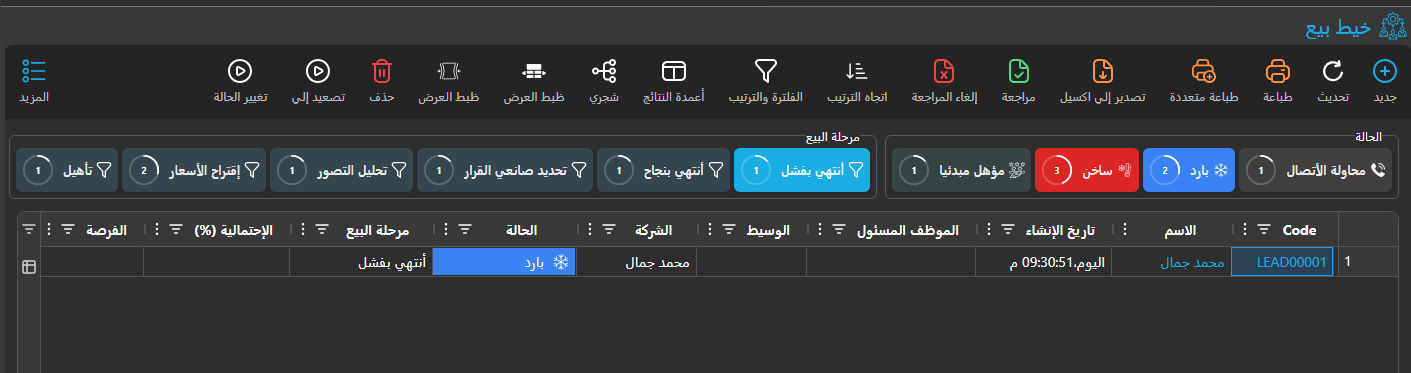
- Multiple filters can be applied together
- Filters from different groups work together (AND logic)
- Filters from the same group work as alternatives (OR logic)
For Administrators and Support Staff
Configuring Quick Filters Using Screen Modifier
Quick Filters are configured through the Screen Modifier system, which allows customization per entity and user.
Accessing Screen Modifier Configuration
- Navigate to Administration → Display Customization → Screen Modifier
- Search for or create a record for your target entity (e.g., "Invoice")
- Go to the Quick Filter grid
Setting Up Value-Based Filters
- Configure Group Settings:
- Arabic Title: Arabic group title
- English Title: Group Title in English
- Column Names: Enter comma-separated field IDs (e.g., "status,customerType")
- Show Count: Enable to display record counts
- Max Button Count: Set maximum number of buttons (typically 5-10)
- Is Dropdown: Show the group's values as a dropdown instead of a row of buttons — the better choice for a column with many values
- Component Effect Type: Add New (the default) adds this line as a new group; Modify changes or removes a group that already exists — see below
- Remove: With Modify, removes the existing group instead of changing it
- Quick Filter Values Criteria: Select a Criteria Definition to filter which values appear in the quick filter buttons
- Quick Filter Values Dynamic Criteria: Enter dynamic criteria text to filter which values are shown (uses the same syntax as Text Criteria)
Changing or removing an existing group
Many list screens ship with quick filters of their own — a Status group on most documents, for example. To change one, add a line with Component Effect Type = Modify and the same Column Names as the existing group; the line's Show Count, Is Dropdown, Max Button Count and values criteria then replace the group's own. This is how you turn the shipped Status buttons into a dropdown. A Modify line whose column names match no group exactly does nothing.
To hide a group, tick Remove on a Modify line. Removal is broader than modification: it deletes every group that shares at least one column with the line's Column Names. A line ticked Remove with the effect type left empty is saved as Modify.
| Message | Why | What to do |
|---|---|---|
| Quick filter must have either column names or criteria defined | The line has neither Column Names nor a Quick Filter Criteria. | Fill one of them. |
| Quick filter cannot have both column names and criteria defined. Please use only one | The line has both. | Keep Column Names for a value group, or the criteria for a custom filter — not both. |
| Quick filter with effect type 'Add New' cannot have remove enabled | Remove is ticked on an Add New line. | Set Component Effect Type to Modify, or untick Remove. |
These messages have no Arabic text and appear in English on Arabic screens too.
Filtering Quick Filter Values
You can control which values appear in the quick filter buttons using criteria. These criteria filter the database query that fetches distinct values, and can be applied on any column in the table - not just the column being displayed in the quick filter.
For example, if you have a quick filter on the "status" field, you could add a date criteria to show only statuses that appeared in recent records:
- Example: Show only invoice statuses from the current month by adding criteria:
invoiceDate,GreaterThanOrEqual,$monthStart()
Configuration Options:
- Using Criteria Definition: Create a reusable criteria and link it in the "Quick Filter Values Criteria" field
- Using Dynamic Criteria: Enter criteria text directly in the "Quick Filter Values Dynamic Criteria" field
This is useful when you want the quick filter buttons to reflect only values that are relevant to the current context or time period, rather than showing all values that ever existed in the database.
Setting Up Custom Criteria Filters
Create Quick Filter Criteria:
- Navigate to Administration → Display Customization → Quick Filter Criteria
- Create new record for your entity type
Add Criteria Lines:
- Dynamic Criteria: Enter Criteria Text (e.g.,
dueDate,LessThanOrEqual,$today())- For more details refer to: Text Criteria Guide
- Arabic Title: Arabic title
- English Title: Title in English
- Dynamic Criteria: Enter Criteria Text (e.g.,
Link to Screen Modifier:
- In Screen Modifier Quick Filter grid
- Select the created criteria in the Criteria field