
Custom List Views
A record rarely stands alone. While you are looking at a sales invoice, the useful question is often "what else has this customer bought from us?" — and answering it normally means leaving the invoice, opening the invoice list and filtering it by hand.
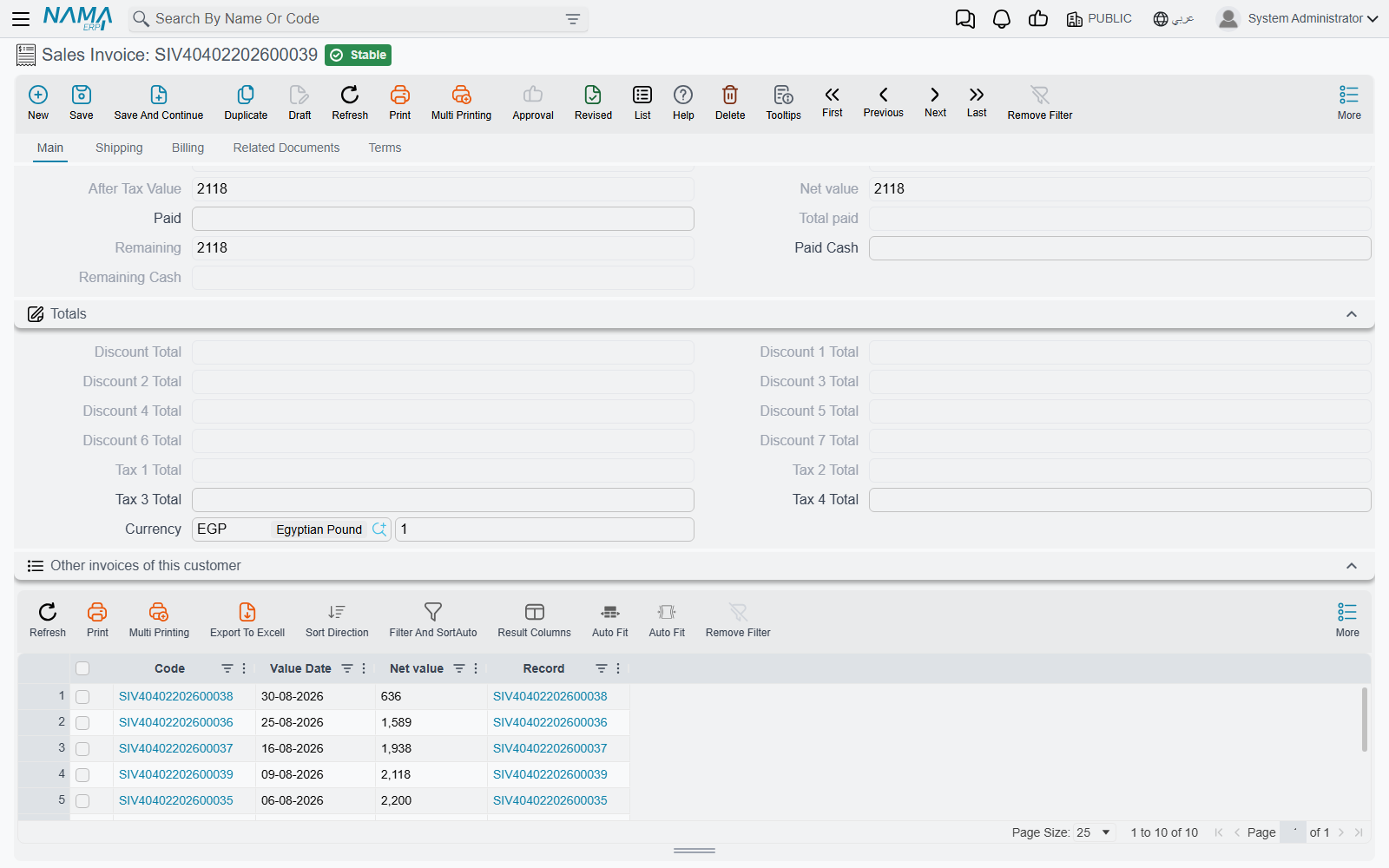
A Custom List View saves you that trip. It defines a small list of related records and places it as a block inside another record's screen, already filtered by a value taken from that record. Open any sales invoice and a block underneath shows the other invoices of the same customer, with no searching.
It does not add a new choice to a type's main list screen. To restyle a main list, or to offer a second, differently arranged copy of it, use a Screen Modifier instead.
A worked example
Suppose you want every sales invoice to show the customer's other invoices.
- Open Administration → Display Customization → Custom List View and add a record.
- Set For Type to Sales Invoice. This is the type of the records the block lists.
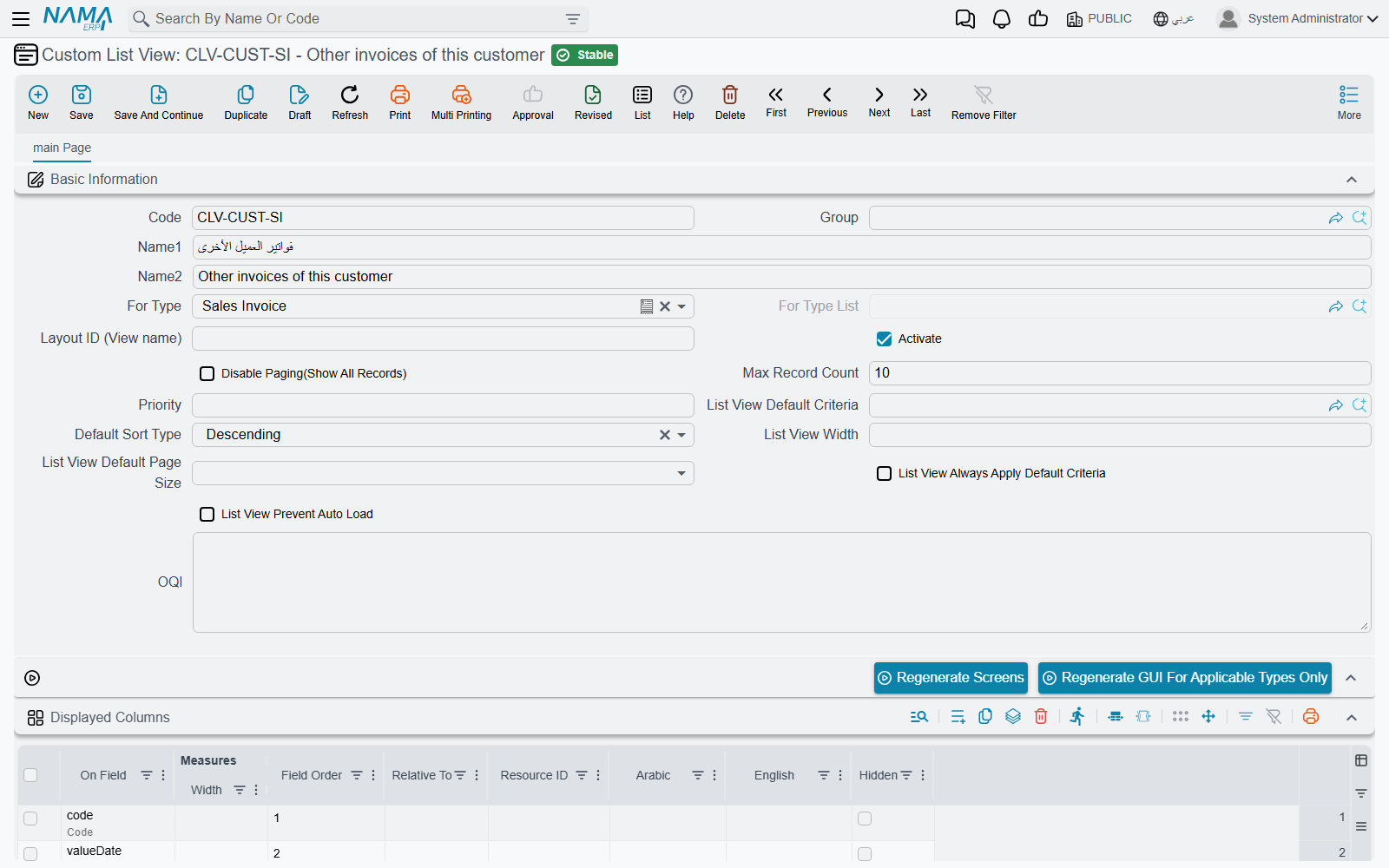
- In Displayed Columns, add the columns you want in the block, by field id: for example
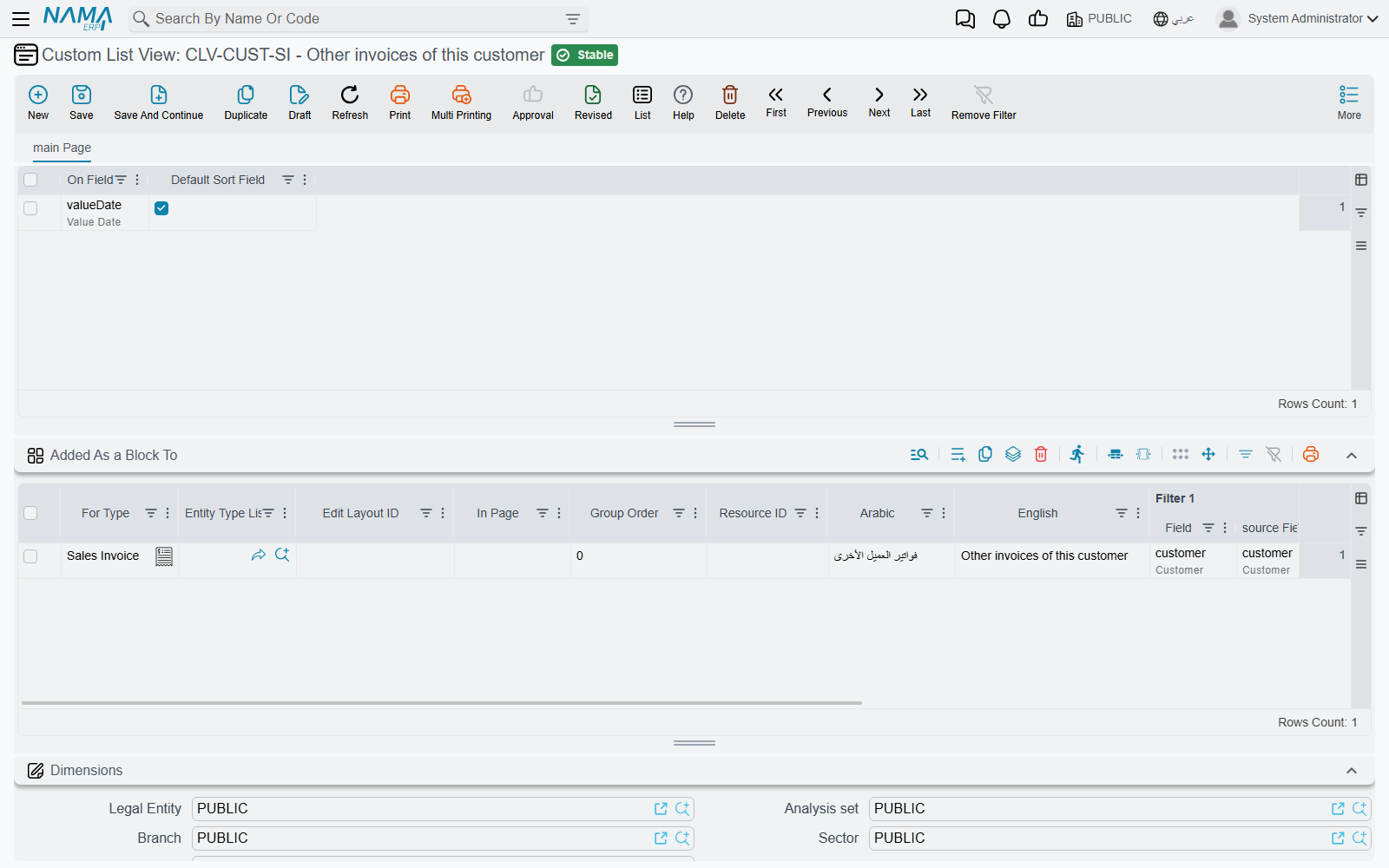
valueDateandmoney.netValue. - In the Added As a Block To grid, add a line with For Type = Sales Invoice (this time it is the screen that receives the block), Filter 1 | Field =
customerand Filter 1 | source Field =customer. - Save, then press Regenerate GUI For Applicable Types Only.
Every sales invoice now carries a block whose title is the record's name. The block lists the sales invoices whose customer equals the customer on the invoice you are looking at.
The header
| Field | What it does |
|---|---|
| For Type | The type of records the block lists. Required. |
| Activate | Only active records are applied. Clear it to take the block off the screens at the next regeneration without deleting the record. |
| Priority | The order in which several active custom list views are applied. |
| Max Record Count / Disable Paging(Show All Records) | With paging disabled, the block shows all matching rows in one go, up to Max Record Count if you fill it. |
| List View Default Criteria, List View Always Apply Default Criteria | A criteria definition the block applies on top of the filters, and whether it is applied every time. |
| Default Sort Type, List View Width, List View Default Page Size, List View Prevent Auto Load | Work as their namesakes on a Screen Modifier. |
| OQl | For implementers. Leave it empty and the system builds the block's query from the filters itself. |
The Layout ID (View name) field has no effect. The system names the block's list on its own (see Security).
The grids
Displayed Columns, Template Columns, Criteria Fields (Criteria) and Sort Fields add columns, computed columns, filter fields and sort fields to the block's list. They are filled in the same way as on a Screen Modifier. The list always starts with one column showing the record itself, and your columns are added after it.
Added As a Block To decides where the block appears. Each line places it on one screen:
| Column | What it does |
|---|---|
| For Type / Entity Type List | The screen that receives the block: one type, or every type in a list. One of the two is required. |
| Edit Layout ID | Restricts the block to one layout of that screen, for example a copy made by a Screen Modifier. Empty means every layout. |
| In Page | The page (tab) of the screen: its number (1, 2, 3…) or its id. Empty means the first page. |
| Group Order | The block's position among the page's blocks. Empty puts it last. |
| Resource ID, Arabic, English | The block's title. Left empty, the record's Arabic and English names are used. |
| Filter 1 … Filter 5 | Each pair links a field of the listed records (Field) to a field of the screen's record (source Field). The block shows only the rows where every pair matches. |
A line with no filter at all is refused on save:
You must fill at least one filter — «يجب ملئ عدد فلتر 1 على الأقل»
Making changes appear
Saving the record changes nothing on screen yet. Screens are built ahead of time, so they must be rebuilt. There are two buttons for this:
- Regenerate GUI For Applicable Types Only rebuilds only the types named on this record, in the header and in the Added As a Block To grid. Use this one.
- Regenerate Screens rebuilds every screen in the system.
Regenerate Screens also rebuilds the menu
It rebuilds the shipped menu from scratch, which wipes any hand edits made to it. See Changing the Menu.
Security
Two things are controlled separately.
Who can create or change custom list views. This is ordinary type security on Custom List View in the security profile. A custom list view changes what every user sees on the screens it targets, so keep it with the people who maintain screens.
Who sees the block. The block is an ordinary list, so the List View Security page of a security profile or user can allow or block it. Use these values:
- Type — the custom list view's For Type (the listed type, not the screen that hosts the block).
- List View ID — the custom list view record's internal identifier followed immediately by the host screen's type, with no space between them. An export with Include ID Field ticked shows the identifier.
A user whose list view is blocked still opens the host record. Only the block refuses to load, with:
You do not have list view authority on list view id {0}, entity type {1} — «لا تملك صلاحية مطالعة القائمة بالمعرف {0} والنوع {1}»