
Notification Definitions
A Notification Definition is one record that answers four questions about one message: what happens, on which records, who hears about it, and what they read. Save it once and the same definition feeds every channel it has a template for — the in-app bell, e-mail, SMS, WhatsApp and the mobile apps. There is no separate "e-mail rule" and "SMS rule"; there is one definition with one template per channel.
Everything below is the definition screen, in the order the screen presents it. The provider side of SMS and WhatsApp — accounts, tokens, senders — is in SMS and WhatsApp Configuration, and template recipes for awkward cases are in the notifications FAQ.
What fires it
Approval Entity names the record type being watched — the sales invoice, the customer, the employee. Alternatively, Applicable For casts a wider net without naming a type at all:
| Applicable For | Arabic | Covers |
|---|---|---|
| All Screens | كل الشاشات | Every record type in the system |
| Master Files | الملفات | Every master file (customers, items, employees…) |
| Documents | المستندات | Every document (invoices, receipts, orders…) |
Apply Also To extends one definition to a list of extra record types, so a single rule can cover the sales invoice and the sales return without being written twice.
Then tick the events. A definition fires on the events you tick and on nothing else:
| Event | Arabic | Event | Arabic |
|---|---|---|---|
| Use With Insert | مع الإدخال | Use With Update | مع التعديل |
| Use With Delete | مع الحذف | Use With Draft | مع المسودة |
| Use With Approval Request | مع طلب الموافقة | Use With Reject | مع الرفض |
| Use With Return | مع الارجاع | Use With Revise | مع المراجعة |
| Use With Unrevise | مع إلغاء المراجعة | Use With Cancel | مع الإلغاء |
| Use With Uncancel | مع إلغاء الإلغاء | Use With Print | مع الطباعة |
| Use With Discussion | مع المناقشة | Use With Replication Failure | مع فشل التكرار |
| Use With Processing Failure | مع فشل المعالجه | Manually | يدوياً |
Two rules the screen enforces on save
A definition with no event ticked at all is rejected — the system answers "You must select with insert, update, or delete,… etc". And a definition that names neither an Approval Entity nor an Apply Also To nor an Applicable For is rejected too: it has nothing to watch.
Two of those events are how administrators hear about trouble rather than about business. Use With Processing Failure fires when a document's business request fails, and Use With Replication Failure fires when a record fails to reach another site. Point them at the systems administrator and the first person to know about a stuck ledger is the person who can fix it.
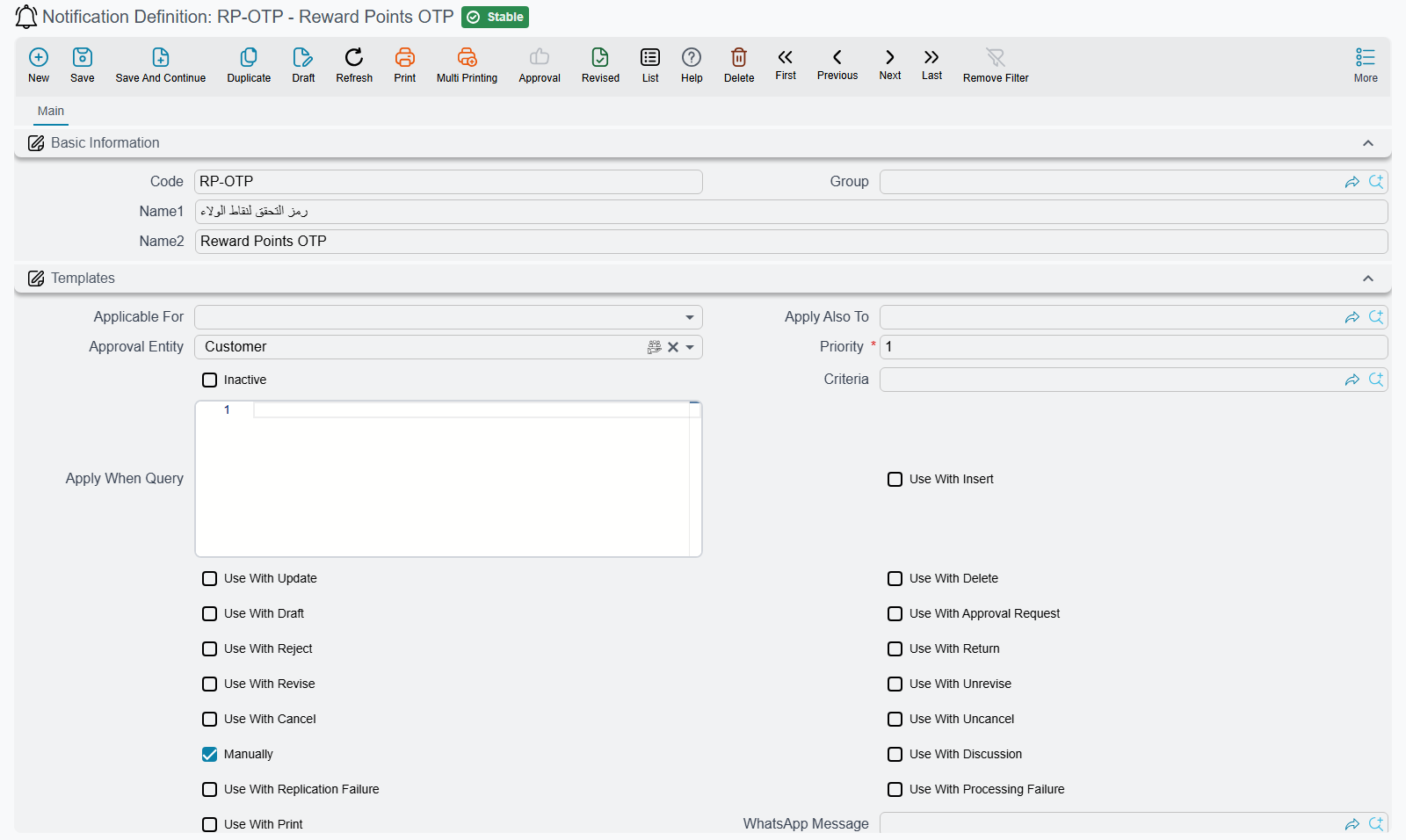
Narrowing it down
Ticking Update on the sales invoice means every edit of every invoice sends a message, which is how a notification definition becomes noise nobody reads. Four filters narrow it, and they are ANDed — the definition fires only if all the ones you filled in agree:
- Criteria (المعايير) — the ordinary criteria editor: field conditions on the record.
- Apply When Query (تطبيق عند التوافق مع الاستعلام) — a query that must return the record.
- Script (سيناريو) — a scenario script that decides.
- Critical Fields (عندما تتغير الحقول الاتية) — a grid of fields that applies to updates only: the notification fires only when one of the listed fields actually changed. Leave the grid empty and every update qualifies.
Skip notification when only critical fields changed (عدم إرسال التنبيه في حالة تغيير الحقول الحرجة فقط) inverts that last one: the message is sent only when something other than the listed fields changed. It is the switch for "tell me about any edit except the remark".
Five dimension switches — Sector, Legal Entity, Branch, Department and Analysis Set Must Match Record — restrict the definition to records whose dimension matches the definition's own, which is how one database serving several companies keeps each company's messages to itself.
Finally, Do Not Send With Recommit stops the definition firing when the system re-commits a record by itself, sparing users a second copy of a message they already have.
Priority does not mean "order"; it means "instead of"
Every definition carries a Priority (الأولوية), and the engine walks the matching definitions in priority order. What surprises people is what happens next: once it has collected the definitions at the first priority level that matched, it stops — definitions at every later priority never run, whether or not they would have matched.
So priority is not a sequence number for ordering messages. It is a precedence ladder: several definitions sharing a priority all fire together, and a lower-priority definition only ever fires when nothing above it matched. If two unrelated notifications must both go out on the same event, give them the same priority.
Who receives it
The Targets grid (المستهدفين) takes one of two things per row:
- Field — a field on the watched record that points at a person: the salesman on the invoice, the employee on the leave request. The field is read at send time, so the message follows whoever is on the record.
- Target — an explicit recipient. The picker accepts an Employee, a User, an Organization Position, a Job Position, an Employee Department, an Employee Group, a Master Group, a Security Profile or a Responsibility — so "everyone with the Credit Controller responsibility" is one row, not a list that goes stale.
Targets Query (استعلام المستهدفين) covers the rest: recipients that have to be looked up rather than named.
The query's contract
The query must return entityType and id, in that order. Any further columns are ignored. For example, notifying every subsidiary of the company that just paid:
select entityType, id from Customer where parent_id = {relatedSubsidiary.id}When the recipient picker won't offer the record type you want
The pickers that choose a recipient only offer the record types an administrator has allowed as e-mail recipients. If the type you need — a third party, a contact, a driver — is missing from the list, add it in Fields and Entities Settings and it becomes selectable everywhere recipients are chosen.
Do Not Notify Author (عدم تنبيه محرر السجل) drops the person who caused the event from the recipient list — most people do not need to be told what they just did.
Not everyone on the list is actually messaged. The system silently drops former employees and blocked users. See Why a notification was not delivered.
Delegation: reaching the stand-in
A notification that lands in the inbox of someone who is on two weeks' leave is a notification nobody acts on. When an employee has an active Delegation document — the same document used to hand pending approvals over to a stand-in — the system extends notifications the same way.
While the delegation period is running, every notification aimed at the delegator is raised for the delegate as well. The stand-in's copy carries a Delegated From field naming the original recipient, so they can see at a glance that the message concerns someone else's work. Nothing is taken away from the original recipient — they keep their own copy, so nothing is lost if they do check in from holiday.
The delegate joins the recipient list itself, which means they are reached through whatever channels the definition uses — in-app notification, e-mail, SMS or WhatsApp — not the in-app panel alone. That is deliberate for leave coverage, but it is worth knowing before you delegate someone who is on a notification-heavy distribution.
Two switches control the behaviour:
- Do Not Apply Delegation (عدم تطبيق التفويض) on the notification definition turns delegation off for that definition alone. Use it for messages that must never leave the intended person: salary changes, disciplinary matters, anything an employee would not want a colleague reading.
- Do Not Send Notifications To Delegated Employee in Global Configuration turns the behaviour off for the whole installation.
Notifications raised by scheduled tasks follow the same rule. A scheduled task has no per-record switch, so only the global setting applies to it.
Notifications that were already waiting
Delegation covers notifications raised while the period is active; it does not reach back to the messages that piled up before the delegation was created. For those, open the Delegation document and use More → Move Notifications To Delegated Employee. Every unread notification of the delegator whose date falls inside the delegation period is transferred to the stand-in and stamped with Delegated From.
Note the difference: this really is a move — the notifications leave the delegator's list — whereas ongoing delegation copies them. It is the tool for "the manager is already on leave and their inbox is full", not for routine cover. The document must be saved and committed before the action will run.
What they read
The Templates group holds one template per channel, each written in Tempo:
| Field | Arabic | Feeds |
|---|---|---|
| Notification Template | قالب التنبيهات | The in-app message |
| Email Template | قالب الإيميل | The e-mail body, HTML included |
| SMS Template | قالب الرسائل النصية | The text message |
| WhatsApp Message | رسالة واتساب | The WhatsApp message |
| Notification Title Template / Notification Body Template | قالب عنوان التنبيه / قالب محتوى التنبيه | The push notification on the mobile apps |
The message's title is the definition's own name — so name definitions the way you want them to read in a user's notification list, not NOTIF-017.
Writing the same text three times is avoidable: Copy Notification From, Copy Email From and Copy SMS From each take one of Email, SMS or Notification and reuse that channel's template instead.
A few more fields shape what arrives:
- Notification Report / Email Report / SMS Report attach a report rendered for the record, with Attached File Format (تنسيق الملف المرفق) choosing the output and Attachment Name Template (قالب اسم المرفق) naming the file — itself a Tempo template, so the customer receives
Invoice-SI-2024-001.pdfrather thanreport.pdf. - Preferred Email Sender and Preferred SMS Sender pick which configured sender the message goes out from; WhatsApp Preferred Sender does the same for WhatsApp and can resolve per employee — see Sending WhatsApp from Employee Phones.
- Allow Multiple SMSs with the same Body and Phone Number from this Notification Definition is off by default, which suppresses a duplicate text to the same number. Tick it when the repetition is the point, such as a daily reminder with identical wording.
- Do Not Send Notifications To Mobile Apps (لا ترسل تنبيهات لتطبيقات الجوال) keeps a definition off the phones.
- Notification Reference1 / Reference2 Source stamp the resulting notification with a reference taken from a field on the record, which is what lets a notification list be filtered by, say, the customer it concerned.
Templates that read the record
Tempo templates reach any field of the record and of the records it points at:
Dear {customer.name1},

Your invoice {code} dated {valueDate} with amount {money.total}
has been {translate(status)}.

You can view the invoice details here: {link($this)}
If links like this one open the record in the old GUI, add {useNewGUIForLinks} anywhere in the template and they open in the new GUI, from the e-mail and from inside the system alike — see Opening links in the new GUI.
Four built-in fields put the audit trail of an update straight into the message — {$changesAsHtmlAr}, {$changesAsHtmlEn}, {$changesAsTextAr} and {$changesAsTextEn}. Use the HTML pair in e-mail and the text pair in SMS; each lists the header fields that changed with their old and new values, plus added, removed and modified detail lines. Tempo has the full syntax, including loops over detail lines and the {openmsg}…{closemsg} blocks that let one definition send a different message to each recipient.
When it is sent
In-app notifications appear as soon as the event is committed. E-mail, SMS, WhatsApp and mobile push do not go out inline — each becomes a pending task that a background processor picks up, which is why a slow mail server never slows down saving a document.
The Allow Sending E-Mail and SMSs in these times grid is where a definition says when those queued messages may leave:
| Column | Arabic | Meaning |
|---|---|---|
| From-Time / To-Time | من وقت / إلى وقت | The window in which sending is allowed |
| Day 1 … Day 7 | أيام الأسبوع | Optionally restrict the window to certain weekdays; leave them empty and the window applies every day |
A message raised outside every window is not dropped — it waits and goes out at the nearest allowed time. Leave the grid empty and messages are sent whenever they arise. Note that this belongs to the definition, not to the recipient: there is no per-user quiet-hours setting in Nama.
Two more timing-related fields:
- Flush Before Notification writes pending changes to the database before the templates are rendered. If the definition uses a Query, you want this on — otherwise the query may not see the very record that triggered the message. The screen warns you about exactly that when you save a definition that has a query with the switch off.
- Notify In Sites (التنبيه في) restricts the definition to named replication sites, so a head-office rule does not fire again at every branch.
Why a notification was not delivered
"The definition is set up, but she never got it" is the most common notification ticket. Work down the list in order. It starts at the definition, moves to the recipient and ends at the server.
1. The definition never fired. Check that Inactive is not ticked, that the event is ticked, and that every filter you filled in agrees with the record. Then check that no definition at a higher Priority matched first (see the priority box above). A Manually definition never fires by itself, and Notify In Sites may limit the definition to another site.
2. The system removed the recipient. Before anything is created, the system silently drops these recipients:
- a user whose Prevent Login is ticked;
- an employee whose Employee State is Resigned, Dismissed, Pension or Suspended, and a user linked to such an employee;
- an employee all of whose users have Prevent Login ticked.
These checks apply only to users and employees. A customer, supplier or typed-in address is never dropped. Ignore Employee State When Sending Notifications, on the Notifications And Messaging tab of Global Configuration, switches the employee-state rule off for the whole installation. The Prevent Login rule still applies. A dropped recipient leaves no trace on the record or in Pending Tasks. The only record is a line in the server log that reads Notification … was not sent to … because …. Do Not Notify Author also removes the person who caused the event, and a user who is listed alongside their own employee gets one copy, not two.
3. The recipient has no address for that channel. An e-mail is queued only for a recipient with an e-mail address on file, and an SMS only for one with a mobile number. If the address is missing, nothing is queued and no error appears. The in-app notification still arrives, which is why "he saw it in the bell but got no e-mail" usually means an empty e-mail field.
4. The record arrived by replication. E-mails and SMS are not raised for a record that is being saved by replication from another site. The site where the record was entered sends them.
5. The message is queued but has not left. Open Pending Tasks. Postponed means the definition's sending-times grid is holding the message back. Retry or Blocked come with an Error Message column that names the cause. If every task is stuck, check Send Mails And SMS Only From Servers (CSV) in Global Configuration. E-mail, SMS, WhatsApp, Telegram and mobile push only leave a server whose server id is in that list. When the list is empty, each task fails with:
Server ID is not defined
When this server's id is not in the list, each task fails with:
Ignoring send email and sms because allowed servers is {0} and server id is {1}
Neither message has an Arabic translation, so both appear in English on Arabic screens. The reverse also happens: a test server cloned from production that still carries production's server id sends real messages, which is the classic cause of "the customer received two copies".
Firing one by hand
Tick Manually and the definition stops reacting to events; it waits to be run against a record on demand. There are two ways to run it:
- An entity action — Run Manual Notification — takes the definition's code as its parameter, so a button or a flow step can send it for the record at hand.
- A Bulk Message is a document whose lines list the recipients by hand — customers, suppliers, employees, contacts. Its Send button runs a manual definition set up for Bulk Message once, and the message goes to everyone on the lines. It is the tool for "send this to these forty customers".
How to set up and send a Bulk Message is in Bulk Messages, WhatsApp Messages and Internal Chat.
Because a manual definition never fires on its own, it is also the safe way to build and test a template on a live system.
Housekeeping on the screen
The definition screen carries four actions for the notifications it has already produced: Delete All Notifications, Delete Current User Read Notifications, Delete All Users Read Notifications and Delete Notifications Until Date. They clear the in-app notification lists, which on a busy installation grow faster than anyone reads them.
Changing a definition takes effect immediately
Definitions are cached, but the cache is dropped the moment any definition is saved — no restart, no waiting. If a changed definition seems not to have taken effect, the cause is in the definition's own filters, in its priority level, or in a recipient the engine dropped — not in a stale cache.