
Master Groups
Document books number documents. Groups do the same job for the other half of the system — the master files. Customers, items, employees, suppliers, cost centres: each of them can belong to a group, and the group is what hands out the code.
That is the first job, and it works almost exactly as a document book does. The second job is one books do not have: groups form a tree, and that tree appears as a navigation panel beside every master-file list in the system. Click Wholesale in the panel and the customer list narrows to wholesale customers.
Where to find it
Basic → Settings → Group, immediately after Document Book and Document Term. The list shows every group in the system; the For Type column tells you what each one is for.
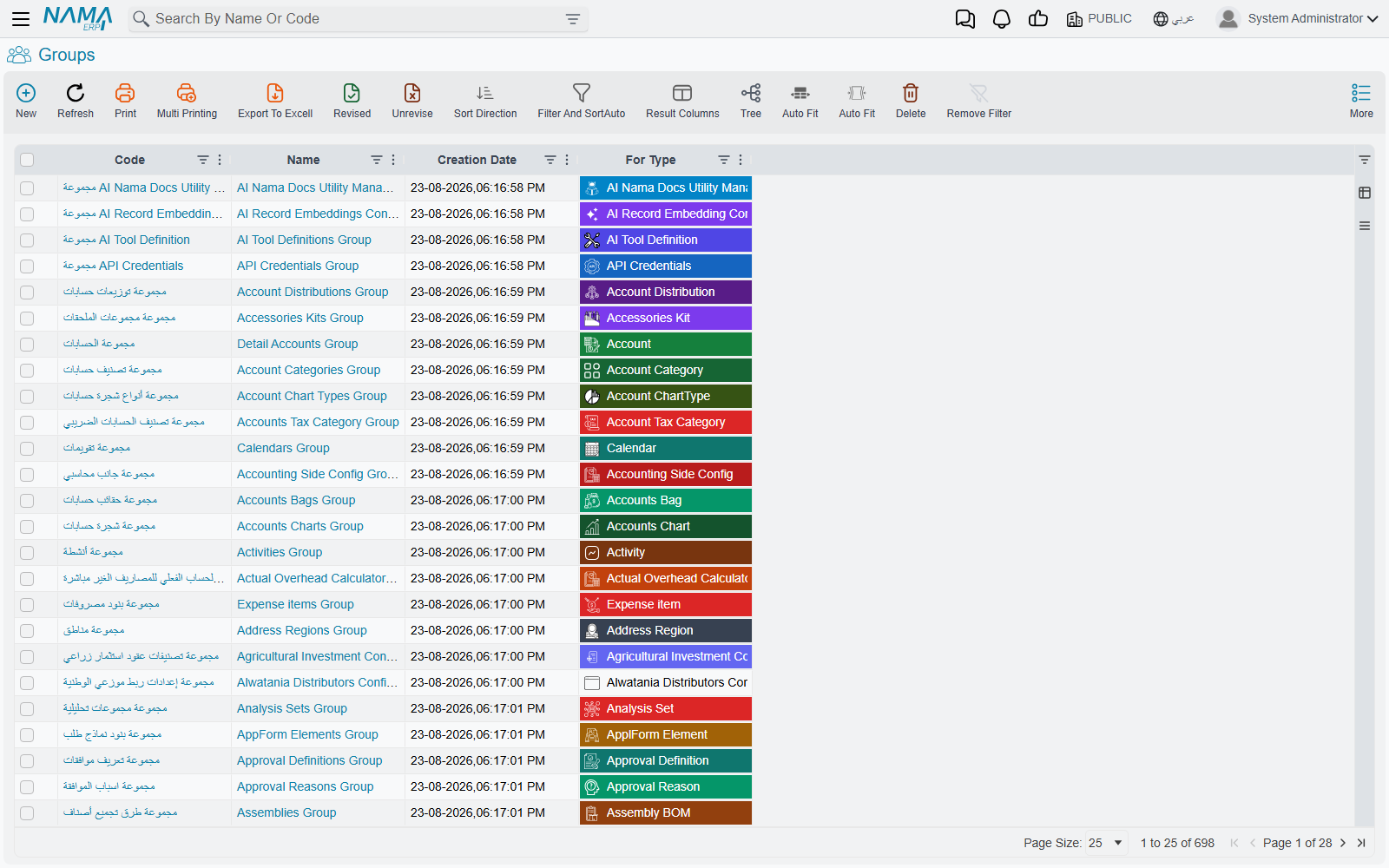
One group, one master file type
The first field on a group is For Type, and it decides everything else. A group whose For Type is Customer can be put on customers and on nothing else. Try it on an item and the save fails: "Selected group is for type Customer, it should be for type Item."
For Type accepts any master file — anything that is not a document.
For Type freezes the moment the group is first saved
Save the group once and the type can never be changed again: "Can not change group type after first save." There is no way round it. A group created for the wrong type is a group to abandon, not to correct.
One consequence of For Type is worth knowing before you import anything. Internally a group's code carries its type in front of it, in the form Customer$#WHOLESALE. Two useful things follow: the same code may be reused once per master type — a WHOLESALE group for customers and another for items can coexist — and an import file that sets a record's group must write the long form, not the bare code. That is covered in Importing Records.
The tree, and the rule that governs it
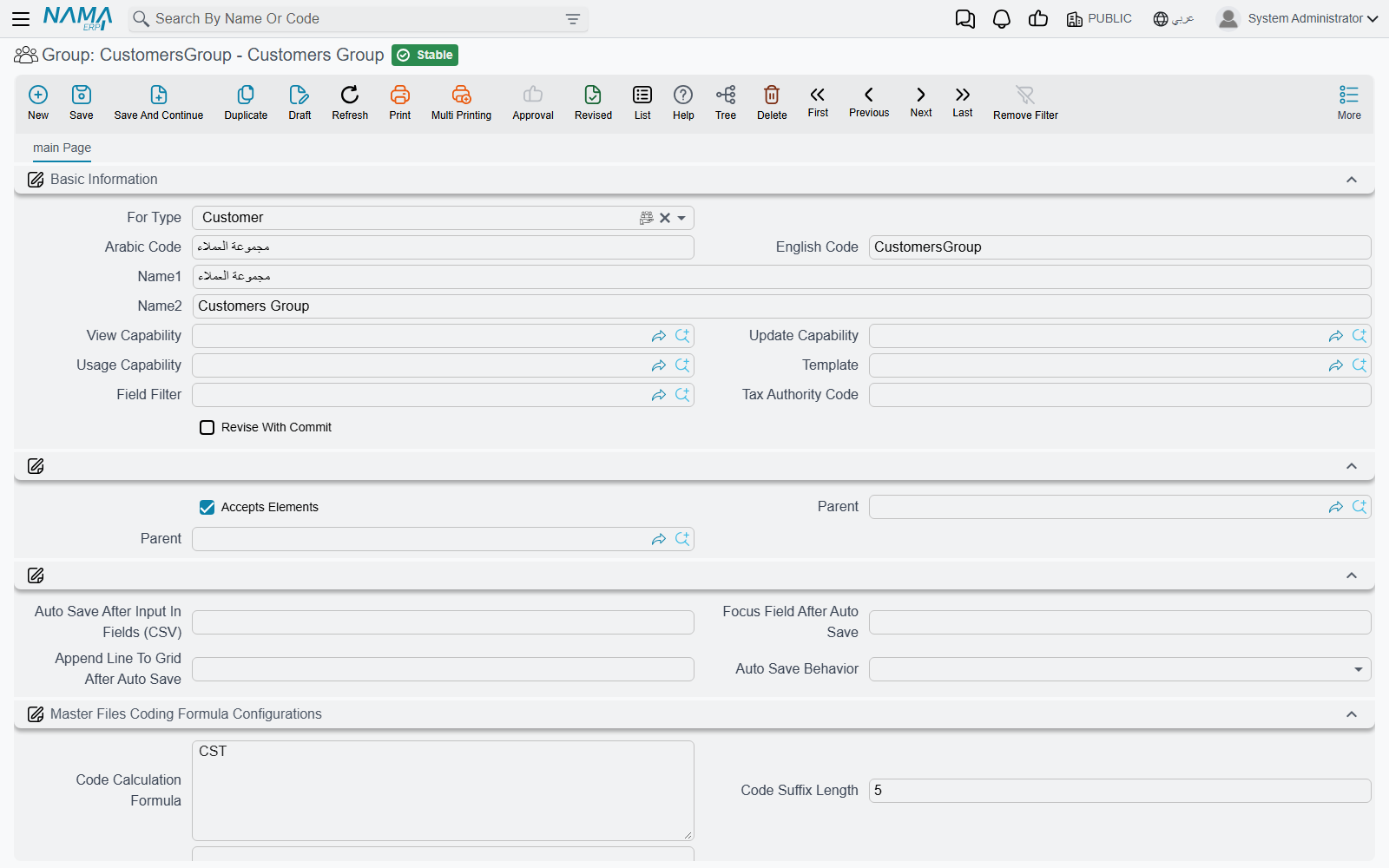
A group can point at a Parent, and that is how the tree is built. But there is one rule that catches everybody the first time, and it is the tick box called Accepts Elements.
A group is a folder or a usable group, never both
Accepts Elements is ticked on every new group, and a group with it ticked is one that records can be put on. A group with it unticked is a folder: it can have children, but no record can ever be put on it directly.
The two are mutually exclusive, and the system enforces both directions. Choose a group that accepts elements as somebody's parent and the save fails with "Group … Can not be used as a parent". Try to put a folder group on a customer and the save fails with "Selected group cannot be used in elments directly" — quoted here with its shipped spelling, because that is what you will see.
So building a tree means creating the branches first with the box unticked, and only then the leaves that records will actually use.
The group lookup on a master file already knows this: it offers only groups of the right type that accept elements, so the folders never appear in it.
The parent is classification and nothing more
A parent group does not pass anything down to its children — not its coding, not its template, not its capabilities. Each child that records will use has to carry its own settings in full. The tree decides how records are filed and how the navigation panel is laid out; it decides nothing about how they are numbered.
The navigation panel
This is the day-to-day payoff. Every master-file list screen in the system shows the tree of groups for its own type down one side. Clicking a branch filters the list to the records filed anywhere beneath it — a branch with three sub-groups under it shows the records of all three.
That is why it is worth keeping groups tidy even in an installation that does not use them for numbering at all.
Numbering the records in a group
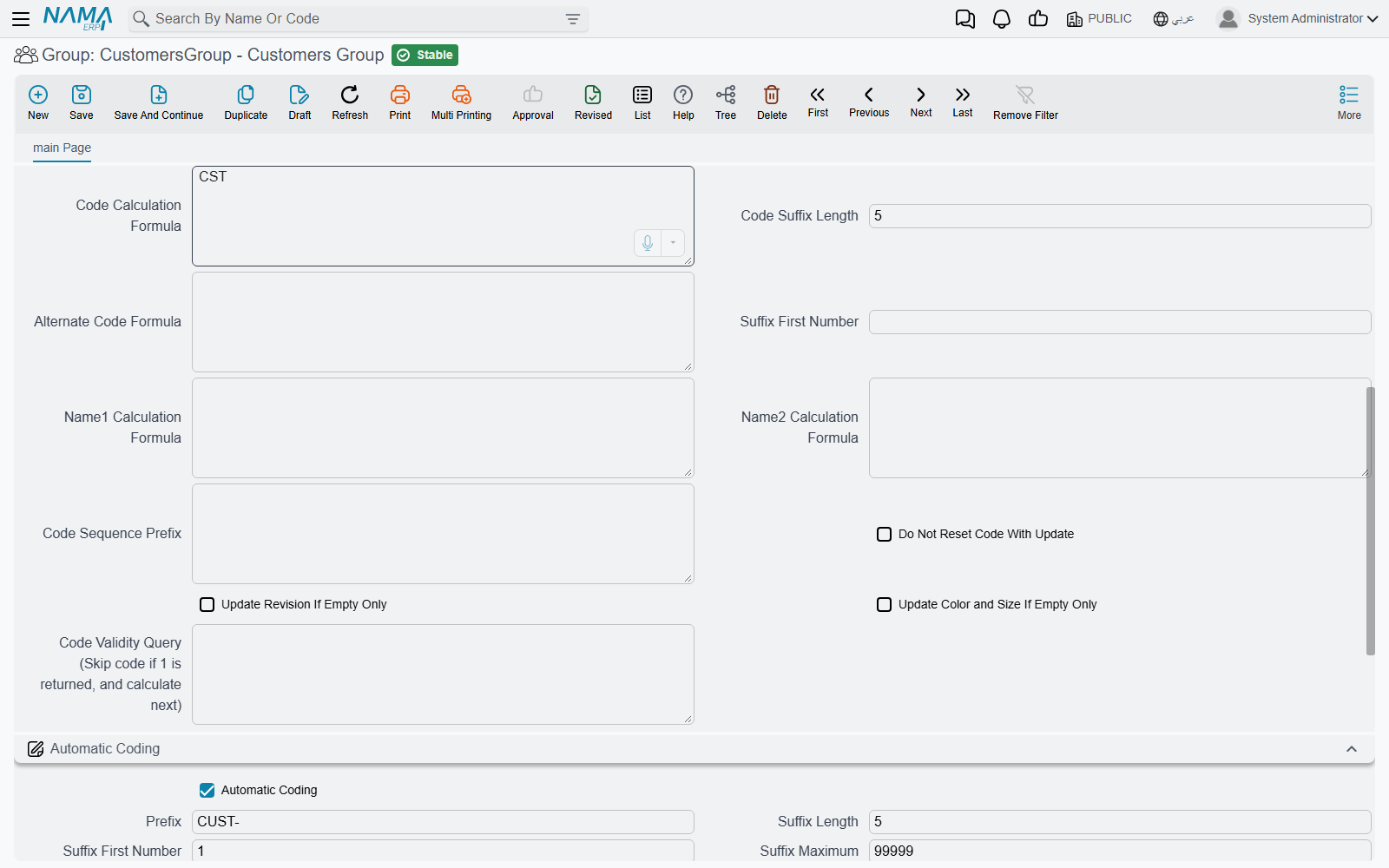
Here is the one thing about this screen that surprises people, and it is best said before anything else.
There are two coding engines on this screen, and the upper one silently wins
The screen carries a group titled Master Files Coding Formula Configurations and, below it, one titled Automatic Coding. They are not two views of the same thing, and they are not alternatives you choose between with a switch. If the formula block has a Code Calculation Formula in it, that is what codes the records — and the Automatic Coding block below is never consulted.
Nothing on the screen says so, no validation warns you, and both blocks stay editable. The group in the picture above is in exactly that state: it has a formula of CST at the top and a complete CUST-00001 series below it, and only the first of the two will ever be used. A group whose numbers "ignore the prefix I set" almost always has a formula filled in above.
The full order the system works through, for a record that has a group:
- the first line in the group's details grid whose Criteria matches the record — its formula;
- otherwise the group's own Master Files Coding Formula Configurations block;
- otherwise the Files Auto Coding grid on Fields and Entities Settings, which codes by formula without any group at all;
- otherwise the Automatic Coding block on the group.
The Automatic Coding block
This is the same series engine a document book uses, with the same six fields and the same arithmetic. Rather than repeat it, read Document Books — the prefix and padded serial, the per-year restart through prefixFormula, Do Not Use Prefix Formula For Next Number, Use Next Real Number For Drafts, and what happens when the numbers run out all behave identically here. Master files get provisional @draft codes exactly as documents do.
The screen fills in the rest of the series for you
Type a Suffix Length and, if they are still empty, Suffix First Number becomes 1 and Suffix Maximum becomes that many nines — a length of 5 gives you a maximum of 99999 the moment the cursor leaves the field. Type a Suffix Maximum instead and the Suffix Length is raised to fit it.
Two differences are worth spelling out.
The prefix is required only when Automatic Coding is on. On a book a prefix is expected even for manual numbering, and a global option exists to relax that. On a group there is nothing to relax: switch Automatic Coding off and the prefix simply is not asked for.
Every record in the group must start with the group's prefix, even one you type by hand. Put a customer in a group whose prefix is WH- and give it the code X001, and the commit fails with "code must start with WH-". The prefix is a property of the group, not merely of the numbers it generates.
Each group runs its own series
As with books, the running number belongs to the group. Two groups of the same type with the same prefix are refused at save — "Auto coding prefix …, suffix length …, and suffix first number … conflict with …" — so two groups cannot quietly interleave their numbers.
Pick a group on a new master file and the Code field fills in straight away with the number it is about to get. That is a preview: the number is not committed to the series until the record is saved.
The Master Files Coding Formula Configurations block
The other engine builds a code out of the record's own values instead of counting. Its main field is Code Calculation Formula — a template that reads fields from the record being saved. Three more formulas beside it can fill in the Alternate Code and both names, and each is applied only when it produces something: a formula that renders empty leaves the existing value alone.
The rest of the block controls the counter that is appended to the formula's result:
| Field | What it does |
|---|---|
| Code Sequence Prefix | The key the running number is counted against. Left empty, the calculated code text itself is the key. |
| Code Suffix Length | How many digits the counter is padded to. Maximum 20. |
| Suffix First Number | The number to start at. (The Automatic Coding block below has a field with the same English label — they are different fields, in different groups.) |
| Do Not Reset Code With Update | Leaves the code alone on records that have been committed before, instead of recalculating it. |
| Code Validity Query | A query that vetoes a candidate number; the system tries the next one, and the next, until the query stops matching. |
The formula language here is not quite the one used elsewhere
A formula written with ${…} around field names is read as plain field substitution. A formula written with {…} goes through the full template language, with its functions and conditions. The two cannot be mixed in one formula — the presence of ${ switches the whole thing to the simpler mode.
Code Validity Query is one of a small number of fields on this screen that were never translated: Arabic users see the English label.
If the last record coded from a formula has a suffix that is not a number — someone typed a code by hand, or an old record was migrated in — the next save fails and names the record it could not read a number from. That is the usual cause of a formula that worked for months and then stopped.
A different formula per kind of record
Under the two blocks sits a grid: one line per Criteria, each with its own set of coding-formula columns. This is how one group codes different records differently — items in one product family taking one code shape, items in another taking a second.
The first matching line wins, and a line with no criteria matches everything
The lines are read from the top down and the first one whose Criteria matches the record is used. Lines below it are never looked at, however well they fit.
A line whose Criteria is empty therefore matches every record and shadows everything below it. Keep the general cases at the bottom and the specific ones at the top, exactly as you would in any first-match list.
If no line matches, the group's own formula block is used. If that is empty too, the search carries on down the order listed above.
What locks once a group is used
A group stops being freely editable at two moments.
When it is first saved, For Type freezes.
When the first committed record of that type points at it, four fields freeze: Automatic Coding, Prefix, Suffix First Number and Suffix Length. Editing any of them then fails with "Can not change auto coding as the record was used in documents" — the message says "documents" even on a master-file group, which is simply how it is worded.
Drafts do not freeze anything
Only committed records count. A group with fifty drafts hanging off it is still fully editable; the first commit is what locks it.
Everything else stays open, and that includes rather a lot: Suffix Maximum, prefixFormula, Replication Site, the whole formula block and the whole details grid. The freeze protects the counting series and nothing more — a per-criteria formula can be rewritten after it has coded thousands of records.
There is no supported way to unfreeze a group. When the series itself has to change, the answer is the same as for books: make a new group.
Retiring a group
A group has Prevent Usage, and that is the retirement switch. Set it and no new record can be committed on the group — "Can not use record …, usage is prevented" — while every record already on it carries on untouched. What Prevent Usage means in general, and who can be allowed past it, is covered in Preventing a Record From Being Used.
Note that a group has no Inactive or Inactive From Date field. Those belong to document books; on a group, Prevent Usage is the whole story.
A group that has ever been used can never be deleted
Once any record has referenced a group, the delete is refused — "Can not Delete this record because it used in another record", quoted with its shipped spacing. And the mark that causes this is never cleared: deleting every last record that used the group does not make the group deletable again.
Prevent Usage is therefore not a second-best option, it is the only option. Plan on groups being permanent.
One more way a group retires itself: if the series reaches its Suffix Maximum, the group sets its own Prevent Usage. The record that took the last number saves normally, and the next one finds the group closed.
What else a group carries
Numbering aside, a group is a convenient place to hang settings that should apply to one family of master records and no other.
| Field | What it does |
|---|---|
| Template | A Default Values Template applied to records in the group. |
| Field Filter | A field filter that hides or protects fields on those records. An automatic filter is refused here. |
| View / Update / Usage Capability | Security capabilities copied onto records that join the group. |
| Dimensions | Legal entity, sector, branch, department and analysis set, copied onto records that join the group. |
| Revise With Commit | Makes the records in the group revise as they commit. |
| Tax Authority Code | Feeds e-invoicing: where a tax payer configuration is set to take the item type code from the group, this is the code it reports. |
| The auto-save fields | Save the record automatically once a named field is filled in, and then move the cursor or add a grid line. |
Choosing a group overwrites the record's capabilities
When you pick a group on a master file, the group's dimensions are copied onto the record only where the record still holds the default PUBLIC value — but the three capabilities are copied over unconditionally, replacing whatever was already there. If a record needed a capability of its own, set it after choosing the group, not before.
Does every master file need a group?
No. The group field is optional everywhere, and a record without one simply falls through to the next coding mechanism, and then to you: with nothing configured, the code becomes something the user types, and an empty code fails at commit.
So in practice groups become mandatory by convention rather than by rule — in an installation where the group is what codes customers, a customer without a group is a customer without a code.
Your installation may already have one group per type
The setup wizard, if it was run, creates a group for every master type, named after the type and coded from its short code with a five-digit serial. Those are the groups an installation starts with; look for them before creating your own.
See also
- Document Books — the same numbering engine, for documents
- Automatic coding of master files — coding by formula without a group
- Default Values Templates — what the Template field points at
- Preventing a Record From Being Used — the retirement switch
- Importing Records — the long form a group code takes in a file