
Field Filter with Criteria
You can use the Field Filter with Criteria screen to apply custom filters when searching within specific fields on any Nama ERP screen.
For example:
- In a purchase invoice, you may want to display only items whose default supplier matches the invoice's supplier.
- In a sales invoice, you may want to show only non-service items when selecting an item.
How to Define a Field Filter with Criteria
Create a Criteria Record
- In the Criteria Definition file, define the condition you want to apply (e.g., non-service items).
Create a Field Filter Record
- Open the Field Filter with Criteria screen and create a new record.
- Specify the Document Type (e.g., Sales Invoice).
- Define the Field to apply the filter on (e.g.,
details.item.item). - Assign the previously defined Criteria to this field.
Assign the Field Filter
- Go to one of the following configuration locations and assign the filter in the Field Filter field:
- Document Type
- Document Book
- Master Group
- a menu entry, on a Menu Definition or a Menu Update
- Alternatively, select the Automatic option to apply it automatically.
- Go to one of the following configuration locations and assign the filter in the Field Filter field:
Save your changes.
If your filter requires dynamic logic such as loops or conditions, use Tempo Language instead of a criteria definition.
A shortcut when the filter should always apply
Steps 2 and 3 above exist so that the same filter can be switched on for one document term or one book and left off elsewhere. When a filter should simply always apply to a field, there is a quicker route: register the criteria straight against the field in the Extra Filter grid of Fields and Entities Settings. No filter record to name, nothing to assign — the lookup starts obeying the criteria as soon as you save.
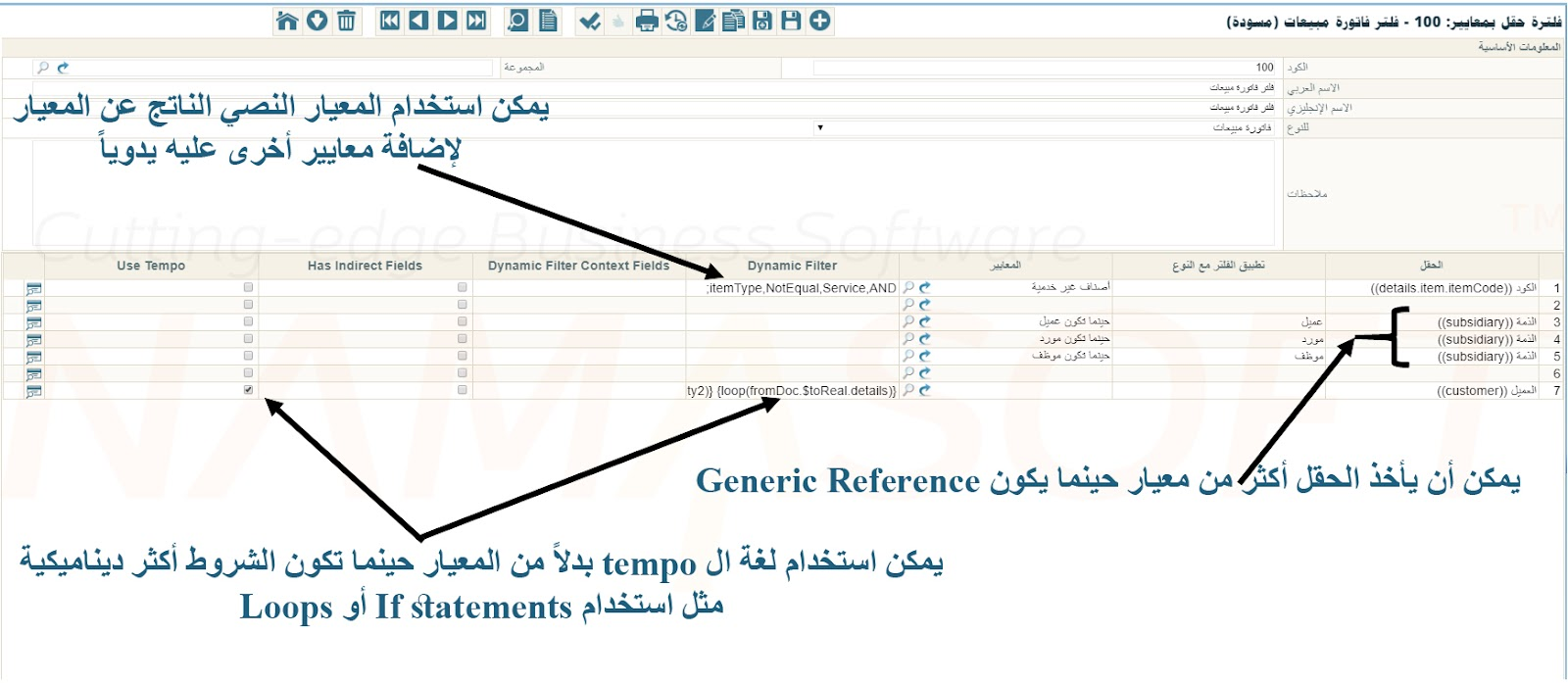
Example: Filter Non-Service Items in Sales Invoice
To show only non-service items when selecting an item in the Sales Invoice screen:
- In the Criteria Definition file, define a condition for non-service items.
- Create a new record in Field Filter with Criteria:
- Document Type: Sales Invoice
- Field:
details.item.itemCode - Criteria: Your non-service items criteria
- Save the filter with a name like
NonService. - In your Sales Invoice document term, set Field Filter = NonService.
- Create a new Sales Invoice using that term.
- When selecting items, only non-service items will be shown.
TIP
- You must assign the filter in Field Filter field of a document type, book, master group, or menu update.
- To test your criteria:
- Enable Use In List View in the criteria record.
- Open the item list and enter your filter in the Extra Filter field.
- The list should show only matching items.
- You can retrieve the Textual Criteria from the criteria record to see or manually adjust the filter conditions.
- For advanced logic, use Tempo Language.
Example: Dynamic Filter Using Tempo
Suppose a Sales Invoice is based on a Sales Order containing multiple customers in the lines. You want to list only the customers with remaining quantities (unsatisfiedQty2) when selecting a customer in the sales invoice.
Use this Tempo code in the Dynamic Filter field of the field filter:
{loop(fromDoc.$toReal.details)}
  {if(fromDoc.$toReal.details.unsatisfiedQty2)}
    code,Equal,{fromDoc.$toReal.details.customer.code},OR;
  {endif}
{endloop}