
Default Values Templates
Most data entry is repetition. The same branch, the same warehouse, the same payment method, the same currency, the same three lines of a standard service invoice — typed again on every new document, by the same person, all day. A default values template is how you stop typing them: it is a saved list of fields and the values they should start with, and the system fills them in the moment a new record is opened.
Templates work on every entity in the product — documents and master files alike — and one entity can have as many of them as you like: one per branch, one per customer type, one per user.
The quickest way to make one
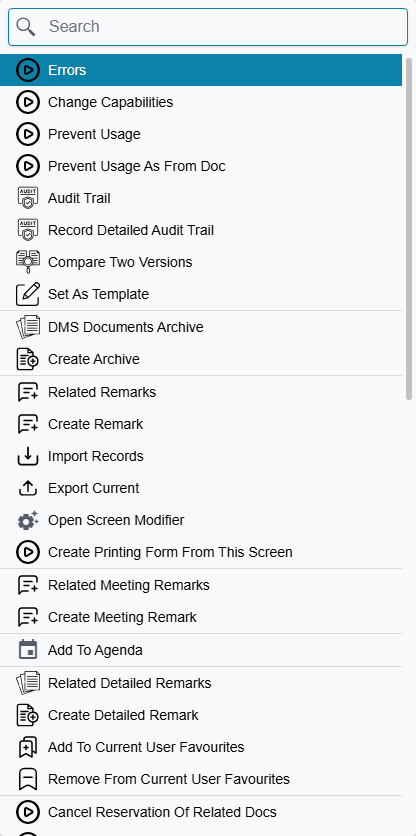
You do not have to build a template field by field. If you already have a record that looks the way new ones should look, open it and use More → Set As Template:
The system reads the record in front of you and hands you a new, unsaved template already filled in:
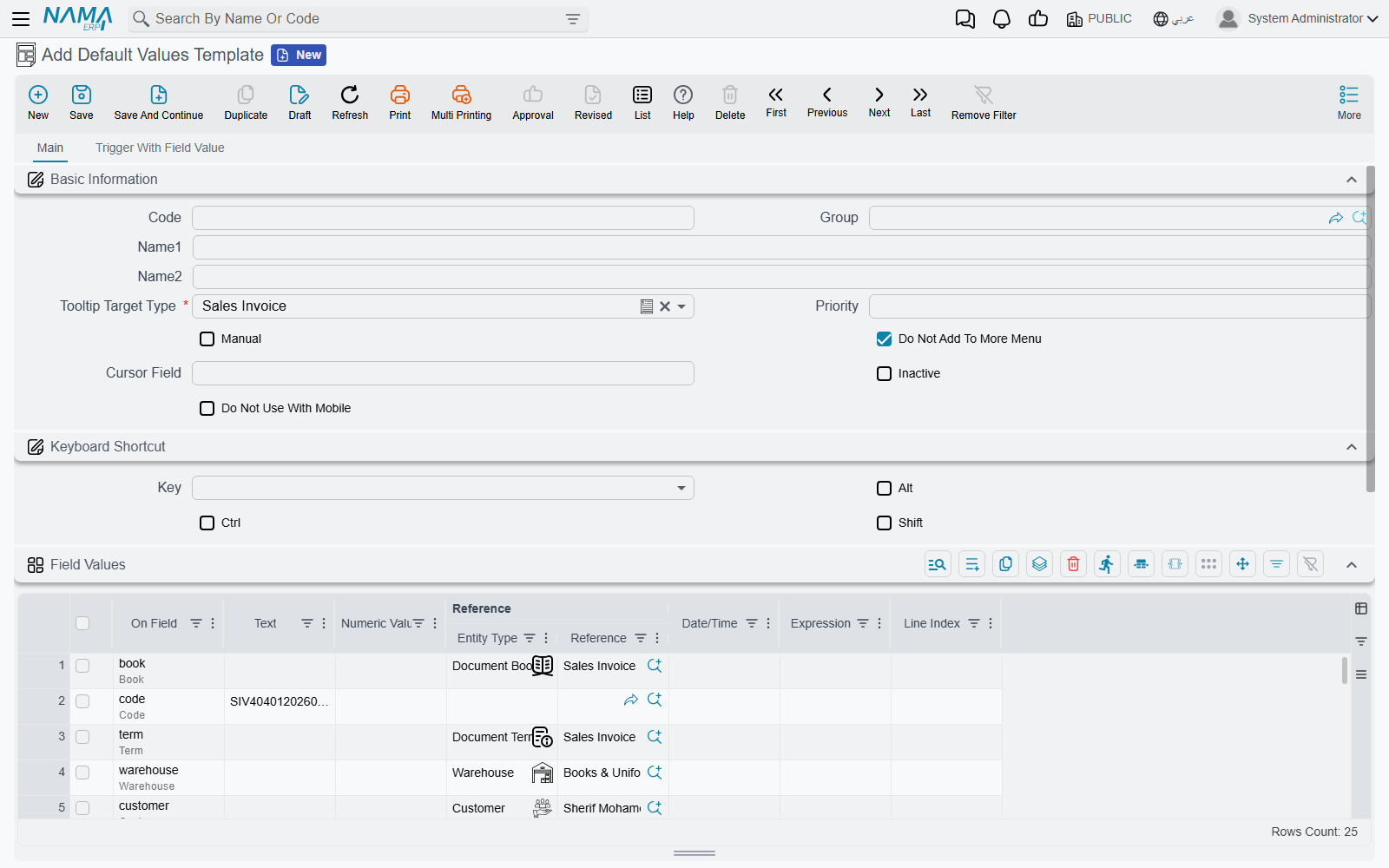
It contains one line for every field on the screen that has a value in it, the entity type set to whatever you were looking at, and one Apply To line naming you. Four fields are always left out — the value date, the issue date, the fiscal year and the fiscal period — because copying those forward is never what anyone wants.
Trim it before you save
Set As Template is deliberately greedy: it copies everything it finds, including the fields that happened to be filled in on that particular record. A template built from a real invoice will carry that invoice's customer, its remarks and its reference numbers, and every new invoice would then start with them.
Delete the lines you do not want, keep the handful that are genuinely standard, then save. It is far faster than starting from an empty template, but it is a starting point rather than a finished one.
If your site has fields that should never be carried into a template — an internal reference, a signature, a serial — they can be excluded centrally, so Set As Template skips them everywhere. The list is Template Excluded Fields in Global Config, on the Documents And Books tab in the Documents And Drafts Behavior group, one field per line.
What a template is made of
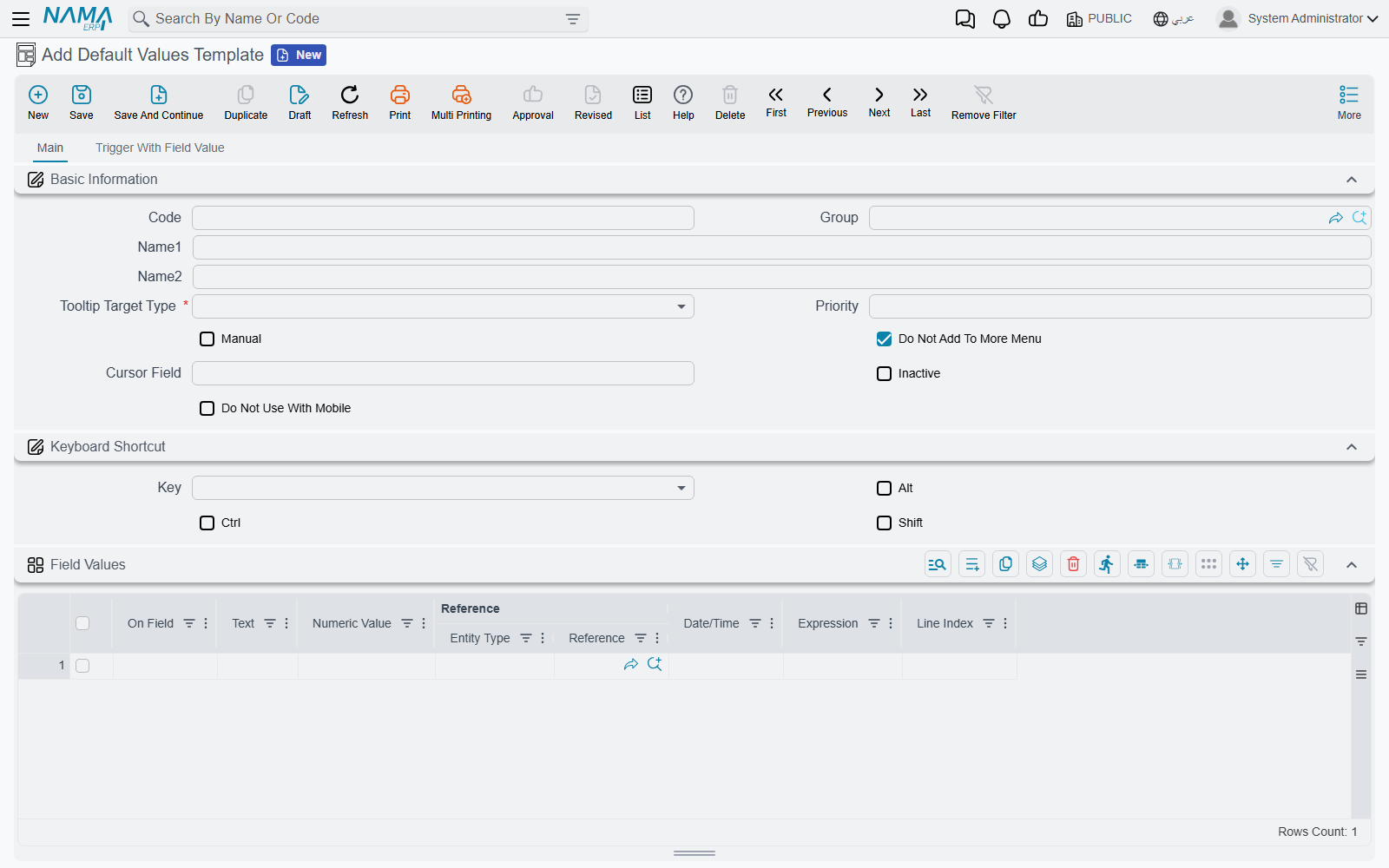
Every template names one entity type — the screen it fills in — and that is the only field you must fill in besides the code. Everything else on the header controls when the template is used, and is covered further down.
The values themselves live in the Field Values grid:
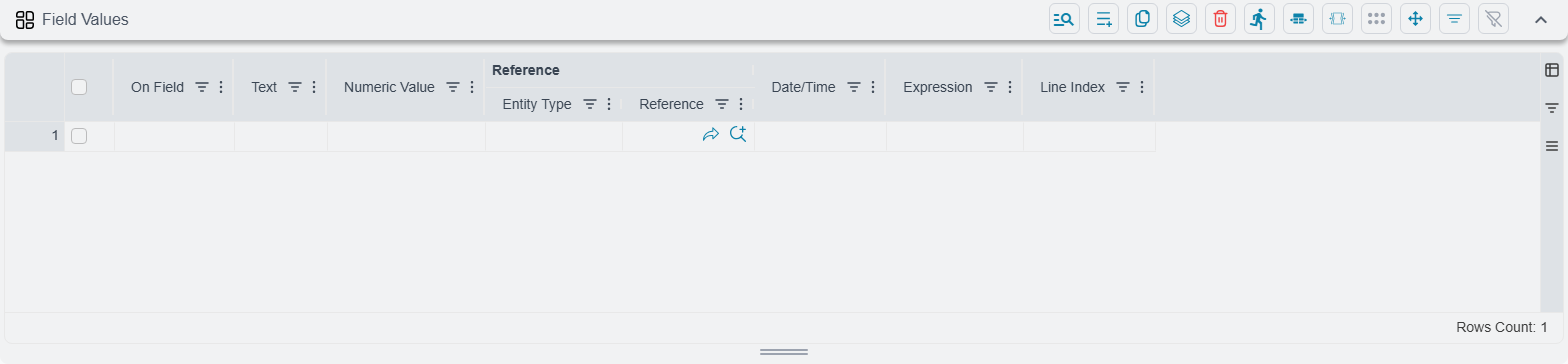
Each row names a field in On Field and supplies its value in whichever of the value columns suits the field's type — Text, Numeric Value, Reference, Date/Time. You do not choose which column applies; the system looks at the field you named and reads the matching one. Tick boxes are set through the Text column, using true or false.
Reference is really two columns side by side: the kind of record first, then the record itself. Choose the entity type and the second column then lets you pick from that type's records.
The field list offered in On Field is aware of the entity you chose, so you are picking from that screen's real fields rather than typing paths from memory. Nested fields are reached with a dot, and any intermediate parts are created for you as needed.
A renamed or removed field does not break silently
If a field named in a template no longer exists — because a screen was reworked, or the entity changed — the template still applies, but that one line is reported as a failure naming the field and the line number, and asking you to update the template. The other lines still apply. If users report a template that "half works", this is the first thing to check.
Filling in detail lines, not just the header
Leaving Line Index empty sets a field on the record's header. Filling it in sets the field on detail rows instead, and it accepts three forms:
| Line Index | What it fills |
|---|---|
3 | The third row |
2,4,6 | Rows two, four and six |
1:5 | Rows one to five |
Counting starts at 1, not 0. If the record does not have that many rows yet, they are created — so a template can build a standard three-line invoice out of nothing, with each row's item, quantity and warehouse set by three lines per row.
Values that are worked out rather than typed
The Expression column takes a calculation instead of a fixed value, evaluated against the record being created. It is how you set a value that depends on something else on the same record rather than on a constant — and because it runs after the fixed values in the grid have been applied, it can build on them.
The Fields Map box below the grids does the same job in bulk, taking target=source lines. Both use the same expression language as entity flows, so anything you can write in one you can write in the other.
Who gets the template
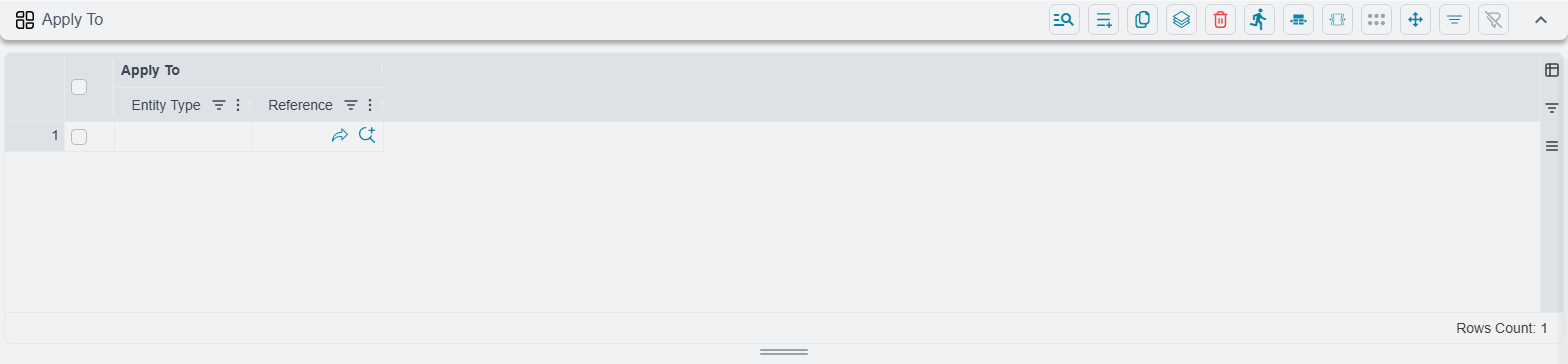
Apply To decides who a template belongs to. Each row names a User, a Security Profile or a Master Group, and the template is offered to anyone matching any row.
Leaving the grid empty means everybody — that is the default and it is worth knowing, because an empty Apply To grid on an automatic template affects the whole site.
A second, independent restriction comes from the template's own Dimensions — legal entity, branch, sector, department, analysis set. A template stamped with a legal entity is only offered to users logged in to that legal entity, which is the usual way to give each company in a group its own defaults. Switching legal entity at login switches which templates you get.
When a template is used
More than one template can be a candidate for the same new record, so the order matters. The system takes the first of these that applies:
- A template you picked explicitly — from the More menu, a keyboard shortcut, or a menu entry that has a template pinned to it.
- The template named on the document's book or term, or on a master file's group. Document books, document terms and master groups each carry their own Template field, and it beats the user's own automatic template.
- Your automatic template for that entity type.
What makes a template automatic
A template is automatic when Manual is left unticked. On every new record of that type, the system takes the automatic templates you are entitled to, sorts them by Priority, and applies the first one.
Only one automatic template is ever applied, and the lowest number wins
Priority sorts ascending — priority 1 is chosen before priority 10. Once a template has been picked, no other automatic template is applied on top of it; the rest are ignored without any message. Two automatic templates for the same entity type with the same priority is not an error, it just means one of them quietly never runs.
If a template "stopped working", look for another one with a lower priority number before looking at the template itself.
Tick Manual and the template is never applied on its own — it is only used when somebody asks for it by name.
Reaching a template on demand
A template you want to choose deliberately is reached in three ways:
From the More menu on the entity's own screen. Every template for that entity type is listed below Set As Template, under its own name, and picking one starts a new record from it.
New templates are hidden from the More menu until you untick a box
Do Not Add To More Menu starts ticked on every new template. That is the shipped default, and it means a template you just created will not appear in the More menu list until you go back and untick it. This is the single most common reason a new template seems to have vanished.
By keyboard shortcut. The Keyboard Shortcut group sets a key that creates a new record from this template from anywhere on that screen. If the key is a letter, it must be combined with Ctrl or Alt — the record will not save otherwise, and it tells you so.
From a menu entry. A menu item can have a template pinned to it, so that opening that entry always starts from that template. That is how sites offer "New service invoice" and "New goods invoice" as two separate menu entries onto the same screen — see how the menu is put together.
Applying a template part-way through typing
Templates are not only an opening move. Two things can apply one to a record you have already started.
Choosing a book, a term or a group. If the book, term or group you pick carries a template, it is applied there and then — which is how the document reshapes itself when you choose a different book.
A field taking a particular value. The second tab, Trigger With Field Value, is a list of field-and-value pairs. When the named field on the named entity is set to that value, this template is applied:
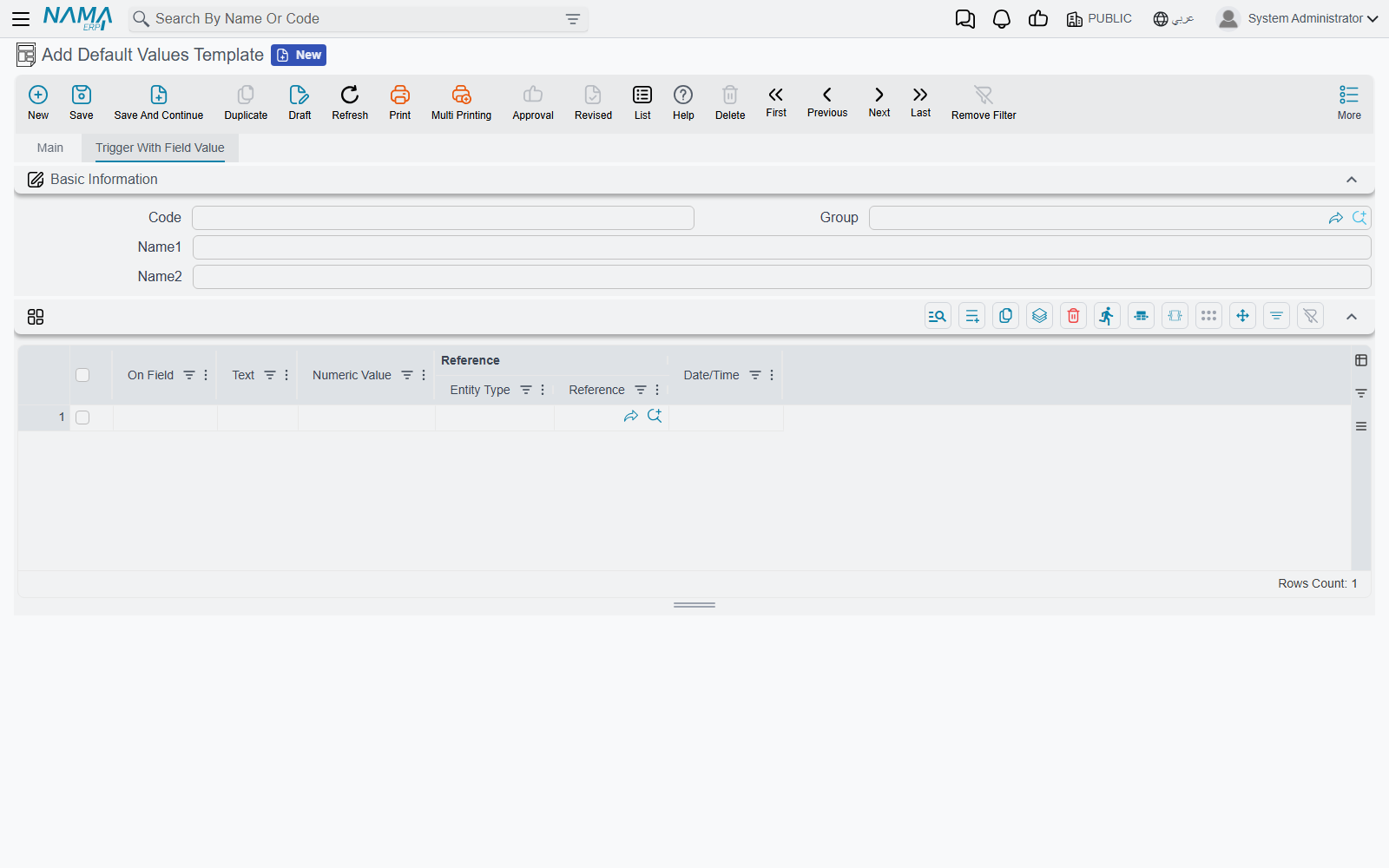
Each row needs a field and at least one value to compare against — a text, a number, a date or a reference. This is what drives "picking this customer type fills in these six fields".
In both cases what you have already typed is kept. The record is rebuilt with the template applied and your values carried across, so triggering a template half-way down a document does not cost you the work above it.
Templates only ever apply to a record that has not been saved
A template is part of creating a record. Opening a saved record and picking a template does not re-fill it, and changing a template never reaches back into records that were created from it earlier. Records brought in through record import skip templates entirely — an import fills exactly the fields in the file and nothing else.
The rest of the header
| Field | What it does |
|---|---|
| Priority | Which automatic template wins — lowest number first |
| Manual | Never applied automatically; only on demand |
| Do Not Add To More Menu | Keeps the template out of the screen's More menu — starts ticked |
| Cursor Field | Which field the cursor lands in after the record is created |
| Inactive | Takes the template out of automatic use and out of the More menu |
| Do Not Use With Mobile | Skips this template when the record is being created from the mobile app |
Cursor Field is a small thing that saves a great deal of time. If a template fills in the first six fields of a screen, the cursor still starts in the first one, and the user has to tab past all of them. Naming the seventh field here puts the cursor exactly where typing actually begins.
Where to find them
Default values templates live under Basic → Administration → Display Customization → Default Values Templates, alongside the screen modifier, the menu and the other tools that change how screens look and behave.
Because every template names the entity it targets, that one list holds the templates for the whole system. Sorting it by target type is the quickest way to see what a given screen already has.
See also Buttons on Every Screen for the More menu itself, and Document Books for the book and term settings that can carry a template of their own.