
Importing Data from Excel or Queries
Importing Data from Excel into Nama ERP
Nama ERP allows you to import data directly from Excel sheets. Here are some key points and best practices to ensure a smooth import process:
General Guidelines
- Formula Support: You can use standard Excel formulas in cells when preparing your data.
- Recommended Practice: It's best to first export sample data from Nama ERP. Use the exported sheet as a template for formatting and structure.
Special Import Functions
evalsql(sql statement)
This function executes a SQL statement and uses the result as the value of the cell during import.
Examples:
evalsql(select top 1 id from SalesInvoice order by valueDate desc)With Excel formula:
="evalsql(select code from Account where subsidiaryType = '" & U13 & "')"findByCodeandaltCodeColumns
If your dataset includes a special-purpose field (e.g., contactInfo.mobile) that serves as a unique identifier, you can include a column named findByCode containing that value. The system will use it to find the corresponding record only if a code field is not available.
This same logic also applies to the altCode column.
Advanced Excel Import
For a visual walkthrough, watch the following video introduction: 📺 Excel Import Tutorial
- Working with Numbers in Groovy Scripts
When using Groovy expressions during import:
- Numeric fields (
Long,Integer,Decimal) are automatically parsed from cell values. - To explicitly parse a cell as a number, prefix the cell name with
$.
Examples:
A + 5 * C
$A - 10 / $C
Note
Cell references are case-insensitive. For example, a+2 and $a are valid.
- Referring to a Fixed Cell
A reference like A or $C means that column of the row being imported. Add the row number and you get one exact cell instead — B2, AA55 — whichever row is currently being read. This is how you pick up a value that appears once near the top of the sheet, such as the statement date, the currency or a branch name, and stamp it onto every imported record.
Examples:
A + " / " + B2
$D1 * $H
The row number is the physical row as Excel numbers it, so excel.ignoreLinesFromTop and excel.ignoreLinesFromBottom do not shift it — a value in the heading rows you skipped is still reachable.
The same addresses work outside Groovy: in a field map as excel.rows.B2, and inside a query or Tempo expression as {B2}. They are a general form of excel.row1.A below, which only reaches the first row. A Groovy script can also reach the sheet itself with sheet.getCell("A9"), or the shorter sheet.A9.
Import by Entity Flow From Excel Sheets or SQL Statement
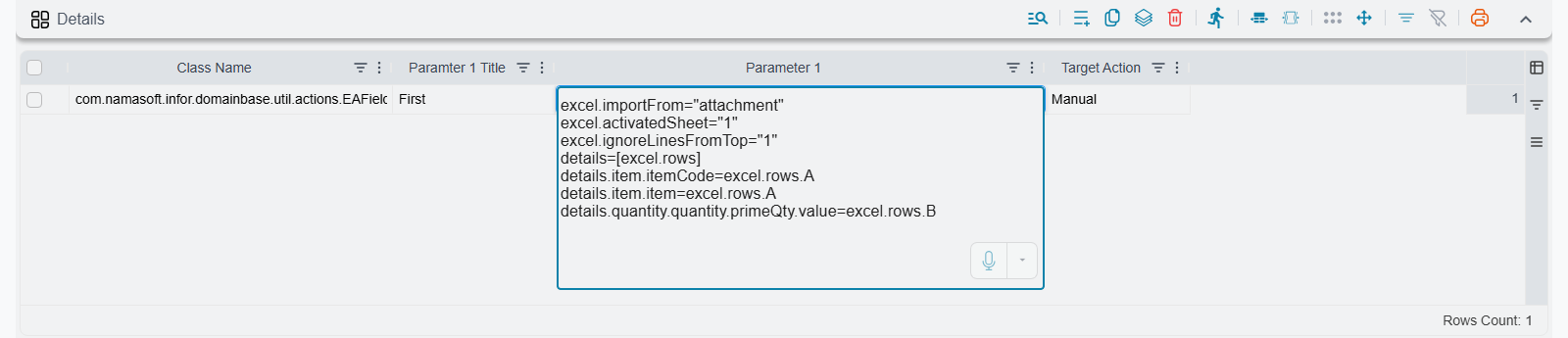
Each line below is a field-map line. Type the lines into the field-map parameter of an element such as EAFieldsValuesCalculator (fill the current record) or EAGenerateEntityFromEntityAction (create a new record from the sheet).
excel.importFrom="attachment"Loads the excel sheet in attachment, note that you can use any field that returns a valid name of an attachment field. For example you can put attachment1,attachment2,attachment3 in description 1 as a combo, and then use the following
excel.importFrom=description1excel.activatedSheet="1"Makes sheet number 1 the current sheet, you also can use the sheet name
excel.activatedSheet="invoices-sheet"Same as previous, but uses the sheet name instead of its index
excel.ignoreLinesFromTop="1"If you have titles row in the sheet
excel.ignoreLinesFromBottom="1"Same as ignoreLinesFromTop, but from bottom
details=[excel.rows]Makes details the same size as the current sheet rows, it considers ignoreLinesFromTop and bottom
details.item.item=excel.rows.ACopies whatever in cell A in every row to the same line in the grid details
Columns are: A, B, C, …, Z, AA, AB, …, AZ, BA, BB, …, BZ, CA, … and so on through IZ
details.text1=sql(select case when {excel.row1.A} = 'item' then 'ABC' when {excel.row1.B} = 'item' then 'BAC' else 'CAB' end)exel.row1gives you access to the first row, even if that row was ignored, to facilitate header rows querying
Import From SQL Statement by Entity Flow or GUI Post Action
sql.rows=sql(select top 10 id,code,n2,configuration_id from InvItem where section_id = {ref1.id})
details=[sql.rows]
details.item.itemCode=sql.rows.code
details.item.item=sql.rows.code
details.quantity.quantity.primeQty.value=sql.rows.n2
details.ref1=ref("ItemConfiguration",sql.rows.configuration_id)- In this example we run a statement by
sql.rows=sql(statement here), you can also use multi-line sql statements by changing it to:
sql.rows=mlsql(select
Column1, column2 from Table
)endmlsql- You can access any column returned by the query using sql.rows.columnAlias
- Also, you can use column index as follows: sql.rows.c1 , sql.rows.c2, and so on
- When importing a customers file that contains a geographic location
contactInfo.address.region, the following fields need to be filled in based on the geographic location:
contactInfo.address.country , contactInfo.address.city , contactInfo.address.state , contactInfo.address.area
The same applies to the shipping and billing address.
You can use the following in an
EAFieldValuesCalculatorentity flow to copy the Arabic name labels:
contactInfo.address.country=contactInfo.address.region.$countryAr
contactInfo.address.city=contactInfo.address.region.$cityAr
contactInfo.address.state=contactInfo.address.region.$stateAr
contactInfo.address.area=contactInfo.address.region.$areaAr- To copy the English name labels:
contactInfo.address.country=contactInfo.address.region.$countryEn
contactInfo.address.city=contactInfo.address.region.$cityEn
contactInfo.address.state=contactInfo.address.region.$stateEn
contactInfo.address.area=contactInfo.address.region.$areaEn- To copy the labels according to the current user's language:
contactInfo.address.country=contactInfo.address.region.$country
contactInfo.address.city=contactInfo.address.region.$city
contactInfo.address.state=contactInfo.address.region.$state
contactInfo.address.area=contactInfo.address.region.$area- Of course you can change
contactInfoto any other field.