
Searching From the Top Bar
Nama has two search boxes that are always within reach. The one in the side menu finds menu entries; the one in the top bar finds almost everything else — a screen, a record, or a field on the screen you have open. Most "I can't find it" tickets come down to how the top-bar box decides which of those three you meant, so that is what this page explains.
| Box | Key | Finds |
|---|---|---|
| Top bar — Search By Name Or Code | Ctrl + K | Screens, records, and fields on the open screen |
| Side menu | Ctrl + U | Menu entries — see Finding an entry without hunting for it |
Both keys are the out-of-the-box defaults and can be changed — see Keyboard Shortcuts.
Screens first, records second
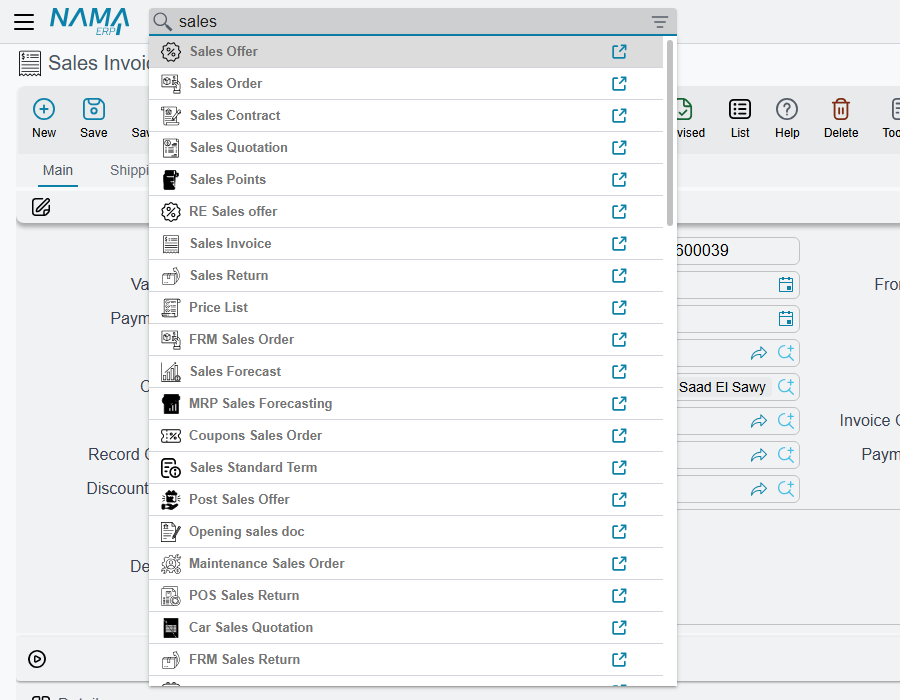
Type into the top bar and the box first compares what you typed with the names of screens — the Arabic name, the English name, their plurals and the screen's internal name all at once. If any screen matches, the list shows only screens, and picking one opens that screen's list of records.
Only when no screen name matches does the box go to the server and look for records. That is the behaviour to remember, because it explains the classic complaint: a user types part of a customer's name, and the box offers Sales Invoice, Sales Order and Sales Return instead of the customer — because the name happened to contain "sales". The fix is to tell the box which kind of record you want (next section).
The screen matching forgives the usual typing slips: أ, إ, آ and ا are treated alike, as are ة and ه, and ى and ي; and text typed with the keyboard in the wrong language is tried both ways, so ب typed for f still finds the screen.
When records are searched, the box:
- matches the text anywhere in the record's code, alternative code, Arabic name or English name;
- treats a space as "anything in between", so
ahmed alifinds Ahmed Mohamed Ali — but the words must still appear in the order typed; - shows up to 50 records, each labelled with its screen name — Customer: C-0192 Ahmed Ali;
- if nothing matches at all, tries once more against the extra codes records are known by;
- accepts a record's internal ID pasted in whole, and goes straight to that record.
Naming the kind of record — Search In
To skip the screen matching and search records of one kind only, click the filter icon at the right end of the box and choose a type under Search In. The box's label changes to Search In Customers (or whichever type you picked) and every search now goes straight to records of that type. A small red star on the icon reminds you that a filter is set; clear the choice to go back to normal.
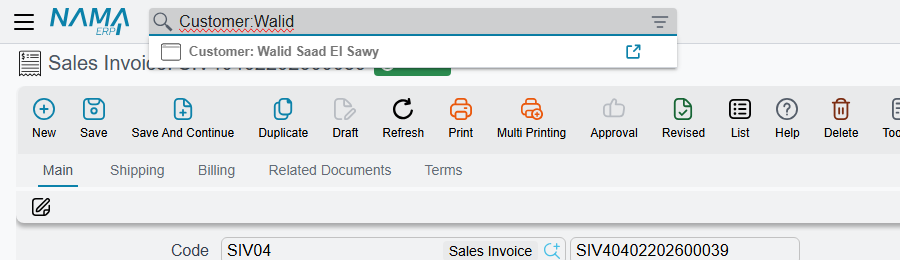
The same thing can be typed, which is quicker once you know it: put the type before a colon — Customer:Ahmed, or in Arabic عميل:أحمد. The part before the colon is matched against the screen's English, Arabic and internal names. An exact match picks that one type; a partial one searches every type whose name contains it. Either way, only types the user is allowed to open as a list are searched.
Jumping to a field — the f: prefix
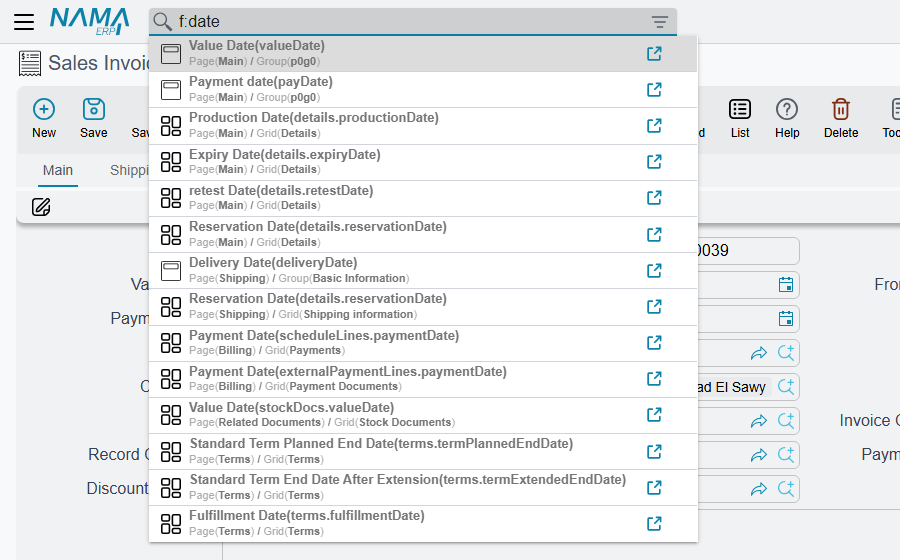
On a long edit screen with a dozen tabs, finding the one field you need is its own kind of search. Start the text with f: (or p:) and the box searches the open screen instead: its fields, grid columns and action buttons, by label. Each result shows where it lives — the tab and the group or grid — and picking it moves the cursor there, switching tab if it has to. On an Arabic keyboard the same keys produce ح: and ب:, and those work too.
f:due on a sales invoice lists every field with "due" in its label, wherever it sits on the screen.
Opening what you found
Enter, or a click, opens the highlighted result in the current tab. The link icon at the end of each result opens it in a new browser tab, and so does Ctrl + click or Alt + click. The arrow keys move through the results, and Escape closes the list.
Utility pages for administrators
For admin, and for users treated as admin, the screen list also contains five pages that are not entities: Utilities, View Users, Monitor Tasks, SQL Runner and View Web Socket Sessions. Typing utils lists them all. Other users never see them in the box.
What configures it
On a large database, a search that is not limited to one type has to look through every record in the system. Two options on the Performance tab of Global Configuration control that — see Search behaviour:
- Must Select Entity in Search In Before Search on Server stops the box from searching records at all until a type is chosen under Search In — typing the type with a colon is not enough while it is on. Screens and the
f:field search keep working, because they never reach the server. - It only takes effect together with Show Search In for Top Panel; the Search In filter icon itself is always on the box.
Which records a user can then open is decided as everywhere else, by their security profile.