Themes
A theme decides how the modern interface looks, and since people spend the whole working day in front of it, that is not cosmetic. It sets the main colour of buttons and highlights, the background shades of the page, cards and grids, the font colours, and — in a few themes — whether the top bar and the menu stay dark even when the rest of the screen is light.
Every theme comes in two versions, a light one and a dark one, and each user switches between them with a single toggle. Choosing a theme and choosing dark or light are two separate decisions: a user on the Green theme who turns on dark mode gets Green, dark, not a different theme.
The modern interface ships with thirteen ready-made system themes, shown in full at the end of this page. An administrator can also build custom themes, and can set the theme a company starts on.
This two-minute video walks through all thirteen, each in light and dark and in English and Arabic:
Picking a theme
The quickest way is the user menu: click your name at the top of the screen and open GUI Themes List. Each theme is listed with four colour dots — the light main colour, the light background, the dark main colour and the dark background — so you can tell them apart before clicking. The new theme applies at once; nothing has to be saved or reloaded.
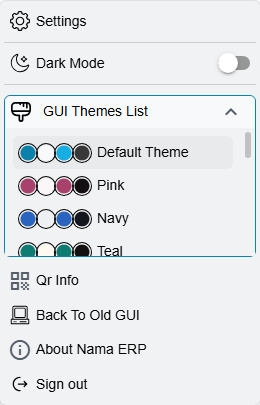
The same menu holds the Dark Mode switch, just above the list.
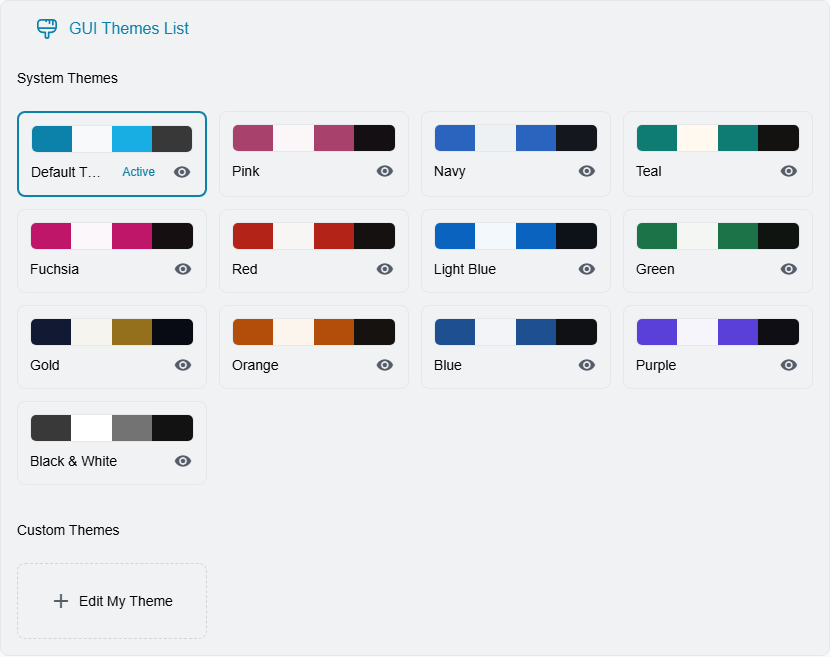
Settings → GUI Preferences shows the same themes as cards. The card of the theme in use is outlined and marked Active. Two groups appear:
- System Themes — the thirteen built-in themes. Each card has an eye button: click it to hide that theme from the user menu, and again to bring it back. This only tidies the menu; a hidden theme can still be chosen from this page.
- Custom Themes — themes defined in the system (see below), followed by Edit My Theme.
The choice belongs to the browser
The theme a user picks, the dark-mode setting and the hidden-theme list are remembered by the browser on that device. The same user on another computer, or in another browser, starts again from the company default.
Dark top bar and menu
Three of the system themes — Navy, Gold and Black & White — keep the top bar and the side menu dark even in light mode, which frames a bright working area with a dark border. The other themes keep the bars in the same light shade as the page.
A user who wants the opposite can change it in GUI Preferences with Dark Nav Bar And Side Bar — "Always show the nav bar and side bar in dark mode, even in light mode". That personal setting wins until the user picks a theme again; picking a theme returns to whatever that theme says.
The company's default theme
A user who has never picked a theme on this browser gets, in order:
- Their own personal theme, if they have one (see Edit My Theme below).
- A custom theme with Default Theme ticked — the way to make a company's own branded theme the starting point for everyone.
- The theme chosen in Default System Theme
value.info.defaultSystemTheme, on the Appearance tab of the global configuration (Administration → Settings → System Settings, fileglobal). Leave it empty and the Default Theme is used. - Otherwise, the built-in Default Theme — Nama's familiar blue.
So a company can give every new user, and every new device, a consistent look without telling anyone to change anything — a ready-made system theme through the global setting, or its own design through a custom theme marked as default. Neither ever overrides a theme the user picked.
Custom themes
When none of the built-in themes fits — a company that wants its own brand colours, for example — themes can be defined as records on the GUI Theme screen (Administration → Display Customization → New GUI Theme). A theme record holds a full set of colours for the light version and another for the dark version, the font size and density, whether the toolbar shows labels, and the Dark Nav Bar And Side Bar default.
Edit My Theme in GUI Preferences opens the user's own theme for editing. A theme that has Only For User filled in is visible to that user alone. Creating a theme that everyone can see needs the Can Create Theme For All Users permission in the user's security profile, so one person's experiment does not end up in everybody's list.
The system themes
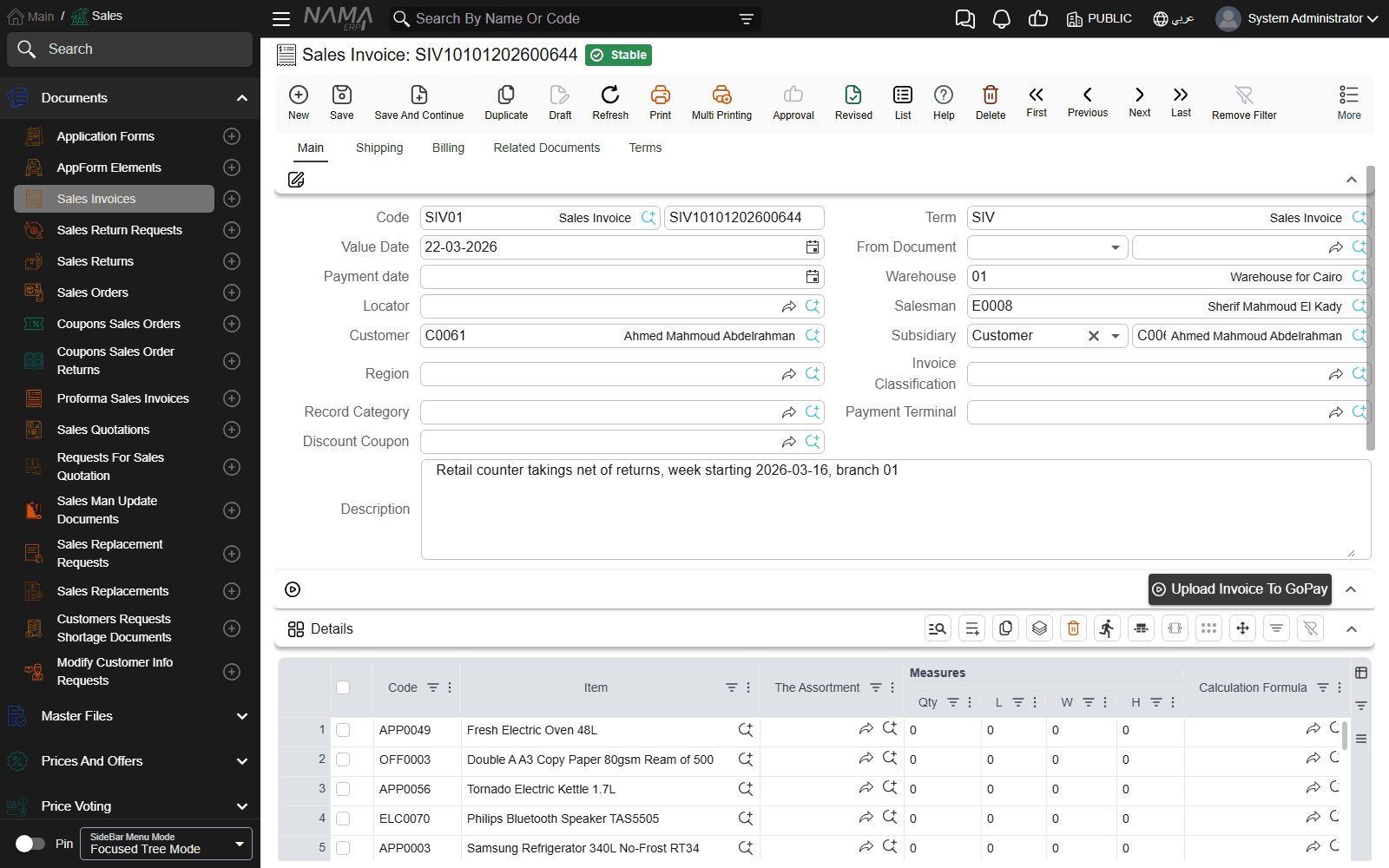
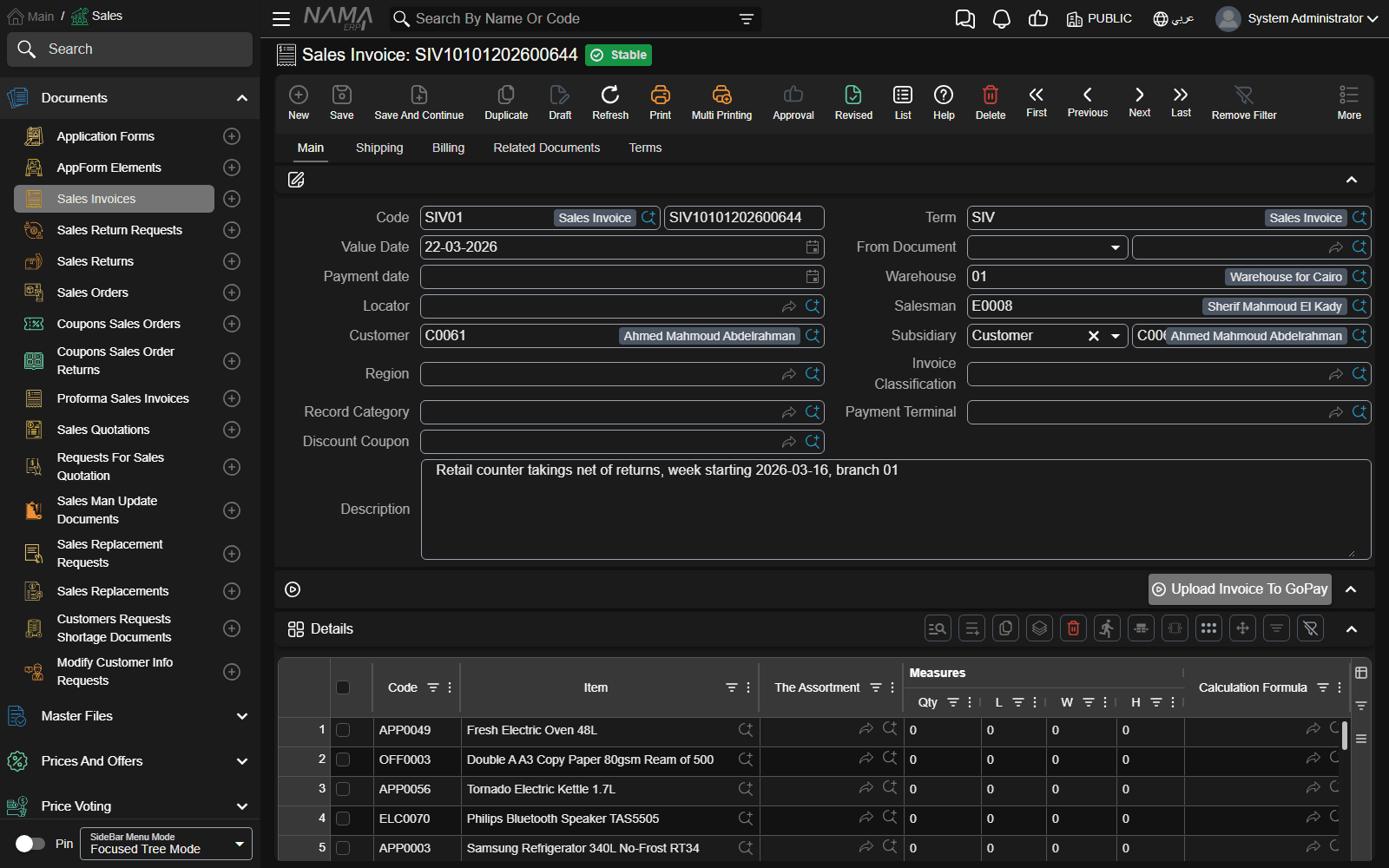
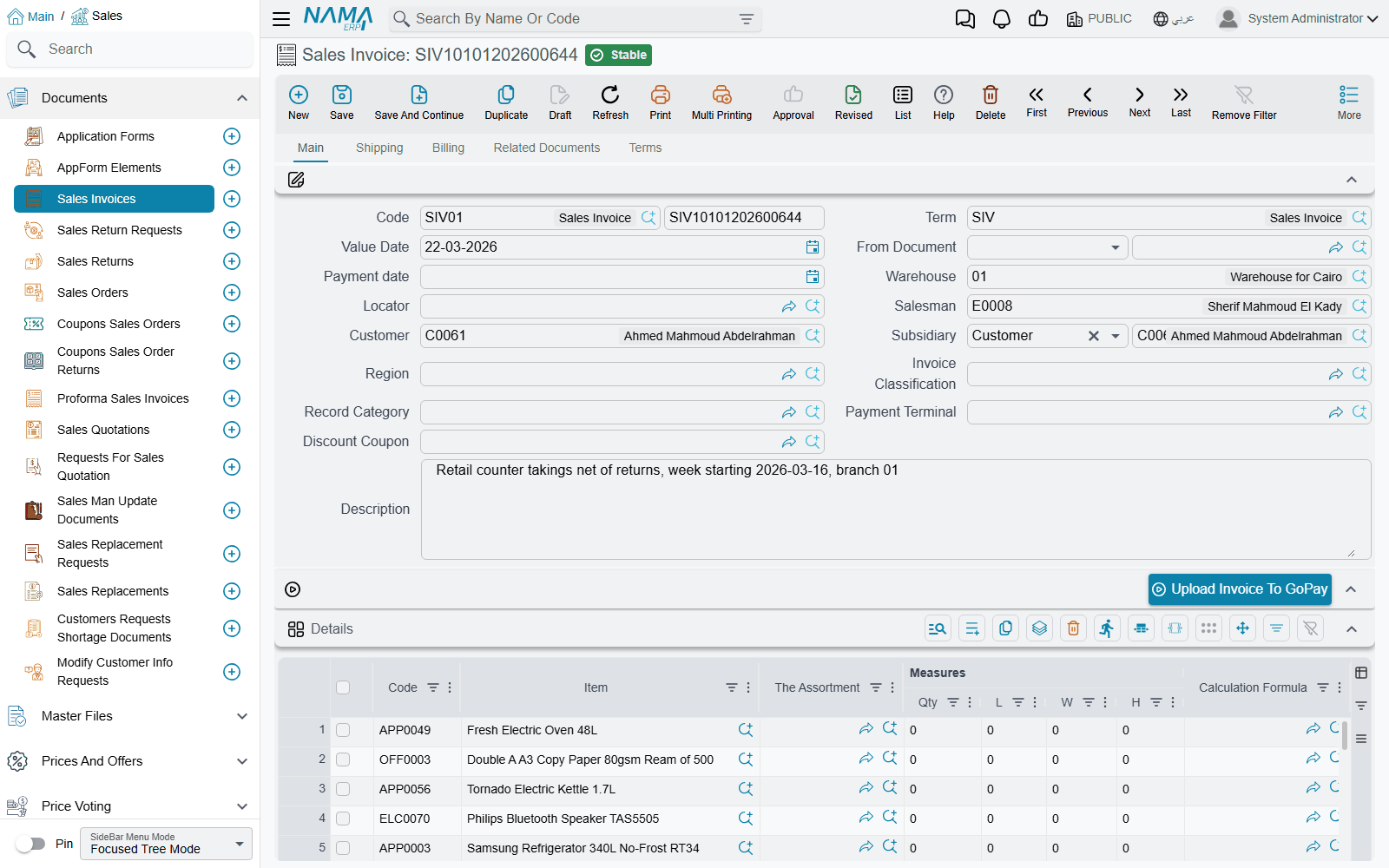
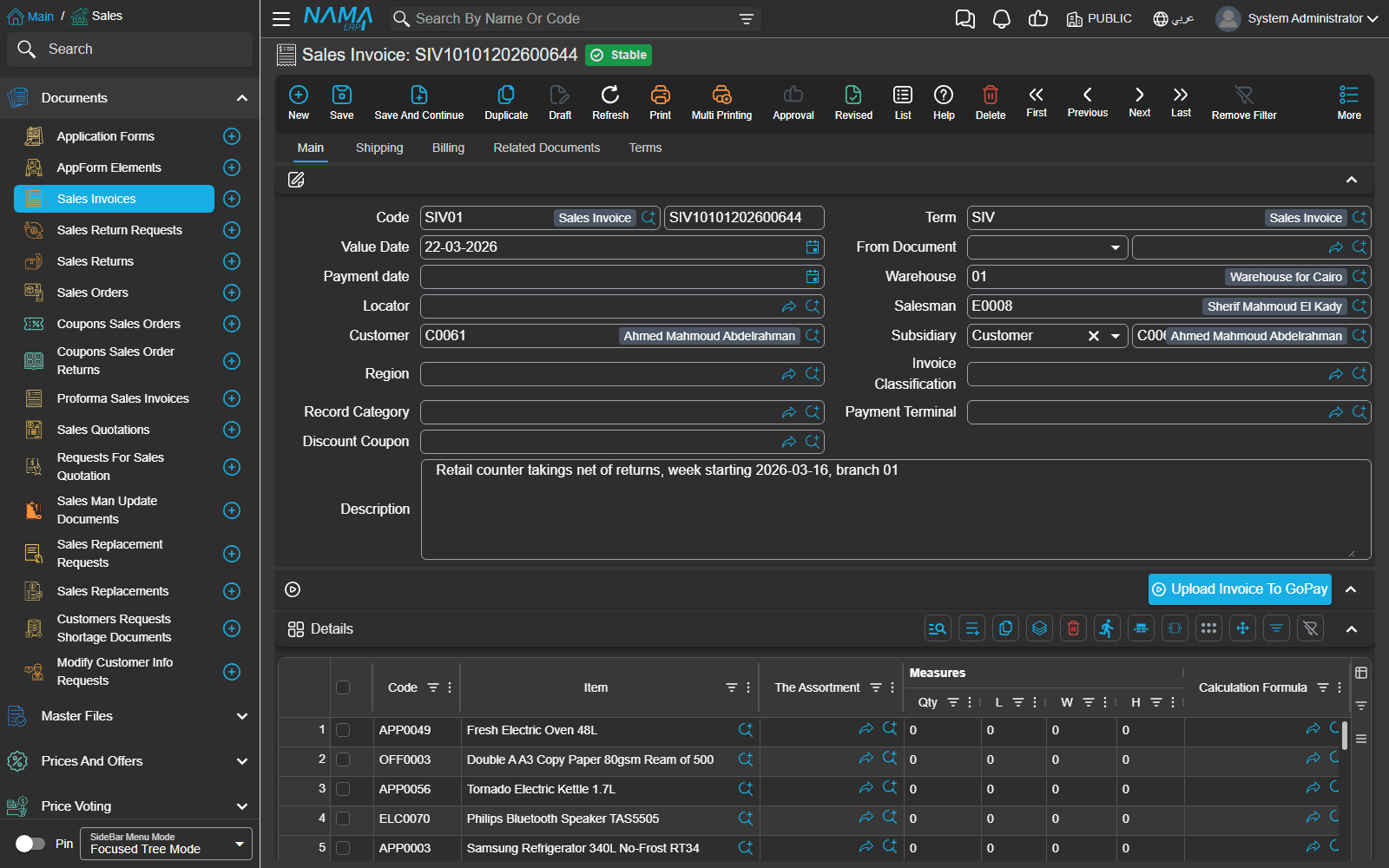
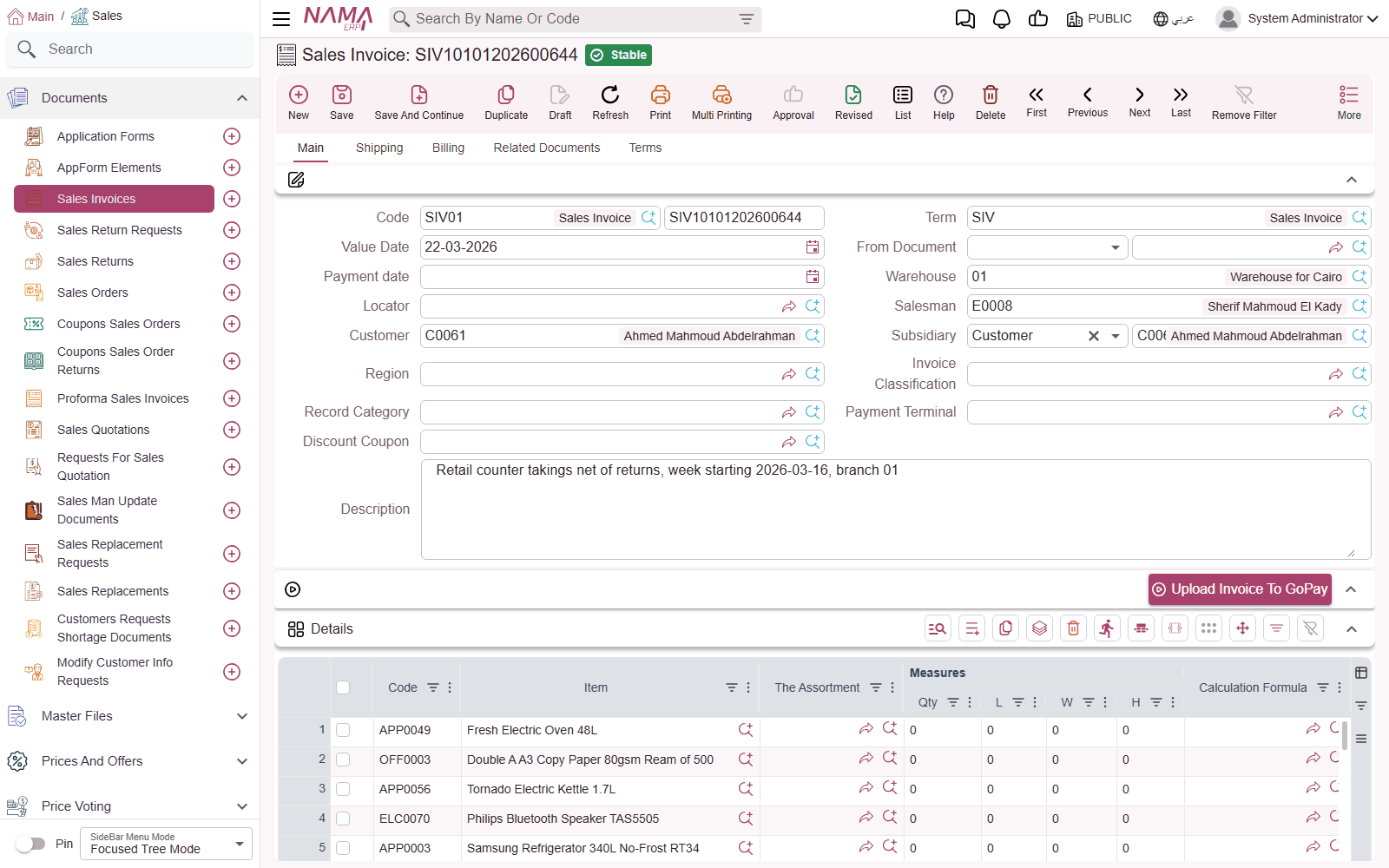
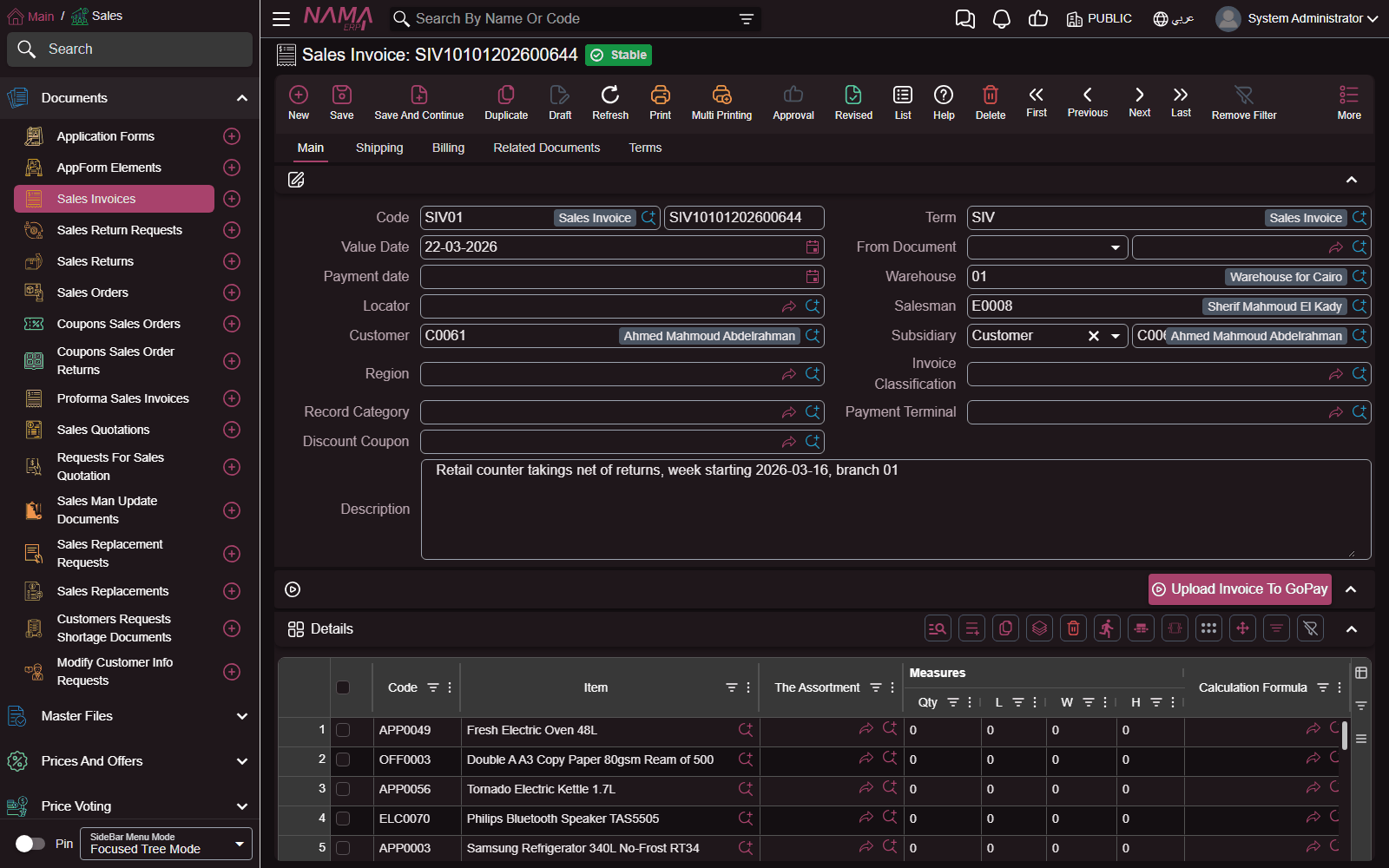
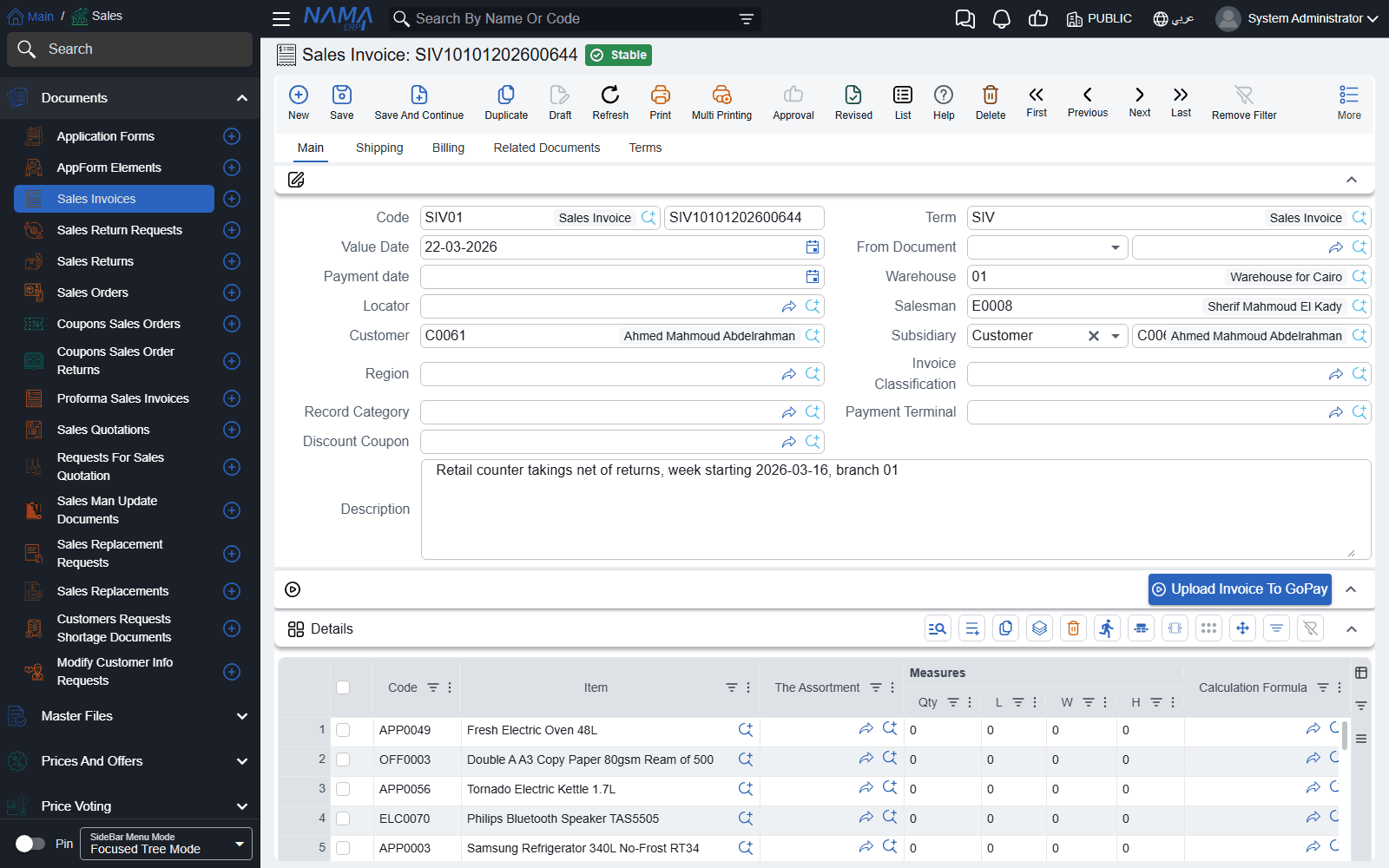
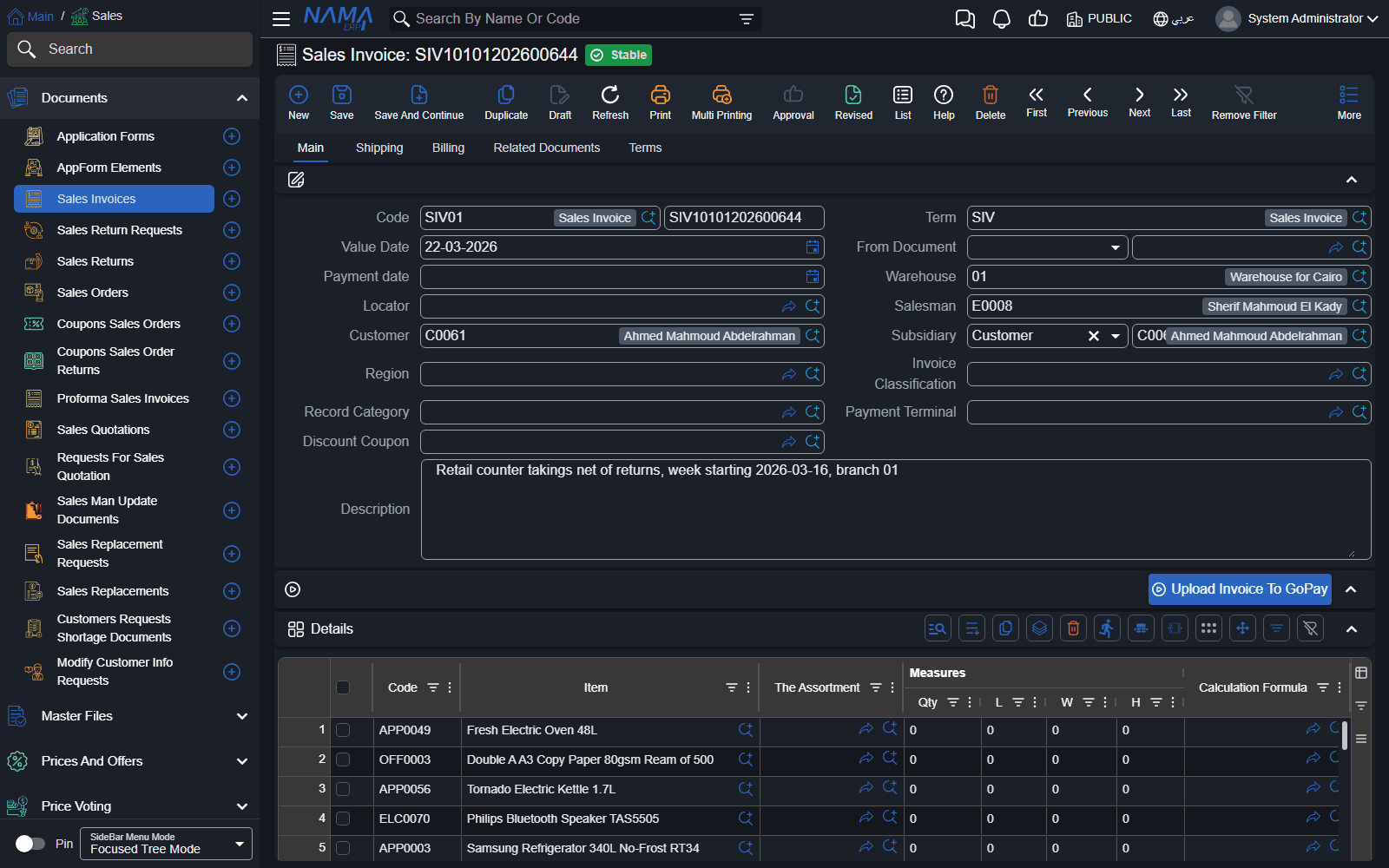
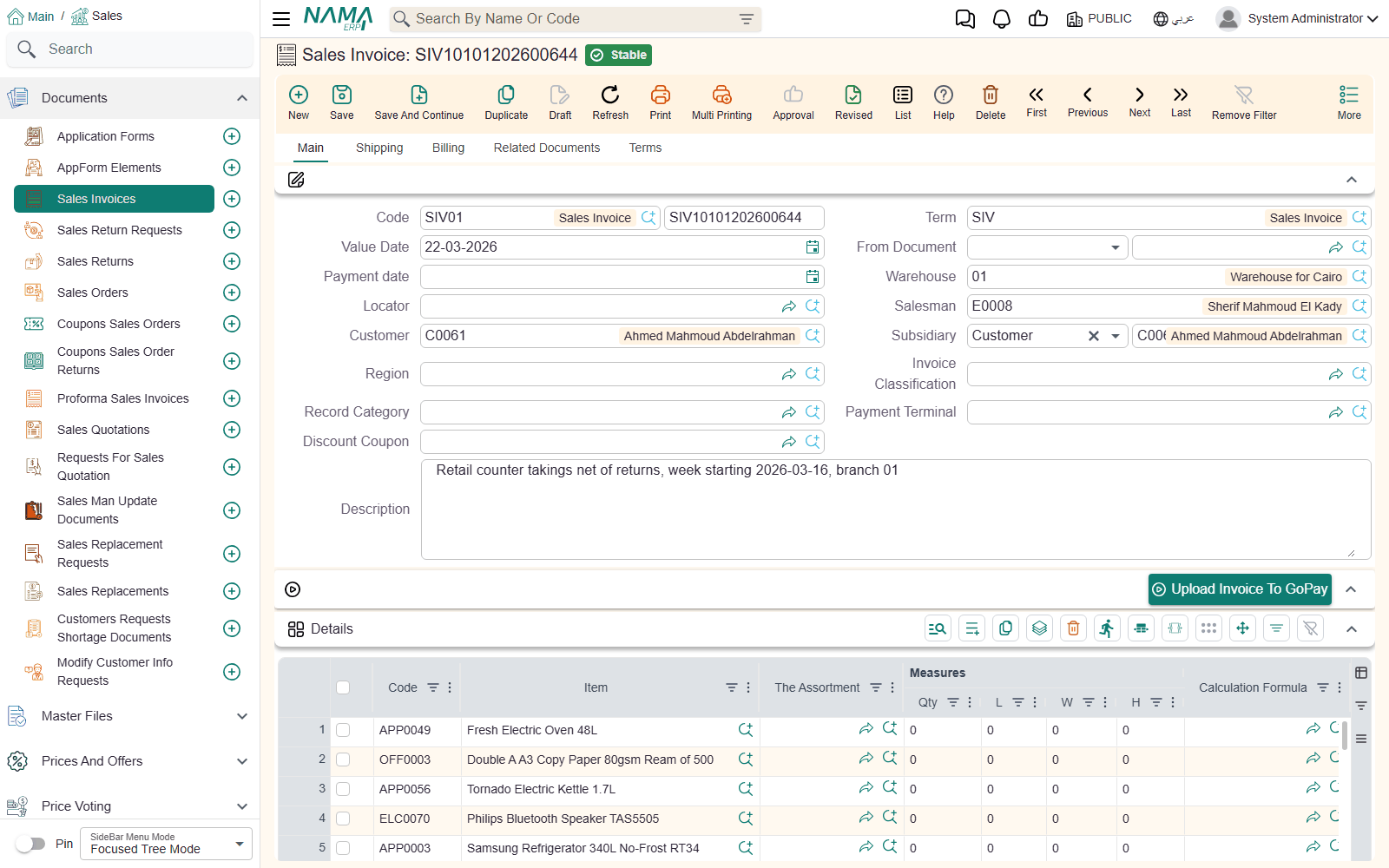
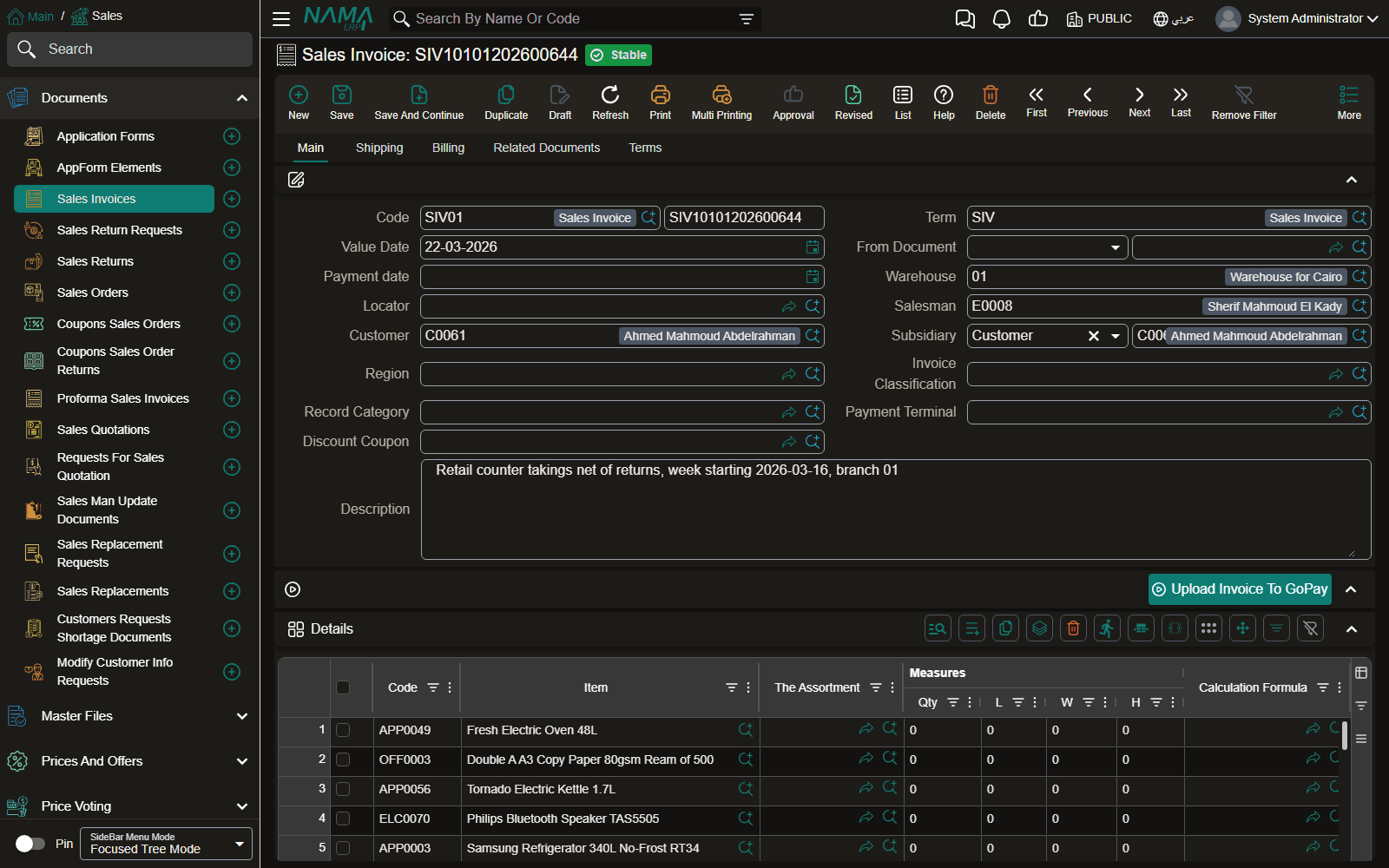
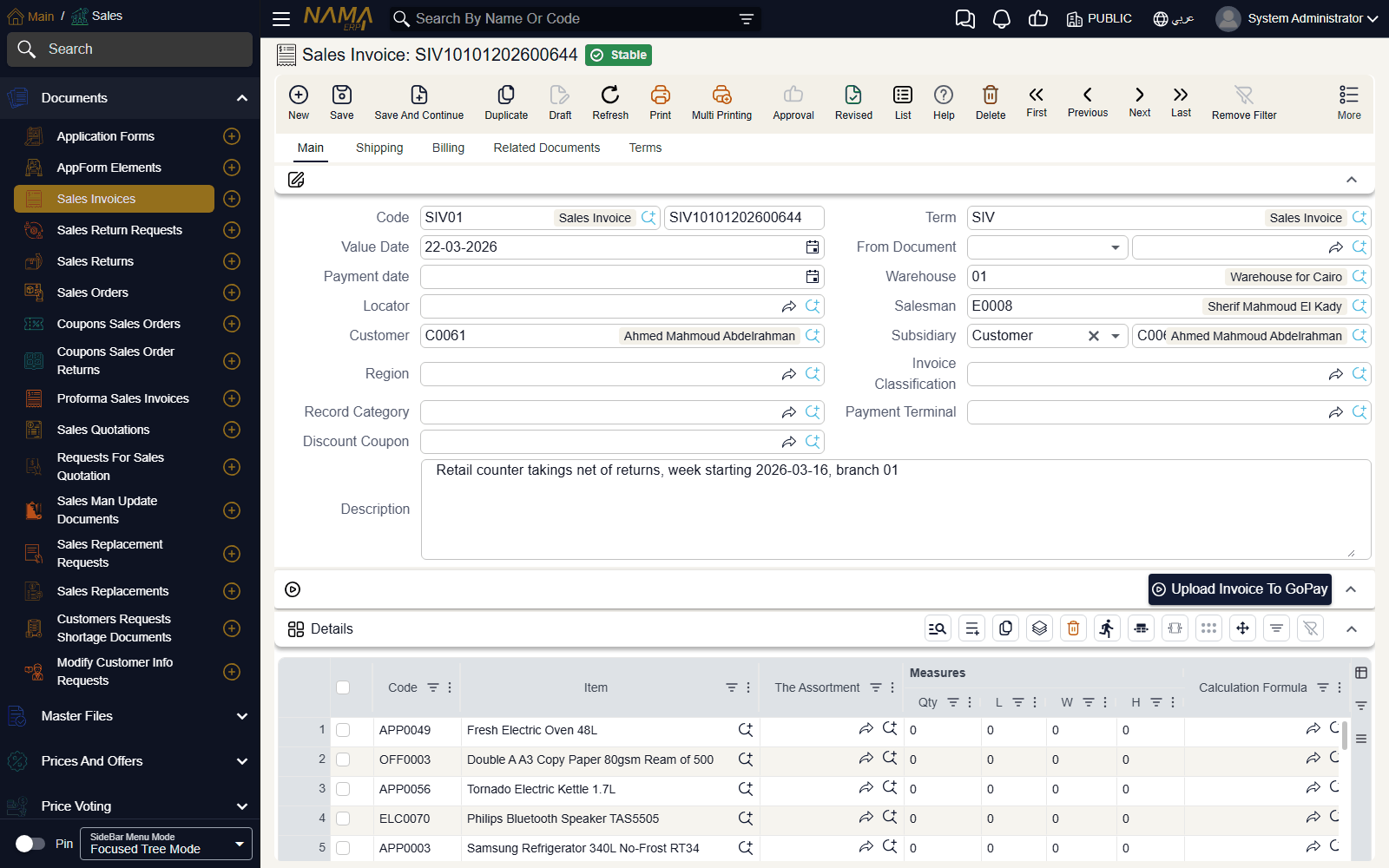
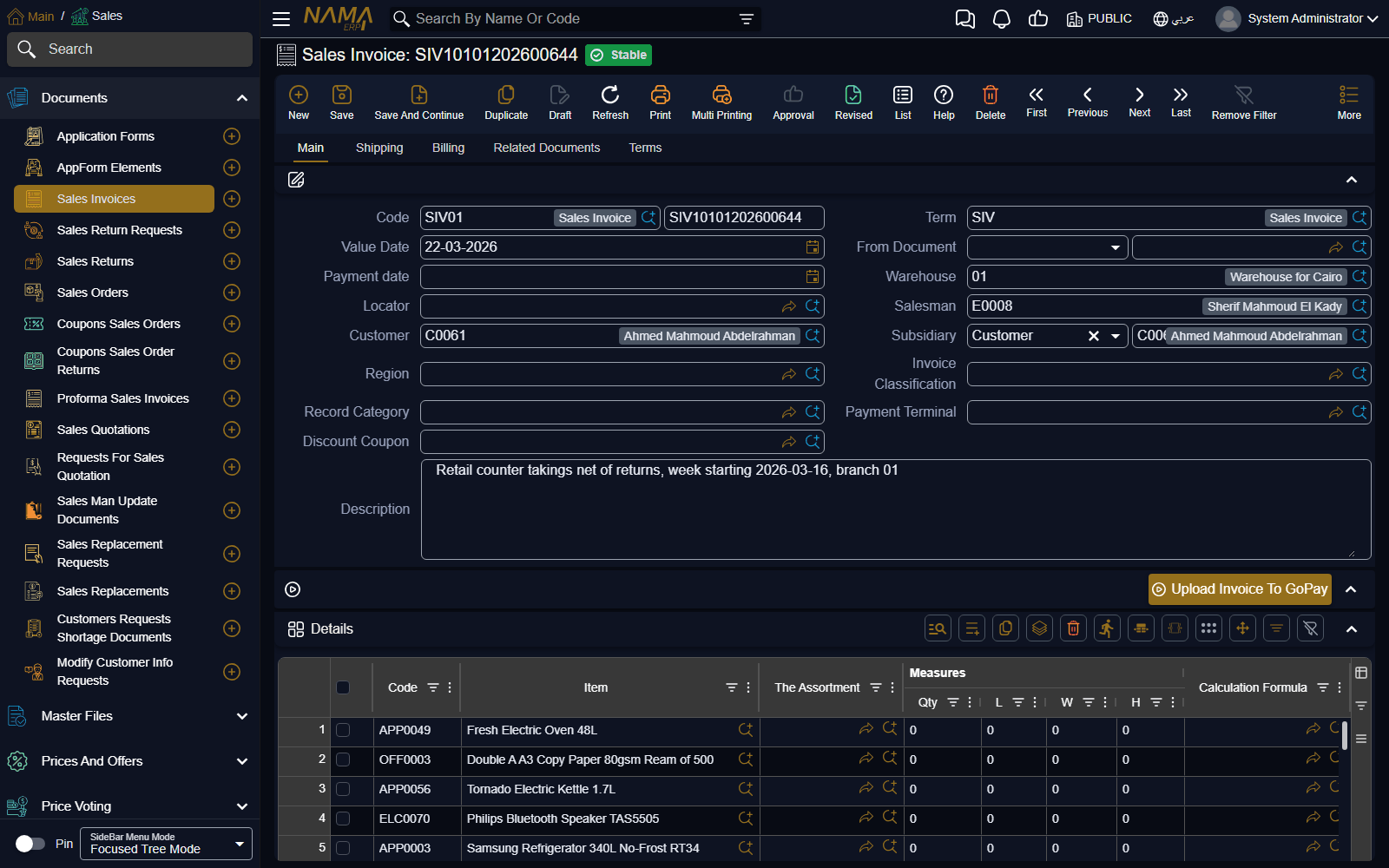
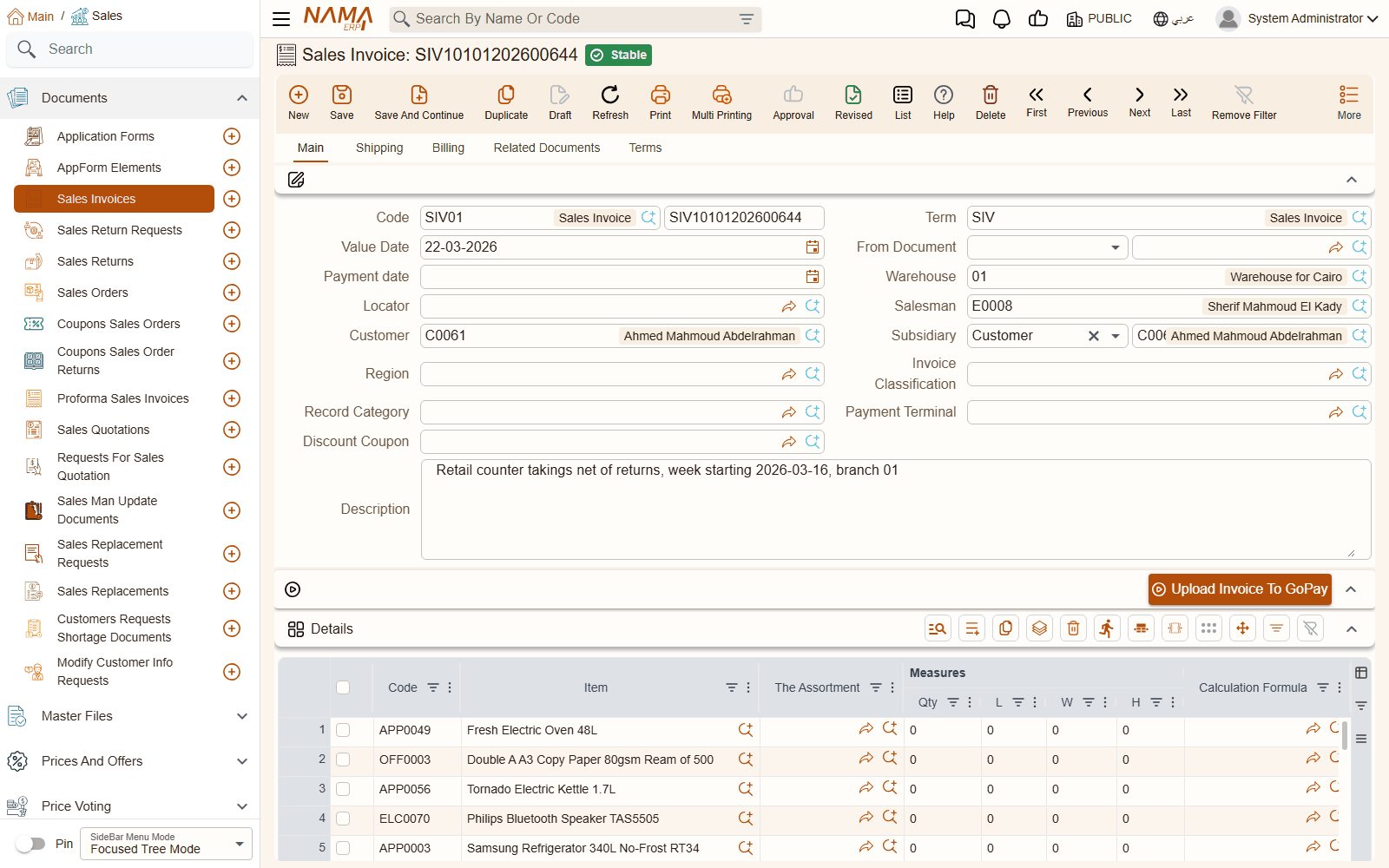
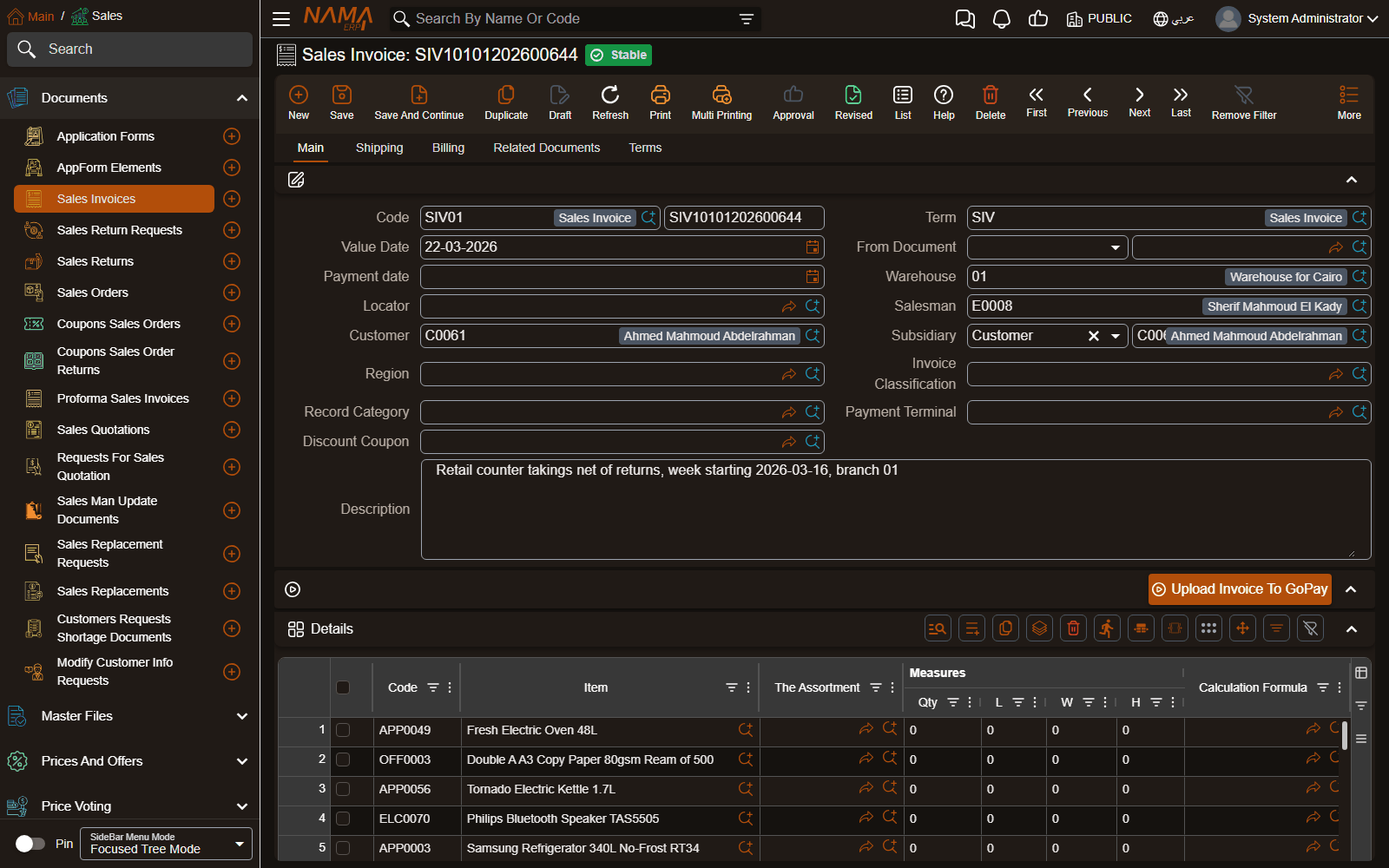
Each theme below is shown on the same Sales Invoice, with the main menu open, first in light mode and then in dark mode.
Default Theme
Pink
Navy
Keeps the top bar and the menu dark in light mode.
Teal
Fuchsia
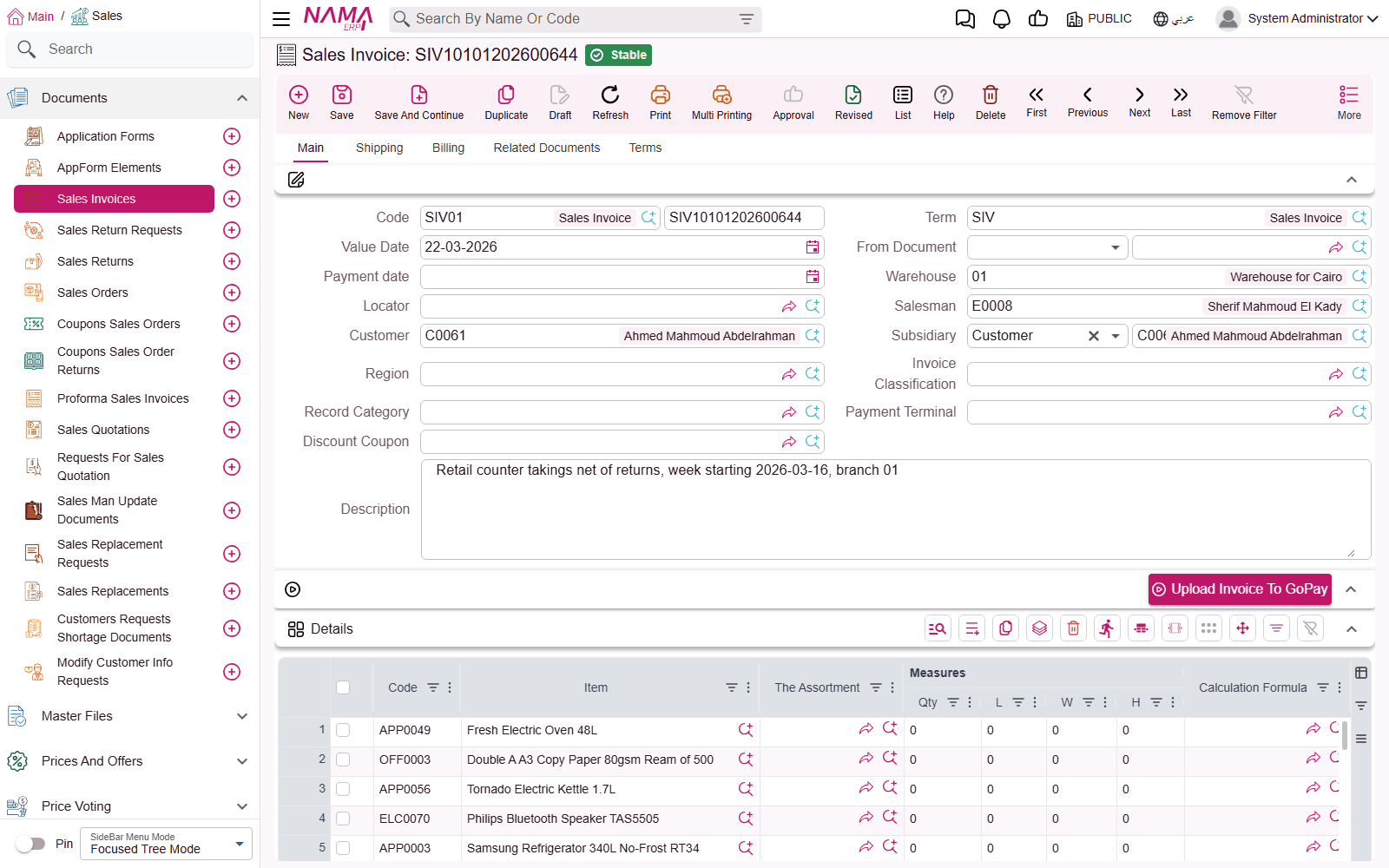
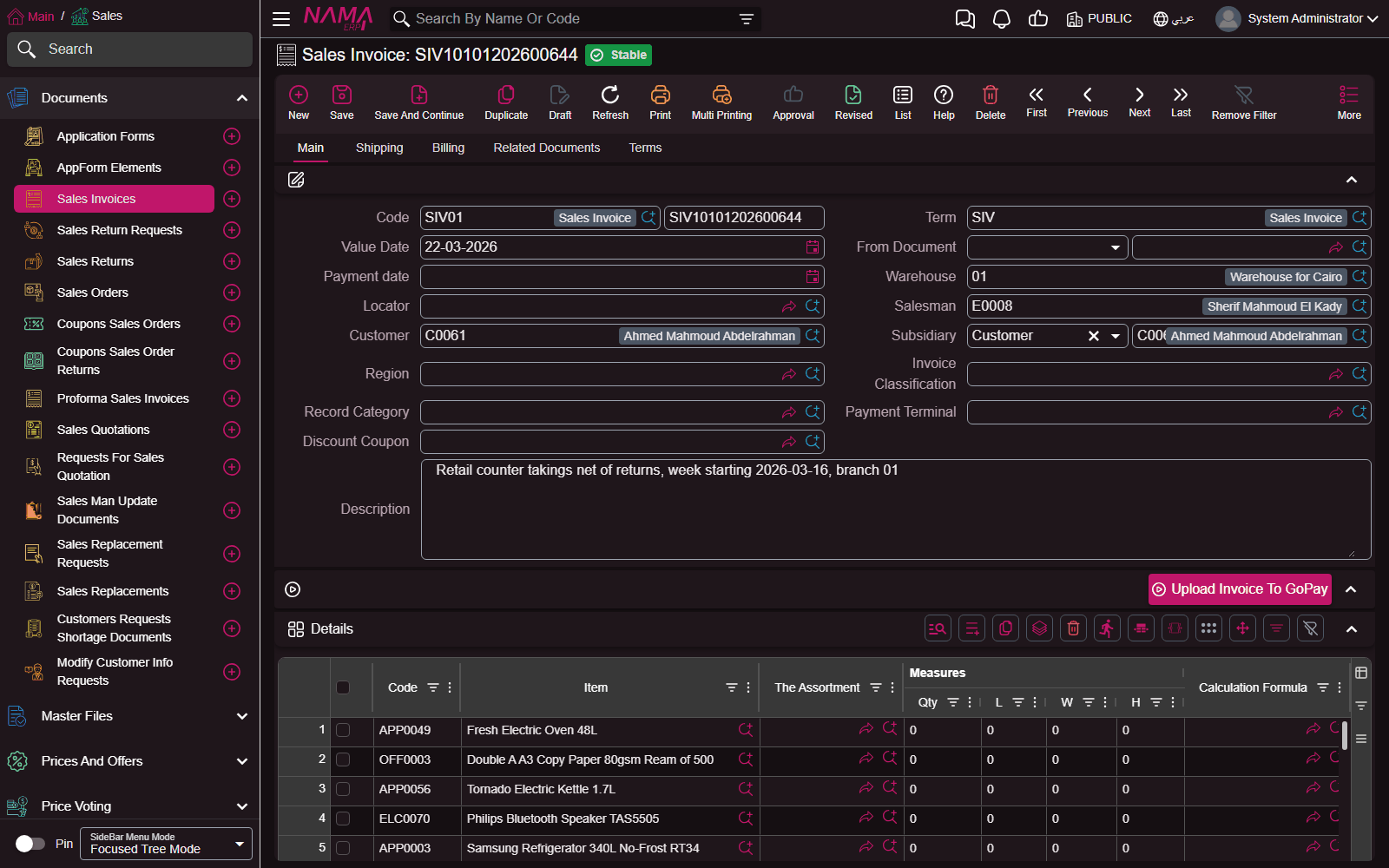
Red
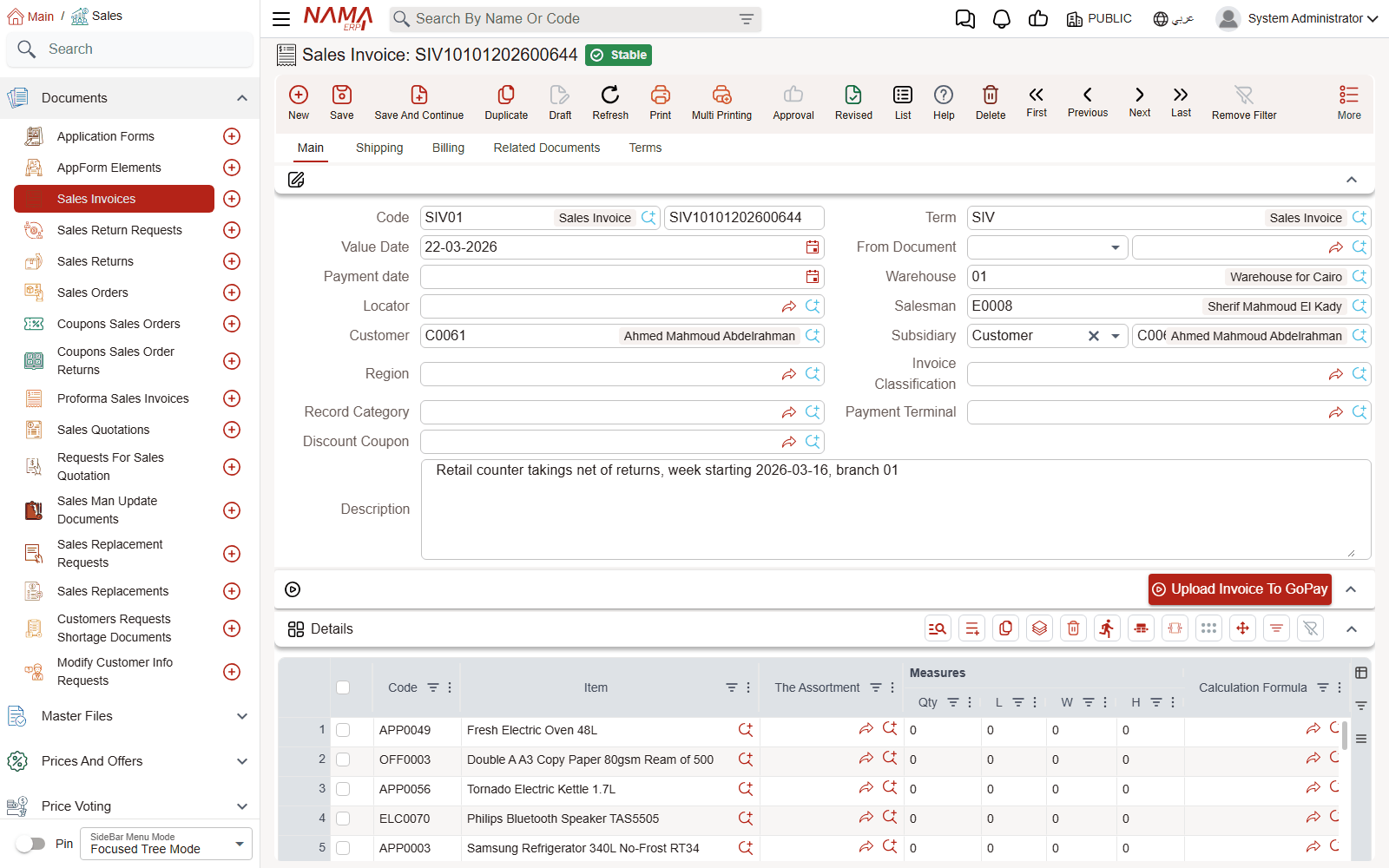
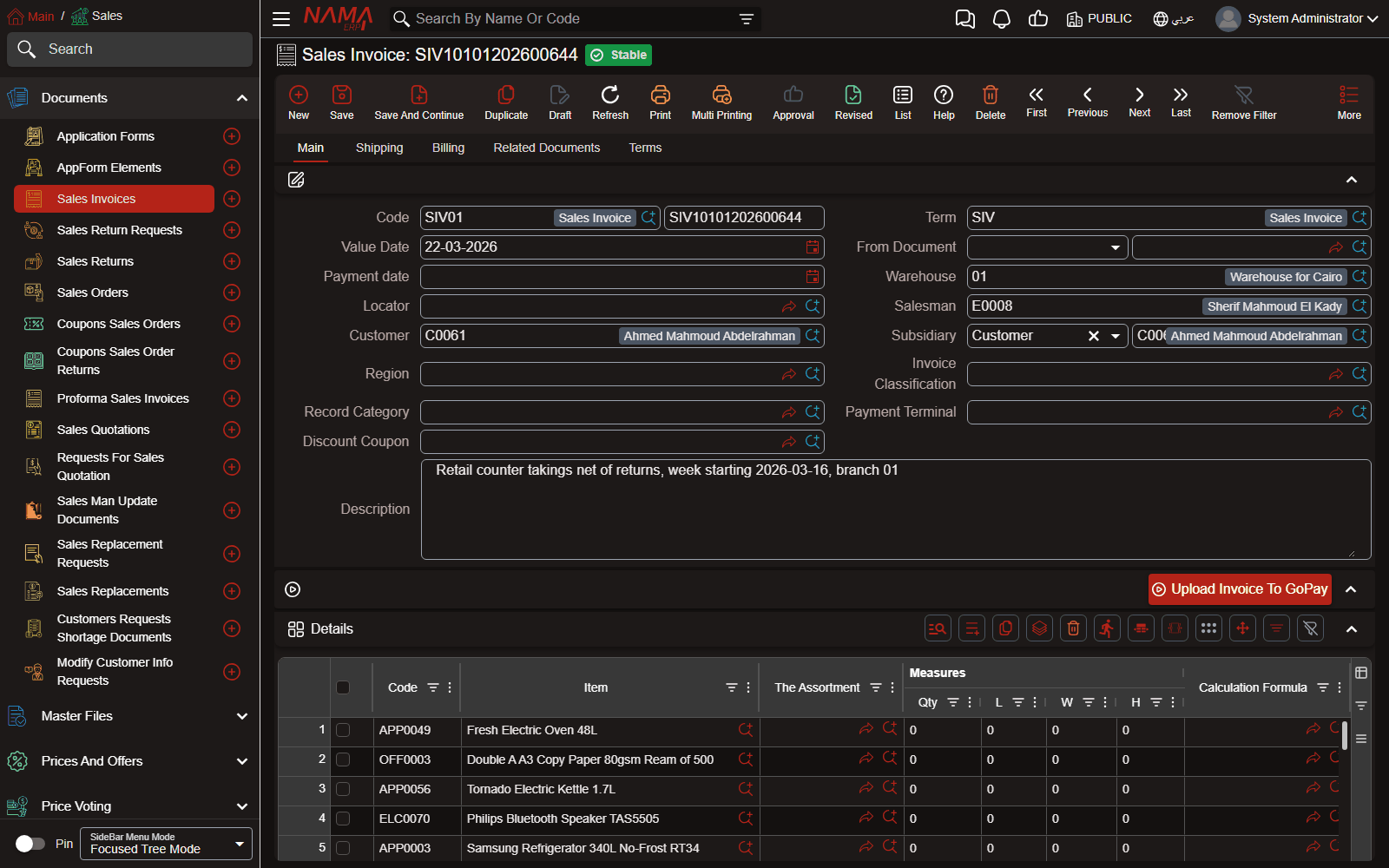
Light Blue
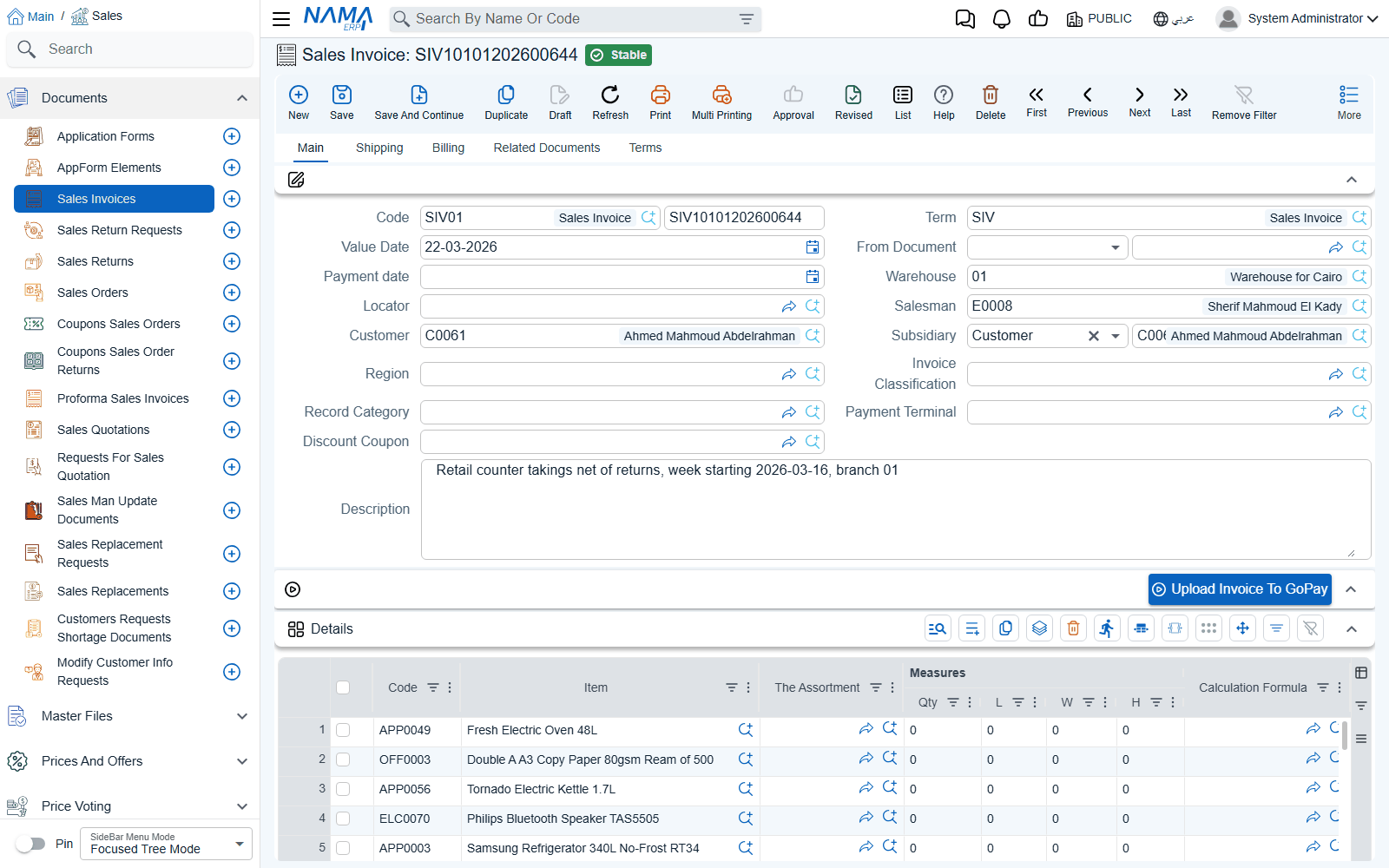
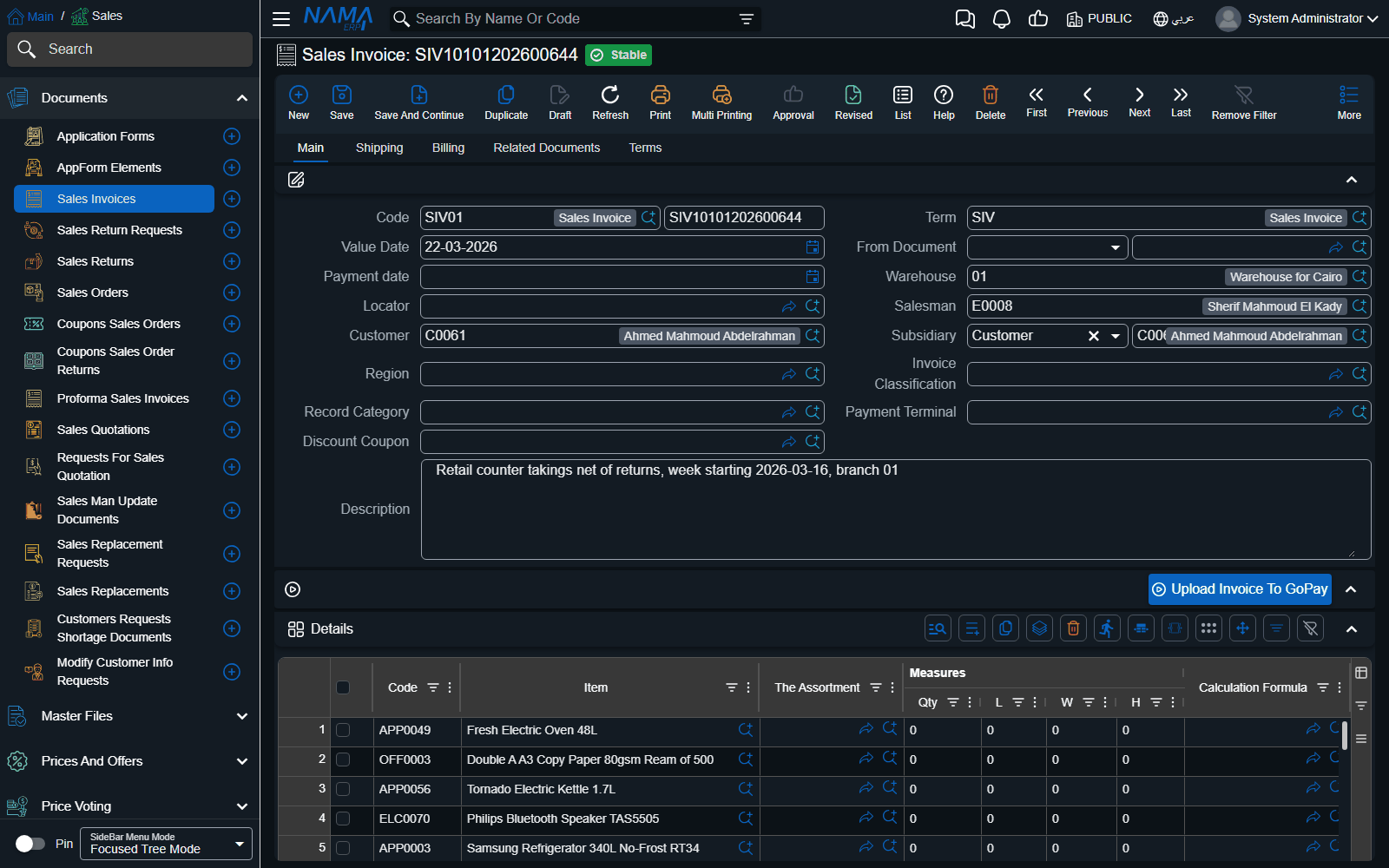
Green
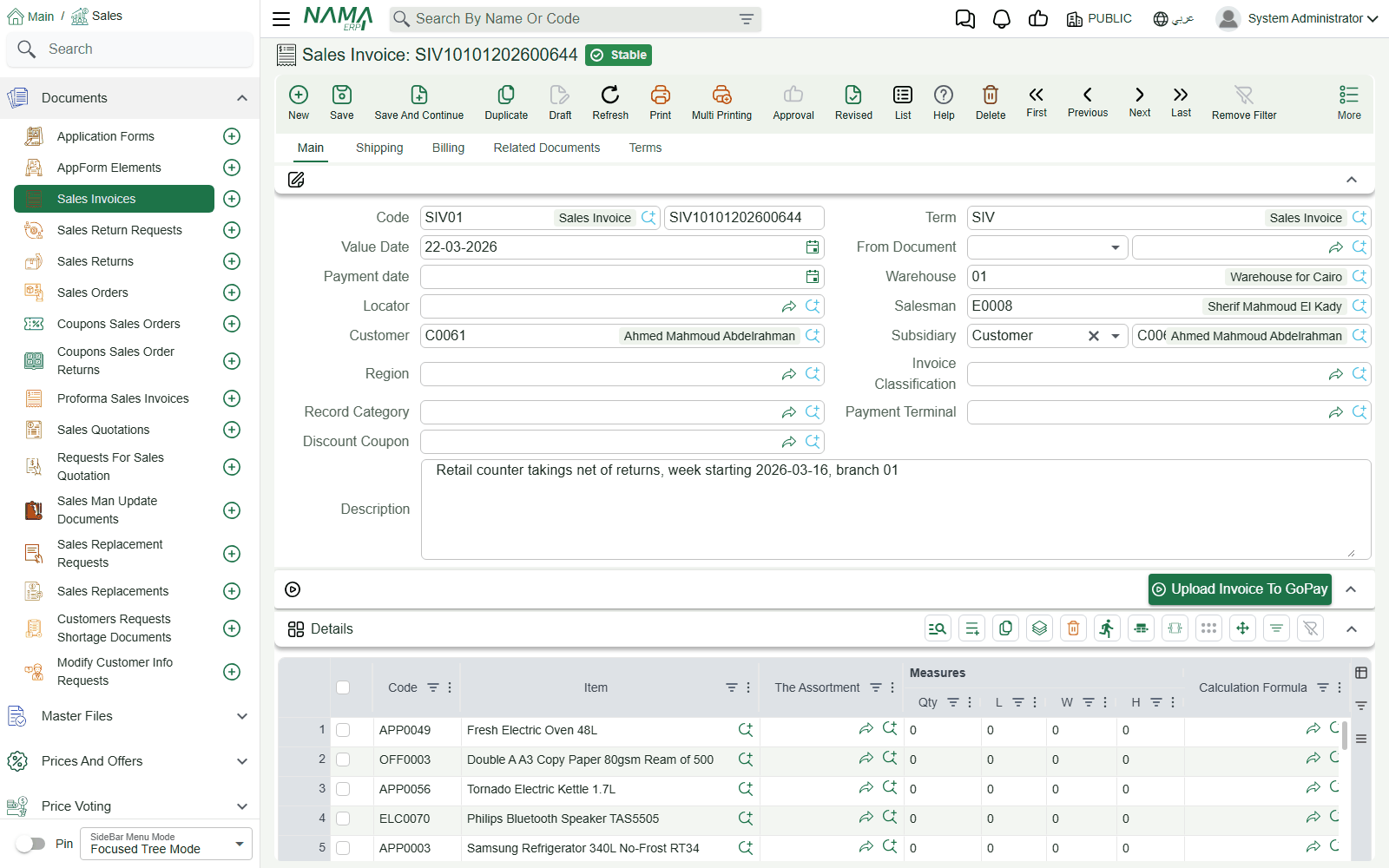
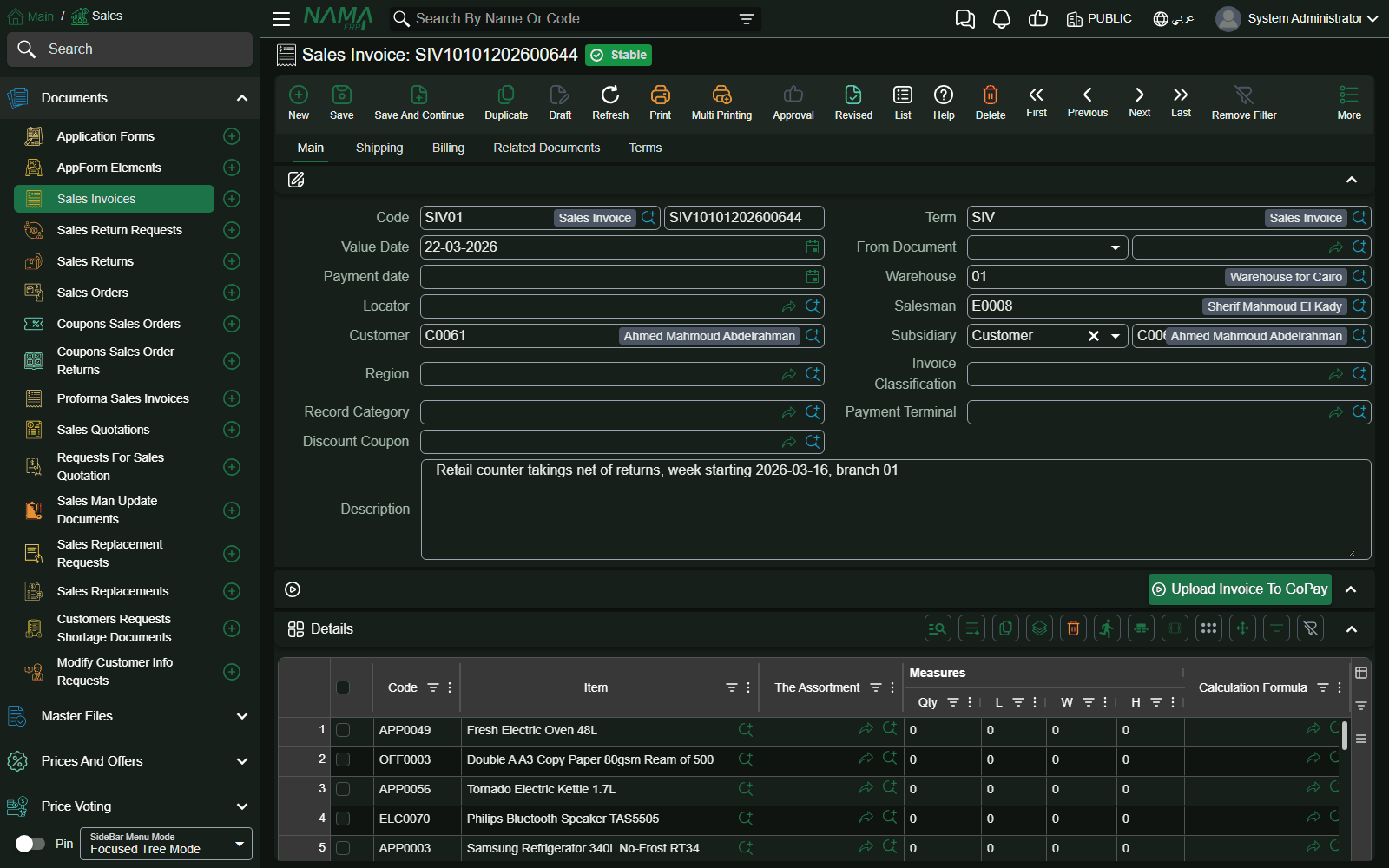
Gold
Keeps the top bar and the menu dark in light mode.
Orange
Blue
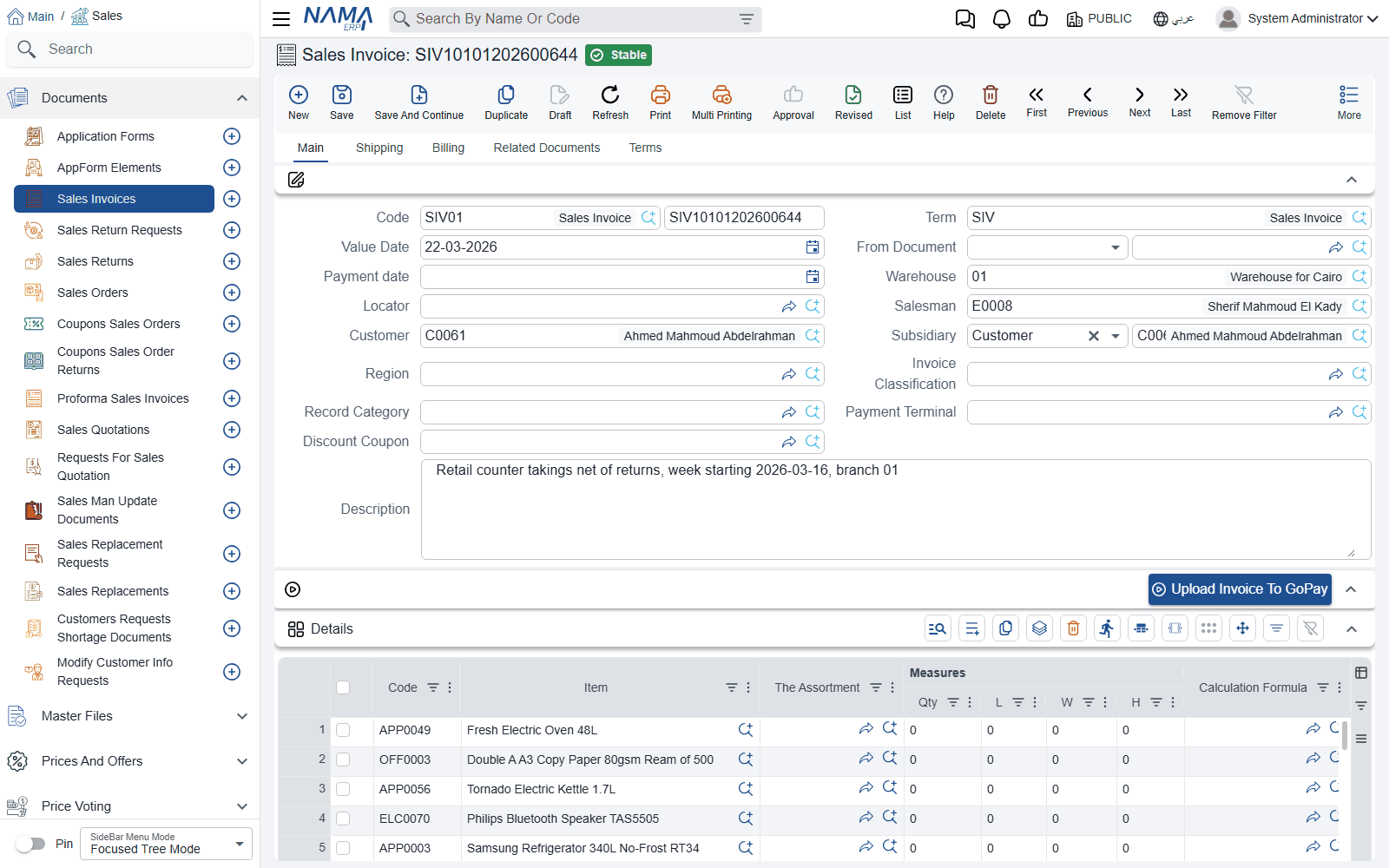
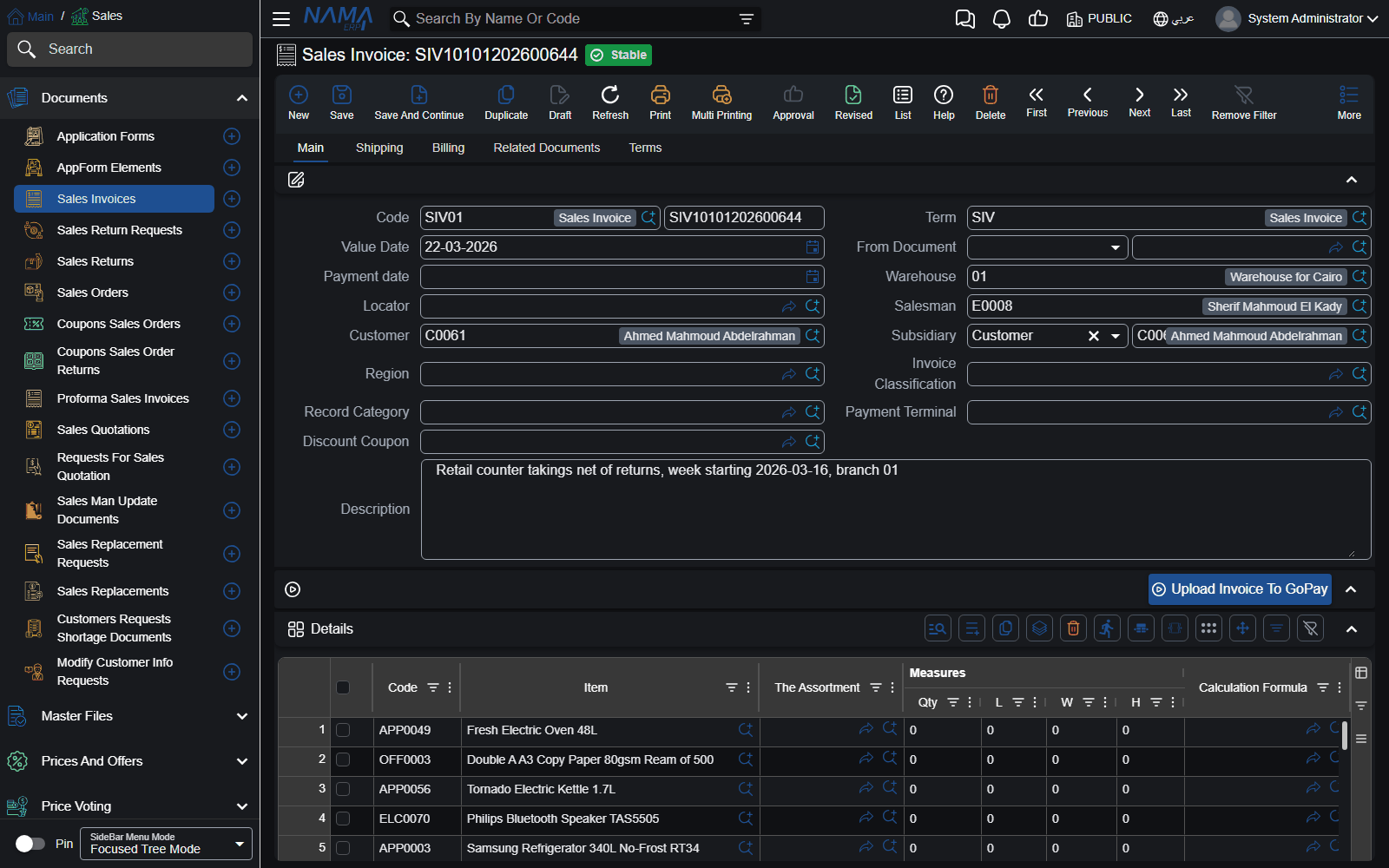
Purple
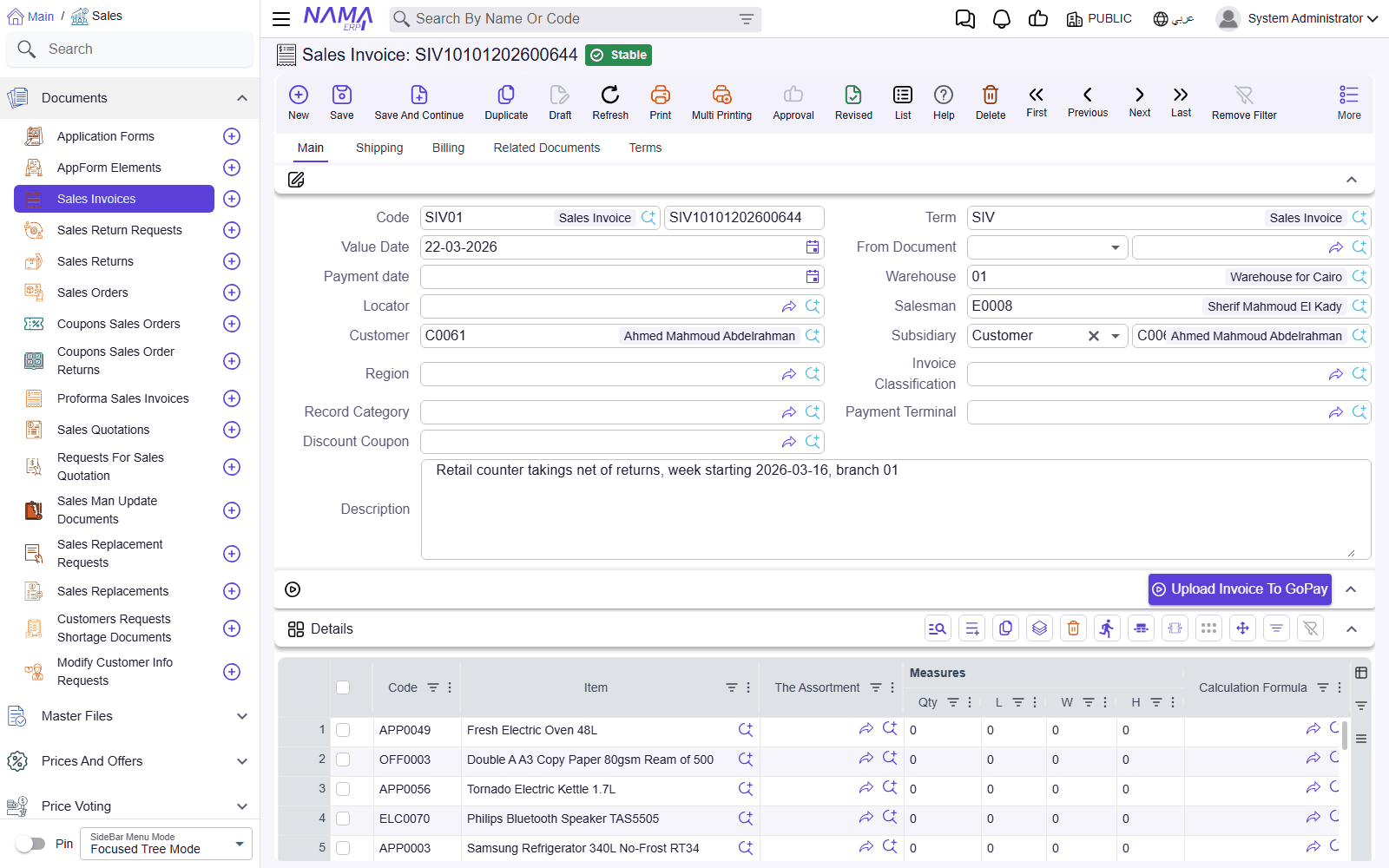
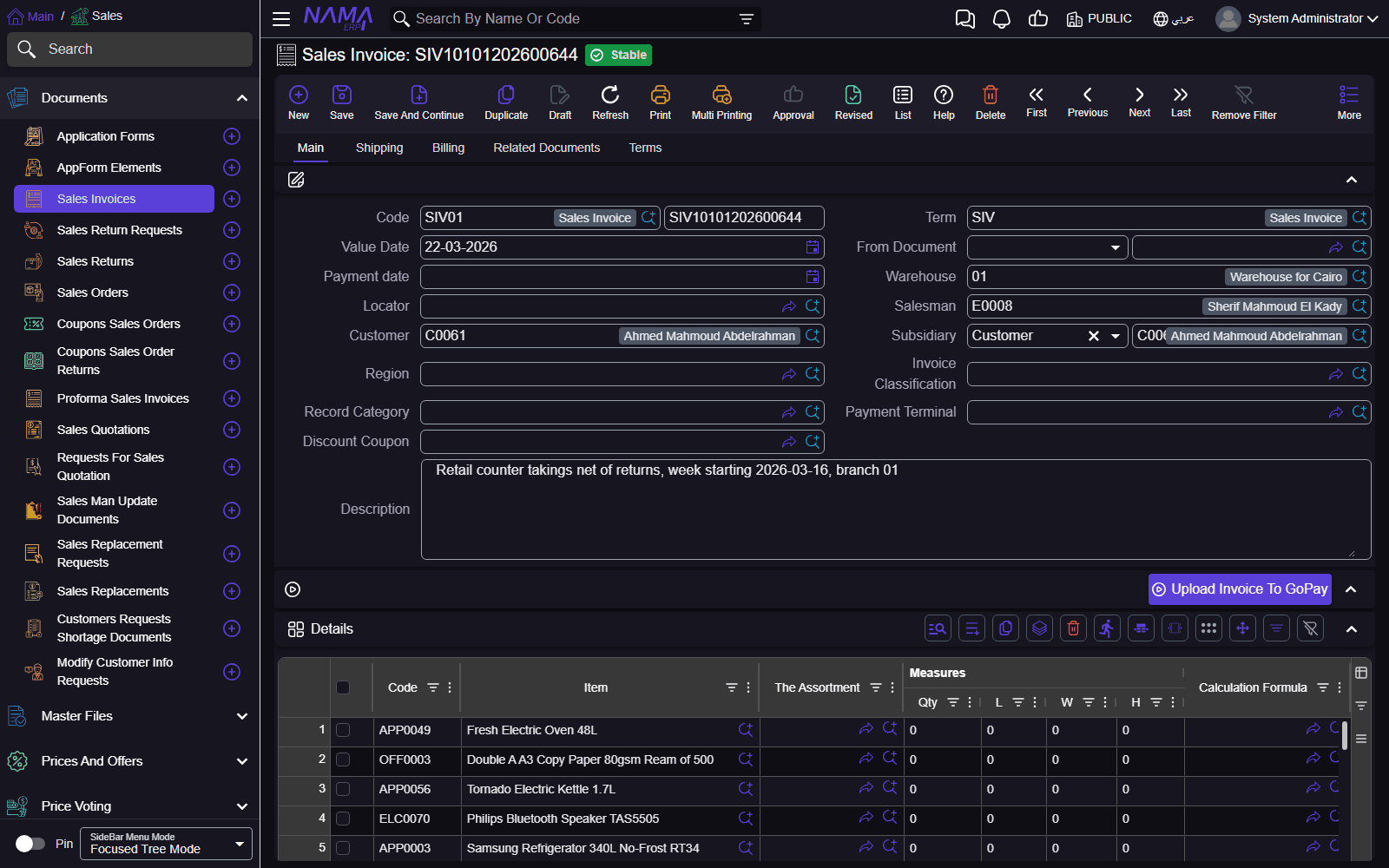
Black & White
Keeps the top bar and the menu dark in light mode.