
Keywords and Keyword Templates
Keywords are descriptive tags you attach to an item or a customer — "cotton", "export quality", "Ramadan range", "wholesale only" — so that lists and reports can pick out every record that carries a tag. A Keyword template is a ready-made set of such tags: pick it on an item and its keywords are copied onto the item in one step instead of being typed line by line.
Keywords do nothing on their own. They do not change prices, stock or accounting. Their value is in filtering: a list view or a report can narrow to the records whose keywords include a given word or value.
Where keywords live
Items and customers each have a KeywordTemplates tab. (An Item Opening Request has the same Keyword template field and keywords grid; its lines are copied to the item created from the request.) The tab holds:
- Keyword template — pick a template to copy its keywords in (see below).
- Reverse Delete Case — flips Delete With Save on every line at once.
- The keywords grid, one line per keyword:
| Column | What it holds |
|---|---|
| Delete With Save | Tick to have the line removed when the record is saved. |
| Key Word File | Optional: the kind of keyword this line records, such as Material or Season. |
| Keyword / English Keyword | The keyword itself, in Arabic and English. |
| Key Word Value | Items only: the value of the keyword file on this item, such as Cotton. |
| Relative weight | A number you can record against the keyword. Nothing in the system sorts or ranks by it. |
Free keywords and structured keywords
A line can be used in two ways.
A free keyword is just text: leave Key Word File empty and type the Keyword and English Keyword yourself — تصدير / Export.
A structured keyword records an attribute and its value. Name the attribute in Key Word File and the value in Key Word Value: Material = Cotton. When the record is saved, the system fills Keyword and English Keyword from the key word file's own Arabic and English names, replacing whatever was typed there. So on a saved line the Keyword column reads Material, and the specific value sits in Key Word Value.
Structured keywords need two small master files, both under Inventory → Master Files:
- Key Word File — the attribute: a code, its Arabic and English names, and an Allowed Values grid listing the values it may take (each with an Arabic keyword, an English keyword and a Key Word Value).
- Key Word Value — one value, with an optional Parent Key Word naming the key word file it belongs to.
On an item line, the Key Word Value picker offers the values listed in the chosen key word file's Allowed Values. When that grid is empty it offers the values whose Parent Key Word is that file, together with values that have no parent at all.
Keyword templates
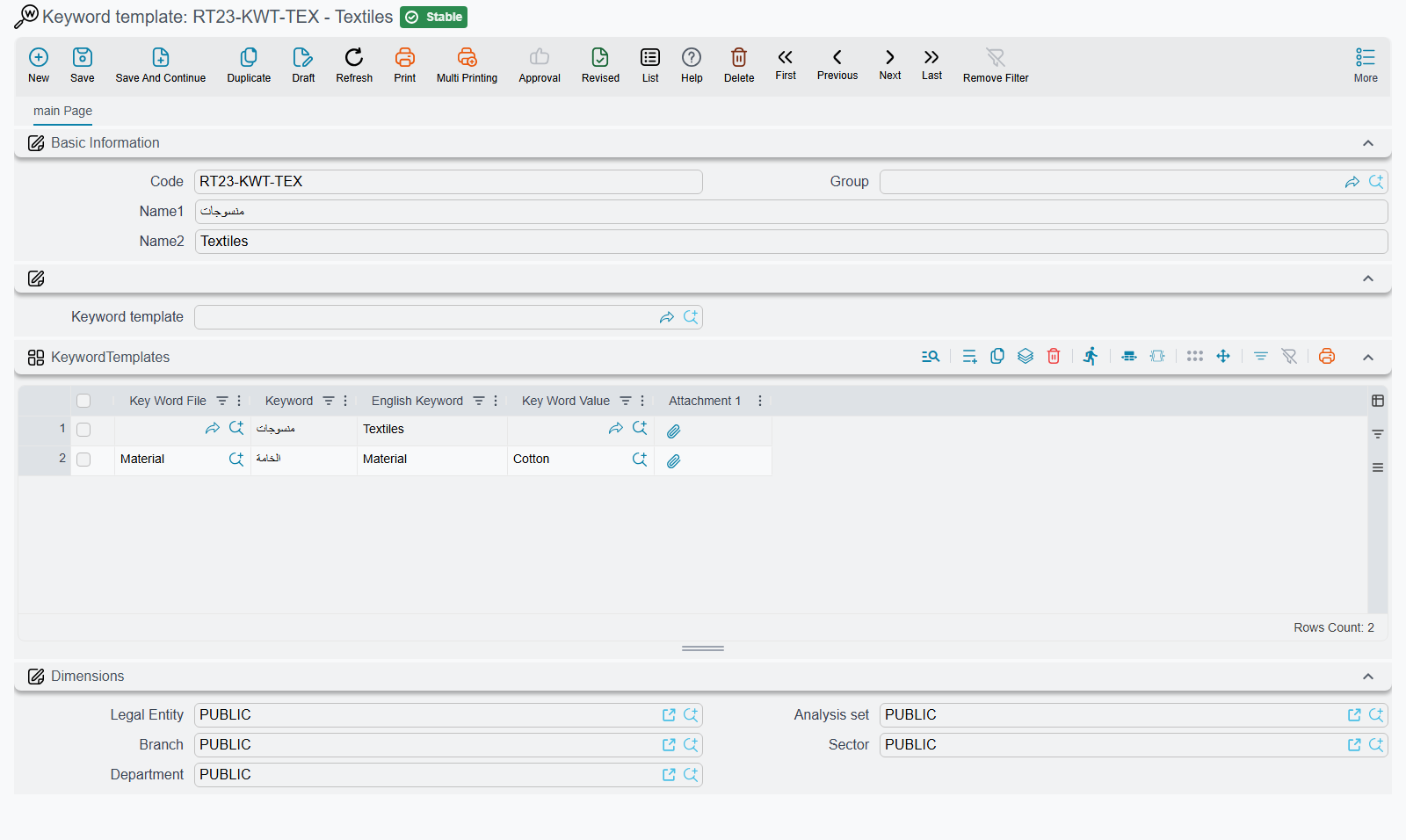
A keyword template is a master file at Inventory → Master Files → Keyword template. Besides the code and names it has a Parent field and a KeywordTemplates grid with the same columns as above — Key Word File, Keyword, English Keyword, Key Word Value — plus Attachment 1, which stays on the template and is not copied.
Templates form a tree through Parent: a Textiles template, with Shirts and Trousers below it. Picking a template on an item or customer copies the keywords of the whole branch it belongs to:
- every template above it, from the top down,
- the template itself,
- every template below it, at any depth.
So picking Textiles brings in the Shirts and Trousers keywords too, and picking Shirts brings in Textiles and Shirts but not Trousers.
What happens to the grid:
- Keywords are added, never removed. Picking a second template later adds its keywords to the ones already there.
- One line per keyword. When two templates in the branch carry the same keyword, only the first is copied. Because a structured line's Keyword is its key word file's name, this also means one line per key word file: a branch that lists Material twice with two different values contributes only the first.
- Lines that have no Keyword are dropped from the grid when a template is picked.
To take keywords off, tick Delete With Save on those lines (or press Reverse Delete Case to tick or untick them all) and save.
Finding records by keyword
Because keywords are ordinary lines on the record, any list view, criteria or report can filter on them — for example the items whose keyword lines carry the Key Word Value Cotton, or the customers with the English keyword Export.