
Operation Orders
The operation order is the heart of the Freight Management module. Think of it as the complete shipment file: everything about a single shipment — the parties, the vessel and voyage, the ports, the container, and the services with their costs and selling prices — lives here. And from the operation order, the bill of lading and the sales and purchase invoices branch off.
You'll find it under Freight Management System → Documents → FRM Operation Order.
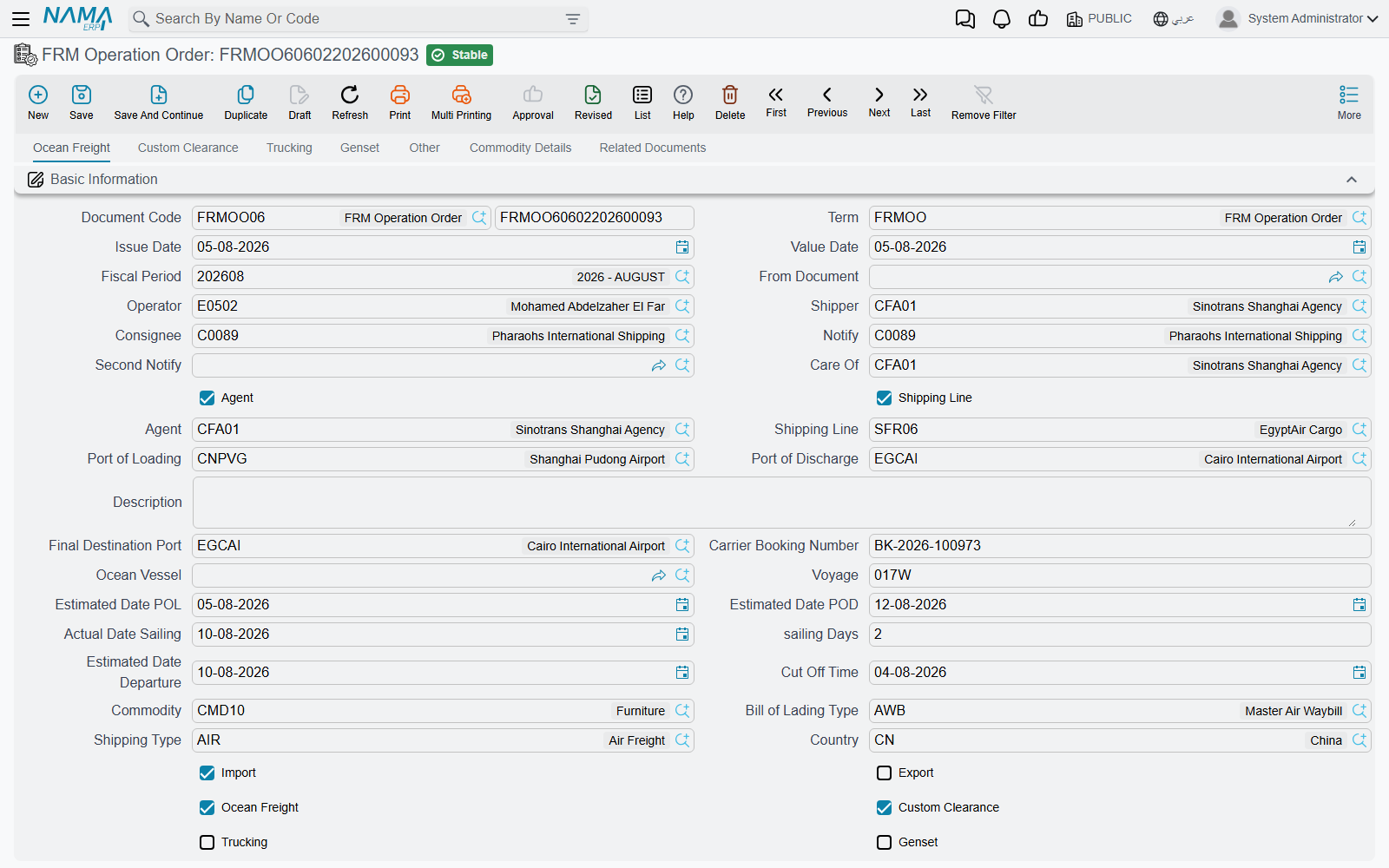
Shipment parties
An operation order starts by identifying who is involved in the shipment:
- Shipper — the customer who owns the goods being sent.
- Consignee — the receiving party.
- Agent and Notify / Notify 2 — the parties notified of the shipment's arrival.
- Shipping Line — the supplier carrying out the ocean freight.
- Subsidiary — the party billed financially (customer, supplier, employee, account…).
You also set whether the shipment is Import or Export, and Collect or Prepaid.
Voyage and container data
In this section you record the transport details:
- Ocean Vessel and Voyage, plus the carrier booking number.
- Loading, discharge, and final-destination ports, and the gate-in/gate-out ports.
- Estimated dates for loading, discharge, actual sailing, and sailing days.
- Container, its type, and count, plus the total container number.
- Sensitive-shipment data such as temperature, humidity, and ventilation for reefer containers.
- Commodity, shipping type, and operation status.
Services — the core of the operation order
What sets the operation order apart is that it splits services into separate sections, each with its own lines carrying cost and selling price:
| Section | Purpose |
|---|---|
| Ocean Freight | freight charges from the shipping line |
| Custom Clearance | clearance fees and services |
| Trucking | inland transport to/from the port |
| Genset | running refrigeration units |
| Courier | sending documents |
| Other | any additional services |
| Transport / Remarks | operational notes and data |
| Loading Points | goods loading locations |
| Certificates & Forms | documents required for the shipment |
| Dimensions and Commodity | weights and volumes of the goods |
Flags such as ocean freight? clearance? trucking? control which sections appear, so you only see what applies to your shipment.
The "Update All Services" button
Instead of entering each service price manually, the Update All Services button pulls prices from the matching price lists (by customer, commodity, ports, and container), filling in cost and selling price automatically.
Actions on the operation order
From the operation order's toolbar you execute the steps of the shipment lifecycle:
- Create Bill of Lading — generates a bill of lading from the operation-order data.
- Create Purchase Invoice — generates a purchase invoice to suppliers for the purchased services.
- Telex Release — records the shipment's release.
- Short Shipment — handles missing or remaining quantities of the shipment.
- Duplicate Operation — copies a whole operation order for a similar shipment without re-entering data.
Operation order status (FRM OO Status)
Each operation order tracks its status across its lifecycle. The status isn't only updated manually — it also changes automatically via status entries created from the related invoices: when a sales invoice linked to an operation order is posted, the invoice's term config carries a status that is recorded on the operation order, so you instantly know which shipment has been invoiced and which is still under operation.
Delivery, Receipt, and Transfer
Alongside the operation order, the module offers helper documents to manage the physical movement of containers and goods:
- FRM OO Delivery — delivering the goods/container.
- FRM OO Receipt — receiving them.
- FRM OO Transfer — moving them between locations.
You'll find these files under Master Files, and they're used to track the physical location of the shipment independently of its financial effect.