
Getting Better Support with an AI Assistant
Most support questions are already answered somewhere on this site — the trouble is finding the paragraph. A ticket arrives saying "the invoice is not creating its journal entry", and answering it well means knowing which screen holds the setting, what the field is called in Arabic, which table the value lands in, and whether a warning box somewhere says the whole thing is irreversible. That is four or five pages, and the person reading them has a customer waiting.
An AI assistant with the documentation on your own machine solves this differently. Instead of searching a website, you give the assistant the entire documentation and data model as files and simply ask your question in Arabic or English. It reads the pages, quotes the menu path, gives you the table and column, and hands you a link you can forward to the customer. What used to be a ten-minute hunt becomes a question and an answer.
And it gets considerably better than that. Once you connect the assistant to a live Nama installation through the MCP server, it stops answering from the manual alone and starts answering from the customer's actual system — reading the records, reading how the document term and the configuration are set, running a query against the data, and explaining why the document behaved the way it did.
This page walks through the whole setup. You do not need to be a developer and you will not have to type a single command — the assistant runs the technical steps for you when you ask it to, in plain language.
Who this is for
Nama technical support staff, and system administrators at customer sites who want the same capability in-house. Allow about fifteen minutes for the one-time setup.
Watch the video guide
A fourteen-minute video does the whole setup on screen. It prepares Claude, defines a toolkit for each role, gives each user an API key, and connects Claude to Nama. It then follows an administrator and a sales manager through a live system: they ask the documentation, read records, query across companies, enter a supplier's PDF invoice as a draft, and build a report, a dashboard and a tool. The steps below are the written version of the same setup.
Step 1: Install Claude Desktop
We recommend Claude Desktop, because it puts everything in one window with no command line at all. Download it from claude.com/download, install it, launch it, and sign in with your Anthropic account. (If you already work with Claude Code in a terminal, that does exactly the same job: run it inside the knowledge-base folder from Step 3 on.)
A paid plan is required
The coding side of Claude Desktop needs a Pro, Max, Team or Enterprise subscription. The free plan gives you the Chat tab only, which cannot read the documentation files on your machine — and reading those files is the entire point of this setup.
Step 2: Install Git
Git is the tool that downloads the knowledge base and keeps it current. On Windows it is also required by Claude Desktop itself, so install it before going any further:
- Windows — download and run the installer from git-scm.com/downloads/win, accepting the default options throughout. Close Claude Desktop and reopen it afterwards, or it will not notice that Git is now there.
- macOS — Git is already installed on almost every Mac. If it is missing, macOS offers to install it the first time it is needed.
Step 3: Open the Code tab and choose a folder
In Claude Desktop, click the Code tab at the top of the sidebar. (The tabs are Chat, Cowork and Code — you want Code, the one that can read files on your machine. If the tabs show only icons, hover over one to see its name.)
Then, in the row of controls under the prompt box:
- Click the first control, the environment selector, and choose the top entry in the Local group, so that Claude works with the files on your own computer.
- Click the folder control next to it and choose Open folder…. (Older versions of the app have no environment selector; there you choose Local and click Select folder instead.)
- Create or pick an empty folder to keep the knowledge base in — something you will remember, such as
Documents\nama-kb. Select it.
The window is now pointed at that folder. It is empty, which is exactly right — the next step fills it.
Step 4: Ask Claude to download the knowledge base
Here is the part that surprises people: you do not have to run any commands yourself. Type this into the prompt box, in these words or your own:
Please clone
https://github.com/namasoft/namaerp-support-kb.gitinto this folder, including its submodules, and then tell me what you found.
Claude will run the download for you. If it asks permission to run a command, allow it. When it finishes you will have the Nama support knowledge base on your machine: this entire documentation site, the data model describing every table, column and enum, and a set of instructions that teaches the assistant how Nama is organised — where the modules live, that the Arabic pages mirror the English ones, that the item master file is called InvItem and not Item, and how to cite what it found.
If something looks empty
The documentation and the data model are attached as submodules, which are downloaded separately. If you end up with two empty folders, just say: "the submodules are empty, please initialise them". Claude will fix it.
Step 5: Ask your questions
That is the setup finished. From now on you open Claude Desktop, click Code, choose that folder in the folder control under the prompt box, and ask. Questions like:
- "العميل يقول إن قيد اليومية لم يتكوّن للفاتورة — من أين أبدأ؟"
- "Which table stores salary item values, and what is the column for the amount?"
- "What does the
EAGenJournalEntryentity flow do, and what parameters does it take?" - "Give me the menu path for the accounting periods setting, and the docs link I can send the customer."
Answer in whichever language you prefer; ask in Arabic and you get Arabic back. The assistant is told to quote the exact menu path and to give you a link you can forward to the customer, so most answers are ready to paste into a ticket.
Other assistants work too
The knowledge base is just files on disk, so any coding assistant can read it. We have tested more than one and use Claude most of the time — it is the best of them we have found so far, which is why this page is written around it. If your team already works with a different assistant, it will do the job too; the installation steps differ, but the knowledge base and everything after it are the same.
Step 6: Keep it up to date
This matters more than it sounds. Both sites are updated most days, the data model especially. A copy that is a few weeks old will answer confidently from documentation that has since been corrected — and nothing about the answer will look stale.
So make a habit of starting a session by asking:
Please update the knowledge base before we start.
It takes a few seconds. The assistant is also instructed to check the age of your copy on its own and to warn you when it has fallen behind, but the habit costs nothing and removes the doubt.
Step 7: Connect to a live system
Everything so far is a very good library. The step that changes the nature of the work is connecting the assistant to an actual Nama installation over MCP — the standard protocol AI clients use to reach external systems. Nama has a built-in MCP server, so there is nothing to install on the server beyond the AI module itself.
Once connected, the assistant can read records, look up how a document type is configured, list the settings behind a behaviour, run a report, and — when you allow it — create and update records. The question stops being "what does the manual say about credit limits" and becomes "why did this order get blocked", which it answers by reading the customer, the document term, and the configuration entry that governs it.
Again, you can simply ask Claude to set this up: give it the server address and the key, and tell it to read namaerp-docs/docs/modules/ai/ai-mcp-server.md and follow it. The connection is a few lines in a .mcp.json file in your knowledge base folder — the Code tab reads it from there, so it is not something you set in Claude Desktop's own settings:
{
  "mcpServers": {
    "nama-erp": {
      "type": "http",
      "url": "https://<customer-server>/basic-services/mcp",
      "headers": { "X-API-Key": "<client-secret>" }
    }
  }
}
The endpoint, the authentication headers, the API Credentials record the key comes from, and the way every call executes as a real user with the full security model applied are all covered on the Nama ERP MCP Server page. Read it before you connect — particularly the part about dedicating a user with measured permissions rather than pointing the assistant at an administrator account out of convenience.
Step 8: Give the assistant the right tools
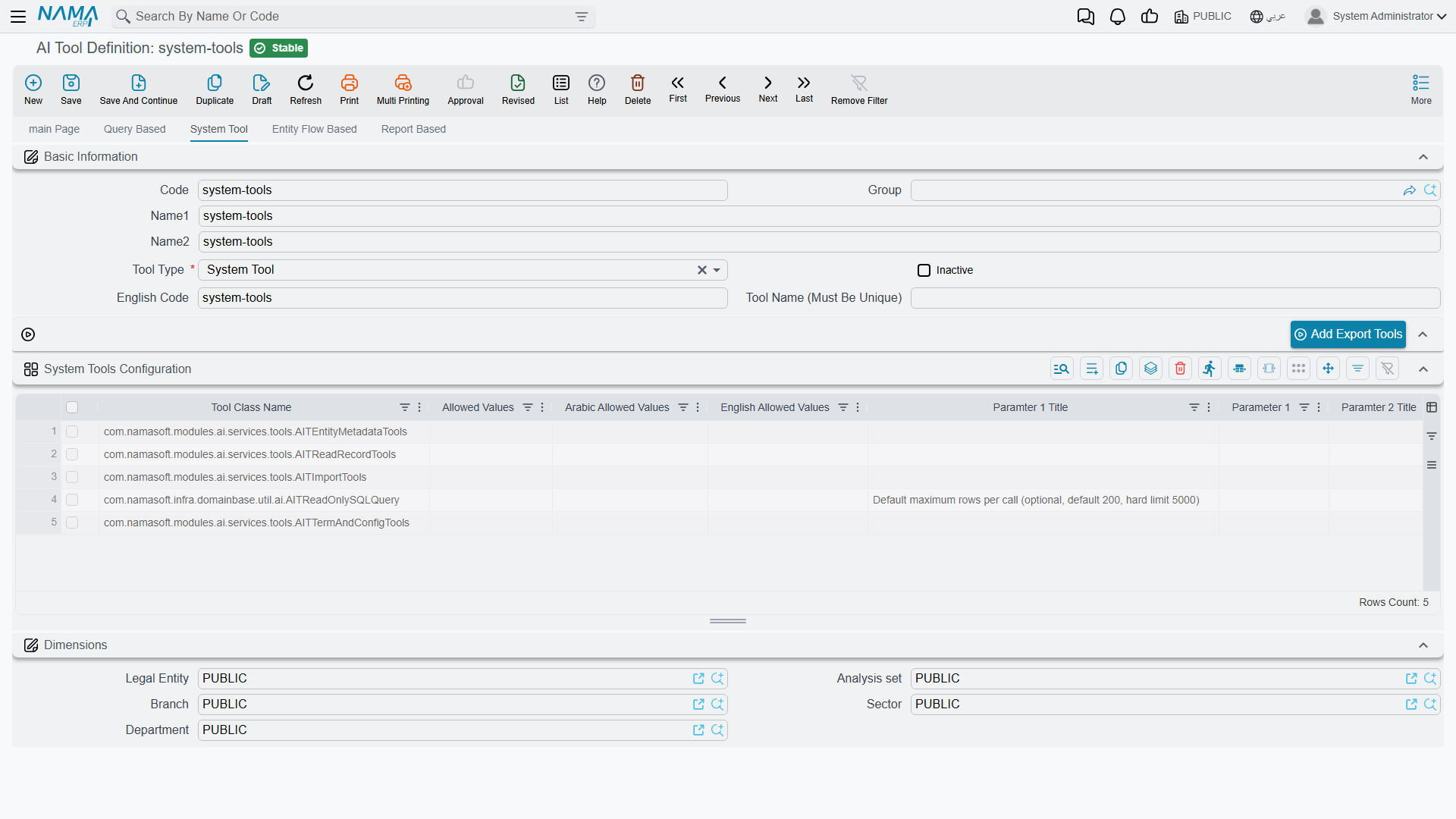
An MCP connection on its own exposes nothing. The assistant can only call the tools an administrator has defined on the AI Tool Definition screen, so this step is where you decide how capable — and how dangerous — it is. Four groups of ready-made system tools are worth setting up deliberately.
The record tools — for everyone, bounded by permissions
The twelve export/import tools, added in one click with the Add Export Tools button, let the assistant resolve an Arabic or English term to an entity type, find a field or an option by its name, list the fields it can search on and the tables behind them, search records, read a record as JSON, list the allowed values of a field, learn an entity's import schema, import new records, and upload or download attachment files.
The important property is that every one of them goes through the same gates the screens use. If the linked user cannot see a company's documents, neither can the assistant. If the user may not create purchase invoices, the import call is refused. These tools are bounded by exactly the permissions you already trust that user with, which is what makes them reasonable to hand to support staff generally.
The read-only SQL tool — administrators only, and unbounded
Add AITReadOnlySQLQuery as a line in the System Tools Configuration grid and the assistant gains a single tool, <prefix>runReadOnlySqlQuery, that runs one T-SQL SELECT against the database and returns the rows as JSON.
This is the tool that transforms troubleshooting. Combined with the data model in the knowledge base, an assistant that can query directly will find the twelve documents whose cost never recalculated, compare a setting across seven companies, or trace a balance difference back to the three entries that caused it — investigations that would otherwise cost an afternoon and a developer. It is the difference between an assistant that describes how the system is supposed to work and one that tells you what actually happened in this database.
It is also the tool that demands the most care, for one specific reason:
The SQL tool is not limited by user permissions
The record tools are bounded by what the linked user may read. The SQL tool is not. It reads the database directly, so it sees every company, every branch, every salary and every price — regardless of what its user is allowed to open on screen. Restrict it to administrators through the Security (Access Control) grid on the tool definition, and to administrators only.
What it cannot do is change anything. Only a single SELECT is accepted: INSERT, UPDATE, DELETE, EXEC, DDL, SELECT ... INTO, several statements in one call, and pass-through functions that could reach another server are all rejected before the statement runs. Whatever does run executes inside a transaction that is always rolled back, so even a statement that somehow slipped past the check leaves nothing behind. Results are capped as well — 200 rows per call by default, which you can raise to at most 5000 by putting the number in the line's first parameter column, with a one-minute query timeout.
The term and configuration tools — the everyday administrator's superpower
Add AITTermAndConfigReadTools and the assistant gains three tools covering the settings screens: one that lists what can be configured, one that describes the settings of a document type's term (توجيه) or of a configuration entry — grouped exactly the way the screen groups them, with the Arabic and English label of each setting — and one that reads the current values. AITTermAndConfigWriteTools, a separate class, adds the fourth: the one that changes them. Leave it out and the assistant can explain any setting in the system without being able to touch it.
For a system administrator this is the difference between knowing a setting exists and finding it. The global configuration holds thousands of settings across seventeen tabs, and a single document term holds hundreds. Asking "how is the sales invoice term configured for the cost centre, and which setting controls it" now gets you the setting, its labels, its tab, and its current value in one answer instead of a tour of the screens. The update tool merges a patch onto the stored settings rather than replacing them, reports the old and the new value of everything it changed, and can create a term that does not exist yet.
The report and dashboard tools — for chasing a wrong figure
Most support tickets about numbers end at a report or a dashboard: "this total is wrong", "this chart is empty", "the branch filter does nothing". The Add Report Tools button adds the tools that answer those questions with evidence rather than a guess. For a report, the assistant can read its query and parameters, run it, and — if you keep the writing class — correct the query. For a dashboard, it can run the whole dashboard or a single widget with the filters the customer used, read the figures each chart shows, and see the exact SQL a widget sent to the database together with the rows that came back. It can also try a corrected widget query without saving anything. See Dashboard tools for what they return.
Everything the AI does must be reviewed
This is not a caveat about Nama — it is true of every AI tool. A model can misread a question, pick a plausible but wrong field, or write a query that answers a slightly different question than the one you asked. Read what it did before you act on it: check the query it ran, check the setting it changed, check the record it created. Import as a draft first when the change matters. It is an extremely fast assistant, not an unsupervised one, and reviewing it takes a fraction of the time the work would have.
Say Yes When It Offers a Report
The single most valuable thing a system administrator or a support engineer can do for AI-assisted support at Nama is to tell us when it does not work.
We know nobody wants to stop mid-ticket to file a report, so the assistant does the writing — and asks only once, at the end. If it runs into something worth reporting while helping you (documentation that contradicts what the system actually does, a topic missing entirely, a question it could not answer, a tool that refused something it should have allowed), it finishes helping you first and then asks whether you would like a short issue report. Say yes and it writes one out, ready to paste. Say no and it drops the subject.
All you have to do is send it to ai@namasoft.com, or pass it on through your usual channel with Nama. Each report tells us exactly which page to rewrite, which tool description to sharpen, or which capability is missing.
You do not have to wait to be asked, either. Anything that struck you as wrong, missing, or harder than it should have been is worth sending — whether the assistant noticed it or not. The more of these we receive, the better the next answer is for everyone.