
Facebook Lead Ads
When a company advertises on Facebook or Instagram with a lead form, every person who fills the form becomes a lead in Meta's Ads Manager — and nowhere else. Someone has to download the list and type it into the CRM, and by the time they do, the hottest prospects have already gone cold. Nama can take that job over: each Facebook page you connect gets a Social Media Subscriber Configuration record, and from then on every lead form submitted on that page is saved as a CRM Lead (or a CRM Potential) a few seconds after the person presses Submit.
Find the screen at Customer Relationship Management → Support → Social Media Subscriber Configuration / خدمة العملاء ← الدعم ← إعدادات اشتراكات وسائل التواصل.
Licences
The configuration screen itself needs nothing beyond a base installation. The records it saves are CRM Leads or CRM Potentials, so the installation needs the crm licence for anything to be saved.
How leads reach Nama
There are two roads, and a working setup uses both:
- Instantly, through the webhook. Facebook calls your Nama server each time a lead form is submitted on the page. Nama looks up the configuration whose Page Id matches, reads the lead's answers from Facebook, and saves the lead. Nobody presses anything.
- On demand, with Update Leads. The Update Leads button on the configuration reads every lead the page's forms collected in a date range and saves the ones Nama does not have yet. Use it the day you connect a page (to bring in the leads collected before), and whenever you suspect the server missed some — for example after it was down for maintenance.
Either way, the same two settings decide what happens to each lead: the Finder Query decides whether this person already exists, and the Fields Map decides what goes into which field.
Before you start: what you need from Facebook
The connection runs through a Facebook app that your company owns. Whoever manages your company's Meta developer account creates it once:
- Create an app in Meta for Developers and note its App ID and App Secret.
- Add Facebook Login to the app and allow your Nama server's address (for example
erp.example.com) as an app domain, so the login page Nama opens is accepted. - Add Webhooks to the app, choose the Page object and subscribe to the
leadgenfield. Use your server's public address followed by/facebook/as the callback URL — for a server athttps://erp.example.com/erp/, that ishttps://erp.example.com/erp/facebook/leads. Facebook also asks for a Verify token. Make one up — a long random string — and type exactly the same value in Webhook Verify Token on the configuration record. When you save the webhook, Facebook calls the callback URL with that token, and Nama answers only when it matches the Webhook Verify Token of one of its configurations. Any other value is refused (HTTP 403), and Facebook reports that the callback URL could not be verified. So save the Nama record with the token first, then save the webhook in Meta. - The app needs the permissions
pages_show_list,pages_manage_metadata,pages_read_engagementandleads_retrieval. Until Meta has approved them for your app, only people with a role on the app receive real leads.
Your Nama server must be reachable from the internet over HTTPS, or Facebook cannot deliver anything to it.
You also need the numeric Page ID of the Facebook page whose forms you want to collect. It is shown on the page's About section, under Page transparency.
The configuration record
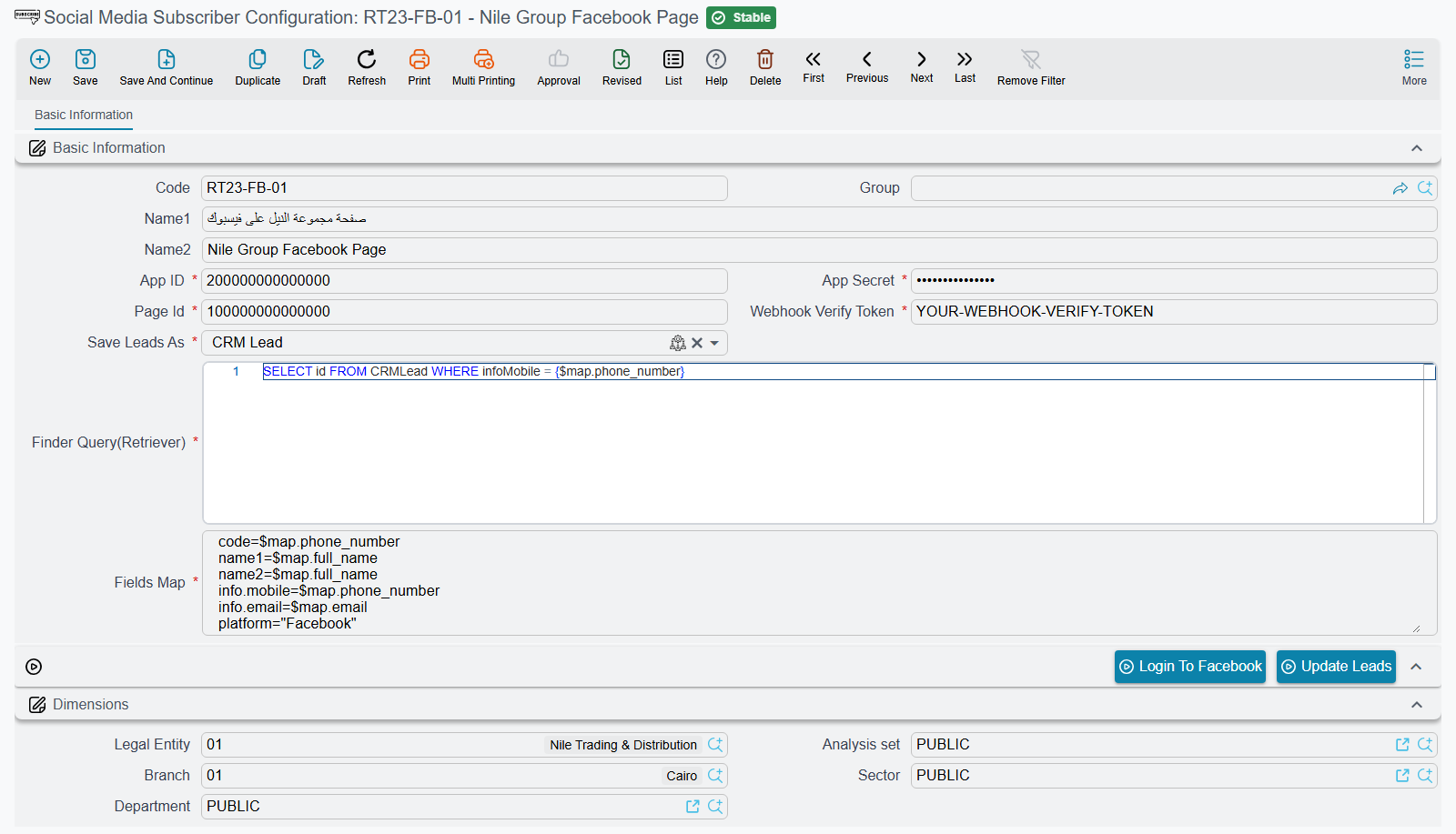
The screen has a single tab. Besides the usual code and names, it holds:
| Field (English / Arabic) | Field id | What it does |
|---|---|---|
| Page Id (معرف الصفحة) | pageId | The Facebook Page ID. This is how an incoming lead finds its configuration, so each page has exactly one record. |
| App ID (معرف التطبيق) | appId | The ID of your company's Facebook app. |
| App Secret (المفتاح السري للتطبيق) | appSecret | The app's secret, stored as a password. It must be the real secret of the app the webhook belongs to: Facebook signs every lead it sends with it, and Nama drops any call whose signature does not match. |
| Webhook Verify Token (رمز التحقق من الـ Webhook) | webhookVerifyToken | The same value you typed as the Verify token when you set up the webhook in Meta for Developers. It sits next to Page Id on the screen. |
| Save Leads As | saveLeadsAs | CRM Lead or CRM Potential — which record each form submission becomes. |
| Finder Query(Retriever) | finderQuery | An SQL query that finds the existing record for this person, if there is one. |
| Fields Map | fieldsMap | One line per field to fill on the new record, in the same syntax entity flows use to fill a generated record. |
All seven are required. A configuration saved before Webhook Verify Token existed must have it filled in the next time it is saved; until then its page keeps receiving leads as before, as long as its App Secret is right. The dimensions group at the bottom — legal entity, branch and the rest — is copied to every lead the configuration saves, so a company with one page per branch gets each branch's leads stamped with the right branch.
The answers on a lead form
Each answer on the Facebook form reaches Nama under the question's field name, and you read it as $map. followed by that name. Facebook's standard questions are named full_name, email and phone_number; a custom question uses the key you see for it in the form's settings. Leads brought in by Update Leads also carry campaign_name, campaign_id and ad_name.
Finder Query
The query must return the id of the matching record, and can read the form's answers the same way, in braces. To treat two submissions with the same phone number as the same lead:
SELECT id FROM CRMLead WHERE infoMobile = {$map.phone_number}When the query returns a record, the webhook updates that record with the new answers. Update Leads does not: it leaves records that already exist alone and counts them as skipped. When the query returns nothing, a new record is created either way.
Fields Map
A typical map for Save Leads As = CRM Lead:
code=$map.phone_number
name1=$map.full_name
name2=$map.full_name
info.mobile=$map.phone_number
info.email=$map.email
platform="Facebook"
Keep the code= line, and have it read a form answer with $map.: Update Leads uses the value that line reads to recognise two submissions from the same person within one run.
For the full syntax — fixed values in quotes, SQL lookups, conditional values — see the field map reference in Generate Entity From Entity.
What Nama fills in on its own
Whatever your map says, every lead or potential saved from Facebook gets Lead Source = Social Networks (مواقع التواصل الاجتماعي).
Facebook's own test leads — the ones its lead-ads testing tool sends, whose answers start with <test lead: or use test@meta.com — are skipped by Update Leads.
Connecting a page, step by step
- Create the configuration record, fill the seven fields and the dimensions, and save it. Then finish the webhook in Meta for Developers with the same verify token (step 3 of the list above).
- Press Login To Facebook (التسجيل في فيسبوك). A new browser tab opens with a Facebook login button. Log in with a Facebook account that manages the page and grant every permission Facebook asks for. The tab saves the token under your Nama session, so press the button while you are signed in to Nama, in the same browser, as a user whose security profile gives Edit After Commit on Social Media Subscriber Configuration. Otherwise the tab shows Error saving Facebook login: followed by the server's refusal, and nothing is stored.
- When the tab says You correctly logged in to facebook, Nama has stored a long-lived access token for the page and subscribed the page to your app's lead notifications. Close the tab.
- Press Update Leads (تحديث العملاء المحتملين) to bring in the leads collected before today. It asks for From Date and To Date; leave both empty to read the last 30 days.
- Submit a test lead on the page and check that it appears in the CRM Lead list within a few seconds.
If the person who logged in later loses their role on the page, or changes their Facebook password, the token stops working. Press Login To Facebook again with an account that manages the page.
Leads stopped arriving through the webhook?
Check the App Secret first. Nama checks every lead call against the signature Facebook computes with the app's secret, and quietly drops a call whose signature is wrong or missing: no lead is saved, and the server log gets a line like this one, with the Page ID in it:
Rejected a Facebook webhook call for page 1234567890: its signature does not match the app secret
Copy the secret again from the app's basic settings in Meta for Developers — the app the webhook belongs to — into App Secret, save, and submit a test lead. Then press Update Leads for the days the webhook missed.
Reading the Update Leads result
When it finishes, Update Leads reports what it did, in English on both language interfaces:
Sync finished - {0} saved, {1} skipped (already exist)
{0} is the number of new records, {1} the number of leads the Finder Query found already. When some leads could not be saved, the message becomes a warning with the failure count and the phone number, email or name of each failed lead in brackets, followed by the reason each one was refused:
Sync finished - {0} saved, {1} skipped (already exist), {2} failed ({3})
A lead is usually refused because the Fields Map left a required field empty, or produced a code that already belongs to another record. Fix the map and press Update Leads again for the same dates — leads that were saved the first time are now skipped.
Messages you may see
| Message | Why | What to do |
|---|---|---|
| No Facebook access token is stored. Please run "Login to Facebook" first. (English on both interfaces) | Update Leads was pressed before anyone logged in to Facebook from this record. | Press Login To Facebook and complete the login, then try again. |
| Sync finished - {0} saved, {1} skipped (already exist), {2} failed ({3}) | Some leads were refused; the reasons follow the message. | Correct the Fields Map or the data it reads, and run Update Leads again. |