
From Supplier Rates to Customer Quotations
Price Lists & Markups explains what the two price lists hold. This page follows the work that connects them: a shipping line sends new rates, you load them, you turn the ones you want into a quotation for a customer, and months later you change the rates without retyping every list.
The elements behind every list
Each line you save on a Service Purchase Price List becomes a record of its own, a Purchase Price Lists Element, under Freight Management System → Master Files. The same happens on the sales side: each line of a Service Sales Price List becomes a Sales Price Lists Element. The list is where you type; the elements are what the rest of the module searches. When an operation order's Update Data button looks for a price, it is looking through elements.
The link is kept in both directions. A purchase line shows the element it created in its Gen Purchase Element column, and a sales line remembers the purchase element it was priced from. Edit or delete a line and its element is updated or removed with it — so change rates on the list, not on the element, which the list overwrites the next time it is saved.
Loading supplier rates
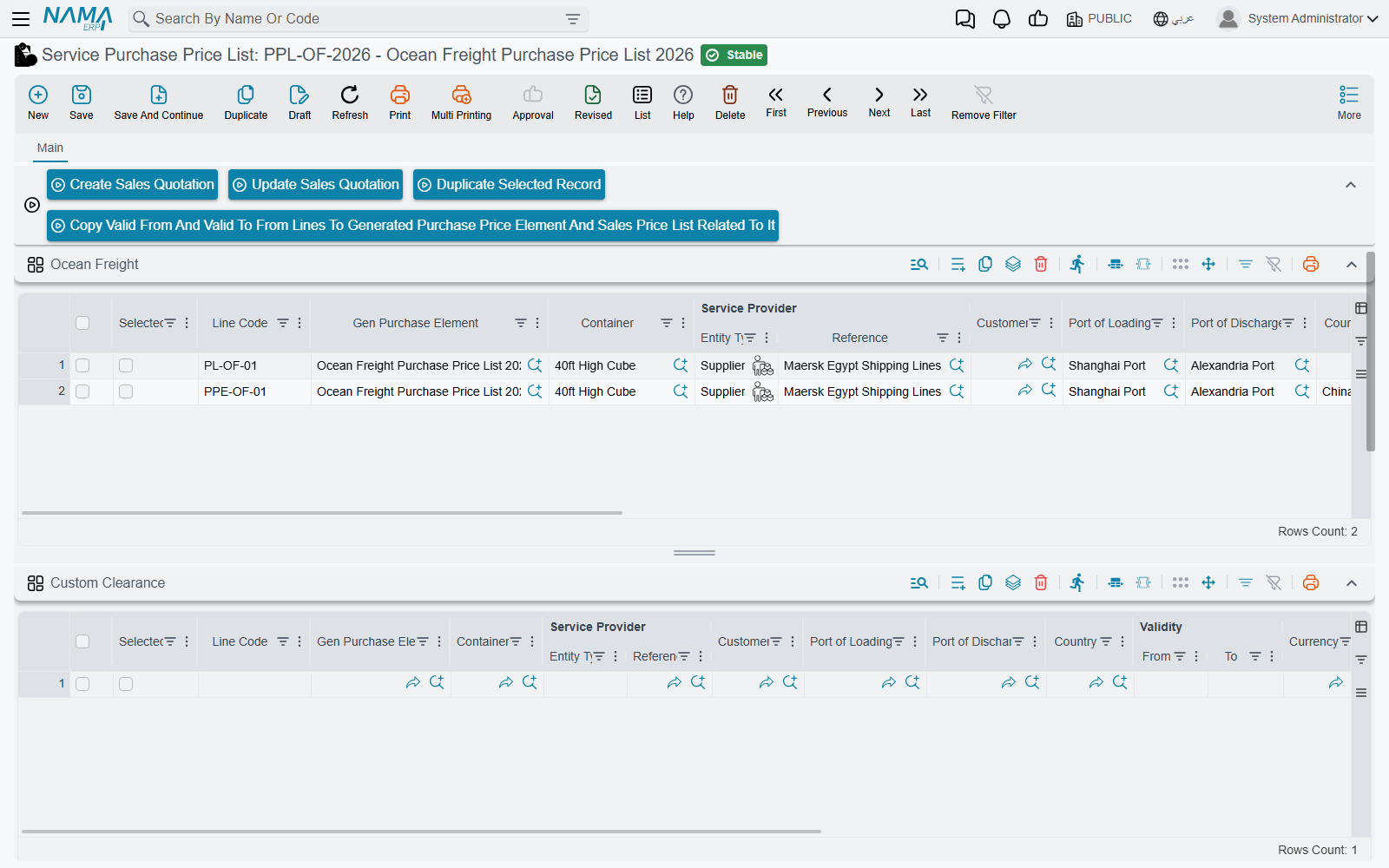
Create the Service Purchase Price List for the supplier — its Price List Type decides which tab you fill — and enter the lines. Three buttons on the main tab help with a long rate sheet:
- Duplicate Selected Record — copies every line whose Selected box is ticked, right below itself, without its line code, attachment or element. Handy when twenty routes differ only by the port of discharge.
- Copy Valid From And Valid To From Lines To Generated Purchase Price Element And Sales Price List Related To It — the list must be saved first. When you extend a rate's validity on the lines, this pushes each line's Validity | From and Validity | To into its purchase element and into every sales element priced from that element — so quotations already given follow the new dates.
- Create Sales Quotation and Update Sales Quotation — described next.
Turning rates into a quotation
Tick Selected on the purchase lines you want to offer, then:
- Create Sales Quotation opens a new Service Sales Price List in a pop-up, carrying the purchase list's currency and validity dates, with the selected lines copied into the tab that matches the purchase list's type.
- Update Sales Quotation asks for an existing sales price list and adds the selected lines to it.
Each copied line keeps its cost, and its selling price is the cost plus the sales list's markup for that tab: the markup's fixed value when one is set, otherwise its percentage. Review the pop-up, choose the customer, and save.
The same two buttons exist on the Purchase Price Lists Element list view, in the More menu, for when you would rather pick rates from across several suppliers: select the element rows, then Create Sales Quotation builds one new sales price list from all of them — each element on the tab of its own type, with its prices as they are — and Update Sales Quotation adds the selected ocean-freight, clearance, trucking and genset elements to an existing list.
Re-pricing a quotation
On the Service Sales Price List, each service tab has an Update Prices button. For every line it goes back to the purchase element — the one the line was priced from, or, for a line typed by hand, the first element matching its currency, validity dates, and the route fields of that tab — and refreshes the line from it: service provider, validity, currency and rate, quantity, the ENS-CDD and ISPS amounts, and the price with the tab's markup.
A line typed by hand needs Validity | From, Validity | To and a currency for the search; if one is missing the button reports which.
Changing rates in bulk: Edit Purchase Price List
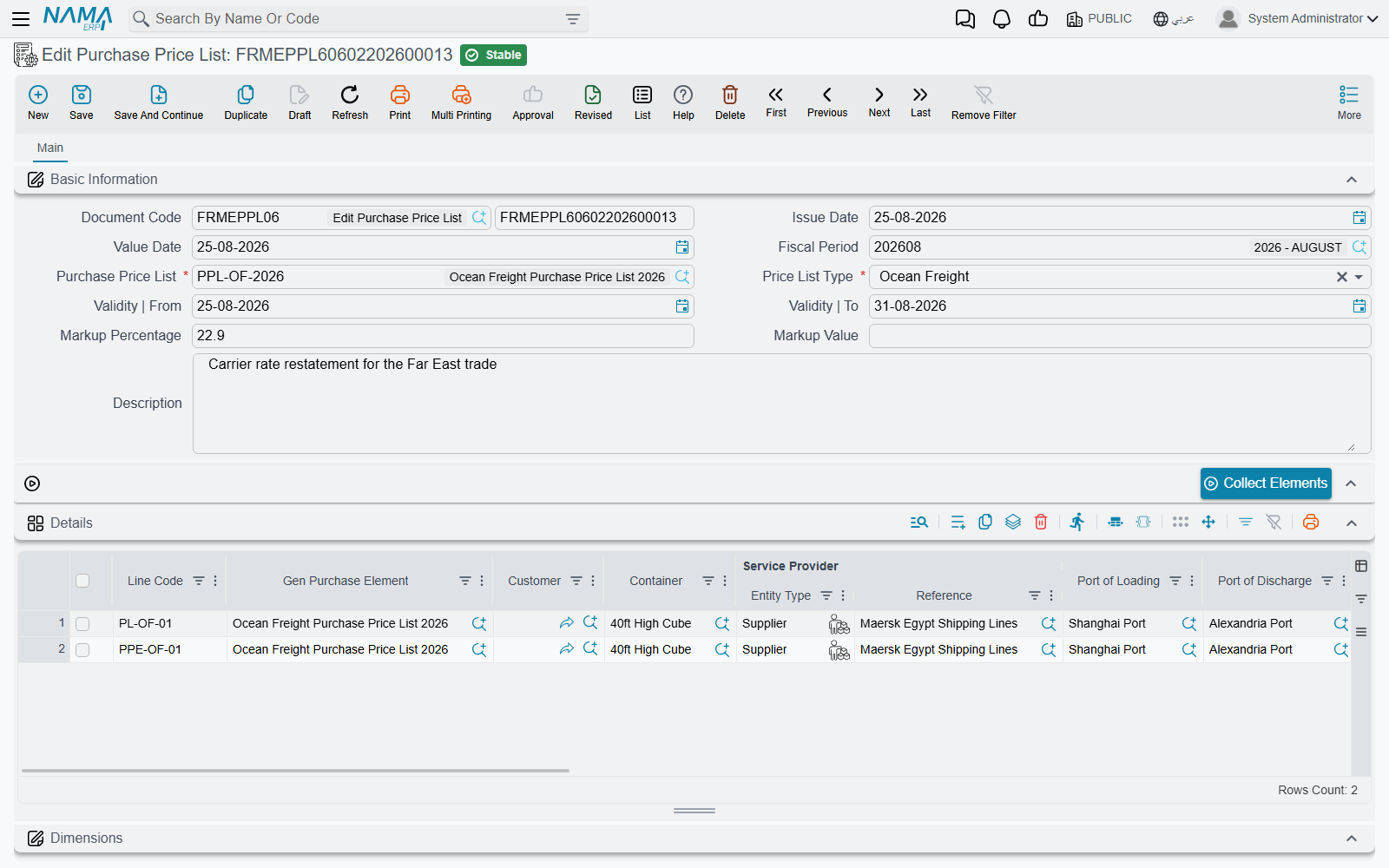
When a supplier revises part of a rate sheet, Freight Management System → Documents → Edit Purchase Price List saves you from opening the list. It needs no document term.
- Pick the Purchase Price List. Its Price List Type is filled in.
- Press Collect Elements. Every element of that list is loaded into the grid with its line code and current terms.
- Change what changed. Add lines for new routes.
- Optionally fill Validity | From and Validity | To in the header — they then replace the validity of every line.
- Save.
On saving, the document writes back into the purchase price list: each line updates the list line that created its element, and each new line becomes a new list line (and so a new element).
Messages you may see
These messages have no Arabic text and show in English on Arabic screens too.
| Message | Why | What to do |
|---|---|---|
No Price List Selected To Update | Update Sales Quotation was confirmed without choosing a sales price list. | Run it again and pick the list. |
ValidFrom is Required, ValidTo is Required, Currency is Required | Update Prices met a hand-typed sales line without the field it needs to find a purchase element. | Fill the line's validity dates and currency. |
| Details must be filled | An Edit Purchase Price List is being saved with an empty grid. | Press Collect Elements or add lines. |
| duplicate Line Code {0} | Two lines of an Edit Purchase Price List carry the same line code. | Remove the duplicate line. |