
Employee Self-Service — Attendance & Leaves
One of the most common uses of the Nama app is as the employee self-service (ESS) gateway: the employee clocks in and out, tracks their leave balance, and submits requests (vacation, permission, mission, loan…) without going through the HR department. These screens are usually gathered under the Payroll group in the menu.
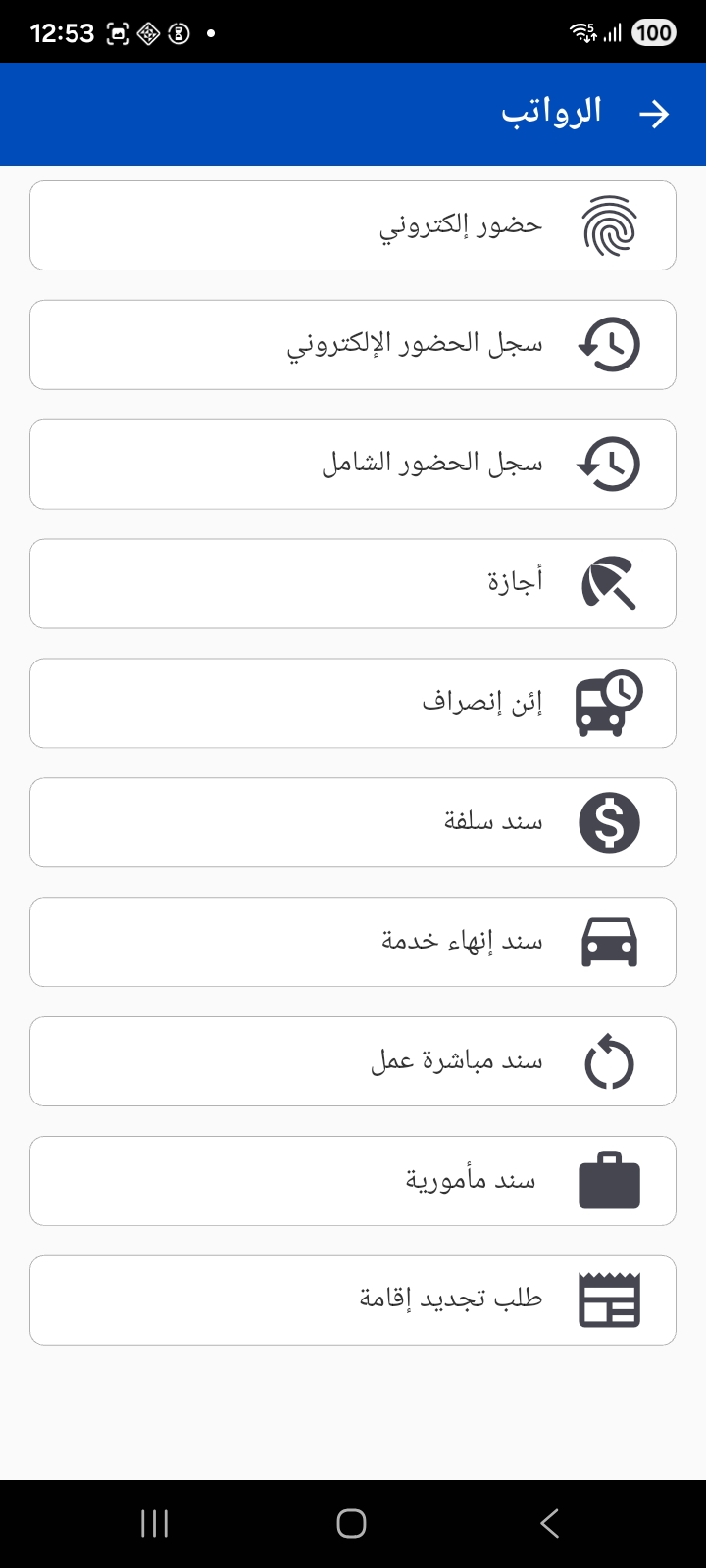
Clocking in and out
The simplest way to clock in is the "Check In" button on the home screen; when leaving, the same button becomes "Check Out". The app captures the check-in and check-out times, and can capture the GPS location and its accuracy, plus device data to prevent tampering.
Advanced attendance features
Depending on the organization's settings you can enable:
- Attendance zones: preventing a check-in being saved if the employee is outside the allowed zone, and requiring the check-out to be from the same zone as the check-in.
- Biometric verification before saving the attendance.
- Linking attendance to a customer, lead or project (useful for visiting reps).
- A time limit on the number of hours allowed before check-out is blocked.
The attendance log
There are two logs for reviewing attendance:
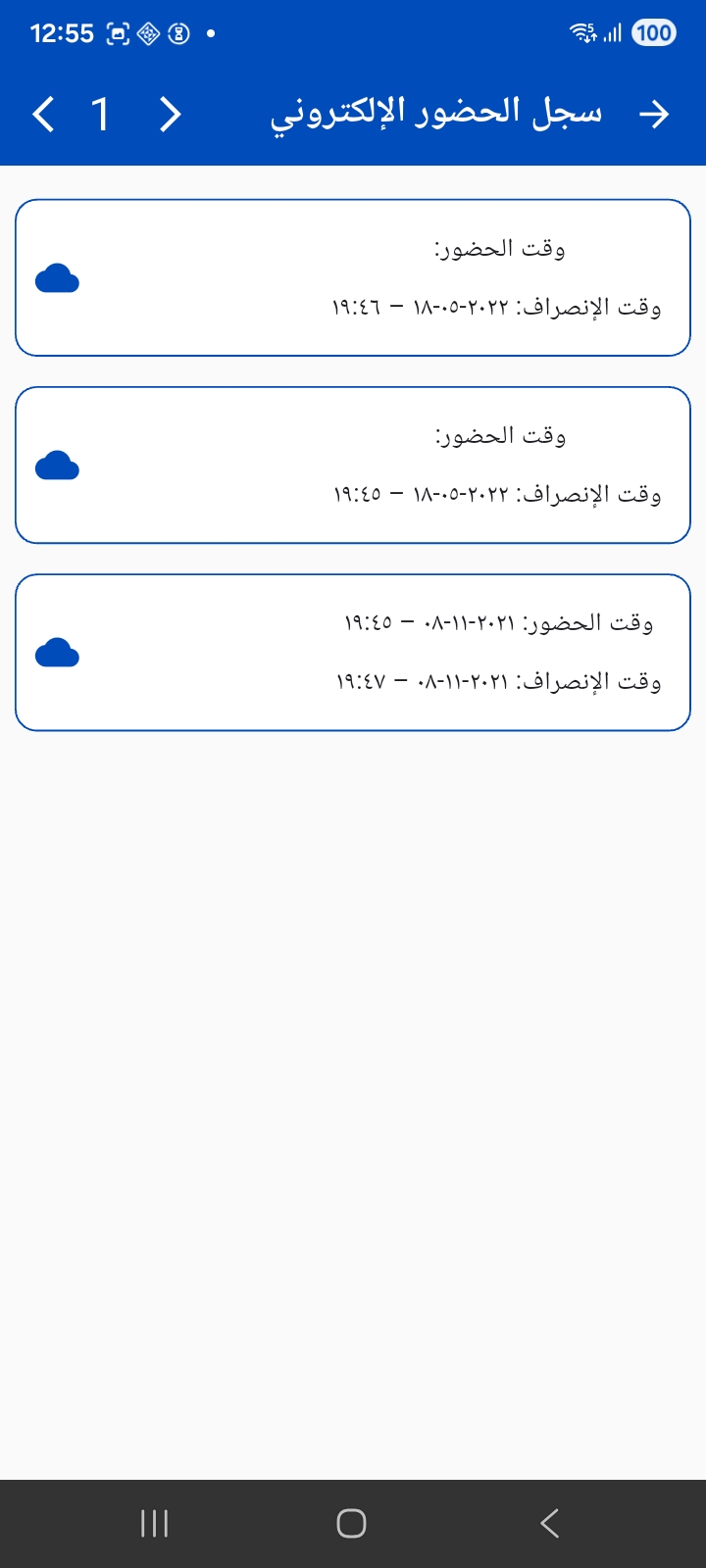
- Electronic attendance log — a list of the check-in/check-out documents the employee recorded through the app, with pagination. The cloud icon indicates the document has synced to the server.
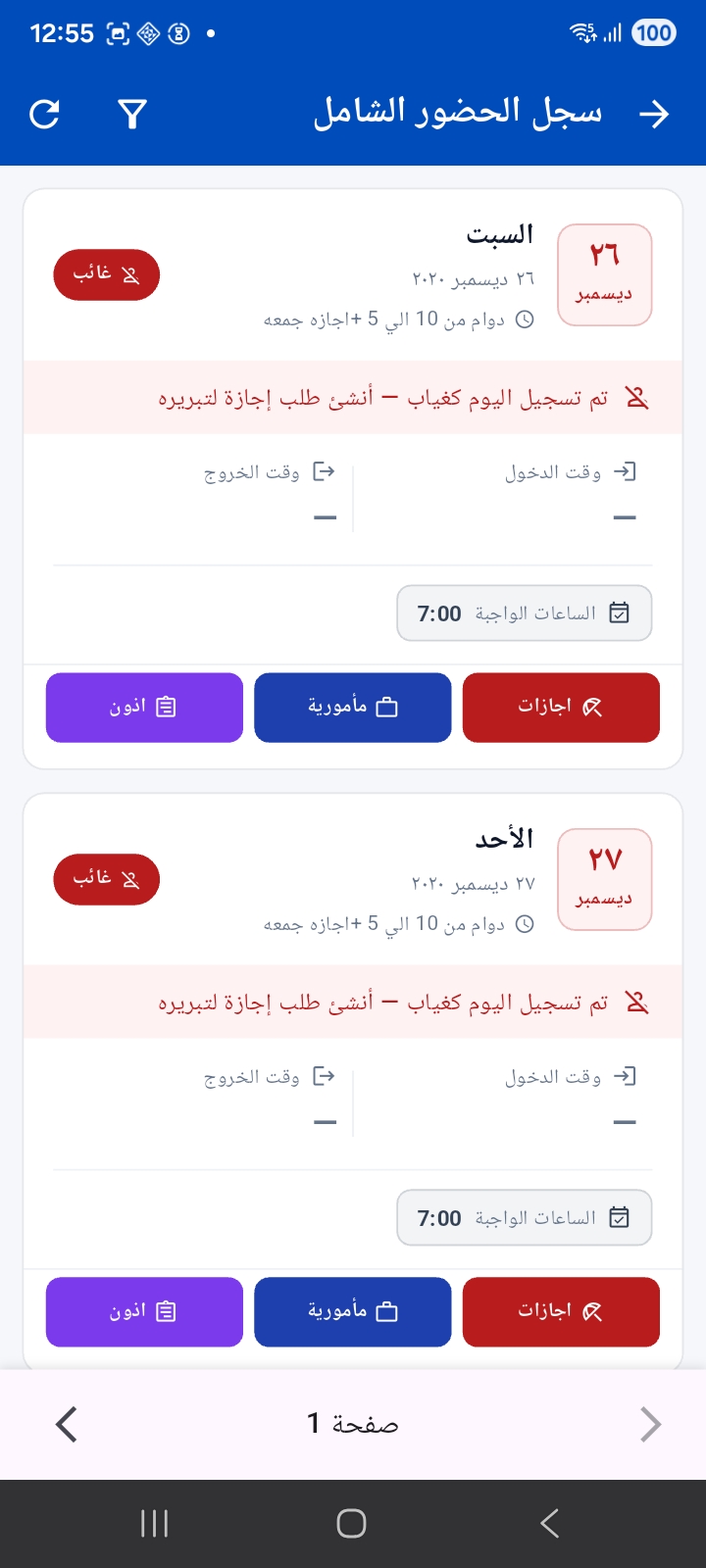
- Comprehensive attendance log — a complete daily view that puts each day in a card showing its status (Present, Absent, Weekly holiday), the entry and exit times, and the required, actual, overtime and lateness hours. From the card itself the employee can start a vacation, mission or permission request to justify a particular day.
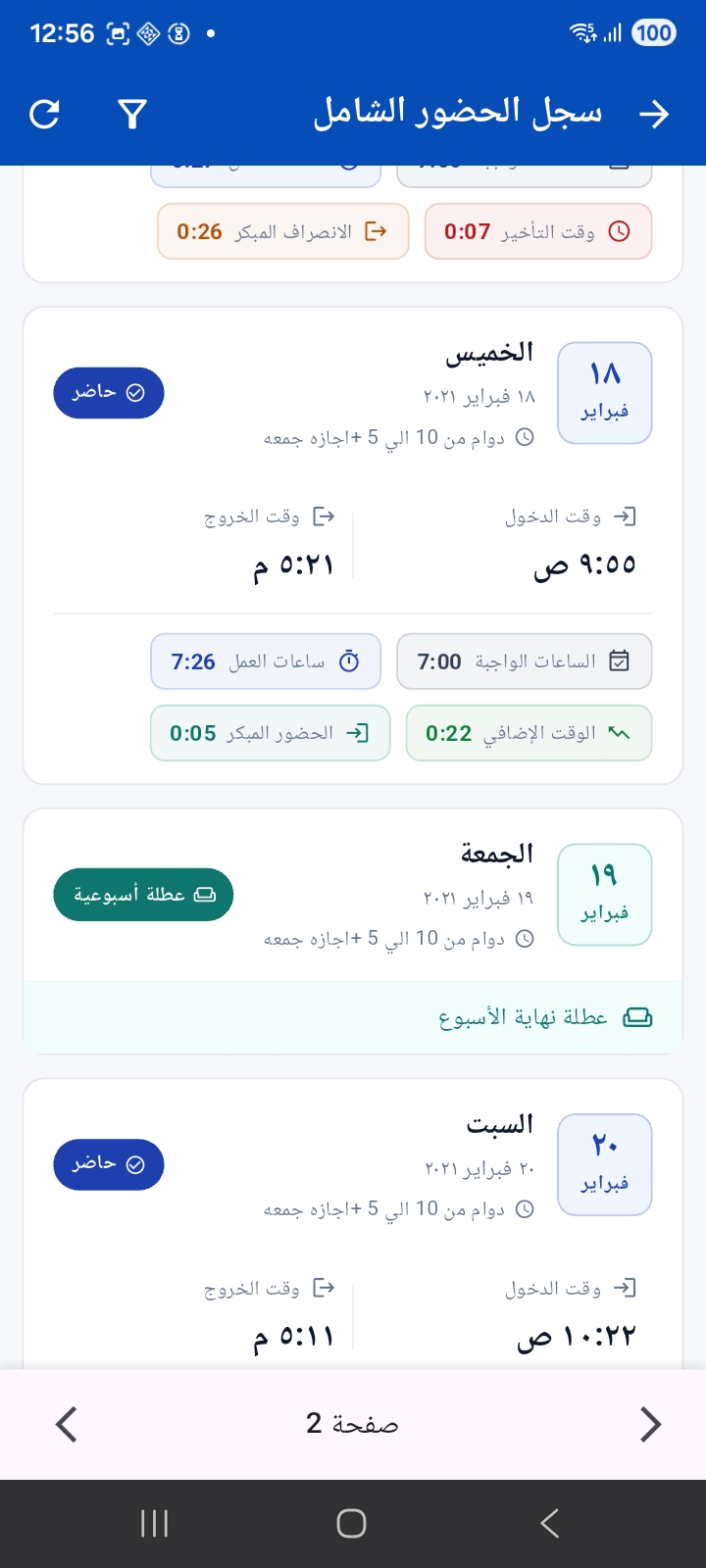
When browsing the days the employee was present, the card shows precise details of working hours, early arrival and early departure:
Vacation request
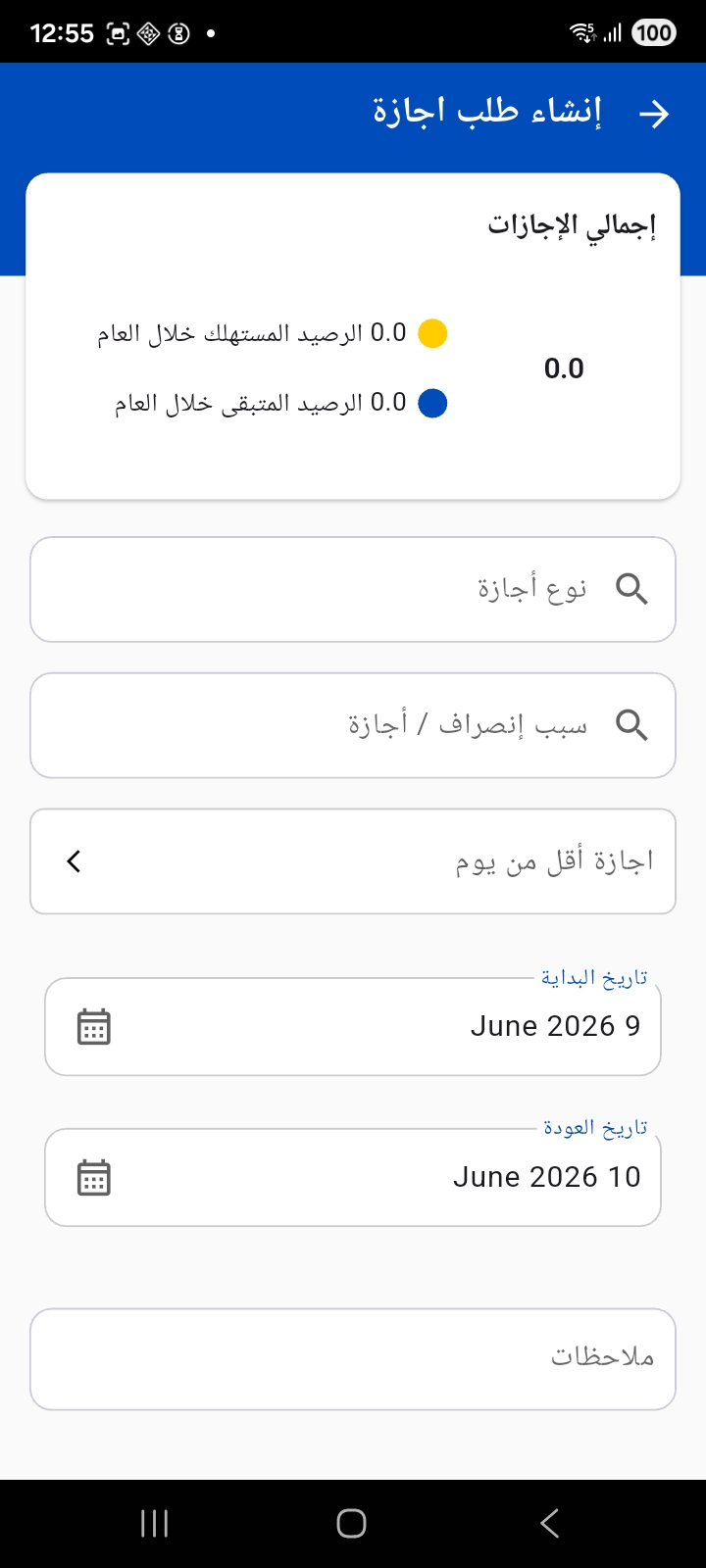
The Create vacation request screen shows the leave balance at the top as a pie chart (consumed during the year and remaining), then the employee chooses:
- Vacation type and leave/departure reason.
- A vacation less than a day option when needed.
- Start date and return date, with a notes field.
Permission request
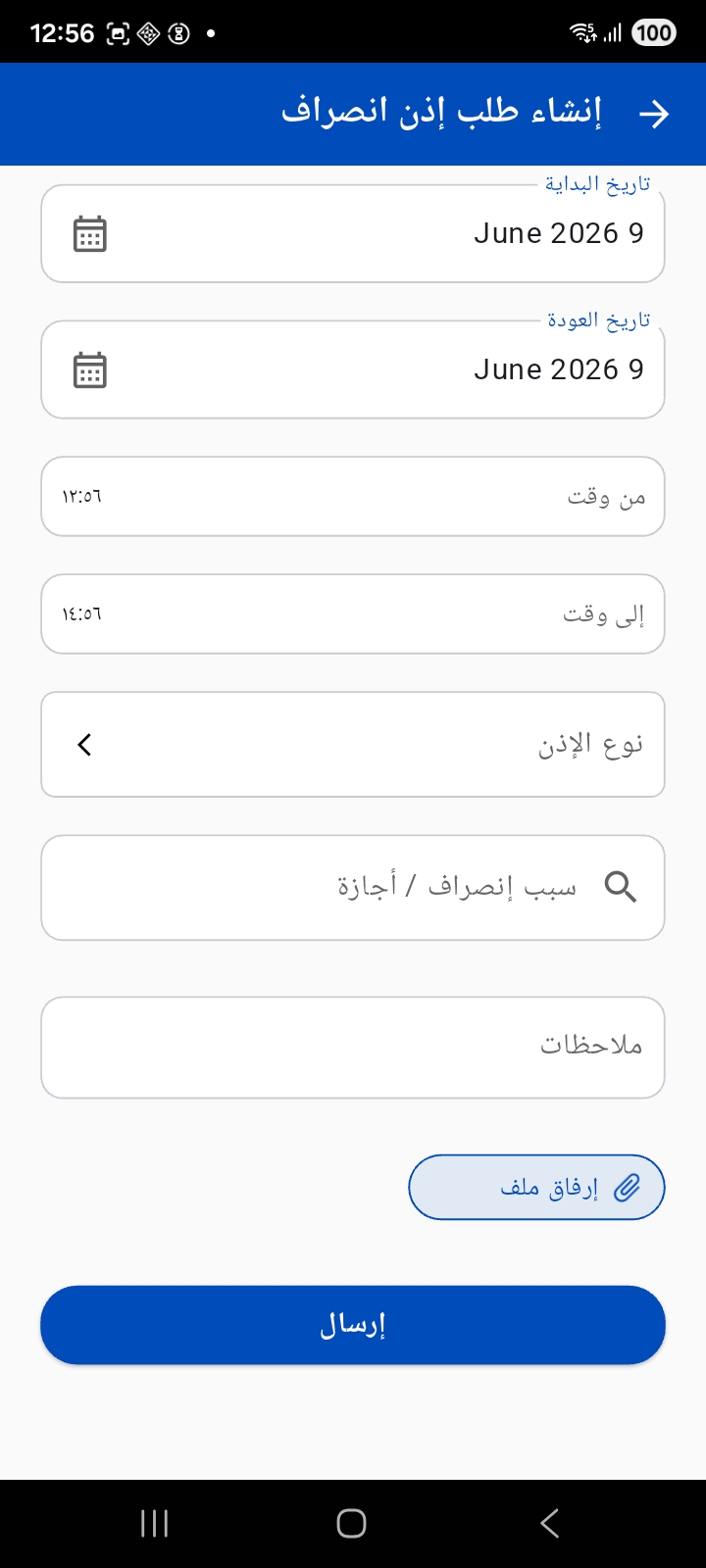
The permission request is used for intra-day permissions (early leave, lateness, leaving during work hours…). The employee specifies the date, the time range (from / to), the permission type and the reason, and can attach a file before submitting.
Mission voucher
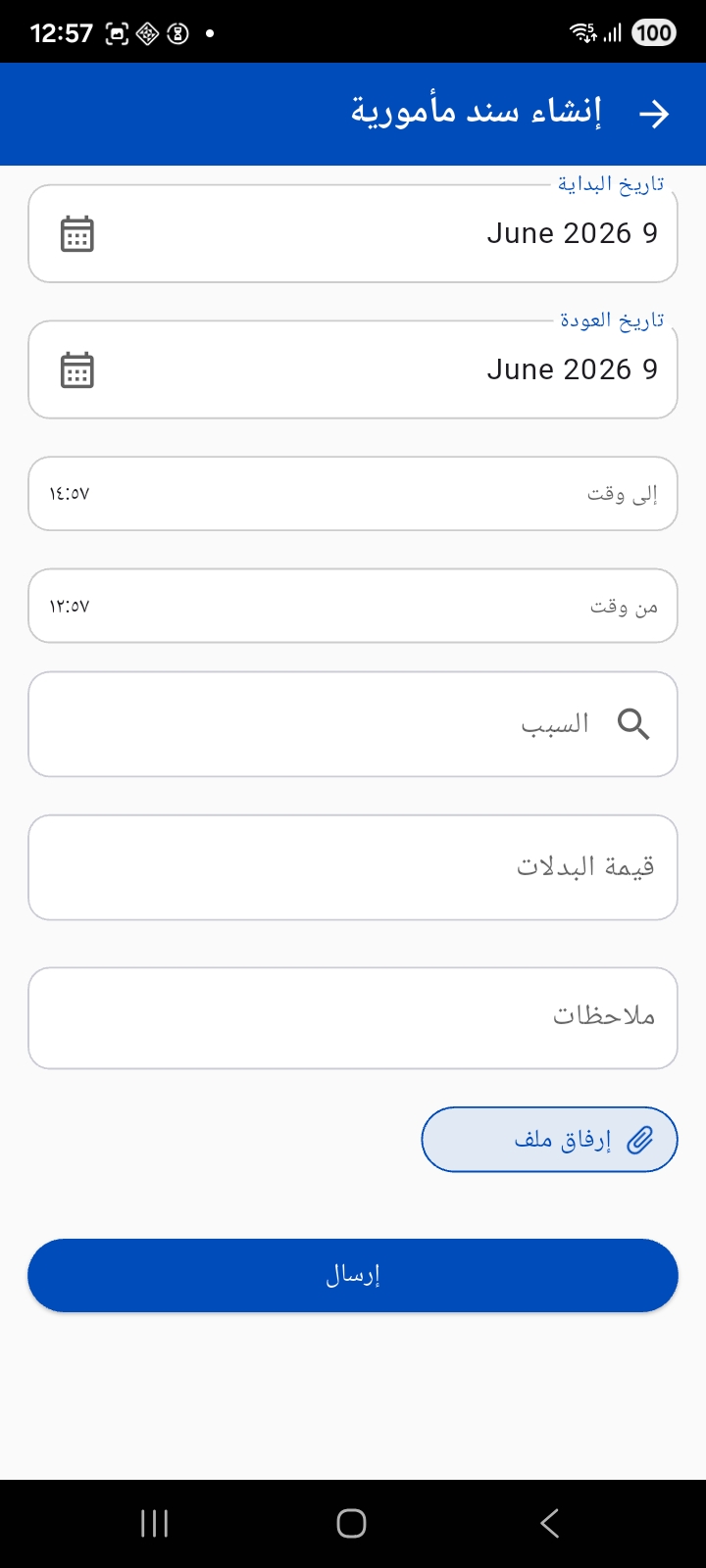
When traveling on an external work assignment the employee creates a mission voucher specifying the start and return dates, the time range, the reason, and the allowance value due, with the ability to attach a file.
Loan voucher
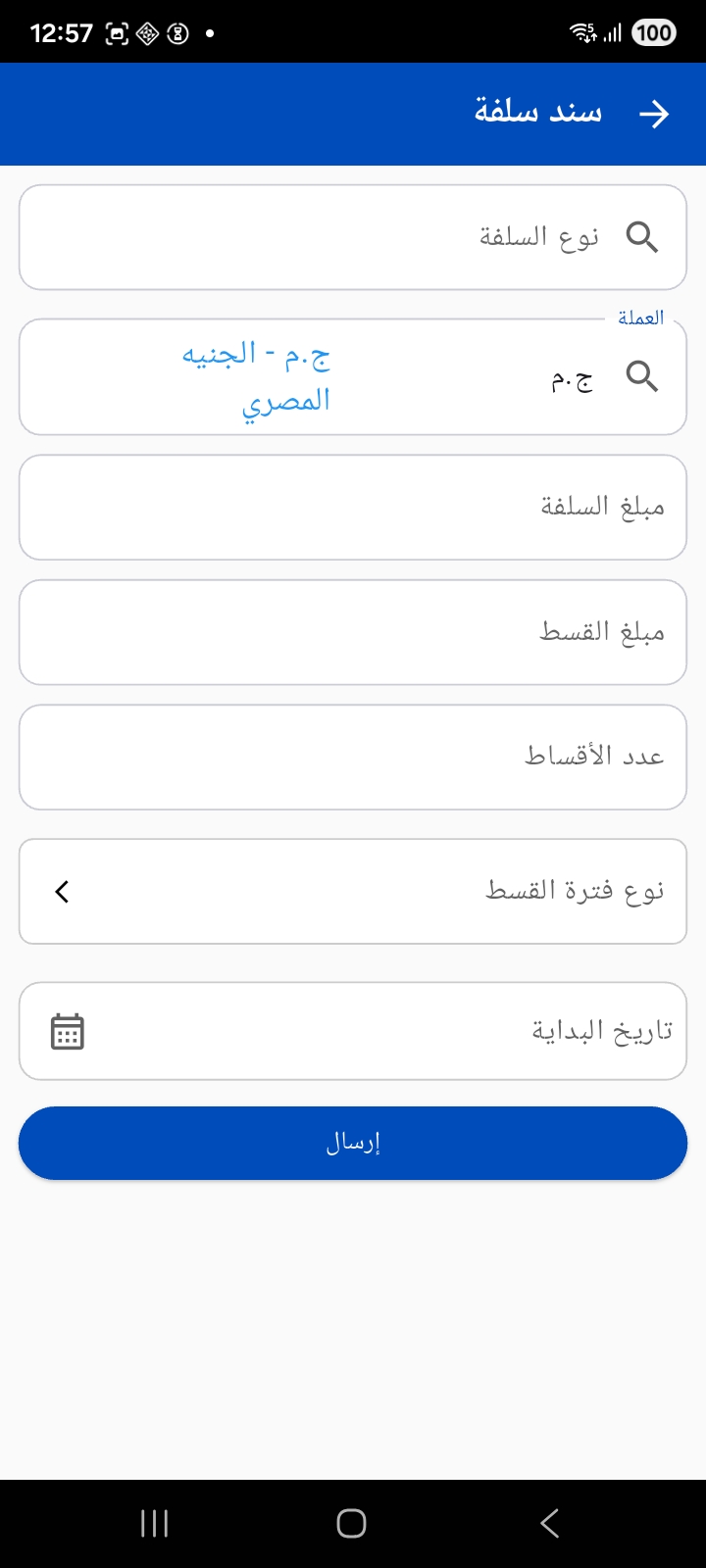
The employee submits a loan request specifying the loan type, currency, loan amount, installment amount, number of installments, installment period type and start date.
Other HR documents
The app provides a set of HR documents that follow the same simple pattern (a few fields then a Send button):
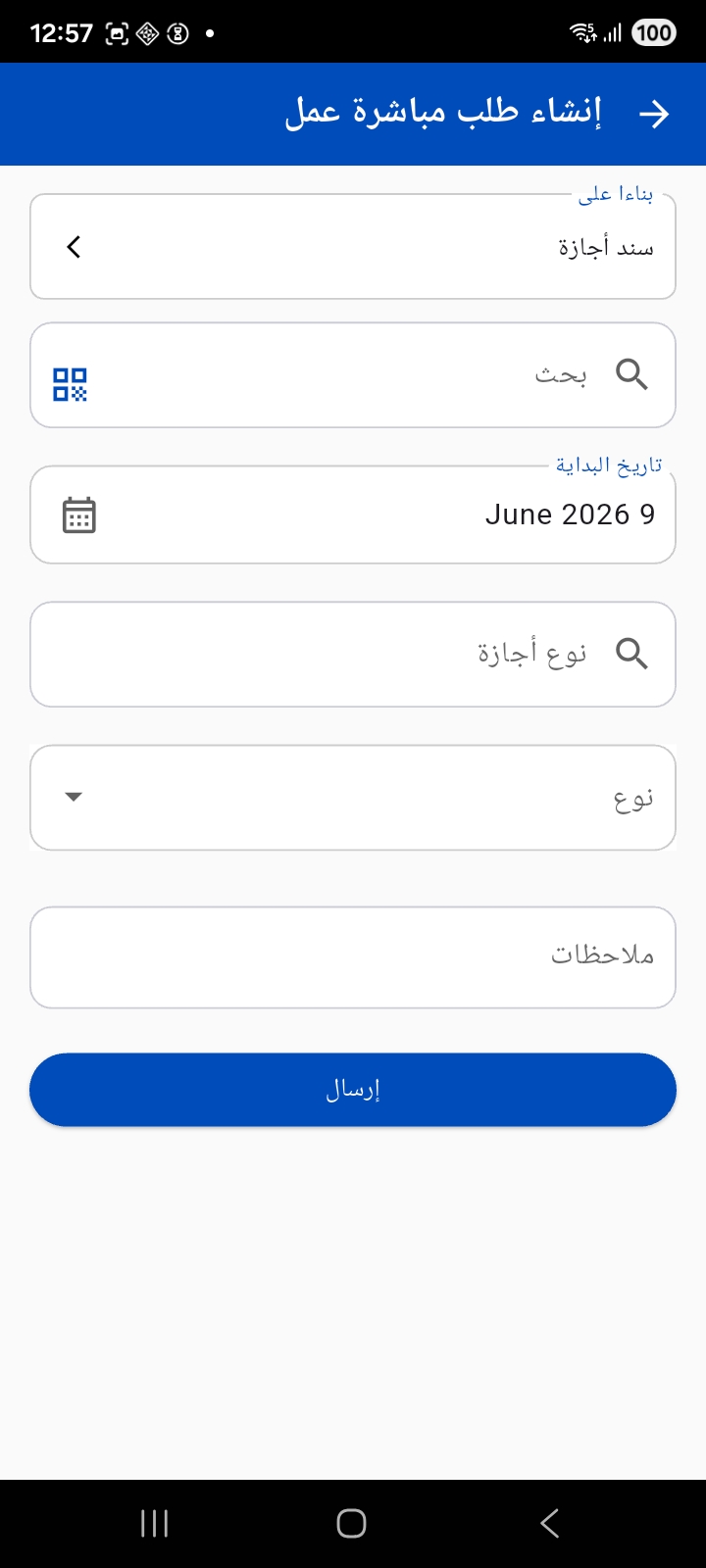
Work-starting voucher — to document the start of work, and it can be created based on a prior vacation voucher.
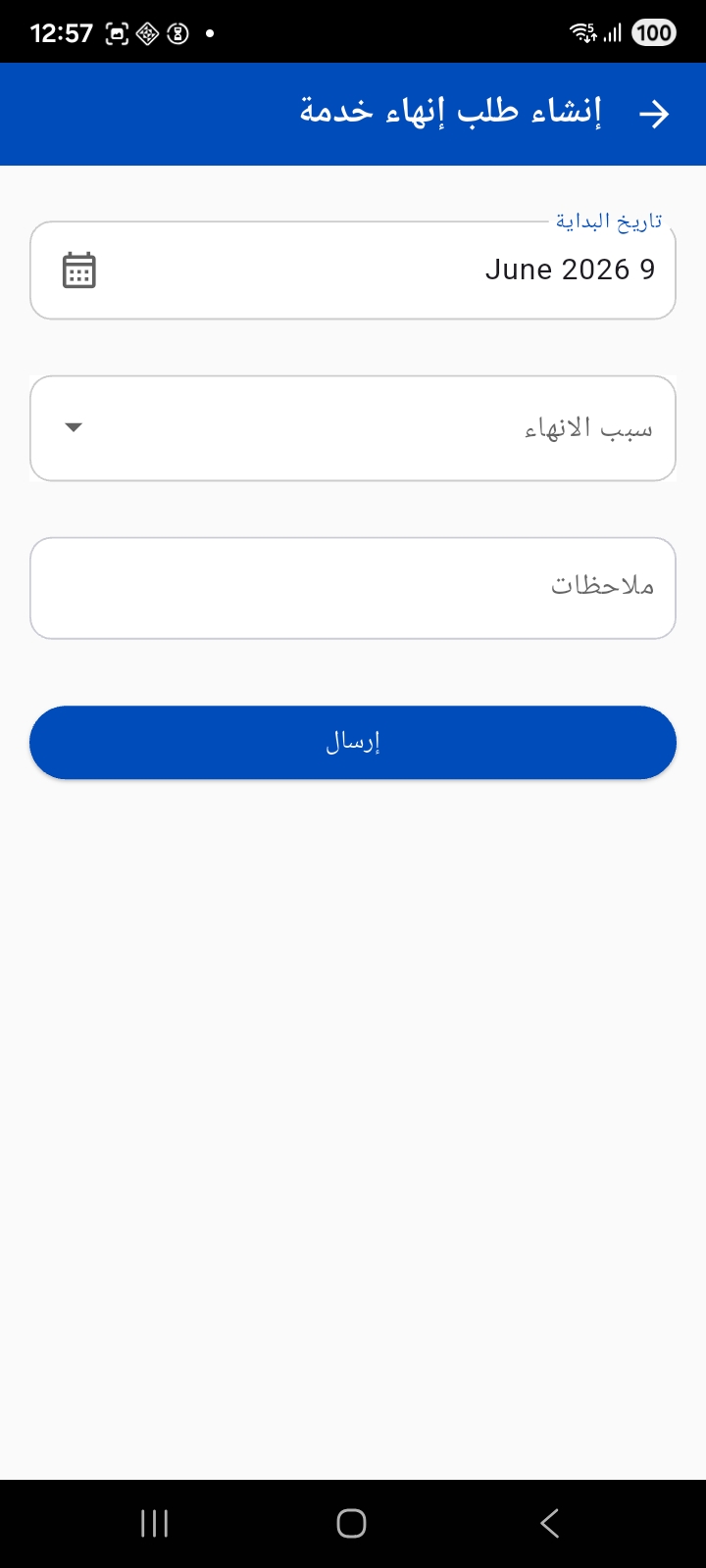
Termination voucher — the termination date, the termination reason and notes.
Gulf documents (residence and visas)
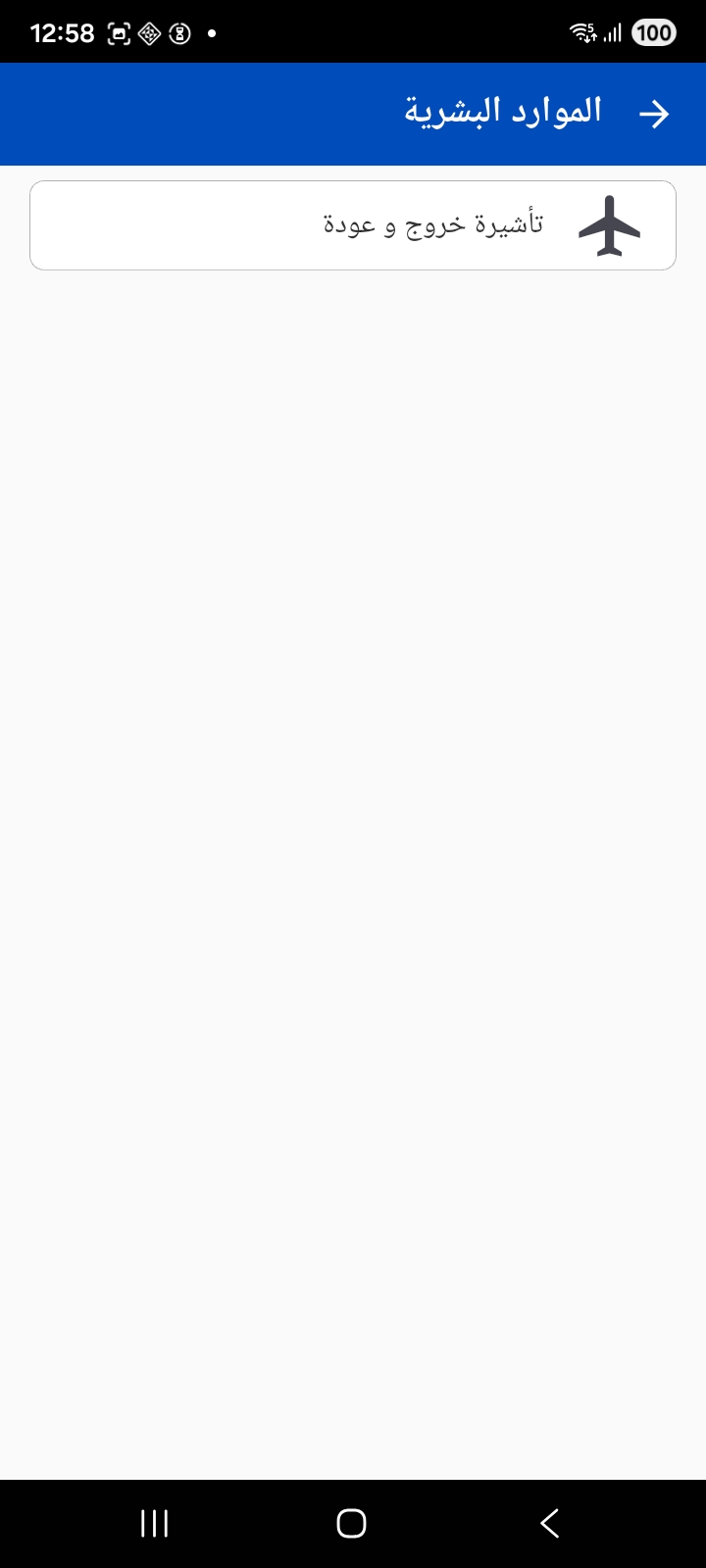
For organizations in the Gulf there are additional documents usually gathered under Human Resources:
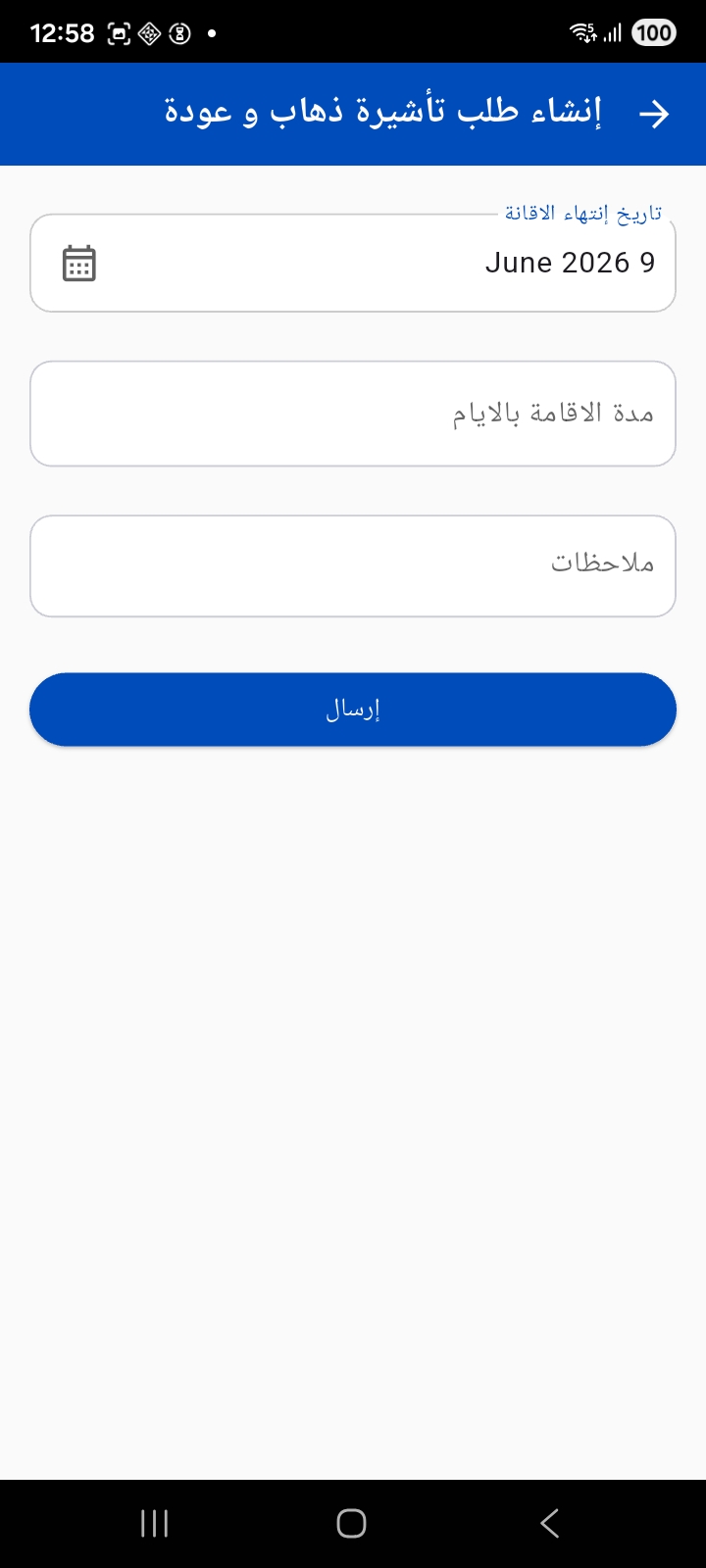
Exit/return visa request — the residence expiry date, the residence period in days, and notes.
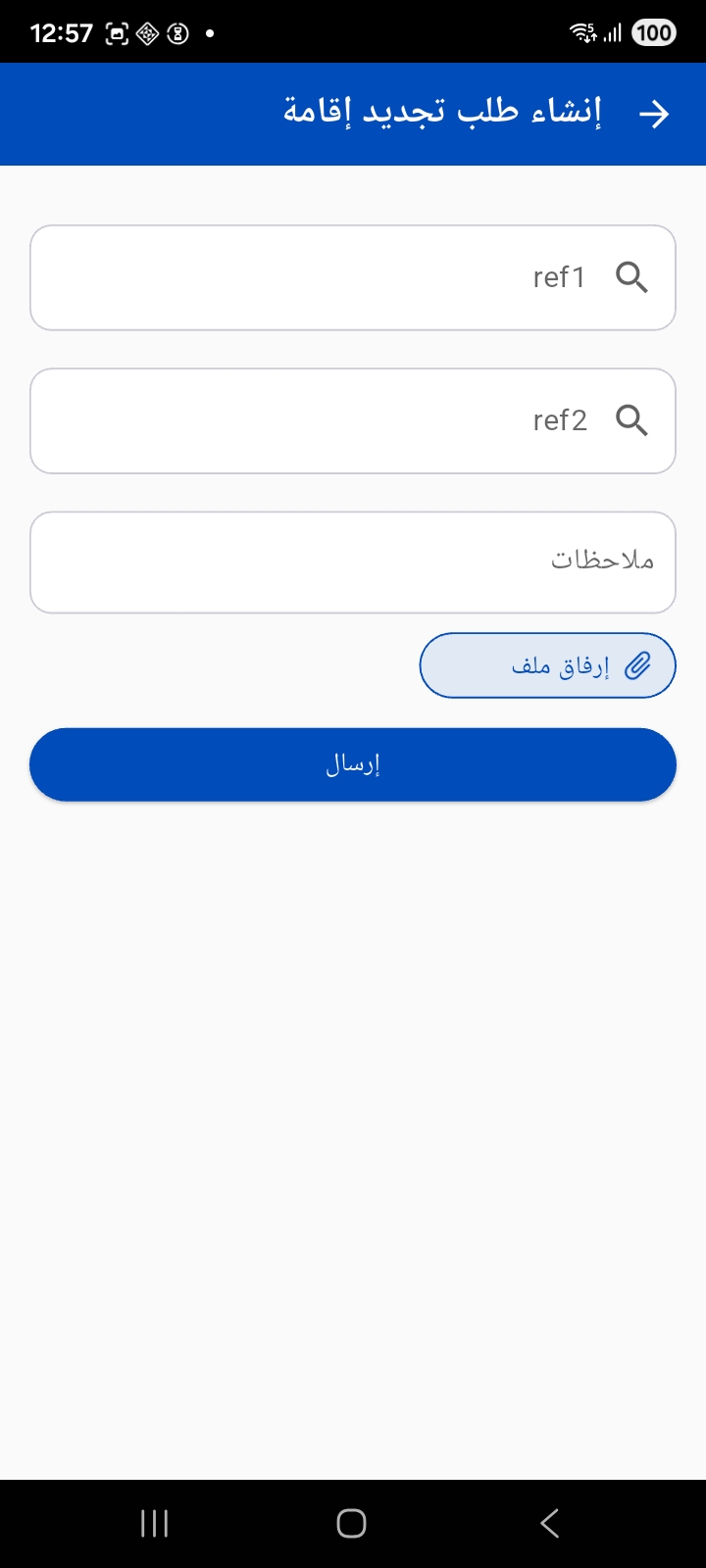
Residence renewal request — reference fields and notes with the ability to attach a file.
Notes for the administrator
The books used for each type (attendance, vacations, permissions…) and their working criteria are configured from the Mobile App configuration screen. You can also restrict the creation of attendance, vacation and permission documents to the app only, or allow editing for authorized users only, and customize the attendance summary cards shown on the home screen. These screens appear in the menu only if the employee self-service module is licensed for your organization.