
Calls
Required licence
crm. The Call screen lives at Customer Relationship Management > Support > CRM Call (خدمة العملاء > الدعم > اتصال).
Most of the CRM module records things. The Call screen is one of only two screens in the whole module that change something: when a Call is committed against a lead or a potential, it reaches into that lead and rewrites its status, its classification, its next activity and its rejection reason. The other screen that does this is the Visit. Everything else in the Activities folder is a log.
That makes the Call worth reading about properly. Hala (EMP-1042) does not move LD-00417 — Marina Plaza Hotels — from Initial to Contacted to Qualified by editing the lead. She moves it by logging the calls she made, and the lead follows along behind her.
A Call needs no document term — a book and a code are all it asks for. It has no accounting effect, no inventory effect, and it never sends anything: no e-mail, no SMS, no reminder.
What a Call can be logged against
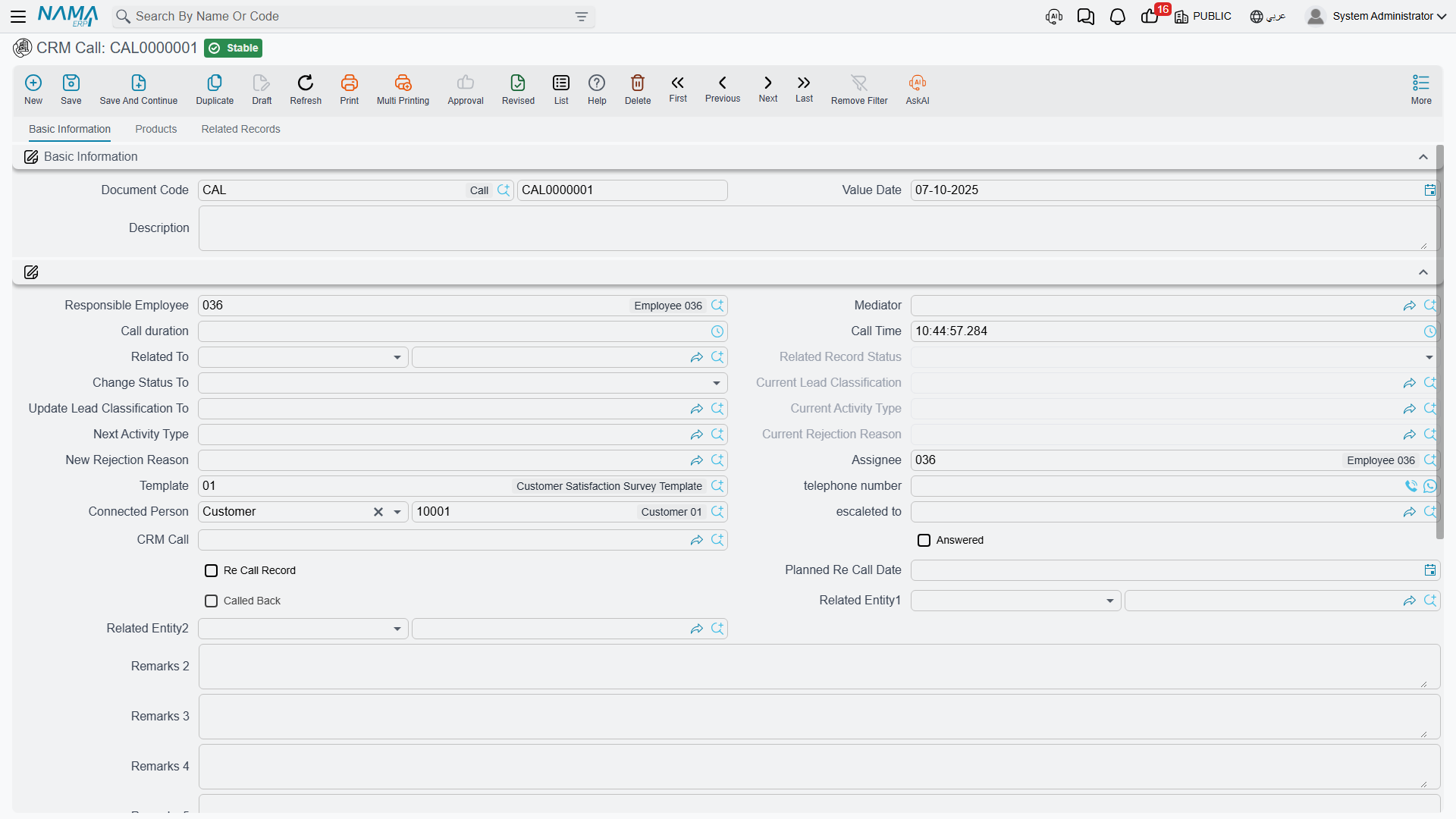
There is a single Related To (يرتبط بـ) field, and exactly one subject goes in it. It accepts a Lead, a Potential, a CRM Project, a Campaign, a Trouble Ticket, a Complaint, a Customer, a CRM Task or a Development Request.
Only the first two — Lead and Potential — trigger the write-back described below. A call logged against a trouble ticket or a customer is a plain record of a conversation.
Beside it sits Connected Person (المتصل به), which is the person you actually spoke to: a contact, a customer, or the lead itself. On CALL-0342 the subject is the lead LD-00417 and the connected person is CNT-0905, Ms. Mona Shaaban in purchasing. Two more boxes, Related Record 1 and Related Record 2, accept a reference to anything at all; nothing in the product reads them, so treat them as free storage and narrow them with a generic reference overrider if your site uses them.
Responsible Employee and Assignee are stamped with the logged-in user's employee on every new Call, always. The CRM setting Fill Responsible Employee With Current Employee does not switch this off — it is honoured by the Lead screen only. See CRM Settings.
The state machine
Pick a Lead or a Potential in Related To and four read-only boxes fill themselves in from that record: Related Record Status, Current Lead Classification, Current Activity Type and Current Rejection Reason. They are a snapshot of where the lead stood when the call started, and they are filled only while they are still empty — so they keep showing the "before" picture even after the call has changed it.
Underneath each snapshot sits its lever — a box you type into, which is written back onto the lead when the Call is committed:
| Lever on the Call | What it overwrites on the lead or potential |
|---|---|
| Change Status To (تغيير الحالة إلي) | Status |
| Update Lead Classification To (تحديث تصنيف العميل المرتقب إلي) | Lead Classification |
| Next Activity Type (نوع النشاط التالي) | Activity Type |
| New Rejection Reason (سبب الرفض الجديد) | Rejection Reason |
| Planned Re Call Date (التاريخ المخطط لمعاودة الإتصال) | Planned Re-Call Date — Calls only |
Each one is applied only if you filled it in and only if the value is actually different from what the lead already holds. Leave a lever empty and that part of the lead is untouched. Re-committing an edited Call applies the levers again.
This is why a well-run pipeline in NaMa is driven from the activity screens rather than from the lead itself. The lead's status is not something a salesperson maintains by hand; it is the residue of the last call or visit that touched it.
Cancelling a Call does not undo what it did
The write-back is one-way. If a Call is committed with Change Status To = Cold and then cancelled because it was logged against the wrong lead, the lead stays Cold. Nothing remembers what the status was before, and nothing puts it back. Open the lead and correct it by hand.
The worked example
CALL-0342 — 14 January 2026, 09:00, twenty minutes, Hala (EMP-1042), connected person CNT-0905:
| Field on the Call | Value | Result on LD-00417 |
|---|---|---|
| Change Status To | Contacted (تم الأتصال) | Status becomes Contacted |
| Update Lead Classification To | LC-B Mid-Market | Classification becomes Mid-Market |
| Next Activity Type | AT-02 Site Visit | Activity Type becomes Site Visit |
| Planned Re Call Date | 22 January 2026 | Planned Re-Call Date is set |
| Re Call Record | ticked | (see the next section) |
Nothing else changed. The Sales Stage stayed at Qualification and the Probability stayed at 40 — those two are metadata that no button and no calculation ever touches; they are moved by hand on the lead when the salesperson judges it is time.
Calling back
Ticking Re Call Record (سجل معاودة الاتصال) and setting a Planned Re Call Date puts the call into a waiting list. On a later Call, the field CRM Call, labelled بناءا على اتصال (المعاود الإتصال به), offers exactly the calls that are waiting: those ticked as a re-call record and not yet called back, optionally narrowed to the same subject.
Pick one and two things happen. The earlier call is stamped Called Back and drops out of the waiting list, and the new Call copies the earlier call's duration, time, telephone number, subject, mediator, assignee and connected person so you are not re-typing them.
That is CALL-0357 on 22 January: it points at CALL-0342, which is now marked Called Back, and it carries the lead the rest of the way — Change Status To = Qualified, Update Lead Classification To = LC-A Key Account.
The waiting list waits for you
Nothing in the module reminds anybody that a call-back is due. There is no scheduler, no alarm, no notification and no inbox anywhere in CRM. The Planned Re-Call Date is copied onto the lead and stored, and that is all; the only thing that surfaces an overdue call-back is somebody opening the pick-list or filtering the Calls list view. Treat the re-call chain as a pull mechanism and give someone the daily job of pulling it.
Cancelling the follow-up call releases the earlier one back into the waiting list, and re-pointing the field at a different call clears the previous target — so the chain stays honest even when it is edited.
The Products tab
The Products tab records what was discussed: Product, a Selected Product tick, a machine, a Competitor Company and a Competitor Company Item, plus a description per row.
Two helpers make it quicker. Picking a machine fills the row's product from that machine's item. And picking a competitor item narrows the Product search list to the items your site has mapped to that competitor's product — so if the customer says "we are also looking at the Ufuq Chiller 300 TR" (CITM-011), the search shows only the chillers you would pitch against it.
No stock moves and no price is calculated. These lines are a record of the conversation, and the tick box Selected Product matters in exactly one place — the real-estate shortcut described below.
The Responses grid
The grid at the bottom of the first tab holds question-and-answer rows: a question, a text answer, a numeric answer, a date answer and a description.
Type the questions in yourself
There is a Template (القالب) field on the Call that offers questionnaire templates. Choosing one does nothing: no question rows appear and nothing is copied. The Responses grid is a manual grid, row by row. If you need a real questionnaire with a template behind it, use the Questionnaire screens instead.
The English column heading also reads Criteria where it means question — the Arabic label (السؤال) is the correct one. Do not go hunting for a criteria feature; there is none.
The buttons
| Button | What it does |
|---|---|
| escaleted to (تصعيد الي) | Asks for an employee, writes it into the Escalated To box, then saves and commits the Call and refreshes the screen. Nobody is notified — the escalation is a field, not a message. |
| create CRM Task (إنشاء مهمة خدمة العملاء) | Opens a new CRM Task in a pop-up with this Call as its subject. The task is not saved for you. |
| Instant Temporary Reservation (حجز مؤقت مباشر) | A shortcut into the Real Estate module. It needs a Lead or Potential in Related To and one Products line ticked as Selected Product. If the lead has already been converted to a customer it reuses that customer; otherwise it creates and commits a real-estate owner from the lead's data, then opens a new reservation document with buyer, mediator, sold estate and salesman filled. This is the only place in the Activities folder that creates a record in another module, and it needs the Real Estate module to be licensed. |
The usual platform actions — export, audit trail, remarks, approvals, favourites, Add To Agenda — are on this screen as on any document. Add To Agenda is the closest thing to a calendar anywhere in CRM, it is generic to the whole ERP, and the user has to press it.
What is not on the Call screen
Two absences surprise people, so it is worth naming them:
- There is no incoming/outgoing indicator. The underlying data has a call-direction concept and it is fully translated, but it is not placed on the screen, so there is no supported way to record whether a call was inbound or outbound. Use the Description if you need to note it.
- There is no From Document box. When a Call is produced by a Work Plan the link is recorded, but only the plan side of it is visible: the plan's line shows its Generated Document, while the Call gives no on-screen hint of where it came from. The Visit screen, confusingly, does show it.
What the system will not stop you doing
Nothing. There is no business validation in this area at all. The only required fields on a Call are the book, the code and your dimensions; a Call with no subject, no telephone number and no employee commits cleanly. Sites that need a rule here — a mandatory subject, a mandatory outcome — add it with an entity flow or an approval definition.
Reporting: none. This module ships no system reports, and this screen has no print form. To review calling activity, use the Calls list view with its filters and Excel export, or build a BI dashboard over it.