
Tasks and Follow-Ups
Required licence
crm. The CRM Task lives at Customer Relationship Management > Support > CRM Task (خدمة العملاء > الدعم > مهمة خدمة عملاء). The Follow Up Document lives at Customer Relationship Management > Questionairs > Follow Up Document (خدمة العملاء > استبيانات > سند متابعة) — yes, in the questionnaires group, not with the other support documents.
Two small screens share this page because they have the same shape: both are places to write something down, and neither one makes anything else happen. The CRM Task is a genuinely useful to-do card with a time sheet on it. The Follow Up Document is a bare log — an honest description of it is short, and this page gives it plainly rather than dressing it up.
The CRM Task
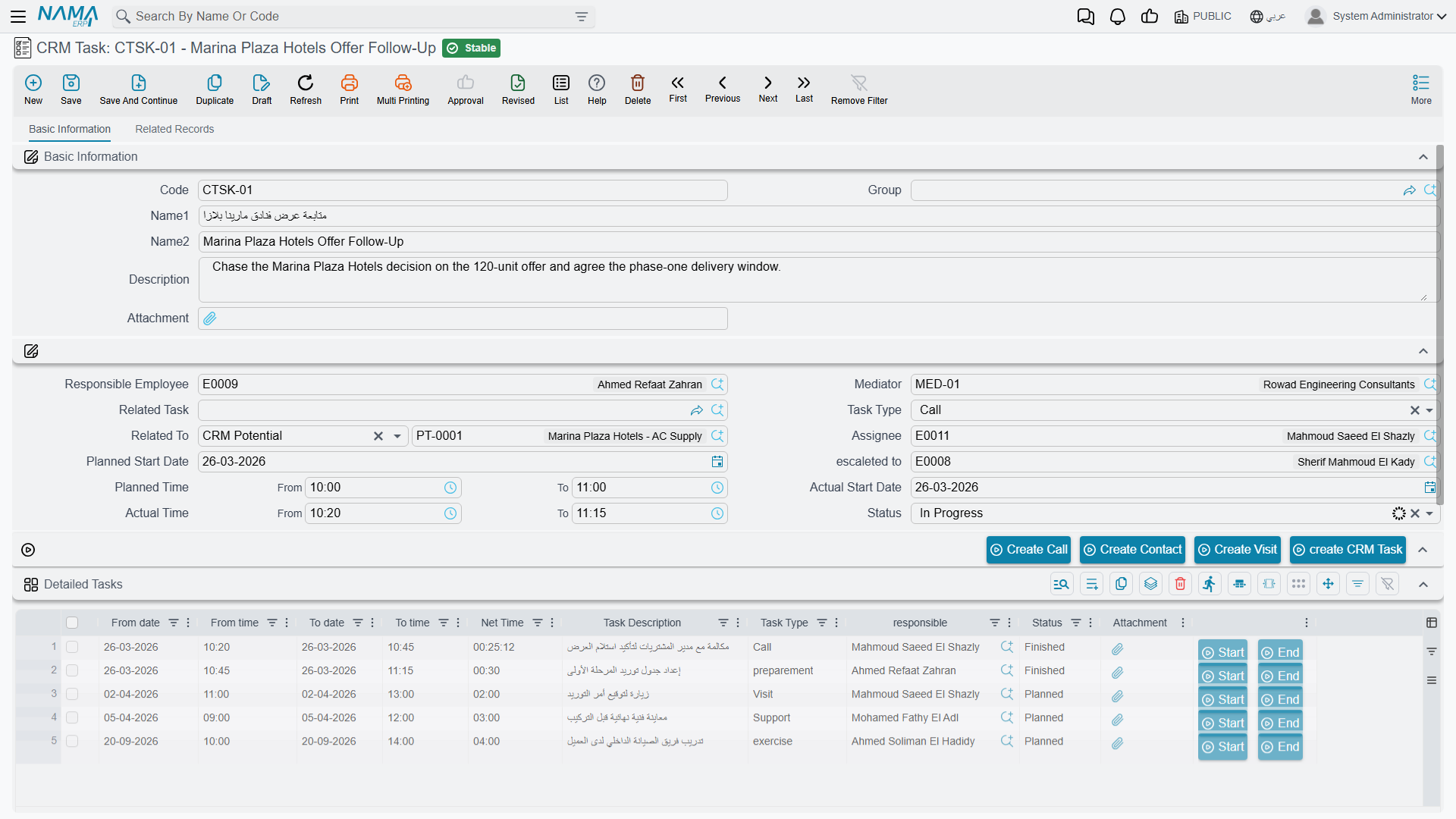
A CRM Task is a master file, not a document. That has practical consequences worth stating once: there is no book, no document term, no value date, no document number and no document approval cycle. It has a code, an Arabic name, an English name and a group, like any other master file, and it is saved rather than committed.
What it holds
The first block is the master-file identity: Code, Group, the Arabic name, the English name, a Description and an attachment.
Then the working block:
| Field | Notes |
|---|---|
| Responsible Employee, Assignee, Mediator, escaleted to | Responsible Employee and Assignee are stamped with the logged-in user's employee on every new task, always |
| Related To (يرتبط بـ) | The subject: a Lead, Potential, Project, Campaign, Trouble Ticket, Complaint, Customer, Development Request, another CRM Task, or a Visit |
| Related Task | Point at a parent task and its task information, subject and assignee are copied down |
| Task Type | Visit, Call, Support, training or preparation — a label only |
| Planned Start Date, Planned Time (from/to) | What you intend |
| Actual Start Date, Actual Time (from/to) | What happened — typed by hand, see the warning below |
| Status | Planned, In Progress or Finished — a label only |
Below that is a full contact block, Task Information (موقع المهمة): address with map location, phones, mobile, fax, e-mail and website. It is there for tasks that are about going somewhere or calling someone who is not already a contact record.
The Related Records tab lists the contacts, tasks, calls and visits that point back at this task.
The time sheet
The Detailed Tasks (مهام تفصيلية) grid is the part people actually use: one row per stretch of work, with a from date and time, a to date and time, a calculated Net Time, a description, a task type, who did it, a status and an attachment. Each row carries Start and End buttons that stamp the current moment into the from and to columns.
TSK-0219 in the worked example is Prepare the technical proposal, assigned to Hala (EMP-1042), related to the lead LD-00417, planned 20 to 26 January 2026:
| From | To | Net time |
|---|---|---|
| 2026-01-20 09:00 | 2026-01-20 12:00 | 3:00 |
| 2026-01-21 10:00 | 2026-01-21 13:30 | 3:30 |
| 2026-01-23 09:30 | 2026-01-23 11:00 | 1:30 |
| Total | 8:00 |
The time sheet does not roll up, and the status does not advance
The header's Actual Start Date and Actual Time are not derived from the grid. Fill in every row of the time sheet and the header stays exactly as you typed it — or empty. In the same way, setting every row to Finished leaves the task's own Status wherever the user last put it; nothing advances it.
If your site reports on task effort, read the grid rows, not the header.
The Net Time figure has the same small quirk as the work plan's: the value shown while you type is computed in the browser and the value stored on save is computed on the server, and the two use slightly different rules. Same-day rows agree to within seconds; a row that crosses midnight looks wrong until you save it and then corrects itself.
The buttons
Create Call, Create Visit, Create Contact and create CRM Task each open the respective new record in a pop-up with this task as its subject. Nothing is saved for you — you review the pop-up and save it yourself.
escaleted to (تصعيد الي) asks for an employee, writes it into the Escalated To box, saves and commits the record and refreshes the screen. Nobody is notified. Escalation here means a field now holds a name.
A small quirk when a task is created from another screen
When a task is opened from a lead, a potential or another task with a Create Task button, the escaleted to box in the pop-up arrives either blank or holding something that is not an employee at all. Clear it and pick the employee you meant.
What a CRM Task is not
No scheduler, no reminder, no notification
A CRM Task has no relationship whatsoever to the platform's task schedule, its notification engine or any approval inbox. Nothing watches the Planned Start Date. Nothing changes the status when a date passes. Nothing e-mails the assignee when a task is created or when it becomes overdue.
This is true of the whole CRM module, not just this screen — there is no scheduler anywhere in it. Everything that looks scheduled happens because somebody pressed a button.
The only calendar-adjacent feature available is the generic Add To Agenda action, which is a platform feature on every document and which the user has to press themselves.
Tasks are counted, in one place: Target Plans count calls, visits, leads and tasks per employee per month when somebody asks them to. That is a different document, on demand, and it counts against the task's Assignee.
The Follow Up Document
The Follow Up Document is a single-block screen: a document code, a value date, a description, and then Follow Up Date, Follow Up Time, Related Record, Follow Up Type, Status and Sub Status. The Related Record accepts a Lead or a Potential — nothing else.
- Follow Up Type offers SMS, Call, Meeting, Email and WhatsApp.
- Status offers Start Action, Ongoing and Interested.
- Sub Status offers Follow, No Answer, Expected Visit, Hold, Negotiation, Cancel and Not Reached.
Like the Visit, this screen shows its Description box twice; both are the same field.
Nothing in the system reads any of this
The Follow Up Document is inert, and it is important not to plan around it:
- Choosing a Follow Up Type sends nothing. Picking SMS, Email or WhatsApp does not send an SMS, an e-mail or a message. The field is a label describing something the user did outside the system.
- Status and Sub Status drive nothing. Setting a follow-up to Ongoing / Expected Visit changes no other record. In particular the lead or potential in Related Record is not touched — no status, no classification, no activity type. Only Calls and Visits do that.
- It does not chain. A follow-up cannot point at the previous follow-up, so there is no sequence and no "next contact due" anywhere.
- Nothing creates one and nothing consumes one. No screen lists follow-ups except the Follow Up Document's own list view.
Document it to your users for what it is: a manual log of a contact attempt. If you need a follow-up process that actually moves the pipeline, log a Call or a Visit instead — those change the lead.
The Trouble Ticket's "Create CRM Follow Up" button opens a different screen
On the Trouble Ticket there is a button labelled عمل متابعة / Create CRM Follow Up. It does not create a Follow Up Document. It opens a Ticket Follow-Up — a different screen, with different fields, belonging to the support side of the module.
The Follow Up Document described here is reachable from its menu item and nowhere else.
Reporting: none. This module ships no system reports, and neither of these two screens has a print form. Use the list views, Excel export or BI.