
Project Invoice
Required licence
ecpa — one code for the whole module. There are no sub-licences.
A Project Invoice is the bill a firm sends a client for work already done. It looks nothing like a goods invoice: there are no items and no quantities. Each line is one project — or one task, or one milestone — with a money amount against it.
That single amount is the whole subject of this page. Most of the time nobody types it: you press one of the collect buttons and Nama sweeps up the approved hours and the billable expenses that have not been billed yet, prices them, groups them the way you asked, and drops the result into the grid. Understanding which button reads which data, and how it turns that data into money, is the difference between an invoice that is right and an invoice that is quietly wrong.
You will find it under Project Management → Invoice → Project Invoice (ادارة المشاريع ← الفاتورة ← فاتورة المشروع).
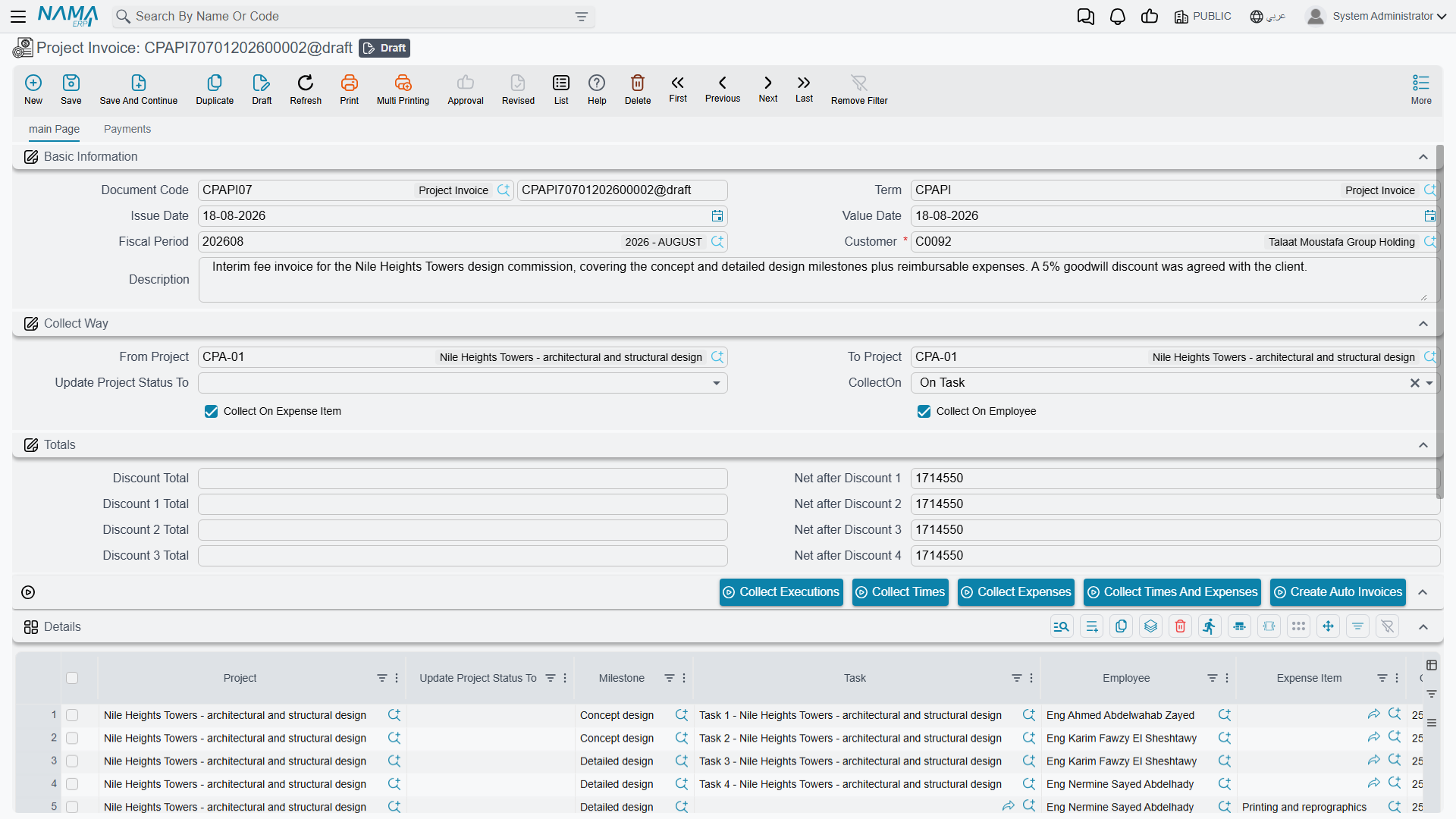
Two columns of money, and only one of them is billed
Every invoice line carries two amounts, and the distinction runs through everything below:
- Calculated Value (القيمة المحسوبة) — what the system worked out. It is read-only on the grid; you cannot type into it. Every save recomputes it from the invoice's Executions grid, so it carries a figure on invoices built by Collect Executions and reads zero on invoices that have no executions behind them. Read it as information beside the billed amount, never as the bill.
- Actual Value (القيمة الفعلية) — what is actually billed. Every total on the document, every tax, every discount and every accounting entry is built from this number, and the invoice will not commit while any line has it at zero.
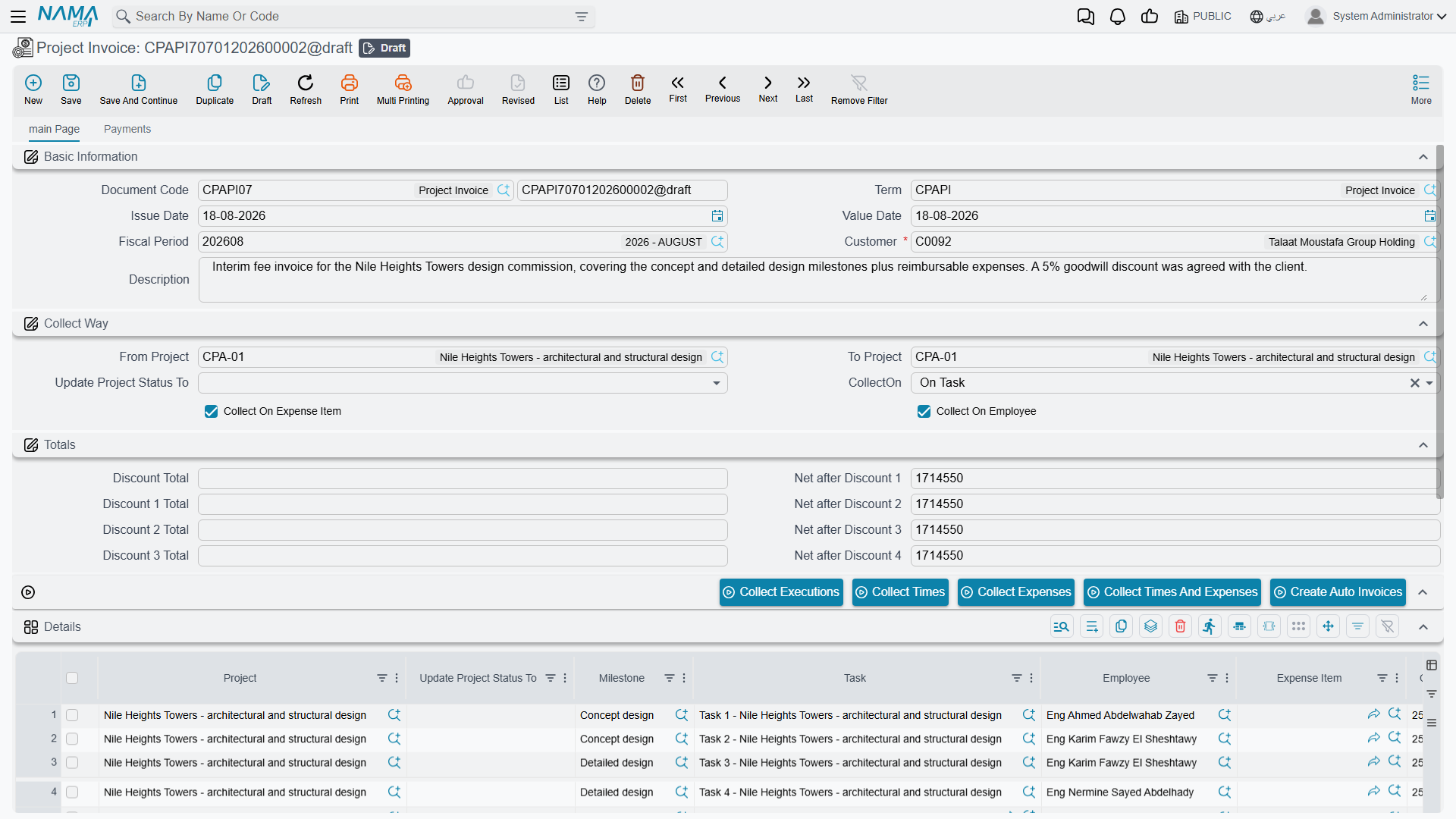
How an amount gets onto a line
There are five ways an Actual Value can come into existence, plus one that creates whole invoices rather than lines. The right way to read this section is as a choice: how did you fill this invoice? — because that decides what the amount means and where it came from.
| How you filled it | Where the money comes from | Fills Actual Value? |
|---|---|---|
| Typed it yourself | you | yes |
| Collect Times | approved timesheet hours × the employee's rate on the task × Normal Time Rate | yes |
| Collect Expenses | the value on billable project expense request lines | yes |
| Collect Times And Expenses | both of the above in one sweep | yes |
| Collect Executions | the cost of the individual timesheet lines | no — it proposes, you price |
| Create Auto Invoices | the periodic-billing amount held on the project | yes, on new documents |
There is deliberately no percentage-of-completion route and no milestone-value route. A milestone on an invoice line is a label and a grouping key; its own value is never read. Nor does the quotation's payment schedule feed anything here — if you bill by instalment, you type the instalment amount.
Typing the amount yourself
Always available, and the default for anything the collect buttons cannot know about. Add a row, pick a Project (the picker offers the header customer's projects that are not finished), optionally narrow it with a Milestone, a Task, an Employee or an Expense Item, and type the Actual Value. Nothing on the document prevents this, and nothing cross-checks it.
Setting up a collection run
The four collect buttons all read the same group of header fields, called Collect Way. Fill them in before you press anything:
| Field | What it does |
|---|---|
| Customer | required — the sweep only ever looks at this customer's work |
| From Project / To Project | a range of project codes, not line values. Everything the sweep finds must fall inside it. At least one of the two must be filled |
| CollectOn | how collected rows are bundled into invoice lines: On Project (the default), On Task, or On Milestone |
| Collect On Expense Item | additionally split the bundles by expense item |
| Collect On Employee | additionally split the bundles by employee |
If the Customer, the CollectOn, or both project fields are empty, the button stops and tells you which one is missing. And on commit, if either project in the range belongs to a different customer than the header, the document refuses with a message naming the project.
Collect Times
Sweeps approved timesheet lines — the lines of committed Time Sheet Approval documents — that have not already been taken by an invoice and whose project code falls in the range.
It prices them like this:
line value = the employee's hourly rate on that task's executors grid
           × the approved hours
           × Normal Time Rate (from the module settings)
Two consequences you will meet in practice. If the employee is not on the task's executors grid, there is no rate to find and the line values at zero. And if Normal Time Rate is left empty on the settings screen, every collected time line also comes out at zero — by far the most common reason an invoice collects rows but shows no money.
Collect Expenses
Sweeps project expense request lines that have not already been taken by an invoice, whose project code is in the range, and that come from a committed (non-draft) request. The amount is the value typed on the expense request line — nothing re-prices it.
Internal expenses are never collected. A request line with Internal Account ticked is a cost the firm carries; only external lines are billable. That single tick is the whole billing decision for expenses, and it is explained in full on Project Expenses.
Collect Times And Expenses
Both sweeps in one pass, into one set of lines. This is the button most firms actually use, because approved labour and recharged expenses normally go on the same bill.
How collected rows become invoice lines
Whichever of the three you press, the rows found are bundled and each bundle becomes one invoice line, with Actual Value set to the bundle's total:
- with CollectOn = On Project, one line per project — the task and milestone columns are left empty because they no longer describe the whole line;
- with On Task, one line per task;
- with On Milestone, one line per milestone — task and project are cleared, since a milestone bundle is not about a single task;
- tick Collect On Expense Item and each bundle is split again per expense item; leave it unticked and the expense item column is cleared;
- tick Collect On Employee and each bundle is split again per employee.
Each line remembers exactly which source rows it swallowed. That memory is what stops the same work being billed twice, and it is also what the term's expense-recharge option reads at commit time.
Line currency and rate come from the line's project — from the currency on the project's accounts bag — and amounts are rounded to two decimal places. The header Total Value then sums the lines' Actual Values.
Collect Executions
A different route, and a different level of detail. Instead of approved, aggregated hours it reads individual timesheet lines that have never been billed, and it values them at the line's own Total Cost — the payroll-derived cost of that hour, not a selling rate.
It asks you for a date window, and takes the document's fiscal period as the window whenever the document has one. Every matching timesheet line is copied into the Executions grid at the bottom of the screen — which timesheet, which employee, which task, the hours and the cost of the hour — as a read-only audit trail of what was picked up.
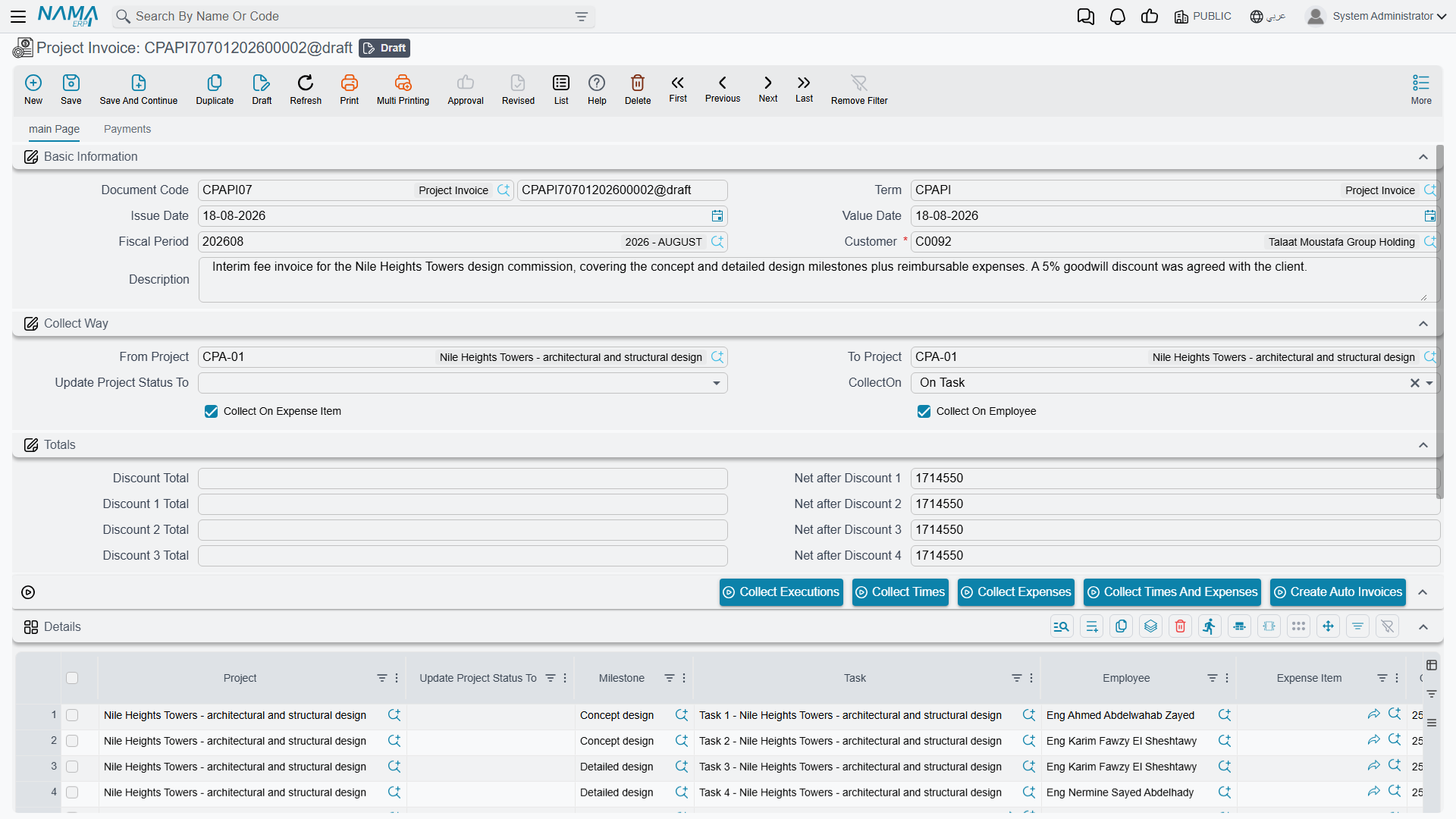
It then creates one invoice line per project and puts the summed cost of that project's executions into Calculated Value — and leaves Actual Value empty. That is intentional: the button proposes what the work cost, and you decide what to charge for it. Because a line with no Actual Value cannot be committed, an invoice built only from Collect Executions is always finished by hand.
Work that has already been billed
Once an invoice has taken a source row, that row will not be collected again. The stamp is applied when the invoice is committed, not when you press the button, and it is reversed if you cancel or delete the document.
- Collect Times / Expenses / Times And Expenses mark the approved-time and expense-request lines they consumed as processed. Those lines disappear from every future sweep.
- Collect Executions stamps the timesheet lines with this invoice's reference.
Standardise on one collection route
The two families of guard do not see each other. Collect Times looks only at the processed flag on approval lines; Collect Executions looks only at the invoice stamp on timesheet lines. The same worked hour exists in both places — as a timesheet line, and again inside an approval line.
So a site that uses Collect Executions on one invoice and Collect Times And Expenses on another will bill the same hours twice, and neither document will warn anybody. Decide which route your firm bills by, and use only that one.
There is a second thing to know about Collect Executions. When the invoice is committed, the stamp is applied to every line of the collected timesheet that shares the same project and task, including lines that fell outside your date window and were never billed. Those hours are then out of the pool for good. If you bill by executions, collect on whole periods rather than partial ones.
Discounts and taxes on a line
Each line supports four discounts and four taxes, and they are applied in a fixed order.
The four discounts cascade — each one comes off what is left after the one before:
after discount 1 = Actual Value − discount 1
after discount 2 = after discount 1 − discount 2
after discount 3 = after discount 2 − discount 3
after discount 4 = after discount 3 − discount 4
Each discount can be entered as a value or as a percentage of the running balance above it.
The four taxes do not cascade. All four are calculated on the same base — the amount left after all four discounts — so tax 2 is never charged on tax 1:
tax n    = after discount 4 × tax percentage n
Net value = after discount 4 + tax 1 + tax 2 + tax 3 + tax 4
On top of the lines there is a single header discount, entered as a percentage or a value against the document's Total Value. The header Net value is the sum of the lines' net values less that header discount.
Working our example: a line of 10,860.00, a 5 % first discount of 543.00 and 15 % tax 1:
after discount 1 = 10,860.00 − 543.00 = 10,317.00
tax 1            = 10,317.00 × 15 %   =  1,547.55
Net value        = 10,317.00 + 1,547.55 = 11,864.55
Committing the invoice
Saving is instant. Committing raises a business request which is processed in the background and produces the general-ledger entry, so the entry appears a moment later rather than at the instant you press the button. If it fails, it is waiting for you in the Business Requests list view, where you filter by status and use More → Reprocess / Recommit.
What gets booked, and to which accounts, is entirely a matter of the document term (توجيه) on the document. The term is where you say which account the line amount is debited to and which it is credited to, and it carries its own account pairs for each of the four taxes, each of the four line discounts, the header discount, and the expense recharge described below. All of that is set up on one screen, covered in Document Terms for Project Documents — the invoice and the Project Return share the same term screen.
Two things about the entry are worth knowing here rather than there. The amount booked for the line itself is the Actual Value — not the net, not the calculated value. And every pair of accounts on the term is optional: if one side of a pair is left empty, that part of the entry is simply not produced. A term that only has the main debit and credit filled in books only the line amounts.
Before it will commit, the invoice checks exactly three things: the projects in the From/To range belong to the header customer, and every line has a non-zero Actual Value. Nothing else is validated.
Nothing caps what you can bill
No part of the module compares an invoice against a contract value, a quotation, a milestone value or what has already been billed. The agreed price on a quotation is never copied onto the project, and no invoiced-to-date figure is written anywhere. A project quoted at 24,000 can be invoiced for 100,000, twice, and the document will commit cheerfully. The only guard in the system is the line-level one described above, which stops the same work being collected twice — it does not cap the money, and it does nothing at all for hand-typed lines.
If a firm needs a ceiling, it has to be built as a custom validation.
Term options that change what a collection does
Most of the term screen is about accounts. A handful of flat options on it change how the collect buttons behave and what gets booked, and they belong in the same conversation as the buttons themselves.
The first two below act only at the moment you press a collect button. Changing them has no effect on a document that is already saved and none on what it books, so a term edit will never correct an invoice that has already been collected — re-collect it instead.
Calculated Value Collection Method (طريقة تجميع القيمة المحسوبة) changes where Calculated Value comes from. Leave it empty and a collected line's Calculated Value simply mirrors the amount that was collected. Fill it in — with either Collect All Values or Collect Only Approved Values — and Calculated Value is instead taken from the underlying timesheet lines' cost for that project and task, so the two columns deliberately show different numbers: what the work cost beside what you are charging. Choosing Collect Only Approved Values restricts that to approved timesheet lines, and it does the same for Collect Executions, which otherwise pulls unapproved lines into the Executions grid as well.
Consider Value Date When Collecting Times And Expenses (الأخذ في الاعتبار التاريخ الفعلي عند تجميع الفواتير) is the option that makes month-end billing behave. Ticked, the three sweeps only pick up source lines dated on or before the invoice's value date. Unticked, dates are ignored entirely and an invoice dated 31 January will happily bill February's work.
Create Accounting Effect For external Expense (إنشاء التأثير الحسابي للمصاريف الخارجية) switches on a second accounting entry alongside the main one: the external (billable) portion of the expense request lines that fed each invoice line, booked to the term's external account pair. Because it works from the source rows a line remembers, it books nothing at all on hand-typed lines or on periodic invoices — those have no source rows.
Its companion, Create Accounting Effect For Lines With Empty Expenses, only does anything when that first option is also ticked. With both on, any line that carries an expense item is left out of the main entry altogether and appears only in the expense entry; lines with no expense item are booked normally. That combination is what most implementations want: revenue booked once, recharged expenses booked separately.
Finally, the term's four line-discount account pairs and its calculated value pair are configured differently from the rest of the screen: each is a pointer to an Accounting Side Config record rather than an account you fill in place. Create those records first, then pick them here.
Periodic and retainer billing
Firms that bill a fixed monthly amount rather than measured work do not collect anything. They put the recurring amount on the project's own periodic-billing grid — see The Managed Project — and then use the Create Auto Invoices (إنشاء الفواتير الدورية) button on the invoice screen.
It is not a collect button: it does not touch the invoice you are looking at. You give it a value date, and it works in the background across all projects that carry a periodic amount and are not finished, checks which of them are due against their invoice period, groups the due ones by customer, and creates one draft invoice per customer — one line per periodic-billing row, at the amount on that row. The new documents are created on the book and term of the screen you pressed the button from, so open the invoice screen on the right book first.
The amount is the fixed figure held on the project. Nothing about it is derived from hours, expenses or progress.
What the invoice writes back
Almost nothing, and it is better to know that up front.
The one exception is Update Project Status To (تحديث حالة المشروع إلى). Set it on the header and it is copied onto every line when you save; on commit, each line that has both a project and a status sets that project's status accordingly. It is how firms mark a project Finished at final billing without opening the project.
Everything else stays where it is. No invoiced amount, no billed-to-date figure and no remaining balance is written onto the project, its milestones or its stages. The revenue grid on a Project Stage tracks sales invoices from the supply chain, not these. If you need to know what a project has been billed, you report over the invoices themselves.
The worked example, end to end
The feasibility study quoted on the Project Sales Quotation page has become project Q-000123 for customer C-0012, with tasks Site Survey and Report Writing. Normal Time Rate is 1.
During the month:
- timesheets are entered and approved — 38 hours for Ahmed on Site Survey, 12 hours for Sara on Site Survey, and 25 hours for Ahmed on Report Writing;
- a project expense request records Travel 1,500 with Internal Account unticked, and Printing 300 with it ticked.
The user opens a Project Invoice, picks customer C-0012, sets both From Project and To Project to Q-000123, leaves CollectOn at On Project, and presses Collect Times And Expenses:
| Source | Hours | Rate | Value |
|---|---|---|---|
| Ahmed / Site Survey | 38 | 120 | 4,560.00 |
| Sara / Site Survey | 12 | 150 | 1,800.00 |
| Ahmed / Report Writing | 25 | 120 | 3,000.00 |
| Travel (external expense) | — | — | 1,500.00 |
| Printing (internal expense) | — | — | not collected |
Because the collection is On Project and neither extra split is ticked, all four billable sources land in one line for project Q-000123, with Actual Value 10,860.00.
The user adds a 5 % first discount and 15 % tax 1, giving a line net of 11,864.55, and commits. The ledger request is processed in the background: the customer is debited 10,860.00 against the revenue account, with the 1,547.55 of tax and the 543.00 of discount booked to their own account pairs, exactly as the term is configured. The three approved-time rows and the Travel expense line are stamped as billed, so next month's invoice starts from a clean slate.
If part of that bill later has to be given back, see Project Return.