
Carton Orders: From Customer Request to Production Plan
What a Carton Order Is
A carton order is your sales document - it's how customers purchase cartons from you. Think of it as a sales order specialized for the carton manufacturing business.
On the surface, it looks like any sales document: customer, quantities, prices, delivery date. But behind the scenes, it's doing something smarter - translating customer requirements into manufacturing requirements.
When a customer orders assembled cartons, Nama automatically figures out all the component cartons that need to be manufactured. When they order 5000 units, Nama tracks which of those units have been planned for production, which are still pending, and prevents you from accidentally planning the same order twice.
You'll find carton orders under Manufacturing → Cartoon → Carton Order (التصنيع ← Cartoon ← طلبية كرتون).
Required license
Carton orders are part of the manufacturing-crtn-pln license, the carton-planning sub-license of the Manufacturing module. Without it the Cartoon menu does not appear, even when the core manufacturing license is on.
Creating a Basic Carton Order
Let's walk through a typical order entry.
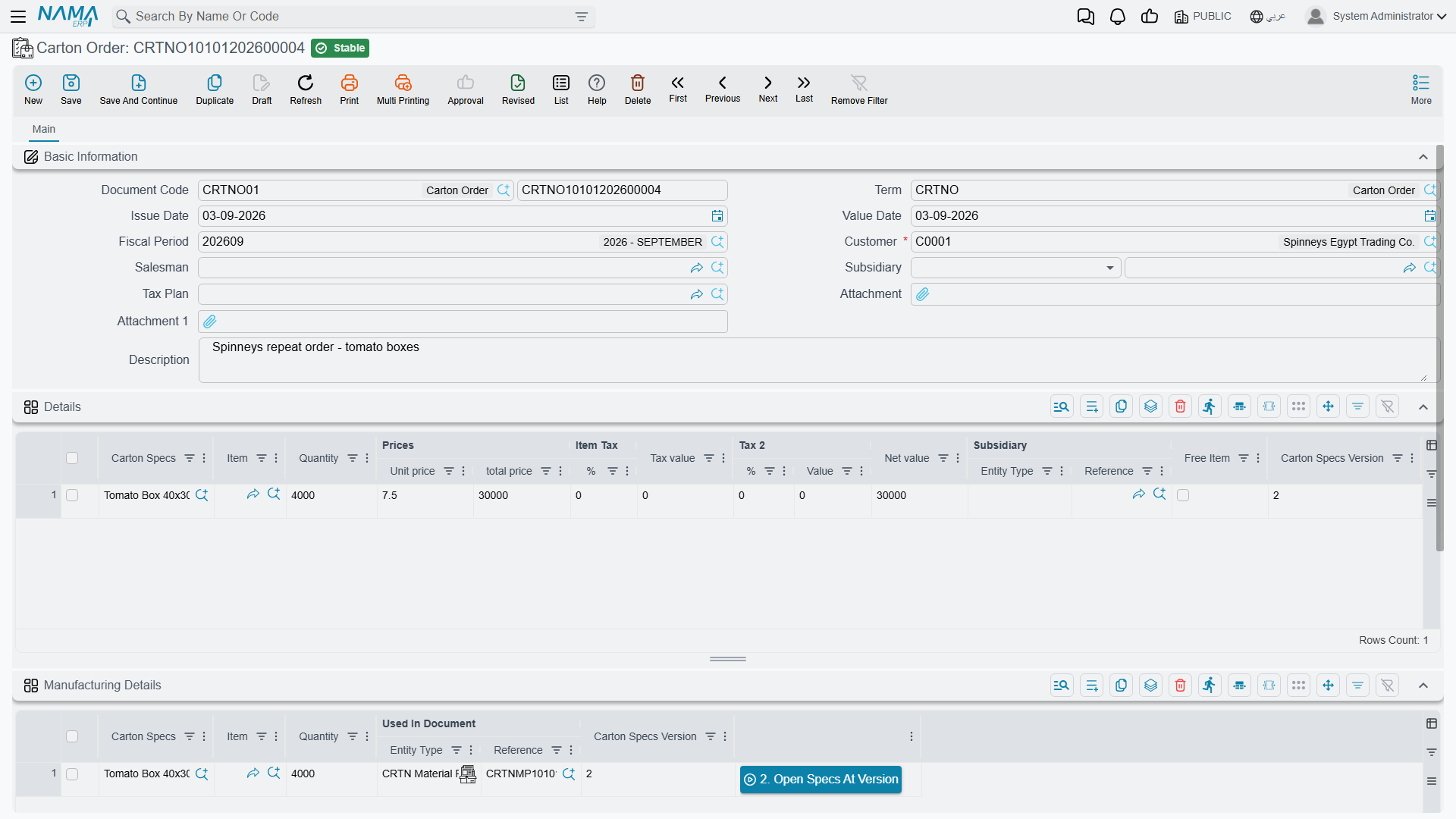
Step 1: Header Information
Start a new carton order and fill in the essentials:
Customer (العميل): Select the customer placing the order. This is required - you can't create orders without a customer.
Issue Date (تاريخ الإصدار): When the order was placed
Value Date (تاريخ القيمة): When the order should be valued (for accounting purposes)
Sales Person (م.المبيعات): The salesperson handling this account (optional)
Book (الدفتر) and Term (توجيه المستند): These control numbering and automatic document generation settings
Subsidiary: If this order's entries should be recorded on a specific subsidiary account (advanced accounting feature)
Tax Plan: If sales taxes apply, select the tax plan
Step 2: Order Lines - Selecting Cartons
In the Details (التفاصيل) grid, add lines for each carton the customer wants:
Carton Specs (مواصفات الكرتونة): Select the carton specification. Here's the smart part - Nama filters the list to show only specifications for this customer. You won't accidentally see specs for other customers.
That filter is backed by a validation, not merely a convenience. The customer on the specification must equal the customer on the order, and a line that breaks the rule is refused at save with a message naming both customers. The picker keeps you out of trouble when you type an order by hand; the validation is what catches it when a document is copied, imported or generated.
When you select a specification, Nama automatically:
- Fills in the Item field (if the spec is linked to an inventory item)
- Sets up pricing (if a price is defined in the spec)
- Populates descriptions
Quantity (الكمية): How many cartons the customer wants
Price fields: Unit price, discounts, taxes - standard invoicing fields
The system calculates line totals, applies discounts, calculates taxes, and updates the document money totals automatically.
Important: You can only select carton specifications with manufacturing types:
- Normal Carton (كرتونة عادية)
- Assembled Carton (كرتونة مجمعة)
- Normal Separator (فاصل عادي)
You can't directly order "Small Separators" or "Assembled Separators" in orders - those are components manufactured as part of other products.
Step 3: Manufacturing Details
Below the order lines sits the read-only Manufacturing Details (تفاصيل التصنيع) grid. It shows what is actually being manufactured for the order, and by which planning document.
The grid stays empty until the order is planned. It is filled from the material planning documents that take up the order: one line per carton specification per planning document, carrying the quantity that document planned and, in Used In Document (مستعمل في سند), the planning document itself.
For normal cartons: one order line becomes one manufacturing line per planning document.
For assembled cartons: Nama explodes the assembly into its child cartons. If you ordered an assembled carton with two child components, each planning document that covers it adds two manufacturing lines - one for each child carton that needs to be produced.
Example - an order for 1000 "Display Shipper Full", fully planned by one planning document MP-002:
Order Details:
- 1000 units of "Display Shipper Full" (assembled carton)

Manufacturing Details:
- 1000 units of "Display Base"  - Used In Document: MP-002
- 1000 units of "Display Lid"   - Used In Document: MP-002
Step 4: Money Calculations
The Money section shows financial totals:
Net Value (القيمة الصافية): Subtotal before taxes Taxes: Tax amounts if tax plan is applied Total (الإجمالي): Final amount due
All calculations happen automatically as you enter order lines. Discount percentages, tax rates, everything flows from the term configuration and tax plan.
Step 5: Commit the Order
Once everything looks good, commit the order. Nama validates:
Customer consistency: Every carton specification in the order must be for the selected customer. You can't order Customer A's specs on Customer B's order.
No assembled separators: Can't order assembled separator specs directly (they're manufacturing components only).
If validation passes, the order commits and is ready for planning.
The Planning Status: How Much Is Already Planned
Planning works by quantity, not by line. A planning document can take all of an order line or only part of it, and the rest stays open for the next planning document. Each order line shows where it stands in two columns:
Executed Quantity (الكمية المنفذة): how much of the line is already covered by committed material planning documents. It stays empty until some planning document takes the line up. For an assembled carton it is the quantity of the least-planned child carton - a shipper is only covered as far as both its base and its lid are.
Unexecuted Quantity (الكمية غير المنفذة): Quantity minus Executed Quantity - what is still waiting to be planned.
The order list adds two columns, which can also be used as filters:
Fully Planned (مخطط بالكامل): ticked once every order line has been planned in full.
Used In Document (مستعمل في سند): the first planning document that took up the order.
Here's how it works:
Scenario 1: New Order, Not Yet Planned
You just committed Carton Order #5001 with 5000 tomato boxes.
- Order line: Quantity 5000, Executed Quantity and Unexecuted Quantity empty
- Manufacturing Details: empty
- Order list: Fully Planned not ticked, Used In Document empty
Scenario 2: Order Planned in Two Parts
You can only run 3000 boxes this week. You create Material Planning #MP-001 for Order #5001. Saving it fills its items grid with the 5000 still open; you type 3000 in Manually Adjusted Quantity and commit.
- Order line: Executed Quantity 3000, Unexecuted Quantity 2000
- Manufacturing Details: "Tomato Box 250", 3000, Used In Document = MP-001
- Order list: Fully Planned not ticked, Used In Document = MP-001
Next week you create MP-002 for the same order. Its items grid is filled with the 2000 that are still open. You commit it as it is.
- Order line: Executed Quantity 5000, Unexecuted Quantity 0
- Manufacturing Details: two lines - 3000 from MP-001 and 2000 from MP-002
- Order list: Fully Planned ticked, Used In Document = MP-001
The order is now fully planned. A third planning document for it is refused with CRTN order {0} is fully planned, and so is Genrate Carton Material Planning on the order.
Scenario 3: Assembled Carton, One Child at a Time
You have Order #5002 for 1000 assembled cartons (base + lid components). You create Material Planning #MP-003 for it and delete the lid row from its items grid, because lids are in stock and you only need bases this time.
After committing MP-003:
- Manufacturing Details: Base, 1000, Used In Document = MP-003 (no lid line yet)
- Order line: Executed Quantity 0, Unexecuted Quantity 1000 - the lid is not planned, so no complete shipper is covered yet
- Order list: Fully Planned not ticked
Later, you create MP-004 for the order. Only the lid is still open, so only the lid comes into its items grid. After committing it, both children carry 1000, Executed Quantity becomes 1000 and the order is fully planned.
Scenario 4: Planning Document Cancelled
If you cancel or delete a material planning document, Nama works out the order's planned quantities again from the planning documents that remain - oldest first - so the cancelled document's lines disappear from Manufacturing Details, Executed and Unexecuted Quantity move back, and Fully Planned is recalculated.
The released quantity is open for planning again.
Changing an Order That Is Already Planned
You can still edit a planned order, within two limits. A line's Quantity cannot go below what is already planned - the order is refused with Quantity {0} is less than the quantity already planned {1} - and a carton specification that a planning document has planned cannot be taken off the order. Raising a quantity simply opens the difference for the next planning document.
Generating Material Planning from an Order
Once you have a committed order, there's a quick path to material planning:
Click Genrate Carton Material Planning (إنشاء مستند تخطيط خامات الكرتون) on the order — the button's English label really is spelt that way. The order must be saved first.
Nama:
- Creates a new material planning document
- Adds this order to the planning document
- Opens the planning document for you
You're now in material planning, ready to run optimization. This shortcut saves you from manually creating a planning document and selecting the order - it does it in one click.
On an order that is already fully planned the button is refused with CRTN order {0} is fully planned.
Note: This button requires a document term configuration that specifies which book and term to use for generating planning documents — the Generation tab of the Carton Order term, described in Carton Document Terms.
Opening the specification an order line was priced on
A specification can change after an order is taken, so each order line remembers the specification version it used. Select a line and press 1. Open Specs At Version (1. فتح نسخة المواصفة) to open that specification exactly as it was at that version; 2. Open Specs At Version (2. فتح نسخة المواصفة) does the same for a line of the manufacturing details grid. A line with no specification answers No specs specified («لا يوجد مواصفة»), and one with no version No version specified («لا يوجد نسخة»).
Understanding Assembled Cartons in Orders
When you order assembled cartons, here's what happens step by step:
Order Entry
You add one line:
- Carton Specs: "Display Shipper Full" (an assembled carton with 2 child components)
- Quantity: 500
That's it from a sales perspective. The customer ordered 500 display shippers.
Manufacturing Details Generation
Nama looks at the specification for "Display Shipper Full" and sees it has two child carton lines:
- "Display Base"
- "Display Lid"
So there are two things to plan - 500 units of "Display Base" and 500 units of "Display Lid" - and each child carries the full order quantity. They appear in the Manufacturing Details grid as planning documents take them up, each line referencing the order detail line ID, so you can trace back to which order line drove these requirements.
Material Planning
When you plan materials for this order, you're planning for 500 bases and 500 lids. The optimizer finds materials for both components independently - they might use different paper grades, different roll widths.
The cutting plan will show separate material requirements for each component.
Production
If you generate production orders from the material planning, you get:
- One production order for 500 "Display Base" cartons
- One production order for 500 "Display Lid" cartons
Each has its own BOM, routing, and material requirements.
Assembly
The actual assembly of bases + lids into complete shippers typically happens outside the carton manufacturing module (maybe in a packaging/fulfillment operation, or the customer assembles them). The carton manufacturing system tracks that you produced the components.
Small Separator Handling
Assembled separators work similarly but with an extra twist:
If you order an assembled separator specification, Nama finds all the small separator children and marks them as needing manufacturing. However, it groups by the assembled parent.
If you have multiple assembled separator specs that use the same small separator child, Nama makes sure you don't double-count that child - it only manufactures the required quantity once to support all assemblies.
This is an advanced scenario - most factories don't use assembled separators heavily.
Pricing and Invoicing Integration
Carton orders are full invoicing documents. They implement the standard Nama invoicing interface, which means:
Discount support: Line-level and header-level discounts, cascading calculations Tax integration: Tax plans with multiple tax types (VAT, local taxes, etc.) Payment tracking: Link to payment receipts (if configured) Accounting effects: Can generate accounting entries when committed (if term is configured) Subsidiary accounting: Can record entries on customer subsidiary ledgers
The Money section calculates exactly like a sales invoice. Discounts reduce prices, taxes apply to after-discount amounts, and the total matches what you'd invoice the customer.
Working With Orders in Practice
Agree the specification with the customer before the order exists. "250 mm tomato box" is not a specification if you hold three of them differing in fluting or printing, and the time to resolve that is at order entry, not at cutting.
Specifications are tagged with a customer, so a spec tagged to the wrong one simply will not appear when you create that customer's order. If a specification you expect is missing from the list, that tag is the first thing to check.
For a large order on tight timing, check material availability before committing to a date. A draft planning document answers the question in a couple of minutes and costs nothing if you discard it. And before promising any delivery date, check whether the order has actually been planned — an unplanned order has neither confirmed material nor a place in the production schedule, however firm the date sounds.
Where a customer has several small orders, consider whether they belong on one order with several lines. Material planning sees all the requirements together that way, which is exactly the condition under which the optimizer does its best work.
Anything unusual — special printing, a rush, customer-specific packaging — belongs in the remarks and description. That text travels with the order all the way through production, which is where it is needed.
Common Questions
Q: Can I edit an order after it's been planned? A: Yes, within limits. You cannot lower a line's quantity below what is already planned, and you cannot remove a carton specification that a planning document has planned. Raising a quantity or adding a line is fine - the extra is simply open for the next planning document. To go below the planned quantity, cancel or delete the planning document first.
Q: What if I order an assembled carton but only need to manufacture one of the child components (the other is in stock)? A: When you create the material planning document, delete the row of the child you don't need from its items grid. The order stays partially planned, and the other child is still open for a later planning document.
Q: Can I mix multiple customers' orders in one material planning document? A: Yes. Material planning documents don't care about customers - they care about carton specs and material efficiency. You can batch orders from different customers if it makes sense for production efficiency.
Q: What happens if I delete an order that's been planned? A: Nama prevents deletion if it's referenced in committed planning documents. You'd need to cancel/delete the planning documents first. This protects you from breaking the link between orders and production plans.
Q: Why can't I select my assembled separator specification in an order? A: Assembled separators aren't sold directly - they're manufacturing structures. You'd order the normal separator specification that uses the assembled separator internally, or you'd order the final product that incorporates the separators.
Q: How do I handle rush orders? A: Enter the order normally, then use the "Find Companion Orders" feature in material planning to see if batching with other orders would delay the rush order too much. You might choose to plan the rush order alone to prioritize it.
Next Step
With orders entered, you're ready for the most powerful part of the carton module - material planning and optimization. See Carton Material Planning.
Order Status Tracking
The "Fully Planned" flag is your quick indicator of order readiness. Use it to filter pending orders when creating production schedules.
Messages you may see
| Message | Why | What to do |
|---|---|---|
| CRTN order {0} is fully planned — «تم تخطيط أمر الكرتون {0} بالكامل» | The order has no quantity left to plan. It appears when you press Genrate Carton Material Planning, and when a planning document listing the order is saved. | Nothing more to plan. Raise the order quantity first if more is really needed. |
| Quantity {0} is less than the quantity already planned {1} — «الكمية {0} أقل من الكمية التي تم تخطيطها بالفعل {1}» | A line's quantity was lowered below its Executed Quantity. | Keep it at least at the planned quantity, or cancel or delete the planning document first. |
| Carton specs {0} is planned in material planning {1} and can not be removed from the order — «مواصفة الكرتون {0} مخططة في تخطيط الخامات {1} ولا يمكن حذفها من الأمر» | A line was removed, or its carton specification changed, after a planning document planned it. | Put the line back, or cancel or delete the planning document named in the message first. |
| Customer {0} in carton specifications {1} is not the same as the customer {2} in the order — «العميل {0} الموجود بمواصفات الكرتونة {1} مختلف عن العميل {2} الموجود بالطلبية» | A line uses a specification tagged to another customer. | Pick a specification of the order's customer. |
| Carton spec {0} at line {1} can not be used in orders because manufacturing type is {2} — «لا يمكن استخدام المواصفة {0} في السطر {1} في أوامر بيع الكرتون لأن نوع التصنيع {2}» | The line names an assembled separator, which is a manufacturing structure, not something sold. | Order the specification that uses the separator instead. |