
Issuing and Returning Raw Materials
The Document That Actually Moves the Material
A production order plans what a job will consume. A BOM says what the recipe calls for. Neither of them takes anything off a shelf. The document that does — that reduces stock in the store, puts the material into the hands of the job, and makes it part of the product's cost — is the Raw Materials Issue (صرف مواد خام).
This is the workhorse of the module. It is the point where a plan stops being a plan.
You'll find it under Manufacturing → Documents → Raw Materials Issue (التصنيع ← المستندات ← صرف مواد خام).
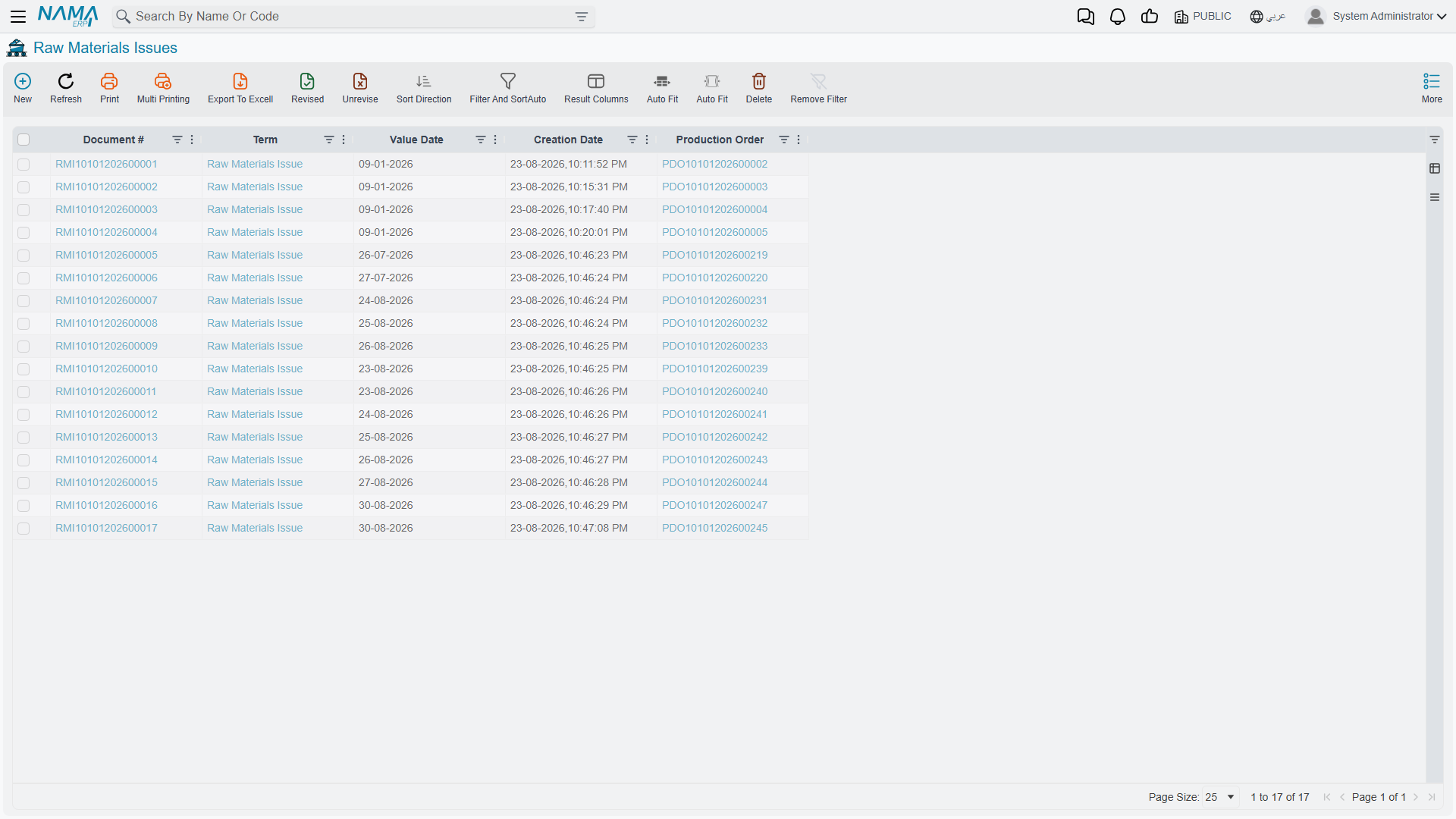
The list view shows what has been drawn against which orders.
Required license
Raw materials issue, return and change are part of the core manufacturing license. If the Manufacturing menu is missing altogether, that license is not enabled.
The Header
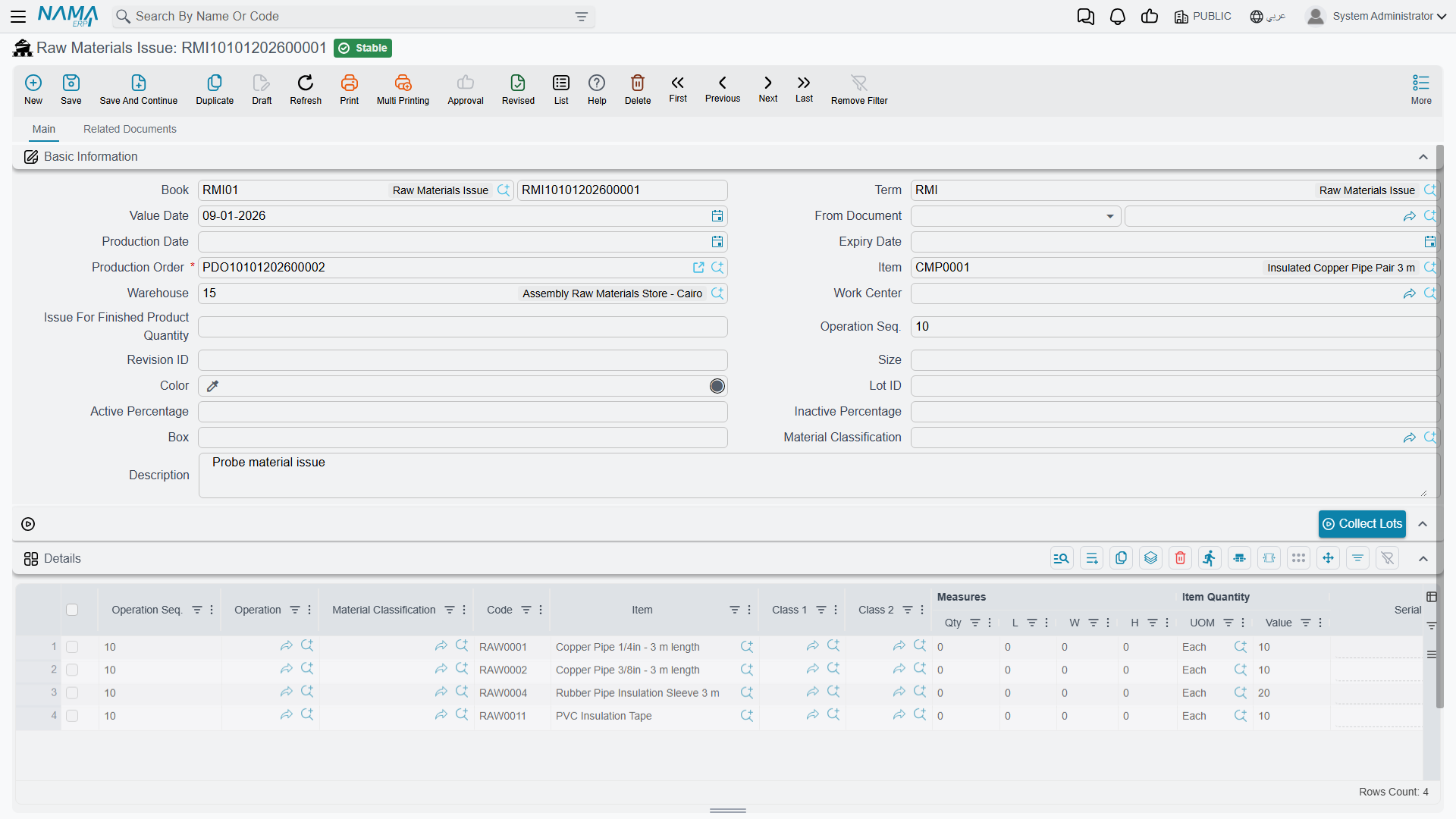
Book and Term are the document's book and its term configuration — the settings that decide how this kind of document behaves and what it does to stock and to the ledger. Value Date is the date the movement takes effect.
Production Order is the only required field on the screen, and it is required for a reason. A raw materials issue is not a general-purpose stock withdrawal; it exists to charge material to a job. Without an order, the cost has nowhere to land. Naming the order is what lets the system propose the right components, check them against the plan, and eventually compare planned consumption against actual when the order closes.
Item shows the finished product the order is making — filled in from the order, not typed.
Warehouse is where the material comes from. In the example above that's the Assembly Raw Materials Store in Cairo. Set it in the header and every line inherits it; override on a line where a component lives somewhere else.
Work Center and Operation Seq. attribute the issue to a place and a step. The example carries 10 — these materials go in at the first operation. Filling this in is what makes work-in-process meaningful: material consumed at step 10 is sitting in a different place in the process from material consumed at step 30.
Issue For Finished Product Quantity is a convenience worth knowing about. Rather than working out component quantities yourself, enter the number of finished units you are issuing for, and let the system scale the BOM. Issuing for 10 pipe pairs fills the lines with the components ten units need.
Production Date and Expiry Date apply where the material carries them. Material Classification groups the issue for reporting. Lot ID, Size, Color, Box, Revision ID and the Active / Inactive Percentage pair carry item dimensions where the components use them. Description is free text — "Probe material issue" in the example.
Collect Lots
The Collect Lots button sitting above the grid does the tedious part of lot-tracked issuing. Rather than naming lot numbers by hand for every line, it gathers the available lots for the components and allocates them according to the rules in force — normally oldest-first. On a store holding six lots of the same copper pipe, this is the difference between a thirty-second document and a five-minute one.
The Details Grid
Each row is one component being issued.
Operation Seq. and Operation place the line in the process, defaulting from the header.
Item and Code identify the component. Material Classification, Class 1 and Class 2 classify it.
Measures (Qty, L, W, H) and Item Quantity (UOM, Value) carry the quantity. The four measure columns matter for materials bought by dimension — sheet, pipe, cable — where a length and a width are the honest description and a piece count is not.
Serial applies to serial-tracked components.
Let the order fill the grid
The fastest way to raise an issue is to name the production order, set the finished-product quantity, and let the system populate the lines from the BOM — then adjust the two or three rows where reality differs. Typing every line by hand is not just slower; it is how components that should have been consumed quietly get left off a job.
Raw Materials Return
Material goes out to the floor and some of it comes back. A run finishes early, an order is cancelled, more was drawn than the job needed. The Raw Materials Return (إرتجاع مواد خام) puts it back — into stock, and out of the job's cost.
You'll find it under Manufacturing → Documents → Raw Materials Return (التصنيع ← المستندات ← إرتجاع مواد خام).
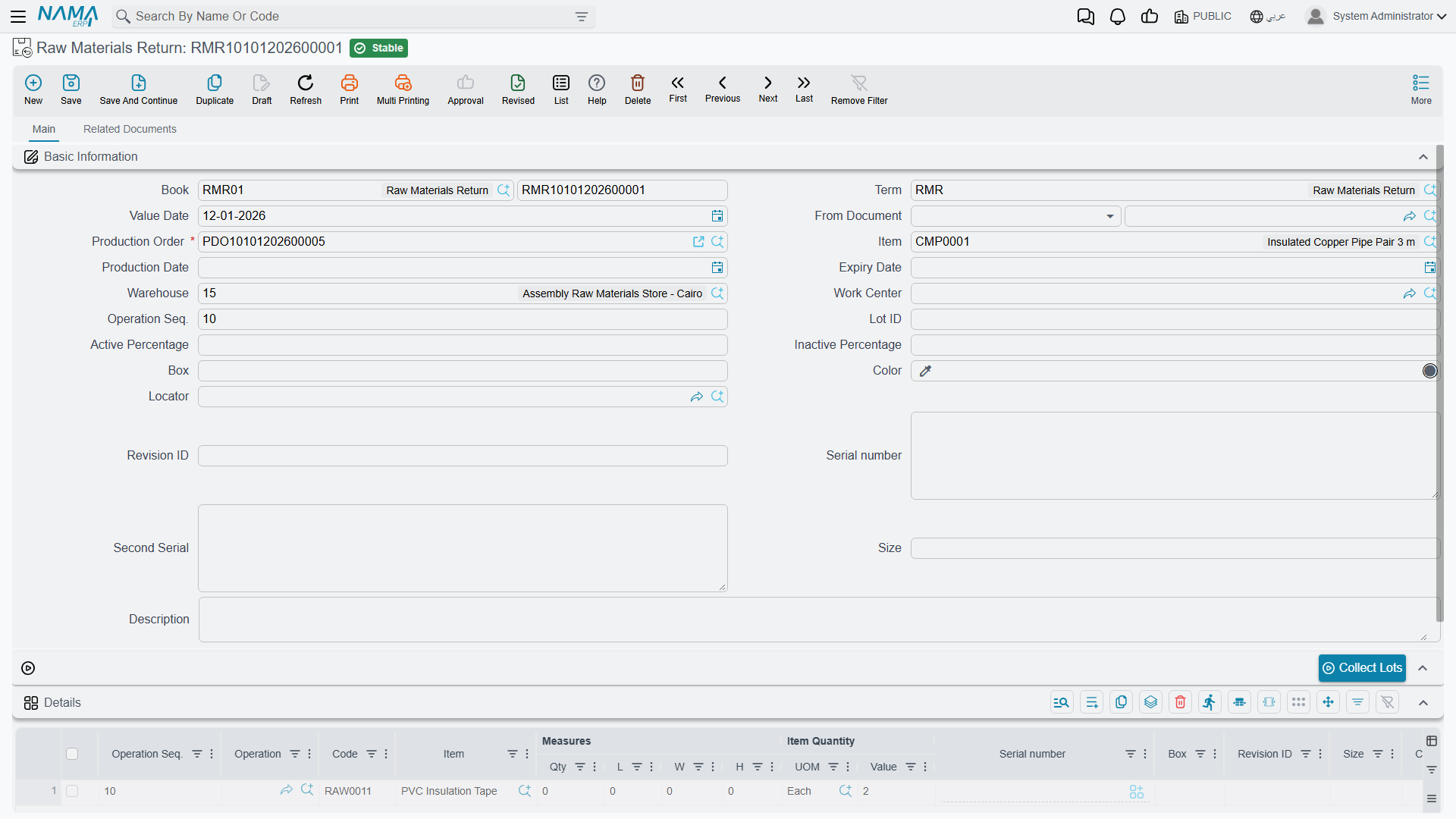
The screen deliberately mirrors the issue, field for field: the same required Production Order, the same Warehouse, Work Center and Operation Seq., the same Collect Lots button, the same grid. If you can raise an issue you can raise a return, which is the point of making them look alike.
Two fields appear here that the issue screen does not show: Locator, for stores that track position within the warehouse, and Second Serial, for components carrying two serial identifiers.
A return is not a correction
If you issued the wrong material, returning it and issuing the right one leaves both movements on the record — which is usually what an auditor wants to see. But if you simply issued the wrong quantity on a document raised minutes ago and nothing has been processed against it, correcting the original is cleaner than layering a return on top of it. Decide which story the record should tell before reaching for a return.
Raw Material Change
The third screen in this family does not move any stock at all. The Raw Material Change (تغيير خامة), under Manufacturing → Documents → Raw Material Change (التصنيع ← المستندات ← تغيير خامة), is a bulk editor for bills of materials: it finds every BOM that uses one material and swaps in another.
The situation it exists for is a material that is being replaced for good — a supplier discontinues a grade of copper pipe and an equivalent takes its place in forty product recipes. Opening forty BOMs by hand is slow and easy to get half-done. This document does it in one pass and leaves a record of which BOMs were changed, when, and to what.
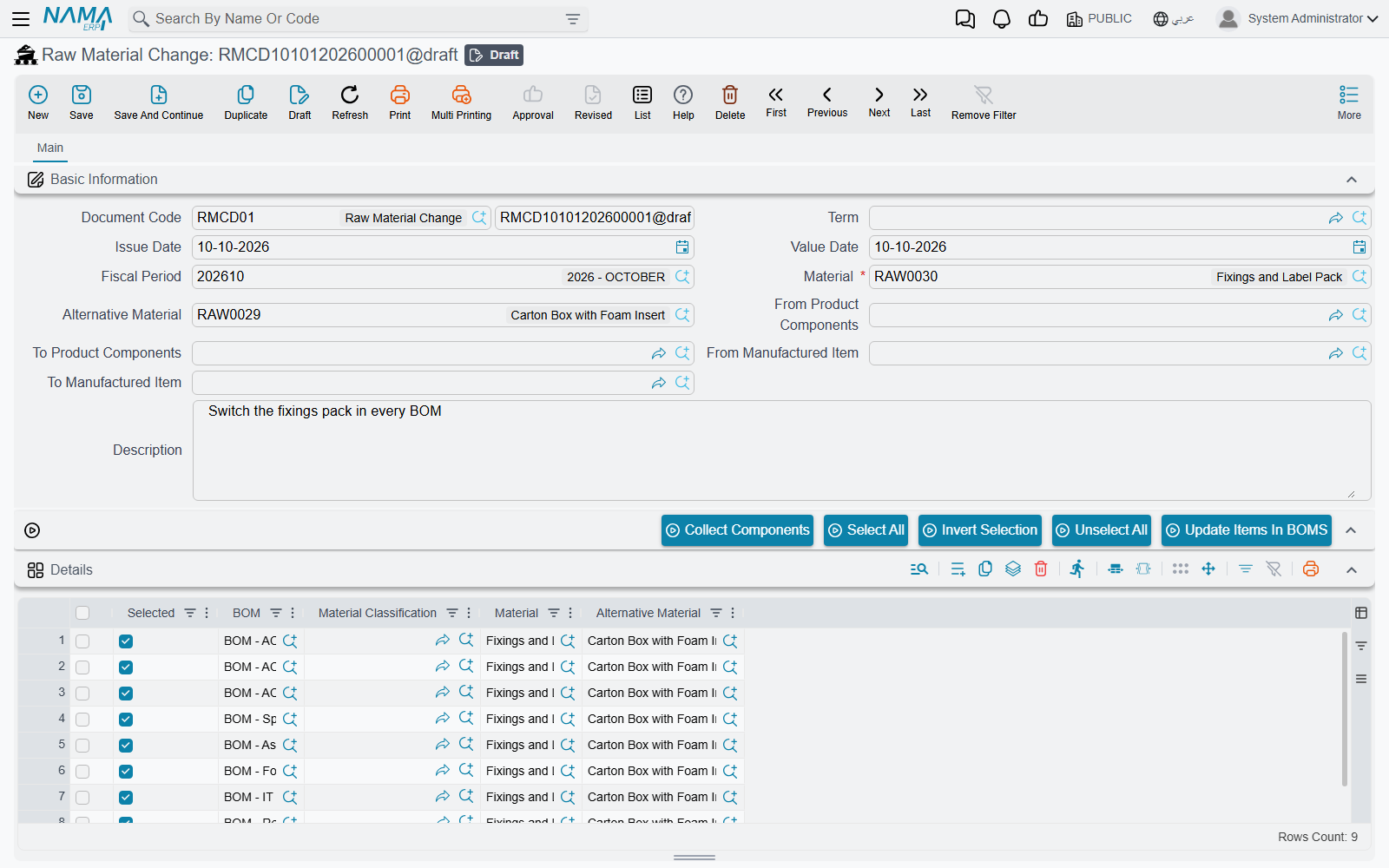
- Fill in Material (the one being replaced — the only required field) and Alternative Material (its replacement). Narrow the search, if you need to, with From Product Components / To Product Components (a range of BOM codes) and From Manufactured Item / To Manufactured Item (a range of finished-item codes).
- Press Collect Components (تجميع المكونات). Every BOM in the range whose component lines use the material is added to the grid as a line showing the BOM, the Material Classification, the Material and the Alternative Material. Pressing it again adds only BOMs not already listed. Without a material it stops with Raw material is required («يجب إدخال الخامة»).
- Tick Selected on the lines you want changed. Select All (اختيار الكل), Unselect All (إلغاء اختيار الكل) and Invert Selection (عكس الاختيارات) work on the whole grid. You can also change the Alternative Material on an individual line.
- Save, then press Update Items In BOMS (تبديل الخامات في مكونات المنتجات). For each selected BOM, every component line carrying the material is changed to that line's alternative material and the BOM is saved.
Saving changes nothing
Saving the document only records the plan. The BOMs change when Update Items In BOMS is pressed, and only for the selected lines. Production orders already created keep the components they were created with — the change affects orders built from those BOMs afterwards.
What Happens After You Save
Saving does not block while stock and ledger effects are worked out. The document is stored immediately and its effects are raised as business requests processed in the background — which is why saving is instant even on a long document.
Normally you will never think about this. When something does go wrong — a closed period, a stock rule that rejects the movement — the document will be saved but its effects will not have completed, and the place to see that is the Business Requests list view. Filter by failed status, select the rows, and use More → Reprocess once the underlying problem is fixed.
Where This Sits in the Cycle
Materials issued here are one of the three cost streams that meet at order close. The other two are the resources consumed — recorded on a resource voucher or charged automatically — and overheads.
When the order closes, what was actually issued gets measured against what the BOM said should have been. The gap is the material variance, and it is the single most useful number the module produces about how a job really went.