
Carton Material Issues: From Store to Shop Floor
Connecting Planning to Execution
You have a material planning document. The optimizer worked out which reels to use, at which widths, in what quantities. Production orders are generated and ready.
Now the paper has to physically leave the store and reach the corrugator. That is what a Carton Material Issue does.
You'll find it under Manufacturing → Cartoon → Carton Material Issue.
Required license
Carton material issues are part of the manufacturing-crtn-pln license, the carton-planning sub-license of the Manufacturing module. Without it the Cartoon menu does not appear, even when the core manufacturing license is on.
The Three Rules That Govern This Screen
Before anything else, three hard rules. All three are enforced, all three will stop you, and knowing them saves a puzzling half-hour.
A carton material issue must name a planning document. Carton Material Planing is marked required on the screen — the red asterisk on the field is not decorative. There is no such thing as an ad-hoc carton material issue that stands on its own. If you want to move paper without a plan behind it, that is an ordinary stock issue, not this document.
That planning document must already have materials. The issue is checked against the plan's cutting output, so a plan that has not been through Collect Materials has nothing to check against. Try to save against one and Nama says so plainly: Could not find any materials in planning document.
And that planning document must already have generated its production orders. This is the rule that surprises people, because nothing on the screen hints at it. The issue does not charge material to the plan; it charges it to the production order the plan created, so it goes looking for that order and refuses to save without it: Could not find production order generated by planning document. A plan that has been solved but never taken through Generate Production Orders is not yet something you can issue against.
The order of work is not optional
Order → planning document → Collect Materials → Generate Production Orders → material issue. Each step is a precondition for the next, and skipping any of them fails at save rather than at commit — which is at least fast feedback.
What the Document Generates
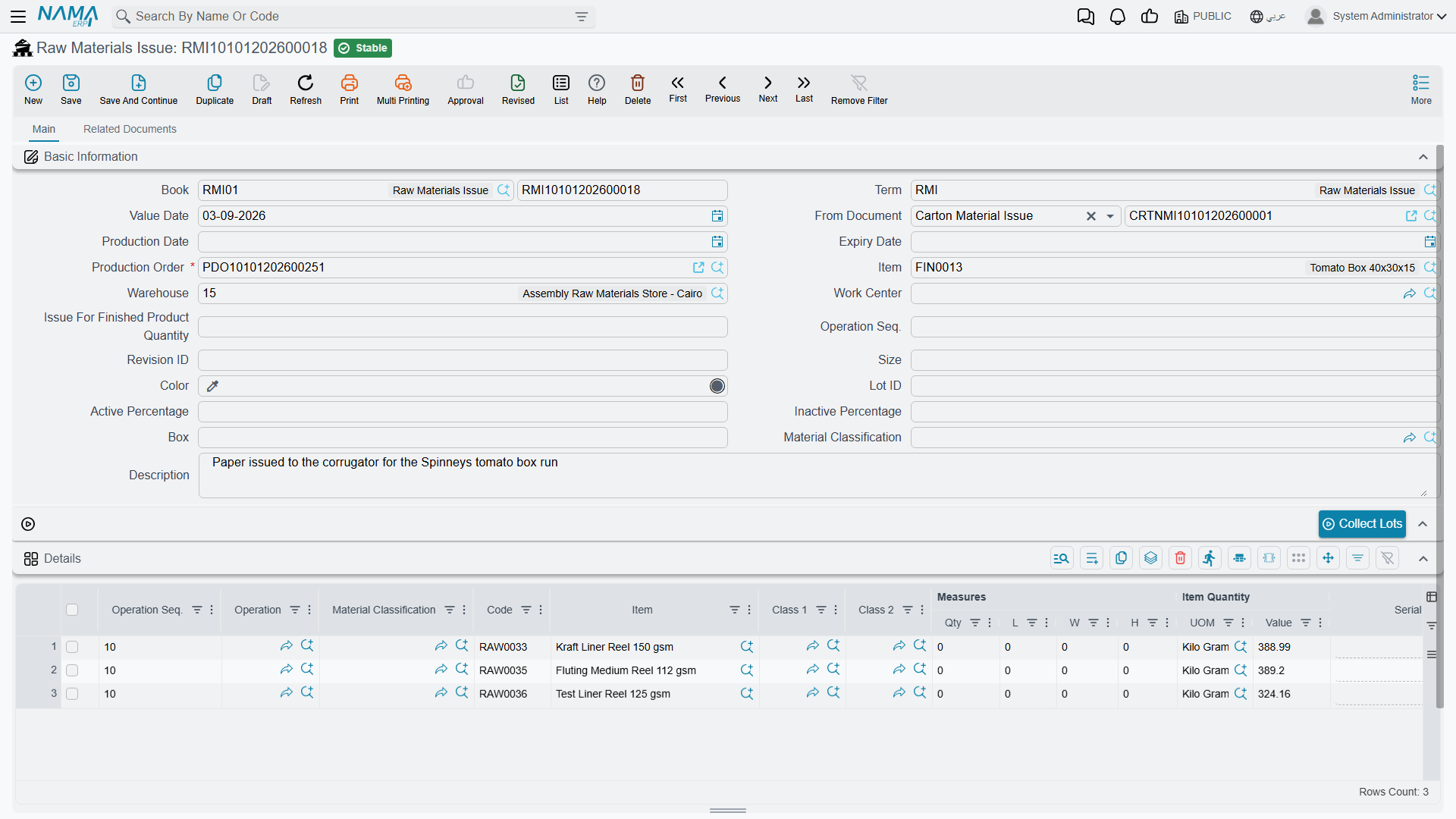
A carton material issue is not the end of the chain. Committing one generates a Raw Materials Issue — the standard manufacturing document that actually charges the material onto the production order. The carton issue is the carton-aware front end; the raw material issue is what the costing engine sees.
That generated document appears on the Related Documents tab, under Raw Materials Issue. Open it and you can read the whole chain off its header: From Document points back at the carton material issue, Production Order at the order the material is charged to, and Item at the carton being made.
This has a setup consequence that catches people out. The carton material issue term must name the book and term to use for the document it generates — the two settings are Generated Raw Material Issue Book and Generated Raw Material Issue Term, in the term's Generation group. Leave either empty and every attempt to commit fails with a message naming the missing setting. It is a one-time configuration, but nothing works until it is done.
Filling In the Document
The screen is deliberately small. There is one header block, one grid, and the dimensions.
The Header
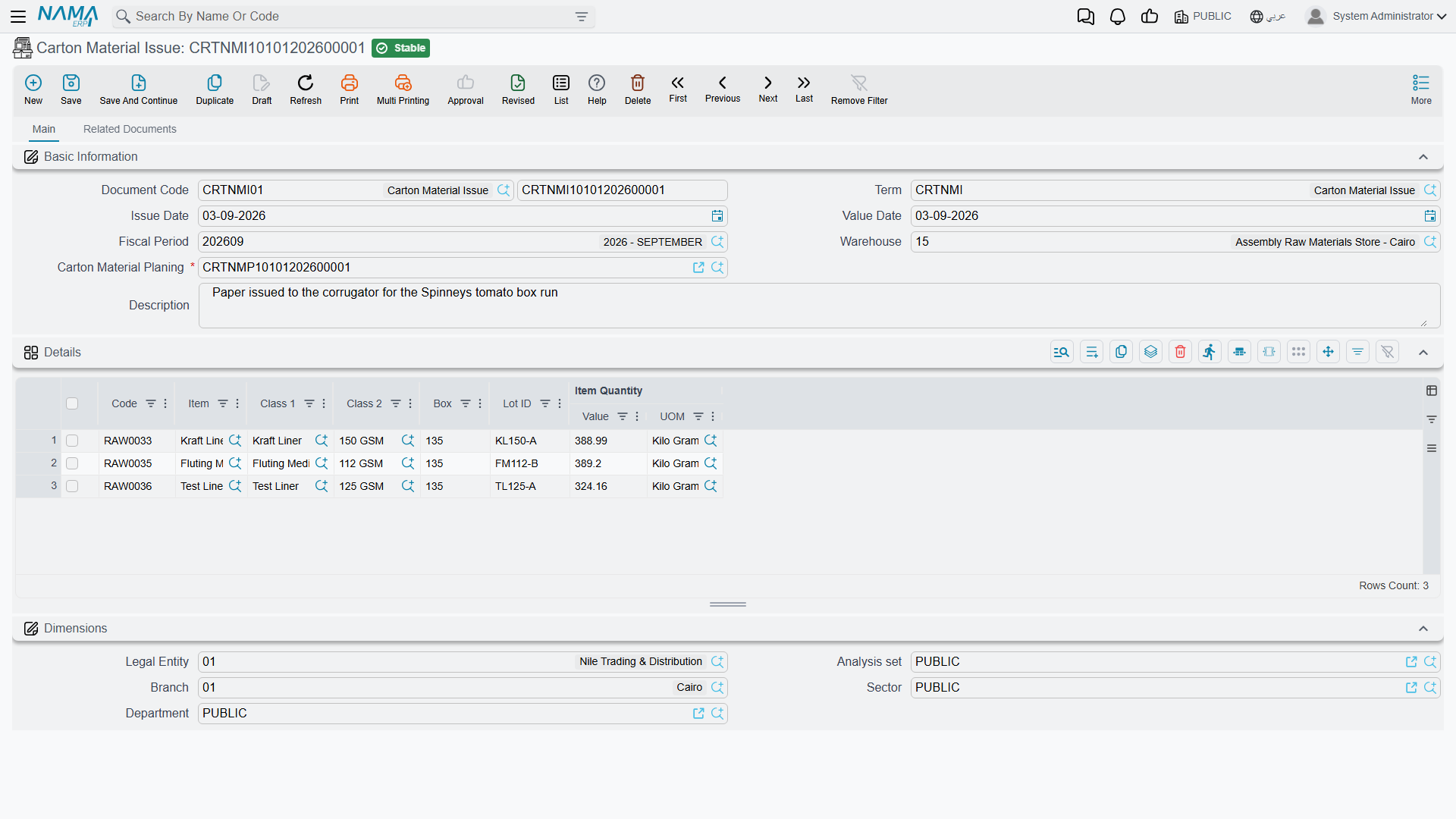
Document Code carries the Book and number, and Term the settings — including the generation settings above. Issue Date, Value Date and Fiscal Period date the movement.
Warehouse is where the paper is pulled from. Note that it sits in the header, not on the lines: one carton material issue draws from one store. Materials coming out of two different stores need two documents.
Carton Material Planing is the required link to the plan, as described above.
Description is free text.
The Details Grid
Each row is one material being issued, and the grid is short by design:
Code and Item identify the reel item.
Class 1 and Class 2 are the paper grade and the grammage — the same two classifications the optimizer matched on, carried through so the issue is self-describing.
Box is the reel width. This is the column that matters most on this screen, and it is easy to skim past because "Box" does not sound like a width. On a paper reel item the Box dimension is the width, so the row saying 135 is saying "a 135 cm reel" — reel widths on these screens are in centimetres, the same unit the planning document works in.
Lot ID is the specific reel. Where the plan pinned a lot down, match it.
Item Quantity | Value and UOM are how much. Reels are normally stocked by weight, so this is usually kilogrammes rather than metres — the metres are the plan's Metric Length, which is what the shop floor cuts, not what the store issues.
What Committing Does
Committing the issue reduces the stock of each item, at that lot and that Box width, in the header warehouse, and generates the raw material issue that charges the material onto the production order.
The multi-dimensional part is worth being explicit about, because it is the whole reason carton stock behaves the way it does. Nama tracks a balance per item per lot per Box width per warehouse. A reel item holding 8,000 kg at 135 cm and 5,200 kg at 145 cm has two independent balances, and issuing from the 135 leaves the 145 untouched. Get the Box value wrong on a line and you will draw down a width you did not mean to, while the width you actually cut stays on the books.
Working With Material Issues in Practice
Issue against the plan the optimizer produced, and match its widths. Substituting a 145 cm reel where 135 cm was planned is not a like-for-like swap: the cutting pattern was calculated for a specific width, and on a different one the pieces may simply not fit the way the plan says they will. If you have to substitute, expect the trim to differ from the plan and say why in the description — that note costs seconds now and answers a question that would otherwise take an hour to reconstruct.
Issue promptly, too. A plan built on last week's stock picture may no longer be executable, because someone else may have drawn from the same lot in the meantime. The gap between planning and issuing is where plans quietly go stale.
Keep one plan to one issue where you can. Partial issues are supported and there are good operational reasons for them — staging space on the floor is a real constraint — but each extra document makes the trail from plan to consumption a little harder to follow.
And give the shop floor the lot and the width, not just the item. A lot number correct on paper achieves nothing if the operator pulls the wrong physical reel off the rack, and on a paper store the wrong reel usually looks exactly like the right one.
Where This Sits in the Chain
The material issue is the handover from planning's ideal world to production's real one:
Carton Material Planning decides what to cut and from which reels.
Carton Material Issue takes that paper out of the store and generates the raw material issue that charges it to the job.
Production Execution records what was actually made.
Order Close compares what was issued against what the plan said should have been issued, and settles the cost.
That last comparison is the point of doing any of this precisely. The variance between planned and issued material is the number that tells you whether the optimizer's plan survived contact with the shop floor — and it is only as honest as the widths and lots you typed on this screen.
Messages you may see
| Message | Why | What to do |
|---|---|---|
| Could not find any materials in planning document :{0} — «لا يوجد خامات في مستند التخطيط: {0}» | The issue points at a planning document whose materials grid is empty, so there is nothing to draw from the store. | Open the planning document and run its optimisation so the materials are worked out, then come back. |
| Could not find source line for item class {0} - {1} - {2} in planning document {3} — «لا يمكن ايجاد سطر المصدر لتصنيف الصنف {0} - {1} - {2} في مستند التخطيط {3}» | A line on the issue describes a combination of the two item classes and the box that the planning document never produced — usually because the line was typed by hand, or the planning document was re-optimised after the issue was built. | Take the lines from the planning document rather than typing them, and rebuild the issue if the plan has changed since. |
| Could not find production order generated by planning document: {0} — «لا يوجد أمر انتاج منشأ بواسطة مستند التخطيط: {0}» | Committing needs the production order that the planning document generated, and no such order exists — the plan was never turned into orders, or the order was deleted. | Generate the production orders from the planning document first; the material issue charges its material to them. |