
Criteria Definitions
A dozen pages on this site tell you to "pick a criteria": the approval that should only run for credit sales, the lookup that must offer non-service items, the field that becomes mandatory only in one branch, the entity flow that should fire on overdue orders and nothing else. They all mean the same screen — Administration → Display Customization → Criteria Definition — and they all mean the same thing by it: a filter, saved under a code and a name, that the rest of the system can point at by name.
It is worth seeing it as a saved search that other settings borrow. You write down once, in one place, what "an overdue order" is; the approval, the notification, the required field and the lookup filter then all agree on that definition, and the day the definition changes, every one of them changes with it.
The same record is used in two ways, depending on who borrowed it. Most settings use it as a test: here is a record being saved, does it match? Lists and lookups use it as a filter: show me the records that match. You build it the same way for both.
The screen
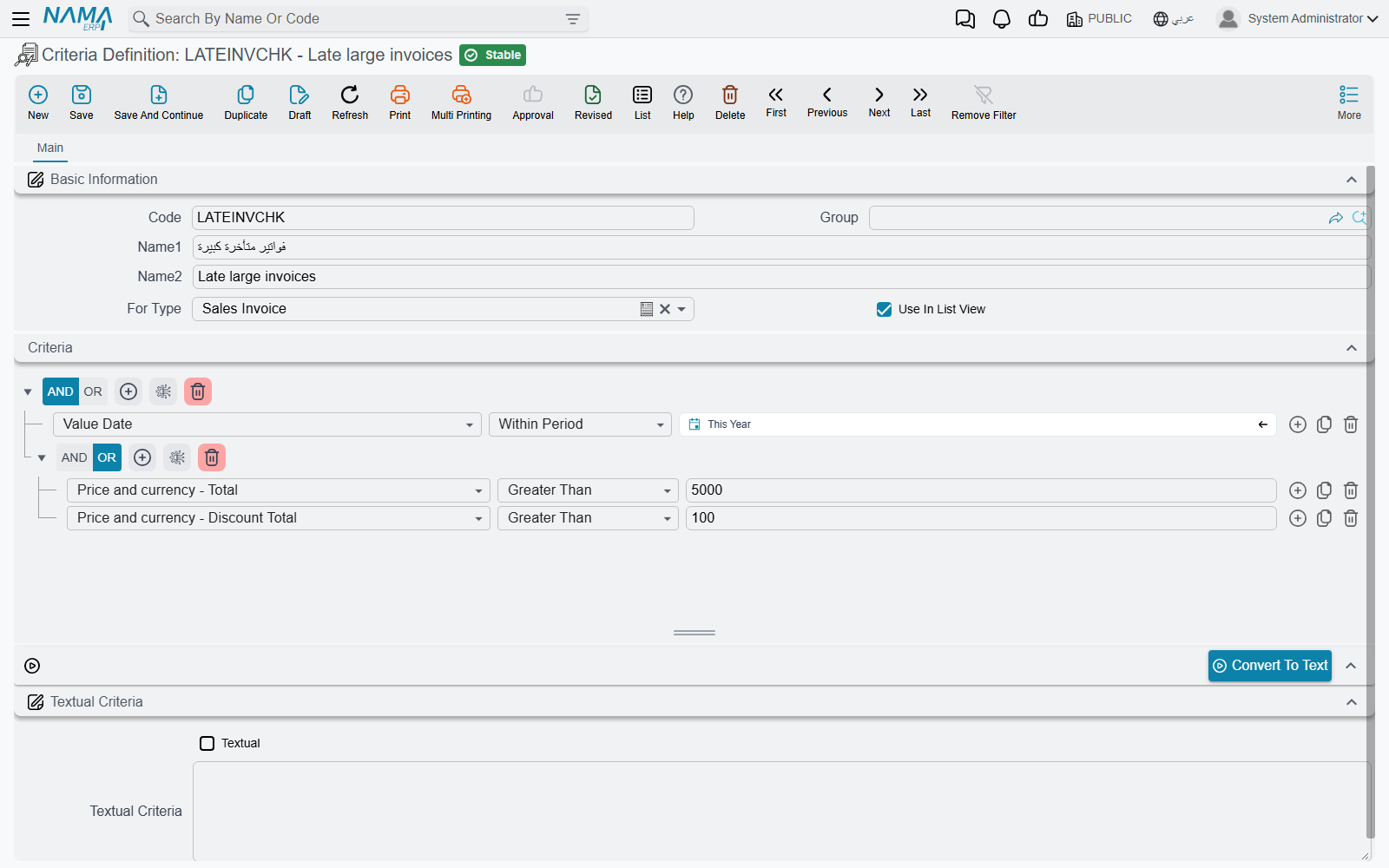
A criteria record carries a code and a name like any master file, and then four things that matter.
| Field | What it does |
|---|---|
| For Type | The screen the filter is written against — Sales Invoice, Employee, Item. Fill this in first. The condition builder reads the field list of this type, so while For Type is empty it has nothing to offer and stays blank. |
| Criteria | The conditions themselves — the builder described below. |
| Use In List View | Offers this criteria as a ready-made filter on the list screen of that type, and in the search dialog of any field that picks that type. |
| Textual and Textual Criteria | The same conditions written out as text instead of assembled in the builder. |
Building the conditions
Each condition is one line, read left to right: a field, an operator, a value.
The field is chosen from a searchable list of everything the type stores — its own header fields and its grid columns alike, so a condition can just as easily be Customer is Nile Trading as one of the invoice lines carries item 1001. A field that has no label in the system does not appear in the list at all.
The operator offered depends on the field: equal and not equal, greater and less than, starts with, contains, In and Not In against a list of accepted values, and Within Period / Outside Period for dates. The period operators do not take a single date — they take a period, either a preset such as This Month or Last 7 days, or an explicit from-and-to. The full operator list, and what each one does to text, numbers and dates, is on Criteria from Text Parser.
The value is entered with the field's own widget: a date picker for a date, the record selector for a reference field, a multi-value list for In and Not In.
The three buttons at the right of every line add a line (F7), copy the current line (F8) and remove it (Ctrl+Delete). The buttons on the grey header above the conditions work on the group as a whole: Add Filter starts a new condition, Clear Filters empties the builder, and Show Advanced Criteria Mode reveals two more, described next.
The fastest way to create one
Filter a list screen by hand until it shows exactly the records you mean, then pick Create List View Criteria from the list's More menu. A new criteria record opens in a pop-up already carrying that filter, already set to the right For Type and already ticked as usable in list views — all that is left is a code, a name and Save. With no filter on the list it answers "Please Specify Criteria" and does nothing. See Buttons on every screen.
AND, OR and brackets
Conditions are grouped, and the AND / OR choice belongs to the group, not to the line: the pair of buttons on the group's header applies to every condition inside it, so a group is either all-AND or all-OR. Mixed logic is expressed by putting a group inside a group.
Sub-groups are hidden until you ask for them. Press Show Advanced Criteria Mode on the header and two more buttons appear: Add Filter Group, which nests a group with its own AND / OR inside the current one, and View Description, which writes the whole thing out in words beside the header — the quickest way to check that a criteria says what you meant.

The criteria above reads Value Date Within Period 'ThisYear' AND (Total Greater Than '5000' OR Discount Total Greater Than '100') — one condition every invoice has to satisfy, and a pair of alternatives of which one is enough.
A condition on a grid column
A condition on a grid column is satisfied when any one line satisfies it — the record as a whole matches if a single line does.
Two such conditions joined by AND are stricter than they look: they have to be satisfied by the same line. Item is 1001 AND quantity is greater than 10 matches a document that has one line of item 1001 with 12 pieces; it does not match a document with a line of item 1001 and a separate line of 12 pieces of something else. Joined by OR they widen as expected — any line answering either condition is enough.
Which lines matched is not thrown away. It is what lets an approval be raised for particular lines of a document rather than the whole of it, and what the Lines Should Match switch on Required Fields acts on.
Values that follow the user
A value does not have to be fixed. Write one of these tokens in the value and it is resolved afresh every time the criteria is evaluated, against the session that triggered it:
| Token | Resolves to |
|---|---|
{loginUserId}, {loginUserCode}, {loginUserName1}, {loginUserName2} | The user who is logged in |
{loginEmployeeId} | The employee linked to that user |
{loginLegalEntityId}, {loginBranchId}, {loginSectorId}, {loginDepartmentId}, {loginAnalysisSetId} | The dimensions the user is logged in with — each also has a …Code, …Name1 and …Name2 form |
{loginLanguage} | The language of the session |
So Created By equals {loginUserId} is a criteria that means "mine" for whoever it is evaluated for, and Branch equals {loginBranchId} means "this branch" without naming one. Dates have tokens of their own — $today(), $monthStart(), $todayMinusDays(30) and the rest — listed in full on Criteria from Text Parser.
Testing a criteria before you rely on it
Tick Use In List View, save, then open the list screen of the type the criteria is written against. The Extra Criteria box in the list's filter bar offers every saved criteria for that type that carries the tick, and picking one filters the list by it. What comes back is exactly what the criteria matches, which is the cheapest way to discover that a condition is comparing against the wrong value or that a bracket is grouping the wrong way.
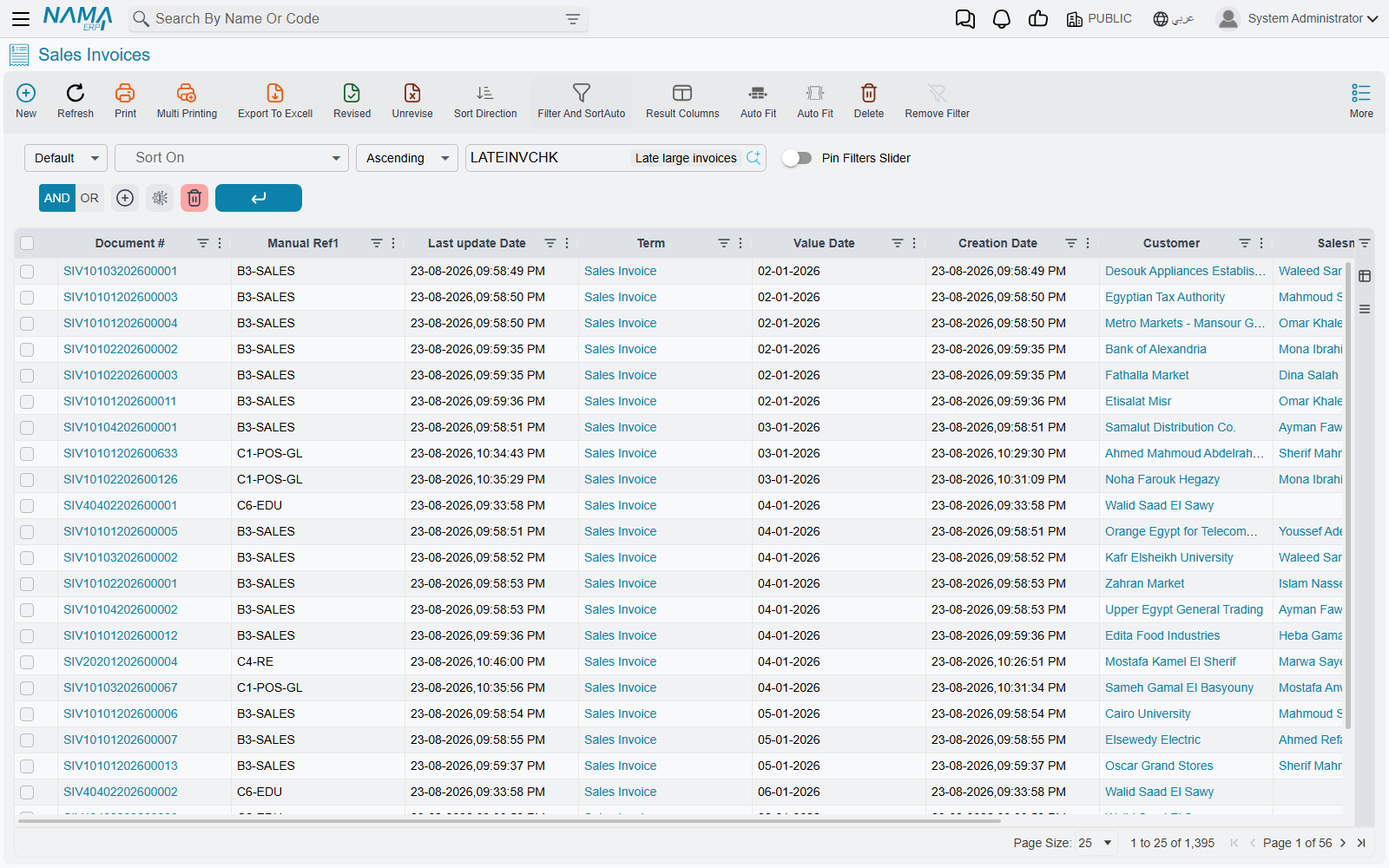
The same box sits in the search dialog behind a reference field, so a criteria can be tried out from there as well.
Two things have to be true for a criteria to be offered
The Extra Criteria box lists only criteria whose For Type is the type of the screen you are on and whose Use In List View is ticked. A criteria that does not appear in it is nearly always written against a different type, or never had the tick set.
The text form
Press Convert To Text and the conditions you built are written out as text into Textual Criteria, with Textual ticked for you. The text form is one condition per line — field,operator,value,AND — and it is what integrations, Tempo templates and report parameters expect, so this button is the usual way of producing one. The syntax is documented on Criteria from Text Parser.
While Textual is ticked, the text is the record
Saving with Textual ticked re-reads the conditions from the text: whatever the text says replaces whatever the builder shows. That is what makes freehand editing possible, and it also means a stale text box quietly overwrites careful work in the builder. Untick Textual to go back to building in the grid.
Where a saved criteria is used
Each of these screens has a field that expects a criteria record. The list is not exhaustive — the pattern repeats through the modules — but it covers what support is asked about:
| Screen | The field that takes a criteria |
|---|---|
| Approvals | The definition's own criteria, each step's Step Criteria, and the criteria on a step's responsible |
| Notifications | The definition's criteria — which records trigger the notification |
| Entity Flows | Criteria and Reversed Criteria Definition — run the flow only when the record matches, or only when it does not |
| Required Fields | The When column of the criteria-based rules |
| Criteria-Based Validation | The When and Then halves of a rule, when you would rather not write a query |
| Field Filter with Criteria | The condition the offered records have to satisfy |
| Fields and Entities Settings | A Criteria column on most of its grids — automatic coding, input validation, reference lookups |
| Quick Filters | Quick Filter Values Criteria, filtering which values become buttons |
| Screen Modifier | List View Default Criteria and Search View Default Criteria — the filter a screen opens with |
| Scheduled Tasks | Criteria — the records the task runs over |
| Reports and printed forms | The form criteria that decides which printed form a document gets |
| Salary documents | The employee criteria that decides who is collected into a sheet |
What the screen does not check
The conditions are not validated on save. A line left half-filled, a bracket that was never closed, a value that cannot apply to the field — all of it saves without complaint, and the only symptom is a criteria that matches nothing, or everything. So when a criteria misbehaves, read its lines one by one before looking anywhere else, and use Use In List View to see what it really returns.
See also
- Criteria from Text Parser — the operator list, the text syntax and the date tokens
- Entity Type Lists — the companion building block: one named list of screens that a setting can be applied to
- Criteria-Based Validation — for the rules a filter cannot express and a query has to