
Prepaid Expenses
Some expenses are paid once but belong to many months: an annual rent paid up front, a yearly insurance premium, a maintenance contract. Booking the whole amount as an expense in the month you paid it would distort that month's results and leave the following months looking artificially cheap. The prepaid-expenses system solves this: it records the full payment as an asset, then recognizes it as expense month by month over the period it covers — automatically.
Required license
Prepaid expenses are part of the accounting-prepaid-expenses license.
The four pieces
The system is built from four screens, all under the Accounting > Prepaid Expense Contracts root:
- Prepaid Expense Item — a master file that describes a kind of prepaid expense (rent, insurance, a service contract) and carries its default accounts and tax plan. You set it up once and reuse it.
- Prepaid Expense Contract — the document that records an actual prepaid payment: which item, the total amount, and the period it covers. From it the system generates the monthly recognition entries.
- Prepaid Expense Ledger — the monthly recognition entry. One is generated per month of the contract's period, and each one moves that month's share from the prepaid asset into the expense.
- Prepaid Expense Payment — one instalment of the payment, when the contract is paid in instalments rather than in one go. Generated from the contract's Prepaid Expense Payments grid — see Paying the contract in instalments.
Setting up an item
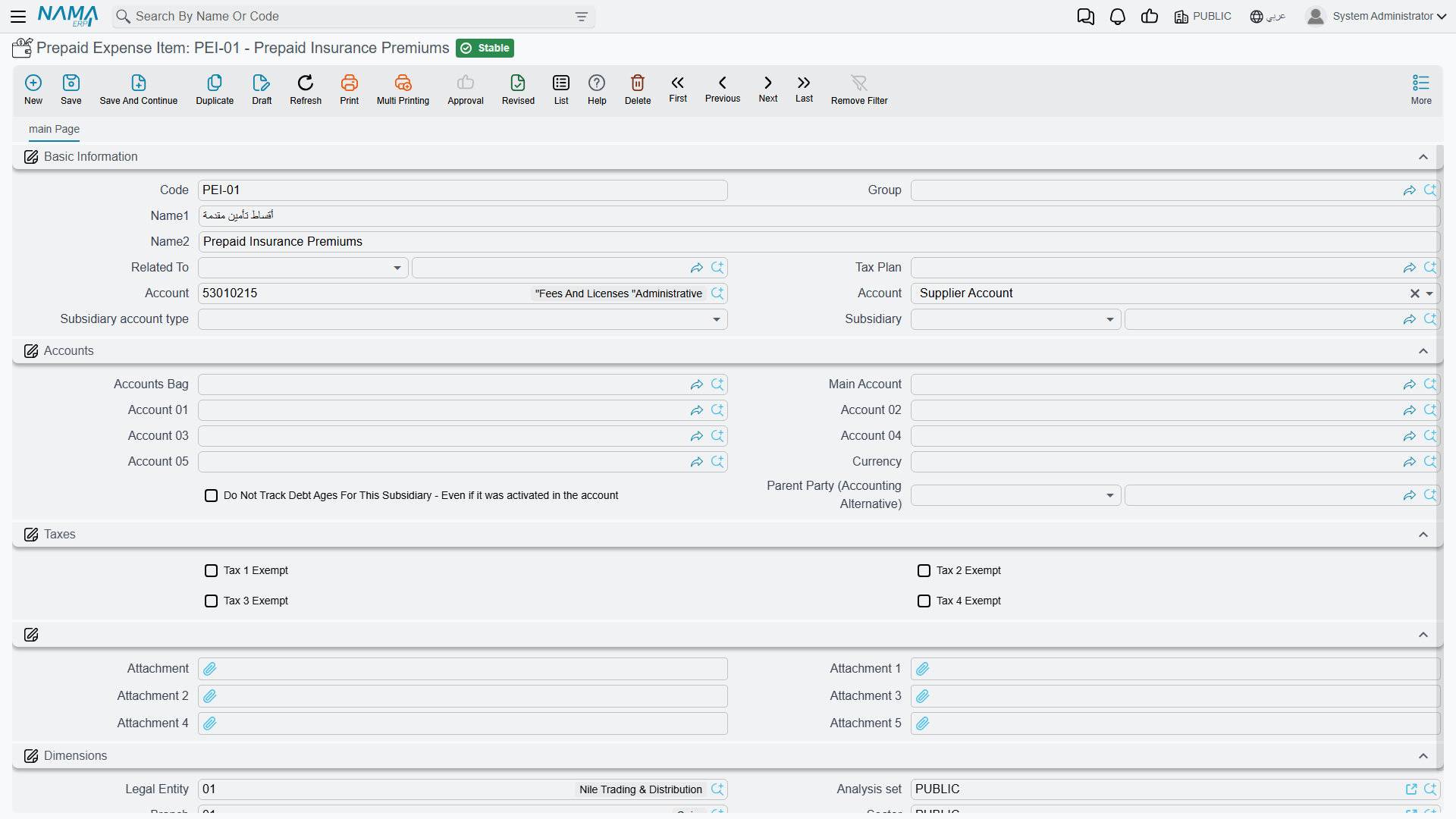
The Prepaid Expense Item (Accounting > Prepaid Expense Contracts > Prepaid Expense Item) is the reusable template. On it you set the account the expense ultimately lands in, the credit side (where the offsetting credit comes from — see below), and a tax plan if the expense is taxable. Because the item carries these defaults, the contract that uses it only needs the amount and the dates.
Recording a contract
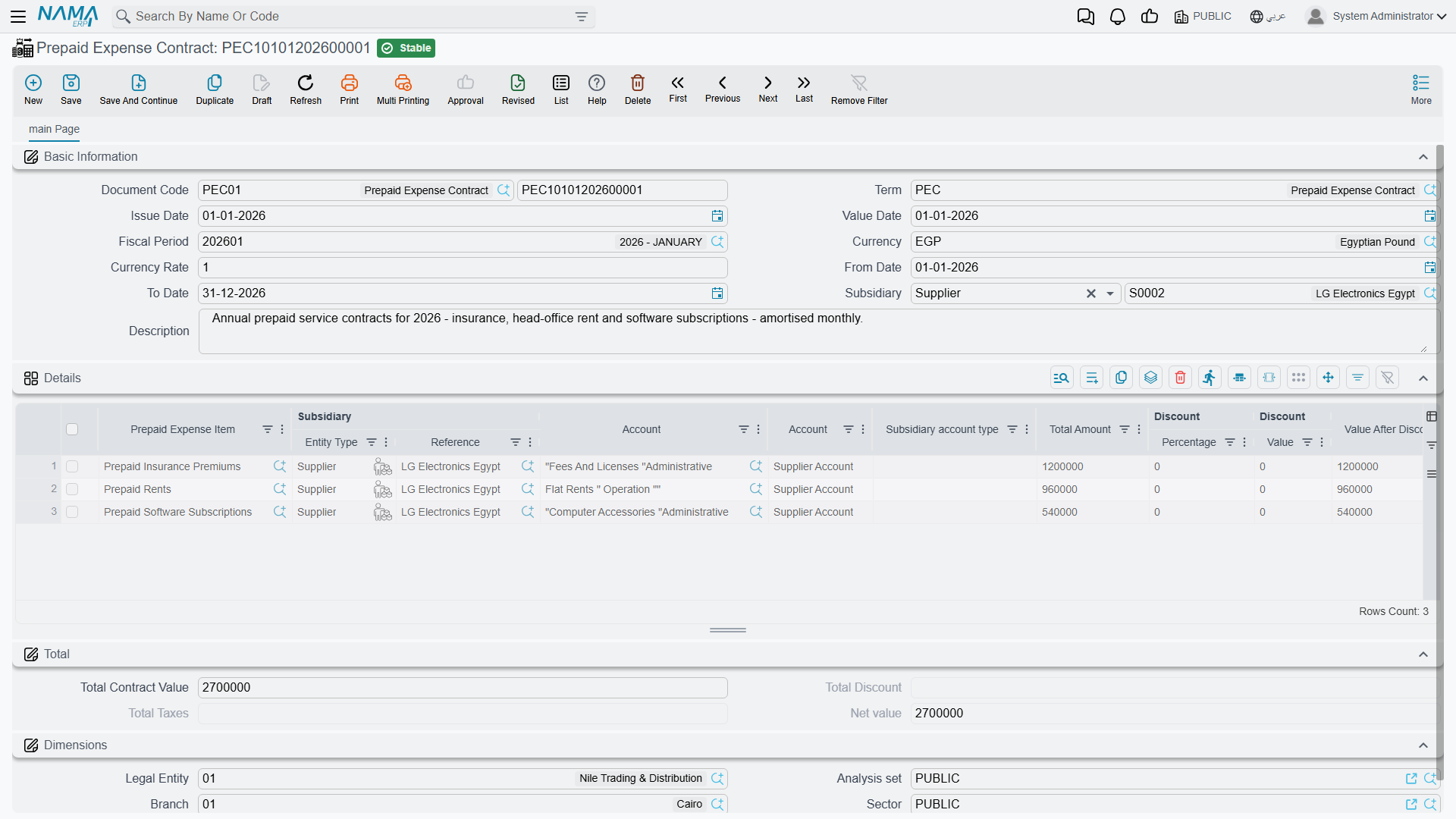
On the Prepaid Expense Contract (Accounting > Prepaid Expense Contracts > Prepaid Expense Contract) the header carries the Document Term and Value Date (which sets the Period), the Currency, and the contract's from/to dates. Each details line then describes one prepaid expense:
- the Prepaid Expense Item and the account it is recorded on,
- the line's own from/to dates and month count — the span over which it's recognized,
- the amount, expressed one of three ways: a fixed monthly amount × month count, a day cost × days count (so a contract that doesn't start on the first of the month is prorated by actual days), or a Yearly Amount — the line total is then the yearly amount × the line's month count ÷ 12, which is handy when the contract price is quoted per year,
- an optional discount and tax (percentage or value), giving the value after discount, value after tax, and the line total amount,
- the credit side and, where relevant, a subsidiary and its subsidiary account type,
- and the full set of dimensions (legal entity, sector, branch, department, analysis set).
Where the credit comes from
The line's credit side tells the system where to take the offsetting credit when the contract is committed — you're not limited to one fixed account. The options are a specific account, a specific subsidiary, the current user's subsidiary, the supplier account, a bank account, the customs / insurance / shipping company accounts (handy for import-related prepaids), or the account taken from the purchase item itself.
Paying the contract in instalments
A rent contract covering three years is rarely paid in one cheque — the landlord wants a payment every quarter or every year. The contract can generate those payments for you.
- Pick a Payment Frequency Type in the header: Yearly, Half Year, Quarterly, Monthly, Year Third, Two Months, Five Months, Seven Months, Two years, Three Years, Five Years, or Once.
- Press Create Prepaid Expense Payments. The button splits every details line into periods of that length, starting from the line's from date, and fills the Prepaid Expense Payments grid with one line per period. Each period gets its share of the line total by months; the last one takes whatever rounding left over, so the payments always add up to the line total. Once gives one payment for the whole line.
- Review or edit the grid, then save the contract. Saving generates one Prepaid Expense Payment document per grid line, dated on its period's from date and using the payment book and term from the contract's term. Remove a grid line and save again, and the payment document it generated is deleted.
The button refuses to run without what it needs:
| Message | Why | What to do |
|---|---|---|
| Select the payment frequency type first — «اختر نوع دورية السداد أولاً» | Payment Frequency Type is empty. | Pick a frequency, then press the button again. |
| Add the prepaid expense details first — «أضف تفاصيل المصروف المقدم أولاً» | The details grid is empty, so there is nothing to split. | Enter the contract lines first. |
| The details lines have no valid period to generate payments for — «لا توجد فترة صالحة في سطور التفاصيل لإنشاء سداد لها» | No details line has both a from date and a to date, with the from date not after the to date. | Correct the lines' dates. |
The accounting effect: contract then monthly recognition
The prepaid system records its effect in two stages, and that's the whole point:
- When the contract is committed, it records the prepaid amount as an asset — its effect runs through the Debit / Credit sides (plus Discount and Tax sides when present) for the line totals.
- Each monthly Prepaid Expense Ledger then recognizes that month's share: it moves the month's portion out of the prepaid asset and into the expense account. Twelve months of an annual contract therefore produce twelve recognition entries, each carrying one-twelfth (or its day-prorated share).
The generated monthly ledger and payment documents are created as drafts. A draft is written down, not counted, so each one writes its entry only when somebody commits it — normally the month's ledger at that month's end, and each payment when it is made. Saving the contract again updates the generated documents; those already committed are committed again with the new figures.
Where each side's account actually comes from is governed by the document term of each — see the Document terms reference. (Both the contract and the monthly ledger are processed in the background like any other document — see How documents are processed into accounting effects.)
For Support
- "The whole amount hit one month as an expense" — that's not how it should work; the contract books an asset and the monthly ledger entries recognize the expense over time. Check that the contract generated its monthly ledger documents, that they have been committed (they are generated as drafts), and that they were processed.
- "The monthly entries weren't generated" — review the line's from/to dates and month count; the number of monthly entries follows that span.
- "A partial first or last month looks wrong" — use the day cost × days count method instead of a fixed monthly amount so partial months are prorated by actual days.
- "The wrong account was credited" — check the line's credit side (specific account, supplier, bank, subsidiary...) and the item's defaults.
- "Where do the asset/expense accounts come from?" — from the Prepaid Expense Contract and Prepaid Expense Ledger terms; see Document terms.