
Financial Budgets
A budget is a plan with teeth: you decide up front how much each account may spend (or should earn) over a period, and then — if you want — the system holds your documents to that plan, warning or even blocking spending that would blow past it. Nama's financial budgets let you set those targets per account, per period, and per dimension, and then validate actual activity against them.
Required license
Financial budgets are part of the accounting-budget license, and live under the Budgets menu root.
Building a budget
The Financial Budget (BUDGETS > Budgets > Financial Budget) is the plan document. Each details line targets one account (within a chosen accounts chart) and carries a planned value for the year — and because budgeting is often multi-year, the line holds up to six years of values side by side, with optional change percentages to grow each year off the previous one automatically. The credit/debit split per year can be filled directly or calculated for you.
Every line is scoped by the dimensions that matter to you — legal entity, sector, branch, department, analysis set, subsidiary, even a record (entity dimension) — and by a fiscal year / period (a from–to period range). So "marketing department, branch Riyadh, this year: 500,000" is a single, precise budget line.
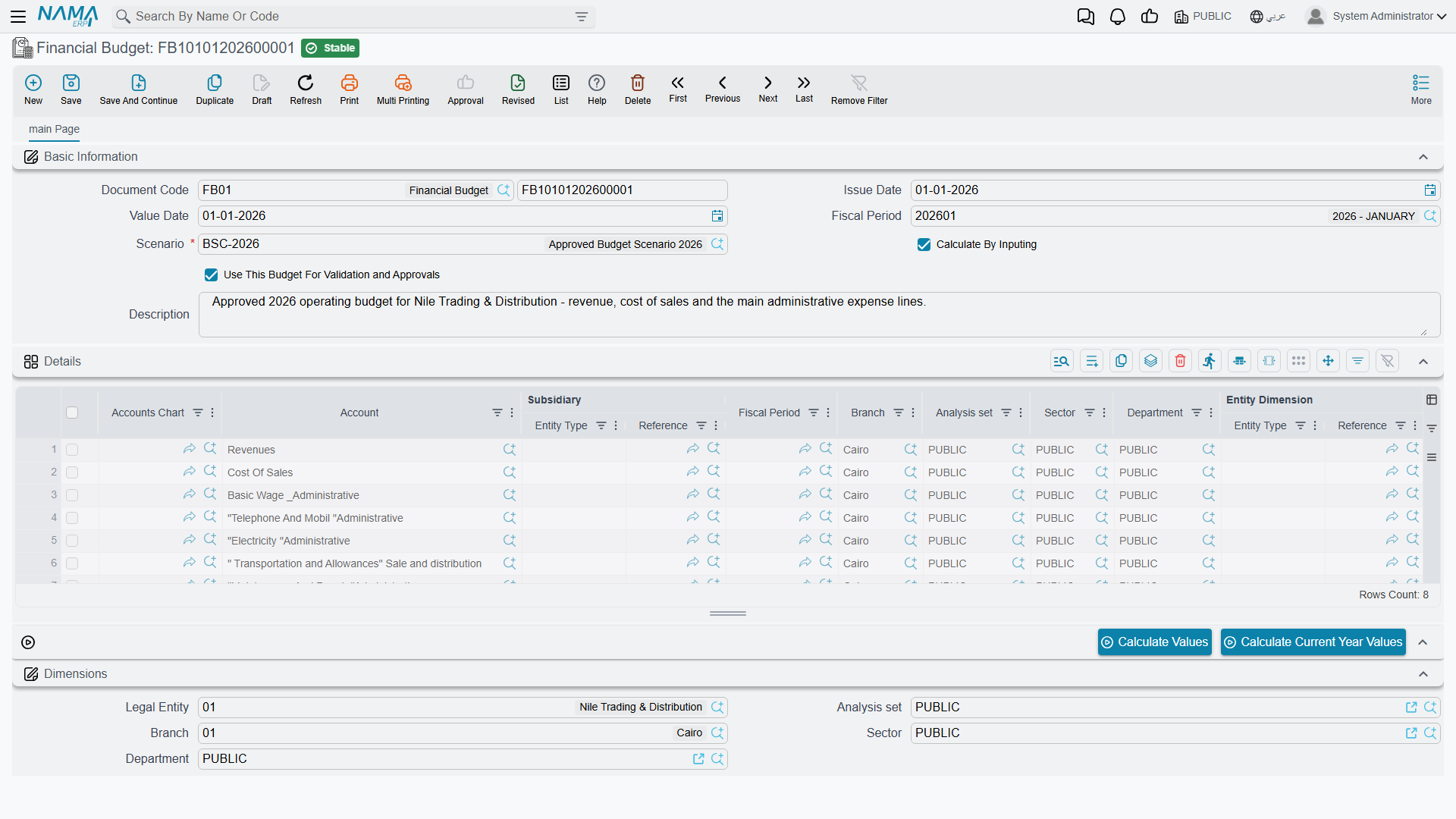
You can keep several budgets as scenarios (BUDGETS > Master Files > Budget Scenario) — an optimistic plan, a conservative one — and tag the budget with the scenario it belongs to.
Turning a budget into a control
A budget only constrains spending if you tell it to. The switch is "use this budget for validation" — set on the budget (and per line, with an optional validate-from / validate-to date window). Once a budget is marked for validation, the system checks documents that hit its accounts against the planned figure.
What happens on an overrun is decided per account, by the account's Budget Exceeded Behavior (see Budget control on the account):
- Prevent Saving — the document is blocked outright.
- Request Approval — the over-budget document is routed for approval, so an authorized user can let it through.
Two switches in the accounting configuration (see the Accounting configuration catalog) unlock those choices: an account cannot be saved with Prevent Saving (or with Prevent Save If No Budget Was Found For The Account) until Enable Prevent Saving For Budgets is on, nor with Request Approval until Enable Approvals For Budgets is on. An account left on Allow is never stopped — its budget is informational only, tracked and reportable.
Only movement that grows the account on its natural side is checked — a debit on a debit account, a credit on a credit account — and only against budget lines that are saved, not drafts, and have Use This Budget For Validation and Approvals ticked. If no such line matches, the budget total is zero and the document passes, unless the account has Prevent Save If No Budget Was Found For The Account ticked.
Matching the right budget line
When it validates, the system needs to know which budget line a document maps to. The Budget Validation Options include a set of "consider…" toggles — consider sector, branch, department, analysis set, subsidiary, record (entity dimension), references 1–3, and fiscal period — that define how precisely actuals are matched to budget lines. Turn on the dimensions you budget by; leave off the ones you don't, so the match isn't too narrow to find its line.
Actions on this screen
Budget lines are rarely typed one figure at a time — two buttons fill the numbers for you once the lines name their accounts and dimensions:
- Calculate Values — fills the planned figures across the budget's year columns from the scenario, the fiscal period range and each line's account and dimensions, applying the line's change percentages to grow one year off the previous. This is what turns "these are the accounts I budget by" into an actual multi-year plan.
- Calculate Current Year Values — the narrower version: it computes only the current year's figures, leaving the later years alone. Use it when the out-years were agreed and you are only re-basing this year.
Both act on the details grid, so add and scope your lines first, then press.
For Support
- "My budget isn't stopping anything" — three things must line up: the budget line is saved and marked Use This Budget For Validation and Approvals, the account's Budget Exceeded Behavior is Prevent Saving or Request Approval, and the document moves the account on its natural side. Otherwise the budget is informational only.
- "A document was blocked / sent for approval unexpectedly" — it hit an account that has a validation budget and would exceed it; check the budget figure and the document's amount and dimensions.
- "The system can't find the matching budget line" — review the consider… toggles in the Budget Validation Options; if you budget by branch but "consider branch" is off (or vice-versa), the actual won't match the line.
- "I want to compare plans" — keep each plan as a separate Budget Scenario and tag its budget accordingly.
Messages you may see
The refusals a document meets when it overruns a budget — The account {0} has a budget {1}, and this document will exceed the budget because it will it make the balance {2} and the approval-definition ones — are listed with the setting behind each under Budget control on the account. The ones below come from setting budgets up.
| Message | Why | What to do |
|---|---|---|
| The account {0} does not have a budget — «لم يتم عمل موازنة للحساب {0}» | The account has Prevent Save If No Budget Was Found For The Account ticked, and no saved budget line marked Use This Budget For Validation and Approvals matches this document's account, dimensions and period. | Add a budget line for that account and dimension mix, or check the consider… toggles: every dimension they switch on must match exactly, empty included, so with Consider Department on, a line with no department is not found for a document that names one. |
| You must enable the option {0} in accounting configuration to be able to use prevent saving when budget is exceeded — «يتوجب عليك تفعيل الأوبشن {0} في إعدادات الحسابات لتتمكن من تفعيل منع الحفظ عند تخطي الموازنات» | The account is being saved with Budget Exceeded Behavior = Prevent Saving while Enable Prevent Saving For Budgets is off. | Turn the option on in the accounting configuration, then save the account again. |
| You must enable the option {0} in accounting configuration to be able to use prevent saving if no budget was found | The same, for Prevent Save If No Budget Was Found For The Account — it is unlocked by the same option. | As above. The message has no Arabic translation and appears in English on Arabic screens. |
| You must enable the option {0} in accounting configuration to be able to use request approval when budget is exceeded — «يتوجب عليك تفعيل الأوبشن {0} في إعدادات الحسابات لتتمكن من تفعيل طلب الموافقة عند تخطي الموازنات» | The account is being saved with Request Approval while Enable Approvals For Budgets is off. | Turn the option on, then save the account again. |
| You can not enable replication and use request approval when budget is exceeded at the same time — «لا يمكنك تفعيل الريبليكشن و طلب الموافقة عند تخطي الموازنات في نفس الوقت» | The installation runs Replication, and Request Approval on an account is not allowed there. | Use Prevent Saving on that account instead. |