
Accounts
If the chart of accounts is the structure, the Account is the unit balances are actually recorded on. Every accounting entry — whatever its source — ends up recording a debit or credit amount on an account. And because most ledger-entry errors and reversed "subsidiary" balances trace back to the account's own setup, this is one of the most important screens for support staff to understand well.
You'll find accounts under Accounting → Master Files → Account.
Required license
Accounts are part of the core accounting license.
The two account types: Detail or Subsidiary
The most important field on the screen is Type, with two values that define the account's entire behavior:
- Detail — an ordinary account holding a single aggregated balance (like a "Rent" or "Electricity" account). You look at it and see one balance.
- Subsidiary — an account whose balance breaks down by party: customer, supplier, employee, bank, safe... A "Customers" account of type Subsidiary doesn't give you just one number; it gives a balance per individual customer, plus a grand total. This is what lets you know "how much does customer A owe us" without opening a separate account for every customer.
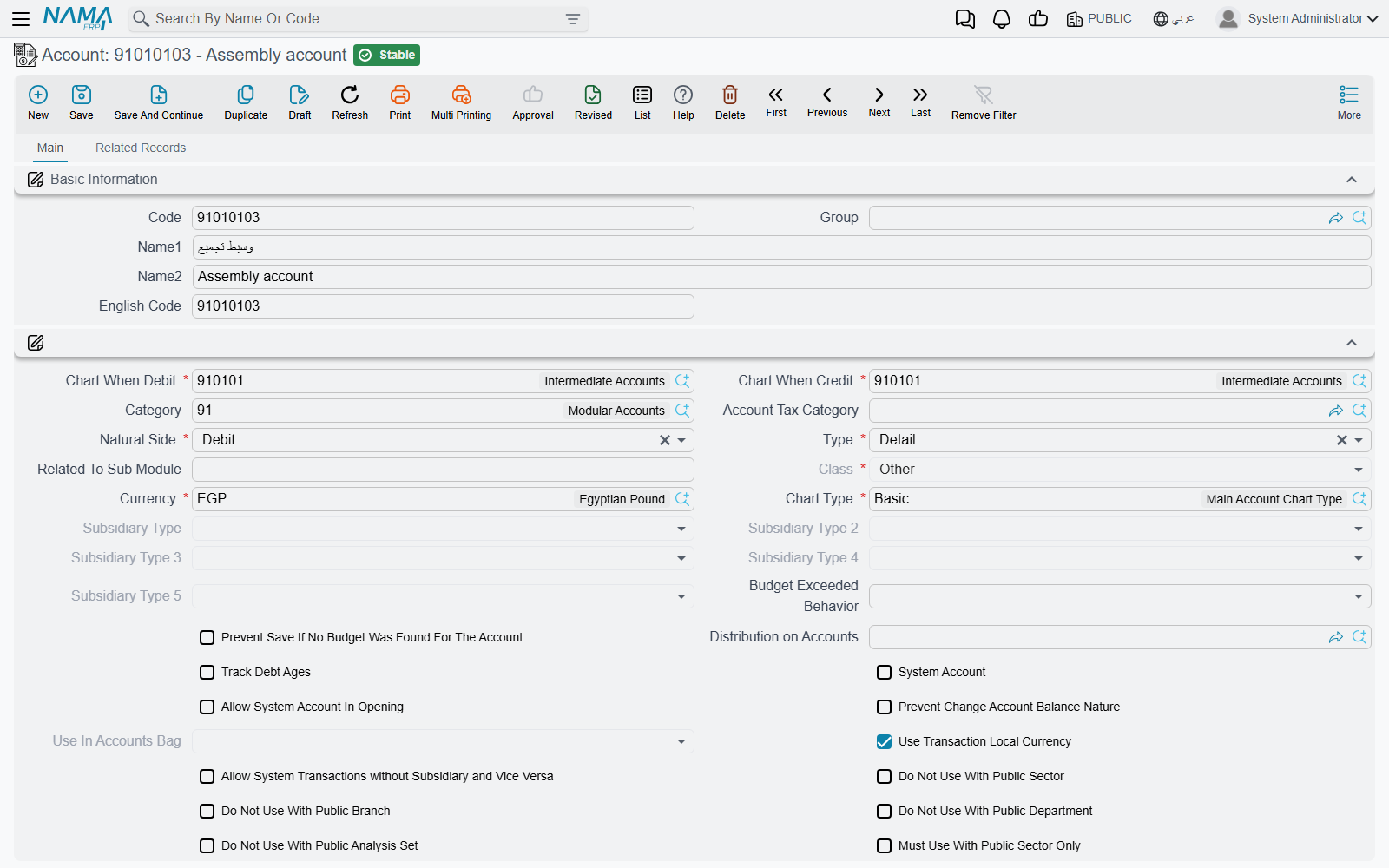
Linking the account to the chart: Debit chart and Credit chart
Notice the account has two separate links to the chart: Chart When Debit and Chart When Credit. Why two? Because some accounts must appear in a different place in the statements depending on their balance's nature. A bank current account, for example, may appear under assets when it's in debit, and under liabilities when in credit (an overdraft). Specifying two different nodes for debit and credit keeps the presentation in the financial statements correct in both cases. In ordinary cases both links point to the same node.
Alongside them you set:
- Natural Side (
Debit/Credit) — the natural side of the account's balance. - Class — the financial-statement classification (Balance Sheet / Income Statement / Other).
- Chart Type — the chart type it belongs to.
- Currency — the account's currency. A transaction in any other currency is translated at the exchange rate (see Currencies and exchange rates).
- Account Category and Account Tax Category — the two angles feeding the income statement, cash-flow statement, and tax reports (see Chart of Accounts).
Consolidation settings
Two fields serve the consolidated statements of a group:
- Intercompany — marks the account as holding business with other group companies, so the consolidated reports eliminate it. An account under a chart node flagged Intercompany (on either its debit or its credit chart) is ticked when you save it. You can also tick it on a single account whose chart is not flagged.
- Consolidation Rate — Closing, Average or Historical: the rate the consolidated reports translate this account at. Leave it empty to inherit from the chart, as described on Chart of Accounts. A value on the account wins over the chart.
Each company's Mediator account, on the Legal Entity screen, should be an intercompany account. When a company's mediator account is set or changed to an account without the flag, the Legal Entity screen saves but warns: The mediator account {0} is not marked as intercompany, so the consolidated reports will not eliminate its balances. Mark the account, or a chart above it, as intercompany. — «الحساب الوسيط {0} غير محدد كحساب بين شركات المجموعة، لذلك لن تستبعد التقارير الموحدة أرصدته. حدد الحساب، أو إحدى شجرات الحسابات الأعلى منه، كحساب بين شركات المجموعة.»
Subsidiary types (up to five)
When the account is of type Subsidiary, you set its Subsidiary Type — the kind of party the balance breaks down by (customer, supplier, employee, bank, bank account, safe, fixed asset, item, project... the list is long and includes entities from every licensed module). You can combine up to five subsidiary types on the same account (subsidiary type 2 through 5), so its balance breaks down across more than one dimension at once — for example customer × project.
TIP
The Allow Transactions Without Subsidiary option lets you, when needed, record a transaction on a subsidiary account without specifying the party. By default, subsidiary accounts require the party; don't enable this without a clear reason.
The control flag set
The part that makes this screen pivotal for support is the set of flags (checkboxes) that govern the account's behavior when entries are recorded on it:
- System Account — marks an account whose balance the system builds by itself, and locks it against manual entry: a journal entry, receipt/payment voucher, bank transfer or inter-company transfer naming it is refused with "The Account … Can Be Used Only By The System". Documents generated automatically are unaffected. Three things can reopen it — a module option per document type, the flag below, or a dated exception record; all three are on System Accounts & Transaction Exceptions.
- Allow System Account In Opening — a companion to the flag above: it lets the account be used manually in any period that is not a Normal one (opening, adjustment, closing), so opening balances and year-end adjustments can be recorded on it while it stays locked during the year.
- Prevent Change Account Balance Nature — blocks a transaction that would flip the account's balance to its unnatural side (e.g., making a cash balance credit). A safeguard against errors. The refusal names the balance the document would have produced: The balance of account {0} will become {1}, You can not change the natural side of the account balance from Debit to Credit — « رصيد الحساب {0} سيكون {1}, فلذلك لا يمكن تغيير طبيعه رصيد الحساب من مدين الي دائن » — with a from credit to debit twin and a dated variant ending on {2}.
- Track Debt Ages — enables debt-age tracking for this account, a prerequisite for the account appearing in debt-age reports.
- Do Not Auto-Include In Exchange Rate Update — excludes the account from periodic foreign-currency revaluation.
- Use Transaction Local Currency — makes the account keep its value in the transaction's local currency.
- Dimension restrictions: Must Use With Public Sector/Branch/Department/Analysis Set Only, or their opposites Do Not Use With Public ..., require or forbid using a public dimension with this account.
- Data enforcement: Do Not Allow Empty Reference/Narration forces the user to fill the reference or narration fields when recording an entry on the account.
Budget control on the account
If you use financial budgets, the Budget Exceeded Behavior and Prevent Save If No Budget fields determine how the system reacts when spending exceeds its budget:
- Allow — records the transaction and tolerates a silent overrun.
- Prevent Saving — rejects the over-budget transaction with The account {0} has a budget {1}, and this document will exceed the budget because it will it make the balance {2} — «موازنة الحساب {0} قيمتها {1} و هذا السند سيتعدي الموازنة حيث أنه سيجعل الرصيد {2}».
- Request Approval — halts the transaction pending approval. This route needs three things in place, and each has its own refusal when it is not: the accounting-configuration option (You must enable the option {0} in accounting configuration to be able to use request approval when budget is exceeded), an approval definition that matches the document (The document {0} exceeded the budget and no appropriate approval definition was found — «المستند {0} تعدي الموازنة و لم يجد النظام تعريف موافقة مناسب ليتم الموافقة علي تعدي الموازنة»), and exactly one such definition — two matching definitions stop the save with The document {0} exceeded the budget and should be approved by the approval definition {1}, but it also should be approved using the approval definition {2}. This is a conflict and the system can not decide which to choose.
Saving the account itself with Prevent Saving, Request Approval or Prevent Save If No Budget Was Found For The Account is refused until the matching option is on in the accounting configuration; those refusals, and The account {0} does not have a budget, are listed on Financial Budgets.
When an account is closed to transactions by date
A separate file, Prevent Accounts Transactions, closes an account or a subsidiary to movement for a date range — it is not a flag on the account itself, which is why nothing on this screen explains the refusal. Three messages come from it, and all three name the file so you know where to look:
| Message | Why |
|---|---|
| You can not add or edit any transaction on The Account {0} on the date {1} , please review Prevent Accounts Transactions file — «لا يمكن تعديل أو إضافة أي حركة علي الحساب {0} في تاريخ {1} ، راجع ملف منع الحركات علي الحسابات» | A Prevent Accounts Transactions record covers that account and that date. |
| You can not add or edit any transaction on The Subsidiary {0} on the date {1} , please review Prevent Accounts Transactions file — «لا يمكن تعديل أو إضافة أي حركة علي الذمة {0} في تاريخ {1} ،راجع ملف منع الحركات علي الحسابات» | The same block written against a subsidiary — a customer, supplier or employee — rather than the account. |
| You can not do any transaction on The Subsidiary {0} now , please review Prevent Accounts Transactions file — «لا يمكن عمل اي حركة علي الذمة {0} الاّن ، راجع ملف من حركات الحسابات» | The block on that subsidiary has no date range, so it applies whatever the document's date. |
The fix is always the same: open the Prevent Accounts Transactions record, and either narrow its date range or remove the account or subsidiary from it. Nothing on the account or on the security profile overrides it.
Actions on this screen
One button on the account does real work, and it is the one you reach for after a currency mistake:
- Update Balances Currency — re-stamps the account's stored balances with the currency currently set on the account. Use it when an account was created (or imported) with the wrong currency and the balances were already built against the old one; correcting the Currency field alone leaves the existing balances behind. The button asks you to tick a confirmation first, because it rewrites balance records. The same button is on the account list view, so you can select several corrected accounts and run it once over all of them.
Correcting the currency of an account that already has transactions. Once any journal line uses the account, the system refuses to save a new Currency:
{0} can not be changed after transactions, old value was {1}, new value is {2} — «لا يمكن تغيير {0} بعد انشاء حركات - القيمة السابقة {1} و تم تغييرها الي {2}»
The field unlocks in two cases: when the account has no transactions left, or when Allow Changing Subsidiary Accounts After Usage In Accounts is on in accounting configuration. That switch also unlocks the account type and the subsidiary types. The lock only protects a value that is already set: an empty Subsidiary Type 2 to Subsidiary Type 5 can be filled in on an account that already has transactions, without the switch. After you change the currency, run Update Balances Currency. Then recommit the documents that record entries on this account, from the Business Requests list, so their entries are rebuilt in the new currency. You do not need to reprocess the whole database.
Reports
This account's statements and balances (general/subsidiary/detail account statement, trial balance, debt ages) are all on the Account statements & trial balance page.
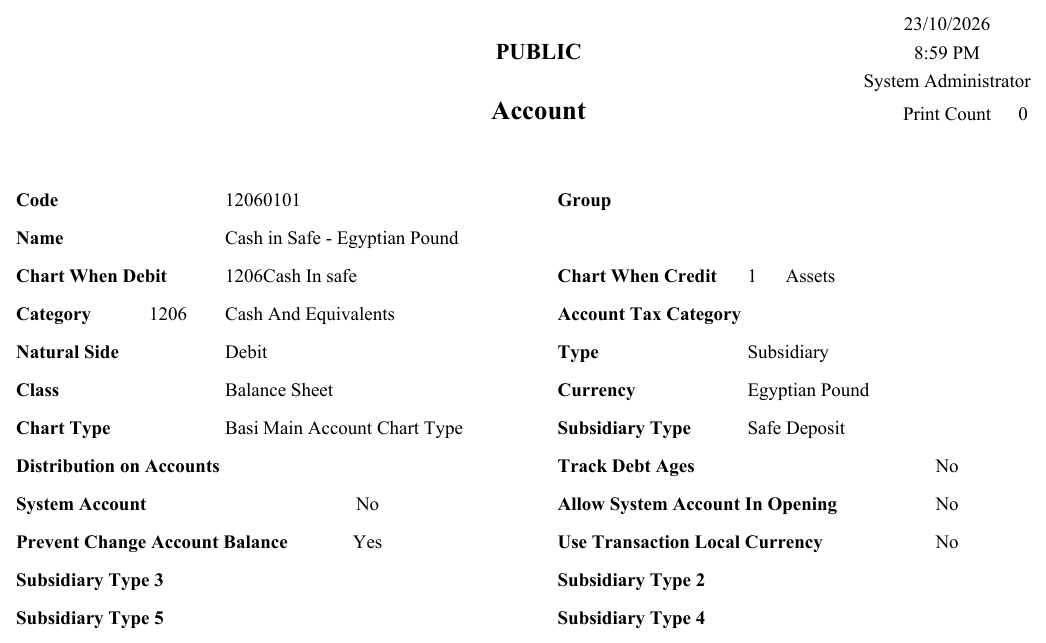
The account record itself prints on the Account form (SYSF-ACC019): its charts, category, natural side, type, currency, subsidiary types and control flags:
For Support
Most "the entry won't save" or "the balance is wrong" tickets are resolved from this screen:
- "Blocking message on save: change of balance nature" — the account has Prevent Change Account Balance Nature enabled and the transaction would have flipped its balance to the unnatural side. Review the transaction logic or the setup.
- "The system asks for a subsidiary/customer and won't save" — the account is of type Subsidiary and no party was specified; either specify it or (only if necessary) enable Allow Transactions Without Subsidiary.
- "The system mandatorily requires a reference/narration" — one of the Do Not Allow Empty Reference/Narration flags is enabled on the account.
- "The account doesn't appear in the debt-age report" — the Track Debt Ages flag is off.
- "The account isn't revalued with currency differences" — the Do Not Auto-Include In Exchange Rate Update flag is on.
- "A transaction rejected because of the budget" — the account's Budget Exceeded Behavior is Prevent Saving or Request Approval.
- How the account's debit/credit figures are built during document processing is covered in How documents are processed into accounting effects, and dimension restrictions in the Dimensions, cost centers & distribution reference.