
Technician Appointments Overview
Required licence
crm-technician-appointments.
Some businesses sell a product and then have to turn up at the customer's address to make it work. An air-conditioning dealer sells a split unit on Sunday and has to send two installers on Thursday morning; a lab sells a home-sampling package and has to send a nurse; a furniture shop sells a wardrobe and has to send an assembly crew. In all of these the sale is easy to record and the visit is the hard part: which two people, on which morning, and are they already promised to somebody else?
Technician Appointments is the part of CRM that answers that question. It is a small, self-contained booking system: you describe the work you do, you group your field staff into crews, you tell the system when those crews work, and then you book slots against a weekly calendar that shows you, in colour, exactly who is already promised to somebody else.
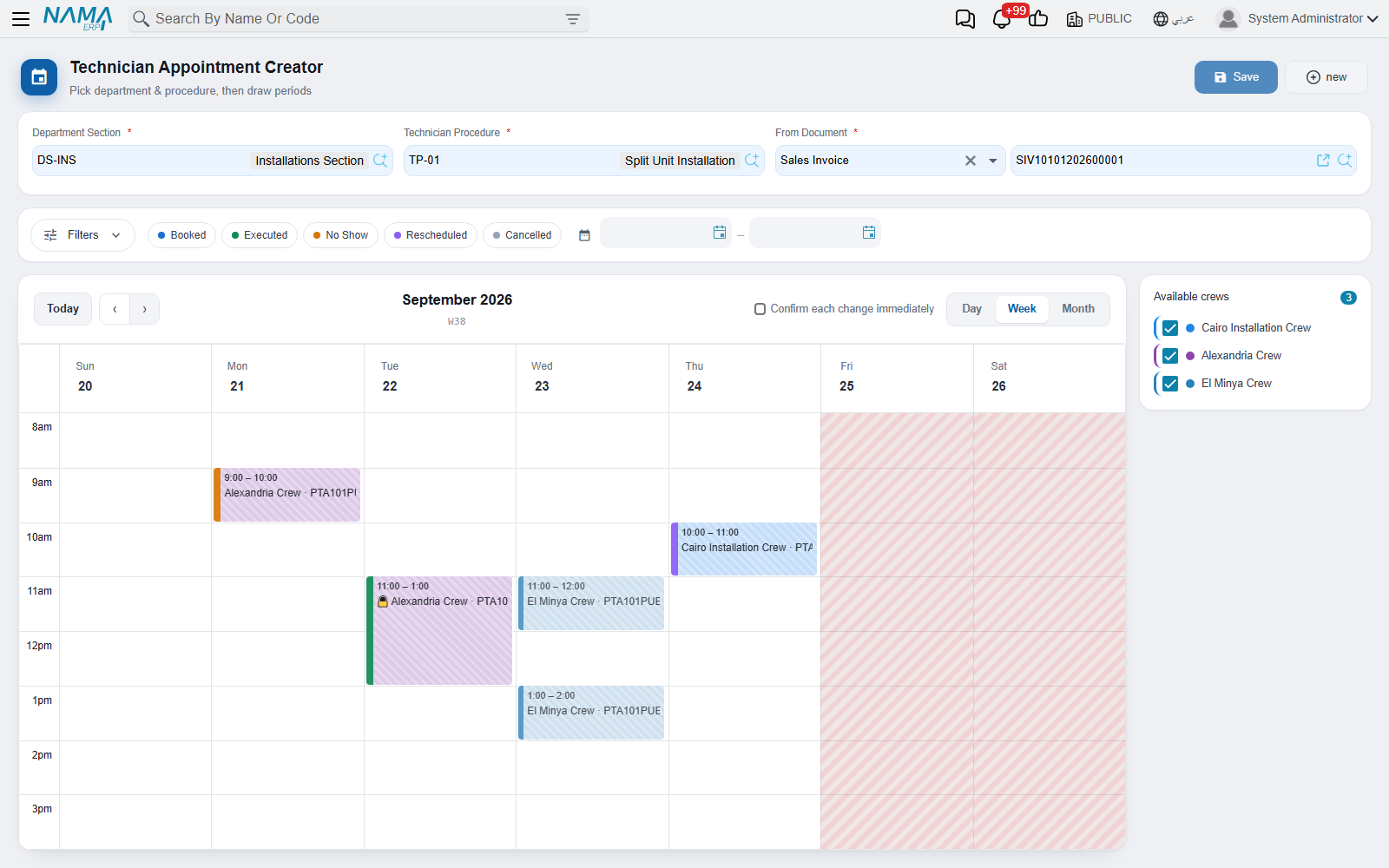
The ten screens, and the order to meet them in
Everything lives under one menu group, Technician Appointments (مواعيد الفنيين), inside the CRM module. The menu lists the screens in roughly the order you will build them. For the documents and master files it shows the list names, which are the plural forms (for example Technician Crews):
| Screen | What it is | Read |
|---|---|---|
| Technician Procedure (إجراء فني) | A job you are booked for — "Split unit installation" | Services and Procedures |
| Technician Service (خدمة فنية) | One task inside that job — "Fit the indoor unit" | Services and Procedures |
| Technician Crew (فريق فنيين) | The team that goes out, and who supervises it | Crews |
| Technician Unavailability (سند إيقاف فني عن الحجز) | Leave, training or a sick day that takes a technician, and so their crew, off the calendar | Technician Unavailability |
| Appointment Booking Settings (إعدادات حجز المواعيد) | Working hours, slot length, and the books to number appointments with | Booking Settings |
| Technician Appointment (موعد فني) | The booking itself, with its materials and its change history | The Appointment |
| Technician Appointment Creator (إنشاء موعد فني) | The weekly calendar you book and rearrange visits on | The Booking Calendar |
| My Appointments (مواعيدي) | The field schedule: a technician's crews, a supervisor's sections, or every crew for an administrator. Read-only, with filters | My Appointments |
| Technician Service Distribution (سند توزيع الخدمات) | What was actually done, by whom, for how long | Service Distribution |
| Technician Transfer (سند نقل فني) | Moving a technician from one crew to another | Transfers |
How the pieces fit together
The chain reads cleanly in one sentence: a procedure is a bundle of services; a crew is a group of technicians that is qualified for certain procedures; an appointment books one crew for one procedure at particular times; and a service distribution says which technician performed which service afterwards.
Two of those links are enforced when you save, and they are the reason the setup order above matters:
- A service distribution will only accept services that belong to the appointment's procedure, and only technicians who are members of the appointment's crew. Get the procedure's service list right and the distribution becomes a short pick-list rather than a free-text form.
- A technician belongs to exactly one crew. The crew screen checks it, and the transfer document is the way to move somebody without breaking that rule.
Two more rules protect the calendar itself. A crew cannot be booked twice for the same time, and it cannot be booked while one of its technicians is blocked by a committed Technician Unavailability. Enter leave as soon as it is approved, and the booking staff will never offer that crew for those days.
The department section (القسم الوظيفي) runs through the whole thing as the organising axis. Crews belong to a section, procedures can be restricted to sections, and — most importantly — the booking calendar and the numbering rules are both looked up from the section. If you run installation in Giza and Cairo out of two different sections, the two teams get their own calendars, their own working hours and their own document numbering without any further setup.
Setting up a section for booking
There is one preparatory step outside this menu group, and skipping it makes the whole feature look broken: the department section must be marked as bookable.
Open the section under Payroll → Main → Department Sections (الرواتب ← الأساسيات ← الأقسام الوظيفية) and set:
- Show In Appointments Screen (يظهر في شاشة المواعيد) — tick it. Only ticked sections are offered in the Department Section picker on an appointment and in the booking calendar. An unticked section is invisible to this feature.
- Appointment Booking Settings (إعدادات حجز المواعيد) — point it at the settings record that describes when this section works. This is how the calendar knows the working hours, the slot length and the bookable date range, and how a saved appointment finds its document book.
- Supervisors (المشرفون) — the employees who supervise this section's crews. On My Appointments they see the schedule of every crew in the section.
Do this for every section that takes bookings, then work through the pages in the table above in order. For technicians and supervisors to see their schedule on My Appointments, each one's user also has to be linked to their employee record.
What this feature records, and what it does not
Worth being clear about early, because it decides where the rest of your process lives:
An appointment is a scheduling document. It reserves people and time. It carries the usual document frame — book, term, value date, fiscal period, dimensions and an approval cycle — but it does not price the work, does not move stock and creates no ledger entry. Neither does the service distribution: it is a record of effort, not an invoice.
Materials are listed, not moved. The appointment's Items And Services grid records which materials the visit uses and which service each is for. The materials are copied from the document the visit was booked from when you pick it on the appointment screen, and the grid also records the actual and remaining quantities. It is a list for the crew and for analysis; issuing the stock and billing it still happen on the supply-chain and sales documents. The link back to those is the From Document (بناءا على) field: an appointment is normally raised from the sales invoice, sales order or contract that promised the visit, so anyone looking at the booking can jump straight to what was sold.
Status is mostly automatic. A new appointment is Booked. Moving or removing one of its periods makes it Rescheduled; committing a service distribution against it makes it Executed, and cancelling that distribution moves it back to Booked. Cancelled and No Show are yours to set as the day goes on, from the booking calendar's right-click menu or on the appointment itself. Executed can also be set by hand in the same places. Once an appointment is committed, every period that is moved, added or removed is kept in its Change History, with who did it and the reason typed on the booking calendar.