
Maintenance Orders
On 1 April 2026 Nahed El Gindy opens maintenance work plan WP-0087 and presses Generate Maintenance Orders. The plan holds three lines — the April monthly visit for chiller MCH-00311, the same for chiller MCH-00312, and the monthly visit for the air-handling unit MCH-00318. All three share the same expected date, the same technician (EMP-2011, Mahmoud Adel Hassan) and the same building, so the system groups them into one document: maintenance order MO-0513.
That order is where the maintenance suite does its real work. It says which machines are being worked on, what faults were found, which spare parts and services the job needs, who the technicians are and what each of them is owed. It draws the pre-paid quantities down from the contract, it can write a fresh warranty onto a repaired fault, and — if you configure it that way — it can create a journal entry. What it does not do is move a single part out of the store; that only ever happens through the invoice.
Required licence
crm-maintenance
Where an order comes from
There are five routes onto this screen, and only one of them is automatic:
| Route | How | Automatic? |
|---|---|---|
| From a maintenance work plan | Generate Maintenance Orders on the work plan | Yes — the orders are created and committed for you |
| From a maintenance notice | Type the order, pick the notice in From document | No |
| From a maintenance order request | Type the order, pick the request in From document | No |
| From a maintenance contract | Type the order, pick the contract in From document | No |
| From nothing at all | Type it | No |
When you pick a predecessor in From document, a copier brings the header data and the maintenance group, spare-part, service, fault, machine, tool and technician grids across — unless the order's document term ticks Do not copy header data of from-doc or Do not copy details of from-doc. A contract is the exception: from a contract only the maintenance-group lines are copied.
Nothing converts a request or an estimation into an order
The Maintenance Order Request looks like an approval step before the order, and the Maintenance Estimation looks like a quotation that becomes one. Neither is. There is no button on either that produces an order — the order is typed by hand with the earlier document named in From document, and the earlier document is not marked, closed or consumed in any way.
The screen, page by page
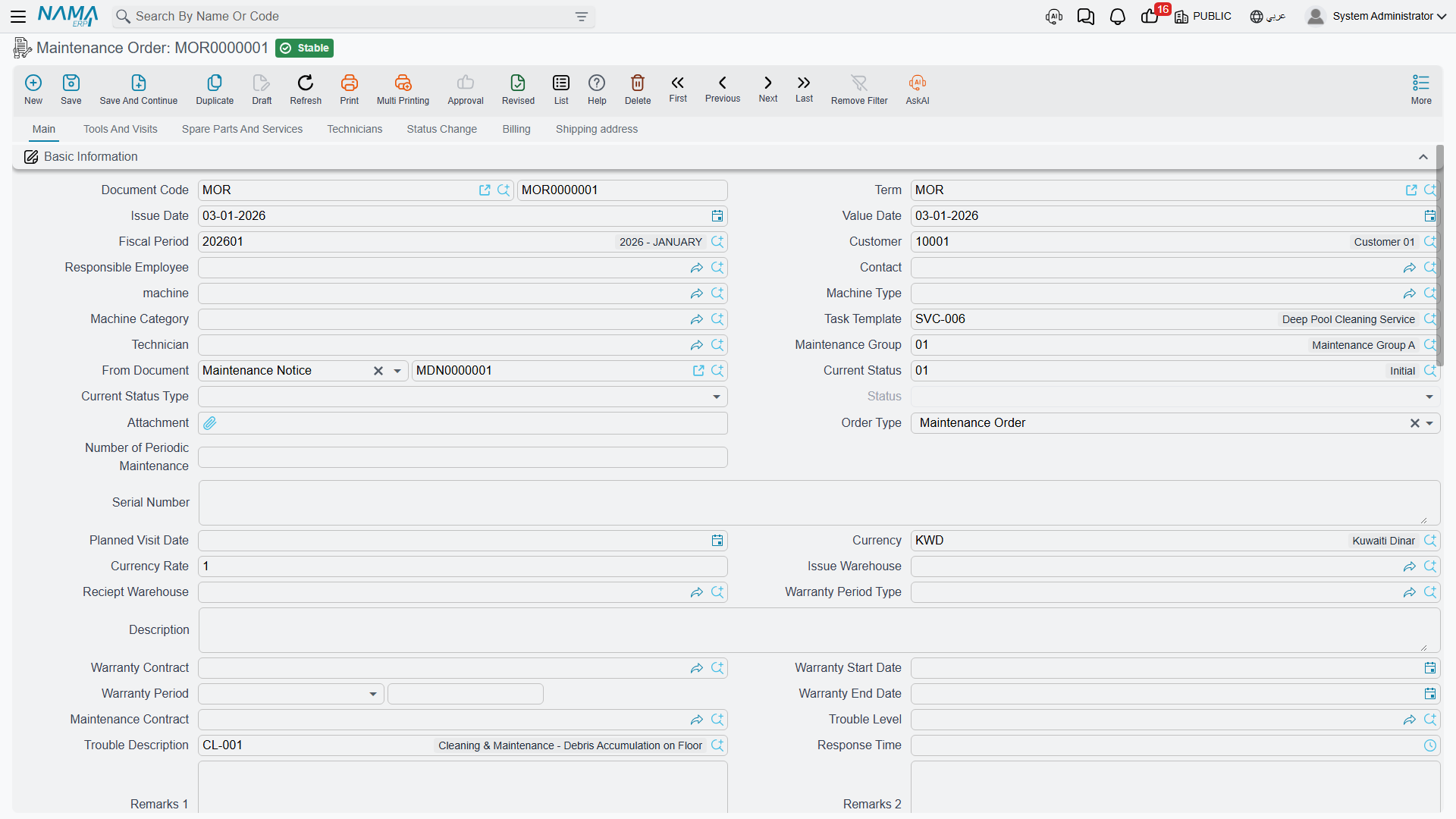
Main. Customer, responsible employee, contact, machine, machine type, machine category, task template, technician, maintenance group, From document, current status and status type (see below), attachment, order type (Installation / Maintenance Order / Periodic Maintenance), number of periodic maintenances, serial number, planned visit date, currency and rate, issue warehouse and receipt warehouse, warranty period type, warranty contract, contract start / warranty period / contract end, maintenance contract, trouble level, trouble description, response time and two remark boxes.
Picking a machine fills the customer, contact, serial number, warranty dates, building, floor and room from the machine file. By default the machine's customer overwrites anything already typed in the customer box; the CRM setting Create invoice with different customer is what stops that. In the same spirit, the machine lookup only offers machines belonging to the selected customer unless the CRM setting Do not filter machine by customer is on — which is exactly why machines created by Generate Machine with no customer are invisible here (see Maintenance Sales).
Machines grid. One line per machine being worked on, each with its own task template, odometer columns, a read-only execution document and execution status, and a selected tick-box that drives Create execution for selected lines. On MO-0513 there are three lines: MCH-00311 and MCH-00312 with the Chiller Monthly Checklist, MCH-00318 with the AHU Monthly Checklist.
The header machine is copied into this grid automatically when the document is saved, taking the place of a blank line. Two rules are enforced: every machine used anywhere else on the document must also appear in this grid, and the same machine-plus-task-template pair may not appear twice.
Dysfunctions grid. The faults found. For chiller 1 the crew records DYS-014 High discharge pressure, with a free-text detail and a proposed solution. The read-only old warranty block on the line — period type, start, end and remaining days — is filled from the machine's own fault warranty history, so the technician can see at a glance whether this fault is still covered from a previous repair. On MO-0513 it is empty, because this is chiller 1's first recorded fault. The right-hand columns are the new warranty the repair grants: period type WPT-03M, start 2026-04-02, end 2026-07-02.
Spare parts and services. Two priced grids plus a third for returned parts. Each spare-part line carries item, machine, quantity, a full price block with four taxes, warehouse and locator, remarks and the supply-chain item dimensions. Service lines carry a service from the service catalogue, a quantity, the price block and their own warranty fields. On MO-0513:
| Spare parts | Quantity | Unit price | Net value |
|---|---|---|---|
SP-FLT-14 Air filter 14 in | 6 | 300.00 | 1,800.00 |
SP-OIL-05 Compressor oil 5 L | 1 | 600.00 | 600.00 |
| Total spare parts | 2,400.00 |
| Services | Quantity | Unit price | Net value |
|---|---|---|---|
MSV-01 Chiller periodic maintenance visit | 3 | 1,200.00 | 3,600.00 |
| Total services | 3,600.00 |
Order total: 6,000.00.
Technicians. A header Technicians Reward box and a grid of technicians with their individual rewards. The document is refused if the grid does not sum to the header — on MO-0513, 300.00 in the header against EMP-2011 200.00 plus EMP-2014 100.00. Choosing a maintenance group fills the grid from that group's members.
Tools and visits. A tools grid, a Tools issue button, and an embedded read-only list of the maintenance visits that point at this order.
Status change. The status history: from status, to status, change date, user and remark. It is written by the system only — adding, removing or editing a line has the document refused.
Billing and Shipping address hold the payment-schedule and delivery details; they behave as they do on any other document of this family.
Statuses, and the setup step that decides whether any of it works
The Current Status box points at an Order Status record you defined yourself, and each of those records carries a status type — Open, In Progress, On Hold, Closed, Initial, Re-Open or Finished. That status type is what the system actually reads: it is copied into the order's own read-only Status Type, and the executions overwrite it as work starts and finishes. On MO-0513 the order opens at MOS-NEW (Open) and moves to MOS-WIP (In Progress) as soon as the first execution is under way.
A status with no status type records nothing
If the Order Status records in your installation were created without a status type, the whole lifecycle silently stops working: the order's status type stays blank, the executions have nothing to move, and no screen tells you why. Check this first — see Order and Visit Statuses.
There is a second status box, Current Status Type (Reviewed, Pending Review, Rejected, Ended With Customer Approval). It is stored and displayed and nothing reads it. Treat it as a note to your colleagues, not as a review cycle.
Where the prices come from
A spare part is priced from the supply-chain sales price list — unless the same item appears on the maintenance contract this order came from with quantity still remaining, in which case the contract price wins. A service is priced from the service catalogue record, again overridden by the contract line when there is one. That is why the filters on MO-0513 are 300.00 each and not the 350.00 on the price list: MC-0021 prices them at 300.00.
Every price stays editable on screen. Nothing prevents an operator from typing a different figure.
Contract entitlement — the only meaning of "covered"
The maintenance contract does not carry a covered/not-covered flag. What it carries is a quantity of pre-paid parts and services at a contract price, and the order draws that quantity down. Committing MO-0513 changes MC-0021 like this:
| Contract line | Was remaining | Ordered | Now sold / remaining |
|---|---|---|---|
SP-FLT-14 | 24 | 6 | 6 / 18 |
SP-OIL-05 | 4 | 1 | 1 / 3 |
MSV-01 | 44 | 3 | 3 / 41 |
Ask for more than the contract has left and the order is refused, naming the item and the contract.
Coverage is a quantity, not a date
The order fills its Warranty Contract, Contract Start and Contract End boxes from the machine and then stops. No code compares the work date to the warranty period or the contract end date, and no code decides whether the customer should be charged. Work on a machine whose contract expired last year is priced, drawn down and billed exactly like covered work. Deciding what to charge for is entirely a human decision, taken on this screen.
What committing the order does
| Effect | Result |
|---|---|
| Ledger | Only if both the debit and the credit side are configured on the order's document term. Then the order creates a plain two-sided journal entry — one line per spare-part line, one per service line, and one negated line per returned spare part. On MO-0513 the term deliberately leaves both sides empty, so no entry is created; the invoice is what reaches the ledger. |
| Stock | None. No part leaves any store because of this document. |
| Contract entitlement | Drawn down as shown above. |
| Machine fault-warranty history | If the term ticks Update Machine Dysfunction Warranties, each fault line that grants a new warranty writes a row into the machine's own warranty history. MCH-00311 gains: DYS-014 · MO-0513 · 2026-04-01 · WPT-03M · start 2026-04-02 · 92 days · end 2026-07-02. Cancelling or editing the order cleans those rows up again. |
| Warranty contract | Only for an Installation order — see the next section. |
The accounting entry, where there is one, is created as a business request and processed in the background, so the document itself saves instantly. If processing fails, the request is retried from the Business Requests list view: filter by status, select the rows and use More → Reprocess.
Tick Update Machine Dysfunction Warranties in one place only
The same option exists on the order term and on the invoice term. If both carry it, the invoice raised from that order is refused outright with a message telling you to select it in only one of the two files. Pick one — normally the order term, since that is where the fault is recorded.
An Installation order creates a contract behind your back
When Order Type is Installation and the order's document term names a warranty-contract book and term, committing the order creates and commits a maintenance contract of type Warranty Contract. It copies the warranty period and dates, the machine, serial, customer and contact, and the machines, spare-part and service grids. Cancelling the order — or changing its type away from Installation — deletes that contract again.
The generated warranty contract carries the full money block
The copy includes the whole money block, not just the coverage. A maintenance contract has its own full invoice-style accounting effect, so if the term you nominated for the generated contract has debit and credit sides configured, the same amount is booked twice — once by the order (or later by the invoice) and once by the contract that appeared on its own. Nothing warns you. Nominate a warranty-contract term with no accounting sides.
The Maintenance Order Request
The request shares this screen and is meant to be the "please do this work" step before the order. In practice it is the order screen with most of its buttons removed: no executions, no invoice, no spare-parts issue, no tools issue, no visits list, no shipping address. It is covered with the notices on Notices and Requests.
A request creates a journal entry
Despite being a request, it uses the same accounting logic as the order: if its document term has debit and credit sides configured, saving it creates an accounting entry. Leave those sides empty on the request term unless you genuinely want a document that only asks for work to hit the ledger.
The buttons that push parts out of the store
Three buttons on this screen open a supply-chain document in a pop-up, pre-filled from the order's grids. Nothing is saved until you save it:
| Button | Opens |
|---|---|
| Spare Parts Issue Request | A stock issue request for the spare-part lines |
| Returned Spare Parts Receipt Request | A stock receipt request for the returned spare-part lines |
| Tools Issue Request | A stock issue request for the tools grid |
These are an alternative to invoice-driven issuing, never a supplement
The invoice generates its own stock issue from the same lines. If a technician issues the parts from here and the back office then saves an invoice whose term generates stock, the parts leave the store twice — there is no netting, no "already issued" flag and no link between the two documents. Decide once, per installation, which of the two routes you use.
One more oddity on this screen: two buttons are both labelled Tools Issue Request, and one of them actually opens a stock receipt request. Read the document that opens before you save it.
Moving on
From a committed order the normal path is Create execution for all lines (or tick the machines you want and use Create execution for selected lines), then billing. Both are covered on their own pages: Order Executions and Maintenance Invoicing. The button Create Maintenance Invoice on this screen opens an unsaved invoice draft with the header and every grid copied across — review it and save it yourself.
Reporting: none. This module ships no system reports, and this screen has no print form. Use the list view, its Excel export, or BI.