
Course Contracts
Most of the Education module records information rather than money: who is enrolled, who turned up, what marks were scored, which bus a student rides. The Course Contract is where the module finally talks about money. It is the agreement that says these students are joining this course, this is what they are being charged, and this is how they will pay — and, together with its cancellation document, it is the only place in Education that reaches the general ledger.
You will find it at Education → Master Files → Course Contract.
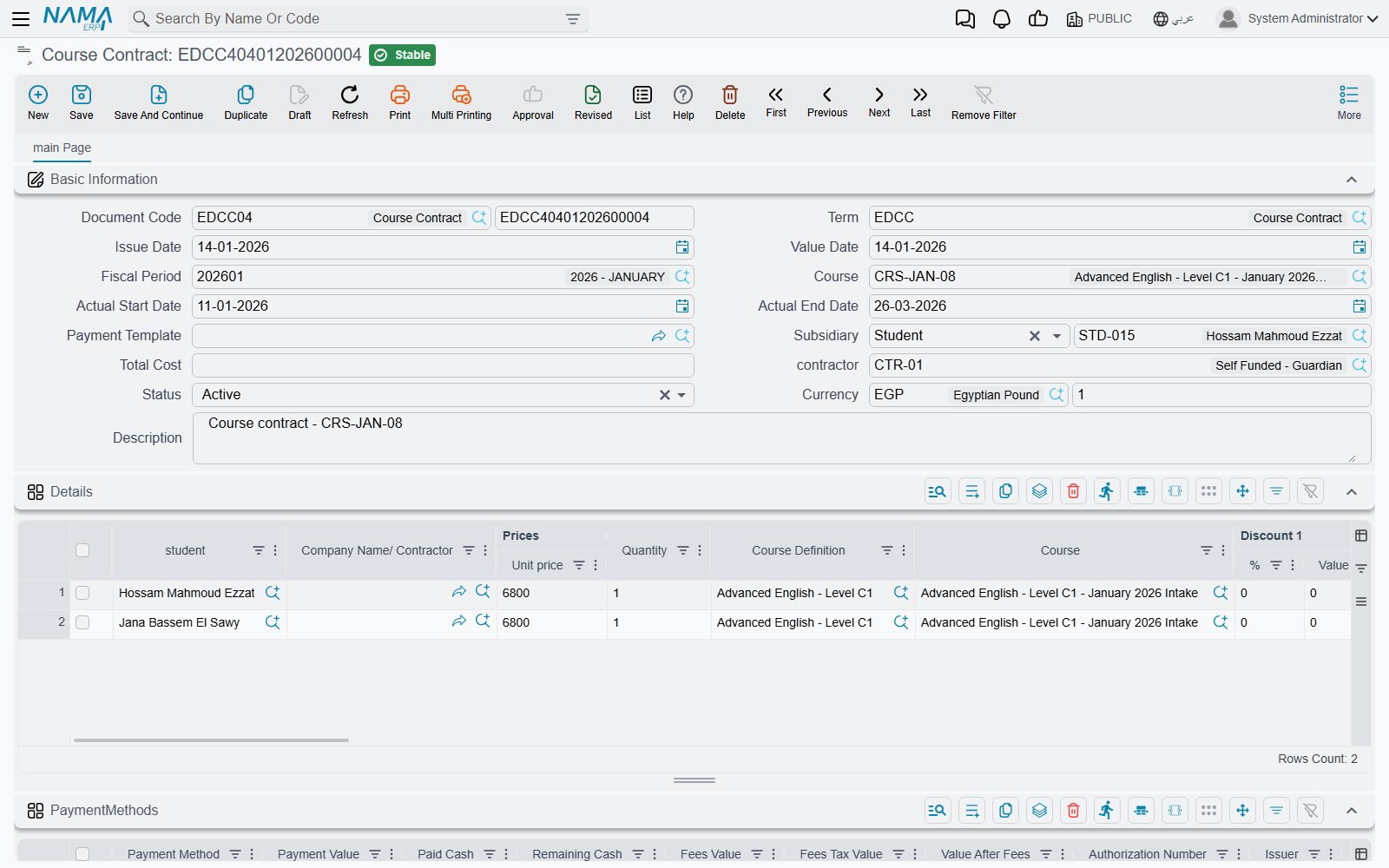
Who the parties are
A contract has two sides, and it is worth being clear about them before you fill anything in.
On one side there is the student. Students appear on the contract's Details grid — one line per enrolled student — and a single contract can carry a whole group. A company sending five staff members on the same training course is one contract with five student lines, not five contracts.
On the other side there is whoever actually owes the money, and that is not always the student. The header field Subsidiary is where you name the paying party, and it accepts a Student, a Guardian, or a Customer. For an adult on a professional course the student pays for himself; for a child, the guardian carries the receivable; for corporate training, a customer account does.
There is a third possibility that avoids naming the payer at all. Because students and guardians are accounting subsidiaries in their own right, the document term can be told to take the party from the student line itself — either the student on the line, or that student's guardian. On a contract enrolling eight children from eight different families, this is what puts each family's share on its own account without anyone having to name eight payers by hand. How this is configured is described on the Document Terms page.
The header also carries a Contractor, and each student line can carry one of its own — useful when the enrolment came through an agency or a sponsoring company.
Filling in the contract
The Basic Information block is standard document territory: the Document Code (its book and number), the Term, the Issue Date, the Value Date and the Fiscal Period. Two of these matter more than they look:
- The Term is not a formality. It is the single thing that decides which accounts the contract will debit and credit. A contract saved under the wrong term books to the wrong place.
- The Value Date is the base date for the instalment plan. When the system generates payments it counts periods forward from here, so a contract whose value date is wrong produces a schedule with all the wrong due dates.
Then comes the Course — the training course being sold, chosen from the Course master file. Picking it does real work, as the next section explains. Actual Start Date and Actual End Date sit alongside it as reference dates you record for the enrolment, and Payment Template is the shortcut that builds the whole instalment plan for you (see Payment Schedules and Collection).
The student lines and where the price comes from
Each line in the Details grid names a Student, a Quantity and a Unit price, and the line's value is simply quantity × unit price. A line left with an empty quantity contributes nothing, so it is worth glancing down that column before committing.
You do not normally type the unit price. When you choose the Course on the header, the system copies that course's Sales Price into the Unit price of the detail lines. The Course master file is therefore the price list for training: set the fee once on the course, and every contract written against it is priced consistently. You can still override a line afterwards — a scholarship student or a negotiated corporate rate is just an edited unit price — but the default comes from the course.
Beyond price and quantity, a line can carry its own Course Definition and Course (handy when one contract covers several offerings), up to eight Discount columns with a percentage or a value each, four Tax columns, and the usual Dimensions — Analysis set, Branch, Department and Sector — so the revenue lands in the right analytical bucket. Taxes here are exactly what you type into the grid: the system takes the percentages and values you enter rather than working them out for you. The Net value column is calculated for you from the price after discounts.
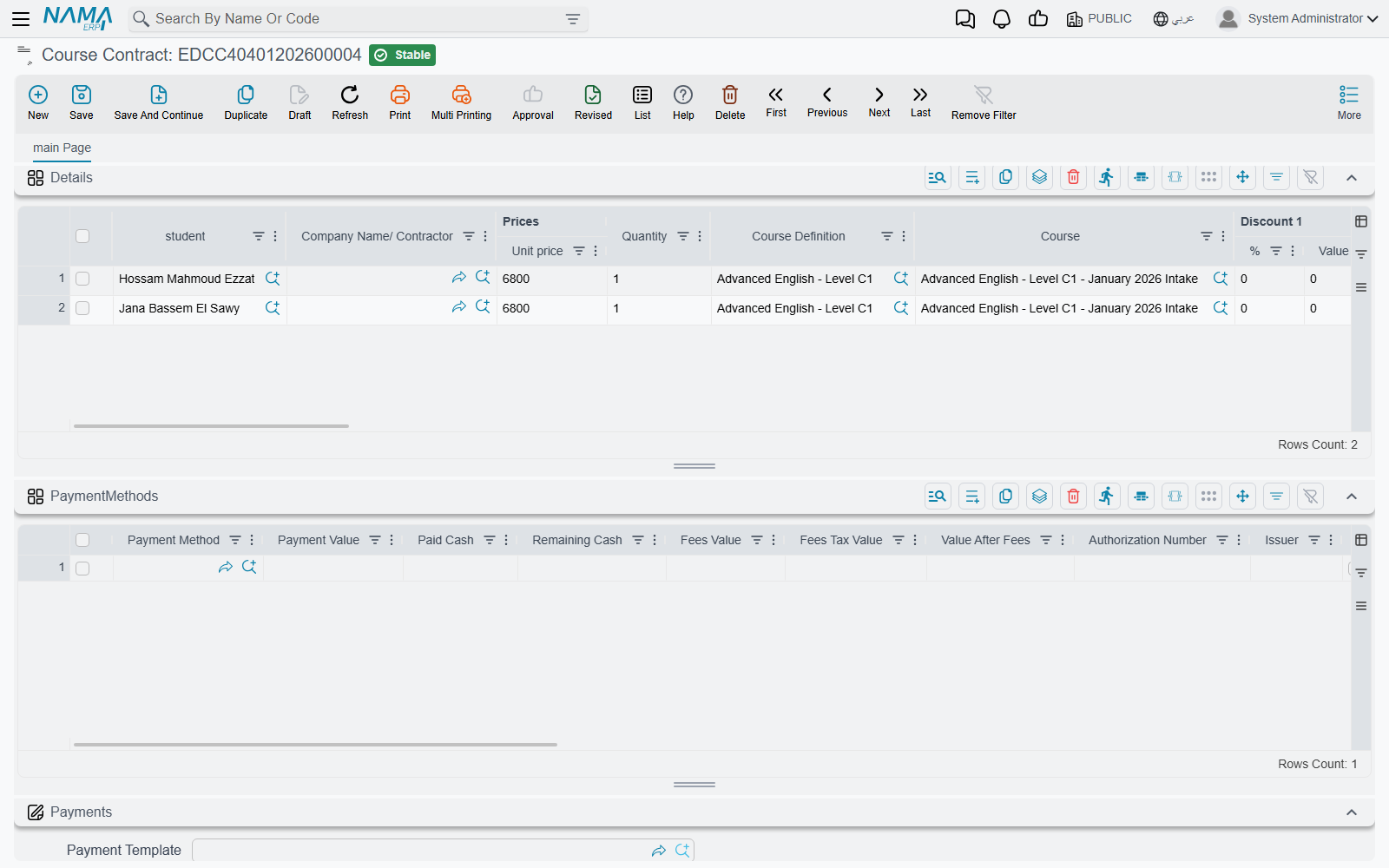
Each line also has its own Subsidiary field, which is the "line subsidiary" the document term can be pointed at when the payer differs from line to line.
Currency and rate
The header carries a Currency and a Currency Rate. If you leave them alone the contract takes the legal entity's own currency at a rate of 1, which is what most schools and training centres want. Fill them in when the contract is genuinely priced in a foreign currency — the rate you set here is the one the ledger entry is translated at, so it is fixed at the moment of processing rather than being re-read later.
What committing the contract actually does
This is the part worth reading twice, because the Course Contract does not behave like a sales invoice.
It writes ledger entries directly. There is no invoice document, no receipt voucher and no payment voucher created behind the scenes. Nothing is reserved, issued or moved in any warehouse — the Education module has no stock movement of any kind. What the contract produces is a general ledger entry, and nothing else.
The document term decides both sides of that entry. The term carries a Debit side and a Credit side, and each of them says which account to use and where to find it. For a normal contract the debit is the party side — the receivable on the student, the guardian or the customer — and the credit is the company side, your training revenue account. The cancellation document uses its own term and reverses those roles.
The party side resolves at the moment of processing, from whichever source the term names:
| The term's account source points at | The system uses |
|---|---|
| Student | The student on the line |
| Guardian | The guardian of the student on the line |
| Document Subsidiary | The Subsidiary on the contract header |
| Line Subsidiary | The Subsidiary on that detail line |
Discounts, taxes and any cash paid at signing have their own sides on the term, so a discount can be booked to a discount account rather than simply shrinking the revenue. All of this is set up once per document term and then applies to every contract written under it; the Document Terms page walks through the screens.
Nothing is hard-coded
Education ships no settings screen of its own. If a contract is booking to the wrong account, the answer is always in the document term it was saved under — not in a module option somewhere.
Watching the effect land
Saving is instant, because the accounting effect is not written line by line while you wait. The contract raises a business request that is processed in the background, and the document carries a processing status that tells you how that went.
Almost always it simply succeeds and there is nothing to do. When it does not — a closed fiscal period, an account missing from the term, a party with no accounts set up — the request is left in a failed state and can be retried without re-entering anything. Power users do this from the Business Requests list view: filter by status, select the failed rows, and use the More menu to reprocess them. The general mechanics, including how to read the processing status, are covered in How documents are processed into accounting effects.
There is also a Regenerate Accounting Effects action on the contract's toolbar. Use it after correcting a document term: it re-issues the ledger entry from the term as it now stands, and removes the entry altogether if the term no longer has a debit or a credit side configured.
What the system checks before it lets you commit
A handful of rules will stop a save, and knowing them saves a lot of guessing:
- A contract needs at least one student line. An empty Details grid is refused outright.
- The instalment plan has to add up. If the contract has a payment schedule, the total of the scheduled instalments must match what the contract leaves to be paid. This is by far the most common message people meet, and it is explained with worked numbers on Payment Schedules and Collection.
- Money collected cannot exceed the contract's value. Recording more than the contract is worth is treated as an error rather than as an overpayment.
- Unit prices and discount values cannot be negative. If you need to reduce a fee, use a discount column; if you need to unwind an enrolment, use the cancellation document.
- Two instalments cannot share the same code. Codes are filled in automatically on save, so this normally only bites when someone has typed them by hand.
Where to go from here
Once the contract is committed, its working life is about money coming in against it, which is the subject of Payment Schedules and Collection. If the enrolment falls through, the contract is unwound by a separate document rather than by editing it — see Cancelling a Course Contract. And if the entries are landing in the wrong accounts, the settings that drive them are on Document Terms.